
Every Byte Matters.
DT Cloud Drive Migration Tool
Cloud to Cloud Migration, Direct and Complete, No Download Required
Whatever the move is, one Google Drive account to another, OneDrive to Dropbox, an entire Mega account to S3, or a full SharePoint site to a fresh cloud, DT Cloud Drive Migration Tool moves it directly from source to destination. Nothing downloads to your computer, nothing sits in a temporary folder waiting to be reuploaded. Connect your source, connect your destination, pick what to move, and the transfer runs cloud to cloud, at full scale, with no cap on how much data you move.


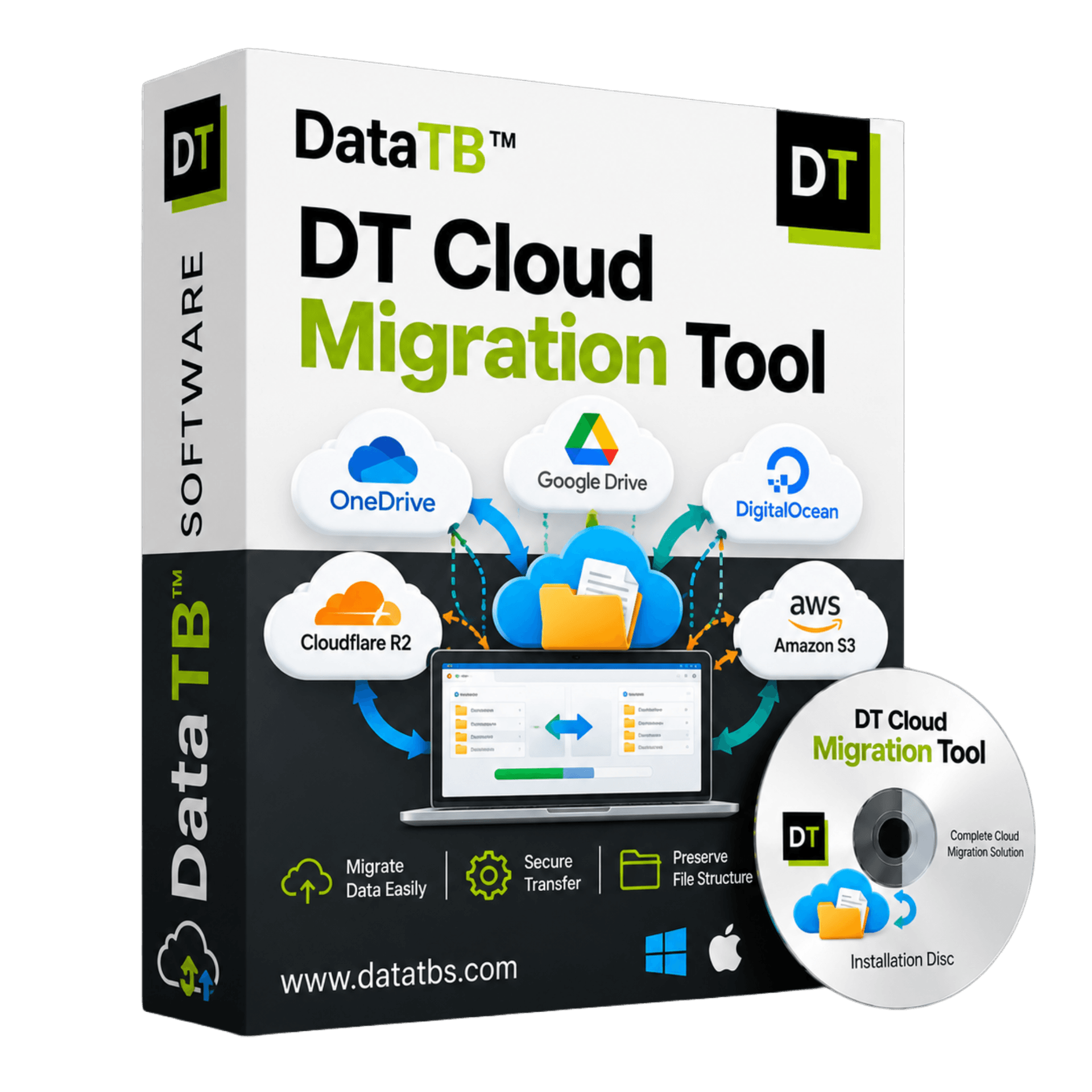
Quick Summary:DT Cloud Drive Migration Tool connects any two cloud accounts, including two accounts on the same provider, and migrates files, folders, structure, and version history directly between them. No download, no size limit, job-based batching for multiple accounts at once, and full audit logs for every run.
Supported Cloud Storage
Supports 15+ Cloud Providers, One Tool














Mix and match any of these as source or destination, including two accounts on the same provider. One tool, every major cloud, no separate app needed per provider.
Why This Is the Migration Tool to Actually Use
Every real cloud migration eventually runs into the same walls with most tools on the market: a monthly data traffic cap that turns a single large migration into a multi-month project, a price that climbs the moment data volume grows, or a feature like CSV mapping or version history that turns out to be locked behind the highest tier or missing entirely.
DT Cloud Drive Migration Tool was built around removing those walls. There is no monthly data traffic cap on any plan, so a 50GB personal migration and a 5TB enterprise migration both run the same way, at the same speed, without watching a usage meter. Every plan includes the complete feature set: filtering, mapping, scheduling, version migration, duplicate handling, thread control, and full audit-ready reports, so a freelancer moving a single project and an IT team migrating an entire organization are using the identical tool, not a stripped-down version of it.
This is the tool individuals reach for when they are done fighting a free tier's data cap, and the tool organizations standardize on when they need a migration engine that scales without renegotiating a contract every time data volume grows.
Core Features
Direct Cloud-to-Cloud Migration
Connect a source and a destination cloud account, and files move directly between them. No download to your device, no local storage used, no bandwidth wasted on a round trip through your own internet connection.
Cross-Cloud and Same-Provider Migration
Move data between two completely different providers, Google Drive to OneDrive, Mega to S3, Dropbox to pCloud, or between two accounts on the identical provider, one Google Drive account to another, one OneDrive tenant to another. Both are first-class, fully supported migration paths.
Job-Based Processing for Multiple Accounts at Once
Create a single job that carries multiple source accounts, drives, or buckets at the same time, instead of running a separate migration for every account one at a time. Useful the moment a migration covers more than one user or one drive.
OAuth-Based Cloud Connection with MFA Support
Every supported cloud connects through secure OAuth authentication, with multi-factor authentication supported wherever the provider offers it. No storing your cloud passwords, no handing over credentials directly.
Connect Multiple Accounts at Once
Add several source and destination accounts across different providers or the same provider, and manage every connection from one place instead of authenticating fresh for every single migration job.
Folder and File Preview Before You Move Anything
Browse the full folder structure and per-file details, size, created date, modified date, and drive type, for both the source and destination before starting a migration. See exactly what is about to move, with nothing committed until you confirm the job.
Filter by Extension, Date, Folder Type, and File Size
Narrow a migration down to exactly what you need: by file extension, by date range, by folder type, or by file size, instead of moving an entire account when only a subset actually needs to go.
Mapping Facility, Including CSV Bulk Mapping
Map source accounts, drives, or folders to their destination manually for a small job, or upload a CSV for bulk mapping when a migration covers dozens or hundreds of accounts at once.
Duplicate Handling: Skip, Rename, or Replace
Choose exactly how the migration handles a file that already exists at the destination. Skip it entirely, rename the incoming copy so both exist, or replace the existing file, whichever fits the job.
Version Migration
Carry a file's full version history across to the destination, not just its current state, for cases where past versions need to remain reviewable after the move.
Large File Migration With No Size Limit
There is no cap on individual file size or total migration size. A single large video file and an entire multi-terabyte archive both migrate the same way.
Resumable Transfers
If a migration is interrupted, by a connection drop, a paused job, or a scheduled pause, it resumes from where it left off instead of starting the entire transfer over.
Folder Structure Preservation
The exact folder hierarchy from the source carries over to the destination, so files land in the same organizational structure they started in, not dumped into one flat folder.
Thread Count Control
Adjust the thread count and item thread count to control how many transfers run in parallel, so the migration speed can be tuned to available bandwidth and system resources.
Incremental Migration
Run a migration once, then run it again later and only the new or changed files transfer. Useful for keeping a destination cloud current without repeating a full migration every time.
Scheduled Migration
Set a migration to run automatically on a recurring schedule, hourly, daily, weekly, or monthly, so an ongoing sync between two clouds happens without manual intervention.
Detailed Job Report
Every migration job produces a complete report broken into failed items, filtered items, and already-migrated items, exportable for recordkeeping. Nothing about a migration happens silently.
No Data Loss, No Local Sync
Files transfer directly between the source and destination cloud's own infrastructure. There is no local sync step in between where a file could get stuck, corrupted, or missed, and no local copy left behind afterward either.
How It Works
Choose your source and destination
Select which cloud account data is coming from and which cloud account it is going to, any combination of the 15+ supported providers, including two accounts on the same service.
Authenticate securely
Connect both accounts through OAuth, with MFA supported where available. No passwords stored, no credentials shared directly with the tool.
Preview and filter
Browse the source folder structure, see per-file details, and apply filters by extension, date, folder type, or file size to scope the migration to exactly what needs to move.
Map source to destination
For a small job, map manually. For a migration covering many accounts or drives, upload a CSV to map everything in bulk in one step.
Set duplicate handling and scheduling
Choose to skip, rename, or replace files that already exist at the destination, and choose whether this is a one-time migration or a scheduled, recurring, or incremental job.
Run the migration
The transfer runs directly between the source and destination cloud, with no download to your device and no cap on data size. Adjust thread count for speed, and if interrupted, it resumes automatically rather than restarting.
Review the detailed job report
Every job produces a report broken into failed items, filtered items, and already-migrated items, exportable for audit or recordkeeping.
DT Cloud Drive Migration Tool vs Other Cloud Migration Tools
| Feature | DT Cloud Drive Migration Tool | Other Cloud Migration Tools |
|---|---|---|
| Free plan | Yes, up to 500MB of data and files under 20MB | Either no free plan beyond a short trial, or a free tier with a small monthly traffic cap |
| Data size limit | None, on any plan | Capped monthly traffic on every tier, with extra data often billed per GB once the cap is hit |
| Same-provider account migration | Fully supported | Usually supported |
| Job-based multi-account batching | Included | Varies; often limited to one account per job on lower tiers |
| Version history migration | Included | Often missing, or migrates only the latest file version |
| CSV bulk mapping | Included | Sometimes limited to manual mapping only |
| Duplicate handling options | Skip, rename, or replace | Often limited to a single default behavior |
| Filtering by extension, date, folder type, and file size | Included on every plan | Often limited on lower tiers |
| Scheduled and incremental migration | Included on every plan | Frequently gated to a higher paid tier |
| Detailed job reports | Included on every plan | Often limited to a basic transfer history unless on a higher tier |
| Pricing model | One time license, full feature set on every plan | Usually a recurring subscription, data-tiered, sometimes requiring a custom enterprise quote |
| Providers supported | 15+, including SharePoint and Proton Drive | Varies widely; core object storage types are sometimes limited or missing on the free tier |
Pricing and feature details for other products reflect publicly available pricing pages and independent reviews at the time of writing and may change. Always confirm current details on the provider's own site before purchasing.
Who DT Cloud Drive Migration Tool Is For
The individual switching providers
Leaving one cloud for another and want everything to arrive intact, folder structure and version history included, without downloading a single file first.
The freelancer or small team consolidating accounts
Merging two Google Drive accounts, or moving a client's Dropbox into your own OneDrive, without worrying about a monthly data cap cutting the job short halfway through.
The IT admin running an organization-wide migration
Migrating SharePoint, Google Workspace, or a mix of provider accounts across an entire team in a single job, with CSV mapping for bulk accounts and full reports for every run.
The enterprise standardizing cloud infrastructure
Consolidating dozens or hundreds of accounts onto a single provider, where a data-capped, subscription-metered migration tool becomes cost-prohibitive at scale, and a flat-licensed tool with no data ceiling makes budgeting predictable.
System Requirements
| Executable File Size | 39.7 MB |
| Supported Architecture | 32-bit / 64-bit |
| Operating System | All versions of Windows (Windows 11, 10 recommended), all versions of Windows Server (latest recommended) |
| Virtual Compatibility | VMware (vSphere/ESXi 9.x+), MS Hyper-V, Oracle VirtualBox, VMware Workstation Pro |
| Processor | Minimum 2 GHz, 2-core (64-bit/x86) |
| Memory (RAM) | Minimum 2 GB |
| Disk Space | Minimum 1 GB |
| Prerequisite | If using Windows 8 or earlier, .NET Framework 4.7 or later required |
| Free Trial | Process up to 500 MB of data and files under 20 MB |
| Data Size Limit (Licensed) | None |
Frequently Asked Questions
Does this tool download my files to my computer during migration?
No. Files transfer directly between the source and destination cloud provider's own infrastructure. Nothing is downloaded to your device at any point.
Is there a limit on how much data I can migrate?
No. There is no data size limit on any plan, whether the migration is a few gigabytes or several terabytes.
Can I migrate between two accounts on the same cloud provider?
Yes. Moving from one Google Drive account to another, or one OneDrive account to another, is fully supported, the same as migrating between two different providers.
Can I migrate multiple accounts or drives in a single job?
Yes. Job-based processing lets you add multiple accounts, drives, or buckets to one job instead of running a separate migration for each.
What happens if my migration gets interrupted?
The transfer resumes from where it stopped rather than starting over, whether the interruption was a connection drop or a manually paused job.
Can I migrate only certain file types, a specific date range, or files above a certain size?
Yes. Filter by file extension, date range, folder type, or file size before starting the migration, so only what you actually need moves.
How does the tool handle files that already exist at the destination?
You choose: skip the file, rename the incoming copy so both exist, or replace the existing file. This is set before the migration runs.
Does the tool migrate file version history, or just the current version?
Version migration is included, so a file's full version history can move across along with its current state, not just the latest snapshot.
Can I map many accounts to their destinations at once instead of doing it manually?
Yes. For migrations covering many accounts or drives, a CSV mapping file can be uploaded to map everything in bulk.
Can I set up a migration to run automatically on a schedule?
Yes. Set a one-time migration, or configure a recurring schedule (hourly, daily, weekly, or monthly), along with incremental migration so only new or changed files transfer on repeat runs.
Is there a report of what was migrated?
Yes. Every migration job produces a detailed report broken into failed items, filtered items, and already-migrated items, which can be exported for recordkeeping.
Can I control migration speed?
Yes. Thread count and item thread count settings control how many transfers run in parallel, so speed can be tuned to available bandwidth and system resources.
How is my data kept secure during authentication?
Every supported cloud connects through OAuth, with multi-factor authentication supported where the provider offers it. Passwords are never stored or handled directly by the tool.
Which cloud providers are supported?
Google Drive, OneDrive, Dropbox, Box, Amazon S3, Cloudflare R2, Google Cloud Storage, Azure Blob Storage, Backblaze B2, pCloud, Mega, Nextcloud, DigitalOcean Spaces, Yandex Disk, TeraBox, SharePoint, Proton Drive, and FTP/SFTP servers.
What Real Users Say
"We consolidated four regional SharePoint sites into one during a company restructure. Being able to batch all four accounts into a single job with CSV mapping saved us days."
— Verified IT Admin
"Moved a 2TB Mega account to S3 without touching a data cap once. The version migration option meant we didn't lose any file history in the process."
— Verified Freelancer
Get Started
Connect your source and destination, preview what is about to move, and run your first migration free.