
Every Byte Matters
DT Outlook PST Toolkit
Split Large PST Files or Merge Multiple PST Files Into One
DT Outlook PST Toolkit handles two opposite problems with the same PST file: breaking an oversized PST into smaller, manageable files, or combining several scattered PST files into one, with control over exactly which folders, date ranges and duplicate items make it into the result. Both operations run through the same interface, the same filtering options, and the same transparent processing log, without needing Outlook installed.


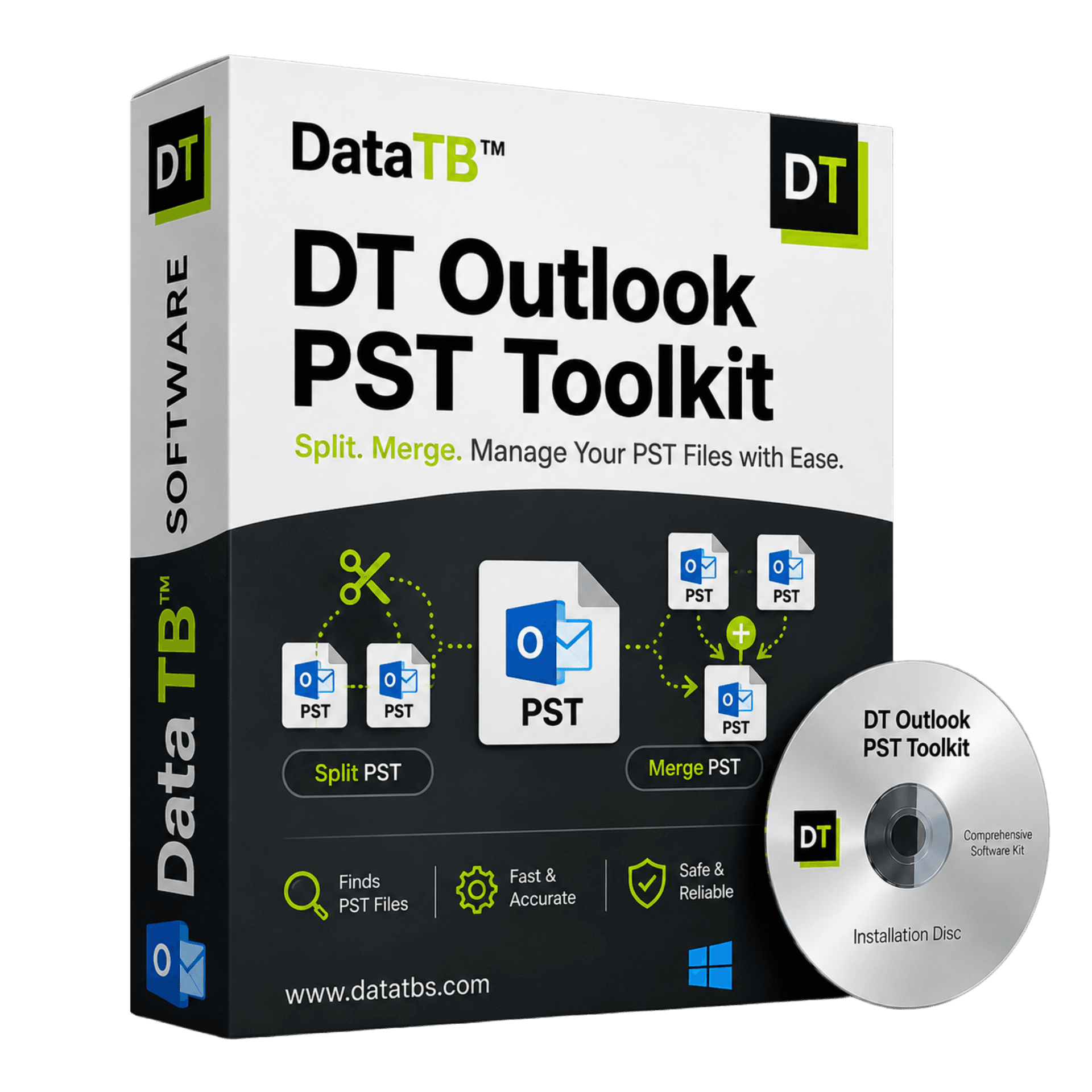
Quick Summary:DT Outlook PST Toolkit handles two opposite problems with the same PST file: breaking an oversized PST into smaller, manageable files, or combining several scattered PST files into one, with control over exactly which folders, date ranges and duplicate items make it into the result. Both operations run through the same interface, the same filtering options, and the same transparent processing log, without needing Outlook installed.
Key Features of DT Outlook PST Toolkit
Two operations, one tool. Split and Merge are selected from a single screen at the start, with no separate purchase or separate install for either one.
Three split modes: by file size, by year (a separate PST created for each year), or by top-level folder.
Two merge modes: Merge, which combines matching folders from every source file into one unified structure, or Join, which keeps each source PST intact as its own subfolder inside the result. Which one fits depends on whether the goal is one blended mailbox or several files kept identifiable side by side.
Choice of merge destination: build a brand new PST file, add the merged content into an existing PST, or bring it directly into an Outlook profile, depending on where the result actually needs to live.
Duplicate detection during merge, checked against fields like subject line, sender, and sent date, so combining files that already overlap does not produce a mailbox full of repeated emails.
Folder-level selection for merge and join jobs: choose exactly which folders from each source file get included, rather than pulling in every folder by default and filtering afterward.
Date range filtering: restrict a split or merge job to a specific window of time, useful when only a particular period needs to be pulled out or combined rather than an entire mailbox.
Password-protected PST support: source files that are password protected can be split, merged, or joined without needing to enter or remove the password first.
Shared filter and cleaning options: exclude Deleted Items and Trash, exclude Junk and Spam, remove empty folders, or strip all attachments, available identically for both split and merge jobs.
Batch file loading: add individual files or an entire folder of PST files at once.
No Outlook required: reads and writes PST files through an independent engine.
Transparent processing log: a live, timestamped log shows exactly what the tool is doing at every stage, not just a progress bar.
Configuration file generated per job: every run creates a JSON config recording the exact settings used, useful for repeating or auditing a job later.
No file size limit: large PST files are handled without forcing a workaround first.
Split PST Files: When One File Has Become a Problem
A PST file does not fail all at once. It slows down gradually: first a longer wait to open Outlook, then search taking noticeably longer, then errors that only started appearing once the file crossed a certain size. Outlook itself enforces limits on how large a PST file can safely get before performance and stability suffer, and a file already past that point does not fix itself by waiting.
Splitting breaks one oversized PST into several smaller, healthier files, restoring normal Outlook performance without deleting a single email.
Split by File Size
Set a target size and the tool divides the PST into that many parts automatically. The straightforward choice when the goal is simply keeping every resulting file under a specific size limit, whether that's for storage, for email attachment limits, or for staying comfortably under what Outlook can handle without slowing down.
Split by Year
Creates a separate PST file for each year found in the mailbox. This is the option most suited to long-term recordkeeping, since a specific year's correspondence stays fully self-contained in its own file, easy to archive, easy to hand off for an audit, and easy to locate later without searching through everything else.
Split by Folder
Splits based on the mailbox's existing folder structure. Each top-level folder, whether that's Inbox, Sent Items, or a custom project folder, gets exported into its own PST file. Useful when specific folders need to be separated out and handled independently, rather than the whole mailbox needing a size-based or date-based split.
Split by Date Range
Pulls a specific window of time out of a larger PST rather than dividing the whole file. Useful for isolating a single quarter, a project's active period, or any range that needs to be handled on its own without touching everything else in the mailbox.
Merge PST Files: When the Data Is Scattered, Not Oversized
The opposite problem is just as common. A five-year employee has old export files stitched together after a laptop replacement, a merged team's PST archives sit in separate files after two departments combined, or years of periodic exports built up into a folder full of disconnected PST files nobody has consolidated.
Merging takes multiple PST files and combines them into a single, unified file, restoring one searchable mailbox instead of several fragments that each need to be checked separately.
Loading files for a merge works exactly like loading files for a split: individual files or an entire folder at once. The same filtering options apply, excluding Deleted Items, excluding Junk, skipping empty folders, restricting to a date range, or stripping attachments, before the merged file is created, so unwanted clutter does not get carried forward into the consolidated result.
Merge vs Join: Two Different Outcomes
Merge and Join both combine multiple PST files, but they produce different structures, and picking the right one matters.
Merge blends matching folders together. If three source files each have their own Inbox, merging produces one combined Inbox containing everything from all three, rather than three separate Inbox folders sitting side by side.
Join keeps each source file distinct. Every PST that goes in becomes its own labeled subfolder in the result, with its original folder structure intact underneath it. Nothing from different files gets blended together.
Merge fits situations where the goal is one unified mailbox, like consolidating a departing employee's scattered exports into a single searchable archive. Join fits situations where files need to stay traceable back to their source, like keeping three departments' PST files identifiable after a reorg, even though they now live in one file for convenience.
Choosing Where the Result Goes
A merge or join job can be directed to three different destinations. A brand new PST file can be created from scratch, existing content can be added into a PST that already exists, or the result can be brought directly into a connected Outlook profile. Which one makes sense depends on whether the destination already has content that needs to be preserved alongside what's being added, or whether starting clean is the better option.
Removing Duplicates During a Merge
Combining PST files that already overlap, two exports from the same mailbox taken months apart, for instance, tends to produce duplicate emails if nothing checks for them. Duplicate detection compares incoming items against what's already been processed using fields like subject, sender, and sent date, and skips anything that's already present rather than adding a second copy. This runs automatically during a merge and can be turned off for jobs where every item, duplicate or not, needs to be preserved exactly as found.
Filters and Controls Available for Both Operations
Most tools in this category treat splitting and merging as entirely separate products with entirely separate settings to relearn. DT Outlook PST Toolkit uses the same filter and cleaning options for both operations, so switching between the two does not mean starting over on configuration.
Exclude Deleted Items and Trash.
Skip content already marked for deletion instead of carrying it into a new split or merged file.
Exclude Junk Email and Spam.
Leave spam folder content behind rather than preserving it in the result.
Remove or skip empty folders.
Skip folder structure that holds nothing, keeping the resulting file or files cleaner and easier to navigate.
Restrict by date range.
Limit a job to a specific window of time rather than processing an entire mailbox's history.
Select specific folders to include.
Rather than processing every folder by default, choose exactly which ones from each source file should be part of the result, leaving the rest untouched.
Process without attachments.
Strip all attachments from the operation, useful when only the email content and metadata matter, not the files attached to them, and file size needs to stay as small as possible.
Work with password-protected PST files.
Source files protected by a password can be split, merged, or joined directly, without needing to open them in Outlook and remove the password first.
How It Works, Split or Merge
Step 1: Choose the operation.
Select PST Split, PST Merge, or PST Join from the first screen. Everything downstream, file loading, filtering, and execution, follows the same layout regardless of which one is picked.
Step 2: Import the PST files.
Add individual files or an entire folder at once. Each file shows its name, size and path before anything runs, so what is loaded is always clear before proceeding. Password-protected files are accepted at this stage without any extra step.
Step 3: Set the options.
For a split, choose by File Size, by Year, by Top-level Folder, or by Date Range. For a merge or join, choose the destination (new PST, existing PST, or Outlook profile), select which folders to include, and decide whether duplicate detection should run. The same filter and cleaning options, exclude Deleted Items, exclude Junk, remove empty folders, restrict by date, or strip attachments, apply to either direction.
Step 4: Run and watch the live log.
Start the operation and watch a live, timestamped log of exactly what is happening, not a silent progress bar. A configuration file is generated automatically for the job, useful for repeating the same settings later or keeping a record of exactly what ran.
A Process You Can Actually Watch, Not Just Wait On
Most split and merge tools show a generic progress bar with no detail behind it. DT Outlook PST Toolkit logs every stage of the job in real time: when the task starts, how many files were loaded, which folders were included or skipped, how many duplicates were detected during a merge, when the configuration file was generated and where it was saved, and when the underlying processing engine launches. Nothing about what the tool is doing is hidden behind a spinning icon with no explanation.
This matters most in a business setting, where a job that fails partway through needs a clear record of what happened before the failure, not just a vague error message. The configuration file generated for every run also means a job's exact settings, operation mode, destination, filters applied, folders selected, files included, are recorded and can be referenced or reused later without reconstructing them from memory.
Situations This Toolkit Actually Solves
A PST file too large for Outlook to handle comfortably.
Split by file size into parts that stay well within a safe operating range.
Old email needing yearly archival structure.
Split by year, one file per year, ready for long-term storage or a compliance retention schedule.
A department's PST files after a reorg, kept identifiable.
Join everyone's files into one, with each department's original file preserved as its own subfolder rather than blended together.
Two exports of the same mailbox that need to become one clean archive.
Merge with duplicate detection turned on, so the same emails found in both source files don't end up doubled in the result.
Only a specific quarter or project's emails need to be pulled out.
Use date range filtering on a split or a merge to isolate exactly that window, leaving the rest of the mailbox untouched.
A password-protected PST from an old backup needs to be processed.
Load it directly into a split, merge, or join job without needing to first recover or remove the password in Outlook.
A job that needs to be repeated with the exact same settings.
The generated configuration file records precisely what was run, useful for recurring maintenance jobs on the same mailbox structure.
Who Uses DT Outlook PST Toolkit
Anyone with an Outlook that has slowed to a crawl.
A single oversized PST file is very often the cause. Split it and get normal performance back without losing anything.
IT administrators managing employee offboarding.
Old PST exports pile up over the years. Merge them into a single per-employee archive with duplicates removed, or split a departing employee's mailbox by year for retention purposes.
Legal and compliance teams.
Splitting a mailbox by year, or pulling out a specific date range, creates clean, self-contained files that map directly onto typical retention and audit requirements.
Anyone consolidating after a device change or team merger.
Multiple PST files from old laptops or combined departments get merged or joined into one searchable file instead of staying scattered, with the choice of blending everything together or keeping each source traceable.
Users hitting Outlook's own PST size limits.
Splitting keeps every resulting file safely under whatever size threshold is actually causing the slowdown or the errors.
Anyone working with old, password-protected backup files.
Files locked with a password from years ago don't need to be unlocked first. They load and process the same as any other PST.
DT Outlook PST Toolkit: Demo vs Full Version
The demo runs the full workflow exactly as the full version does: choosing the operation, loading files, setting filters, selecting folders, and watching the live log all work identically. Only the final output volume is limited until the full version is activated.
| Feature | Demo Version | Full Version |
|---|---|---|
| Load PST files, single or batch | Included | Included |
| Choose Split, Merge, or Join operation | Included | Included |
| All split modes: Size, Year, Folder, Date Range | Included | Included |
| Merge destination: New, Existing, or Outlook Profile | Included | Included |
| Duplicate detection during merge | Included | Included |
| Folder-level selection | Included | Included |
| Password-protected PST support | Included | Included |
| All filter and cleaning options | Included | Included |
| Live processing log | Included | Included |
| Configuration file generated per job | Included | Included |
| Complete split, merge, or join output | Limited items per folder | No limit |
| Price | Free | Paid |
System Requirements
Split It Down or Bring It Together, Same Tool Either Way
Whether Outlook has slowed to a crawl under one oversized file or years of exports have scattered into a dozen separate PST files nobody has consolidated, DT Outlook PST Toolkit handles both directions from the same install, with the control to choose exactly which folders, which date range, and which destination the result lands in. Run the free trial against a real file and watch exactly what happens, step by step, before deciding to buy.
Frequently Asked Questions
Is PST Split and PST Merge the same tool, or do I need to buy them separately?
The same tool. Split, Merge, and Join are all available from the same install, selected from a single screen, using the same filtering options.
Do I need Microsoft Outlook installed to use this?
No. DT Outlook PST Toolkit reads and writes PST files through its own independent engine, with no dependency on an Outlook installation.
What is the difference between Merge and Join?
Merge blends matching folders from every source file into one combined structure. Join keeps each source file distinct, adding it as its own labeled subfolder in the result rather than mixing content together.
What is the difference between splitting by size and splitting by year?
Splitting by size divides the file into parts that stay under a target file size, useful for storage or performance limits. Splitting by year creates one self-contained PST file per year, better suited to long-term archival and retention needs.
Can I choose where a merged file goes, or does it always create a new PST?
There's a choice of three destinations: a newly created PST file, an existing PST that already has content, or directly into a connected Outlook profile.
Does merging remove duplicate emails automatically?
Yes. Duplicate detection compares items against fields like subject, sender, and sent date, and skips anything already present in the result. It runs by default during a merge and can be disabled for jobs that need every item preserved regardless of overlap.
Can I merge or split only specific folders instead of the whole mailbox?
Yes. Folder-level selection lets you choose exactly which folders from each source file are included, rather than processing everything by default.
Can I split or merge based on a date range instead of the whole file?
Yes. Date range filtering restricts a job to a specific window of time, whether that's isolating one quarter for a split or combining only a certain period during a merge.
Does this tool work with password-protected PST files?
Yes. Password-protected source files can be split, merged, or joined directly without needing to remove the password in Outlook first.
Can I merge PST files and apply filters at the same time, like excluding Junk or Deleted Items?
Yes. The same filter and cleaning options used for splitting, excluding Deleted Items, excluding Junk, removing empty folders, restricting by date, and stripping attachments, apply directly during a merge or join as well.
Is there a limit on how large a PST file can be for either operation?
No enforced size limit. Large PST files can be split or included in a merge without needing to be broken down manually first.
What does the generated configuration file actually do?
Every split, merge, or join job automatically produces a JSON configuration file recording the exact settings used: which operation and destination were selected, which filters and folders were applied, and which files were included. It provides a record of the job and can be referenced to repeat the same settings later.
Can I load an entire folder of PST files instead of adding them one at a time?
Yes. Split, Merge, and Join all support adding a full folder of PST files in one step, in addition to selecting individual files.
What happens to attachments if I choose "Process without attachments"?
All attachments are stripped from the operation entirely, whether splitting, merging, or joining, leaving only the email content and metadata in the resulting file or files.
What is the difference between the demo and the full version?
The demo runs the complete workflow for all three operations, including all filters, folder selection, and the live processing log, with output limited to a set number of items per folder. The full version removes that output limit entirely.