
Every Byte Matters.
DT Cloud Duplicate File Finder
Find and Remove Duplicate Files Across 15+ Cloud Platforms
DT Cloud Duplicate File Finder is a desktop tool that scans Google Drive, OneDrive, SharePoint, Dropbox, Box, Amazon S3, Cloudflare R2, Google Cloud Storage, Azure Blob Storage, Backblaze B2, pCloud, Mega, Synology NAS, Nextcloud, DigitalOcean Spaces, Yandex Disk, TeraBox and FTP/SFTP servers for duplicate files. Connect your accounts once, scan them from one dashboard, and nothing is downloaded to your PC.
- Built for individuals and businesses, from one personal account to enterprise storage
- Pick Fast Scan by name and size, or Deep Scan by file hash
- Connect multiple accounts per provider and scan a full account or only selected folders
- Preview every duplicate group before anything is removed
- Send removed files to each provider's own trash, so they stay recoverable


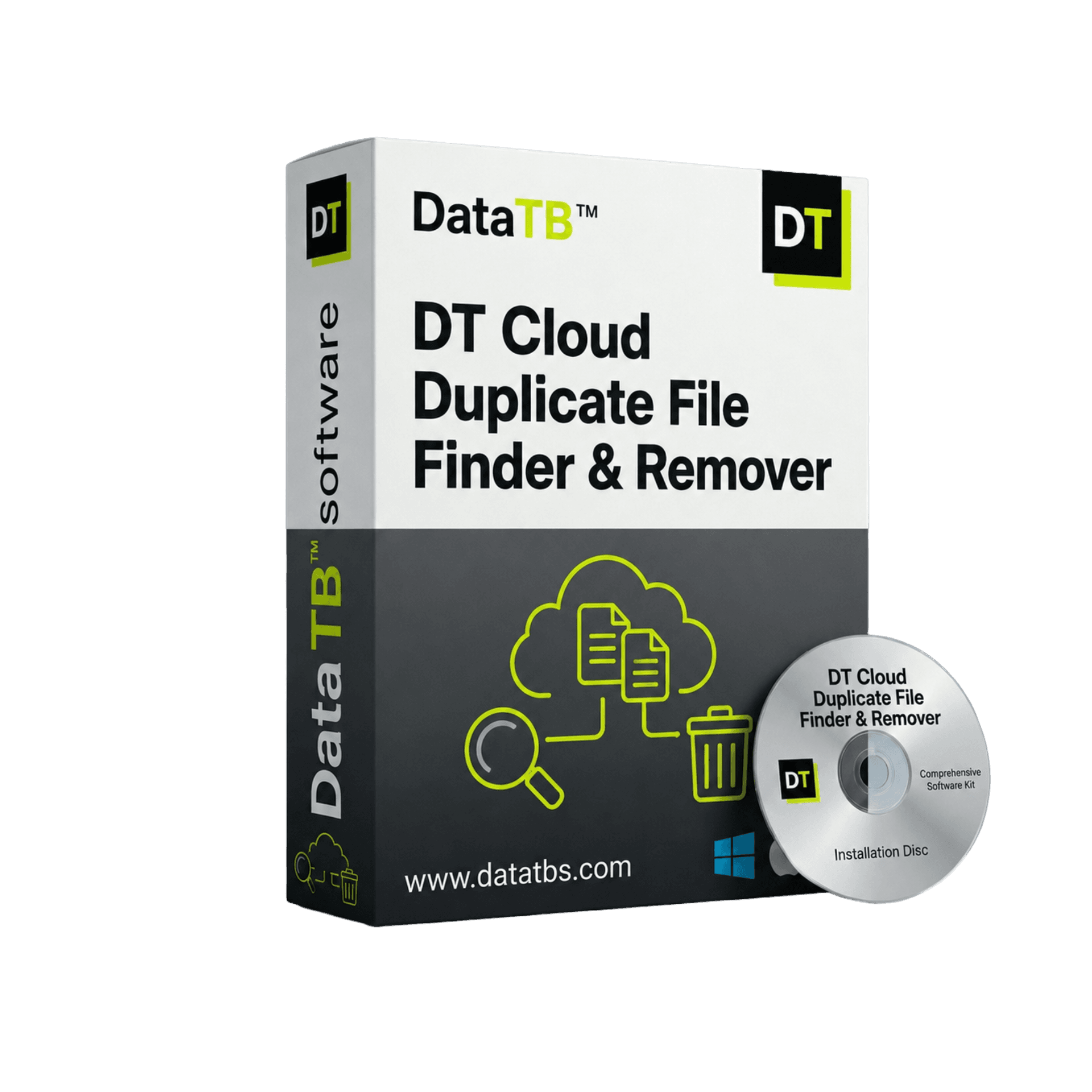
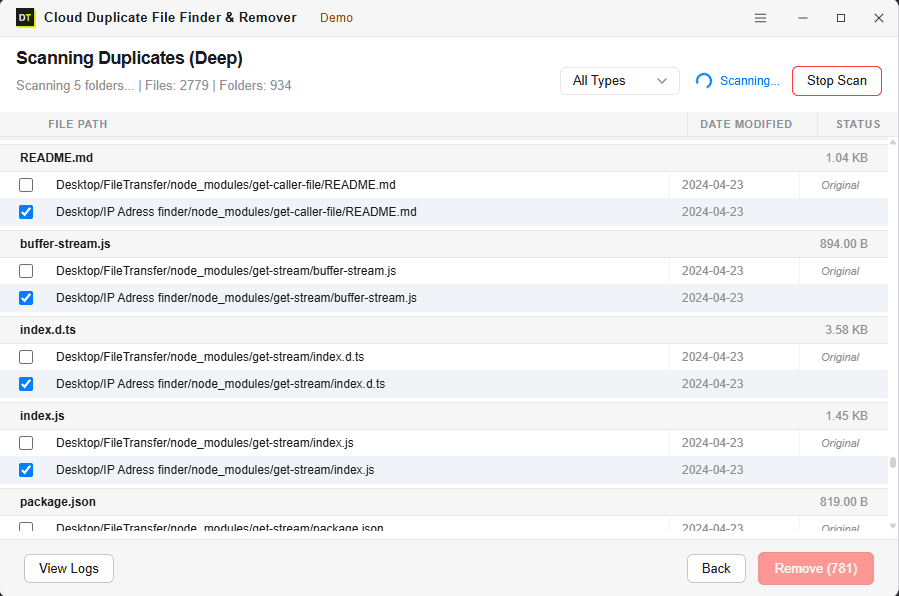
Quick Summary:DT Cloud Duplicate File Finder is a desktop tool that finds and removes duplicate files across multiple cloud storage accounts. It matches files by name and size with Fast Scan, or by file hash with Deep Scan. Every result is reviewed before anything is deleted, and removed files go to each provider's own trash. The full scan is free, and removing duplicates needs the full version..
Supported Cloud Storage
One Tool. Every Major Cloud.









Key Features of DT Cloud Duplicate File Finder
15+ cloud platforms, one dashboard: consumer clouds, business storage, and self-hosted platforms in a single tool
Zero-download scanning: every scan runs through each provider's official API, files never leave your account
Two scan modes: Fast Scan by name and size, Deep Scan by file hash for byte-for-byte accuracy
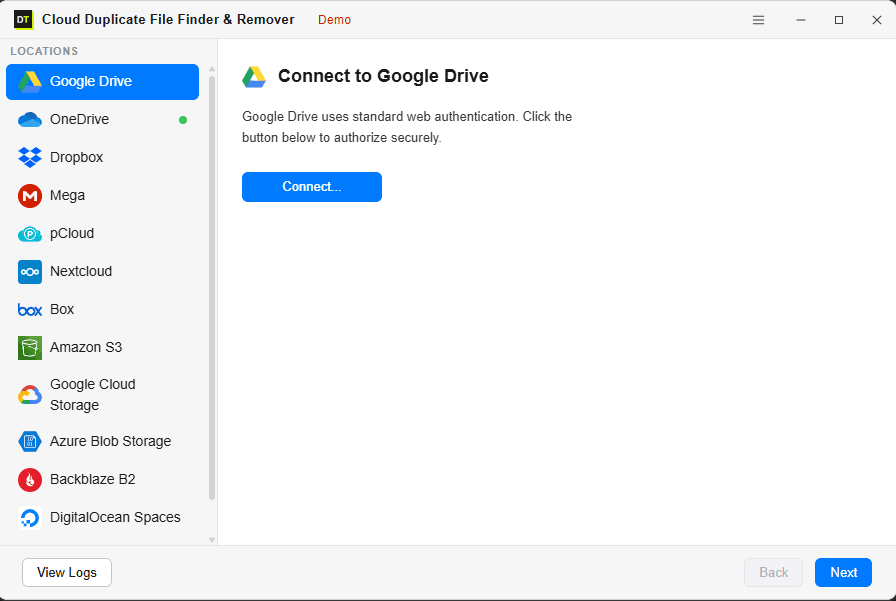
Official OAuth for every provider: passwords are never entered into the app or seen by it
Multi-account support: connect more than one account from the same provider, for example two Google Drive accounts, and manage both from the same dashboard
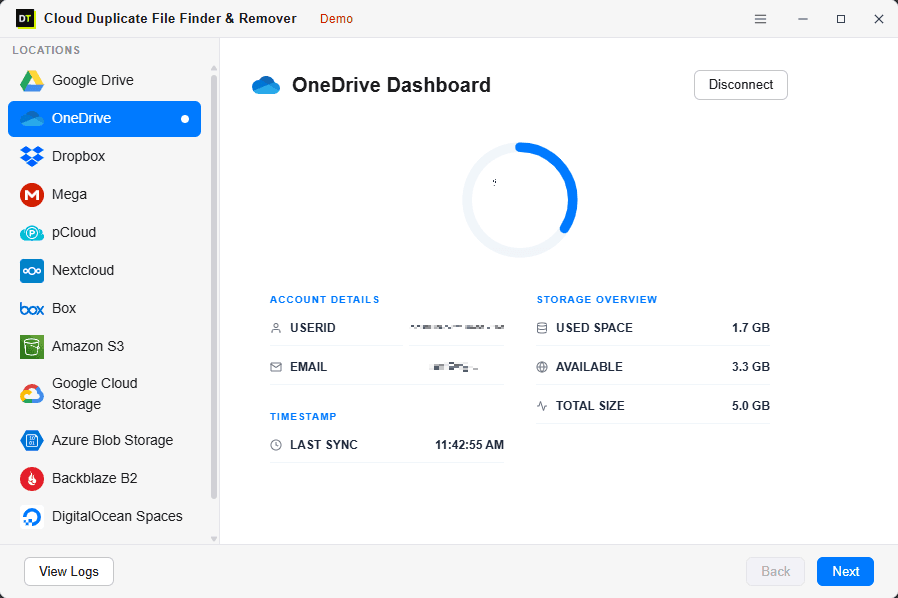
Live multi-cloud storage overview: used space, available space, total capacity and last sync time for every connected account, without logging into separate consoles
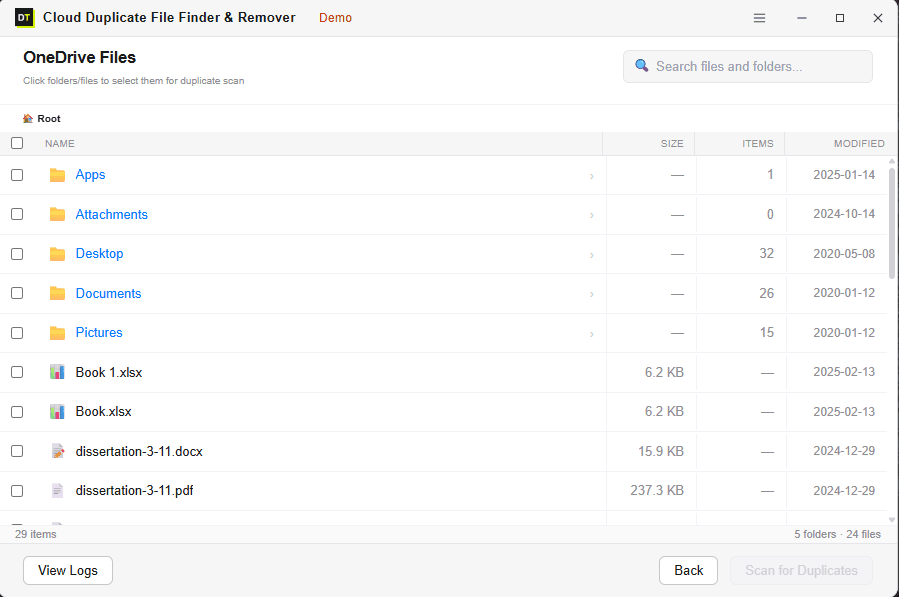
Folder and file-level selective scanning: scan an entire account or a specific folder only
Native trash bin removal: duplicates are sent to each provider's own trash, not deleted permanently
Full activity log: every scan and removal recorded with a timestamp
Free scan, paid removal: run a complete scan across every connected account before deciding to buy
Enterprise-grade scaling: handles unlimited data sizes and deduplicates 500+ file formats (documents, videos, images)
Why Cloud Storage Fills Up With Duplicate Files, Not Just Files
Most cloud storage bills climb for one reason that rarely gets noticed: the same file existing in more than one place. A phone backs up a photo that already synced from a laptop the week before. A project folder gets copied into a second cloud "just to be safe" before a client handoff. A PDF gets re-saved under a slightly different name during a review cycle and now exists twice.
None of this is a mistake in the moment. Cloud sync tools are built to add files, not check whether the same content already exists somewhere else in the account, and the pattern compounds the moment more than one cloud provider enters the picture.
A freelancer with client files split across Google Drive and Dropbox. A development team with build artifacts piling up across Google Cloud Storage, Azure Blob Storage and DigitalOcean Spaces. An IT admin backing up to Backblaze B2 and a self-hosted Nextcloud instance at the same time. None of these situations can be checked by logging into five separate web consoles and comparing filenames by eye. The storage bill keeps climbing, the search results keep returning three versions of the same document, and nobody has a clear answer for how much of what is being paid for is actually duplicate content.
15+ Cloud Platforms, One Dashboard
Most duplicate file tools on the market cover three to five providers, typically Google Drive, OneDrive, Dropbox, Amazon S3 and Box. DT Cloud Duplicate File Finder covers all of those plus the business and developer platforms that general-purpose tools tend to skip entirely. Every provider is connected the same way, through official OAuth, and every connected account shows up in the same dashboard alongside every other one already linked.
Consumer and productivity clouds
Google Drive, OneDrive, Dropbox, Box, pCloud, Mega
Developer and business cloud storage
Amazon S3, Google Cloud Storage, Azure Blob Storage, Backblaze B2, DigitalOcean Spaces
Self-hosted and remote storage
Synology Duplicate File Finder (NAS), Nextcloud, FTP and SFTP servers
Fast Scan vs Deep Scan: Choosing the Right Match Method
The choice between the two is a genuine trade-off between speed and certainty, not a matter of one mode being universally better than the other.
Matches files by name and size. This is the quicker option, well suited to accounts where duplicates are expected to be obvious, exact re-uploads or synced copies that kept their original filename. Fast Scan is the right default when time matters more than catching every possible edge case.
Matches files by a unique hash value, a byte-for-byte fingerprint of the actual file content, independent of filename, folder or which cloud account the file happens to sit in. This is the mode to use before a migration, a storage audit, or anywhere accuracy cannot be compromised. Deep Scan catches everything Fast Scan catches, plus files renamed at some point, files re-saved under a different name during editing, and identical content sitting in entirely different folders or accounts.
How Cloud Duplicate Scanning Works, Step by Step
Connect a Cloud Account
Pick a provider from the Locations panel and authorize access through official OAuth. Real account data populates immediately, including account identifier, linked email, used space, available space and last sync time.
Choose What to Scan
Instead of forcing a full-account scan, browse the folder structure and select exactly what needs scanning, one folder, several folders, or an entire account.
Run Fast Scan or Deep Scan
Fast Scan for a quick pass by name and size, Deep Scan for byte-for-byte hash accuracy. Watch the scan progress live, with real-time file count, folder count and per-file status.
Review and Remove
Every duplicate found is grouped and shown for review before anything is deleted. Confirm what to remove and remove in bulk in a single action. Removed files go to each provider's own trash bin, recoverable through that provider's normal interface.
What Gets Read During a Scan, and What Never Does
Every scan runs through each provider's official API, using the same OAuth login screen used to sign into that provider directly. Passwords are never entered into the app and never touch any external server.
What is read:
file name, file size, and file hash for Deep Scan, computed against the cloud copy directly.
What is never read or stored:
file contents, document text, image data, or anything contained inside the files. Nothing is downloaded locally during a scan, and nothing is retained outside your own cloud account once a scan finishes.
Deletion is never automatic. Every duplicate identified goes through manual review, and only confirmed selections are removed, sent to the provider's own trash rather than deleted permanently.
Built for People Managing More Than One Cloud Account
Multi-cloud storage overview
Used space, available space, total capacity and last sync timestamp for every connected account, visible in one place instead of five separate provider dashboards.
Multiple accounts per provider
Two Google Drive accounts, three S3 buckets under different credentials, or a mix of personal and business Dropbox accounts can all be connected and managed from the same dashboard.
Live scan monitoring
Real-time file count, folder count and per-file status while a scan runs, rather than a static progress bar with no indication of what is actually happening.
Full activity history
Every scan and every removal logged with a timestamp, giving a clear record of what changed and when across every connected provider.
Who Uses DT Cloud Duplicate File Finder
Freelancers and agencies
with client files scattered across Google Drive, Dropbox and Amazon S3, with no time to manually compare folders one by one before a handoff or backup.
Development teams
watching build artifacts and static assets accumulate across Google Cloud Storage, Azure Blob Storage and DigitalOcean Spaces, quietly inflating the monthly cloud bill without anyone noticing until the invoice arrives.
IT administrators
running backups to Backblaze B2, Amazon S3, or a self-hosted Nextcloud instance, with no existing way to audit duplication across all of them from one place.
MSPs and consultants
running a storage audit across a client's cloud accounts before a migration, to determine how much of the storage footprint is genuine data versus accumulated duplicate copies.
Anyone paying for a storage tier upgrade
that duplicate files, not actual new content, are the real reason it became necessary in the first place.
DT Cloud Duplicate File Finder Compared to Typical Duplicate Finders
| Capability | Typical Cloud Duplicate Finders | DT Cloud Duplicate File Finder |
|---|---|---|
| Cloud providers supported | 3 to 5, usually Drive, OneDrive, Dropbox, S3, Box | 15+, including developer and self-hosted platforms |
| Match method | Name and size only | Fast (name and size) or Deep (hash) |
| Developer/business storage (S3, Azure, GCS) | Rarely supported | Fully supported |
| Self-hosted storage (Nextcloud, FTP/SFTP) | Not supported | Supported |
| Multiple accounts per provider | Rarely supported | Supported |
| Folder-level selective scanning | Sometimes | Always available |
| Files downloaded locally during scan | Often required | Never |
DT Cloud Duplicate File Finder: Free Scan vs Full Version
Connect the first cloud account and run a full Fast or Deep Scan at no cost to see exactly how much space is being wasted across every provider before deciding to buy.
| Feature | Free Scan | Full Version |
|---|---|---|
| Connect all 15+ supported providers | Included | Included |
| Enterprise-Grade (Unlimited Data) | Included | Included |
| Supports 500+ File Formats | Included | Included |
| Supports 500+ Formats (Docs, Videos, Images) | Included | Included |
| Multiple accounts per provider | Included | Included |
| Fast Scan | Included | Included |
| Deep Scan, hash-accurate | Included | Included |
| Multi-cloud storage overview | Included | Included |
| Folder-level selective scanning | Included | Included |
| Live scan monitoring | Included | Included |
| Preview duplicates before action | Included | Included |
| Activity log | Included | Included |
| Remove duplicates | Not included | Included |
Frequently Asked Questions
QIs DT Cloud Duplicate File Finder safe to connect to Google Drive, OneDrive, or other cloud accounts?
AYes. The app connects through each provider's official API using OAuth, never requests a password directly, and does not download or store files on any external server during a scan.
QWhat is the difference between Fast Scan and Deep Scan?
AFast Scan matches files by name and size, which is quicker but can miss a renamed duplicate. Deep Scan matches by a unique content hash, fully accurate regardless of filename, folder or which account the file sits in.
QCan I scan a single folder instead of an entire cloud account?
AYes. Specific folders can be selected before starting a scan instead of being forced into scanning an entire account.
QWhich cloud storage platforms does it support?
AGoogle Drive, OneDrive, Dropbox, Box, SharePoint, Amazon S3, Google Cloud Storage, Azure Blob Storage, Backblaze B2, pCloud, Mega, Synology NAS, Nextcloud, DigitalOcean Spaces, and FTP/SFTP servers.
QWill it delete the wrong file by mistake?
ANo file is removed automatically. Every result requires manual review and confirmation before deletion, and removed files go to each provider's own trash bin rather than being permanently deleted.
QDoes it run on both Windows and Mac?
AYes, DT Cloud Duplicate File Finder runs natively on both Windows and macOS.
QCan I connect more than one account from the same provider, for example two Google Drive accounts?
AYes. Multiple accounts from the same provider can be connected and managed from the same dashboard.
QDo I need to install the software, or does it run in a browser?
AIt runs natively on the desktop, using local processing power to scan large cloud accounts efficiently without relying on browser memory limits.
QWhat happens to duplicates after removal?
AThey are sent to the cloud provider's own trash or recycle bin, not deleted permanently, so they can be restored through that provider's normal interface if needed.
QIs there a free version, or is payment required before removing anything?
AA full Fast or Deep Scan can be run for free across every connected account to see exactly how much space is being wasted. Removing the identified duplicates requires the full version.
QDoes it support enterprise-level data and different file formats?
AYes. It is built for enterprise-grade unlimited data scaling. It supports 500+ file formats including documents, videos, and archives, and its engine detects visually similar images and burst photos across 15+ cloud platforms.
System Requirements
| Software Version | 25.1.1 |
| Software Size | 10.4 MB |
| Operating System | Windows 11, Windows 10, macOS 12 or later |
| Supported Platforms | Google Drive, OneDrive, SharePoint, Dropbox, Box, Amazon S3, Google Cloud Storage, Azure Blob Storage, Backblaze B2, pCloud, Mega, Synology NAS, Nextcloud, DigitalOcean Spaces, FTP/SFTP |
| Internet Connection | Required, scans run through each provider's official API |
| Authentication | Official provider OAuth |
What Real Users Say
"We migrated from Google Drive to Dropbox and ended up with duplicate sync issues across both. This tool found and cleared 180GB of duplicates in under an hour without downloading a single file. Absolute lifesaver."
Mark T.
IT Admin
Verified by Data TB
"I've tried a few duplicate finders, but none supported S3 and Google Drive at the same time. This one did, and the hash matching meant it didn't delete the wrong files even if they had the same name."
Sarah K.
Freelance Video Editor
Verified by Data TB
"It took me 10 minutes to clean up 3 years of scattered files across my OneDrive and Dropbox accounts. The fact that it uses official OAuth and doesn't store anything makes it the only tool I'd trust with my business data."
James R.
Agency Owner
Verified by Data TB
Stop Paying to Store the Same File Twice
Connect the first cloud account and see exactly how much space is being wasted, most users find their first duplicate within seconds of a scan finishing. Nothing is downloaded, and nothing is deleted until you decide to.