
Every Byte Matters.
DT OneDrive Duplicate Finder & Remover
Remove Duplicate Files Without Downloading Them
DT OneDrive Duplicate Finder and Remover is an enterprise-grade desktop tool that scans Personal and Business (Microsoft 365) OneDrive accounts straight from the cloud, finds exact duplicate files across 500+ file formats and any amount of data, and shows every match for review. Removed files go to OneDrive's own recycle bin, so you can restore them from there.
- Built for personal and business OneDrive, with admin scanning across a Microsoft 365 team
- Pick Fast Scan for speed, or Deep Scan to match files by content hash even when names differ
- Scan your whole account or only the folders you choose
- Move removed files to the OneDrive recycle bin, restorable for 30 days (93 days for Business)


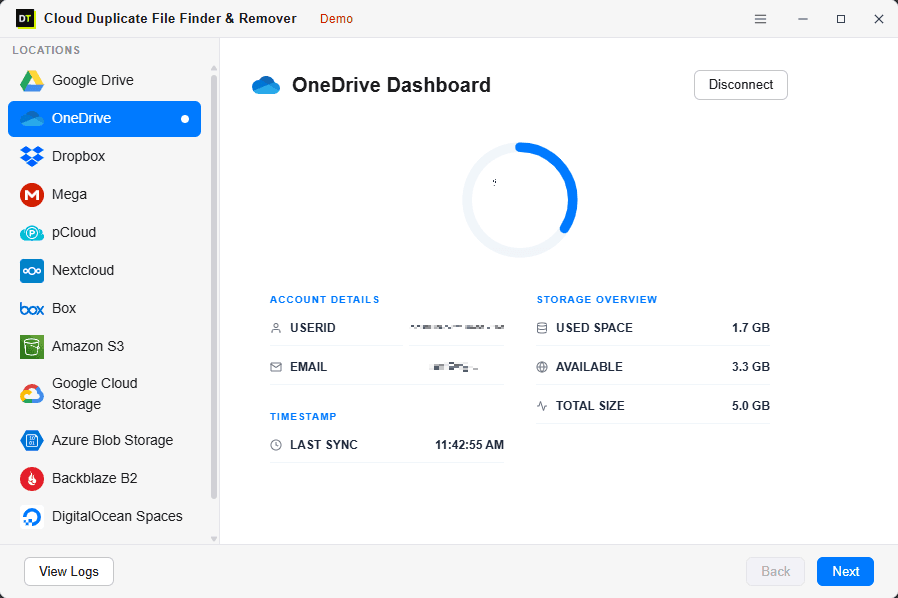
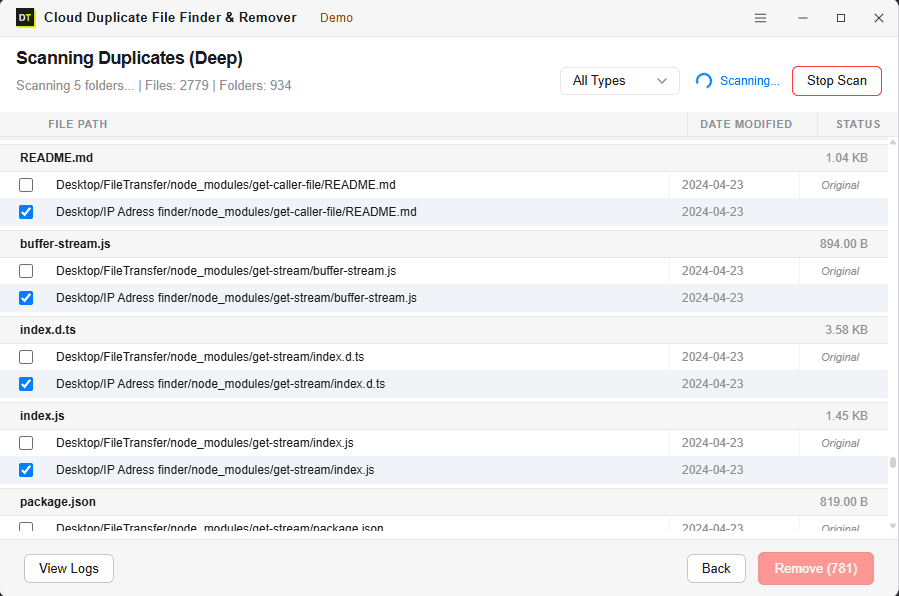
Quick Summary:DT OneDrive Duplicate Finder is an API-based application that scans both Personal and Business OneDrive accounts for duplicate files without downloading them locally. It features zero-download hash-accurate Deep Scanning, supports Microsoft 365 admin impersonation, and securely deletes verified duplicates to the native OneDrive recycle bin.
Key Features of DT OneDrive Duplicate Finder
Zero-download scanning
runs entirely through the OneDrive API, files never leave your account
Two scan modes
Fast Scan by name and size, Deep Scan by file hash for byte-for-byte accuracy
Personal and Business OneDrive support
including Microsoft 365 admin impersonation for multi-user scanning
Official Microsoft OAuth login
your password is never entered into the app
Folder-level selective scanning
scan the entire account or specific folders only
Smart result grouping
duplicates organized by file type, size and folder
Recycle bin safety
removed files are recoverable from OneDrive's recycle bin for 30 days (Personal) or 93 days (Business)
Full activity log
every scan and removal recorded with a timestamp
Free scan, paid removal
run a complete scan at no cost before deciding to buy
Enterprise-grade scaling
handles unlimited data sizes across 500+ formats including documents, videos, Audio, images and more
Why OneDrive Fills Up With Duplicate Files
OneDrive is built to sync and store, not to check whether a file already exists somewhere else in the account. Duplicate files accumulate quietly as a side effect of normal daily use rather than any single mistake.
- A phone re-uploads a photo that already synced the week before because the filename changed slightly during editing.
- A project folder gets dragged into OneDrive as a manual backup, without realizing that same folder already syncs automatically from a different device.
- A colleague shares a document that already exists in another folder, and now two or three copies sit in the account side by side.
- A brief network interruption during a sync creates a second version of a file with a number appended to the name.
None of this looks significant in the moment. A year of this kind of daily accumulation, across multiple devices and multiple people sharing files, quietly turns into gigabytes of storage spent on files that serve no purpose beyond taking up quota that is often being paid for directly.
Fast Scan vs Deep Scan: Which One to Use
Fast Scan
Matches files by name and size. This is the quicker method and is well suited to large accounts where duplicates are expected to be obvious, exact re-uploads or synced copies with matching filenames. Fast Scan runs efficiently even on accounts holding over 100,000 files, but it will not catch a duplicate that has been renamed, since the match depends on the filename staying the same.
Deep Scan
Matches files by a unique hash value, a byte-for-byte fingerprint of the actual file content, independent of filename, folder location or upload date. This is the method to use before a migration, a storage audit, or any situation requiring certainty that only genuine duplicates are being removed. Deep Scan catches everything Fast Scan catches, plus renamed duplicates, files re-saved under a different name, and identical content stored across different folders. Nothing with matching content is missed, regardless of what the file is named or where it sits in the folder structure.
Personal OneDrive and Business OneDrive, Both Fully Supported
Personal OneDrive
For a standard Microsoft account with photos, documents and files synced from a phone and a computer. Scan the entire account or select specific folders, review every duplicate found, remove what is not needed, and reclaim storage without paying for a plan upgrade.
Business OneDrive (Microsoft 365)
For OneDrive accounts connected to a Microsoft 365 organization. Scan your own account directly, or use admin impersonation to scan and manage duplicates across multiple user accounts in the organization from a single dashboard, without logging into each account individually. Admin impersonation requires a Microsoft 365 Global Admin role.
How to Find and Remove OneDrive Duplicates in 3 Steps
Step 1: Connect Your OneDrive Account
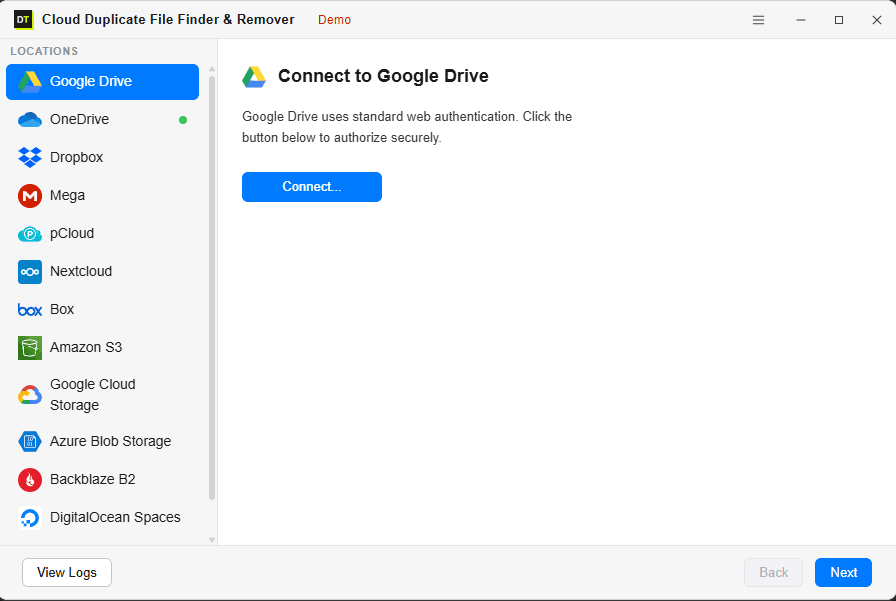
Sign in using official Microsoft OAuth, the same secure login screen used to access OneDrive directly. The password is never entered into the app or seen by it.
Step 2: Choose Folders & Scan
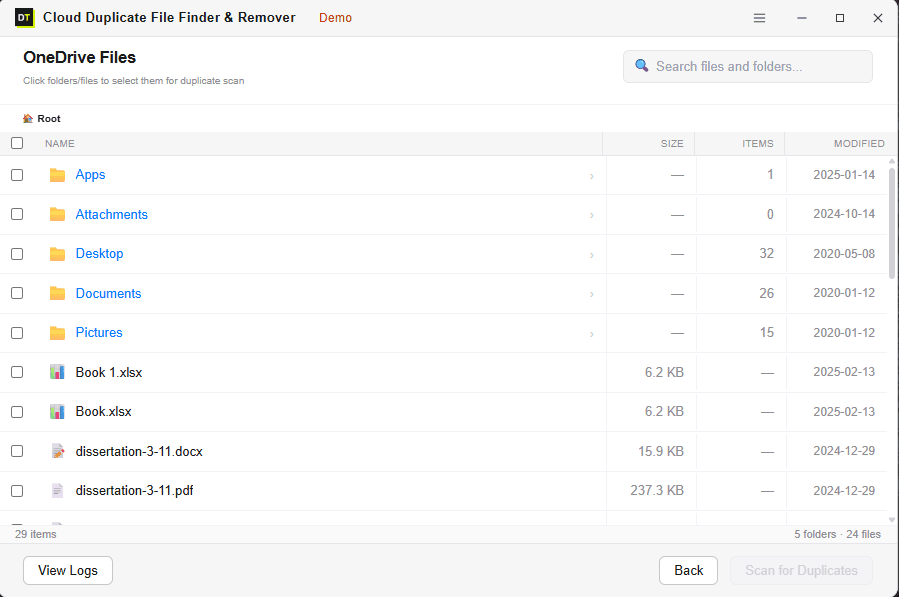
Browse the folder structure and select exactly what to include. Run a Fast Scan for a quick pass, or a Deep Scan for byte-for-byte accuracy. Watch the scan progress live, with real-time file count, folder count and per-file status.
Step 3: Review and Remove
Every duplicate found is grouped and shown before anything is deleted. Review the results, confirm what to remove, and remove in bulk in a single action. Files go to OneDrive's native recycle bin, not permanent deletion.
What Gets Read During a Scan, and What Never Does
What is read
file name, file size, and file hash for Deep Scan. Nothing beyond that.
What is never read
file contents, document text, photo image data, or anything contained inside the files themselves.
The entire scan runs through Microsoft's official OneDrive API. File metadata and hash values are computed directly against the cloud copy, meaning nothing is ever pulled down to the local machine or stored on any external server.
This matters most for accounts holding sensitive business documents or private personal files, where a tool that requires downloading everything locally to compare it introduces a level of exposure that an API-based, hash-only scan avoids entirely.
Situations Basic Duplicate Finders Usually Miss
Duplicates renamed at some point
Deep Scan matches by content hash, so a file renamed from "Project_Final.docx" to "Project_Final_v2_SUBMITTED.docx" is still caught as a duplicate if the underlying content is identical.
Duplicates scattered across different folders
The scan covers the entire selected scope, not a single folder at a time, so copies hiding in unrelated subfolders or nested directories are still found and grouped together.
Multiple Business OneDrive accounts under one organization
Admin impersonation scans and manages duplicates across every user account in the organization from one dashboard, without a separate login for each person.
Very large accounts
Multi-threaded scanning is built to handle accounts with well over 100,000 files without slowing down or timing out, with real-time progress shown throughout.
Not knowing where to start once results come in
Results are grouped by file type, size and folder automatically, so review happens logically instead of scrolling through a single flat list of thousands of matches.
DT OneDrive Duplicate Finder: Free Scan vs Full Version
Run the complete scan for free first. See exactly how many duplicates exist and how much space would be recovered before spending anything. All plans include a 30-day money-back guarantee.
| Feature | Free Scan | Full Version |
|---|---|---|
| Connect Personal OneDrive | Included | Included |
| Connect Business OneDrive | Included | Included |
| Enterprise-Grade (Unlimited Data) | Included | Included |
| Supports 500+ Formats (Docs, Videos, Images, Audio and more) | Included | Included |
| Fast Scan | Included | Included |
| Deep Scan, hash-accurate | Included | Included |
| Storage summary and scan details | Included | Included |
| Folder-level selective scanning | Included | Included |
| Smart grouping of results | Included | Included |
| Preview duplicates before action | Included | Included |
| Activity log | Included | Included |
| Remove duplicates | Not included | Included |
| Admin impersonation, Business accounts | Not included | Included |
| Bulk removal | Not included | Included |
Who Uses DT OneDrive Duplicate Finder
Individual users
watching a storage warning appear before Microsoft suggests an upgrade, who want to check for duplicates before paying for more space they may not actually need.
Photographers and content creators
dealing with camera roll backups that quietly generate hundreds of duplicate photos over time, many of them renamed during editing and only catchable through hash-based matching.
Remote workers
syncing the same OneDrive account across a laptop, a desktop and a phone, where files saved on one device routinely show up as duplicates once another device finishes syncing.
IT administrators
managing an organization with multiple users and years of accumulated duplicate files across accounts, using impersonation mode to handle all of them from a single dashboard.
MSPs and auditors
running a quick storage audit before a client migration or a license review, to determine how much of an account's storage usage is genuine data versus accumulated duplicate files.
Small businesses
consolidating onto a new Microsoft 365 tenant or switching storage plans, who want duplicates cleaned out first so only what actually matters gets migrated.
Frequently Asked Questions
Does DT OneDrive Duplicate Finder download my files to find duplicates?+
What is the difference between Fast Scan and Deep Scan?+
Can it accidentally delete files that should be kept?+
Can I scan a single folder instead of the entire account?+
Does it work with Business OneDrive under Microsoft 365?+
Can it find duplicates that have been renamed?+
Will it handle an account with over 100,000 files?+
Is the free version a real scan or just a limited demo?+
Does it support enterprise-level data and all file formats?+
How do I set up admin impersonation for Business OneDrive?+
What permissions are required for Business OneDrive admin consent?+
System Requirements
| Software Version | 25.1.1 |
| Software Size | 10.4 MB |
| Operating System | windows 8.1, windows 10, Windows 11 or later |
| OneDrive Account Type | Personal (Microsoft account) or Business (Microsoft 365) |
| Internet Connection | Required, scans run through the OneDrive API |
| Authentication | Microsoft OAuth 2.0 |
| Admin Features | Impersonation requires a Microsoft 365 Global Admin role |
What Real Users Say
"My OneDrive was a complete mess after syncing two different laptops. DT found over 50GB of exact duplicates scattered across different folders. The deep scan by hash gave me the confidence to delete them all in one click."
Michael C.
Financial Analyst
Verified by Data TB
"As a Microsoft 365 admin, keeping our SharePoint and OneDrive storage under control is a nightmare. This tool's admin impersonation let me clear out duplicate client files across 20 accounts without resetting any passwords."
Amanda L.
System Administrator
Verified by Data TB
"I didn't realize how many versions of the same documents I had saved over the years. Found everything perfectly, and the fact that it sends removed files to the OneDrive trash bin first made it completely risk-free."
Robert K.
Consultant
Verified by Data TB
See How Much OneDrive Storage Is Actually Duplicate Files
Most OneDrive accounts active for over a year are carrying gigabytes of duplicate files sitting quietly in the background and adding to the storage bill. Run the free scan, see exactly what is there, and decide from there, without downloading anything and without deleting anything until you choose to.