
Every Byte Matters.
DT PDF Editor
The Light, Fast PDF Editor for Windows
Open a PDF, make a change, save it, move on. That is what most people actually want from a PDF editor, and it is exactly where most PDF editor software gets in the way. The average PDF editor installs hundreds of megabytes, sometimes gigabytes, of files you will never touch, runs a background service the moment your computer starts, and takes several seconds just to open its own window before it even loads your document.
DT PDF Editor was built to be the opposite of that. It is a light PDF editor, small enough to install in seconds and fast enough to open instantly, but it still carries a full set of real editing and document tools: edit, merge, split, arrange, extract, watermark, metadata, encrypt, redact, OCR, compress, search, render, and batch processing. Nothing about keeping the app small meant cutting the features that make a PDF editor actually useful.


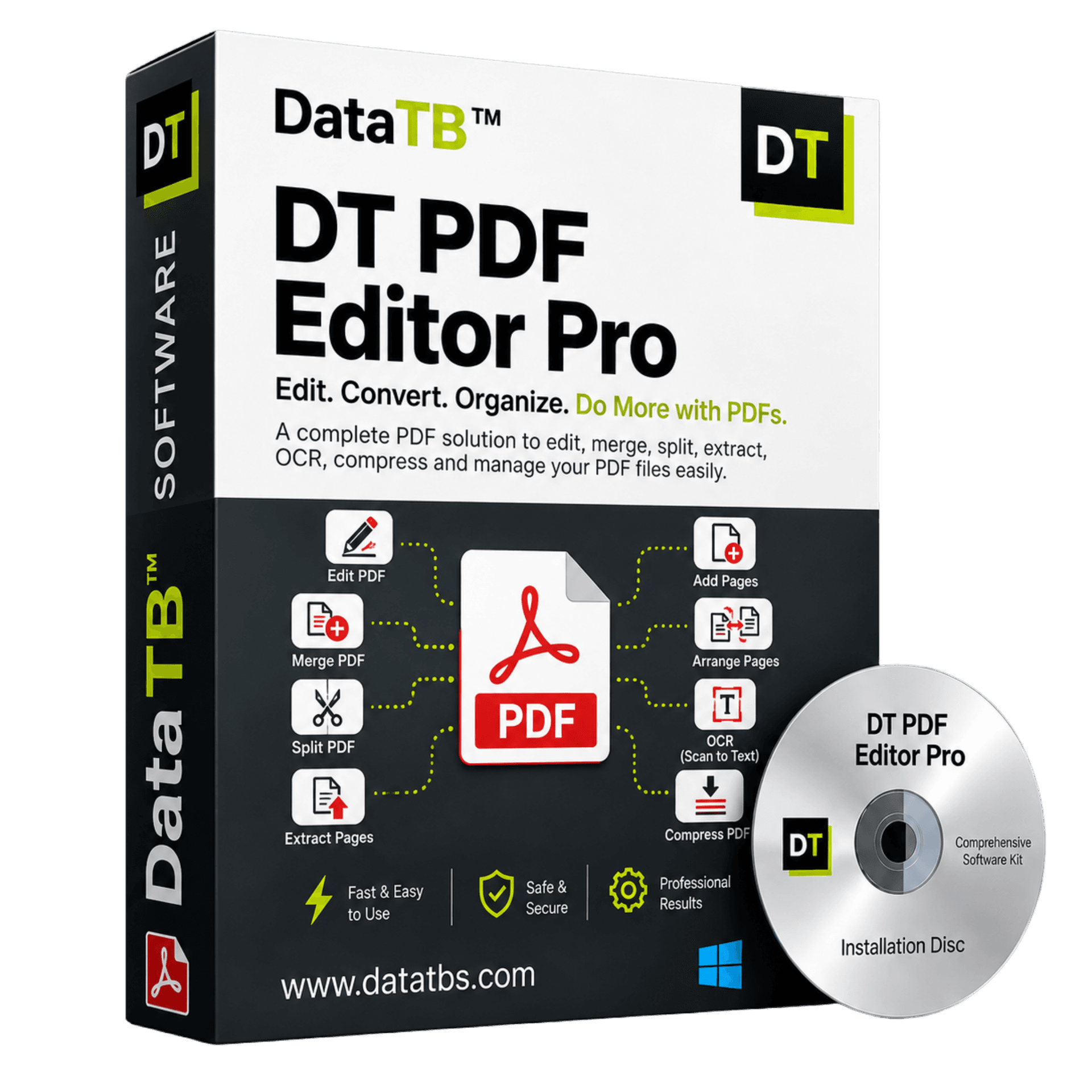
Quick Summary:DT PDF Editor is a desktop PDF editor for Windows that opens instantly, keeps resource usage low, and includes full editing, merging, splitting, OCR, redaction, compression, watermarking, batch processing, and rendering tools in one lightweight application.
What Is DT PDF Editor
DT PDF Editor is a desktop PDF editor for Windows, built around one simple idea: a tool this ordinary should not feel this heavy. Every feature lives inside a single, uncluttered sidebar, so editing text, merging files, or running OCR are all one click apart, in the same lightweight application, without switching between separate tools or waiting on separate installs.
It is built for the person who needs a fast PDF editor that opens the moment they click it, works well even on an older laptop or a machine with limited storage, and still does everything a full PDF editor is supposed to do.
A tool this ordinary should not feel this heavy.
Full functionality inside a light, fast application—no multi-gigabyte bloat, no mandatory cloud background services, and instant startup times.
Why a Lightweight PDF Editor Actually Matters
Most people never think about the weight of their software until it slows them down. A few things happen with a heavier PDF editor that a light PDF editor avoids entirely:
Slower launch times
A bloated PDF editor often takes several seconds to open, every single time, because it is loading modules and services you are not using for a simple edit.
Higher RAM and CPU usage
Heavier PDF editors tend to keep background processes running even when idle, which adds up quickly on machines with limited memory.
Larger install footprint
A multi-gigabyte install eats into storage on smaller SSDs, especially on budget or older laptops.
Slower performance on modest hardware
Not everyone runs a high-spec workstation. A lightweight PDF editor keeps working smoothly on hardware a heavier tool would struggle on.
Design Goal:DT PDF Editor keeps the install small, the launch instant, and the memory footprint low, without trimming the feature set down to match. That combination—full functionality inside a light, fast application—is the entire design goal behind the product.
Full Feature Breakdown
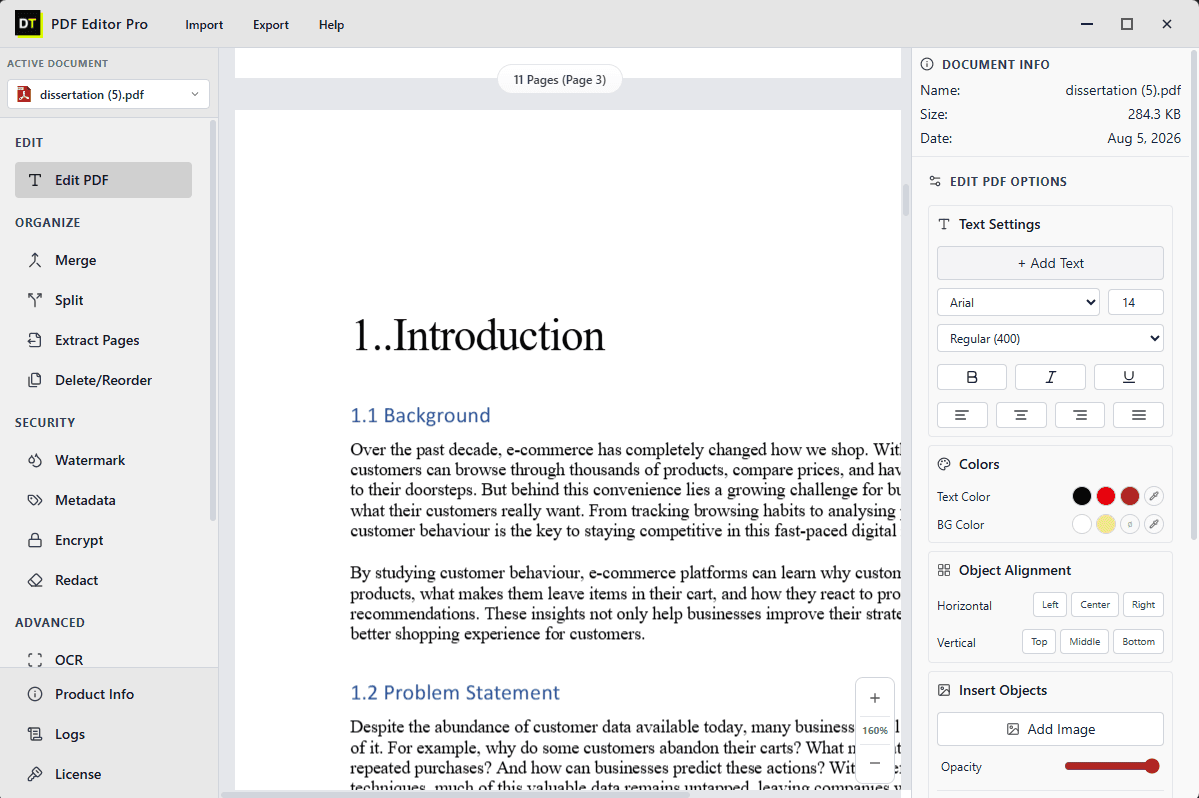
1. Edit PDF Text and Images Directly
Click into any paragraph and change the actual words, the way you would in a document, not by covering the old text with a box and typing over it.
- • Add new text anywhere on the page, in any font, size, and style
- • Change font family, size, weight (regular, bold, italic, underline), and alignment on existing text
- • Set text color and background color independently
- • Insert new images or objects, with full control over placement and opacity
- • Snap inserted objects to left, center, right, top, middle, or bottom alignment automatically
Where this matters: fixing a typo in a signed contract before resending it, updating a figure in a finished report, or correcting a date on an invoice template.
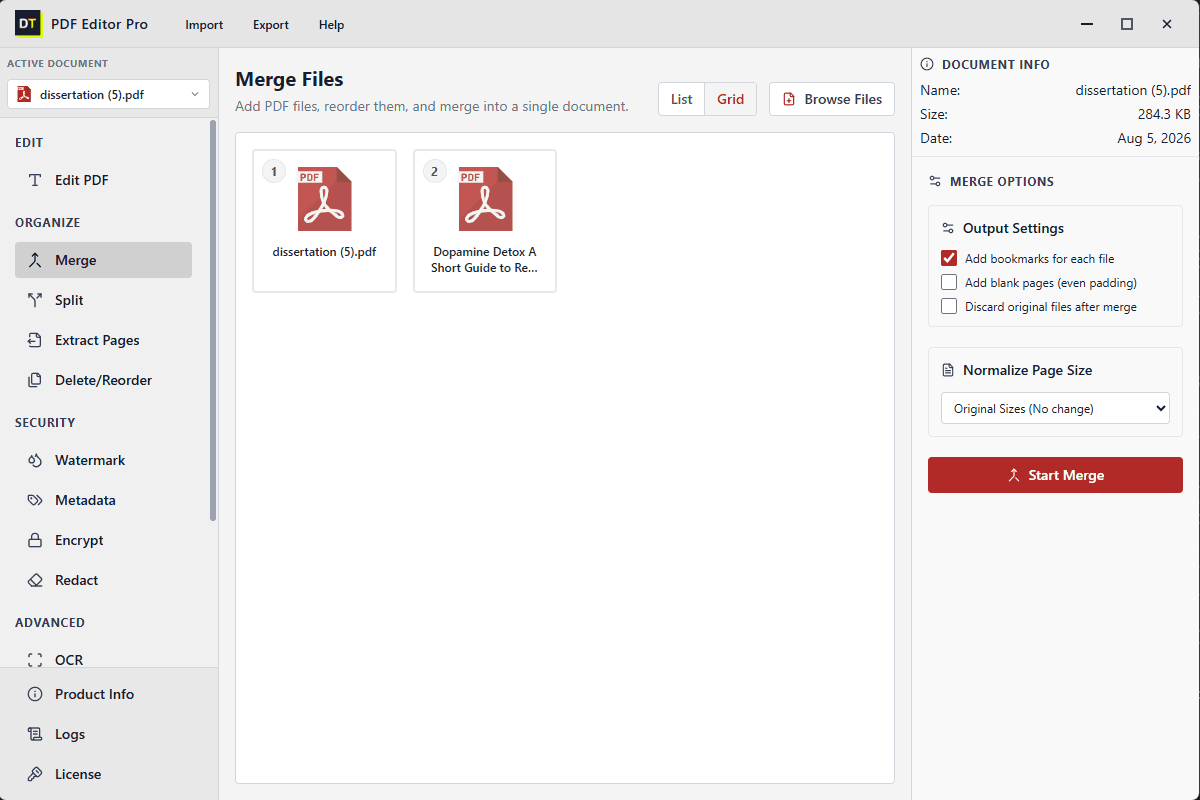
2. Merge PDF Files Into One Document
Combine two or more PDFs into a single file, in whatever order you choose, using a list or grid view to arrange them.
- • Automatic bookmark generation for each source file, so readers can jump straight to a section
- • Page size normalization, so files created at different original sizes come together as one consistent document
- • Optional blank padding pages, so each source file starts on an even page for print
- • Optional automatic deletion of the source files once the merge is complete
Where this matters: combining a cover letter, resume, and portfolio into one submission, or merging twelve monthly reports into a single bookmarked annual document.
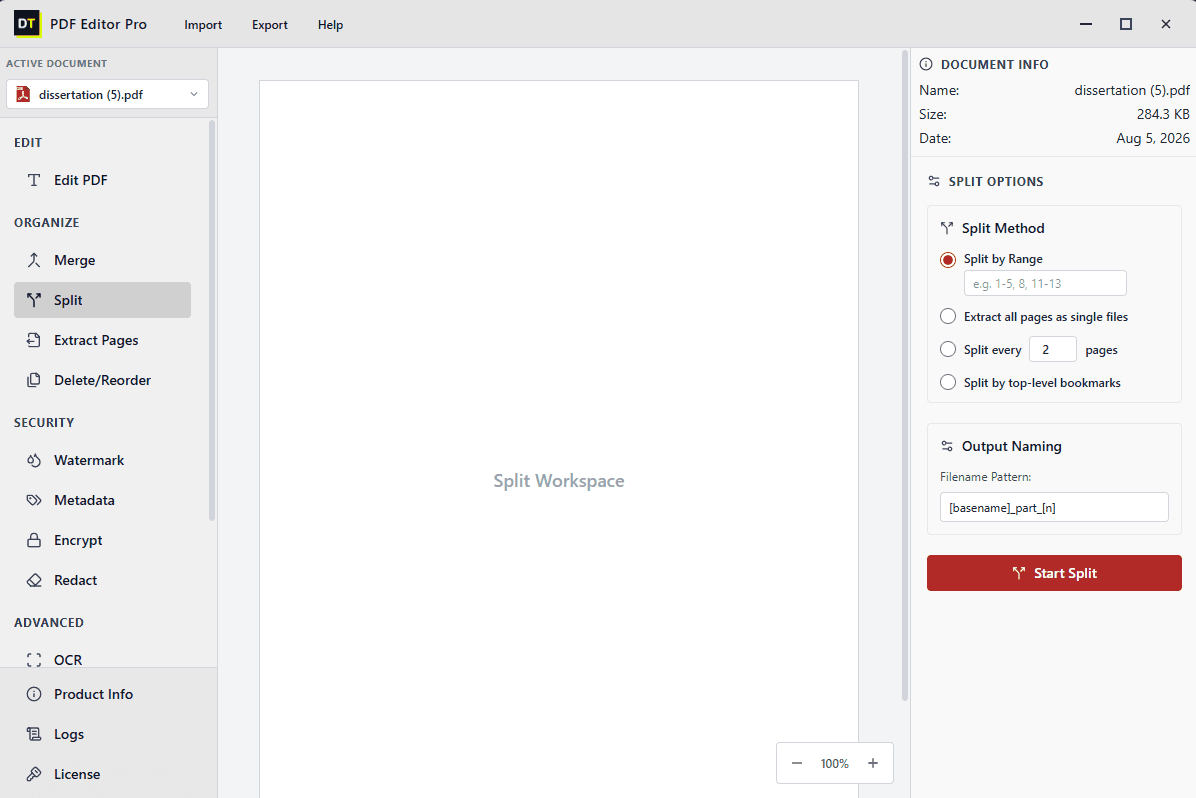
3. Split PDF Files by Range, Page Count, or Bookmark
Divide one PDF into multiple output files using whichever method fits the source document:
- • Split by range: define exact page ranges, such as 1 to 5 and 8 and 11 to 13, and each becomes its own file
- • Extract all pages as single files: every page becomes a standalone PDF
- • Split every N pages: divide the document into equal chunks at a page count you set
- • Split by top-level bookmarks: use the source document's existing bookmark structure to split it section by section
Output files follow a naming pattern you define, such as basename_part_1, basename_part_2, so generating dozens of correctly labeled files from one large document takes a single pass.
Where this matters: breaking a scanned textbook into individual chapters, or dividing a long government form into the sections different departments need.
4. Arrange PDF Pages
Reorder and clean up a document without leaving the page view. Drag pages into a new sequence, delete pages you no longer need, and fix a scanned document that came out of order, all directly inside the same workspace you are already editing in.
Where this matters: removing a blank scanned page, reordering chapters after a last-minute change, or straightening out a stack of scanned pages that went through the scanner out of sequence.
5. Extract Pages Into a New File
Pull specific pages out of a document and save them as a new, standalone PDF, without altering or affecting the original file.
Where this matters: pulling just the signature page from a long agreement, or saving a single chapter out of a larger report to send separately.
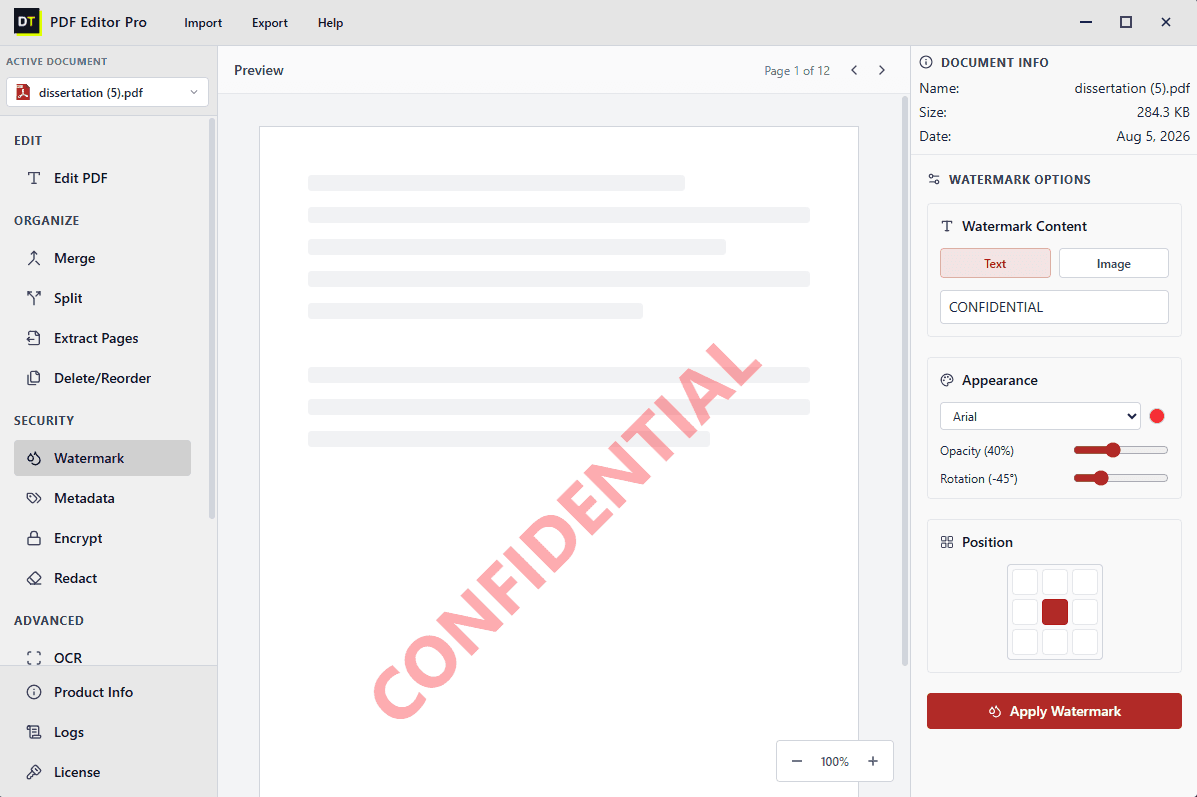
6. Add Custom Watermarks
Apply a text or image watermark across every page of a document in a single action, with full control over how it looks:
- • Text or image watermark content
- • Font and color selection
- • Opacity, from a subtle stamp to a bold overlay
- • Rotation angle, including the standard diagonal "CONFIDENTIAL" style
- • Position, placed anywhere across a 3x3 grid on the page
Where this matters: marking draft contracts before internal review, or branding a report with a company name before it goes to a client.
7. View and Edit PDF Metadata
Every PDF carries metadata that is not visible on the page itself: author, title, creation date, and other document properties. DT PDF Editor lets you view and edit this directly, which matters for keeping shared files consistent with a company's naming and authorship standards, and for correcting outdated information before a document goes external.
8. Encrypt PDFs With Password Protection
Lock a document with a password so only people you choose can open, print, or edit it, before sending it by email or sharing it through a drive.
9. Redact Sensitive Content Permanently
Redaction in DT PDF Editor removes the selected content from the document itself, not just from view. Many tools "redact" by placing a black rectangle over text while the original text remains extractable underneath. DT PDF Editor deletes the content, so it cannot be recovered by copying the text or opening the file in another editor.
Where this matters: removing account numbers, names, or medical details before sharing a document with a third party or submitting it for legal review.
Read how PDF redaction actually works10. OCR for Scanned Documents
The OCR tool converts scanned pages and image-based PDFs into searchable, selectable, editable text, turning flat scans, old contracts, photographed forms, and printed receipts into documents you can actually search and edit like any other digital file.
Where this matters: digitizing years of paper archives, making a scanned dissertation appendix searchable, or converting a photographed receipt into text for expense reporting.
Explore OCR feature for scanned PDFs11. Compress PDF File Size
Reduce the file size of a PDF without noticeably affecting the quality of the text or images inside it. Useful for documents that need to be emailed, uploaded to a portal with a size limit, or archived in bulk without eating up storage.
Where this matters: shrinking a scanned, image-heavy report so it fits within an email attachment limit, or reducing the size of an entire archive of scanned documents before long-term storage.
12. Search Text Inside a PDF
Find any word or phrase inside an open document instantly, and jump straight to every place it appears, instead of scrolling page by page through a long file.
Where this matters: finding a specific clause in a fifty-page contract, or locating every mention of a client's name across a long report.
13. Render PDF Pages as PNG or JPG
Convert any page, or the whole document, into standalone image files. Render a page to PNG when you need a sharp, lossless image, or to JPG when a smaller file size matters more than pixel-perfect quality.
Where this matters: pulling a chart or diagram out of a PDF to drop into a presentation, or turning a scanned page into an image for a website or social post.
Read PDF to image format guide14. Batch Process Multiple PDFs at Once
Run the same action across many files in one go instead of repeating it file by file. Select a folder or a group of PDFs and apply compression, watermarking, OCR, rendering, or format conversion to all of them in a single batch job.
Where this matters: compressing an entire folder of scanned invoices before archiving them, watermarking every file in a shared drafts folder at once, or running OCR across a whole archive of scanned paperwork overnight instead of opening each file one at a time.
How DT PDF Editor Compares
| Factor | DT PDF Editor | Typical Full-Featured PDF Editor |
|---|---|---|
| Install size | Small, installs in seconds | Often several hundred MB to multiple GB |
| Launch time | Opens instantly | Can take several seconds to load |
| Resource usage | Low RAM and CPU footprint | Background processes often run even when idle |
| Performance on older PCs | Stays responsive | Often noticeably slower |
| Toolset | Edit, merge, split, arrange, extract, watermark, metadata, encrypt, redact, OCR, compress, search, render, batch processing | Usually similar depth, at a much heavier footprint |
| Pricing model | Pay for the period you need view pricing plans | Often locked into an annual subscription |
Who DT PDF Editor Is Built For
Students and researchers
Editing dissertations, merging chapters with appendices, extracting sections for submission, and reordering scanned research material, without a heavy install slowing down a laptop that is already carrying a full course load of software.
Small and growing businesses
Preparing contracts, invoices, and proposals, watermarking drafts before internal circulation, and password-protecting anything sent outside the company.
IT administrators and managed service providers
Deploying a PDF editor across a team of machines with mixed specs, where a small install footprint and fast performance matter more than a bloated feature list nobody uses.
Legal, compliance, and HR teams
Permanently redacting sensitive information before disclosure, encrypting files before distribution, and searching long documents quickly for specific clauses or terms.
Anyone on an older or storage-limited PC
Getting full PDF editing power without the multi-gigabyte install and background resource drain that heavier PDF editor software brings with it.
How It Works
Open your file
DT PDF Editor launches instantly and loads your document into the active workspace right away.
Choose your tool
Editing, merging, splitting, arranging, extracting, watermarking, redacting, encrypting, OCR, compressing, searching, rendering, and batch processing are all in the same sidebar.
Save your file
Export the finished document, ready to send, print, or archive.
What Real Users Say
"Honestly, I was tired of paying Adobe's hefty subscription just to edit a few invoices and redact client details. DT PDF Editor does exactly what I need, runs completely offline, and there is no monthly BS. Best investment for my small agency."
Rahul Desai
Small Agency Owner
Verified by Data TB
"The speed and lightweight nature of this editor is a game changer! I often have to go through 50-page legal contracts to find specific clauses. It opens instantly and stays super fast."
Sarah Jenkins
Operations Director
Verified by Data TB
"Solid, no-nonsense software. I needed something lightweight to merge massive scanned architectural plans and run OCR on them. It handled a 2GB file without crashing, unlike heavy browser tools."
Liam O'Connor
IT Administrator
Verified by Data TB
System Specifications
| Software Version | 1.1.0 |
| Install Size | 6.0 MB |
| Operating System | Windows 11, Windows 10, Windows 8.1, Windows 7 |
| Memory (RAM) | 256 MB minimum (1 GB recommended) |
| Storage | 20 MB free space required for installation |
| Processor | 1 GHz or faster processor |
| Internet Connection | Not required for core editing (offline software) |
| Architecture | 32-bit and 64-bit compatible |
Frequently Asked Questions
?What is DT PDF Editor?
DT PDF Editor is a light, fast PDF editor for Windows that lets you edit PDF text and images, merge and split files, arrange and extract pages, add watermarks, edit metadata, encrypt documents, permanently redact sensitive content, run OCR, compress file size, search text, render pages as PNG or JPG images, and batch process multiple files at once, all in one lightweight application.
?Is DT PDF Editor actually lightweight compared to other PDF editors?
Yes. DT PDF Editor is built with a small install size and a low memory footprint, so it installs quickly, opens instantly, and stays responsive even on older or lower-spec machines, without cutting down on the tools it offers.
?Can I edit the actual text in a PDF, or only add comments?
Yes. DT PDF Editor allows full text editing directly inside the document, including font, size, style, alignment, and color changes, not just comments or annotations layered on top.
?Is redaction in DT PDF Editor permanent?
Yes. Redacted content is removed from the document itself, not just covered visually, so it cannot be recovered through copy-paste or text extraction.
?Can DT PDF Editor read scanned or image-based PDFs?
Yes. The built-in OCR tool converts scanned pages into searchable, selectable, editable text before you begin editing.
?Can I reduce the file size of a PDF?
Yes. The compression tool reduces file size while keeping text and images clear enough for everyday reading and printing.
?Can I convert a PDF page into an image?
Yes. The render tool converts any page, or the entire document, into PNG or JPG image files.
?Can I search for specific text inside a long PDF?
Yes. The search tool finds every occurrence of a word or phrase in the open document and lets you jump straight to it.
?Can I process multiple PDFs at once?
Yes. Batch processing lets you apply the same action, such as compression, watermarking, OCR, or rendering, to a whole folder of PDFs in a single job, instead of repeating it one file at a time.
?Can I password protect a PDF with DT PDF Editor?
Yes. You can encrypt any document with a password so only people you choose can open, print, or edit it.
?Is DT PDF Editor a subscription?
Pricing follows Data TB's standard model, pay for the period you actually need, rather than being locked into an annual commitment.
Ready to simplify your PDF workflow?
Get the light, fast desktop PDF editor for Windows without the bloat and without the monthly subscription.