
Every Byte Matters.
DT Cloud Drive Suite
Turn Any Cloud Drive Into a Local Drive on Your PC
Stop opening a browser tab every time you need a file from the cloud. DT Cloud Drive Suite mounts Google Drive, OneDrive, Dropbox, Mega, Box, pCloud, Nextcloud, Amazon S3, Google Cloud Storage, Azure Blob Storage, Backblaze B2, DigitalOcean Spaces, and FTP or SFTP servers directly onto your system as a real local drive. Once it is mounted, your cloud storage shows up in File Explorer exactly the way a pen drive or an external hard disk does. No separate upload screen, no download-then-open cycle, no browser required to move a file.


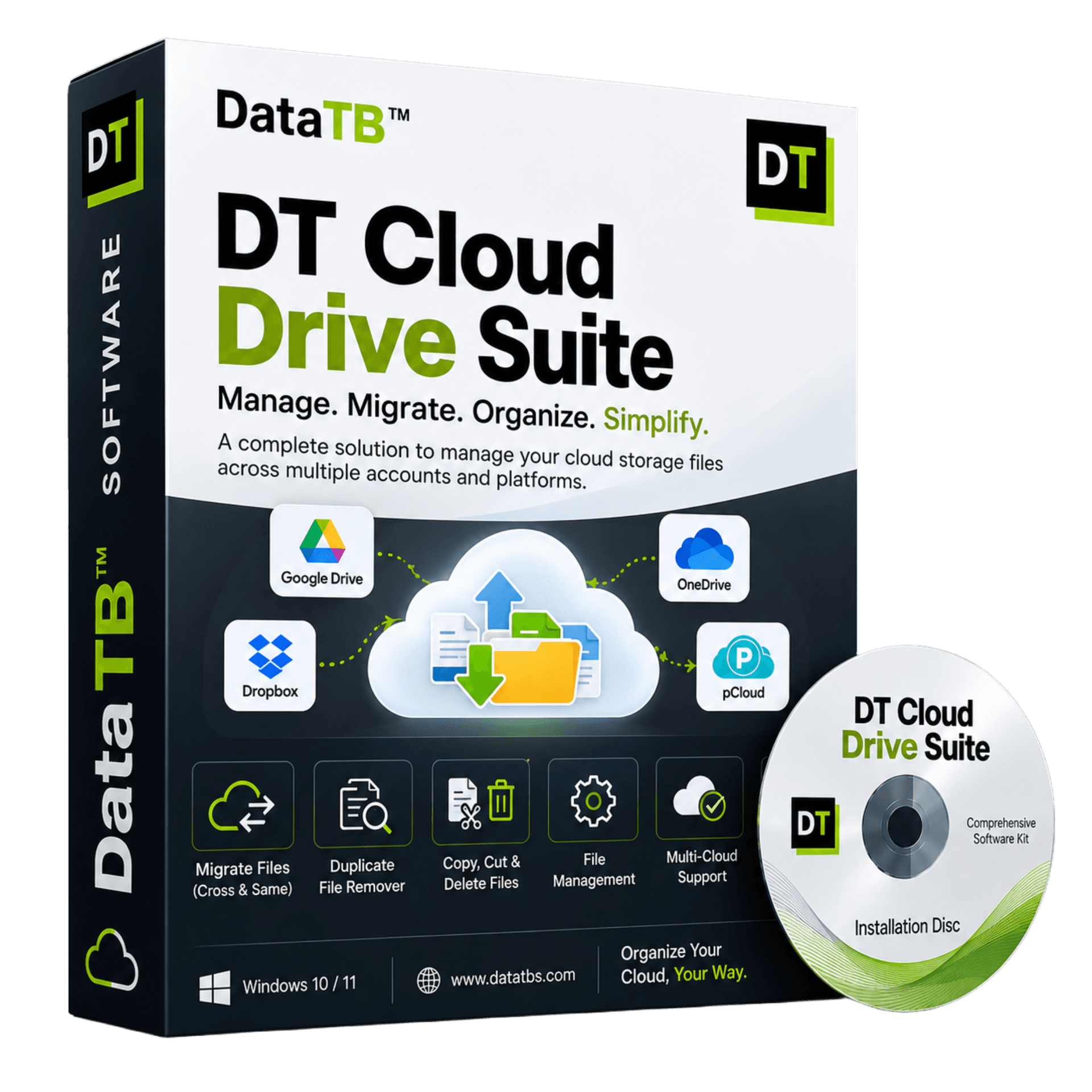
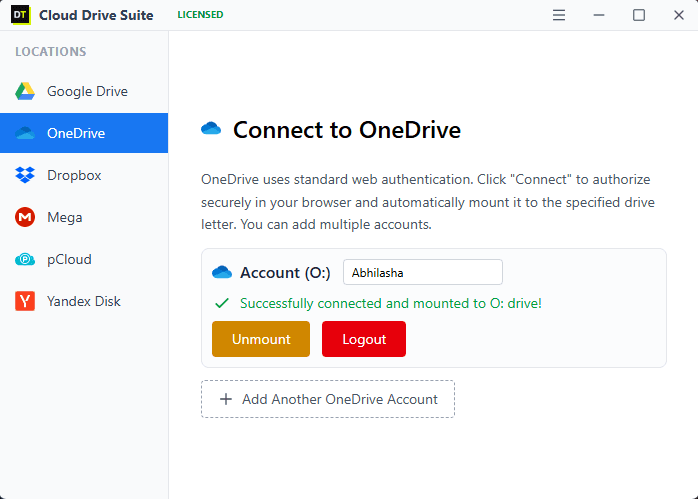

Quick Summary: DT Cloud Drive Suite mounts Google Drive, OneDrive, Dropbox, S3, and 13-plus other cloud providers as a local drive on your system. Copy, move, delete, execute, and stream files at native speed with no size limits. Free to try with one cloud drive.
Supported Cloud Storage
Supports 15+ Cloud Providers, One Tool








Mount any of these cloud services natively as a local drive on your computer. Access, edit, and stream your files at native speeds directly from File Explorer without downloading them first.
Why People Switch to Cloud Drive Suite
Cloud storage was supposed to make files easier to reach, and instead most people end up with a browser full of pinned tabs, one per provider, plus a habit of downloading a file just to open it, then re-uploading it after editing. That round trip eats time and bandwidth, and it gets worse the moment a file is too large for a browser upload box to handle comfortably.
DT Cloud Drive Suite removes the browser from the equation entirely. It mounts your cloud storage at the operating system level, the same layer where your C: drive or a plugged-in external SSD lives. Once mounted, every application on your computer sees that cloud drive as local storage. Open a file directly in its native app, save it back, drag it into a folder, run it, stream a video straight off the drive without downloading the whole thing first. There is no in-between step, because as far as your system is concerned, there is no difference between the cloud drive and a physical one plugged into a USB port.
Core Features
Mount Any Cloud as a Real Local Drive
Connect Google Drive, OneDrive, Dropbox, Mega, pCloud, Nextcloud, Box, Amazon S3, Google Cloud Storage, Azure Blob Storage, Backblaze B2, DigitalOcean Spaces, or an FTP/SFTP server, and it appears as a drive letter or mount point on your system, the same way a USB drive appears the moment you plug it in. No separate app window, no dashboard to browse through: it is just there in File Explorer.
Native Speed Copy, Move, Delete, and Execute
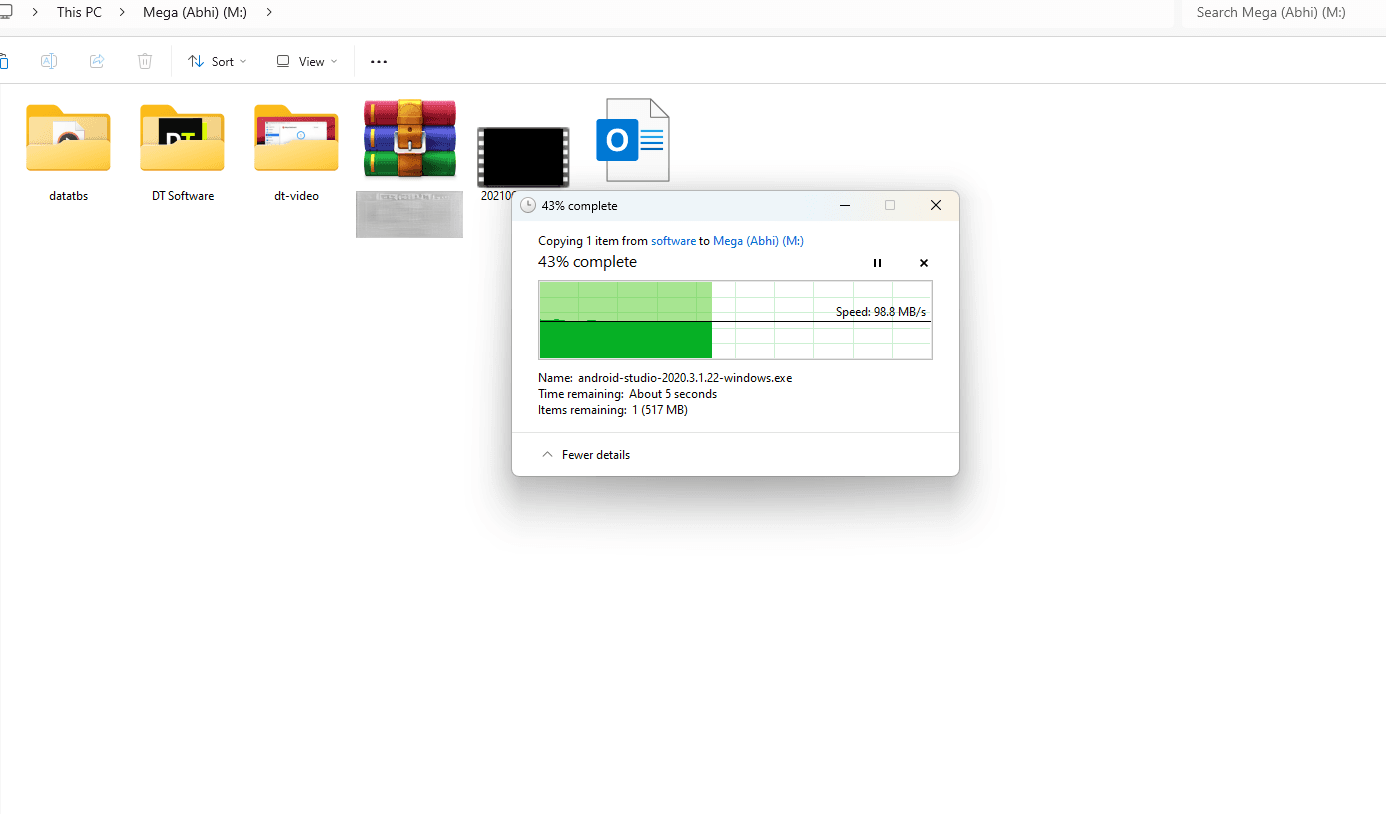
Once mounted, file operations run at native speed. Copy a folder, cut and paste between two drives, delete a batch of files, or open and run a file directly from the mounted drive, the same as you would with a physical external disk. Applications that need to read or write files do not need to know the file lives in the cloud at all.
Stream Without Downloading First
Open a video, a large PDF, or any file type directly from the mounted drive and it streams as needed, instead of forcing a full download before you can view a single frame or page. This matters most for large media files, where downloading before opening used to be the only option.
No Size Limits, No Restrictions
There is no cap on file size and no artificial restriction on what you can do once a drive is mounted and licensed. Copy, paste, delete, move, back up, restore, or migrate, exactly like you would with any drive attached to your machine.
Connect to 13-Plus Providers
Google Drive, OneDrive, Dropbox, Mega, Box, pCloud, Nextcloud, Amazon S3, Google Cloud Storage, Azure Blob Storage, Backblaze B2, DigitalOcean Spaces, and FTP/SFTP servers are all supported. Mount one, mount several at once, and manage them the same way you manage any other drive on your system.
Runs at Your Full Internet Speed on License
The free demo mounts one cloud drive with transfer speed capped at 3MB/s, enough to test the mounting experience and confirm it works the way you need before buying. The licensed version removes that cap entirely and runs at the maximum speed your internet connection supports, with full native read and write performance for every operation.
How It Works
1. Install and connect your cloud account
Sign in to whichever provider you want mounted, whether that is Google Drive, OneDrive, Dropbox, S3, or any of the other supported services.
2. The drive appears in File Explorer
Your cloud storage shows up as a drive letter or mount point, exactly the way an external hard disk or a pen drive does the moment you plug it in.
3. Work with it like any local drive
Copy, cut, paste, move, delete, rename, execute, or stream a file directly. No separate upload window, no download-then-reupload cycle.
4. Unmount whenever you want
Disconnecting the drive does not touch your files. They stay exactly where they were on the cloud provider, safe and untouched.
An Important Note Before You Start
DT Cloud Drive Suite requires an active internet connection to work. It is not an offline tool, since the drive it mounts is your cloud storage, not a local copy of it. The app's only job is to mount that connection cleanly and reliably: it does not sync files down to your disk in the background, and it does not act as a secondary storage layer of its own. What you see mounted is exactly what is sitting in your cloud account, nothing more, nothing cached that could get out of sync.
The free demo lets you mount any one supported cloud drive and try every operation, copy, move, delete, execute, stream, with transfer speed capped at 3MB/s so you can properly test the experience before buying. Once licensed, that cap is removed and the drive runs at your internet connection's maximum available speed.
DT Cloud Drive Suite vs Other Cloud Mount Tools
| Feature | Cloud Drive Suite (DT) | Other Cloud Mount Tools |
|---|---|---|
| Providers supported | 13+, including S3, Azure Blob, Backblaze B2, and DigitalOcean Spaces | Varies widely; some tools cap provider count on the free tier or gate object storage (S3, Azure, B2) behind add-on purchases |
| Free tier | Mount one cloud drive, full feature access, speed capped at 3MB/s | Some tools offer no free tier at all beyond a short trial; others limit which providers can be mounted for free |
| Speed cap on licensed use | Removed entirely, runs at your connection's maximum speed | Usually uncapped once purchased, though a few trial-to-paid tools apply the same cap-then-remove pattern |
| File size limits | None | Generally none among direct mount competitors, though browser-based cloud managers often do cap file size |
| Pricing model | One time license per plan duration, from 6 months to Lifetime, full feature set on every plan | Mixed: some charge per feature add-on (extra cost to unlock S3 or write access to certain providers), others run monthly subscriptions with no lifetime option |
| Data traffic limits | No monthly data traffic cap | Not commonly capped among mount tools, this is more of an issue with browser-based cloud managers |
| Offline access | None by design; an active connection is required since the drive mirrors your cloud account directly with nothing cached locally | Mostly online-only as well, though at least one competitor offers an optional local sync mode for selected folders |
Pricing and feature details for other products are based on their public pricing pages and independent reviews at the time of writing and may change. Always confirm current details on the provider's own site before purchasing.
Who Cloud Drive Suite Is For
The multi-cloud juggler
Google Drive for personal files, OneDrive from work, Dropbox for a client project. Instead of three browser tabs, all three show up as drives on the same desktop.
The bandwidth-conscious professional
Working with large media, design files, or datasets that live in S3 or Backblaze B2. Streaming what you need instead of downloading the whole file first saves real time on a normal workday.
The developer or sysadmin
Needs S3, Azure Blob, Google Cloud Storage, or DigitalOcean Spaces to behave like a normal filesystem so existing scripts, build tools, and applications can read and write to it without any cloud-specific code.
The small business or freelancer
Client files sit across a shared Dropbox, an S3 bucket, and an FTP server. One mounted view across all of them replaces logging into each one separately.
Frequently Asked Questions
QDoes DT Cloud Drive Suite work offline?
ANo. It requires an active internet connection at all times. The app mounts your existing cloud storage as a local drive, it does not create a synced local copy, so there is nothing available once the connection drops. This also means what you see mounted is always the current, live state of your cloud account, with nothing cached locally that could fall out of sync.
QWhat exactly is limited in the free demo?
AThe free demo lets you mount one cloud drive of your choice and use every feature, copy, move, delete, execute, and stream, with transfer speed capped at 3MB/s. This is enough to fully test the mounting experience before deciding to buy.
QWhat changes once I buy a license?
AThe 3MB/s speed cap is removed entirely. The licensed version runs at the maximum speed your internet connection supports, with full native read and write performance for every file operation, and you can mount as many supported cloud drives as your plan allows.
QIs there a limit on file size?
ANo. Once a drive is mounted, copy, move, delete, and every other operation work the same as they would on any local or external drive, with no artificial size restriction.
QDoes mounting a drive store or copy my files anywhere else?
ANo. DT Cloud Drive Suite does not store your files on its own servers and does not create a separate local copy. It mounts your existing cloud account directly, so your files stay exactly where they already are.
QCan I mount more than one cloud drive at the same time?
AYes, on a licensed plan. The free demo is limited to mounting one cloud drive at a time so you can evaluate the tool before buying.
QWill unmounting a drive delete my files?
ANo. Unmounting only removes the connection from your system. Your files remain untouched on the cloud provider.
QWhich cloud providers are supported?
AGoogle Drive, OneDrive, Dropbox, Mega, Box, pCloud, Nextcloud, Amazon S3, Google Cloud Storage, Azure Blob Storage, Backblaze B2, DigitalOcean Spaces, and FTP/SFTP servers.
System Requirements
| Operating System | Windows 8.1, 10, 11 |
| RAM | Minimum 2GB RAM required |
| Installation | Local app install required to mount drives at the system level |
| Internet Required | Yes, at all times. This is not an offline tool. |
| Software Size | 28 MB |
| Version | 5.21.0 |
Demo vs Licensed
| Feature | Free Demo | Licensed (Starts $9/month) |
|---|---|---|
| Mount Cloud Drives | 1 Cloud Drive Only | As per plan |
| Transfer Speed | Capped at 3MB/s | Max Internet Speed (Uncapped) |
| File Size Limits | None | None |
| Data Traffic Limits | None | None |
| Full Feature Access | Yes | Yes |
What Real Users Say
"I mounted my Google Drive and it just showed up as a normal drive in Explorer. Dragging files in and out feels exactly like using an external SSD."
Mark T.
Video Editor
Verified by Data TB
"Streaming video files straight off S3 without downloading them first has saved me so much time on client review calls."
Sarah K.
Freelance Producer
Verified by Data TB
"Once I bought the license the speed cap disappeared completely. Copy and paste is as fast as my internet allows, no throttling."
Alex M.
IT Administrator
Verified by Data TB
Get Started
Mount your first cloud drive free, test it exactly the way you would test a new external disk, and upgrade whenever you are ready for full speed.