
Every Byte Matters
DT Cloud to Cloud Migration Tool
Move Files From Any Cloud to Any Cloud in One Guided Job, With No Data Limit
DT Cloud to Cloud Migration Tool is a Windows desktop tool that moves files and folders directly from one cloud storage account to another. Pick a source cloud, pick a destination cloud, preview what will move, map it, and run the job. There is no manual download and re-upload, your folder structure arrives intact, and the licensed version has no limit on total data or file size.
- 15+ clouds supported as source or destination, including Google Drive, OneDrive, SharePoint, Dropbox, Box, MEGA, pCloud, S3, Azure Blob, Backblaze B2 and more
- Personal and business accounts, in every direction, plus same-platform moves such as one Google account to another
- Preview, filters by extension, date, folder type and size, and CSV bulk mapping for large account lists
- Resumable, incremental and scheduled runs, with a full job report after every migration


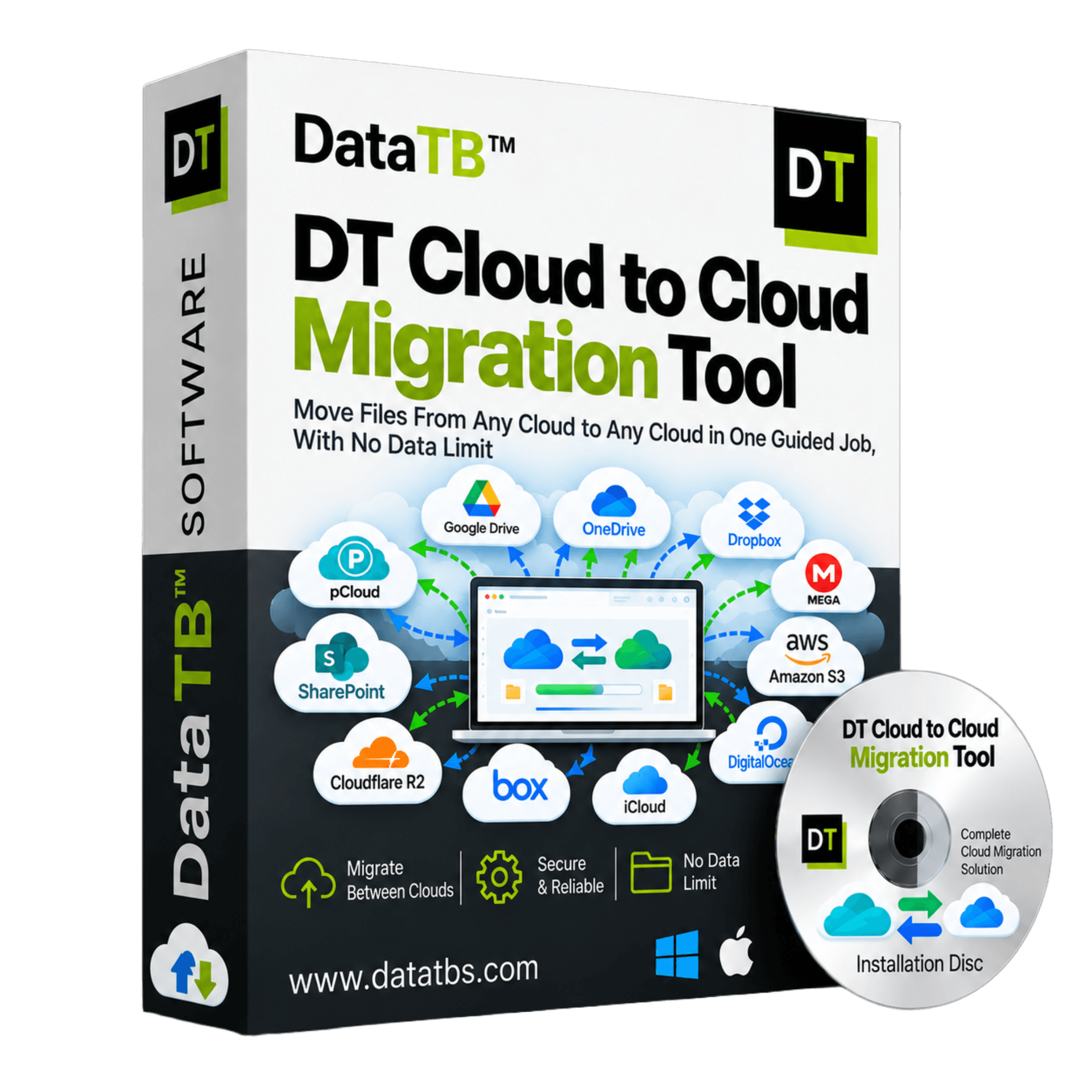
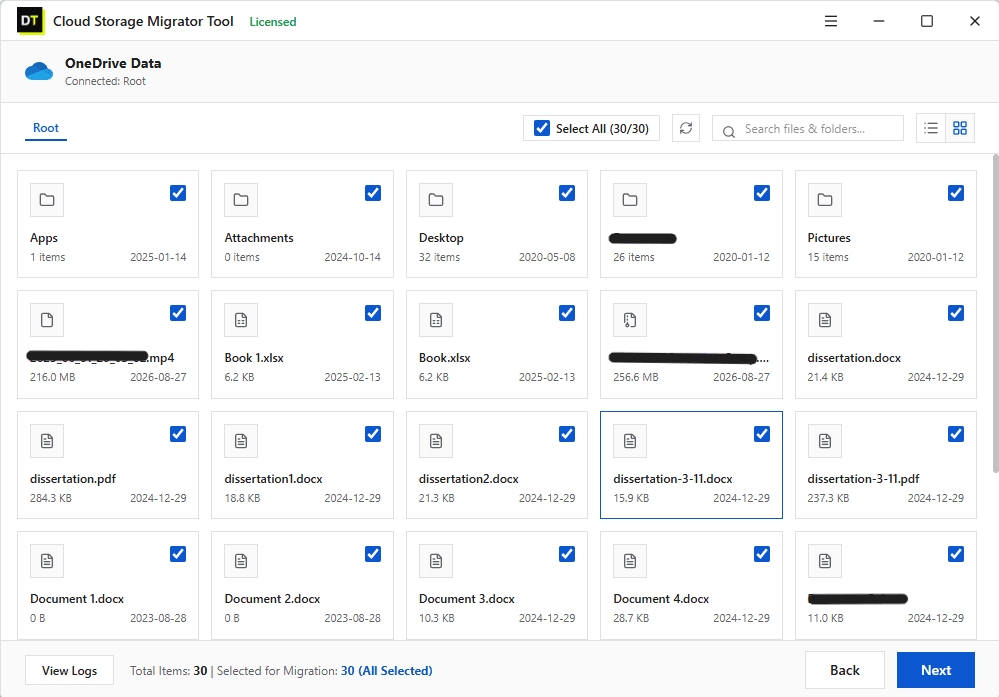
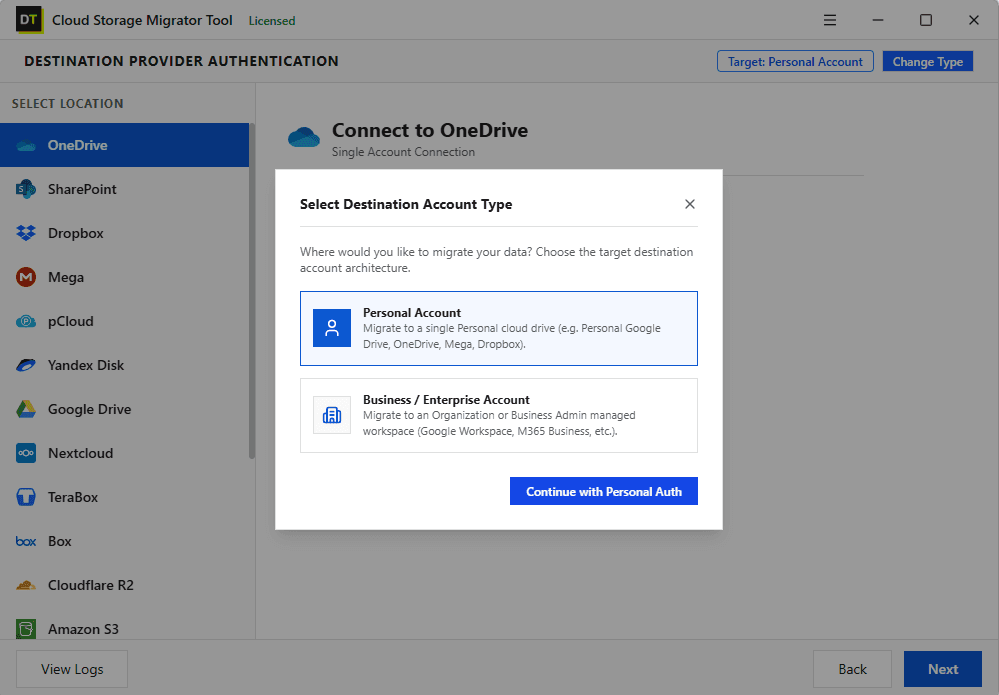
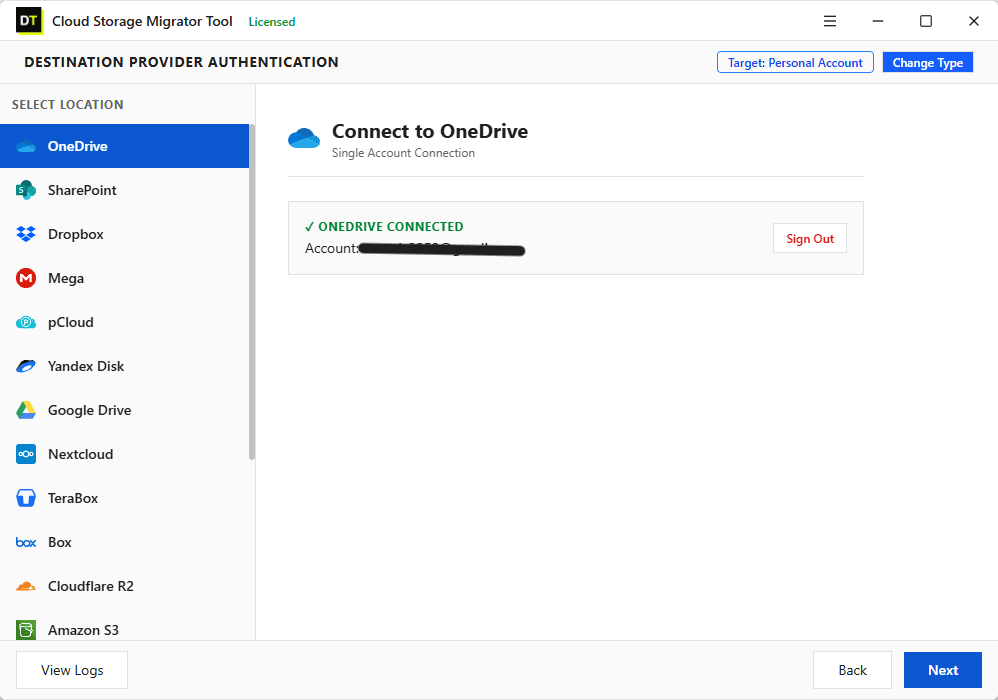
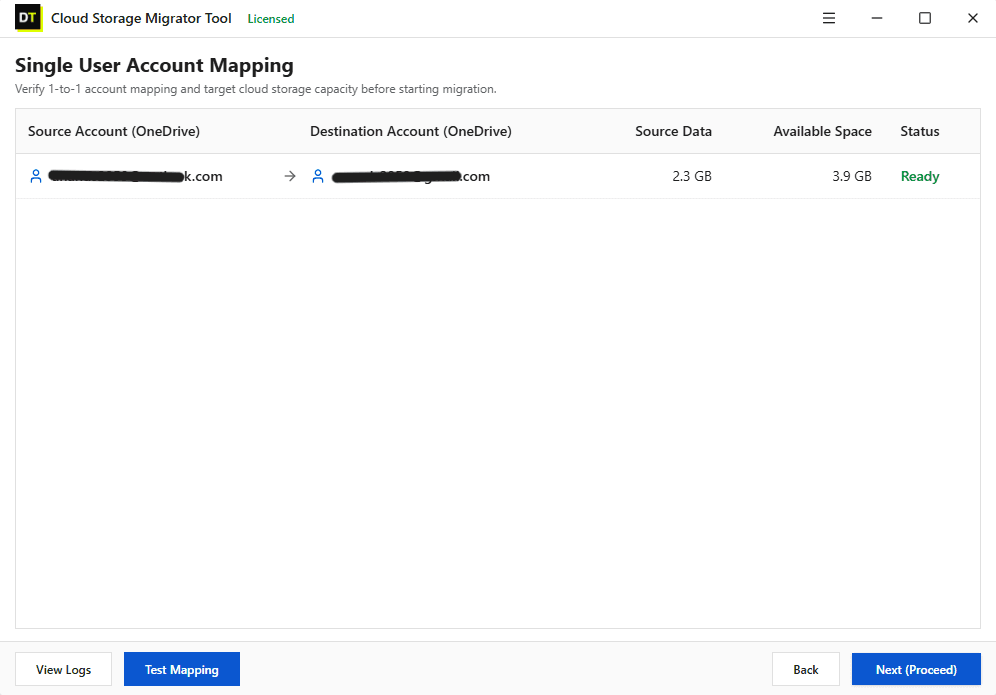
Quick summary:DT Cloud to Cloud Migration Tool is a desktop application for migrating files and folders between cloud storage services. It connects to both accounts, shows a preview, applies your filters and mapping, and transfers data directly between the clouds. It supports personal and business accounts, resumes after interruptions, runs incrementally or on a schedule, and ends every run with a detailed report.
What this tool is for:files and folders in cloud storage. It does not migrate servers, virtual machines, databases or applications between AWS, Azure and Google Cloud. If your project is a data center or workload move, you need an infrastructure migration platform instead.
Supported Cloud Destinations
Migrate Across 15+ Major Cloud Storage Platforms












What Cloud to Cloud Migration Actually Means
Cloud to cloud migration is the process of moving your data from one cloud service directly to another cloud service, without keeping a local copy as the middle step. In file terms, it means taking a Google Drive and landing it in OneDrive, taking a Dropbox and landing it in SharePoint, or taking a bucket in one object store and copying it into another.
The traditional method is download, then upload. It works for a small folder. It breaks down fast as soon as the data grows, because every file crosses your internet connection twice, needs space on your disk, and has to start over if the connection drops halfway.
A proper cloud to cloud migration tool removes the middle step. You connect both accounts, describe what should move and where it should land, and the tool carries out the transfer as one managed job with a start, a finish and a record of everything in between.
Why Teams and Individuals Run Cloud to Cloud Migrations
People rarely migrate for fun. There is almost always a business or practical reason behind it.
A company standardizes
After an acquisition or a policy change, scattered Dropbox, Box and Drive accounts need to end up in Microsoft 365 or Google Workspace.
Costs change
A team compares plans and decides another provider offers better value for the storage it actually uses.
Compliance & data location
A regulator, a client contract or an internal policy requires data to live in a specific platform or region.
Personnel / project closures
Files need to move from one account to another so nothing is lost with the old login.
Consolidation
Years of personal and work accounts, free tiers and trial accounts get merged into one organized home.
A second copy
Teams copy important data into another cloud as an independent backup that does not depend on a single vendor.
Whatever the reason, the job is the same: move a lot of files, keep them organized, and be sure nothing was missed.
Why Most Cloud Migration Jobs Stall
The file moving part is rarely the hard part. The tool around it is.
Monthly traffic caps
Many hosted transfer services give you a fixed allowance of transfer traffic each month. A free tier can run out after a few gigabytes. When it runs out in the middle of a folder, the job stops and you either wait for the next month or pay.
Pricing by the gigabyte
Some services charge per gigabyte moved. That is fine for a few folders and painful for a department. A bigger migration does not just take longer, it costs more in direct proportion.
Pricing by the user
Business migration platforms often quote by user count and data volume. For a large team the quote arrives as a sales conversation, not a price you can read on a page.
Features locked by tier
Bulk mapping, scheduling, filters or reports often sit behind a higher plan, so the tool you tested is not the tool you end up buying.
Silence after a failure
A job that ends with no clear list of what failed leaves you guessing whether the migration is actually complete.
DT Cloud to Cloud Migration Tool is built against each of these. The licensed version has no data size limit, every feature ships in the same build, and every run ends with a report that tells you exactly what moved, what was filtered out and what failed.
15+ Clouds, One Installer
Use any supported cloud as a source or a destination. There is no separate app per provider and no list of allowed pairs to check first.
Consumer & Team
Google Drive, OneDrive, Dropbox, Box, MEGA, pCloud, Proton Drive, Yandex Disk, TeraBox, Nextcloud
Business & Collaboration
SharePoint, Google Workspace, Microsoft 365 drives
Object Storage
Amazon S3, Cloudflare R2, Google Cloud Storage, Azure Blob Storage, Backblaze B2, DigitalOcean Spaces
Servers & Networks
FTP, SFTP, network drives
Every Direction, Every Account Type
The tool handles all four account paths, and same-platform moves as well.
| Path | Typical situation |
|---|---|
| Personal to personal | Merging two private accounts, or switching providers |
| Personal to business | Moving your own files into a company drive |
| Business to personal | An employee keeping files they are authorized to keep |
| Business to business | Company to company, or one business platform to another |
| Same platform, different account | One Google account to another, one OneDrive to another, one pCloud to another |
Only move data you are authorized to move. For business sources, run the migration with your organization's approval.
Popular Cloud to Cloud Migration Paths
These are the moves people search for most. All of them work as one-way jobs, and every pair can run in either direction.
| From | To | Common reason |
|---|---|---|
| Google Drive | OneDrive or SharePoint | Moving into Microsoft 365 |
| OneDrive | Google Drive or Google Workspace | Moving into Google Workspace |
| Dropbox | OneDrive, SharePoint or Google Drive | Consolidating on the main office suite |
| Box | OneDrive, SharePoint or Google Drive | Retiring a Box contract |
| Any cloud | Amazon S3, Azure Blob or Backblaze B2 | Archiving to low-cost object storage |
| MEGA or pCloud | Any other cloud | Leaving a consumer cloud for a business one |
| Any cloud | MEGA or pCloud | Building a long-term private archive |
| SharePoint | SharePoint or any cloud | Tenant moves and library consolidation |
Moving to or from one specific cloud? See the dedicated guides for the DT Mega Migrator Tool, the DT pCloud Migrator Tool, the DT OneDrive Migration Tool and the DT SharePoint Migration Tool.
The Complete Migration Workflow: Eight Screens, Nothing Hidden
Every migration follows the same eight screens, whichever two clouds you pick. You always know where you are, what comes next and what is about to happen to your data.
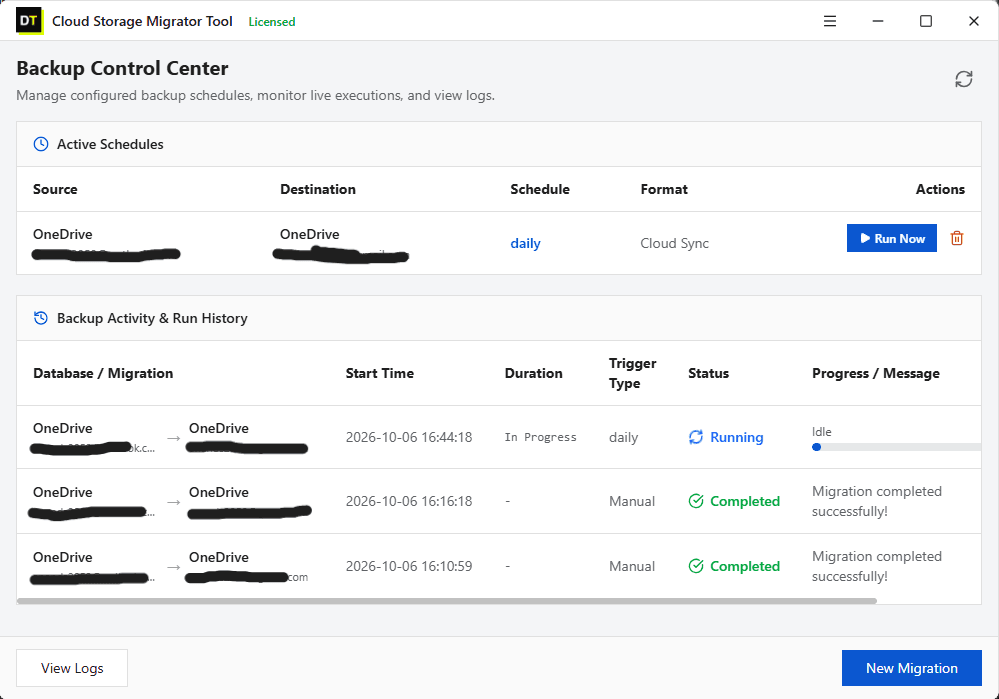
Screen 1: Dashboard
The dashboard is your starting point. From here you begin a new migration job, review the accounts you have connected and reopen earlier jobs and their reports. A single job can carry several accounts, drives or folders at once, so you are not forced to run one small migration after another.
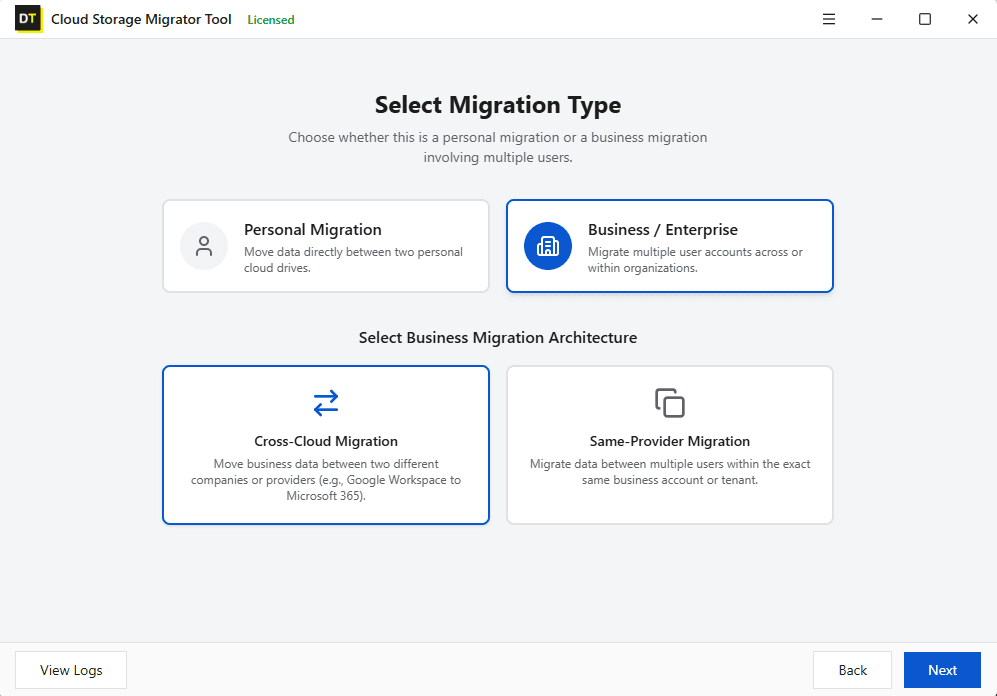
Screen 2: Mode Selection
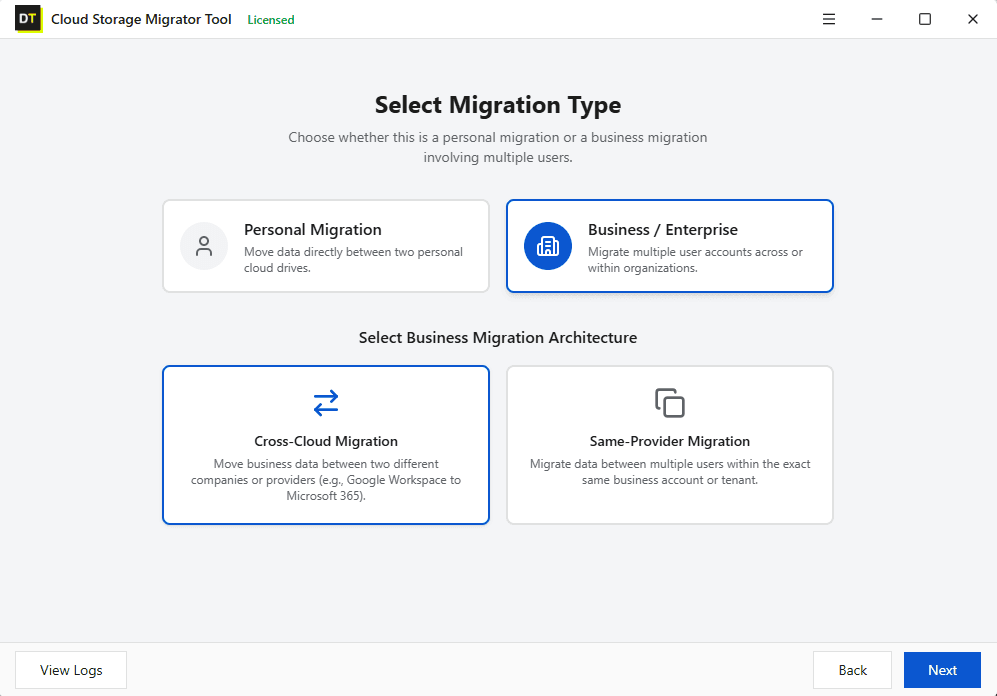
Choose personal or business mode for the job. In business mode you get two more options: cross migration to move data between different platforms, such as Dropbox to Google Workspace, or same migration to move data within one platform, such as one Microsoft 365 tenant to another.
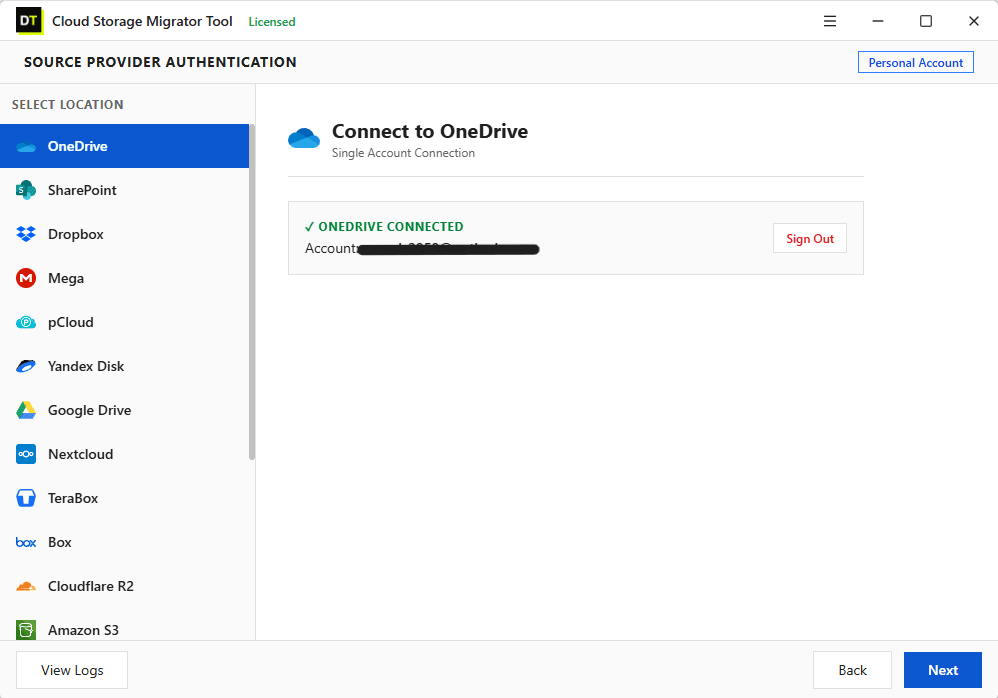
Screen 3: Source Authentication
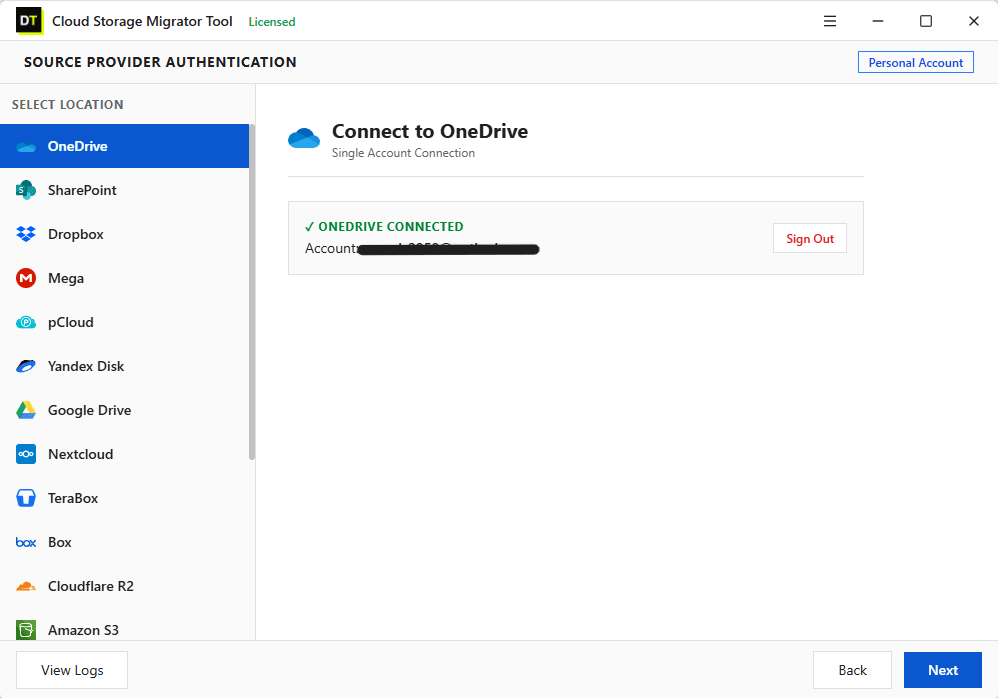
Choose the cloud you are moving from and sign in. Add as many source accounts as the job needs and manage them together. Sign-in happens on the provider's own page, and MFA works wherever the provider supports it.
Screen 4: Preview
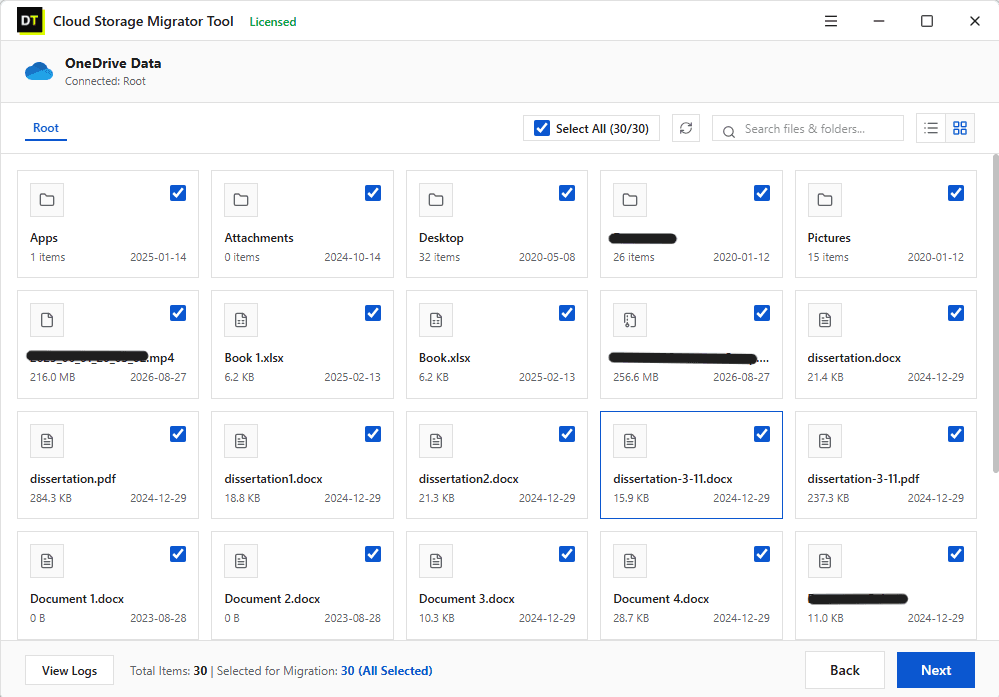
Before a single file moves, you see exactly what is there. Browse the full folder tree with per-file details: size, created date, modified date and drive type. Then narrow the scope by file extension, date range, folder type or file size. Nothing is committed on this screen, so you can explore and adjust freely. A preview is the cheapest insurance in any migration, because it turns 'I think this is what will move' into 'I can see what will move'.
Screen 5: Destination Authentication
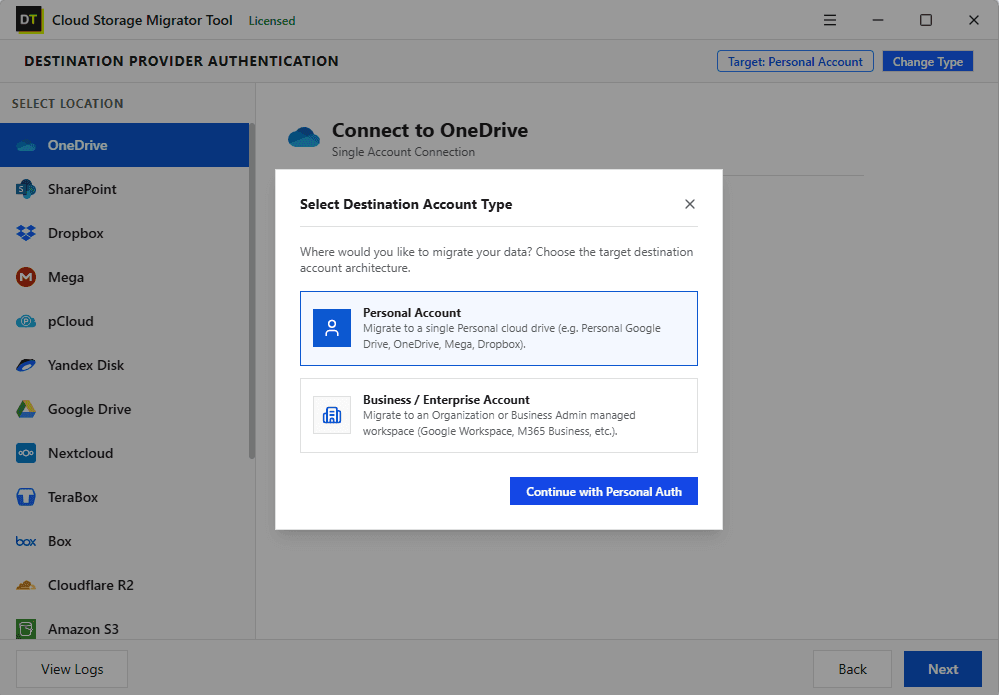
Choose where the data is going and sign in. The destination can be another provider or a second account on the same provider, personal or business. Browse the destination's existing structure so you know where things will land.
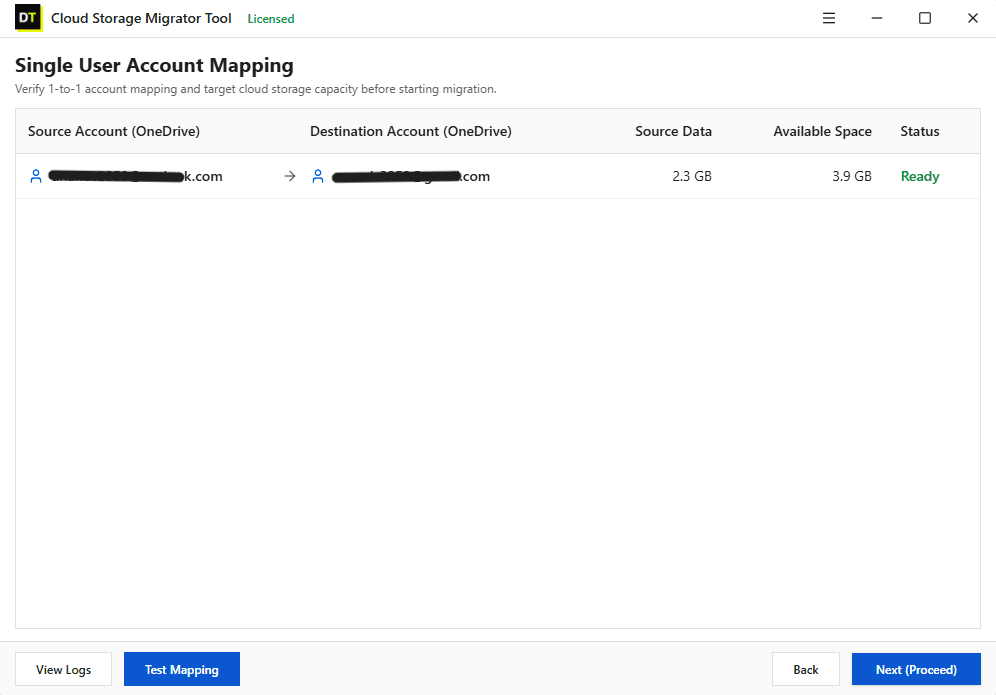
Screen 6: Mapping
Mapping decides which source goes to which destination. For a small job, map accounts, drives or folders manually in a few clicks. For a larger one, upload a CSV file and map dozens or hundreds of accounts in a single step. A company-wide move that would take hundreds of manual selections becomes one file and one upload.
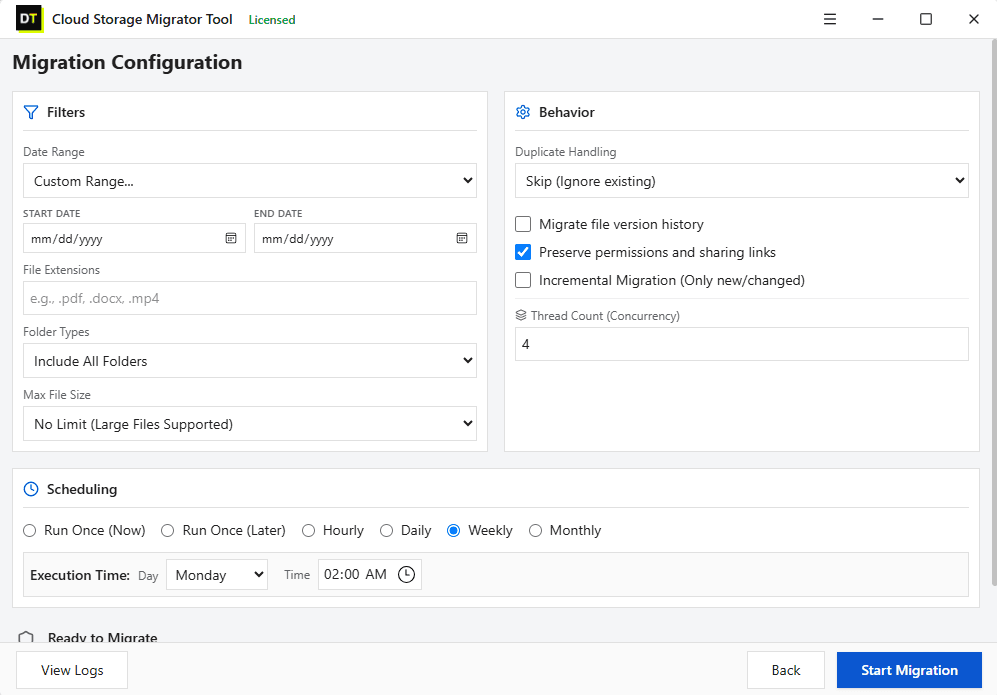
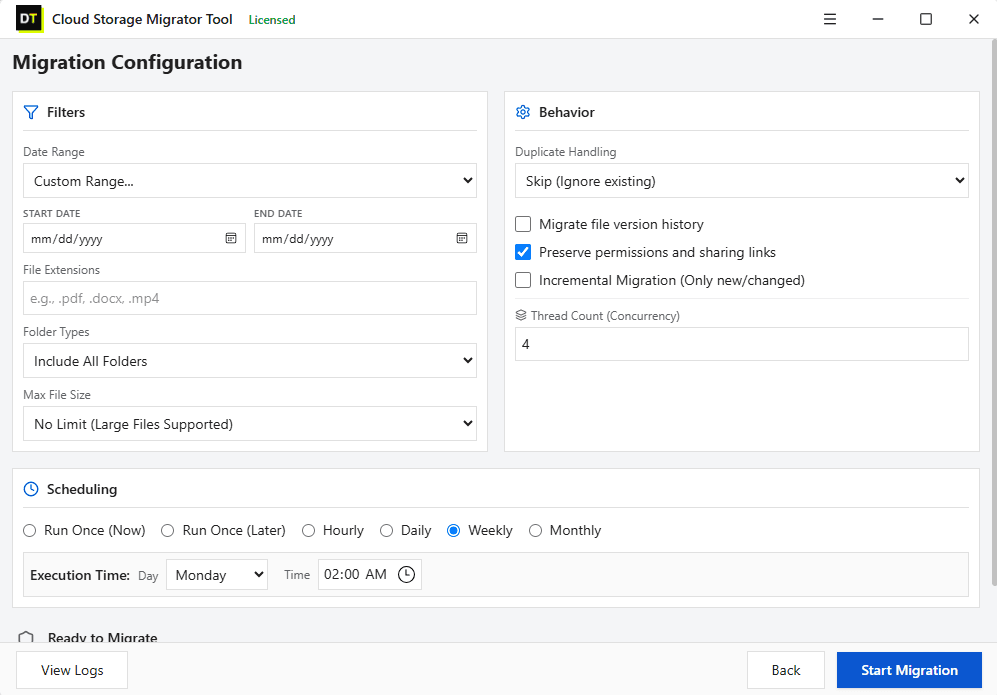
Screen 7: Configure Migration
Set the rules for the run. Decide what happens when a file already exists at the destination: skip it, rename the incoming copy so both exist, or replace the existing file. Turn on version migration to carry file history across where the source keeps it. Choose a one-time run, an incremental run, or a schedule that repeats hourly, daily, weekly or monthly. Adjust thread count and item thread count to match your internet speed and your PC.
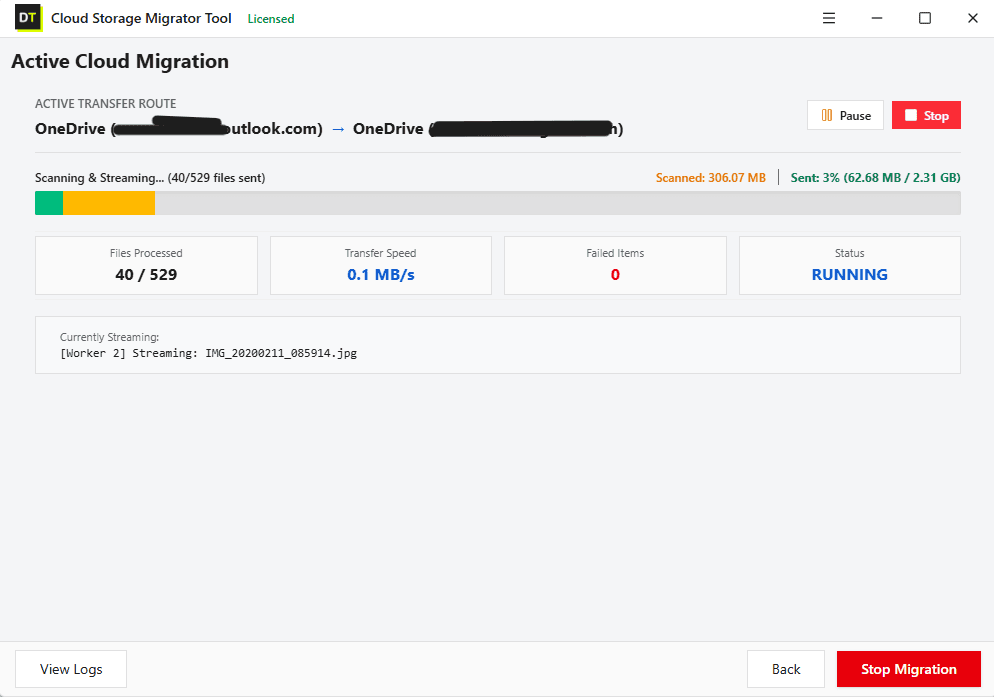
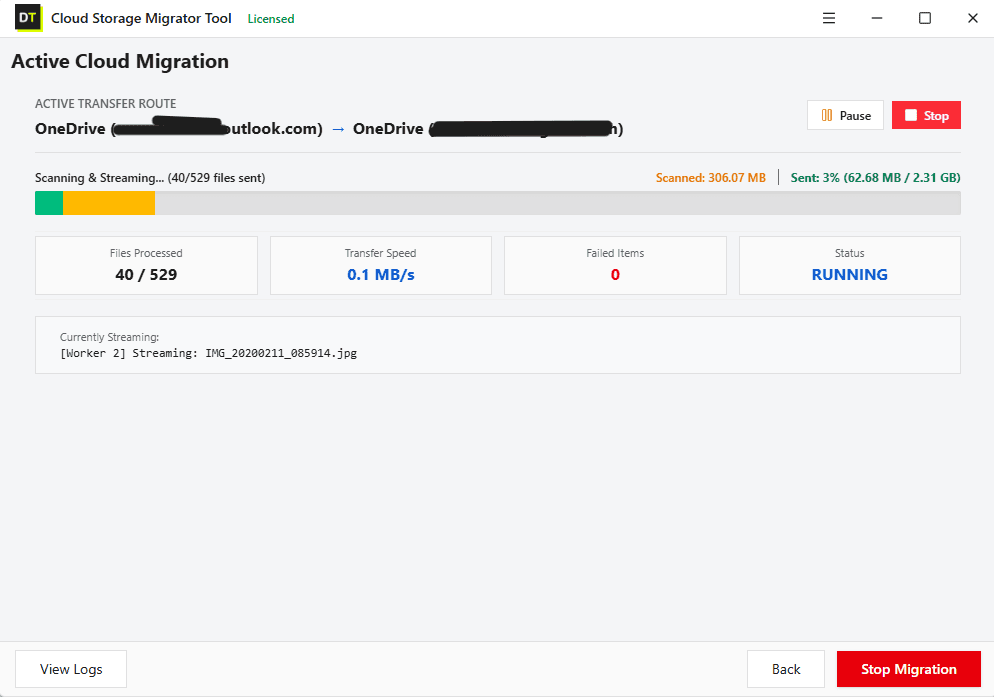
Screen 8: Migration
This is the live screen. Watch the job run between your source and destination clouds with the original folder structure preserved. If your connection drops or you pause the job, the transfer resumes where it stopped. When the run ends you get a detailed job report split into failed items, filtered items and already migrated items, exportable for your records. Nothing happens silently.
Stop Counting Gigabytes
Here is the honest difference between a metered service and a licensed desktop tool.
A metered service gives you an allowance. You decide how much to move, estimate it, and hope the estimate is right. If the migration is bigger than expected, you top up. If a folder fails and runs again, the retry may use the allowance twice.
The licensed version of DT Cloud to Cloud Migration Tool has no limit on total data or single file size. You do not estimate a quota, you do not watch a traffic meter, and a retry does not cost you extra. Your practical limits are the ones you cannot change anyway: your internet speed, your PC and the transfer rules of the clouds you connect to. Some providers throttle or cap heavy API use or downloads on their side, and a resumable, incremental job is built to ride through that.
Built for Large, Messy, Real Migrations
Resumable by design
Interruptions happen: a laptop sleeps, a connection drops, a provider pauses a job. The transfer picks up from where it stopped instead of restarting the whole folder.
Incremental runs
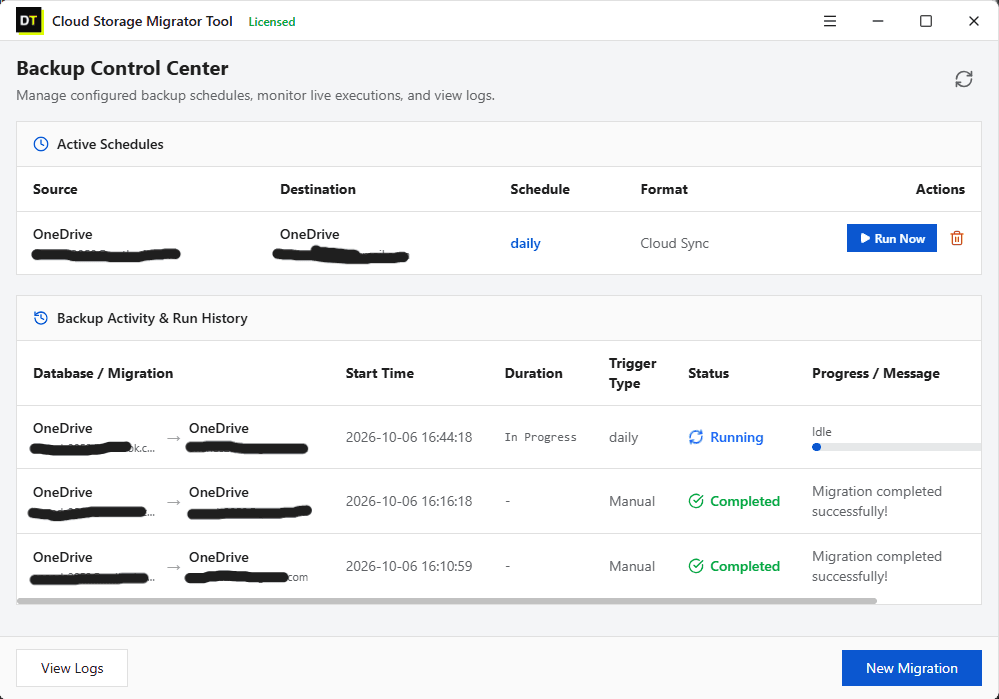
After the first full pass, later runs move only new or changed files. That makes it practical to keep a destination current during a long cutover, or to maintain a second copy over time.
Scheduled runs
Run hourly, daily, weekly or monthly. Large migrations can be spread across overnight windows so they do not compete with working hours.
Duplicate rules
Skip, rename or replace when a file already exists at the destination, decided once before the run.
Version migration
Carry file history across where the source keeps it, so the destination is not just a copy of the latest state.
Preserved structure
Folders land at the destination exactly as they were at the source, so people find their files where they expect them.
Reports you can keep
Every run ends with a report of failed, filtered and already migrated items, exportable for your own records or for an auditor.
What Moves, and What You Should Plan For
A file migration moves files and folders. Some things that live around them belong to the platform, not the file, and they behave differently on arrival.
- Files and folders move with their structure intact.
- File history can move where the source keeps it, when version migration is turned on.
- Shared links belong to the source platform and are not carried to the destination. Recreate the links you still need.
- Sharing permissions are set by each platform's own rules. Review who has access at the destination, especially on business accounts.
- Native online documents such as Google Docs, Sheets and Slides are converted to a standard office format when they move to a platform that does not use them natively.
- Provider-side encryption features, such as private encrypted folders, follow the destination's security model once the files arrive. Decide where sensitive files should live before you move them.
Who Gets the Most From This Tool
IT administrators and MSPs
You are consolidating user storage across several platforms, with CSV mapping for many accounts, schedules around business hours and a report for every client or department. The cost stays predictable because the tool does not charge by the gigabyte or by the user.
Small and mid-sized businesses
You are moving from Dropbox, Box or personal accounts into Microsoft 365 or Google Workspace and want it done properly without a consulting engagement.
Freelancers and consultants
A client keeps their files in a cloud that is not yours. You move what you need once, with the folder structure kept, and keep the report.
Individuals consolidating accounts
Years of files across free accounts and old logins finally land in one organized place.
Teams keeping a second copy
You want an independent copy of critical data in another cloud, refreshed on a schedule with incremental runs.
Cloud to Cloud Migration Compared
| What matters | Manual download & upload | Hosted transfer services | DT Cloud to Cloud Migration Tool |
|---|---|---|---|
| Moves data directly between clouds | No | Yes | Yes |
| Uses your disk and internet twice | Yes | No | No |
| Data limit | Your disk space | Monthly traffic caps or per-gigabyte pricing | No limit on the licensed version |
| Preview before moving | No | Varies | Yes |
| Filters by extension, date, folder type, size | No | Varies | Yes |
| CSV bulk mapping | No | Varies | Yes |
| Resumable | No | Varies | Yes |
| Incremental and scheduled runs | No | Often on paid tiers | Yes, in the same build |
| Job report | No | Varies | Yes, failed, filtered and already migrated |
| Pricing model | Free, but slow | Subscription, per user or per gigabyte | One-time license |
This comparison describes common approaches in general terms and may differ by provider and plan. Check any service's current terms before you decide.
A Practical Cloud to Cloud Migration Plan
The tool does the moving. A good plan makes sure the right data moves, once.
Define the scope. List which accounts, drives and folders are in. Decide what is out: old archives, junk, personal files on a company account.
Get authorization. For business data, confirm who approves the move and who owns the result.
Clean first. Remove duplicates and obsolete files at the source. Every unnecessary file you skip is time you save. Data TB's duplicate finders can clean a cloud account directly.
Check the destination. Confirm free space, plan limits, file name rules and folder depth limits. Long paths and special characters are the most common cause of failed items.
Choose your duplicate rule. Skip, rename or replace, decided in advance for the whole job.
Run a pilot. Use the free trial or a filtered test folder. Check the result on the destination the way a real user would.
Run the full migration. Use a schedule for large jobs and let incremental runs catch changes made during the move.
Review the report. Work through failed items, then run the job again to pick them up.
Cut over. Tell users where their files now live. Keep the source active until everything is verified.
Recreate sharing. Rebuild shared links and permissions at the destination.
Free Trial vs Licensed Version
| Feature | Free trial | Licensed |
|---|---|---|
| All eight screens and every account path | Yes | Yes |
| Data you can process | Up to 500 MB | No limit |
| File size | Files under 20 MB | No limit |
| Preview, filters and mapping | Yes | Yes |
| Scheduling, incremental runs and job reports | Yes | Yes |
System Requirements
- Installer size8.3 MB
- Architecture32-bit and 64-bit
- Operating systemAll versions of Windows (Windows 11 and 10 recommended) and all versions of Windows Server
- Virtual machinesVMware, Microsoft Hyper-V, Oracle VirtualBox
- Processor2 GHz, 2 cores minimum
- Memory2 GB minimum
- Disk space1 GB minimum
- Prerequisite.NET Framework 4.7 or later on Windows 8 and earlier
Security and Privacy in Plain Words
Your cloud passwords are not stored by Data TB.
Sign-in happens through each provider, and MFA works wherever the provider supports it.
The application runs on your own Windows PC, so keep it running while a job or schedule is active.
Data is not stored by Data TB.
You can revoke the tool's access from each cloud provider's security settings at any time.
Data moves between your clouds under each provider's own encryption in transit.
Frequently Asked Questions
QWhat is cloud to cloud migration?
It is moving data directly from one cloud service to another, without making a local copy as an intermediate step. For files, that means transfers such as Google Drive to OneDrive or Dropbox to SharePoint, handled as one managed job.
QDoes this tool migrate servers, virtual machines or applications?
No. It migrates files and folders between cloud storage accounts. Moving servers, virtual machines, databases or applications between AWS, Azure or Google Cloud needs an infrastructure migration platform.
QHow do I transfer files from one cloud to another without downloading them?
Connect the source and destination accounts in DT Cloud to Cloud Migration Tool, preview and filter the data, map folders and start the job. The migration runs between the two clouds, with no manual download and upload cycle.
QWhich cloud services are supported?
Google Drive, OneDrive, SharePoint, Google Workspace, Dropbox, Box, MEGA, pCloud, Proton Drive, Yandex Disk, TeraBox, Nextcloud, Amazon S3, Cloudflare R2, Google Cloud Storage, Azure Blob Storage, Backblaze B2, DigitalOcean Spaces and FTP or SFTP servers. Any of them can be a source or a destination.
QCan I migrate from Google Drive to OneDrive?
Yes. Connect Google Drive as the source and OneDrive or SharePoint as the destination, preview the data, map it and run the job. The folder structure is preserved. Google's online documents are converted to standard office formats at the destination.
QCan I migrate from Dropbox or Box to Microsoft 365 or Google Workspace?
Yes. Both work as sources, and Microsoft 365 and Google Workspace work as destinations. Use CSV mapping to move many users in one step.
QDoes it support business and personal accounts?
Yes, in all four combinations, and for same-platform moves between two accounts of the same provider.
QIs there a limit on the amount of data I can migrate?
The licensed version has no limit on total data or file size. The free trial processes up to 500 MB and files under 20 MB so you can test safely.
QHow is this different from a hosted transfer service?
Hosted services usually meter transfer traffic by month, by gigabyte or by user. This is a desktop tool with a licence and no data limit. Your practical limits are your internet connection, your PC and the rules of the clouds you connect.
QCan I preview and filter what will be migrated?
Yes. The Preview screen shows folders and file details. You can filter by extension, date range, folder type and file size before anything is transferred.
QCan I migrate many users at once?
Yes. In business mode, upload a CSV file to map many accounts in a single step instead of selecting each one by hand.
QWhat happens if a file already exists at the destination?
You choose before the run: skip the file, rename the incoming copy so both exist, or replace the existing one.
QWhat happens if the migration is interrupted?
The transfer resumes from where it stopped. You do not start the whole job again.
QCan I run migrations on a schedule?
Yes. Run once, run incrementally so only new or changed files move, or schedule hourly, daily, weekly or monthly.
QCan I use it to keep a second copy of my data in another cloud?
Yes. An incremental job on a schedule keeps the second copy current without repeating the full transfer.
QWill my shared links and permissions carry over?
Shared links and sharing settings belong to the source platform and are not carried to another cloud. Recreate what you need at the destination and review access on business accounts.
QDoes it keep my folder structure?
Yes. The original folder structure is preserved at the destination.
QWhat do I do about failed items?
Open the job report, which lists failed, filtered and already migrated items. Fix the cause, often a long path, a blocked character or a full destination, and run the job again. Items that already arrived are not moved twice.
QDo I need to keep my computer on during the migration?
Yes. The application runs on your own Windows PC, so keep it running while a job or schedule is active. Resume support covers any interruptions.
QIs there a free trial?
Yes. You can migrate up to 500 MB, with files under 20 MB, using all eight screens and every account path, before you buy.
QDoes it work on Mac or Linux?
No. It is a Windows application and runs on all versions of Windows and Windows Server, including virtual machines.
QHow does this page relate to the DT Cloud Storage Migrator Tool?
They run on the same engine. This page covers the general cloud to cloud use case. See the DT Cloud Storage Migrator Tool page for the product overview, and the dedicated pages for MEGA, pCloud, OneDrive and SharePoint if your move centers on one of them.
Ready to Move? Start With the Free Trial
Run a real migration between two of your own clouds, up to 500 MB, before you spend anything. You will see the full workflow working on your data, from sign-in to the final job report. When you are ready for the full job, the licensed version removes every limit, and everything you need is already in one tool.