
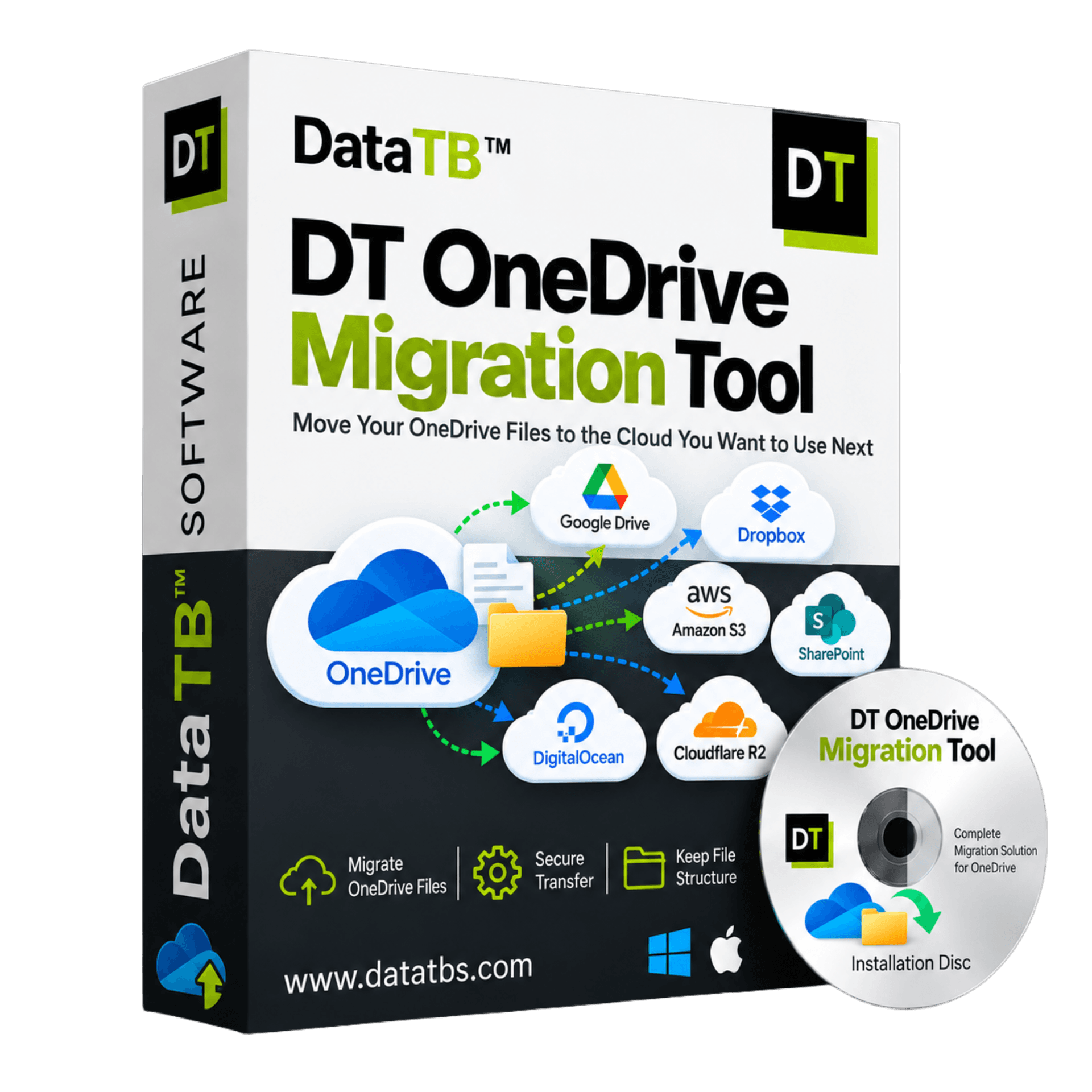
DT OneDrive Migration Tool
DT OneDrive Migration Tool
Move Your OneDrive Files to the Cloud You Want to Use Next
Your files should not tie you to an account you no longer want to use. Whether you are changing cloud providers, separating personal files from work or moving a team into a new account, start with a clear view of what needs to move. DT OneDrive Migration Tool helps you transfer files and folders between OneDrive and supported destinations, including Google Drive, MEGA, Dropbox, Box and another OneDrive account. Personal and business account paths are supported.
- Transfer files between OneDrive and Google Drive, MEGA, Dropbox, Box and more
- Personal and business account paths fully supported
- Bring your current projects, leave unnecessary folders behind
- Resumable, incremental and scheduled transfers with full job reports


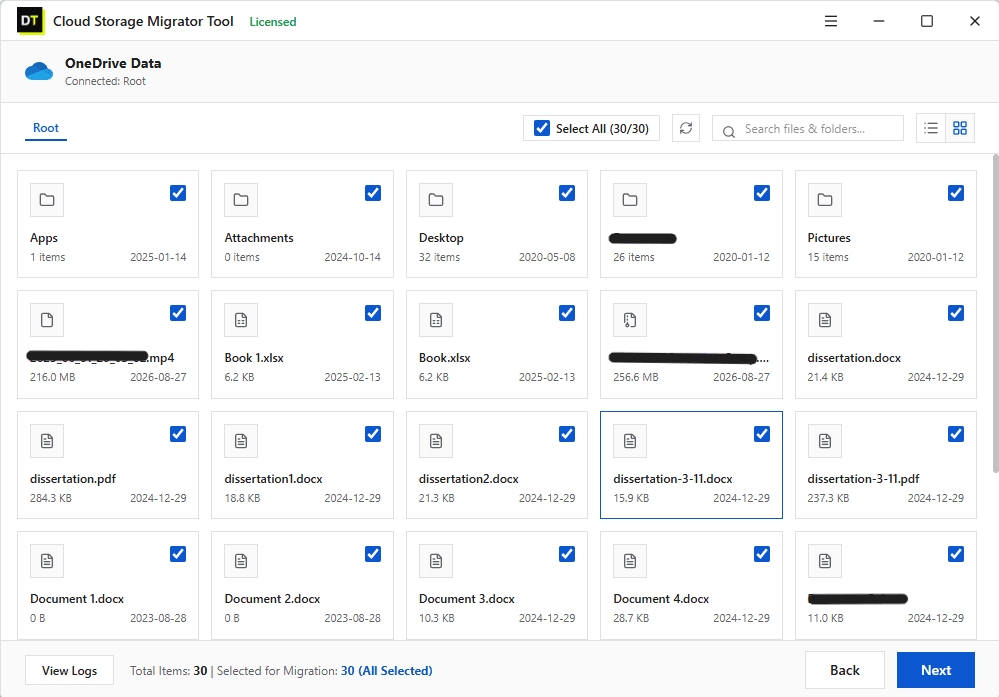
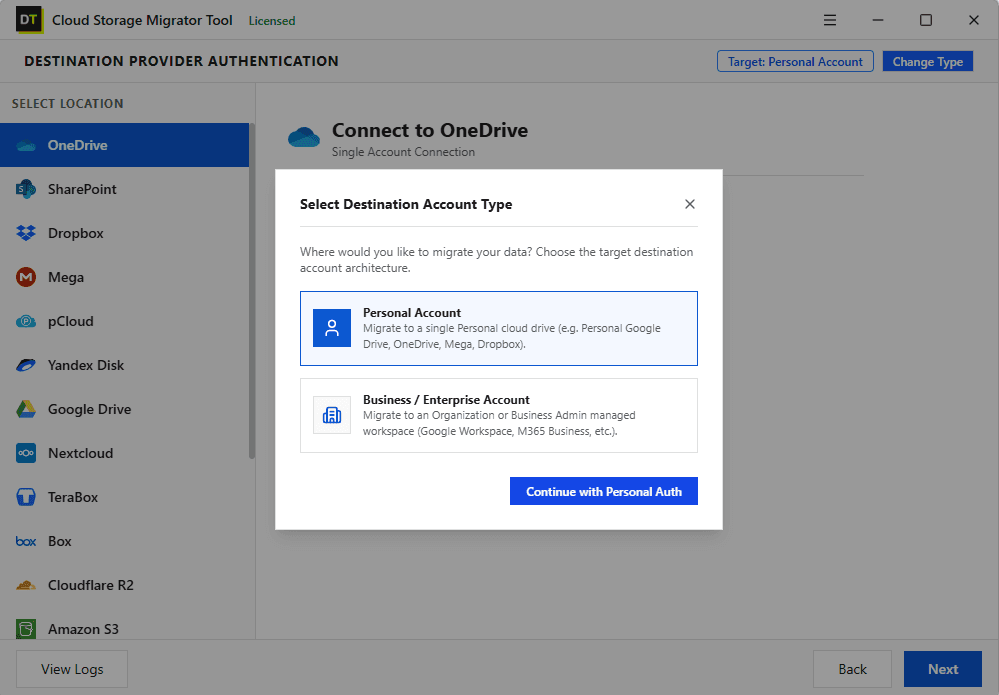
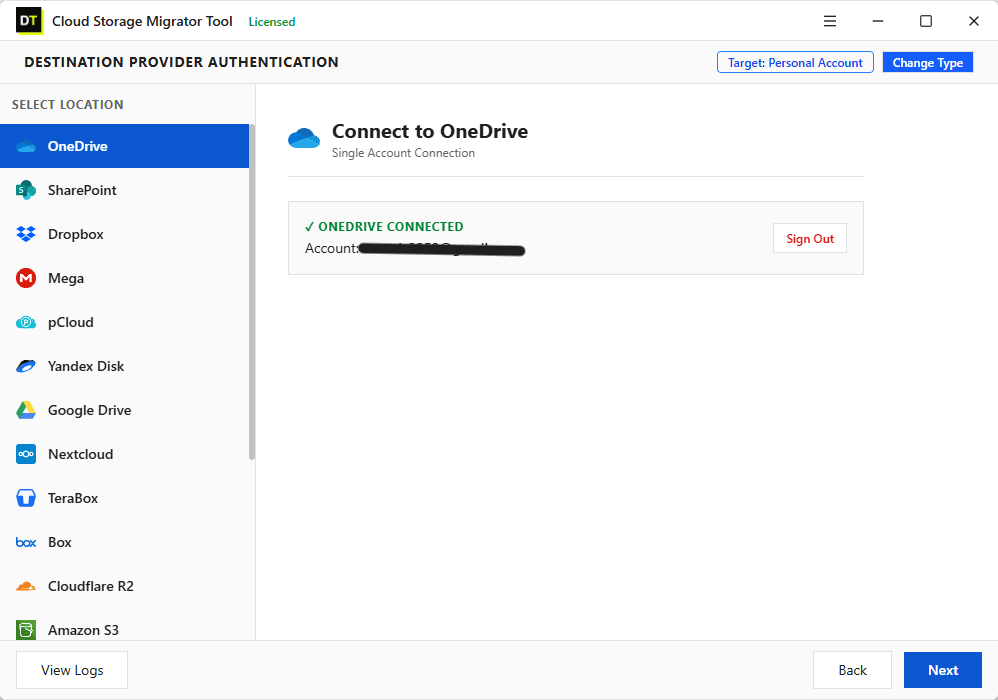
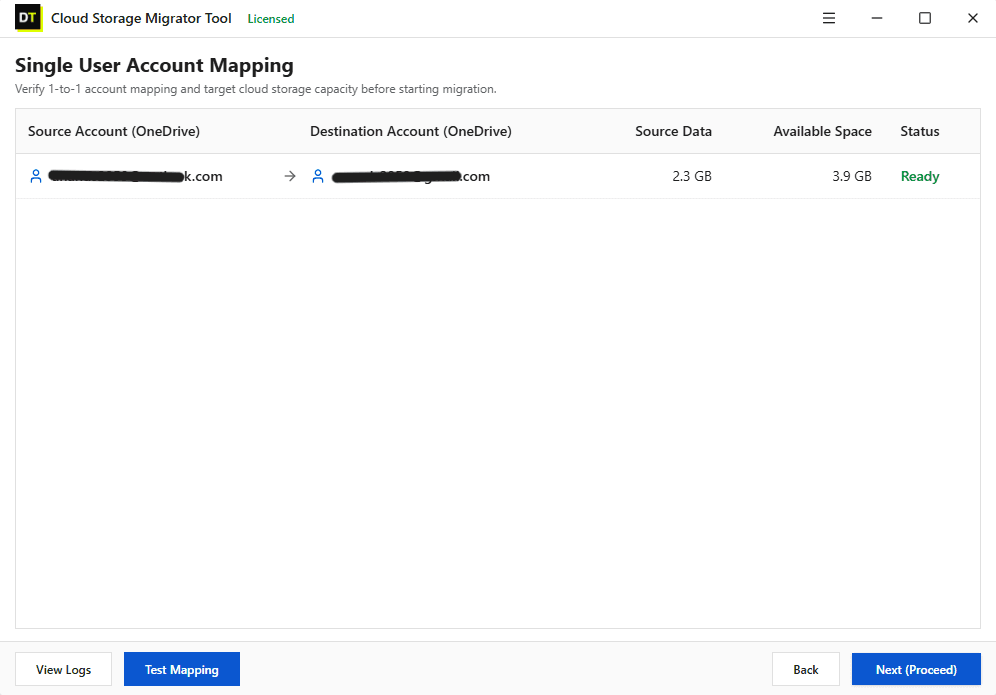
Quick Summary:DT OneDrive Migration Tool helps you transfer files and folders between OneDrive and supported destinations, including Google Drive, MEGA, Dropbox, Box and another OneDrive account. Personal and business account paths are supported with preview, filtering, CSV mapping, resumable transfers and complete job reports.
Supported Cloud Destinations
Migrate OneDrive to Any Major Cloud












A New Cloud Account Should Not Mean Starting From Scratch
Think about what is inside your OneDrive account.
There may be client folders you still use every week, invoices you need to retain, photographs you want to keep together and old projects that no longer belong beside current work.
Now think about where those files should go.
Perhaps your client wants everything in Google Drive. Perhaps you have chosen MEGA for your personal storage. Or perhaps your business needs its documents in a different OneDrive account.
The destination may change, but the questions remain:
- Which files belong in the new account?
- Which folders should stay out of the transfer?
- Where should each project arrive?
- What should happen when a file already exists?
- How will you check the result?
Build your migration around those answers, rather than treating every folder as something that must move.
Choose Your OneDrive Migration Destination
Supported destinations include Google Drive, MEGA, OneDrive, Dropbox, Box, SharePoint, pCloud, Nextcloud, Proton Drive, Yandex Disk, TeraBox, Amazon S3, Cloudflare R2, Google Cloud Storage, Azure Blob Storage, Backblaze B2, DigitalOcean Spaces and FTP/SFTP.
OneDrive to Google Drive
Put the right files in the account where your next stage of work will happen.
A Google Drive migration might be a personal move, a client handover or part of a wider change in how your team works.
Give those groups separate destinations. Keep current work distinguishable from archives. Make the result something you can use, not just another account full of files to sort later.
OneDrive to MEGA
Take the files you want to keep, without turning the move into another cleanup project.
Consider a personal archive containing photographs, recordings, scanned documents and older project folders. Before transferring it to MEGA, decide how you want to find that material afterward.
Use your migration as the point at which that destination plan becomes clear. The aim is not simply to fill the new account.
OneDrive to OneDrive
Change accounts without losing sight of which files belong where.
A second OneDrive account may serve a different purpose from the first. You might want a dedicated account for personal documents, a new home for a project or a business account that separates company work from your private storage.
Treat the destination as a fresh working space. Identify the folders that should come across, decide where they belong and leave unrelated material outside the project.
OneDrive to Dropbox
Organize a handover around the people receiving the files.
Imagine handing over a design project. The receiving team may need the final assets, approved documents and supporting references, but not every rejected draft or unrelated client folder.
Define that package before the transfer. Use clear destination names, separate final deliverables from working material and agree on who will review the result.
OneDrive to SharePoint
Plan the destination around shared work, not an individual’s filing habits.
If the objective is to make selected documents available in a team location, start by identifying the material intended for that team.
Separate project resources from personal working notes. Agree on the destination structure and identify who will check the migrated documents.
OneDrive to Server
Define the purpose of the collection before choosing what goes into it.
For an archive, ask what you need to retain and how you expect to retrieve it. For a project repository, decide how current work should be distinguished from historical material.
Use consistent folder names and keep a record of the source, destination and contents of the migration. Make it possible for someone else to understand the collection.
Make Each Migration Decision Deliberately
Choose a Useful Scope
A migration does not have to include everything.
For a project handover, define the approved deliverables. Write down the exclusions as well as the inclusions. “Everything except these folders” is often less useful than a precise list of what the new account actually needs.
Decide How to Treat Existing Content
If the destination already contains work, consider the consequences before you begin.
Would you prefer to retain both copies of a conflicting file? Is the destination copy already the approved version? Make that decision with the owner of the content.
Separate the First Move From Final Handover
For an active project, consider two acceptance points.
The first is a representative test: does the selected content arrive where you intended? The second is the final handover: has the agreed collection been reviewed and accepted?
Keep a Record of What Still Needs Attention
Your completion record should include more than “migration finished.”
Record any outstanding items, the person responsible for resolving them and the next action. A short, specific exception list is more useful than a broad assurance.
Give Every Source a Destination
Avoid vague instructions such as “put the department’s files in the new account.” A better plan identifies the source, destination and person responsible for reviewing the result.
| Source collection | Intended destination | Reviewer |
|---|---|---|
| Active client projects | Current Projects | Project owner |
| Completed assignments | Project Archive | Team lead |
| Approved business documents | Shared Resources | Department owner |
| Authorized personal files | Personal Documents | Account owner |
The Complete Migration Workflow: Eight Screens, Nothing Hidden
The workflow covers Dashboard, Mode Selection, Source Authentication, Preview, Destination Authentication, Mapping, Configure Migration and Migration. Use these checkpoints to keep the project focused.
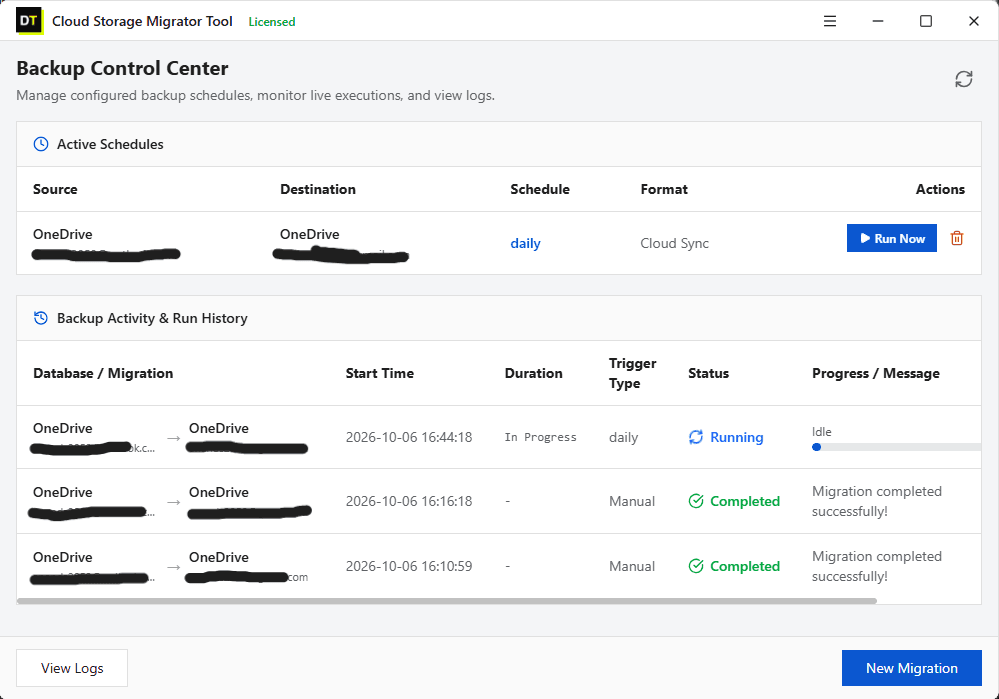
Screen 1: Dashboard
Name the job so its purpose is obvious. “Client Handover, October” is easier to recognize later than an unnamed transfer.
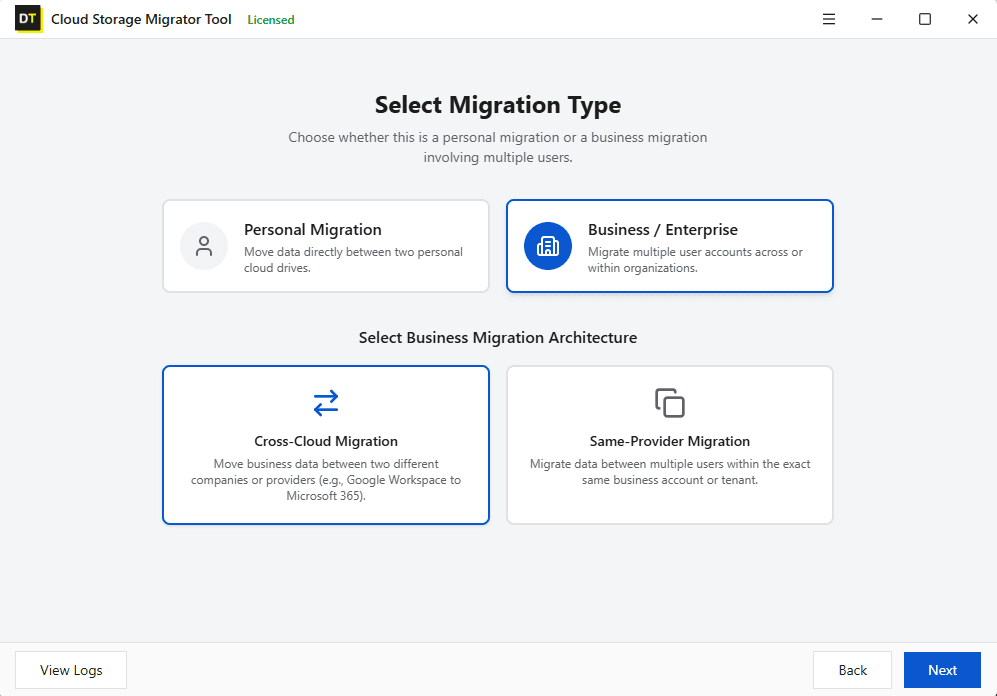
Screen 2: Mode Selection
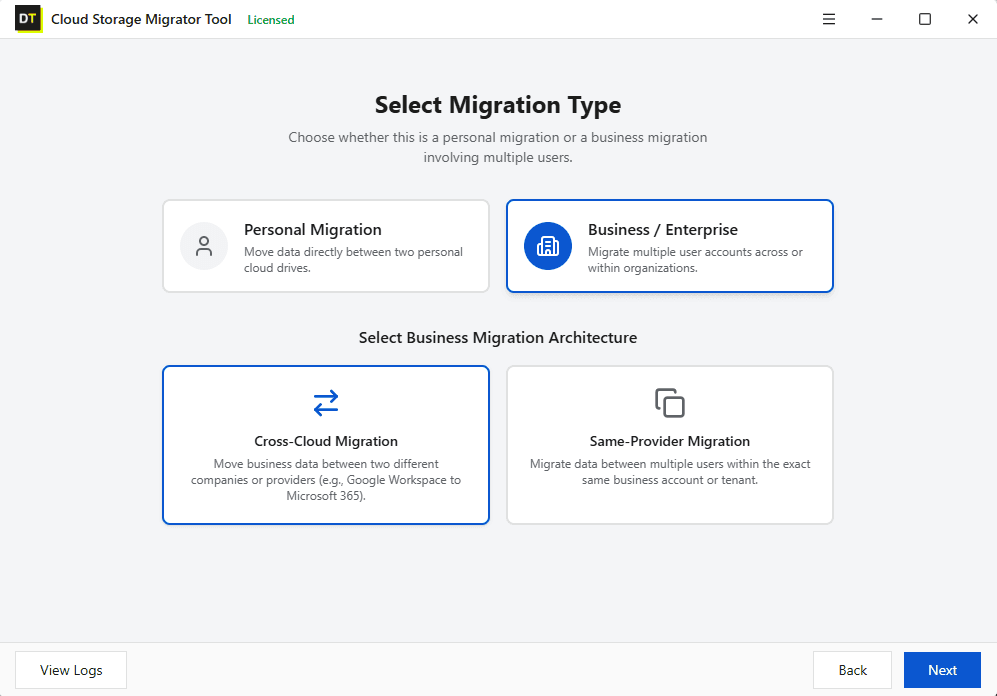
Be clear about whether this is a personal move or an authorized business migration. Keep the scope consistent with that purpose.
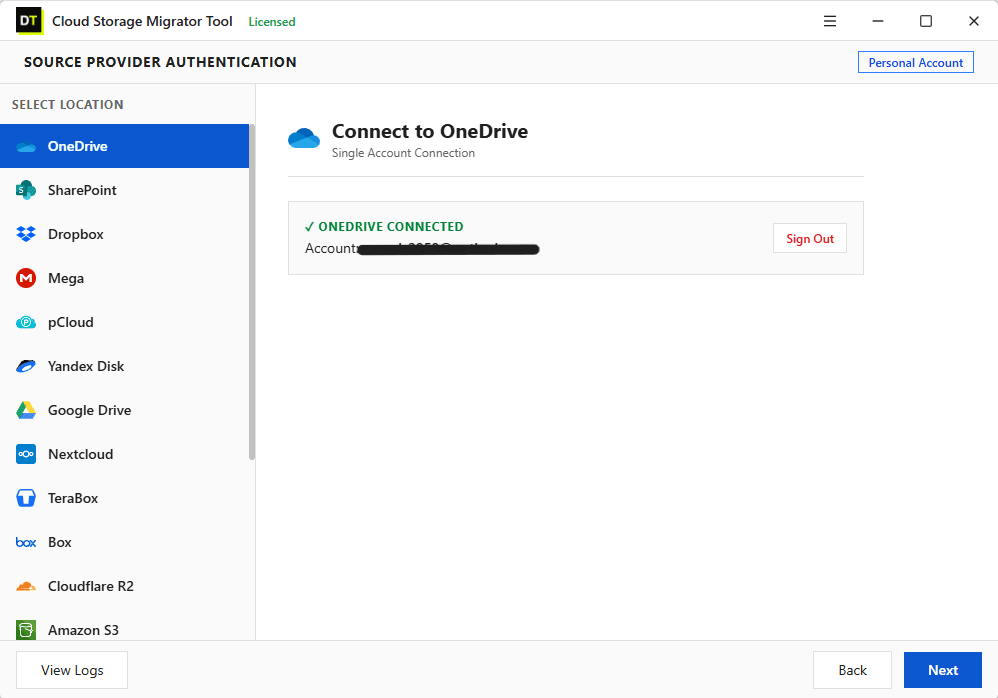
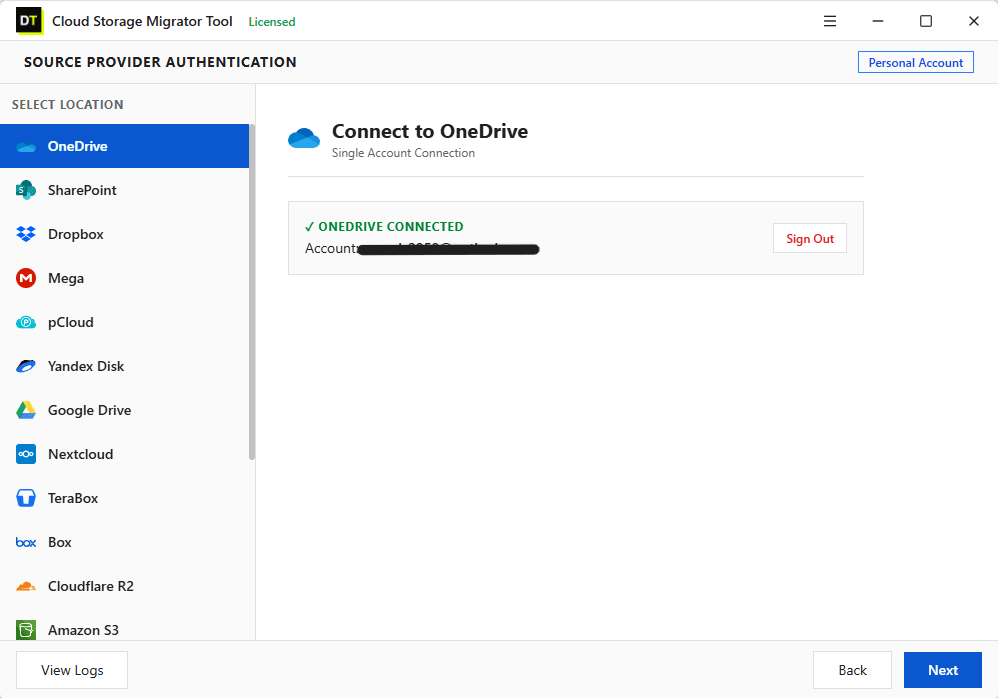
Screen 3: Source Authentication
Check the account carefully. If you maintain several accounts, confirm you are working with the intended source.
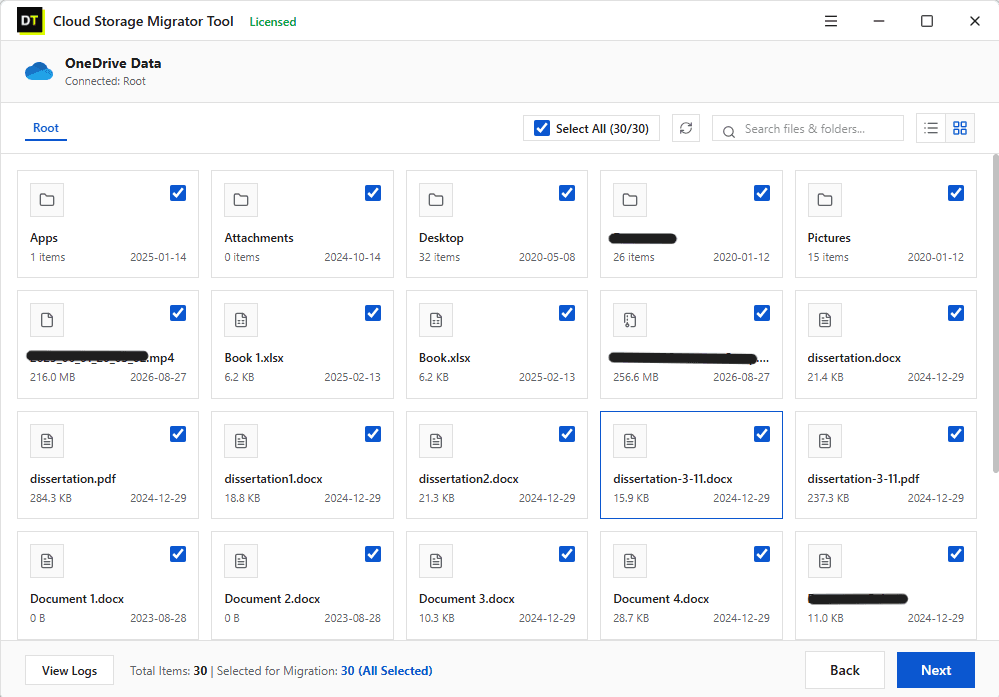
Screen 4: Preview
Review representative folders before committing to the full collection. Look for material that should be excluded.
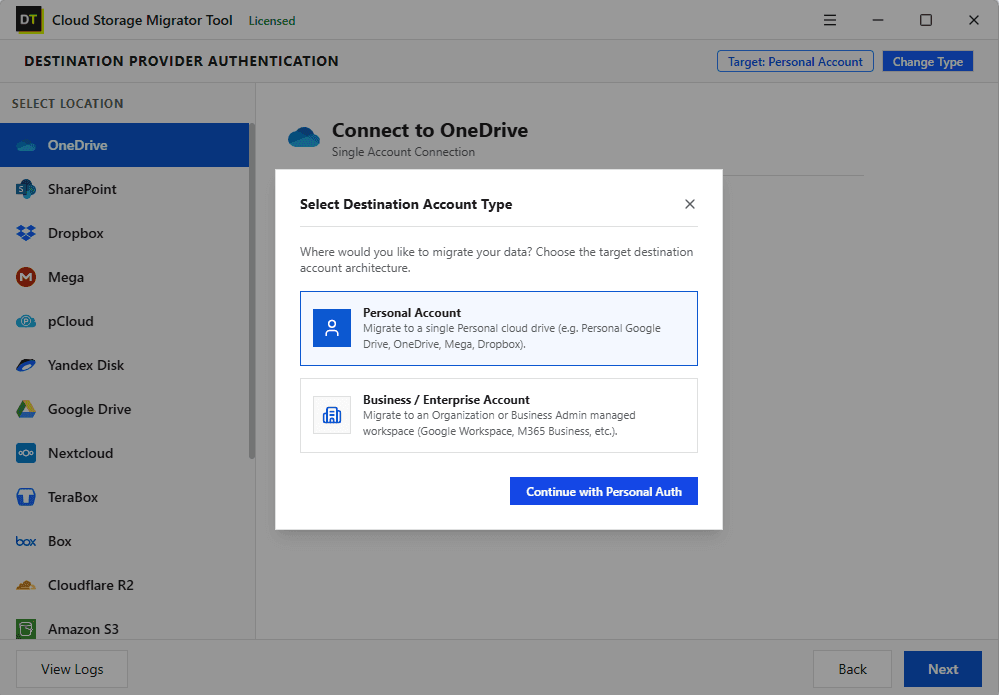
Screen 5: Destination Authentication
Confirm the receiving account and the intended location. Pay particular attention when several similarly named accounts are involved.
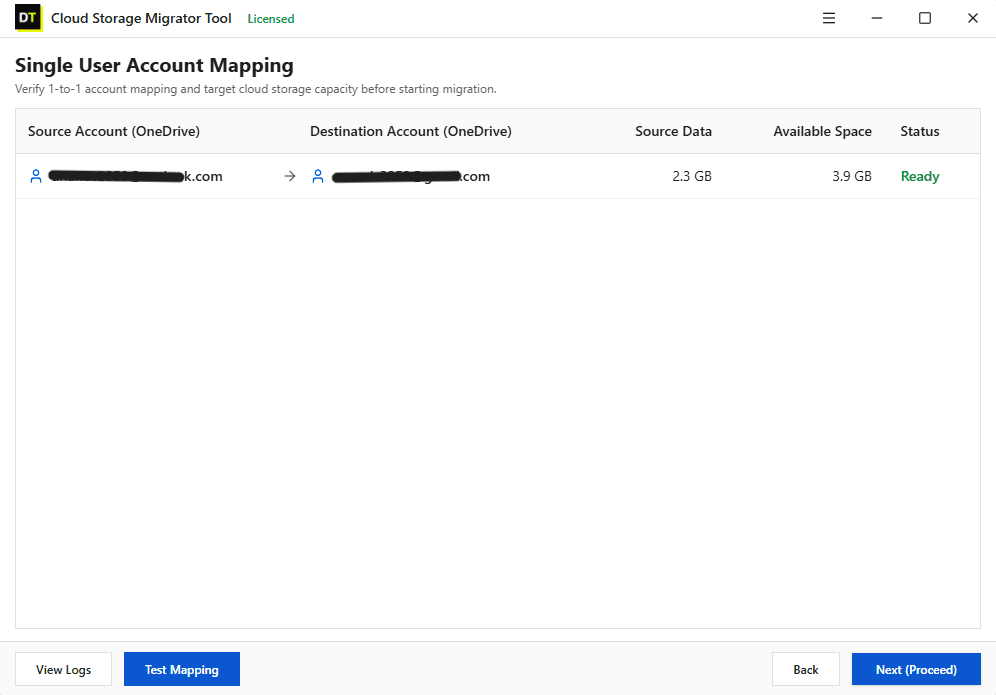
Screen 6: Mapping
Review the source-to-destination relationships. For a team project, have the responsible person check their assigned destination.
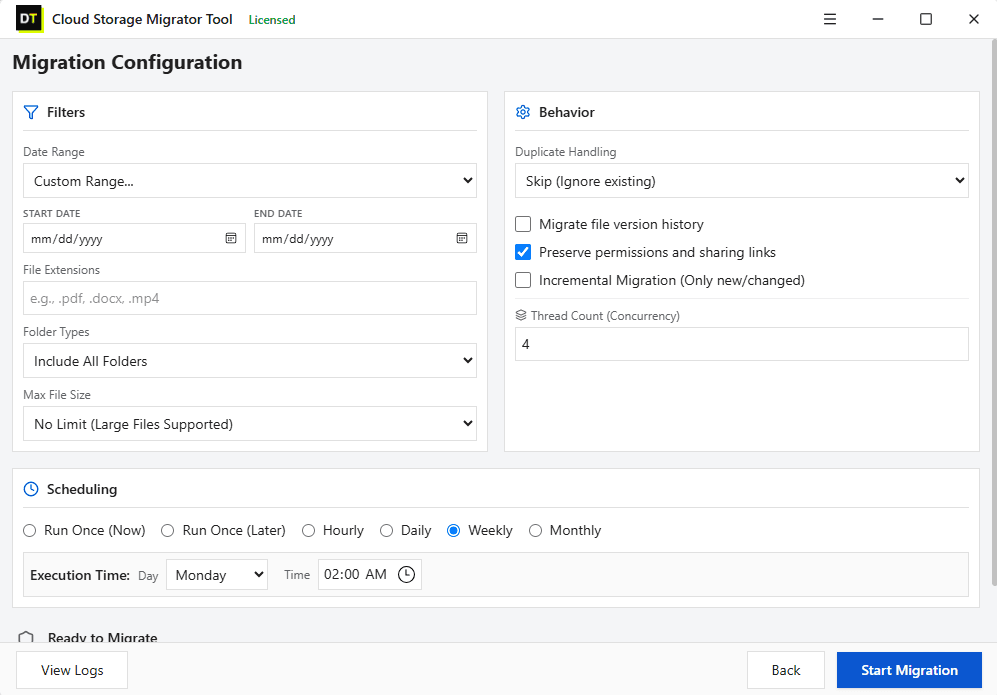
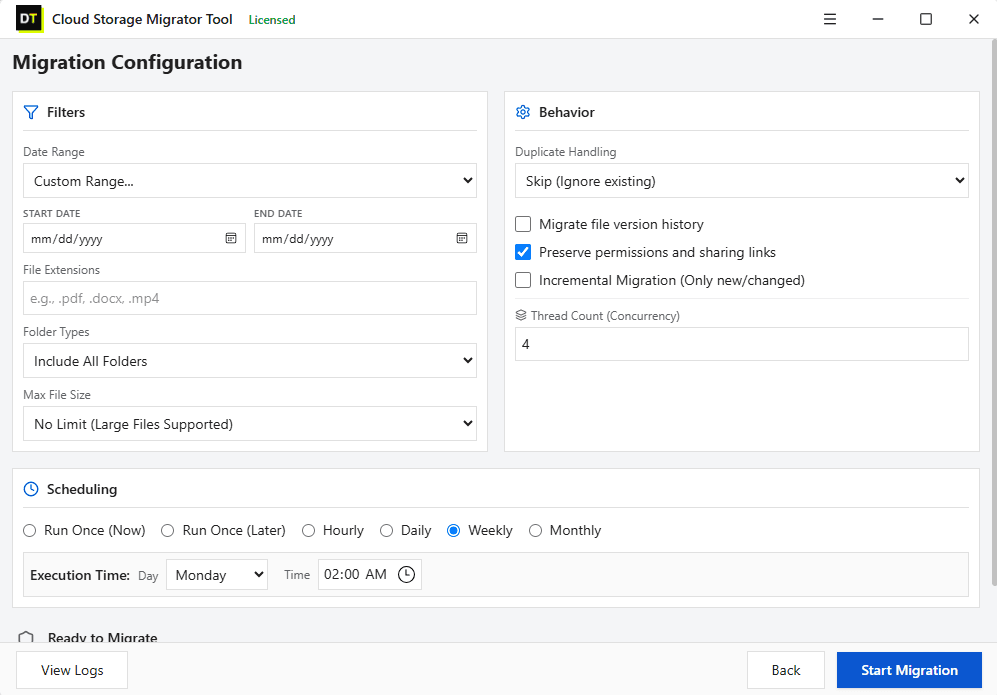
Screen 7: Configure Migration
Consider the consequences of your settings, especially when the destination already contains files.
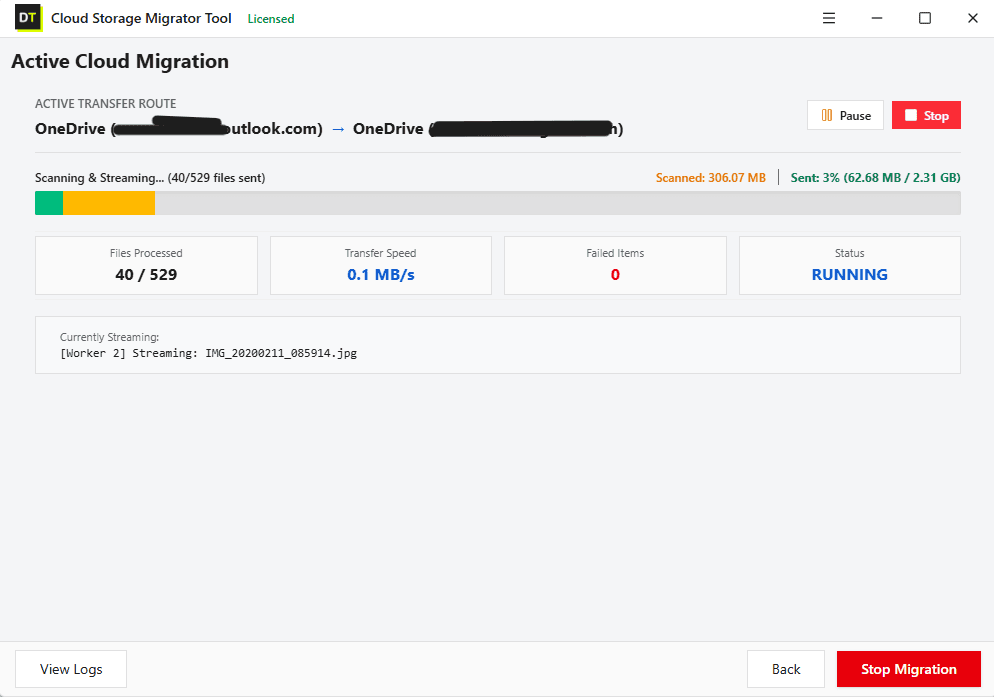
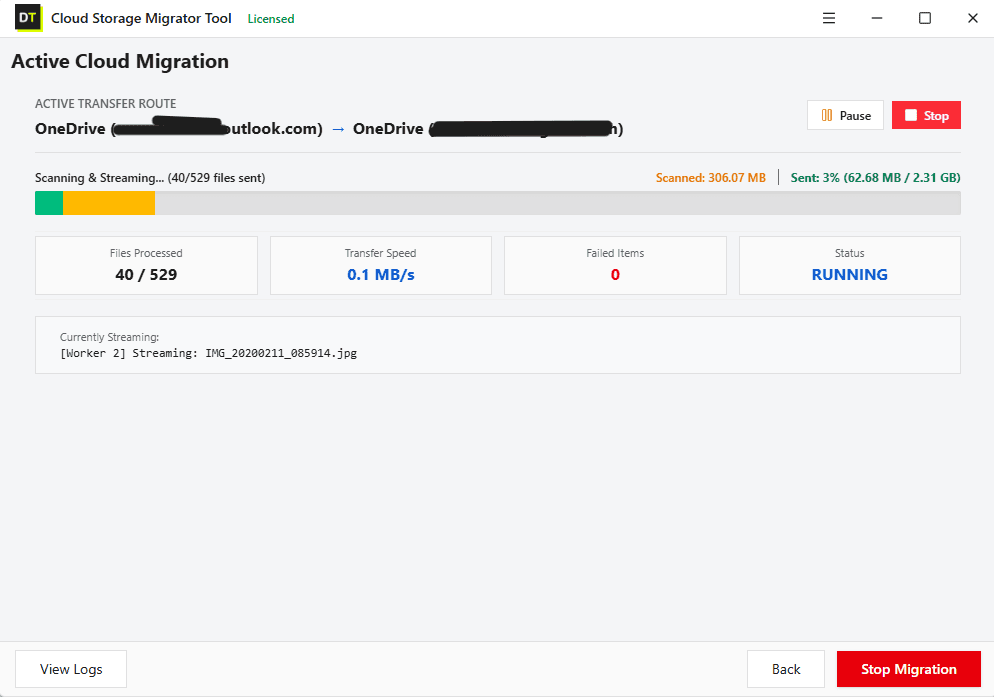
Screen 8: Migration
Make the final review part of the job. Check the destination, record exceptions and obtain acceptance from the relevant owner.
OneDrive Migration Features
| Control | Available in DT |
|---|---|
| Preview | Folder tree and file details |
| Selection | Extension, date, folder-type and size filters |
| Mapping | Manual and CSV |
| Existing files | Skip, rename or replace |
| Processing | Multiple accounts, drives and buckets |
| Continuity | Resumable transfers |
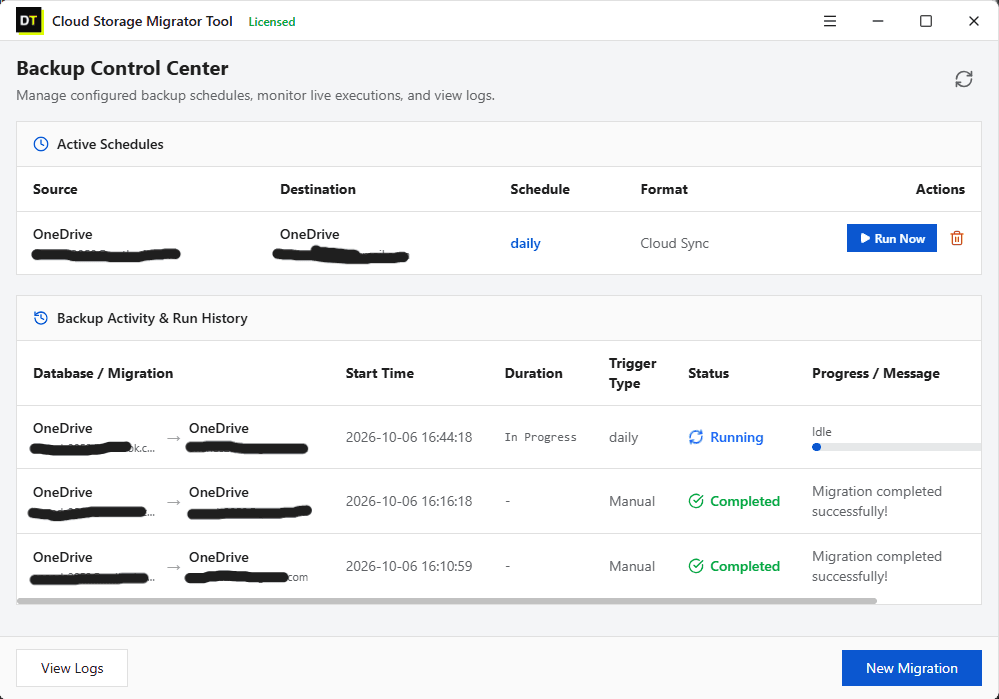
| Repeat runs | Incremental and scheduled |
| History | Version migration |
| Performance | Thread and item-thread settings |
| Organization | Folder hierarchy preservation |
| Reporting | Exportable failed, filtered and already-migrated item reports |
How It Compares: DT vs Others
“Others” refers to selected alternatives, not every migration product. Availability depends on the product and plan.
| Consideration | DT OneDrive Migration Tool | Others |
|---|---|---|
| Transfer allowance | No licensed software data cap | Some plans impose monthly or annual allowances; unlimited plans also exist |
| Account scope | Personal and business paths | Some tools focus on business-account migrations |
| Destination choice | Multiple cloud destinations | Some import tools target one ecosystem |
| Version handling | Version migration available | Some import tools bring only the latest version |
Download DT and Start With a Test Job
For Personal Moves, Client Handovers and Business Projects
Personal Account
Your objective may be simple: keep your important files together in a different account. Start with the folders you use most. Choose a small, representative collection for the first test.
Client Project
Agree on what “complete” means before the handover. Does the client expect only final files, or source material as well? A written handover list removes ambiguity from the transfer.
Personal / Business
Draw the boundary before moving anything. List the material that belongs in the business account and the personal content that should remain outside it.
Team Storage
Start with owners and destinations rather than account totals. Who is responsible for each collection? Use those answers to build a migration plan that the team can review.
Business to Business
Keep the scope explicit. Identify the authorized OneDrive content, its destination and the person who will accept the result. Treat any additional requirements as separate items.
System Requirements
- Installer size8.3 MB
- Architecture32-bit and 64-bit
- Operating systemAll versions of Windows (Windows 11 and 10 recommended) and all versions of Windows Server
- Virtual machinesVMware, Microsoft Hyper-V, Oracle VirtualBox
- Processor2 GHz, 2 cores minimum
- Memory2 GB minimum
- Disk space1 GB minimum
- Prerequisite.NET Framework 4.7 or later on Windows 8 and earlier
Security and Privacy in Plain Words
Sign-in uses the provider's OAuth page. Your cloud passwords are not stored.
MFA works wherever your provider supports it.
Files move between the two clouds. They are not downloaded to your computer and not stored by Data TB.
The application runs on your own Windows PC, so keep it running while a job or schedule is active.
Revoke the tool's access at any time from your cloud provider's security settings.
Frequently Asked Questions
QHow should I prepare for a OneDrive to Google Drive migration?
AStart by defining the collection you want in Google Drive. Separate active projects, archives and personal material where appropriate. Choose a representative test, identify its destination and write down the checks you will perform afterward. Keep the full transfer on hold until you are satisfied with that test.
QWhat should I include in a OneDrive to MEGA test?
AChoose files that represent your actual collection rather than only the easiest item to transfer. For example, include a small nested folder, a document, an image and another file type important to you. Check their destination and usability before expanding the job.
QWhat should I check when moving to another OneDrive account?
AConfirm both account identities, the intended destination folders and how existing content should be treated. If the destination is already in use, involve its owner in the review. Keep personal and business material within the agreed scope.
QShould I move every file in the source account?
ANot necessarily. Base the decision on the purpose of the migration. For a client handover, you may need only the agreed deliverables. For an account change, you may want both current work and archives, but in separate destinations.
QWhat if my destination already contains files?
AReview the existing collection before running the job. Decide which content should be retained, which should remain separate and whether any replacement is intentional. Do not assume that the source copy is automatically the one the recipient wants.
QWill a cloud migration preserve every sharing setting?
ADo not treat successful file transfer as proof that every sharing setting has been reproduced. For example, official OneDrive import documentation describes differences in how permissions and sharing links are represented at the destination. Make access checks a separate part of your acceptance process.
QAre file versions, shortcuts and special OneDrive items all handled identically?
ANo universal assumption is safe across migration routes. Official import documentation distinguishes ordinary files from previous versions, shortcuts and other OneDrive-specific items. If one of these is essential to your project, request confirmation for your exact route and include it in the test.
QHow should a team review a migration?
AAssign a reviewer to each collection before the transfer. Ask them to check the intended destination, open representative files and record exceptions. Keep those reviews together so the project has a clear acceptance record.
QWhen should I remove the original files?
ATreat source removal as a separate decision. First complete destination checks, resolve outstanding issues and obtain the necessary approval. Follow your organization’s retention requirements before deleting any business content.
QWhat information should I provide when asking about my migration?
APrepare: Source and destination providers. Personal or business account types. Approximate data size. Number of accounts involved. Representative file types. Any requirements involving versions, permissions or special items. Your intended migration window. Share the requirements, not passwords or other account secrets.
Test With Your Own Files Before You Buy
Trial: up to 500 MB total, with files under 20 MB.
Licensed version: no software-imposed total-data or individual-file cap.
Related tools: Cloud Storage Migrator Tool | Cloud Duplicate File Finder | Cloud Drive Suite