
Every Byte Matters.
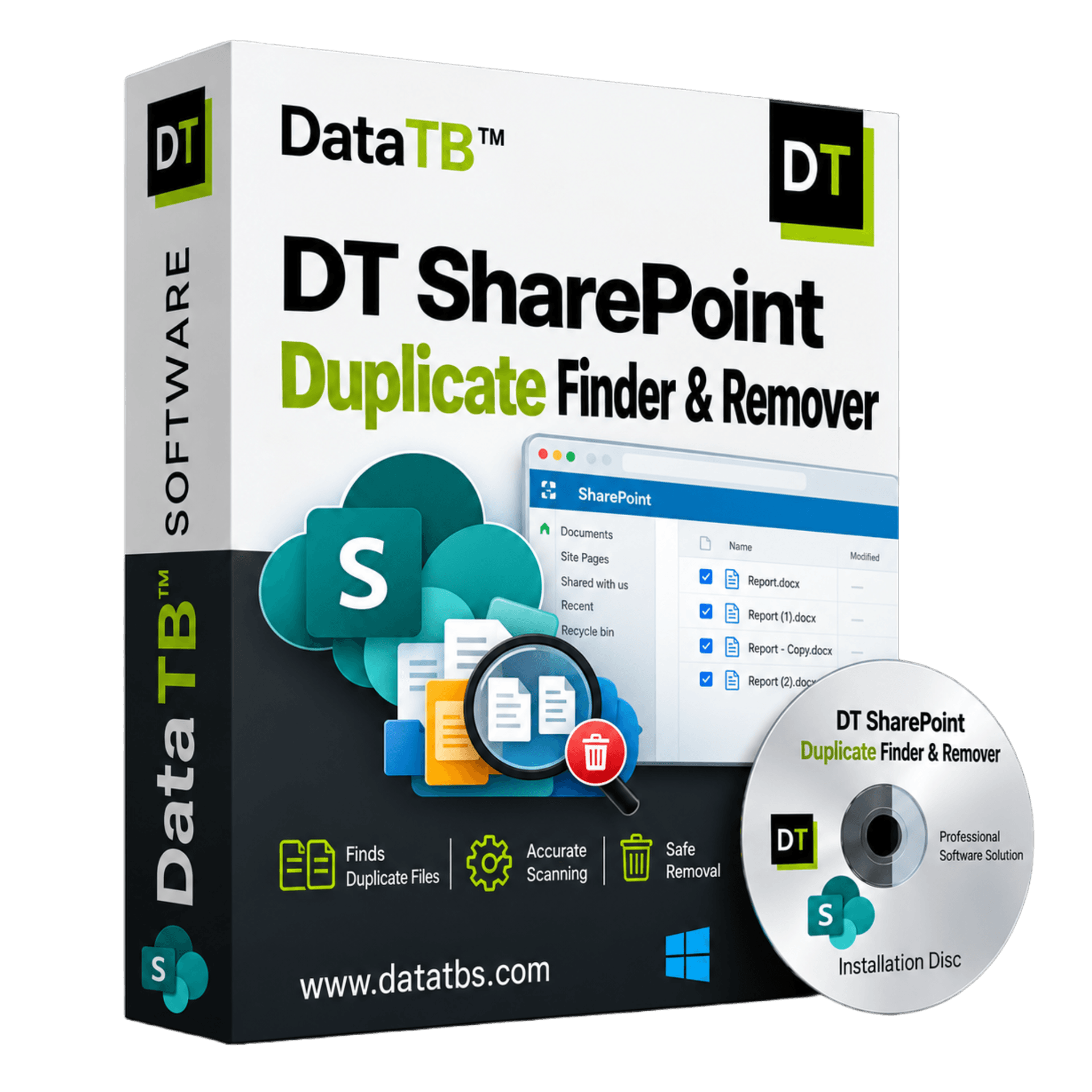
DT SharePoint Duplicate Finder & Remover
Find and Remove Duplicate Files Across SharePoint Sites and Libraries
DT SharePoint Duplicate Finder & Remover scans SharePoint Online sites, document libraries and folders for duplicate files and lets you remove the extra copies from one desktop dashboard. It compares files by name and size (Fast Scan) or by content hash (Deep Scan), reads everything through Microsoft's official sign-in without downloading a single file, and sends every removal to the SharePoint Recycle Bin. The scan is free. Removal needs the full version.


Quick Summary:Find and remove duplicate files in SharePoint Online from one desktop dashboard. Fast and hash-based Deep Scan, zero downloads, Recycle Bin removal. Scan free.
Key Features of DT SharePoint Duplicate Finder & Remover
Single scan across SharePoint
Find duplicate files across SharePoint sites, document libraries and folders in a single scan.
Zero downloads
Scan SharePoint Online without downloading a single file to your computer.
Two scan modes
Choose Fast Scan by name and size, or Deep Scan by content hash.
Official Microsoft OAuth login
Sign in through Microsoft's official OAuth screen, so your password never reaches the app.
Multiple accounts
Connect more than one SharePoint account and manage all of them from one dashboard.
Folder-level selection
Select the exact folders to scan instead of forcing a full-account scan.
Live progress
Watch live file count, folder count and per-file status while the scan runs.
Storage overview
See used space, available space and total capacity for every connected account.
Preview before removal
Preview every duplicate group before anything is removed.
Bulk removal
Remove duplicates in bulk with one confirmed action.
Recycle Bin safety
Send removed files to the SharePoint Recycle Bin instead of deleting them permanently.
Activity log
Keep a timestamped activity log of every scan and removal.
500+ file formats
Handle unlimited data and more than 500 file formats, including documents, videos and images.
12+ clouds supported
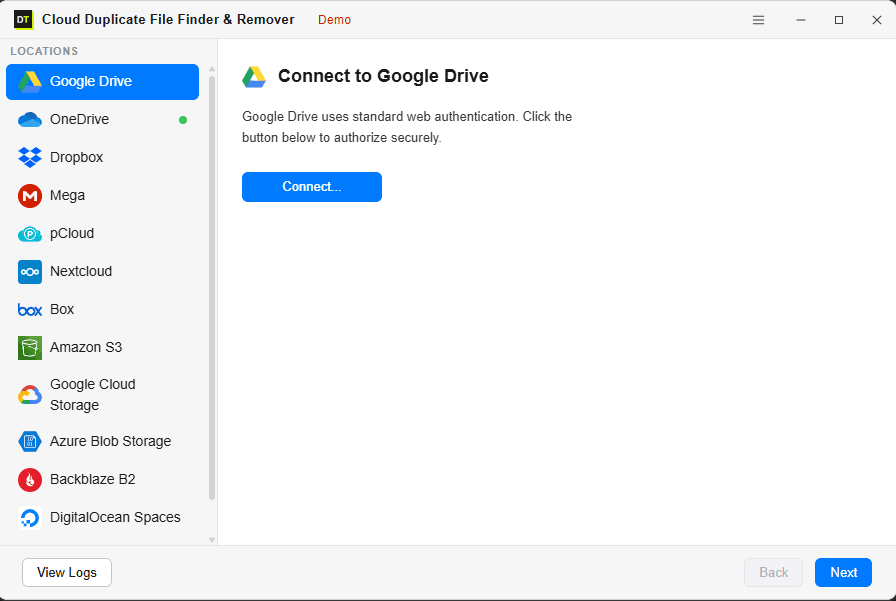
Add SharePoint next to Google Drive, OneDrive, Dropbox, Amazon S3 and other clouds in the same dashboard.
Free scan
Run a complete scan for free to see how much space is wasted before you buy.
Why SharePoint Fills Up With Duplicate Files
Nobody sets out to store the same file five times. It happens because SharePoint is built for teamwork, and teamwork creates copies.
One person uploads the signed contract to the project library. Another saves it to the client folder "so it is easy to find". A third attaches it in a Teams channel, and that file lands in the team's SharePoint site as well. A migration copies a department library twice because the first run failed halfway. A sync conflict leaves a "(1)" copy behind. Months later, search returns three versions of the same document and nobody knows which one is the real one.
SharePoint does not ship with a one-click duplicate cleaner. Its search can group near-identical results to keep the result page tidy, but that is a display feature. It does not hand you a list of duplicates to review and remove.
The cost is real. Every Microsoft 365 tenant gets 1 TB of SharePoint storage plus 10 GB for each licensed user, shared across all sites. Once that pool is used up, Microsoft's published rate for extra storage is $0.20 per GB per month, which is roughly $2,400 a year for each additional terabyte. If 100 GB of your library is just repeated copies, that is about $240 a year for storing nothing new. Check Microsoft's current price before you budget. The rate can change.
DT SharePoint Duplicate Finder & Remover gives you the missing step: a clear list of what is duplicated, where it sits and how much space it wastes, with removal in the same window.
How to Find and Remove Duplicate Files in SharePoint
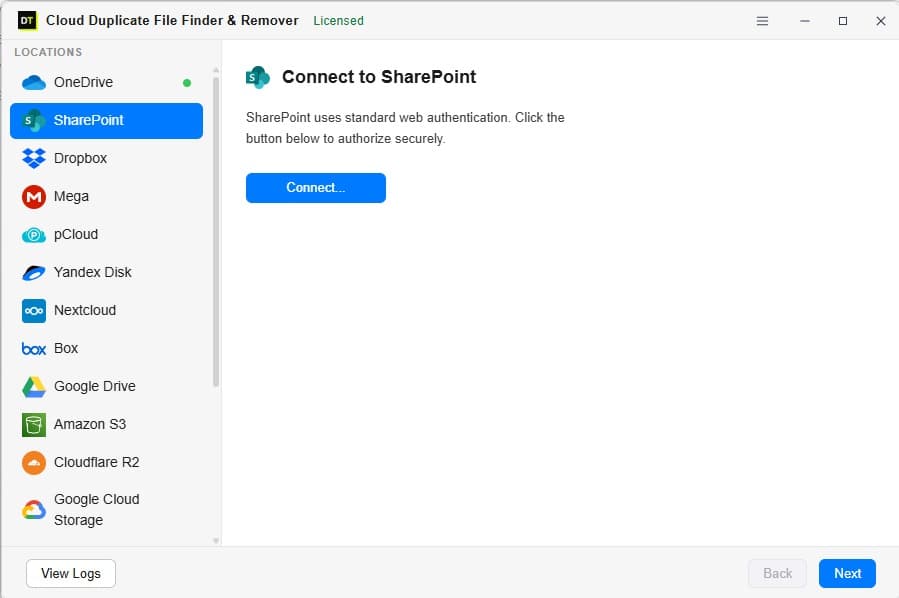
Step 1: Connect your SharePoint account
Pick SharePoint from the Locations panel and sign in on Microsoft's own login screen. Once connected, the account shows its identifier, linked email, used space, available space and last sync time.
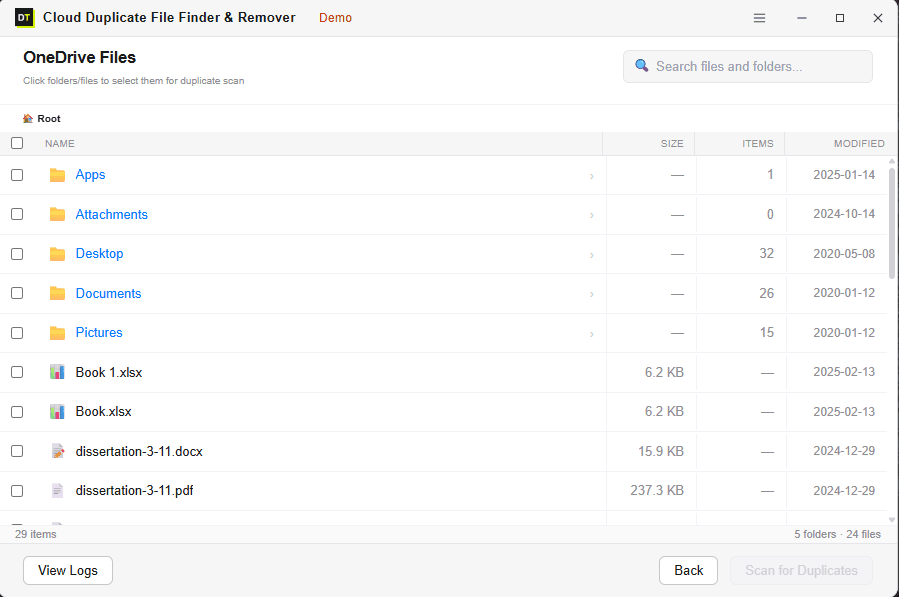
Step 2: Choose what to scan & Run
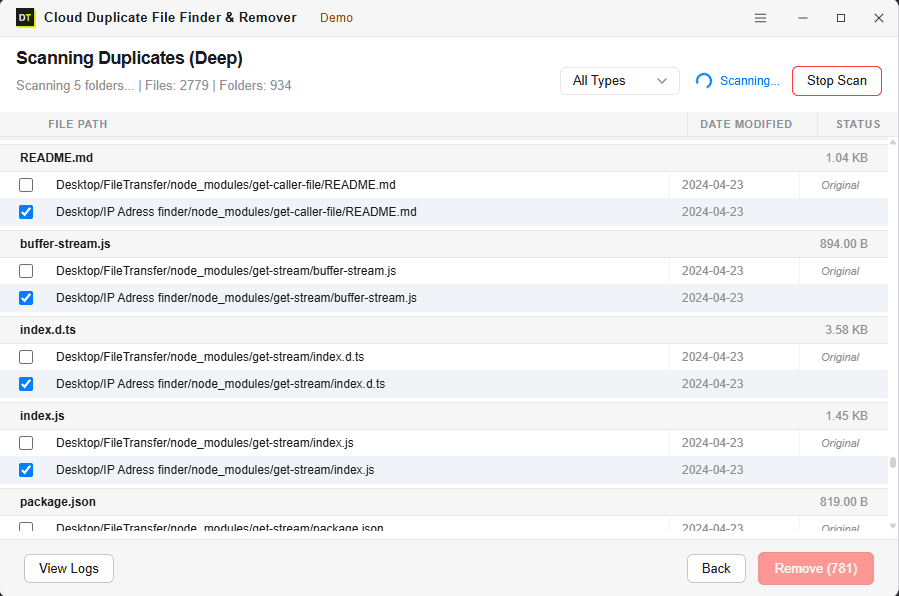
Browse the folder structure and tick exactly what you want checked. Fast Scan is a quick pass by name and size. Deep Scan compares the content hash of each file for byte-level accuracy. Progress is live, with file count, folder count and per-file status on screen.
Step 3: Review and remove
Every duplicate found is grouped for review. Confirm the copies you want gone and remove them in bulk in one action. Removed files go to the SharePoint Recycle Bin, where they can be restored through SharePoint's normal interface.
Fast Scan vs Deep Scan: Pick the Right Match Method
The two modes are a real trade-off between speed and certainty. Neither one is simply better.
Fast Scan
Fast Scan matches files by name and size. It is the quicker option and works well when duplicates are obvious: the same file uploaded twice, or a copy that kept its original name. Use it when you want a rapid first look at a large library.
Deep Scan
Deep Scan matches files by a unique hash value, a fingerprint of the file's actual content. It does not care about the file name, the folder or which account the file sits in. It catches everything Fast Scan catches, plus files that were renamed, re-saved under a new name during a review cycle, or copied into a completely different site. Use Deep Scan before a migration, before a storage audit, or any time a wrong match would cost you.
A practical approach: start with Fast Scan to size up the problem, then run Deep Scan on the libraries that matter most.
What the Scan Reads, and What It Never Touches
Every scan runs through Microsoft's official API, using the same sign-in screen you use to open SharePoint in a browser. Your password is never typed into the app and never passes through our servers.
What is read
File name, file size and, for Deep Scan, the file hash calculated against the copy in SharePoint.
What is never read or stored
The text inside your documents, image data or anything else contained in the files. Nothing is downloaded to your computer during a scan, and nothing is kept outside your own Microsoft 365 account once the scan finishes.
Deletion is never automatic. Every result goes through your review, and only the copies you confirm are removed.
A note for Microsoft 365 administrators: if your organisation controls which apps can access company data, your admin may need to approve the app once before the first sign-in works. The app can only work with sites and libraries that your signed-in account can already open.
Feature Details
Scan SharePoint Without Downloading Files
Downloading a whole library just to compare it wastes hours and bandwidth. DT SharePoint Duplicate Finder & Remover does the comparison against the files where they already live. Only the details needed for matching are read, so a library of several hundred gigabytes does not turn into a hundred-gigabyte download on your laptop.
Sign In Through Microsoft, Not Through Us
You authorise access on Microsoft's own screen. The app never asks for or stores your password, and it does not keep copies of your files on any external server. When the scan ends, nothing about your content stays behind outside your account.
Pick Exactly What to Scan
Not every library needs checking today. Select an entire account, a single library or a handful of folders. A project team can clean its own library without touching anyone else's, and an administrator can sweep the whole account in one run.
Review Every Duplicate Group First
Duplicates are shown in groups so you can compare copies side by side before acting. Nothing is selected for you behind the scenes. You decide which copies go, confirm, and then remove in bulk.
Removal Goes to the SharePoint Recycle Bin
Removed duplicates are not wiped. They move to the SharePoint Recycle Bin, where SharePoint Online keeps deleted items for up to 93 days in total across its two stages, unless your organisation's retention settings differ. If someone needs a file back, it can be restored from the Recycle Bin like any other deleted item.
Many Accounts, One Dashboard
Consultants and managed service providers rarely work with just one account. Connect several SharePoint accounts, or a mix of SharePoint, Google Drive and Dropbox, and work through them in the same dashboard instead of juggling separate consoles.
Live Storage Overview
See used space, available space, total capacity and last sync time for each connected account in one place. It helps you spot which account is closest to its limit before you decide where to start cleaning.
Live Scan Monitoring
A static progress bar tells you nothing. Here you see the file count and folder count climb in real time, along with the status of each file being processed, so you always know the scan is working.
Full Activity Log
Every scan and every removal is recorded with a timestamp. When someone asks what was removed last Tuesday and why, you have the answer.
Unlimited Data, 500+ File Formats
Document libraries hold everything: Word and Excel files, PDFs, photos, videos, archives, design files. The tool handles unlimited data sizes and more than 500 file formats, so a large library does not need to be split up first.
Which Duplicate Files Can You Clean Up?
- ✓
Documents
Word, Excel, PowerPoint, PDF and text files saved twice under the same or a slightly different name.
- ✓
Images
photos and screenshots uploaded from several devices or copied between project libraries.
- ✓
Videos and audio
recordings and training material, usually the biggest space wasters in any library.
- ✓
Archives and backups
ZIP files and exported backups that were copied "just in case".
- ✓
Design and project files
drawings, templates and exports duplicated across team sites.
- ✓
Migration leftovers
whole folders copied twice after a failed or repeated transfer.
- ✓
Sync conflict copies
the "(1)" and "Copy of" files that sync clients leave behind.
Situations Where It Helps
Your SharePoint storage warning has appeared
Before paying for more space, find out how much of what you store is repeated. A free scan shows the number.
You just finished a migration
Transfers often copy the same folders more than once. Run a Deep Scan on the destination to find the extras before users start working in the wrong copy.
Teams channels have spread files everywhere
Files shared in a Teams channel are kept in the team's SharePoint site, and similar files get uploaded to several channels over time. Scan those libraries and consolidate them.
A department library has grown for years
Old contracts, reports and templates collect extra copies quietly. A scan by folder lets the owner clean up without involving IT.
You are preparing for an audit or a tenant move
Knowing how much of your footprint is real data and how much is duplicate copies makes planning far more accurate.
Who Uses DT SharePoint Duplicate Finder & Remover
Microsoft 365 and SharePoint administrators
who need a clear answer to "why is our storage full" without writing scripts.
IT consultants and MSPs
running a storage review across client accounts before a migration or a licence change.
Project and document teams
who want to clean their own libraries without waiting for an IT ticket.
Small businesses
that hit the storage limit and want to know whether they really need to buy more.
Anyone cleaning up after a migration
who suspects the same folders were copied more than once.
SharePoint Duplicate Cleanup: Manual Methods vs DT
| Capability | SharePoint search alone | PowerShell script | Sync a library & use desktop tool | DT SharePoint Duplicate Finder & Remover |
|---|---|---|---|---|
| Gives a reviewable duplicate list | No | Yes, as a CSV you build yourself | Yes | Yes, grouped on screen |
| Needs scripting knowledge | No | Yes | No | No |
| Downloads file content to compare | No | Often, to calculate hashes | Yes, the library is synced first | No |
| Match by content, not just name | No | If you write it | Depends on the tool | Yes, with Deep Scan |
| Preview before removal | No | No | Yes | Yes |
| Removal in the same tool | No | Only if you add delete code | Deleting locally can sync back as a delete | Yes, to the Recycle Bin |
| Handles several accounts and other clouds | No | One connection at a time | Per synced folder | Yes, 12+ clouds in one dashboard |
| Time to first result | Not applicable | Setup plus runtime | Sync time first | Connect and scan |
Scripts are a fair choice if you have an administrator who enjoys them. For everyone else, a dedicated tool is faster to start and safer to run.
Free Scan vs Full Version
Connect an account and run a full Fast or Deep Scan at no cost. See exactly how much space is wasted before you decide to buy.
| Feature | Free Scan | Full Version |
|---|---|---|
| Connect SharePoint and all other supported clouds | Included | Included |
| Unlimited data | Included | Included |
| 500+ file formats | Included | Included |
| Multiple accounts | Included | Included |
| Fast Scan | Included | Included |
| Deep Scan (hash-accurate) | Included | Included |
| Storage overview | Included | Included |
| Folder-level selective scanning | Included | Included |
| Live scan monitoring | Included | Included |
| Preview duplicates before action | Included | Included |
| Activity log | Included | Included |
| Remove duplicates | Not included | Included |
System Requirements
| Software Version | 25.1.1 |
| Software Size | 10.4 MB |
| Operating System | Windows 11, Windows 10 |
| Supported Platform | SharePoint Online (Microsoft 365) |
| Also Supports | Google Drive, OneDrive, Dropbox, Box, Amazon S3, Google Cloud Storage, Azure Blob Storage, Backblaze B2, pCloud, Mega, Nextcloud, DigitalOcean Spaces, FTP/SFTP |
| Internet Connection | Required, scans run through Microsoft's official API |
| Authentication | Official Microsoft OAuth |
Frequently Asked Questions
How do I find duplicate files in SharePoint?+
Does SharePoint have a built-in duplicate file finder?+
Is it safe to connect my SharePoint account?+
Do I need to download my files first?+
What is the difference between Fast Scan and Deep Scan?+
Can I scan one library or folder instead of everything?+
Will it delete the wrong file by mistake?+
Can I get deleted files back?+
Will removing duplicates free up space immediately?+
Does it work with files shared in Microsoft Teams?+
Can I connect more than one account?+
Is there a free version?+
Does my IT administrator need to approve the app?+
Does it support SharePoint Server on-premises?+
Does it run on Windows and Mac?+
Can it handle large libraries?+
Stop Paying to Store the Same File Twice
Connect your SharePoint account and see how much space is going to repeated copies. Nothing is downloaded, and nothing is removed until you decide.