
Every Byte Matters
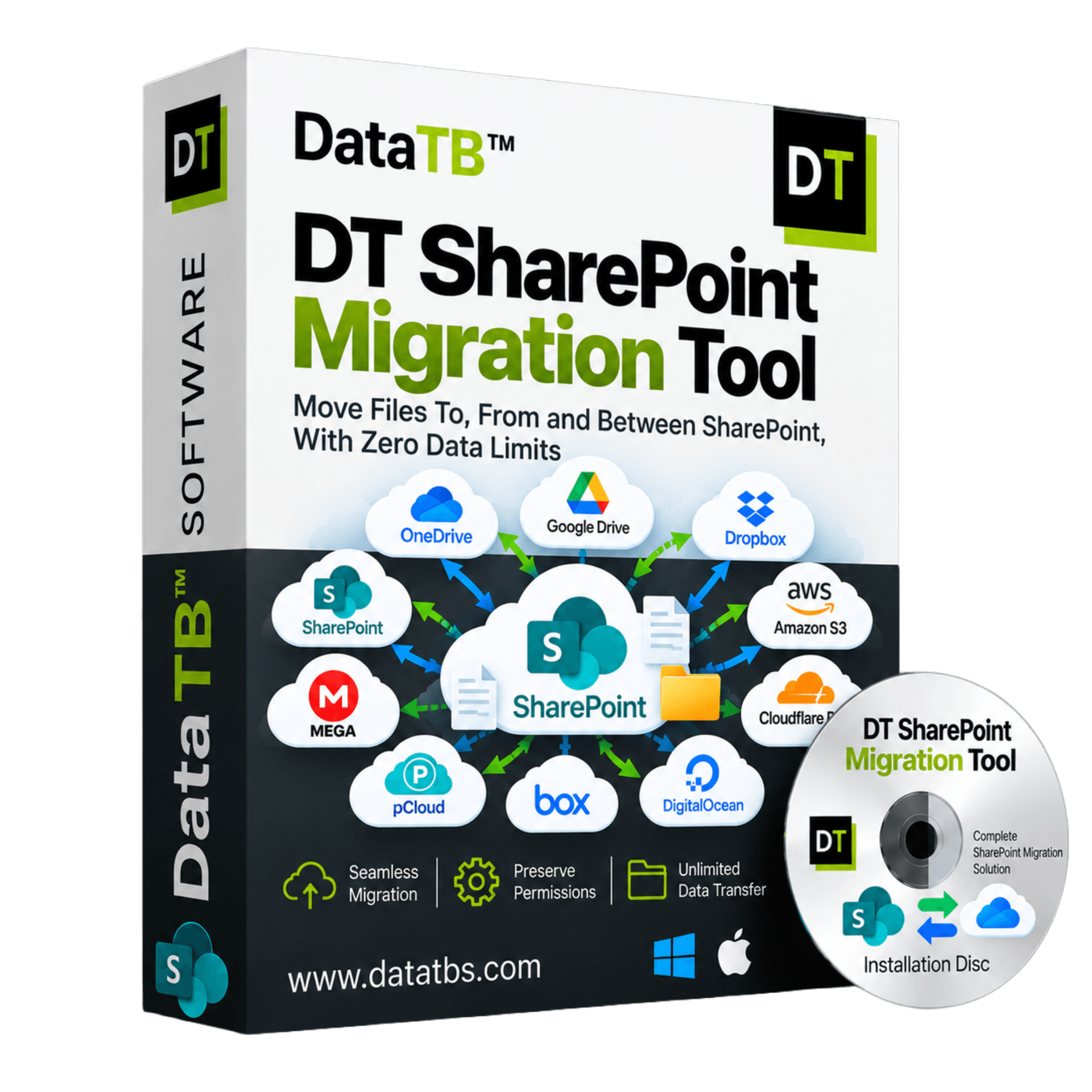
DT SharePoint Migration Tool
Move Files To, From and Between SharePoint, With Zero Data Limits
DT SharePoint Migration Tool is a Windows desktop tool that moves files and folders directly between SharePoint and any other cloud: into SharePoint, out of SharePoint, or from one SharePoint site or tenant to another. It supports personal and business accounts across 15+ clouds, and it works cloud to cloud, so nothing is downloaded to your PC. You sign in, preview, map, configure and run, and the licensed version has no data size limit.
- Google Drive, Dropbox, Box, OneDrive, Amazon S3, Azure Blob, network drives and more, straight into SharePoint document libraries
- SharePoint to SharePoint, including one Microsoft 365 organization to another
- Preview and filter by extension, date, folder type and size before anything moves
- Map manually or upload a CSV to map dozens or hundreds of libraries in one step
- Resumable, incremental and scheduled runs with a full report for every job


Quick summary:DT SharePoint Migration Tool migrates files and folders into, out of and between SharePoint sites using a guided 8-screen workflow. It connects through Microsoft's own secure sign-in, supports personal and business accounts, transfers data directly between clouds with resumable sessions, and produces a detailed job report. The free trial processes up to 500 MB so you can test with your own accounts.
What Makes SharePoint Migrations Stall (and How This Tool Avoids It)
Most SharePoint migrations do not fail because files are hard to copy. They stall around the tool. A web-based service meters your monthly transfer quota and the project runs out of allowance halfway through a library. An enterprise suite prices by user, by object or by quote, so every extra site becomes a new line in a budget meeting. Microsoft's own free tool is excellent for what it was built for, but it was designed around on-premises SharePoint Server and file shares, so a team coming from Google Drive, Dropbox or Box has to look elsewhere.
DT SharePoint Migration Tool is built for the gap in the middle. One installer, every feature in the same build, and no cap on how much you move on the licensed version. A freelancer moving a client's Dropbox into a SharePoint library and an IT team moving a department get the identical, complete product. There is nothing to add on, upgrade or work around.
Every SharePoint Migration Scenario It Handles
SharePoint can be the destination, the source or both. Every cloud in the list below works in either direction, so the same tool covers all of these:
| Scenario | Typical situation |
|---|---|
| Google Drive to SharePoint | Company moving from Google Workspace to Microsoft 365 |
| Dropbox to SharePoint | Team consolidating shared folders into Microsoft 365 |
| Box to SharePoint | Replacing Box and keeping the folder structure intact |
| OneDrive to SharePoint | Moving personal work files into a shared team library |
| SharePoint to SharePoint | Site to site, or one Microsoft 365 organization to another |
| SharePoint to OneDrive | Giving a person their own copy of project files |
| SharePoint to Google Drive, Dropbox or pCloud | Leaving SharePoint, or keeping an independent archive |
| Network drive to SharePoint | Moving an old file share into a modern library |
| Amazon S3, Azure Blob or Backblaze B2 to SharePoint | Bringing archived object storage back into daily collaboration |
| FTP or SFTP server to SharePoint | Retiring a legacy server |
The same eight screens apply in every row. You never learn a second process for a different source.
All Four Account Paths, Fully Supported
The type of account on each side decides who owns the data and who must approve access. This tool treats all four combinations as normal migration paths.
| Migration path | Example with SharePoint |
|---|---|
| Personal to personal | Personal Google Drive to a personal OneDrive or cloud account |
| Personal to business | Your own Dropbox files into a company SharePoint library |
| Business to personal | An authorized export of work files from SharePoint to a private cloud |
| Business to business | Google Workspace to SharePoint, or one Microsoft 365 organization to another |
Only move data you are authorized to move. Business sources should be migrated with your organization's approval. Some Microsoft 365 organizations also require an administrator to approve a new app before it can sign in. If yours does, that is a one-time step.
15+ Clouds, One Tool
Use any supported cloud as a source or a destination, including two accounts on the same provider.
Consumer and team
Google Drive, OneDrive, Dropbox, Box, pCloud, Mega, Proton Drive, Yandex Disk, TeraBox, Nextcloud
Business and collaboration
SharePoint, Google Workspace, Microsoft 365 drives
Object storage
Amazon S3, Cloudflare R2, Google Cloud Storage, Azure Blob Storage, Backblaze B2, DigitalOcean Spaces
Servers and networks
FTP, SFTP, network drives
One installer covers all of them. There is no separate app per provider.
The Complete Workflow: Eight Screens, Nothing Hidden
Every migration follows the same eight screens. You always know where you are, what comes next and what is about to happen to your data.
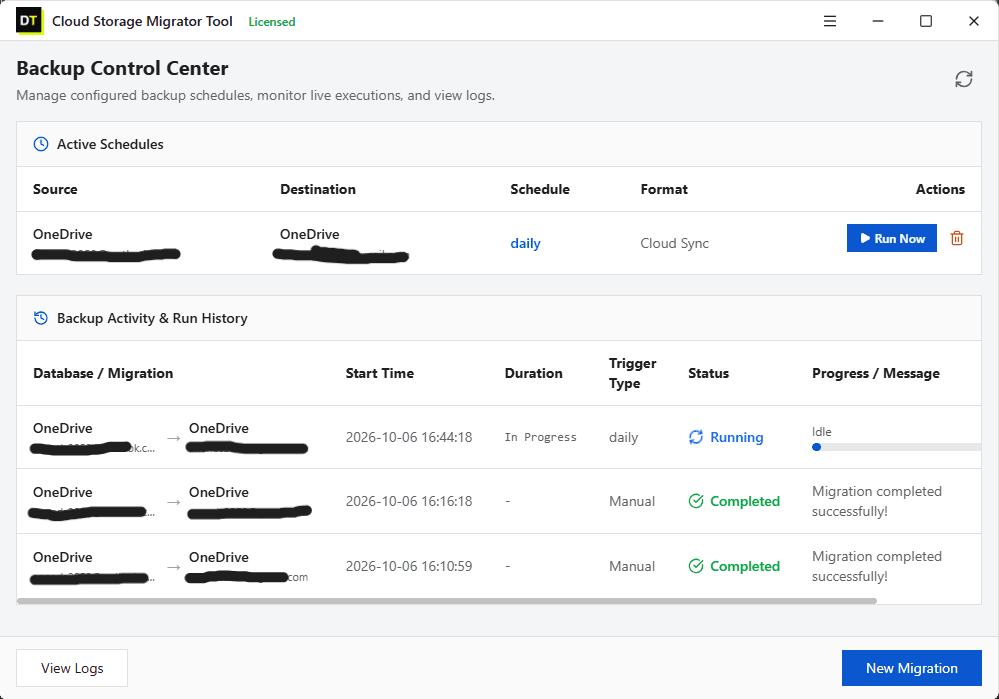
Screen 1: Dashboard
Start a new migration job, review connected accounts and reopen earlier jobs and their reports. Everything is job based, so a single migration can carry several accounts, drives, sites or buckets at once instead of running one at a time.
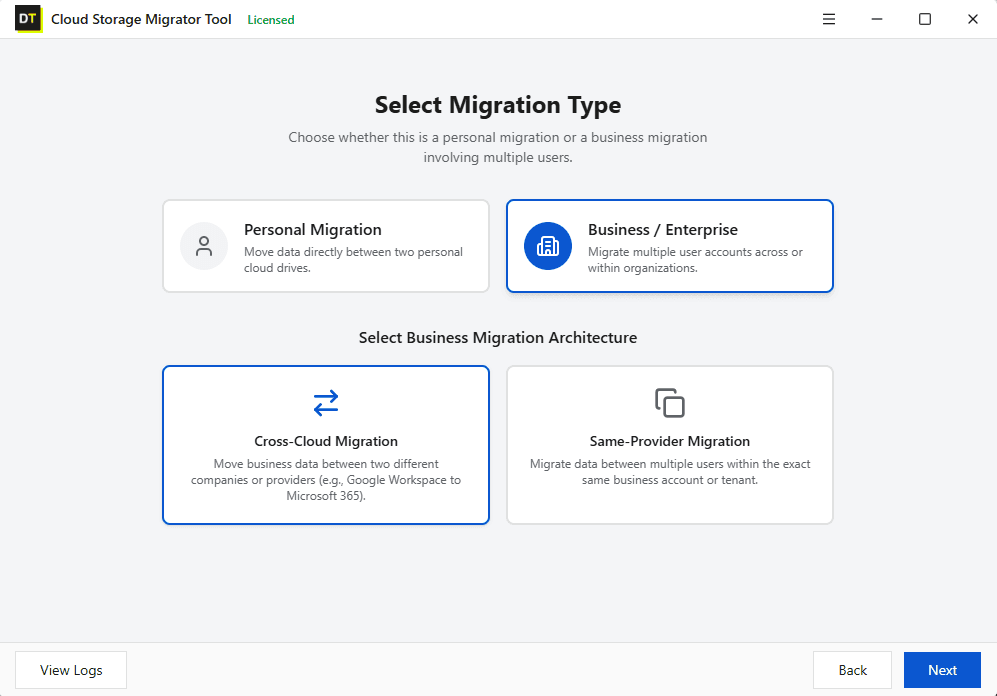
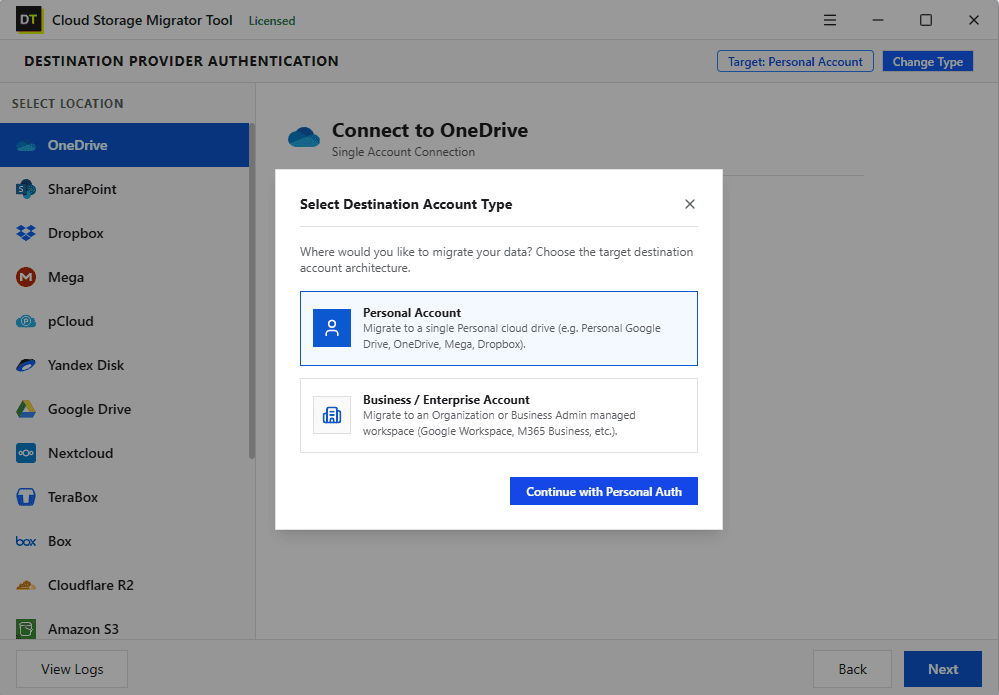
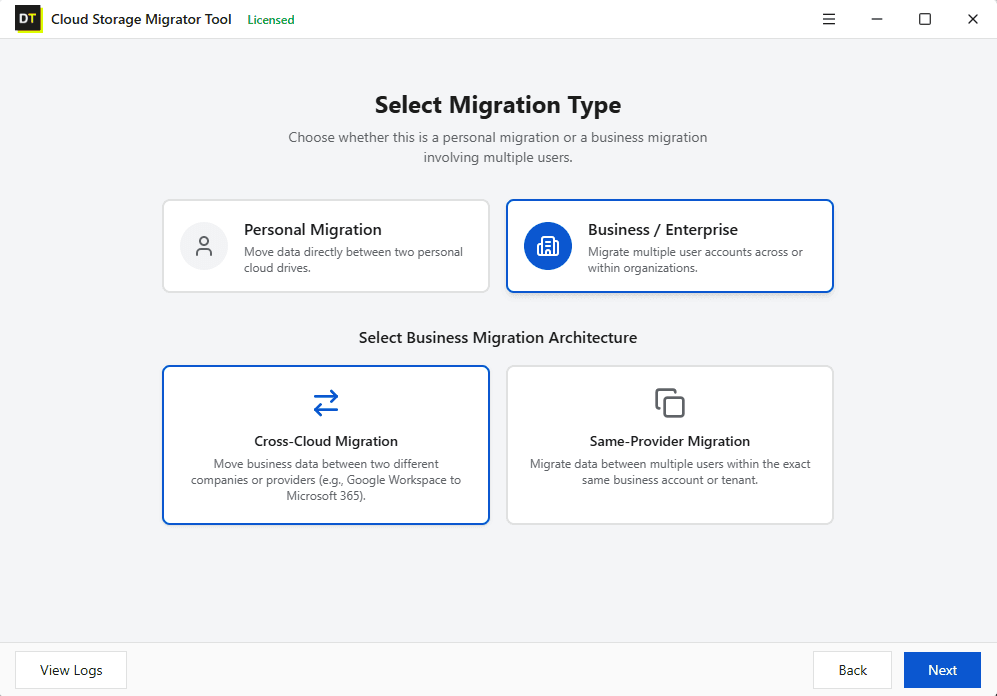
Screen 2: Mode Selection
Choose personal or business mode. In business mode you get two more choices: cross migration, to move data between different platforms such as Google Drive to SharePoint, or same migration, to move data within one platform such as SharePoint to SharePoint.
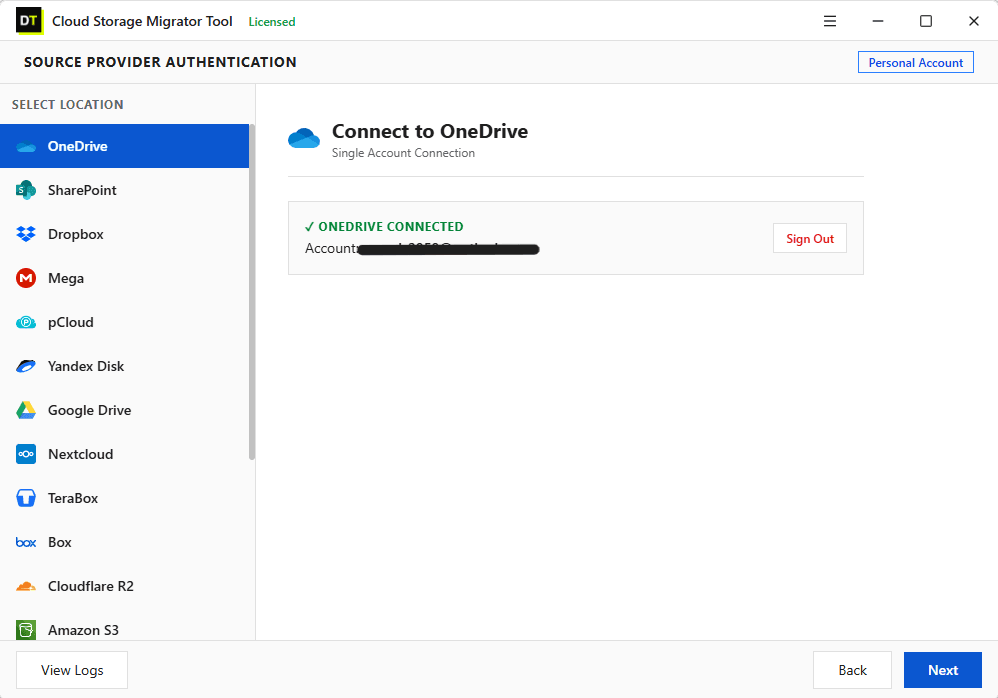
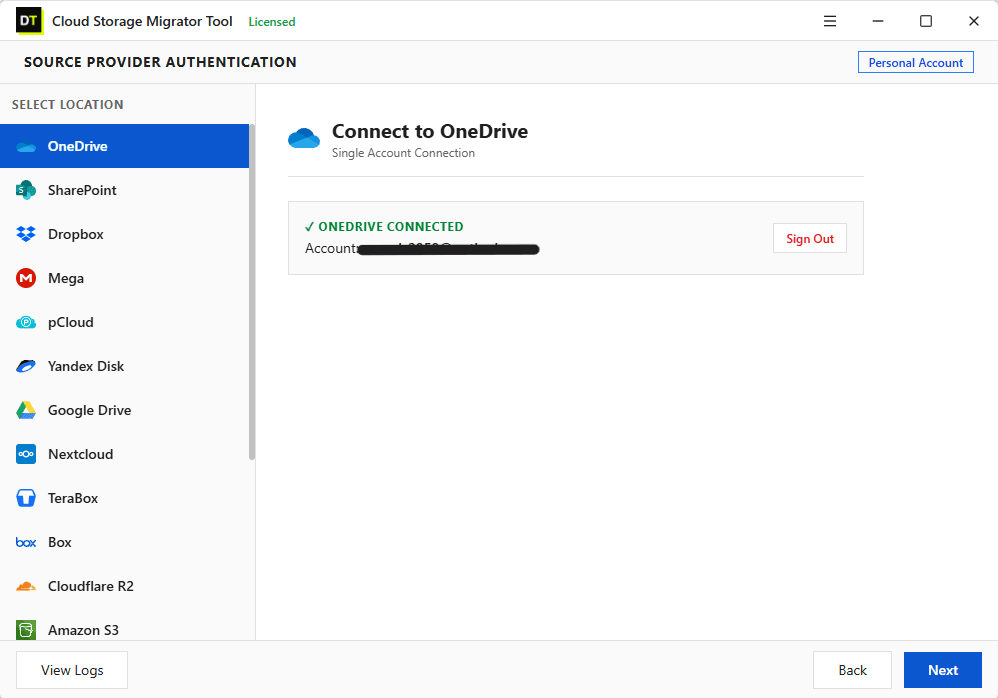
Screen 3: Source Authentication
Pick the cloud you are moving from and sign in on the provider's own secure OAuth page. Multi-factor authentication works wherever the provider supports it, and your cloud password is never typed into or stored by the tool. Add as many source accounts as the job needs.
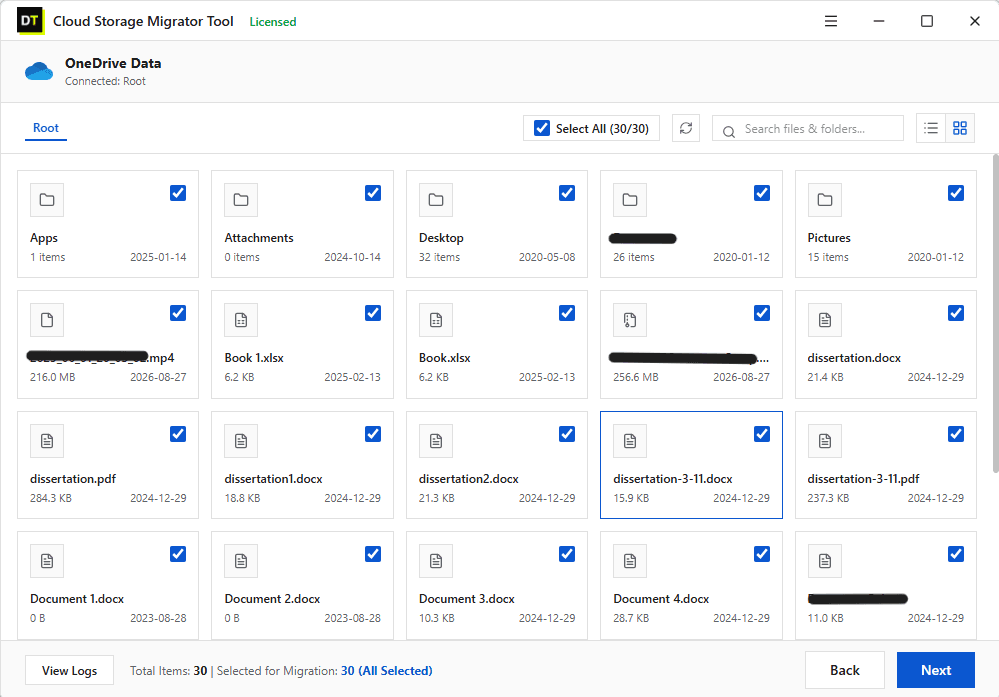
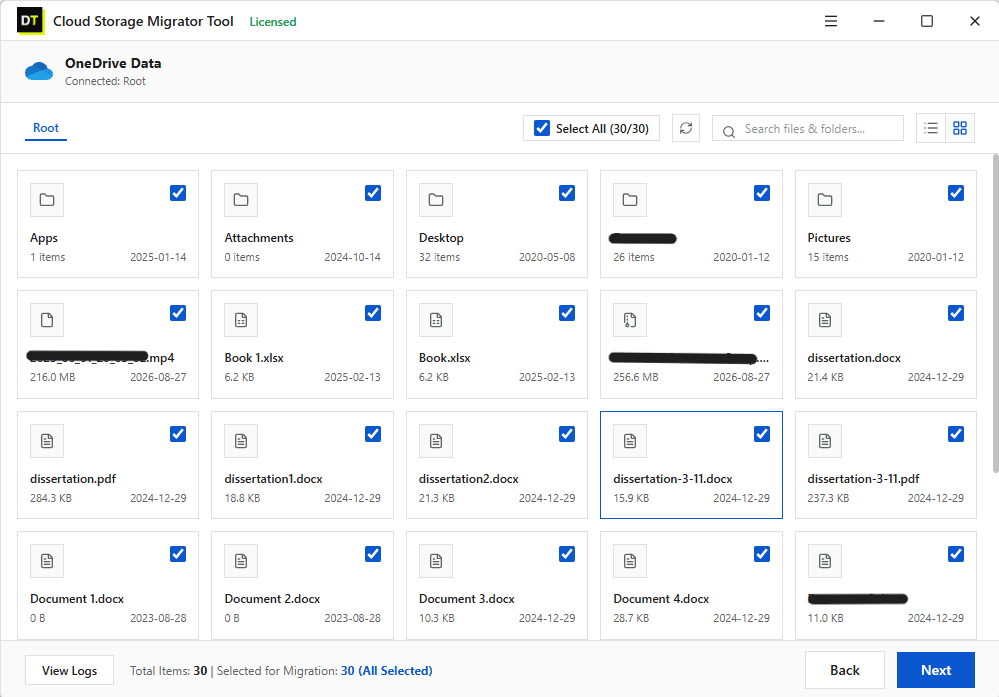
Screen 4: Preview
Before a single file moves, browse the full folder tree with size, created date, modified date and drive type. Then narrow the scope by file extension, date range, folder type or file size. Nothing is committed on this screen, so you can explore freely. It is the cheapest insurance in any SharePoint migration.
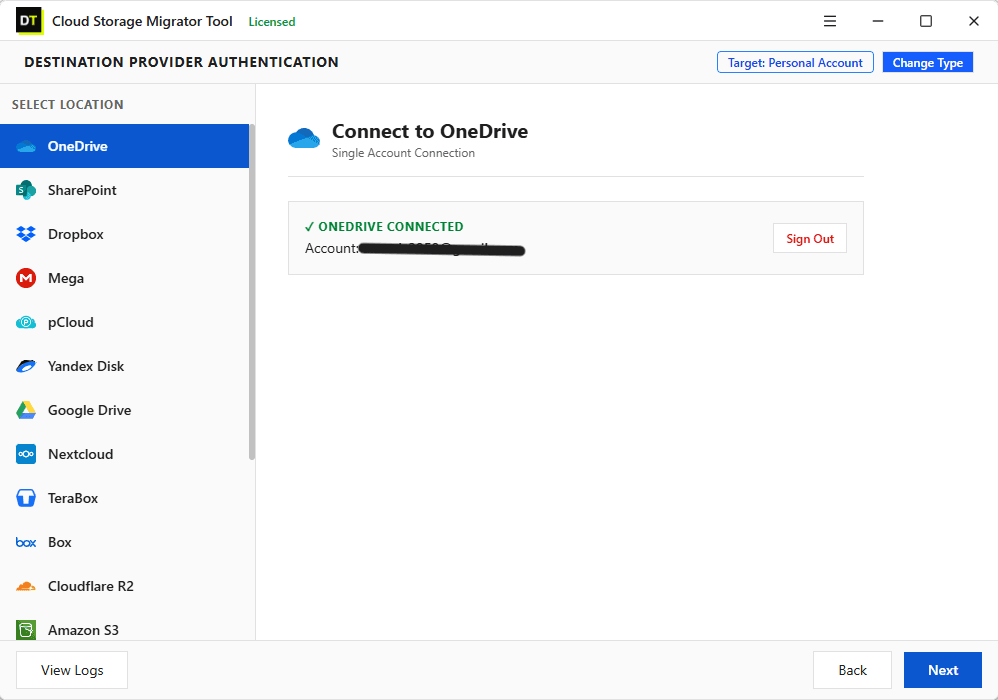
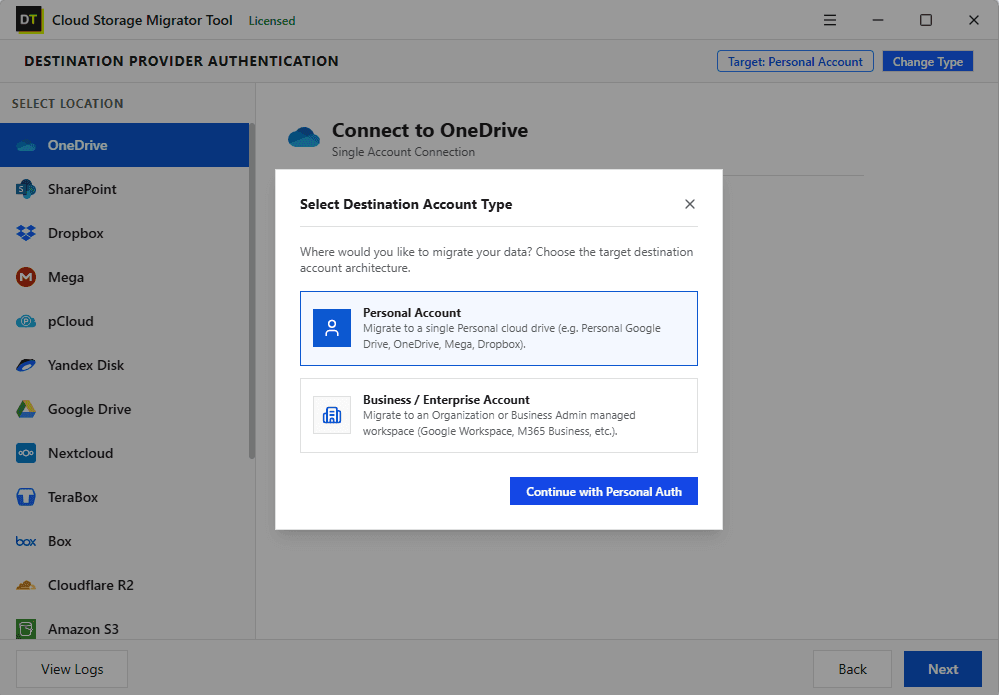
Screen 5: Destination Authentication
Choose where the data lands and sign in the same secure way. For a SharePoint destination you can browse the existing structure first, so you know exactly which site and library will receive the files.
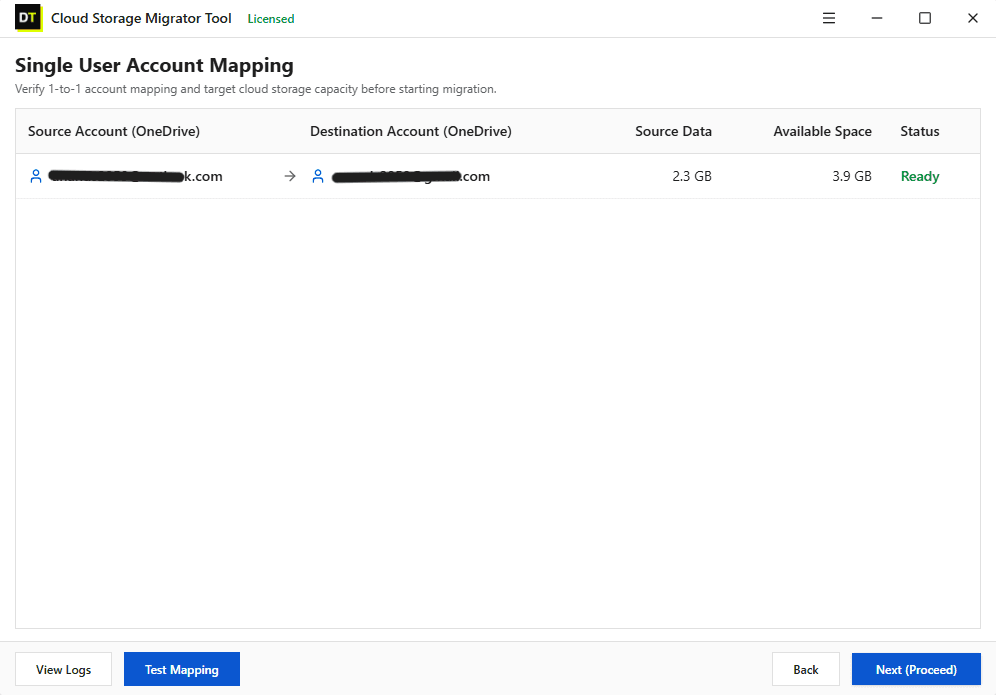
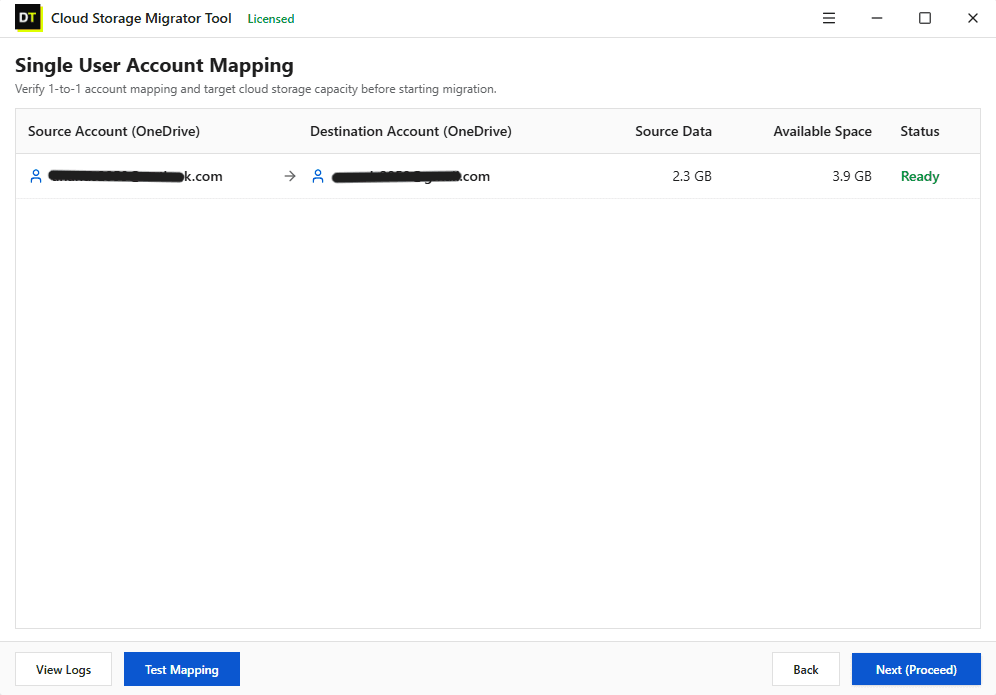
Screen 6: Mapping
Mapping decides which source goes to which destination. For a small job, map accounts, drives or folders manually in a few clicks. For a larger one, upload a CSV and map many accounts or libraries in a single step. A company-wide move that would take hundreds of manual selections becomes one file and one upload.
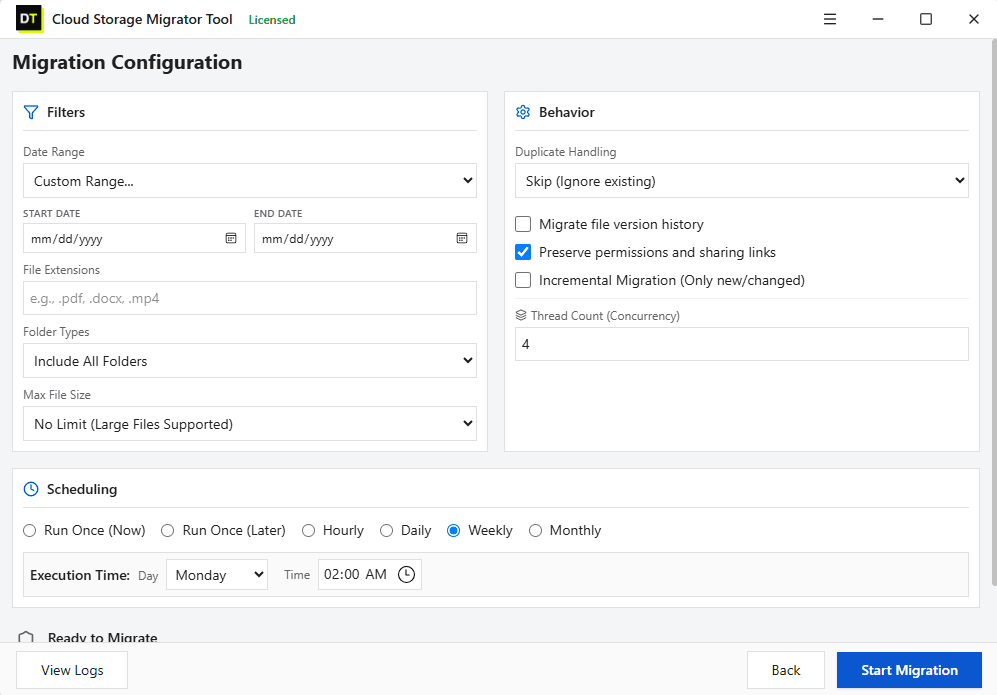
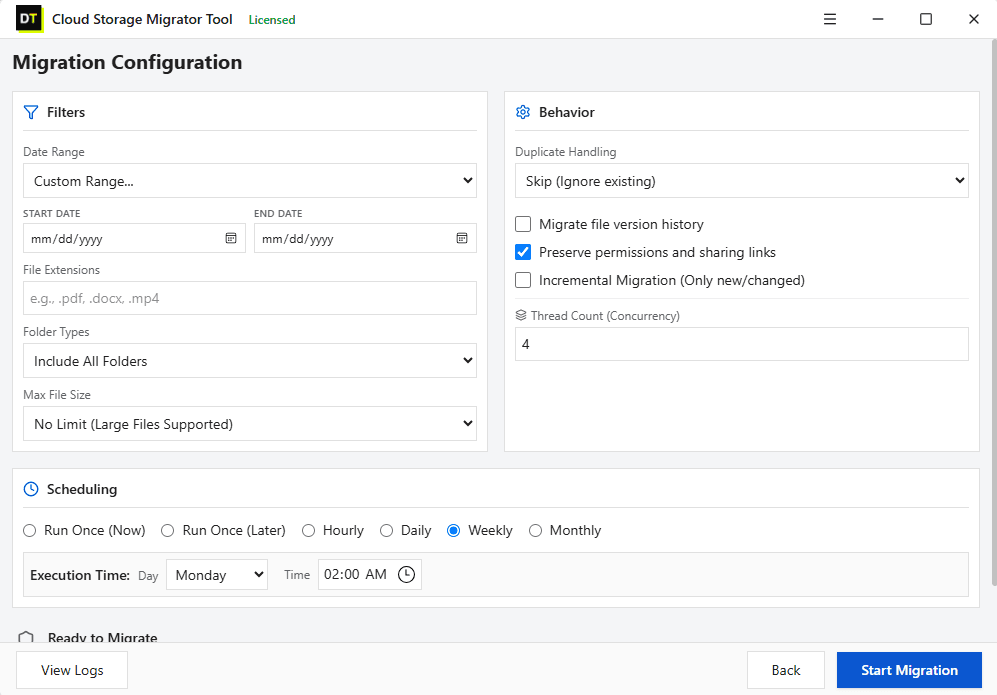
Screen 7: Configure Migration
Set the rules for the run: If a file already exists at the destination: skip it, rename the incoming copy so both exist, or replace the existing file. Version migration: carry file history across, not just the latest copy. Run type: one time, incremental (only new or changed files), or scheduled hourly, daily, weekly or monthly. Performance: adjust thread count and item thread count to suit your internet speed and PC.
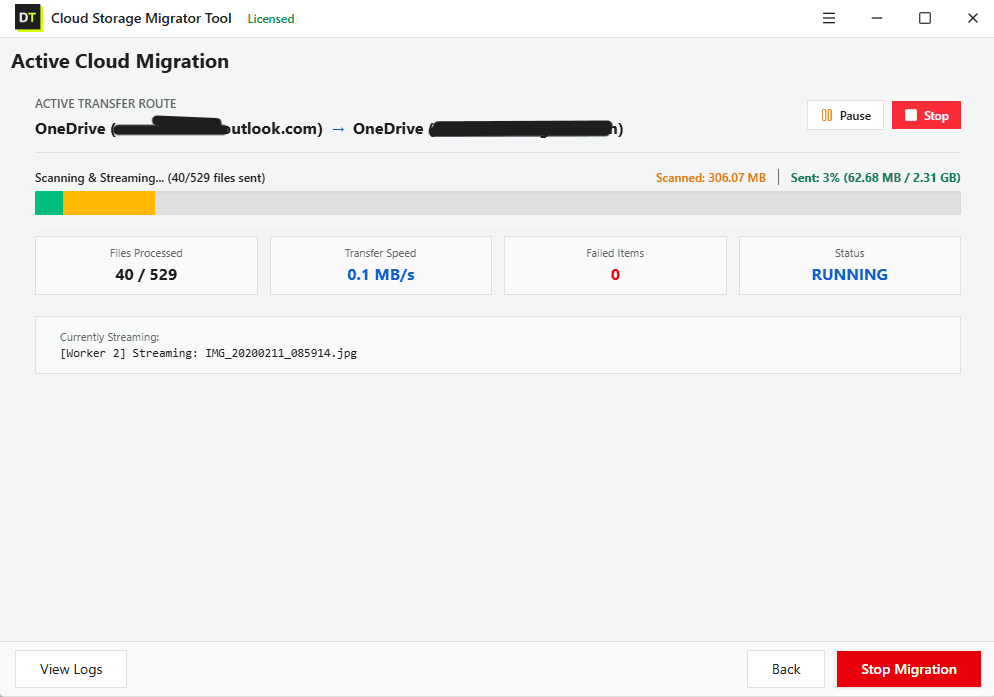
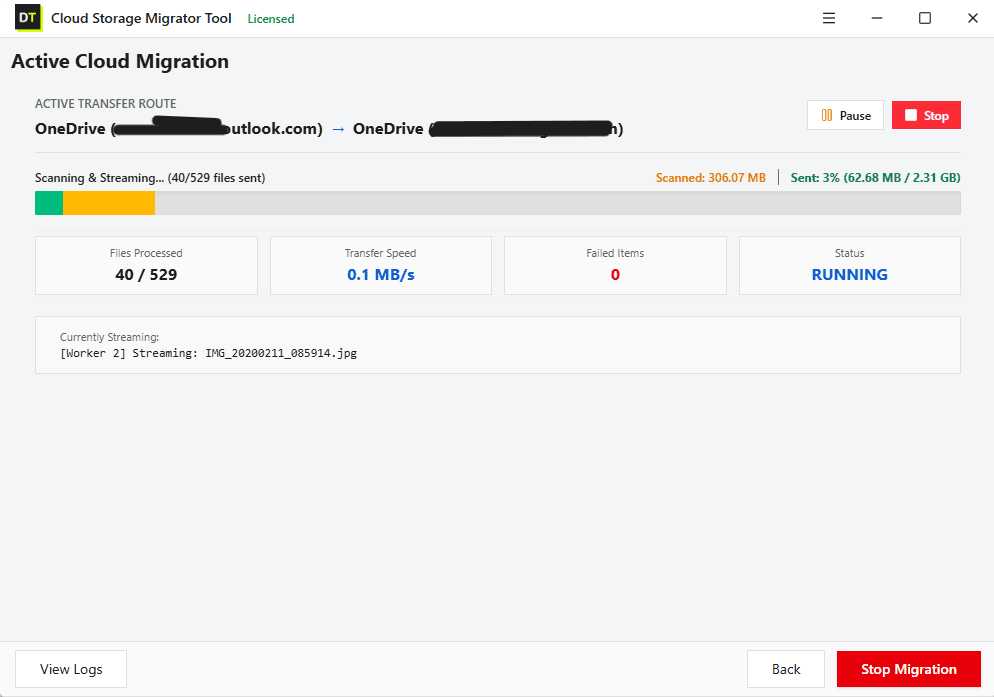
Screen 8: Migration
Watch the job run directly between the two clouds with the original folder structure preserved. If your connection drops or you pause the job, the transfer resumes where it stopped. When the run ends you get a detailed report split into failed items, filtered items and already migrated items, exportable for your records. Nothing happens silently.
Everything Included on Every License
Keep SharePoint Current Until Cutover Day
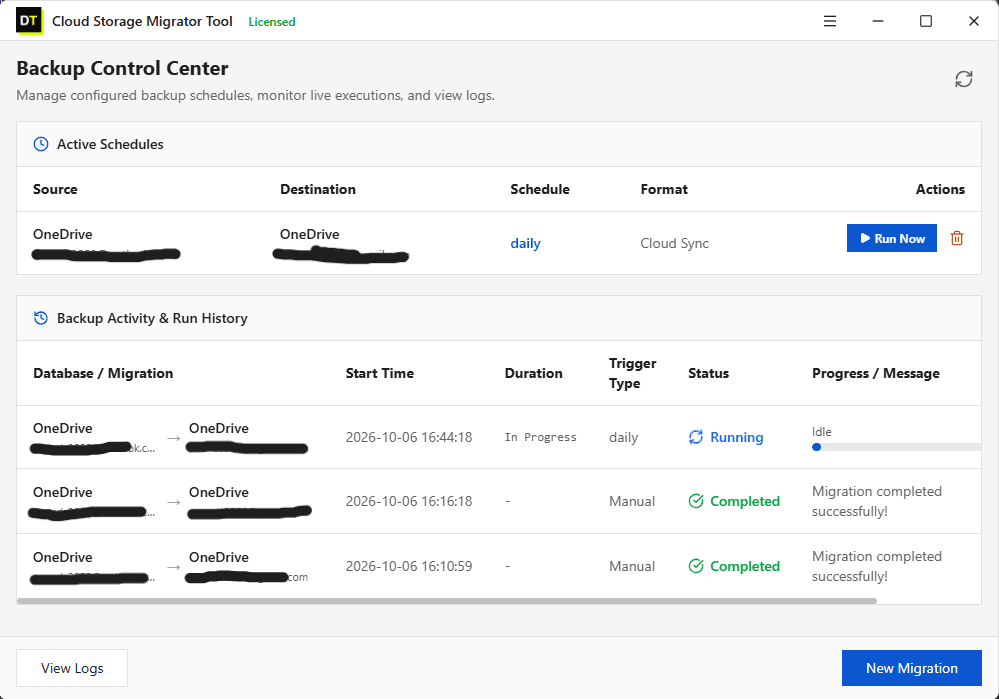
Real migrations are not one afternoon. People keep editing files in the old cloud while you plan, test and train. Run a full first pass, then use incremental runs to move only what is new or changed, and schedule them daily or weekly. On cutover day the final run is small and quick, and the old cloud can be set to read only without a long freeze.
Before You Migrate to SharePoint: A Six-Point Checklist
Confirm authorization. Be sure you are allowed to move the data, especially on business accounts.
Clean duplicates first. Do not move the same file twice. DT SharePoint Duplicate Finder and DT Cloud Duplicate File Finder work directly on your cloud.
Check long paths and file names. SharePoint Online limits the total path length of a file and rejects some characters in names, so very deep folder trees and unusual file names are the most common reasons items fail. Check Microsoft's current limits for your tenant.
Check the biggest files. SharePoint has a maximum file size per item, so sort the Preview screen by size and look at the top of the list.
Check free space and plan limits on the destination before you start.
Run a small filtered test job first, then the full migration.
What Gets Moved and What Does Not
DT SharePoint Migration Tool moves files and folders, with version history if you turn it on. It is a content migration tool for document libraries and drives. It is not a site rebuild tool, so it does not recreate site pages, web parts, workflows or list structures. If your project includes those, plan them separately and use this tool for the file content, which is usually the largest part of the job.
Free Trial vs Licensed Version
| Feature | Free trial | Licensed |
|---|---|---|
| All eight screens and every account path | Yes | Yes |
| Data you can process | Up to 500 MB | No limit |
| File size | Files under 20 MB | No limit |
| Preview, filters and mapping | Yes | Yes |
| Scheduling, incremental runs and job reports | Yes | Yes |
How It Compares
There are three kinds of SharePoint migration options, and each is good at something different.
| Feature | DT SharePoint Migration Tool | Others (web-based and enterprise suites) |
|---|---|---|
| Data size limit | None on the licensed version | Often monthly transfer quotas, or pricing by user, object or quote |
| Sources | Cloud, object storage, FTP and network drives into or out of SharePoint | Varies by product and by plan |
| Pricing model | License with every feature included | Usually subscriptions or custom quotes |
| CSV bulk mapping | Included | Often limited or on higher tiers |
| Version history migration | Included | Often on higher tiers |
| Duplicate handling (skip, rename, replace) | Included | Often one default behavior |
| Scheduled and incremental runs | Included on every license | Frequently on higher tiers |
| Detailed job report | Failed, filtered and already migrated items, exportable | Often a basic transfer history |
| Preview before migrating | Full folder tree and file details | Varies |
| Runs on | Your own Windows PC | Usually hosted web service or server install |
A note on Microsoft's free SharePoint Migration Tool (SPMT): it is a solid free choice for moving content from on-premises SharePoint Server and file shares into Microsoft 365. If that is your exact situation, start there. If your content sits in Google Drive, Dropbox, Box or another cloud, or you need to move out of SharePoint, or between tenants, this tool covers those paths.
Comparison reflects publicly available information as of October 2026 and may change. Confirm current details on each provider's own site before buying.
Who Gets the Most From This Tool
IT admins
Moving a department or a whole company, with CSV mapping for bulk libraries and a report for every run.
Companies switching to Microsoft 365
Who need Google Drive, Dropbox or Box content in SharePoint without paying by the gigabyte.
Consultants and MSP teams
Who move many clients through the same tool and keep a report for each job.
Freelancers and small teams
Handing a client project from one cloud to another without a monthly quota stopping the job.
Individuals
Who want files, folders and versions to arrive without downloading anything first.
System Requirements
- Installer size8.3 MB
- Architecture32-bit and 64-bit
- Operating systemAll versions of Windows (Windows 11 and 10 recommended) and all versions of Windows Server
- Virtual machinesVMware, Microsoft Hyper-V, Oracle VirtualBox
- Processor2 GHz, 2 cores minimum
- Memory2 GB minimum
- Disk space1 GB minimum
- Prerequisite.NET Framework 4.7 or later on Windows 8 and earlier
Security and Privacy in Plain Words
Sign-in uses the provider's own OAuth page. Your cloud passwords are not stored.
Multi-factor authentication works wherever your provider supports it.
Files move between the two clouds. They are not downloaded to your computer and not stored by Data TB.
The application runs on your own Windows PC, so keep it running while a job or schedule is active.
You can revoke the tool's access at any time from your cloud provider's security settings.
Frequently Asked Questions
QWhat is the best way to migrate files to SharePoint from another cloud?
Use a tool that connects to both clouds and transfers directly between them. In DT SharePoint Migration Tool you sign in to the source and to SharePoint, preview and filter the data, map folders to libraries and run the job. Nothing is downloaded to your PC first, and the transfer resumes if it is interrupted.
QCan I migrate Google Drive to SharePoint?
Yes. Connect Google Drive as the source and SharePoint as the destination, preview your files, map them to the right site library and start the job. It works for personal Google Drive and for Google Workspace business accounts.
QCan I migrate Dropbox or Box to SharePoint?
Yes. Dropbox and Box work as sources in the same eight-screen workflow, with folder structure preserved at the destination.
QCan I migrate from one SharePoint site or tenant to another?
Yes. Choose business mode and the same migration option, connect both SharePoint accounts and map by account, drive or folder. This covers site to site moves and one Microsoft 365 organization to another.
QCan I migrate from SharePoint to another cloud?
Yes. SharePoint works as a source as well. You can move content to OneDrive, Google Drive, Dropbox, pCloud, Amazon S3 and the other supported clouds, as long as you are authorized to move that data.
QDoes it download my files to my computer?
No. Files transfer directly between the source and destination clouds. No local copy is left behind.
QIs there a data size limit?
The licensed version has no limit on total data or single file size. The free trial processes up to 500 MB and files under 20 MB so you can test safely.
QCan I migrate file versions?
Yes. Turn on version migration on the Configure Migration screen and a file's history moves with its current version.
QWhat happens if a file already exists in the SharePoint library?
You choose before the run: skip the file, rename the incoming copy so both exist, or replace the existing file.
QCan I schedule or repeat a SharePoint migration?
Yes. Run once, run incrementally so only new or changed files move, or schedule the job hourly, daily, weekly or monthly.
QWhat if the migration is interrupted?
The transfer resumes where it stopped. You do not start the job again.
QCan I map many libraries at once?
Yes. Upload a CSV on the Mapping screen to map many accounts, drives or libraries in a single step.
QDoes it migrate site pages, web parts, workflows or lists?
No. It migrates files and folders, with version history if you enable it. Site pages, web parts, workflows and list structures are outside its scope.
QWhy do some items fail during a SharePoint migration?
The usual causes are very long paths, characters SharePoint does not accept in names, and files above the maximum size. The job report lists failed items, so you can fix the names or paths and run the job again.
QHow is this different from the DT Cloud Storage Migrator Tool?
The engine and features are the same. This page focuses on SharePoint scenarios. The Cloud Storage Migrator Tool page covers the general cloud-to-cloud overview.
Ready to Move to SharePoint? Start With the Free Trial
Run a real migration on your own accounts, up to 500 MB, before you spend anything. You will see the full workflow on your own data, from sign-in to the final report. When you are ready for the full job, the licensed version removes every limit.