
Every Byte Matters
DT Mega Migrator Tool
Move Files Between MEGA and Any Cloud, Personal or Business, With No Data Limit
DT Mega Migrator Tool is a Windows desktop tool that moves files and folders between a MEGA account and any other cloud account, or between two MEGA accounts. It supports personal and business accounts on both sides, in both directions, across 15+ clouds. You sign in, preview, map, configure and run, with no manual download and upload cycle and no data size limit on the licensed version.
- Migrate from MEGA to Google Drive, OneDrive, Dropbox, Box, pCloud, S3 and more, or from any of them into MEGA
- Personal MEGA and MEGA Business accounts, including MEGA to MEGA moves
- Preview before you move, filter by extension, date, folder type and size, map manually or in bulk with a CSV
- Resumable, incremental and scheduled runs, with a full job report for every migration


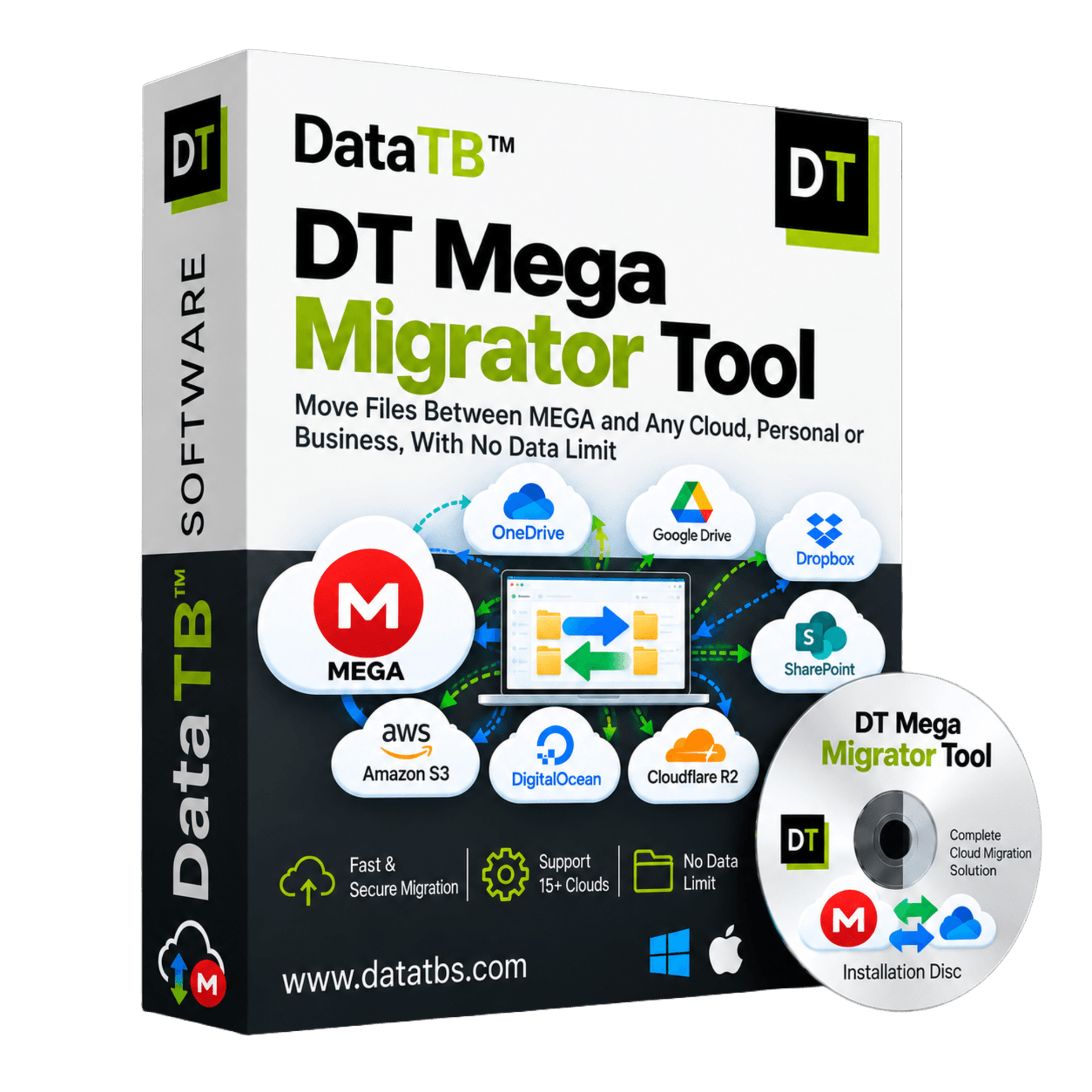
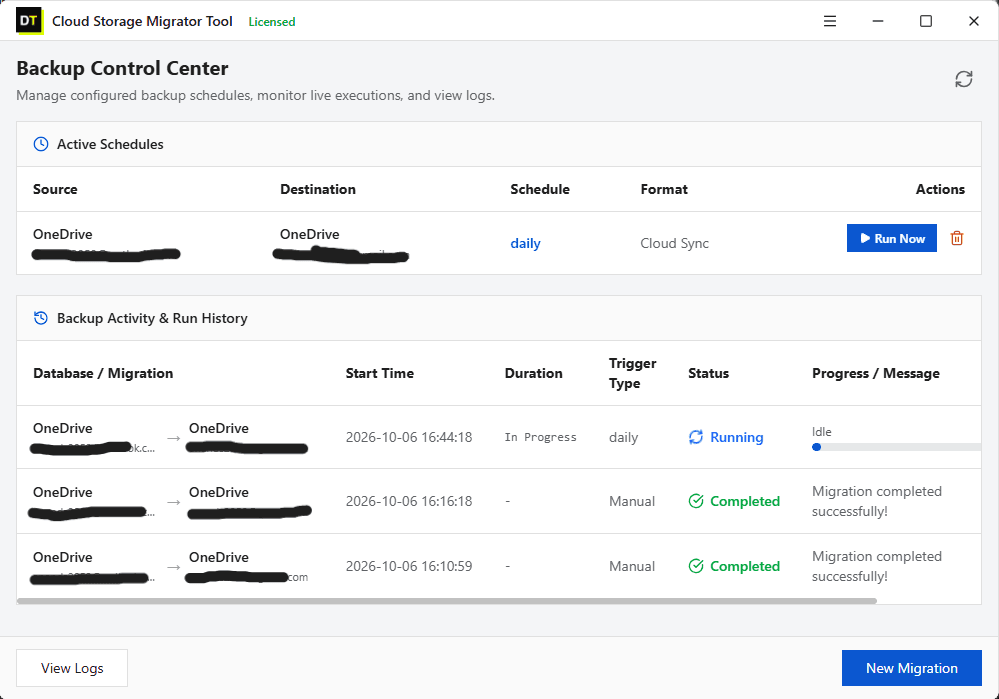
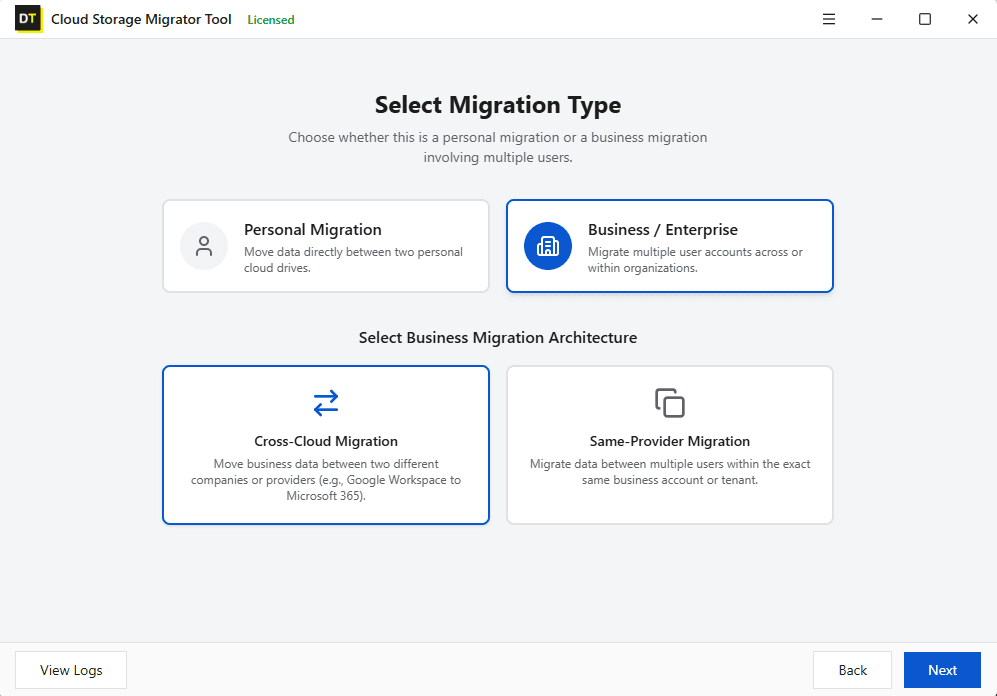
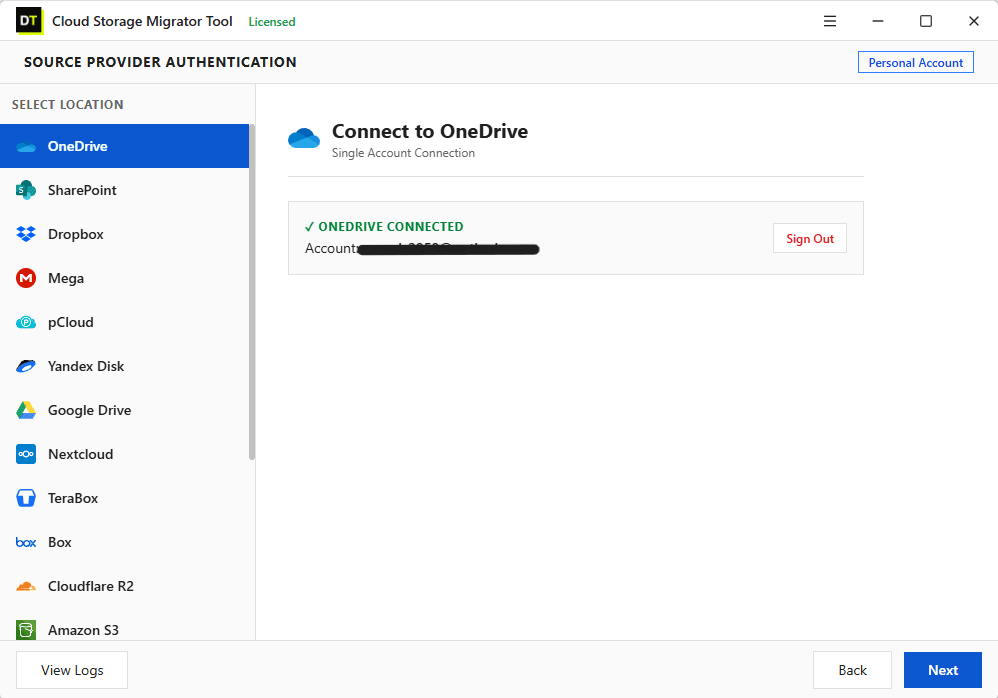
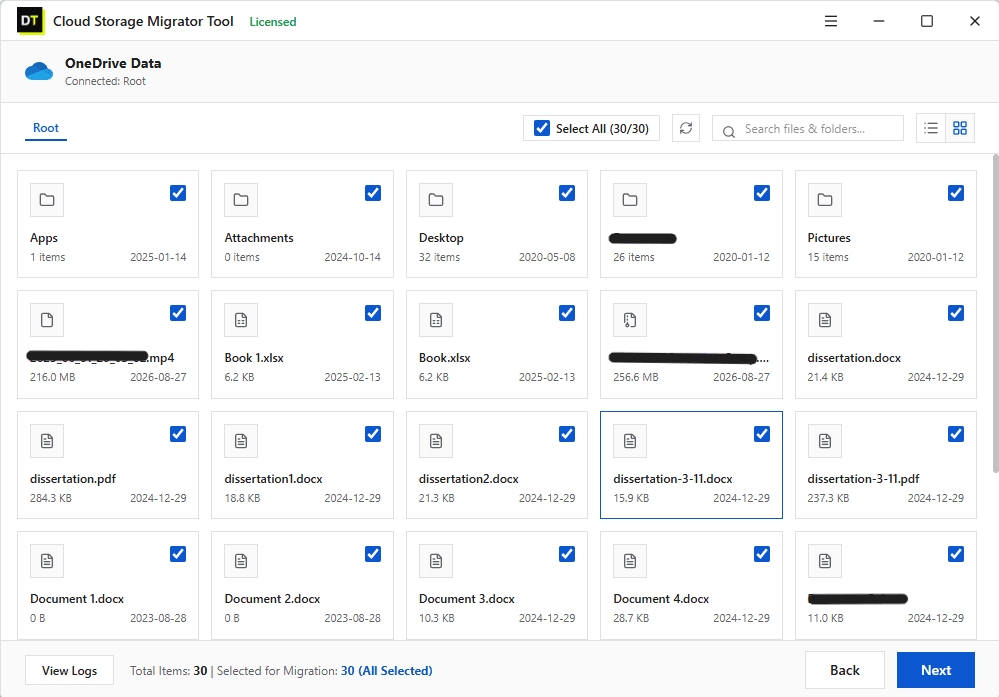
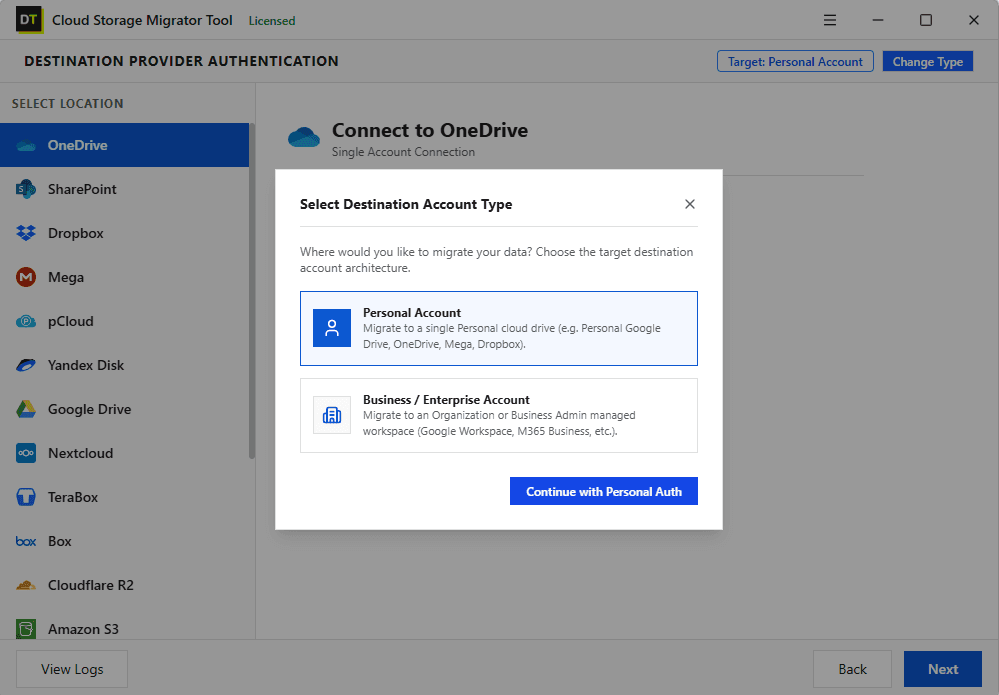
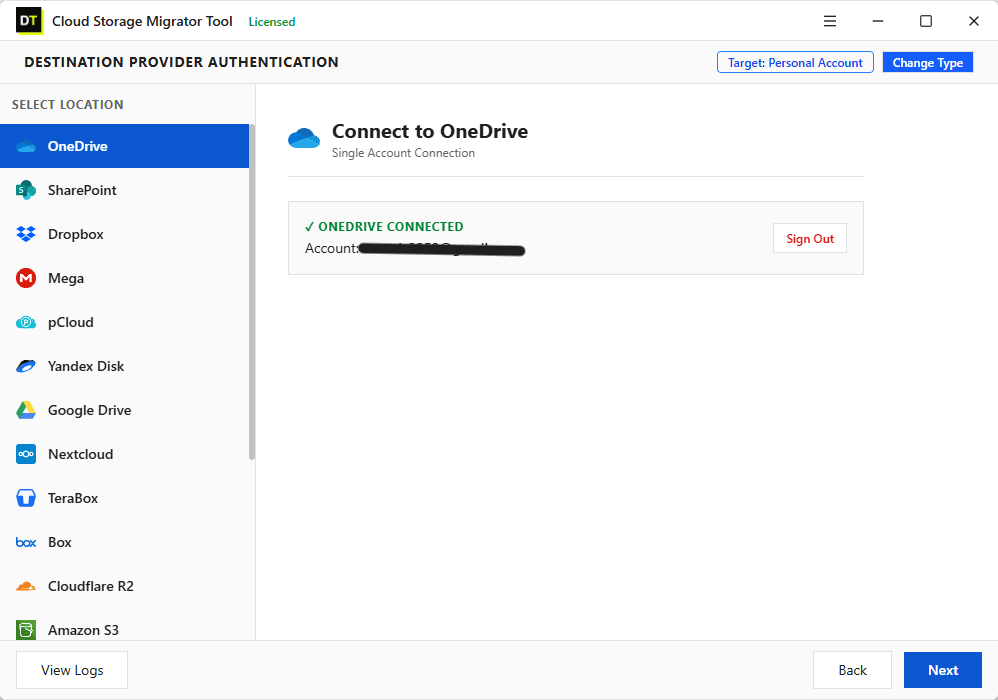
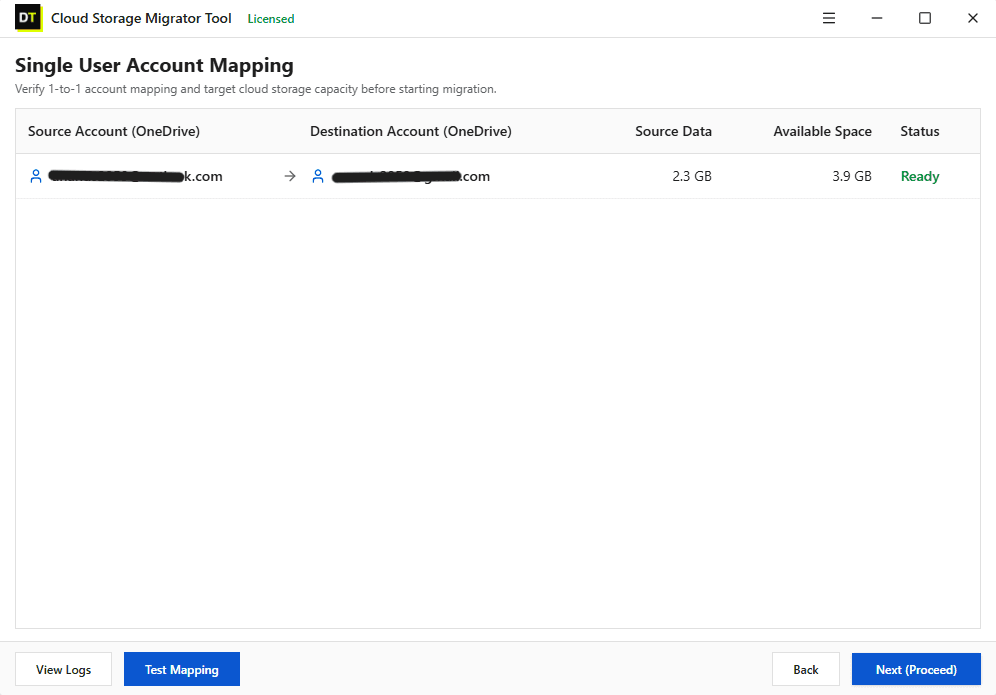
Quick summary:DT Mega Migrator Tool is a desktop application that moves data between MEGA and 15+ other cloud platforms. It works with personal and business accounts, handles cross-platform moves and MEGA to MEGA moves, supports CSV bulk mapping, and keeps your folder structure intact. Transfers resume after interruptions and every run ends with a detailed report.
Supported Cloud Destinations
Migrate MEGA to Any Major Cloud












Why People Move Out of MEGA, and Into It
MEGA earned its place with generous free storage and end-to-end encryption. Then real life happens. A team standardizes on Microsoft 365 or Google Workspace. A free account fills up. A transfer quota blocks a large download halfway through. A freelancer inherits a client project that lives in MEGA while everything else lives in Drive. Or the reverse happens, and years of files in other clouds need to land in a MEGA account for private archiving.
The usual fix is slow. You download everything to your PC, wait, then upload it again to the new cloud, using your own disk space and your own internet twice. For a few gigabytes that is an annoyance. For a few hundred it is a lost weekend, and a dropped connection means starting over.
DT Mega Migrator Tool replaces that cycle with one guided job. You pick the source, pick the destination, check what will move, and let the tool run it, with the original folder structure preserved and a report at the end.
Every Direction, Every Account Type
MEGA moves come in more shapes than "MEGA to Google Drive". The tool treats all of them as normal migration paths.
| Direction | Typical situation | What you do |
|---|---|---|
| MEGA to Google Drive | Switching to Workspace, freeing MEGA storage | Connect MEGA as source and Google Drive as destination |
| MEGA to OneDrive or SharePoint | Moving into Microsoft 365 | Connect MEGA as source and OneDrive or SharePoint as destination |
| MEGA to Dropbox, Box, pCloud | Consolidating personal or team storage | Connect both accounts, preview, map and run |
| MEGA to S3, Azure Blob, Backblaze B2, R2 | Archiving to object storage | Connect MEGA and the bucket, map to a bucket path |
| Any cloud to MEGA | Private archive or encrypted backup copy | Connect the other cloud as source and MEGA as destination |
| MEGA to MEGA | Merging two accounts, handing over a project, moving between personal and business | Connect both MEGA accounts and map folder to folder |
The steps are the same in every row. You never switch tools or learn a second process for a different pair of clouds.
Personal MEGA and MEGA Business Accounts
MEGA has personal accounts and a business plan with an admin console, and the two get used very differently. A personal account usually means one person and one set of folders. A business account usually means shared folders, several users and a reason to move data in a controlled way.
The tool supports both on either side of a job. That gives you all four account paths:
- Personal to personal: leaving MEGA for another provider, or merging two private accounts
- Personal to business: moving your own files into a company MEGA, OneDrive, SharePoint or Google Workspace drive
- Business to personal: an employee keeping files they are authorized to keep
- Business to business: company to company, or MEGA Business to Microsoft 365 or Google Workspace
Only move data you are authorized to move. For business sources, run the migration with your organization's approval.
15+ Clouds, One Installer
Use any supported cloud as a source or a destination, alongside MEGA or instead of it.
Consumer & Team
MEGA, Google Drive, OneDrive, Dropbox, Box, pCloud, Proton Drive, Yandex Disk, TeraBox, Nextcloud
Business & Collaboration
SharePoint, Google Workspace, Microsoft 365 drives
Object Storage
Amazon S3, Cloudflare R2, Google Cloud Storage, Azure Blob Storage, Backblaze B2, DigitalOcean Spaces
Servers & Networks
FTP, SFTP, network drives
There is no separate app per provider. One installer covers all of them.
Stop Fighting MEGA's Transfer Quota
Anyone who has moved a large folder out of MEGA has met the transfer quota message. MEGA limits how much data an account can download in a period, and free accounts have a much smaller allowance than paid plans. When the limit is reached, downloads pause until the quota resets or the plan is upgraded.
A migration tool cannot change MEGA's own rules, and it should not pretend to. What it can do is make sure a quota pause does not cost you your progress:
- Resume, do not restart. If a job stops, it continues from where it stopped instead of starting the whole folder again.
- Incremental runs. A later run only transfers files that are new or changed, so files that already arrived are never moved twice.
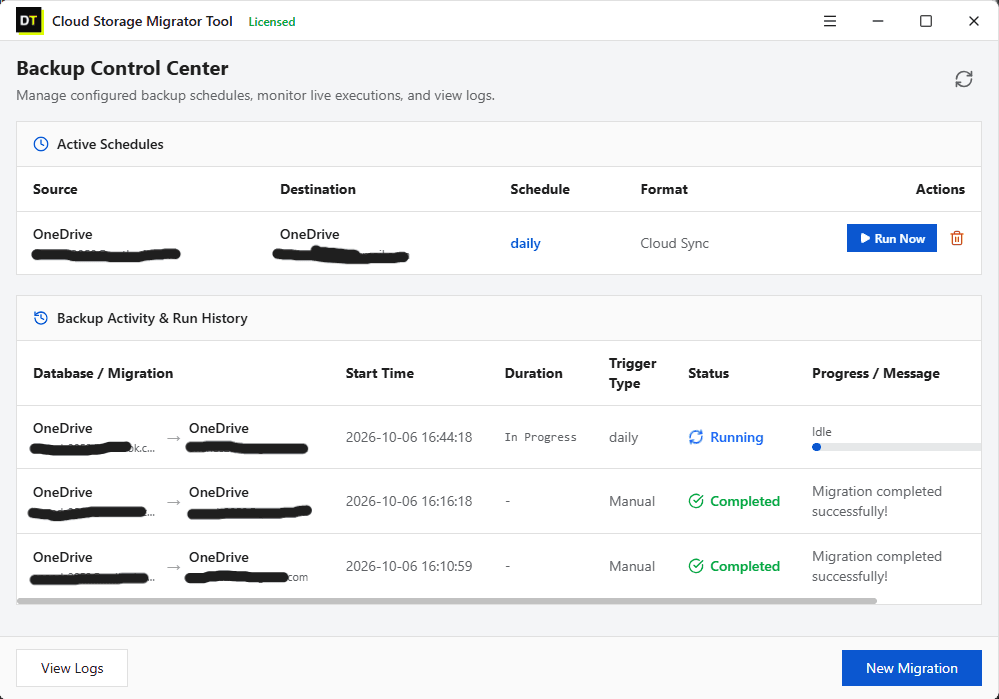
- Scheduled runs. Set a job to repeat hourly, daily, weekly or monthly and let large accounts move across several windows.
- Filters. Move the most important folders first by narrowing the job by extension, date range, folder type or file size.
- A report you can trust. The job report lists failed, filtered and already migrated items, so you always know what is still pending.
The licensed version of DT Mega Migrator Tool has no limit on total data or single file size. Your effective limit is the quota of the MEGA plan you are using.
Stop Counting Gigabytes. Start Moving Data.
Most cloud migrations do not fail because the files are hard to move. They stall because the tool around them is built for small jobs. A free plan runs out of monthly transfer quota halfway through a folder. A paid plan prices by user or by gigabyte, so a bigger move means a bigger bill. A feature you need, like bulk mapping or scheduling, sits on a higher tier.
DT Mega Migrator Tool is built so none of that happens. The licensed version has no data size limit. Every feature ships in the same build: preview, filters, CSV mapping, version migration, scheduling, incremental runs and full job reports. A freelancer moving one MEGA folder and an IT team moving a department get the identical, complete product.
The Complete Migration Workflow: Eight Screens, Nothing Hidden
Every MEGA migration follows the same eight screens. You always know where you are, what comes next and what is about to happen to your data.
Screen 1: Dashboard
The dashboard is your starting point. From here you begin a new migration job, review the accounts you have connected and reopen earlier jobs and their reports. A job can carry several accounts, drives or folders at once, so a MEGA account with many top-level folders does not need to be moved one piece at a time.
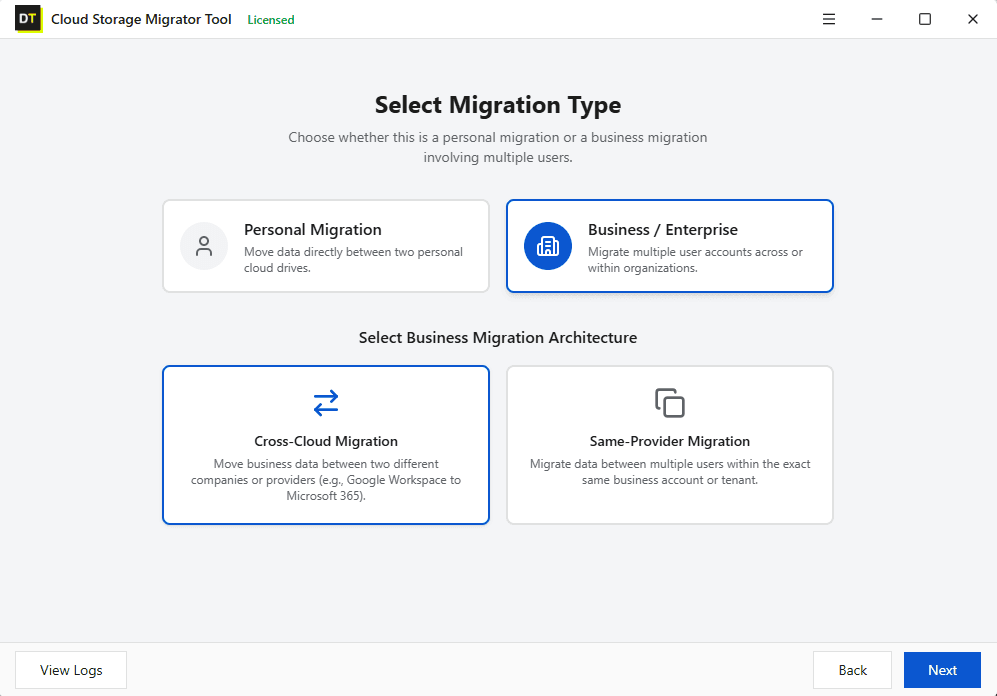
Screen 2: Mode Selection
Choose personal or business mode for the job. In business mode you get two more options: cross migration to move data between different platforms, such as MEGA to Google Workspace, or same migration to move data within one platform, such as MEGA Business to another MEGA account.
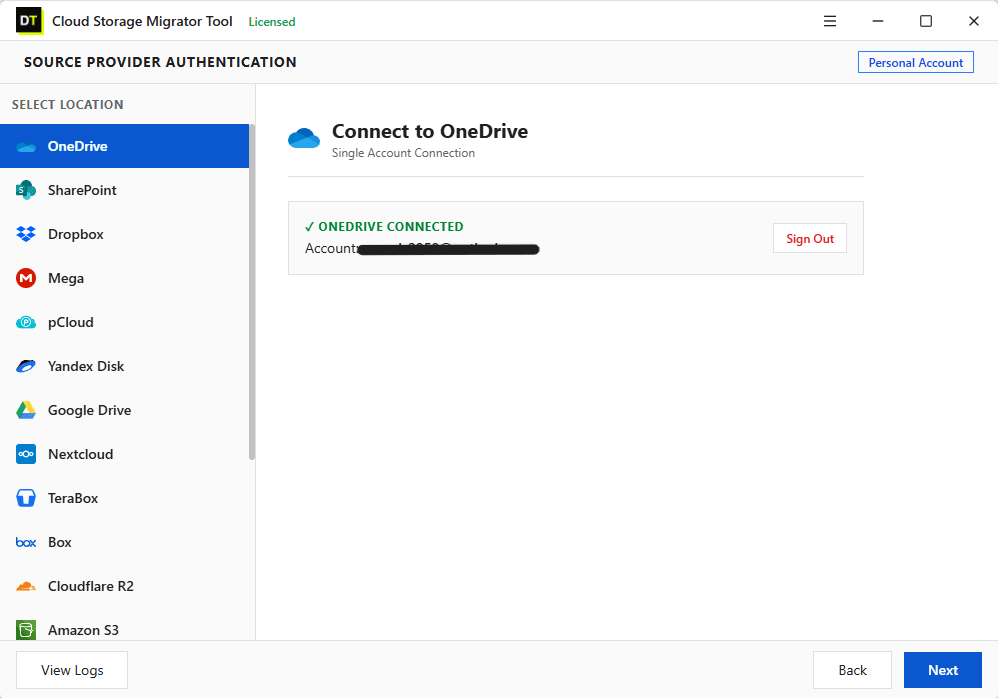
Screen 3: Source Authentication
Choose the cloud you are moving from and sign in. If your source is MEGA, you connect your MEGA account here. Add as many source accounts as the job needs and manage them together.
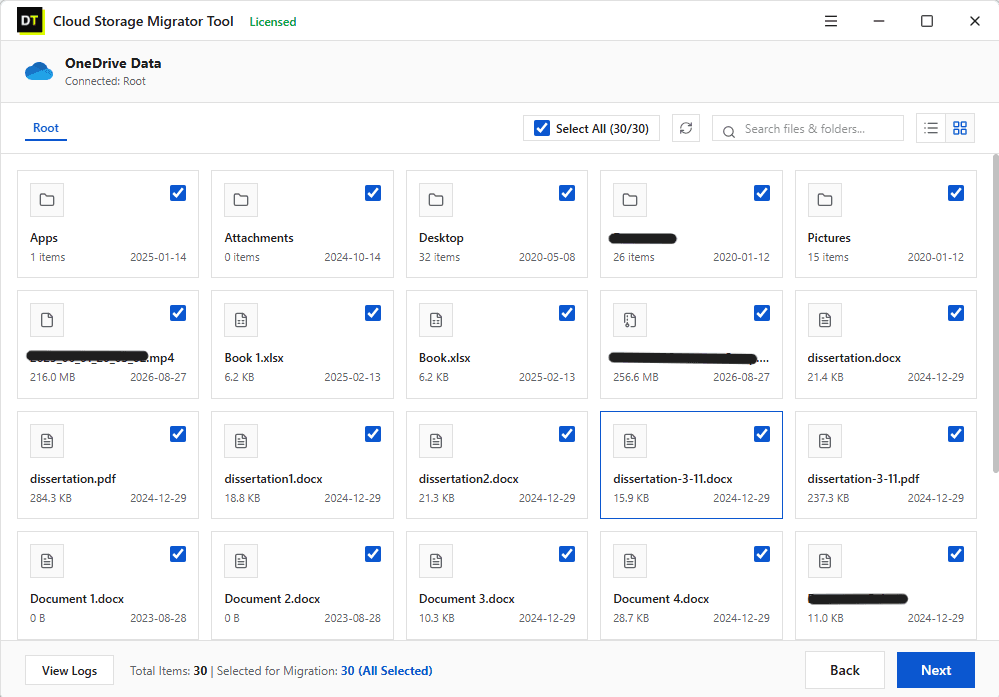
Screen 4: Preview
Before a single file moves, you see exactly what is there. Browse the full folder tree with per-file details: size, created date, modified date and drive type. Then narrow the scope by file extension, date range, folder type or file size. Nothing is committed on this screen, so you can explore and adjust freely. It is the cheapest insurance in any MEGA migration, because it shows you what a quota-limited account actually needs to move.
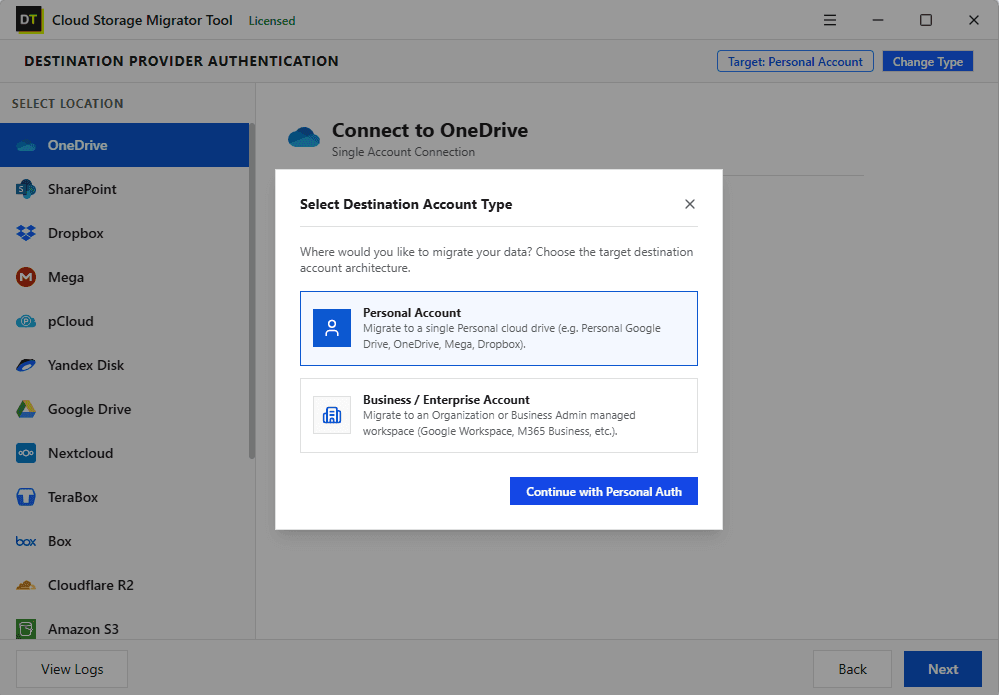
Screen 5: Destination Authentication
Choose where the data is going and sign in. The destination can be another provider or a second account on the same provider, personal or business. Browse the destination's existing structure so you know where things will land. Moving from MEGA into a company SharePoint library, or from Google Drive into a private MEGA account, is the same two sign-ins.
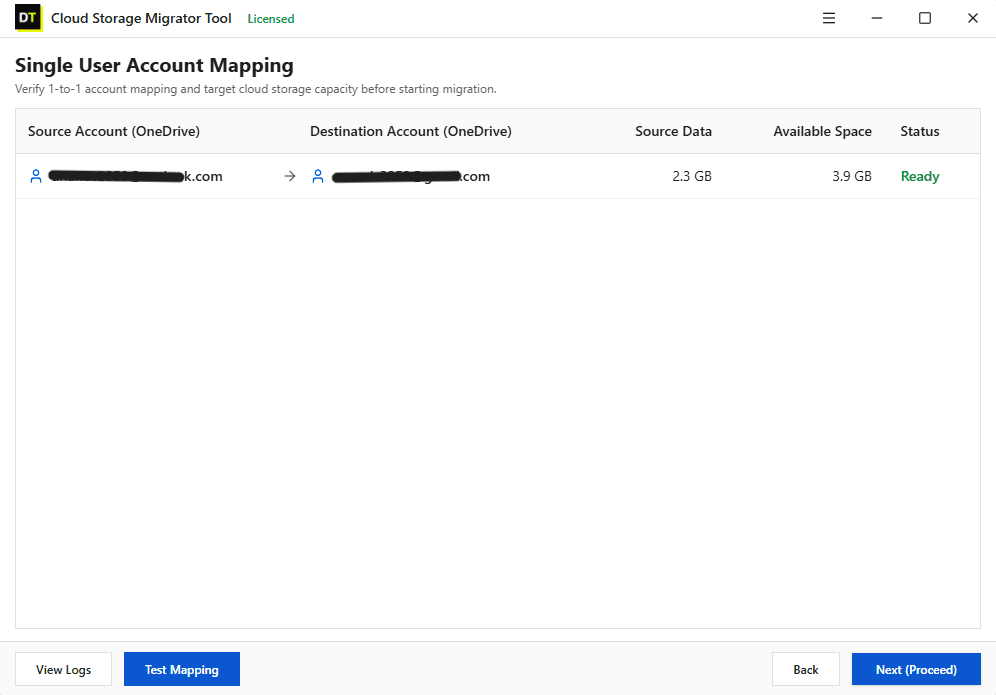
Screen 6: Mapping
Mapping decides which source goes to which destination. For a small job, map accounts, drives or folders manually in a few clicks. For a larger one, upload a CSV file and map dozens or hundreds of accounts in a single step. A company-wide move that would take hundreds of manual selections becomes one file and one upload.
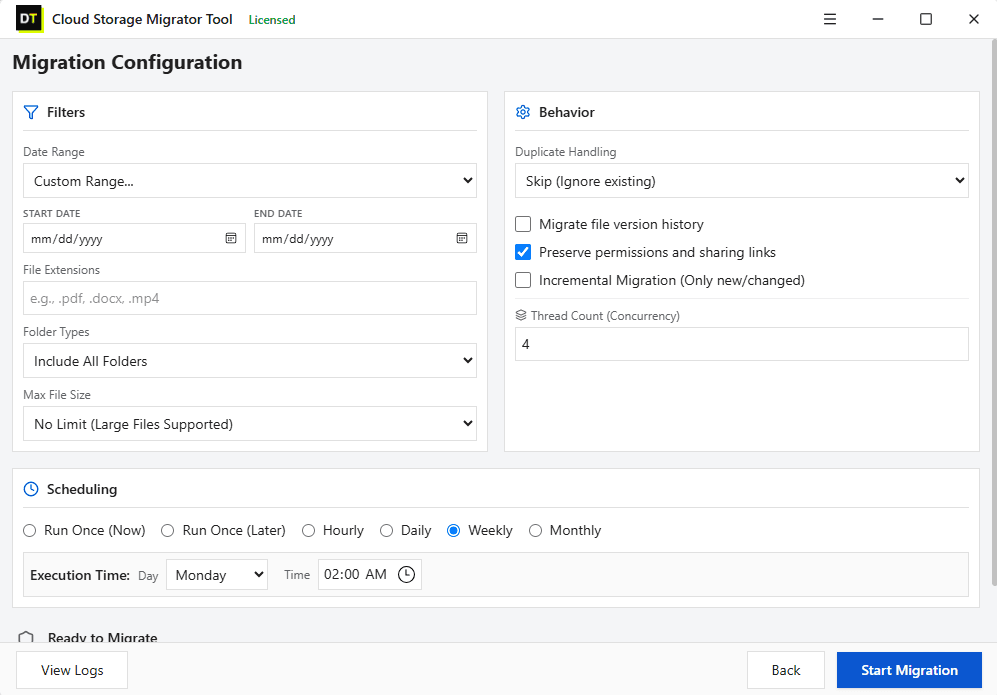
Screen 7: Configure Migration
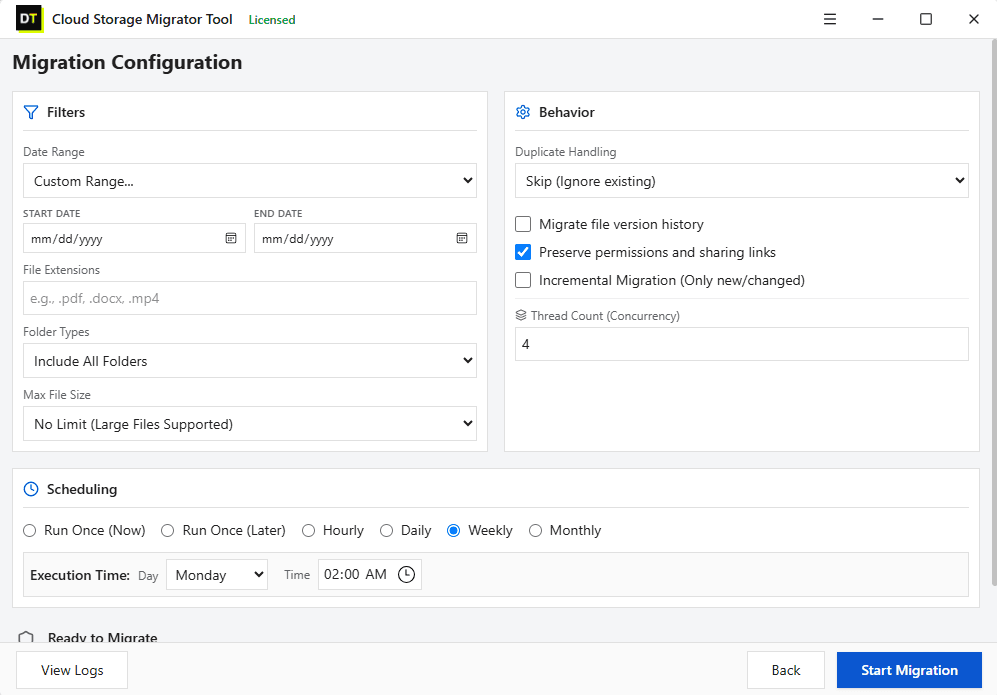
Set the rules for the run. Decide what happens when a file already exists at the destination: skip it, rename the incoming copy so both exist, or replace the existing file. Turn on version migration to carry file history across where the source keeps it. Choose a one-time run, an incremental run, or a schedule that repeats hourly, daily, weekly or monthly. Adjust thread count and item thread count to match your internet speed and your PC.
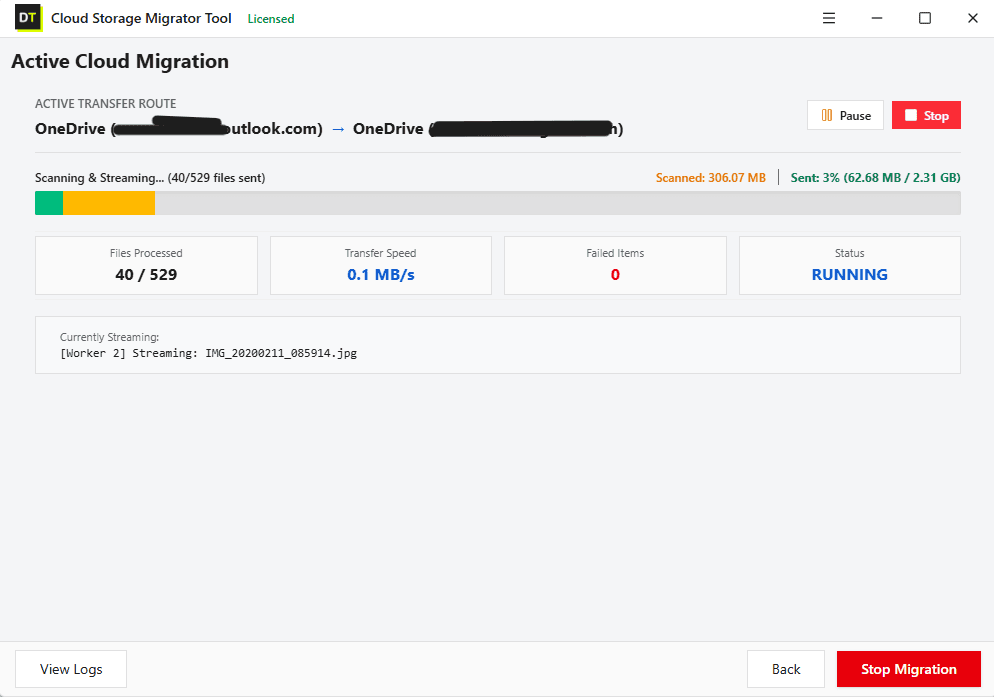
Screen 8: Migration
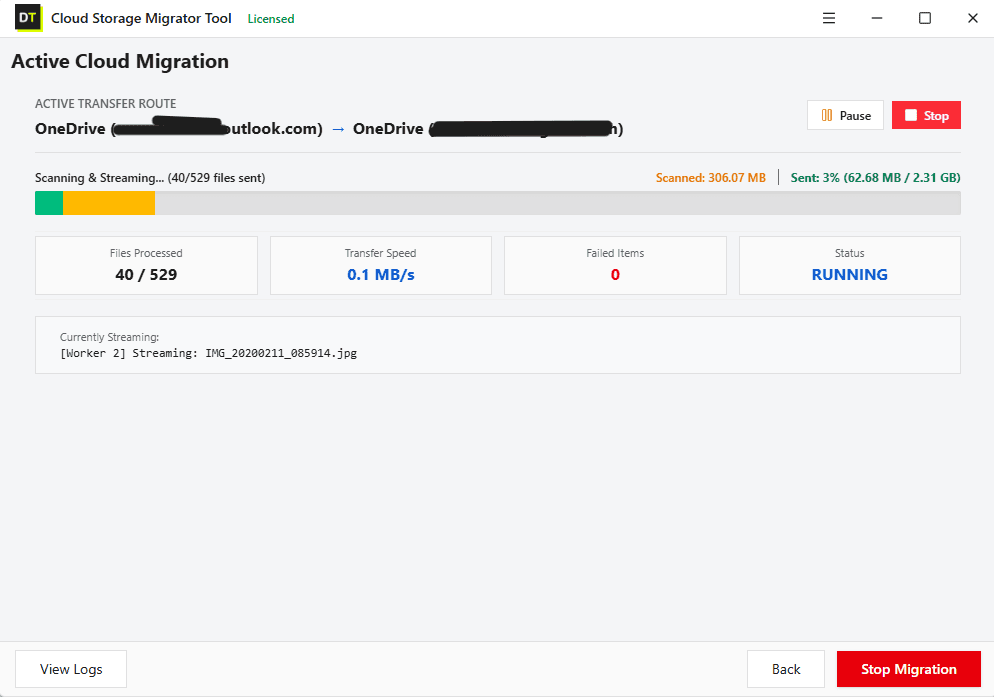
This is the live screen. Watch the job run between your source and destination clouds with the original folder structure preserved. If your connection drops or you pause the job, the transfer resumes where it stopped. When the run ends you get a detailed job report split into failed items, filtered items and already migrated items, exportable for your records. Nothing happens silently.
Everything Else Included, on Every License
Who Gets the Most From This Tool
Individuals leaving MEGA
You are moving to Google Drive, OneDrive or Dropbox for better app integration, and you want every file and folder to arrive without downloading it all first.
Users who outgrew the free plan
Your MEGA free storage is full or the transfer quota keeps interrupting you. You want a controlled move you can resume, pause and schedule.
Freelancers and small teams
A client shares a project in MEGA, but your workflow lives in Drive or OneDrive. You want to move it once, correctly, and keep the folder structure.
IT admins and companies
You are consolidating storage across MEGA Business and Microsoft 365 or Google Workspace, with CSV mapping and a report for every run. The cost stays predictable because the tool does not charge by the gigabyte.
People moving into MEGA
You want a private, encrypted archive of files from other clouds, and need them transferred in bulk with filters and a schedule.
MEGA Migration Compared: Four Ways to Do It
| Method | How it works | Where it falls short / Advantage |
|---|---|---|
| Manual download and upload | Download from MEGA, upload to the new cloud | Uses your disk and internet twice, restarts on failure, slow for large folders |
| MEGA desktop app and a second sync folder | Sync MEGA to your PC, then copy to another cloud's sync folder | Needs local disk space for the full data set, depends on your PC staying on |
| Command-line tools such as Rclone | Configure remotes and run copy commands | Powerful, but needs command-line skill and manual setup for every job |
| Web-based cloud managers such as MultCloud | Add both clouds online and run a transfer | Free plans have transfer limits, and heavy use needs a paid subscription |
| DT Mega Migrator Tool | Guided 8-screen desktop workflow | One-time license, every feature in the build, no data cap on the licensed version |
This comparison reflects publicly available information as of October 2026 and may change. Confirm current details on each provider's own site.
Before You Migrate: A Six-Point Checklist
Confirm you are authorized to move the data, especially on business accounts.
Check the transfer quota on your MEGA plan, because it sets how fast a large account can leave.
Clean duplicates first so you do not move the same file twice. The DT MEGA Duplicate Finder can do this directly on your MEGA account.
Check free space and plan limits on the destination.
Decide your duplicate rule in advance: skip, rename or replace.
Run a small filtered test job first, then the full migration, and keep MEGA active until the report shows everything arrived.
Free Trial vs Licensed Version
| Feature | Free trial | Licensed |
|---|---|---|
| All eight screens and every account path | Yes | Yes |
| Data you can process | Up to 500 MB | No limit |
| File size | Files under 20 MB | No limit |
| Preview, filters and mapping | Yes | Yes |
| Scheduling, incremental runs and job reports | Yes | Yes |
System Requirements
- Installer size8.3 MB
- Architecture32-bit and 64-bit
- Operating systemAll versions of Windows (Windows 11 and 10 recommended) and all versions of Windows Server
- Virtual machinesVMware, Microsoft Hyper-V, Oracle VirtualBox
- Processor2 GHz, 2 cores minimum
- Memory2 GB minimum
- Disk space1 GB minimum
- Prerequisite.NET Framework 4.7 or later on Windows 8 and earlier
Security and Privacy in Plain Words
Your cloud passwords are not stored by Data TB.
MFA works wherever your provider supports it.
The application runs on your own Windows PC, so keep it running while a job or schedule is active.
Data is not stored by Data TB.
You can revoke the tool's access from your cloud provider's security settings at any time.
MEGA uses end-to-end encryption. Make sure you understand how your destination cloud handles the files after they arrive, because a destination such as Google Drive or OneDrive stores them under its own security model.
Frequently Asked Questions
QWhat is the best way to migrate from MEGA to Google Drive?
Use a migration tool that connects both accounts and moves files directly. In DT Mega Migrator Tool you sign in to MEGA as the source and Google Drive as the destination, preview and filter the data, map folders and run the job. The folder structure is preserved and the transfer resumes if it is interrupted.
QCan I transfer files from MEGA to OneDrive or SharePoint?
Yes. Connect MEGA as the source and OneDrive, OneDrive for Business or SharePoint as the destination. Preview the files, map them to the right library or folder and start the job. The same steps work for personal and business accounts.
QCan I move files from Google Drive, Dropbox or OneDrive into MEGA?
Yes. Every supported cloud works as a source or a destination, so MEGA can be the destination just as easily as the source.
QCan I transfer from one MEGA account to another MEGA account?
Yes. Connect both MEGA accounts and map folder to folder. This is useful for merging accounts, handing over a project or moving files between a personal and a business account.
QDoes it support MEGA Business accounts?
Yes, as a source or a destination. Many organizations require approval before moving business data, so check your policy first.
QDoes it download my files to my computer first?
No manual download and upload cycle is needed. You run one job between the two clouds.
QWhat about MEGA's transfer quota?
MEGA's transfer quota is set by MEGA and depends on your plan. The tool cannot raise it, but resumable, incremental and scheduled runs mean a quota pause does not force you to start over. Upgrading the MEGA plan or spreading a large job across several windows are the legitimate ways to move big accounts.
QIs there a data size limit?
The licensed version has no limit on total data or file size. The free trial processes up to 500 MB and files under 20 MB so you can test safely.
QWhich cloud storage services are supported?
MEGA, Google Drive, OneDrive, Dropbox, Box, SharePoint, Amazon S3, Cloudflare R2, Google Cloud Storage, Azure Blob Storage, Backblaze B2, pCloud, Nextcloud, DigitalOcean Spaces, Proton Drive, Yandex Disk, TeraBox and FTP or SFTP servers.
QCan I preview and filter what moves?
Yes. The Preview screen shows folders and file details. You can filter by extension, date range, folder type and file size before anything is transferred.
QWhat happens if a file already exists at the destination?
You choose before the run: skip the file, rename the incoming copy so both exist, or replace the existing one.
QCan I schedule a MEGA migration?
Yes. Run it once, run it incrementally so only new or changed files move, or schedule it hourly, daily, weekly or monthly.
QWhat if the migration is interrupted?
The transfer resumes from where it stopped. You do not start the whole job again.
QDoes it keep my MEGA folder structure?
Yes. The original folder structure is preserved at the destination.
QDo I need to keep MEGA open or my PC on?
The application runs on your own Windows PC, so keep it running while a job or schedule is active.
QHow is this different from the DT Cloud Storage Migrator Tool?
The core engine and features are the same. This page focuses on MEGA to any cloud, any cloud to MEGA and MEGA to MEGA moves. See the DT Cloud Storage Migrator Tool page for the general overview across all supported clouds.
Ready to Move? Start With the Free Trial
Run a real migration on your own MEGA account, up to 500 MB, before you spend anything. You will see the full workflow working on your data, from sign-in to the final job report. When you are ready for the full job, the licensed version removes every limit, and everything you need is already in one tool.