
Every Byte Matters.
DT Synology Duplicate File Finder and Remover
Find and Delete Duplicate Files on Your Synology NAS
DT Synology Duplicate File Finder and Remover is a desktop tool that scans your Synology NAS for duplicate files, shows every match in clear groups and lets you remove the extra copies in bulk. Pick Fast Scan by name and size or Deep Scan by file hash, review each group first, and keep one clean copy of every file.
- Scan a whole NAS account or only the shared folders you choose
- Fast Scan for speed, Deep Scan for byte-level accuracy
- Preview every duplicate group before anything is removed
- Remove duplicates in bulk instead of ticking them one set at a time
- Connect more than one NAS and manage all of them from one dashboard
- Full scan is free, removal needs the full version


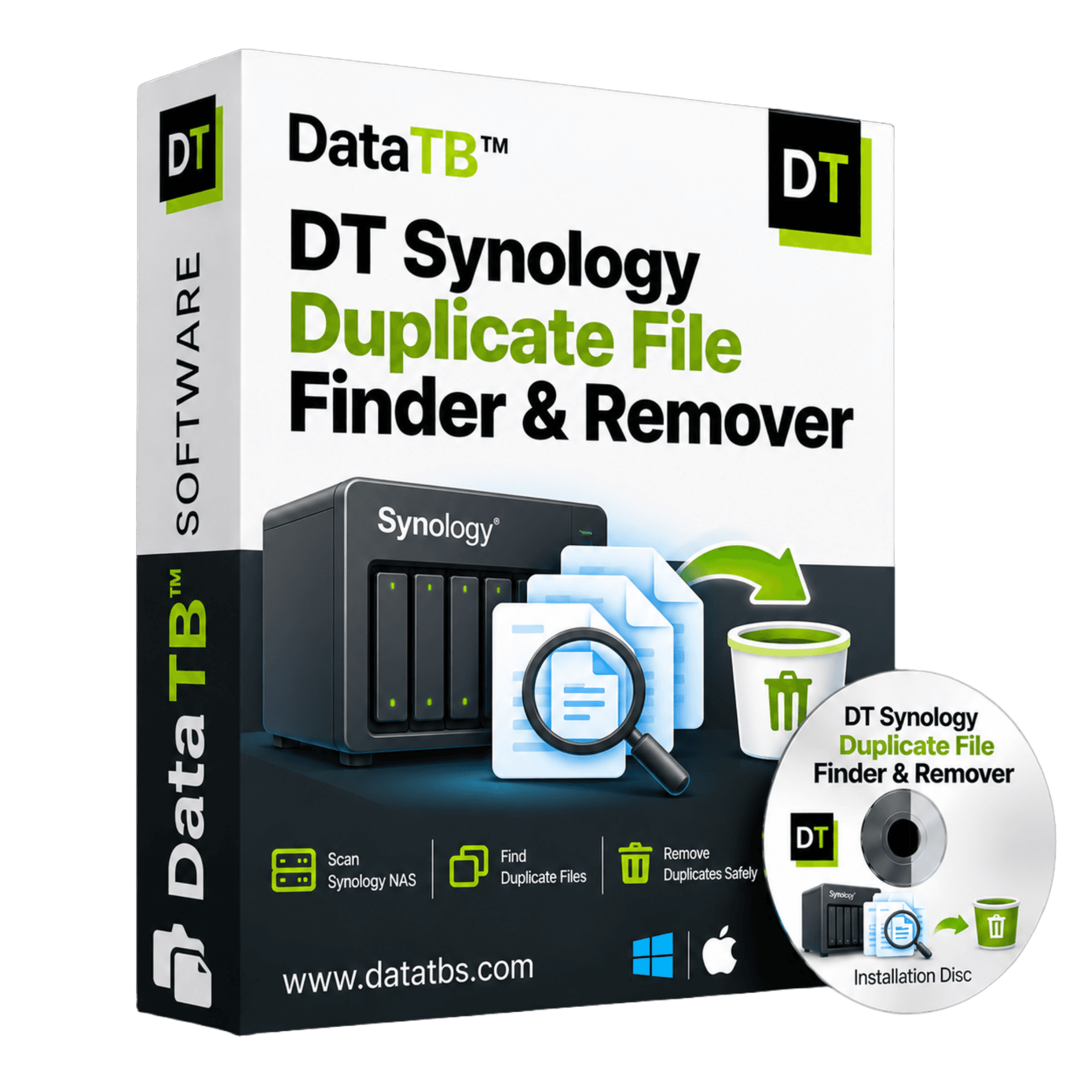
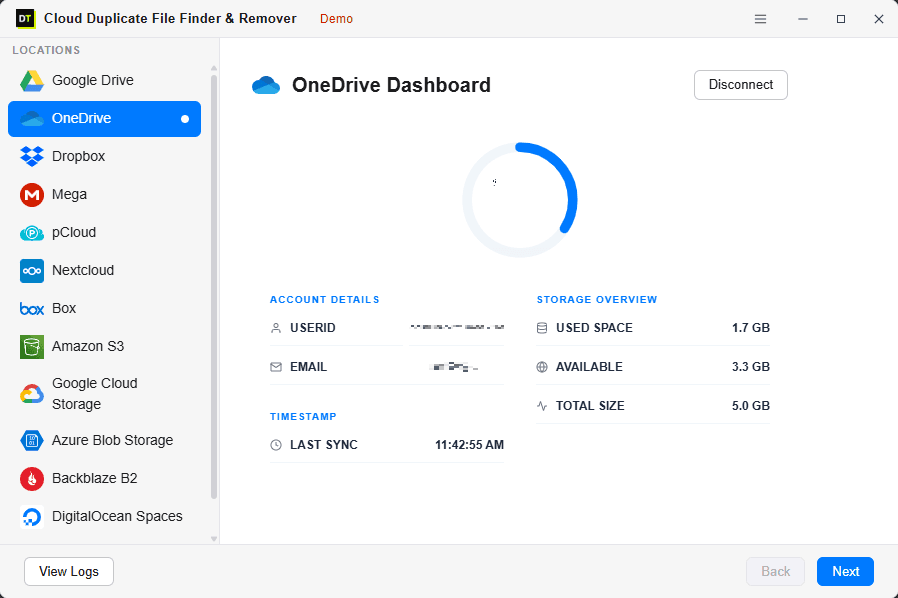
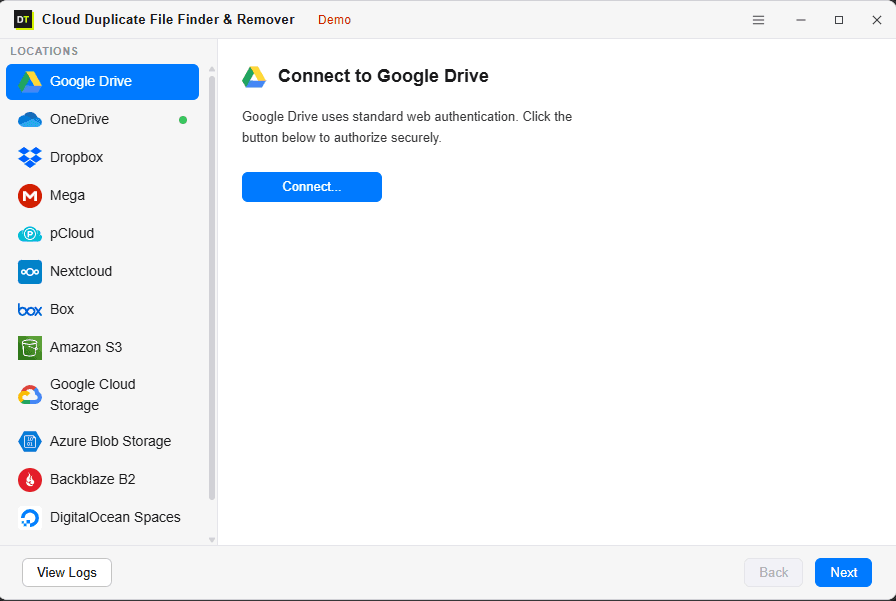
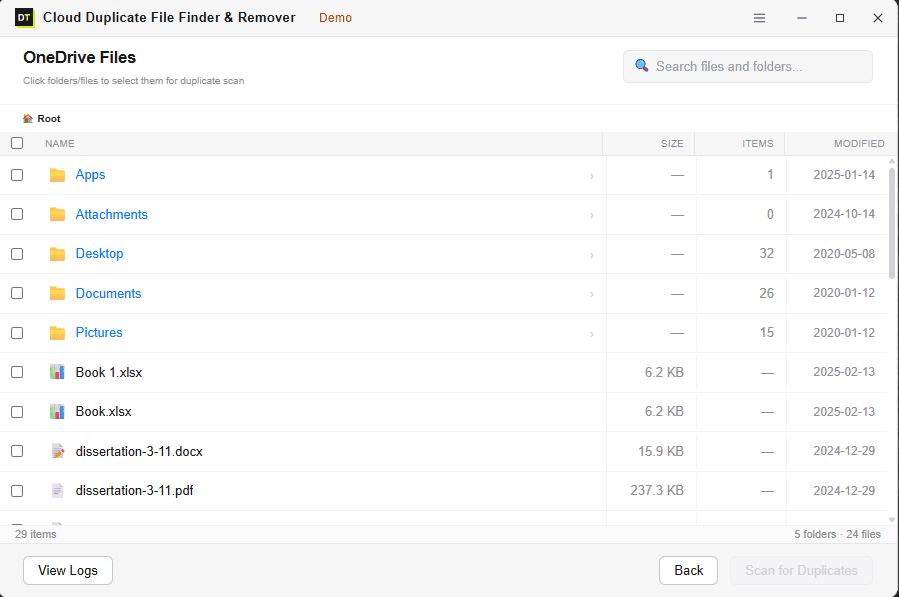
Quick Summary:DT Synology Duplicate File Finder and Remover is a desktop tool that scans your Synology NAS for duplicate files, shows every match in clear groups and lets you remove extra copies in bulk using Fast Scan or Deep Scan.
Why a Synology NAS Fills Up With Duplicate Files
A NAS is built to keep everything in one place, and that is exactly why duplicates pile up on it. Nobody sets out to store the same file three times. It happens one small decision at a time.
A phone backs up photos that were already imported from a camera card. A folder gets copied "just in case" before a big cleanup and never deleted. Two people on the same team save their own version of a shared spreadsheet. An old PC backup is restored into a new share, next to the files that were already there. After a few years, the storage bar is red and nobody can say what is actually filling it.
The cost is real. When a Synology volume runs out of room, the answer is usually bigger drives or a new unit. Clearing duplicates first can delay that spend, and it makes the NAS faster to search, easier to back up and simpler to manage.
Backups are not duplicates
One caution before any cleanup: a copy that exists on purpose is not clutter. Backup folders, Hyper Backup destinations and archive shares hold copies by design. With DT Synology Duplicate Finder you choose which shared folders to scan, so your backup locations stay out of the scan unless you add them yourself.
Synology Storage Analyzer vs a Dedicated Synology Duplicate Finder
Synology gives you a built-in way to look for duplicates. Storage Analyzer is a package you install from Package Center, and it can include duplicate files in its storage reports. It is a useful starting point, and for a quick look it may be enough.
It also has limits you will notice once your NAS is big. Storage Analyzer reports potential duplicates, and you decide how strict the match is with options such as Ignore file names and Ignore modification time. According to Synology's own specifications, each report lists no more than 5,000 duplicate files. Removal is manual, so you go through the sets and pick the extra copies yourself.
The other common route is a third-party desktop tool. Most of them ask you to mount or map the NAS as a network drive on your PC first, and then they read file data across your network to compare content. That works, but it can be slow on large shares and it needs some comfort with network drives.
DT Synology Duplicate File Finder is made for the job in between: a NAS-focused scanner with hash-based matching, a clear review screen and bulk removal.
| What you need | Synology Storage Analyzer | Mounted-drive duplicate tools | DT Synology Duplicate Finder |
|---|---|---|---|
| Built for Synology NAS | Yes | No, general purpose | Yes |
| Match by file hash | Potential duplicates, configurable | Usually yes | Yes, with Deep Scan |
| Fast name and size mode | Partly, through its options | Varies | Yes, Fast Scan |
| Limit on duplicates shown | 5,000 per report | Varies | No fixed cap for review |
| Bulk removal | Manual, set by set | Yes | Yes |
| Needs the NAS mounted as a drive | No | Usually yes | No |
| Preview before removing | Limited to the report | Yes | Yes |
| Several NAS devices in one place | No | Not usually | Yes |
| Free scan | Included with DSM | Varies | Yes |
Key Features of DT Synology Duplicate File Finder and Remover
Here is what the tool does, in plain terms.
Scan your Synology NAS directly
Add your NAS from the Locations panel and sign in. The scan runs from your desktop against the NAS, so you do not need to map a drive letter or copy anything across first.
Fast Scan and Deep Scan
Fast Scan compares file name and size, which is quick and catches the obvious copies. Deep Scan compares a file hash, a fingerprint built from the content itself. It finds duplicates even when names, dates and folders are different.
Scan the whole NAS or just one shared folder
You are never forced into a full scan. Pick a single shared folder such as Photos, a project folder, or several folders at once. This keeps backup shares and system folders out of the way.
Review every duplicate group
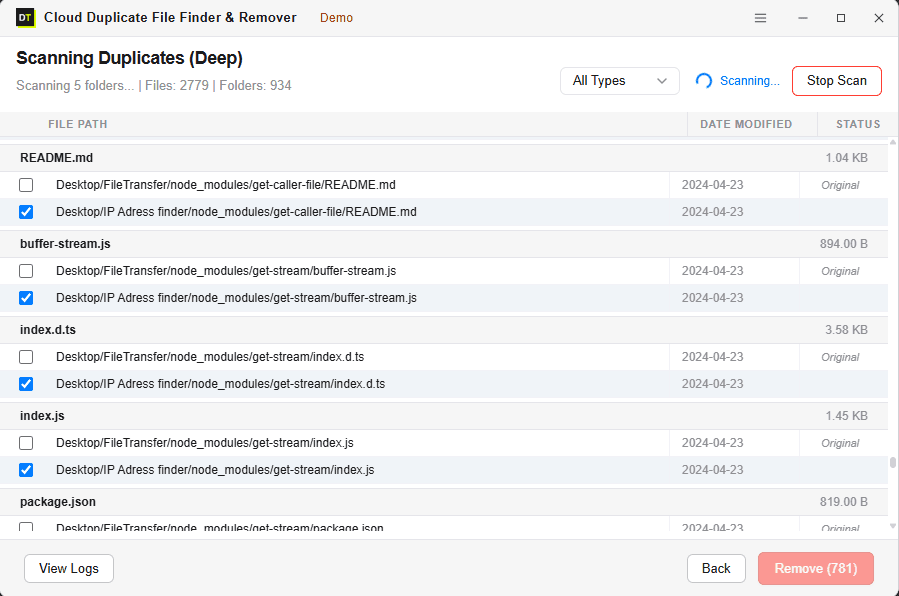
Results are grouped, so you see every copy of a file side by side with its path, size and date. Nothing is selected for removal until you confirm it.
Bulk removal
Once you have reviewed the groups, remove the extra copies in a single action. On a NAS with thousands of duplicates, this is the difference between a ten-minute cleanup and a weekend of clicking.
Safer removal
Removed files are sent to the Recycle Bin of the shared folder, so a mistake can be undone from File Station. The original copy in each group stays where it is.
Live scan monitoring
Watch the file count, folder count and current status while the scan runs. You always know what the tool is doing and how far along it is.
Multiple NAS devices and accounts
If you run a home NAS and an office NAS, or manage several clients, connect them all. Each one appears in the same dashboard with its used space and available space.
Activity log
Every scan and every removal is recorded with a time stamp. If someone asks what was cleaned and when, you have the answer.
Free scan before you pay
Run a full scan for free and see exactly how much space is going to waste. You only buy when you are ready to remove.
Fast Scan or Deep Scan: Which One Should You Use?
The two modes are a trade-off between speed and certainty. Neither is better in every case.
Fast Scan
Fast Scan matches files by name and size. It is the right choice when you expect plain re-copies, like a folder that was pasted twice or a backup restored on top of live files. It finishes quickly, even on big shares.
Deep Scan
Deep Scan matches files by hash. Use it before a migration, before a drive upgrade, or any time you cannot afford a wrong match. It finds renamed files, files saved under a new name during editing, and the same photo sitting in three different folders with three different names.
A simple habit works well for most people: run Fast Scan first to see the easy wins, then run Deep Scan on the folders that matter most.
How to Find and Delete Duplicate Files on Synology NAS
Step 1: Download and install
Download and install DT Synology Duplicate File Finder on your Windows PC or Mac.
Step 2: Add your NAS
Add your Synology NAS from the Locations panel and sign in.
Step 3: Choose what to scan & pick scan mode
Select the whole NAS, one shared folder, or several folders. Pick Fast Scan or Deep Scan and start. Follow the live file and folder count.
Step 4: Review duplicate groups and remove
Check each duplicate group, decide which copies to remove, and remove the extras in bulk. Confirm once, and the selected copies go to the Recycle Bin.
What Kind of Duplicate Files Can You Clean Up on a Synology NAS?
Deep Scan works on file content, so it is not limited to one file type. The tool covers 500+ file formats. These are the groups people clean up most often.
Photos and images
The same picture imported twice, or backed up from two phones
Videos
Large project files and exports that were copied between folders
Documents
Contracts, spreadsheets and PDFs saved again during a review round
Music
The same album kept in two libraries
Archives and installers
ZIP files and setup files downloaded more than once
Old restore folders
A full PC backup restored beside live data
Who Uses a Synology Duplicate File Remover
Home users and families
Years of phone photos, family videos and scanned papers add up. A scan often shows that a large part of the Photos share is the same pictures stored twice.
Photographers and video editors
Raw files, exports and project copies multiply fast. Deep Scan finds identical files even when the editing software renamed them.
Small businesses with a shared file server
Team shares collect many versions of the same document. Clearing exact copies makes search results cleaner and backups smaller.
IT administrators and MSPs
Before a migration, a volume upgrade or a client handover, a duplicate audit shows how much of the NAS is real data and how much is repeat copies.
Anyone close to buying more drives
If the next step is a larger unit or new disks, run a scan first. You may not need them yet.
What the Tool Reads and What It Never Touches
What is read
file name, file size, folder path, dates, and the file hash used by Deep Scan.
What is never done
no files are downloaded to your PC during a scan, nothing is uploaded to a Data TB server, and nothing is deleted automatically.
Every removal is a choice you confirm. The original file in each group is left alone, and removed copies go to the Recycle Bin of the shared folder. Data TB tools run locally on your device, and your data is never stored, seen or touched by us.
Free Scan vs Full Version
Connect your NAS and run a complete scan at no cost. You will see how much space duplicates are using before you decide to buy.
| Feature | Free Scan | Full Version |
|---|---|---|
| Connect your Synology NAS | Included | Included |
| Fast Scan by name and size | Included | Included |
| Deep Scan by file hash | Included | Included |
| Scan a whole NAS or selected folders | Included | Included |
| Multiple NAS devices | Included | Included |
| Live scan monitoring | Included | Included |
| Preview duplicate groups | Included | Included |
| Activity log | Included | Included |
| Remove duplicates in bulk | Not included | Included |
30-Day Money-Back. See the refund policy for details.
Frequently Asked Questions
How do I find duplicate files on a Synology NAS?+
Does Synology have a built-in duplicate file finder?+
Do I need to mount my Synology NAS as a network drive?+
Does the tool download my files?+
What is the difference between Fast Scan and Deep Scan?+
Will it delete the wrong file by mistake?+
Where do removed files go?+
Can I scan only one shared folder?+
Will it scan my backups and snapshots?+
Can I connect more than one Synology NAS?+
Can it find duplicate photos and videos on my NAS?+
Is there a free version?+
Does it run on Windows and Mac?+
Can I use it for QNAP or other storage?+
System Requirements
| Item | Details |
|---|---|
| Software version | 25.3.3 |
| Software size | 11.4 MB |
| Operating system | Windows 11, Windows 10 or later |
| Supported storage | Synology NAS |
| Network | Your PC must be able to reach the NAS |
| License | One-time or subscription, see the pricing page |
Related Data TB tools
Clean Up Your Synology NAS Today
Run the free scan and see how much of your NAS is made of repeat copies. Nothing is downloaded, and nothing is deleted until you say so.