
Every Byte Matters.
DT iCloud Drive Duplicate Finder & Remover
Find and Remove Duplicate Files from iCloud Drive and Get Your Storage Back
DT iCloud Drive Duplicate Finder & Remover scans your iCloud Drive, groups identical files together, and lets you remove the extra copies in a few clicks. You can preview every duplicate before anything is deleted, one copy of each file always stays, and removed files can be recovered from iCloud's Recently Deleted. It is built for anyone whose 5 GB free plan is full, or whose paid iCloud+ plan keeps filling up with copies they never meant to keep.
- Scan the whole iCloud Drive or only the folders you choose
- Match files by their content, so renamed copies are caught too
- Choose Fast Scan for speed or Deep Scan for the most careful check
- Send removed files to iCloud's Recently Deleted for easy recovery


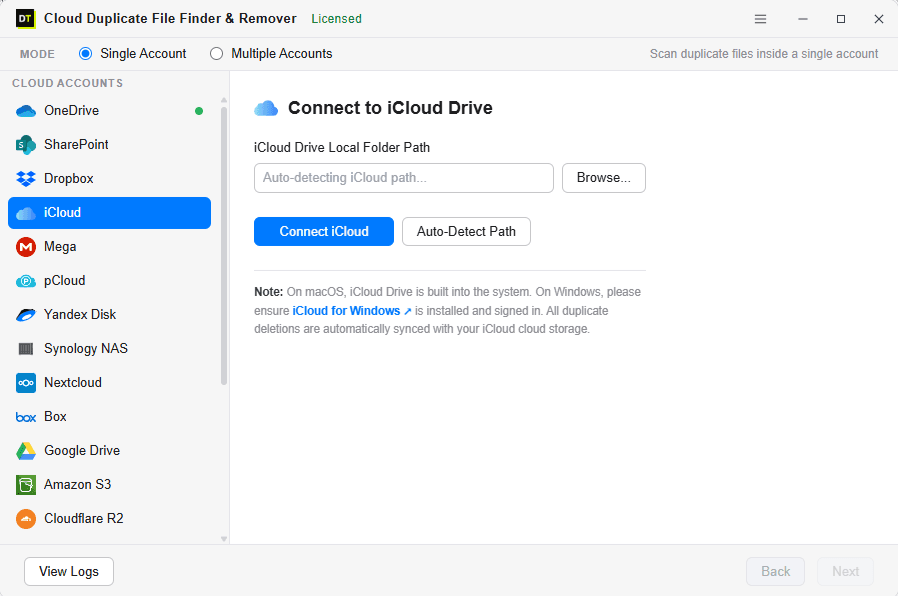
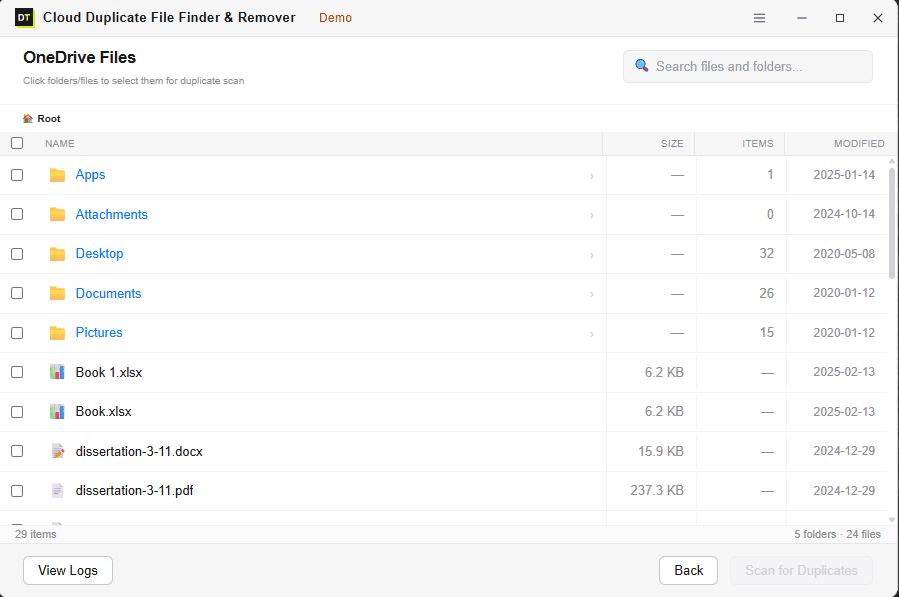
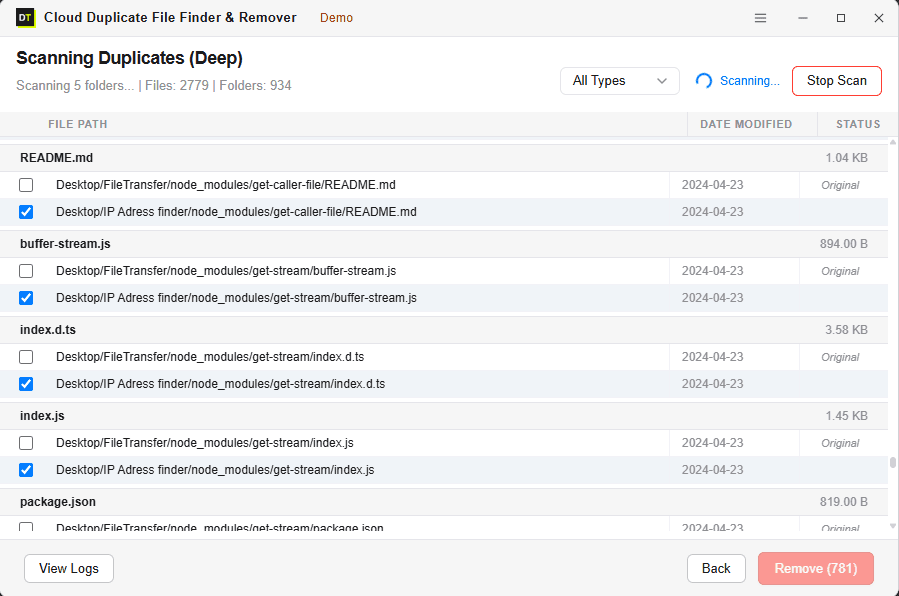
Quick Summary:DT iCloud Drive Duplicate Finder & Remover scans your iCloud Drive, groups identical files together, and lets you remove the extra copies in a few clicks. You can preview every duplicate before anything is deleted, one copy of each file always stays, and removed files can be recovered from iCloud's Recently Deleted.
Key Features of the iCloud Drive Duplicate Finder
Find duplicate files in iCloud Drive from one clean scan screen
Scan the whole iCloud Drive or only the folders you choose
Match files by their content, so renamed copies are caught too
Choose Fast Scan for speed or Deep Scan for the most careful check
Preview every duplicate group before you remove anything
Keep one copy of each file and remove only the extras
Select duplicates in bulk instead of ticking files one by one
Choose a folder whose files are always preserved
Send removed files to iCloud's Recently Deleted for easy recovery
Work with more than one Apple account in the same session
Clean documents, photos, videos, music, archives and backups together
Watch live scan progress and see how much space the duplicates use
Run on Windows without learning any command or script
Try the free demo and see the duplicates before you buy
Why Does iCloud Drive Fill Up with Duplicate Files?
iCloud Drive is very good at keeping your files available on every device. The same quality is also why copies pile up. Nothing inside iCloud Drive warns you when two files are identical, and Apple does not give you a built-in tool to find them. Here are the most common reasons duplicates appear:
- Edits from two devices at once. When the same file is changed on an iPhone and a PC before syncing finishes, iCloud often keeps both versions and adds a number to the name of one.
- Desktop and Documents sync. Turning on folder syncing for your Mac or PC can bring in a second copy of folders you had already uploaded by hand.
- Switching iCloud Drive off and on. Moving to a new device or signing in again can leave an older copy of a folder sitting next to the new one.
- Downloads saved twice. Email attachments, shared files and scanned papers are often saved again and again under slightly different names.
- Manual backups. Folders copied "just in case" into iCloud Drive quietly double the space they use.
The result is storage you pay for, or a storage warning on a free plan, with no real new data inside. That is exactly what this iCloud duplicate remover is made to clean up.
Which Duplicate Files Can You Remove from iCloud Drive?
The scan checks the content of your files, so it is not limited to one format. These are the groups most people clean first:
Documents
Word, Excel, PowerPoint, PDF, text files, and Pages, Numbers and Keynote files saved in iCloud Drive.
Images
JPG, PNG, HEIC and other pictures saved as files in your drive.
Videos
MP4, MOV and other clips that were exported or uploaded more than once.
Music and audio
songs, voice recordings and podcasts copied into several folders.
Compressed files
ZIP, RAR and 7Z archives downloaded again and again.
Backups and exports
folder copies and exported files kept as a safety net.
Shared files
copies created when the same file is saved from a shared folder.
Features of DT iCloud Drive Duplicate Finder & Remover
Scan iCloud Drive Without Opening Folder After Folder
Checking a big iCloud Drive by hand means opening every folder and comparing names, sizes and dates. It takes hours and still misses things. With DT iCloud Drive Duplicate Finder & Remover you sign in, pick what to scan, and the tool builds the list of duplicate groups for you. You can scan the full drive or only a few folders, such as Documents or Downloads.
Fast Scan and Deep Scan
Fast Scan is made for quick clean-ups when you only want the obvious copies out of the way. Deep Scan takes more time and checks files more carefully, which is the better choice for large libraries and important folders. You decide the balance between speed and thoroughness each time you scan.
Finds Duplicates by Content, Not by File Name
A copy called "Report 2" and the original "Report" are easy to spot. A copy renamed to "Final" is not. This iCloud duplicate file finder compares what is inside the file along with its size, so renamed and moved copies are still grouped together. Files that only look similar by name are not treated as duplicates.
Preview Every Duplicate Before You Delete
Nothing is removed until you say so. Each duplicate group shows the file name, folder path, size and date, so you can see where every copy lives. Open a file to look at it first when you are not sure. Scan first, decide later.
Keep One Copy and Remove Only the Extras
The tool never asks you to delete every copy of a file. One file in each group always stays, and you choose which one. Select the extras in bulk, or let the tool pick them for you, then confirm. Your original stays untouched.
Preserve Data In: Protect Your Most Important Folder
Some folders matter more than others, for example your main Documents folder. Mark that folder as the place to preserve, and the tool keeps the copy stored there and selects the others for removal. It is a simple way to clean up without second guessing every group.
Safer Removal Through Recently Deleted
Unsure about deleting something? Removed files are sent to iCloud's Recently Deleted, where Apple keeps them for 30 days before they are cleared for good. That gives you a recovery window if you change your mind. Starting with this option is a calm way to clean a drive you have never cleaned before.
Work with More Than One Apple Account
Many people keep a personal iCloud and a second one for work, family or an old phone. Add more than one account and review the duplicates for each in the same place. That saves you from signing in and out again and again.
Clean Up Before You Move or Upgrade
Before buying a bigger iCloud+ plan, it makes sense to know how much of your current space is real data. Remove the copies first and you may not need to upgrade at all. The same clean-up also makes a later move to another cloud faster, because you only move files that matter.
When Does an iCloud Duplicate Remover Help the Most?
Your iPhone says iCloud storage is full
Free accounts only include 5 GB, and a few duplicate videos or folders can use it all. Scanning iCloud Drive shows what you can remove without losing a single unique file.
You sync Desktop and Documents
Folder syncing is handy, but it often creates second copies of work files. A scan finds them in minutes and keeps the version you want.
You share a plan with your family
Larger iCloud+ plans can be shared with up to five family members, and shared space fills faster when everyone saves the same files. Cleaning duplicates keeps the shared plan useful for longer.
You are about to switch or shrink your plan
Paying for less storage is only possible when you know how much is duplicated. A scan gives you that answer before you decide.
You scan a lot of paper
Scanned bills, forms and receipts are often saved twice, once from the phone and once from the PC. This tool finds those pairs quickly.
How to Find and Delete Duplicate Files in iCloud Drive
Step 1: Install the tool and sign in
Download and open DT iCloud Drive Duplicate Finder & Remover, then sign in with your Apple account and complete the usual Apple verification.
Step 2: Choose folders and scan type
Pick the folders you want to check, select Fast Scan or Deep Scan, and start the scan. Progress is shown live.
Step 3: Review and remove
Open each duplicate group, preview the files, choose what to keep, and remove the extras. Files go to Recently Deleted so you can recover them if needed.
Manual Clean-Up vs DT iCloud Drive Duplicate Finder & Remover
| What you need | Doing it by hand | With DT iCloud Drive Duplicate Finder & Remover |
|---|---|---|
| Find duplicates | Open every folder and compare files yourself | One scan builds the full list of duplicate groups |
| Catch renamed copies | Very hard, names must be guessed | Content is compared, so renamed copies are grouped |
| Time for a large drive | Hours or days | Minutes to a few hours depending on size |
| Avoid deleting the wrong file | Easy to make a mistake | Preview and keep-one-copy rule on every group |
| Bulk removal | One file at a time | Select many duplicates at once |
| Recovery | Depends on your memory | Recently Deleted keeps files for 30 days |
| Cost | Free, but costs your time | Free demo, one license to remove |
Free Demo vs Full Version
| Feature | Free Demo | Full Version |
|---|---|---|
| Sign in and scan iCloud Drive | Yes | Yes |
| Fast Scan and Deep Scan | Yes | Yes |
| Preview duplicate groups | Yes | Yes |
| Remove duplicate files | Limited | Unlimited |
| Bulk selection | No | Yes |
| Preserve Data In option | No | Yes |
| Multiple accounts | No | Yes |
| Technical support | Yes | Priority |
| Money-back guarantee | Not applicable | 30 days |
Technical Specifications
| Product name | DT iCloud Drive Duplicate Finder & Remover |
| Works with | iCloud Drive (personal Apple accounts) |
| Supported OS | Windows 11, 10 |
| Processor | 1 GHz or faster |
| RAM | 2 GB minimum, 4 GB recommended |
| Free disk space | 100 MB |
| Internet | Required |
| Language | English |
| Version | 1.0 |
| Installer size | 11 MB |
| Last updated | November 2026 |
| License | One-time purchase |
Is It Safe to Use on Your iCloud Account?
Yes, and here is how the tool keeps things simple and honest:
You stay in control
Nothing is deleted without your confirmation, and every group can be previewed first.
One copy always stays
The tool will not remove every copy of a file.
A recovery window exists
Files removed from iCloud Drive can be restored from Recently Deleted for 30 days.
Your files are not stored by Data TB
Your files stay in your own iCloud account. Data TB does not keep a copy of them.
Your Apple password
Sign in follows Apple's own verification steps. Please read the privacy policy for full detail.
Support when you need it. Our team is available by email and chat, and a 30-day money-back guarantee covers your purchase.
Frequently Asked Questions
How do I find and remove duplicate files from iCloud Drive?+
Does iCloud have a built-in duplicate file finder?+
Will it delete my original files?+
Can I recover files after removing them?+
Does it find duplicate photos in iCloud?+
How does the tool decide a file is a duplicate?+
What is the difference between Fast Scan and Deep Scan?+
Can I scan only one folder?+
What does the Preserve Data In option do?+
Can I use it with more than one Apple account?+
Is two-factor authentication a problem?+
Does it work on Mac, iPhone or iPad?+
Is the free demo really free?+
How much storage can I free?+
What if I do not need the tool again?+
Clean Your iCloud Drive Today
Every copy you remove is space back in your account, and often a plan upgrade you never needed. Download the free demo, scan your iCloud Drive, and see how much you can recover.