
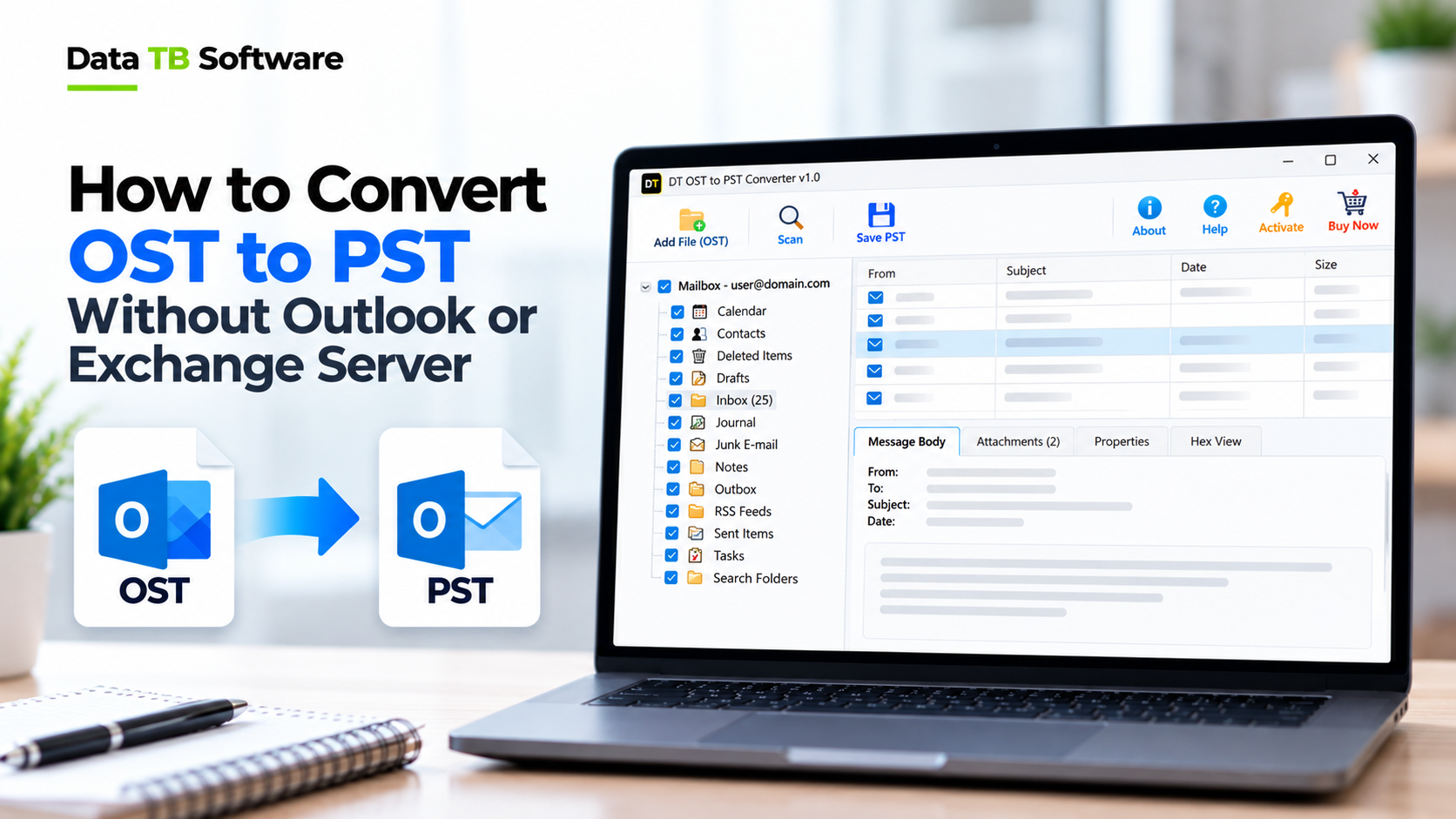
You left your job last month. Your company deleted your email account the same week. Now you remember that there were important emails in there. A client’s contract. An invoice. A long thread that you might need one day.
You check your old laptop, and there it is. A big file called something like [email protected]. Your emails are sitting inside it. But when you double-click it, nothing happens. Outlook says it cannot open the file. The account is gone.
This is a very common problem, and the good news is that your emails are not lost. This guide explains what an OST file is, why you cannot open it, and how to convert it to PST without Outlook and without Exchange Server. Everything is in simple words.
The Short Answer
You can convert an OST file to PST without Outlook or Exchange by using an OST to PST converter tool. The steps are simple: 1. Copy your OST file to a safe place. 2. Open the converter on a Windows computer and add the file. 3. Preview what is inside. 4. Choose PST as the output and click Convert.
No Exchange account, no Outlook installation and no internet are needed. Now let’s understand why this works, and why the normal ways often fail.
What Is an OST File?
OST stands for Offline Storage Table. When you add an Exchange, Microsoft 365 or IMAP account to Outlook, Outlook makes a copy of your mailbox on your computer. That copy is the OST file.
It is helpful because you can read and write emails even when the internet is down. Later, when you are back online, everything syncs with the server.
Here is the important part. An OST file is tied to the account that created it. It is like a house key that only fits one lock. If the lock changes, the key becomes useless.
What Is the Difference Between OST and PST?
| Feature | OST File | PST File |
|---|---|---|
| What it is | A copy of an online mailbox | A standalone data file |
| Works without the account | No | Yes |
| Can you move it to another computer | Not easily, it is tied to the account | Yes, open it in any Outlook |
| Best use | Working offline | Backup, archive, moving data |
Why Can’t You Open Your OST File?
Your OST file becomes unusable in several situations:
- The Exchange account was deleted. This is the classic one, for example, after leaving a company.
- The server was shut down or replaced. IT moved to a new system and old OST files were left behind.
- The Outlook profile was removed or broken. The file is still on the disk, but Outlook no longer knows it.
- The file is damaged. A crash, a power cut or a disk problem broke the file.
- You moved to a new computer. The OST does not travel well from one machine to another.
First: Where Is Your OST File?
Before anything else, find the file. It is usually in one of these places:
C:\Users\YourName\AppData\Local\Microsoft\OutlookC:\Users\YourName\Documents\Outlook Files
Look for a file ending in .ost. The file name is often your email address.
Four Safety Steps Before You Start
1. Copy the file first. Copy the OST to a pen drive or another folder. Work on the copy. This is especially important if your old laptop is about to be handed back or wiped. 2. Close Outlook. If Outlook is running, it may lock the file. 3. Check the file size. Big OST files need free space on the destination drive. Make sure you have enough. 4. Do not try random “fix it” tricks. Renaming or deleting parts of the file may damage it further.
Can You Convert OST to PST Manually? (Honest Answer)
Yes, but only in one case: when your Outlook is still connected to the working account and can open the mailbox normally. In that case, Outlook can export the data. Here are the usual ways:
Method 1: Export from Outlook
Go to File, then Open and Export, then Import/Export. Choose “Export to a file”, then “Outlook Data File (.pst)”. Pick the folders and save.Method 2: Drag and drop into a new PST
Create a new PST file in Outlook, and drag your folders from the mailbox into it.Method 3: Archive
Use the Archive option in Outlook to move older mail into a PST file.These work well for a healthy, connected account. But there is a catch. They all need Outlook installed, and they need Outlook to open the OST with the original account. If your account is deleted, the server is gone, or the profile is broken, none of these will work.
That is exactly why people search for “convert OST to PST without Outlook or Exchange”. For an orphaned or damaged OST file, the manual way simply is not available.
Online Converters: A Warning
When the manual way fails, many people try a free online converter. It sounds easy: upload the file, wait, download the PST.
Think carefully before you do this. An OST file holds everything that went through that account. Client emails. HR matters. Private messages. Old attachments. Uploading it means sending all of that to a stranger’s server.
Some online services also charge by the size of the data, so a big file can get expensive. And you have no real control over who can see your file once it leaves your computer.
For private or business email, a tool that runs on your own computer is a much safer choice.
The Right Way: Convert OST to PST With a Desktop Tool
A desktop converter reads the OST file directly from your disk. It does not need to log in to anything. Let’s walk through it using the DT OST to PST Converter.
Step 1: Install the tool
Download and install DT OST to PST Converter on a Windows computer. You do not need Exchange. You do not need Outlook. You do not need to sign up for an account.Step 2: Add your OST file
Click to browse and load your OST file. You can add one file, or a whole folder of OST files if you have many. There is no file size limit, and the tool reads the file whatever state it is in.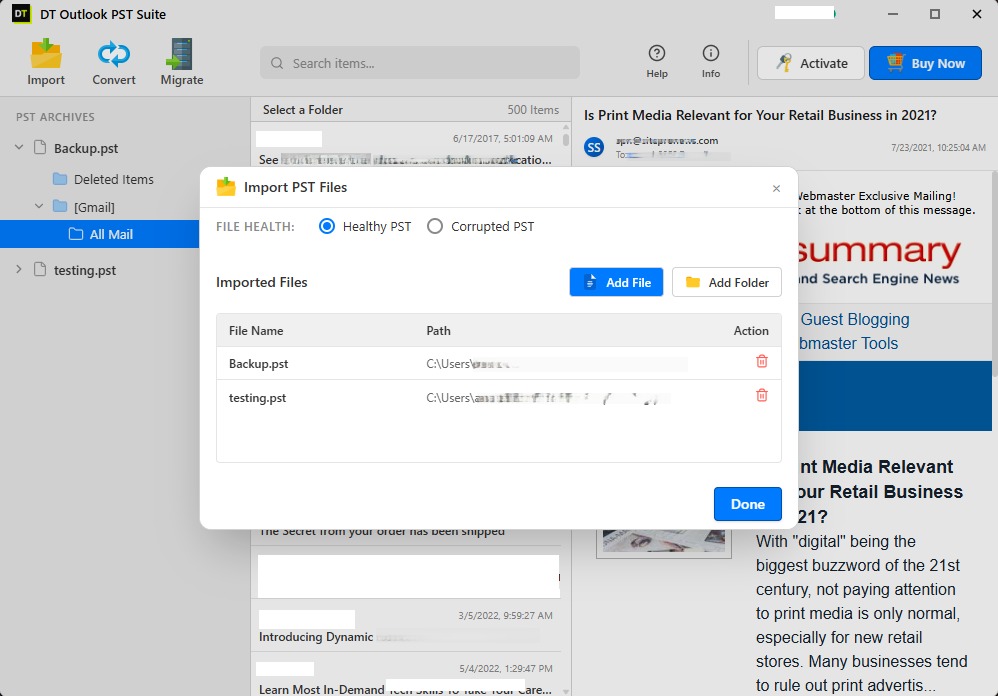
Step 3: Preview what is inside
Before anything is converted, you can see the folder structure, the number of emails, contacts, calendars and attachments. Read a few emails to confirm that you opened the right file.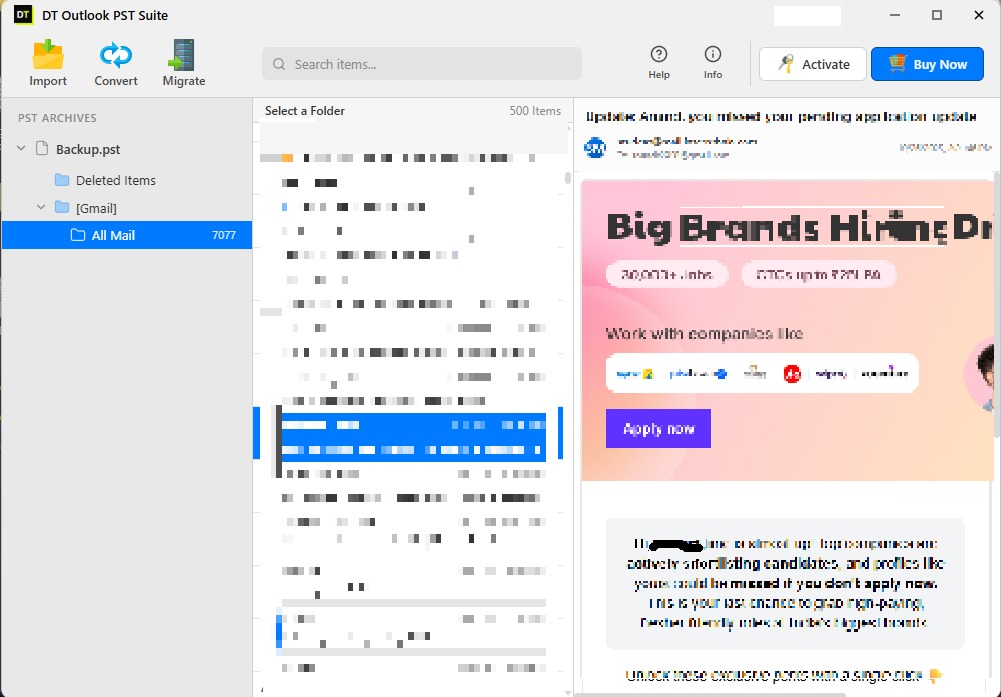 You can also pick only the folders you want, or set a date range. Many people only need one year or one project. Choosing only what you need makes the conversion faster and the result cleaner.
Step 4: Choose PST as the output
Select PST as the format, pick a folder to save in, and click Convert.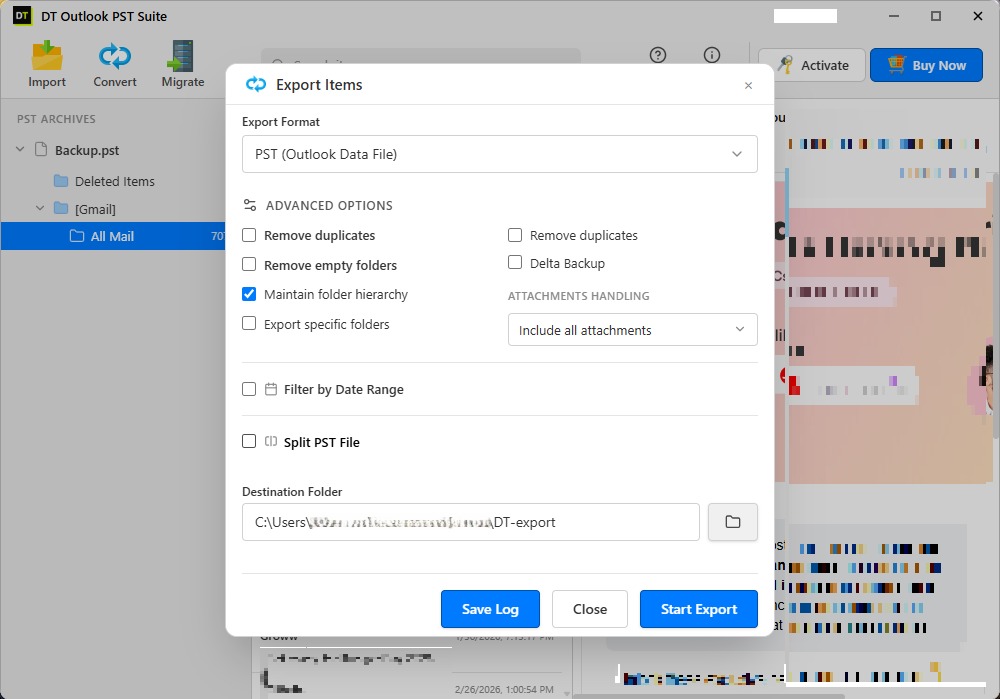
Step 5: Check the report
When the job ends, you get a full report of every item that was converted, skipped or flagged. You can save it as a CSV file for your records.Step 6: Open the PST in Outlook
On any computer with Outlook, go to File, Open and Export, then Open Outlook Data File, and choose your new PST. Your emails appear with the same folders you had before.Keep the original OST copy until you are sure everything is there.
What Kinds of OST Files Does It Handle?
| OST File State | Situation | What It Does |
|---|---|---|
| Connected | Outlook still syncs and the file is healthy | Clean conversion with full folder structure |
| Disconnected | The account was removed or the mailbox was deprovisioned | Read directly from disk, no server needed |
| Orphaned | You left the company and the account was deleted | Opens without the original account |
| Corrupted | Outlook shows errors and will not open the file | Recovery mode repairs the structure, then extracts |
More Than PST: Other Outputs You Can Pick
PST is the most common choice, but you may need something else. The same tool can save your emails in other formats:
- PST: Moving back into Outlook on a new machine or profile (or use DT PST Converter to convert the finished PST further)
- MBOX: Thunderbird, Apple Mail and other non-Microsoft apps
- PDF: Legal records, HR files and compliance, since the emails cannot be edited
- EML: One file per email, opens in many mail apps
- MSG: One Outlook message per file, for the Microsoft world
- CSV: Contacts and calendar data for Excel or a CRM
- VCF: Contacts for your phone or Gmail
Common Situations and the Best Approach
- “I left my job and my account was deleted.”
- “Our old Exchange server was shut down.”
- “My Outlook profile is broken.”
- “We are moving from Exchange to Google Workspace.”
- “I need emails for a legal request.”
- “I am an admin and a user is leaving.”
OST to PST: Manual Outlook vs Converter Tool
| Feature | Manual Outlook | Dedicated Converter Tool |
|---|---|---|
| Needs Outlook installed | Yes | No |
| Needs the original account to work | Yes | No |
| Works on orphaned OST files | No | Yes |
| Works on damaged OST files | No | Yes, with recovery mode |
| Preview before converting | Only inside a working mailbox | Yes |
| Convert many OST files at once | No | Yes, batch mode |
| Pick date range or folders | Limited | Yes |
| Other formats like MBOX or PDF | No | Yes |
| Data stays on your computer | Yes | Yes |
Mistakes to Avoid
- Deleting the OST file “to free up space”. Once it is orphaned, it may be your only copy.
- Waiting too long. If the laptop is going to be wiped, convert now.
- Using a random online converter for private mail.
- Skipping the preview. Always confirm you opened the right file.
- Converting without a copy. Always keep the original.
- Forgetting to check the PST in Outlook. Open it once and look at a few folders before you rely on it.
Frequently Asked Questions
Can I convert an OST file to PST without Outlook?
Yes. A desktop converter reads the OST directly, so Outlook does not need to be installed.Can I convert an OST file without Exchange Server?
Yes. The tool reads the file from your disk, with no Exchange connection and no login.My company deleted my account. Can I still get my emails?
Yes, as long as the OST file is still on your computer. Orphaned OST files are one of the most common uses for this kind of tool.Can I convert a corrupted OST file?
In most cases, yes. The built-in recovery mode scans the file structure and tries to repair damage before extracting. Partially damaged files usually convert well.Is there a file size limit?
No. Large files simply take longer.Will my folders and attachments stay the same?
Yes. Folder structure, read and unread status, attachments, inline images and details like sender, recipient, subject and date are kept.Can I convert only some folders or a date range?
Yes. Preview the full mailbox, then pick the folders or dates you want.Can I convert many OST files together?
Yes. Batch mode lets you add a whole folder and convert everything in one session.Does it work with ANSI and Unicode OST files?
Yes, both types are supported.What about encrypted emails?
Encrypted (S/MIME) emails can be handled, as long as the needed certificates are available on the computer.Does my file get uploaded anywhere?
No. Everything runs on your own computer. Nothing is sent to any server, and it works offline after installation.Which Windows versions are supported?
Windows 11, 10, 8.1, 8 and 7.Can I try it before I buy?
Yes. The free demo converts up to 40 emails per folder, so you can test it on your real file. Plans start from 1 month, and there is a 30-day money-back guarantee.Your Emails Are Still There
A deleted account does not mean deleted emails. If the OST file is on your computer, your mail is still inside it. You only need a way to open it that does not depend on the old account.
Copy the file first, then download the DT OST to PST Converter, preview your mailbox, and see your emails with your own eyes before you decide anything.