
Here is a scene most IT people know too well.
Someone from legal walks over and says, “We need all the emails of one employee from 2019.” You check. The old Exchange server was shut down two years ago. All that is left is a big file on an external drive, with a name like Mailbox Database.edb.
No server. No Exchange. Just one file, and a deadline.
The good news is that you do not need to rebuild the old server to get that mail back. You can pull the mailboxes out of that file and save them as normal PST files that open in Outlook. This guide shows you how, in simple steps, and tells you honestly what works and what does not.
The Short Answer
Yes, you can extract an EDB file to PST without a live Exchange server. You need three things:
- A copy of the EDB file.
- A Windows computer.
- An EDB to PST converter that can read the file on its own.
Now let’s understand why, so you pick the right method.
What Are EDB and PST Files? (Quick and Simple)
- EDB is the file where Exchange keeps everything. All the emails, calendars, contacts and tasks for all your users sit inside one big EDB file. Think of it as a giant warehouse.
- PST is the file Outlook uses. It holds the mail of one person. Think of it as one person’s suitcase.
Why Is This Hard Without the Server?
The EDB file is built to be opened only by Exchange itself. If you try to double-click it, nothing happens. Outlook cannot read it. Windows has no idea what it is.
Microsoft’s own export tools, like the Exchange Admin Center and the export command in PowerShell, work on mailboxes inside a running Exchange system. They cannot pick up a loose file from a drive and open it.
There is one official route for loose files. You set up a working Exchange server, create a special “recovery database”, put your EDB file in it, and then export from there. It works, but it needs a lot of setup. And it only works if the file is in a clean state, which is exactly what you do not have when the server crashed.
That is why a converter tool is the practical answer for most people.
When Do People Need This?
You are not alone. These are the most common situations:
- The server is gone, the file is not. The old server was retired, but its database is still on a drive or in a backup.
- The database will not start. After a power cut or a crash, Exchange refuses to start the database, and users cannot get their mail.
- You are shutting down old servers. Old Exchange 2007 or 2010 databases pile up during upgrades.
- Legal or audit asks for old emails. You need mail from a few specific people, and fast.
- You are moving to another platform. The team is leaving Exchange and wants their mail in Outlook, Thunderbird or somewhere else.
Before You Start: Four Quick Checks
These small steps save big headaches.
1. Work on a copy. Copy the EDB file, and its log files if you have them, to a working folder. Never experiment on your only copy.
2. Check how the file was closed. A database can be in a “clean” state (closed properly) or a “dirty” state (closed suddenly, for example after a crash). Microsoft’s eseutil /mh command shows this. In simple terms, a clean file is easy to read, and a dirty file needs a deeper scan or an Exchange EDB Recovery Tool.
3. Keep enough free space. The PST files you create need room. Make sure the destination drive has plenty of free space.
4. Use a Windows computer. The tool does not need Exchange or Outlook on it. A normal Windows machine with a 64-bit system is enough.
Method 1: The Microsoft Way (Recovery Database)
Let’s look at the official route first, so you know exactly what you are comparing against.
In plain words, it goes like this: 1. Make sure the EDB file is in a clean state. If it is not, run a repair step first.
2. Have a working Exchange server ready. You cannot do this without one.
3. Create a recovery database on that server.
4. Place your EDB file in the recovery database and mount it.
5. Check that the mailboxes are visible.
6. Run a restore or export command for each mailbox, and send it to a shared folder as a PST.
7. Clean up the recovery database when you finish.
What is good about it:
It is free, and it comes from Microsoft.What is not good about it:
- You need a live Exchange server, which is the very thing you do not have.
- It takes a long time to set up, and it needs the right permissions and shared folders.
- It fails if the database is damaged or will not mount.
- You cannot see what is inside the mailbox before you export it.
- You repeat the commands for every single mailbox.
eseutil /p command (hard repair) removes pages it cannot read, so it can silently throw away emails. Microsoft itself advises moving mailboxes to a fresh database after such a repair. If you have a clean backup, restoring from it is always the better choice.
This method makes sense when you already have a healthy Exchange server and a clean database. For a lost server or a damaged file, it is the hard way.
Method 2: Use an EDB to PST Converter (No Server Needed)
This is the method built for your exact situation. A converter reads the EDB file directly, shows you what is inside, and saves the mailboxes as PST files. Let’s walk through it using the DT EDB to PST Converter.
Step 1: Install the tool and add your EDB file
Install DT EDB to PST Converter on a Windows computer and open it. Add your EDB file. If you have many files from a retired server, you can add them all and process them together.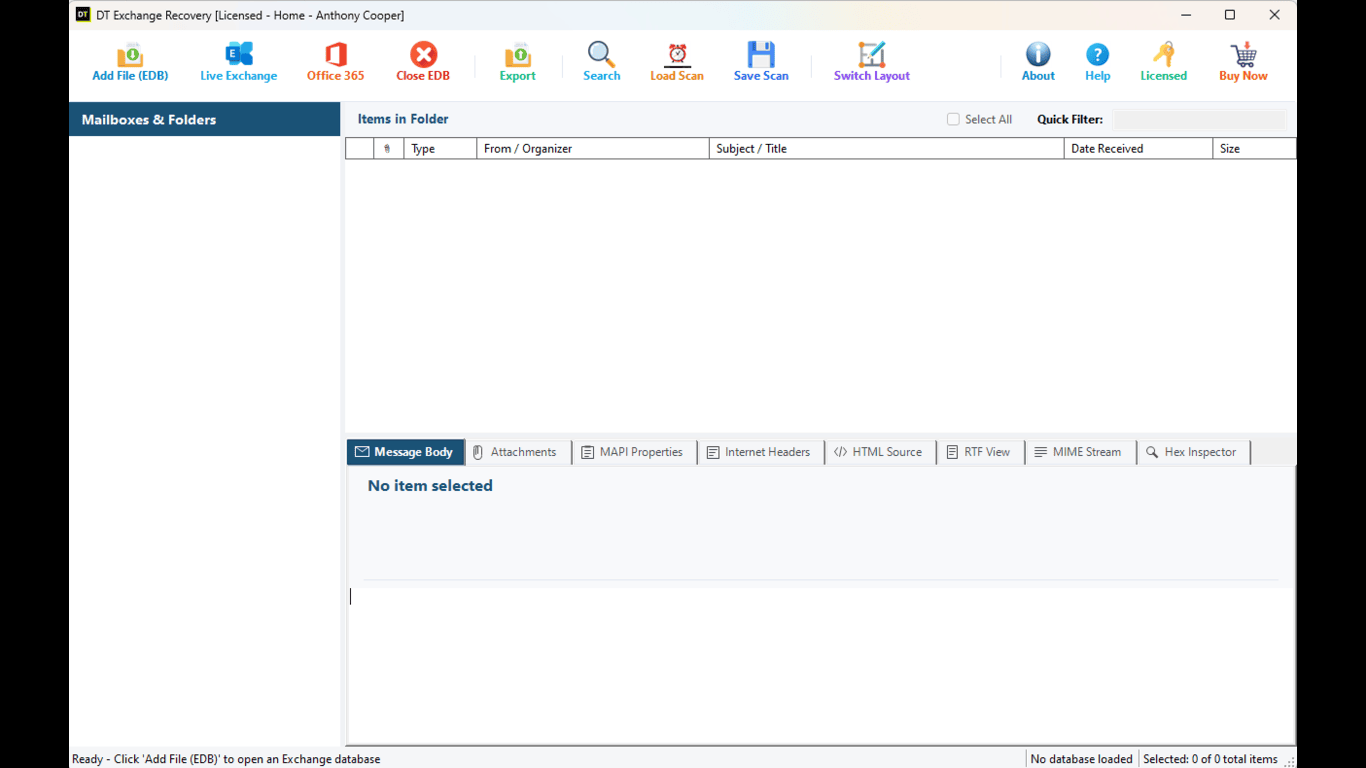 No Exchange server is needed. No Outlook is needed. No Active Directory is needed.
Step 2: Choose the scan type
The tool gives you two options:- Quick Scan is for healthy files. It loads fast and shows you the mailboxes quickly. Use it for files that were copied from a retired server or closed properly.
- Advance Scan is for damaged or dismounted files (such as after a dirty shutdown). It reads the file more deeply and pulls out items that a fast scan would miss.
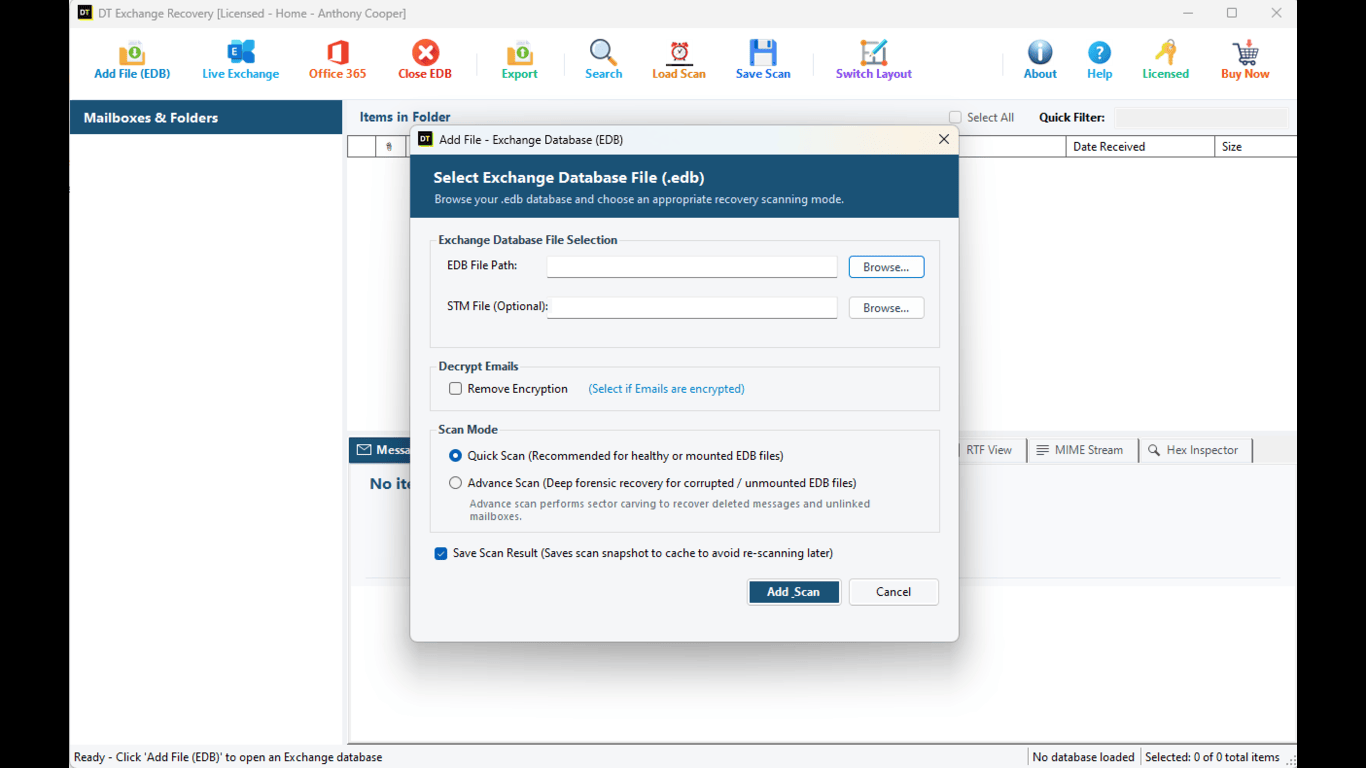
A simple rule: if the file came from a clean shutdown, start with Quick Scan. If the server crashed, start with Advance Scan. If Quick Scan looks like it is missing items, run Advance Scan. It usually finds them.
Step 3: Look through the mailboxes
Once the scan finishes, you will see the full mailbox tree on the left, just like folders in Outlook. All six types of items come out together, grouped under the person they belong to:- Mails
- Contacts
- Calendars
- Tasks
- Notes
- Journals
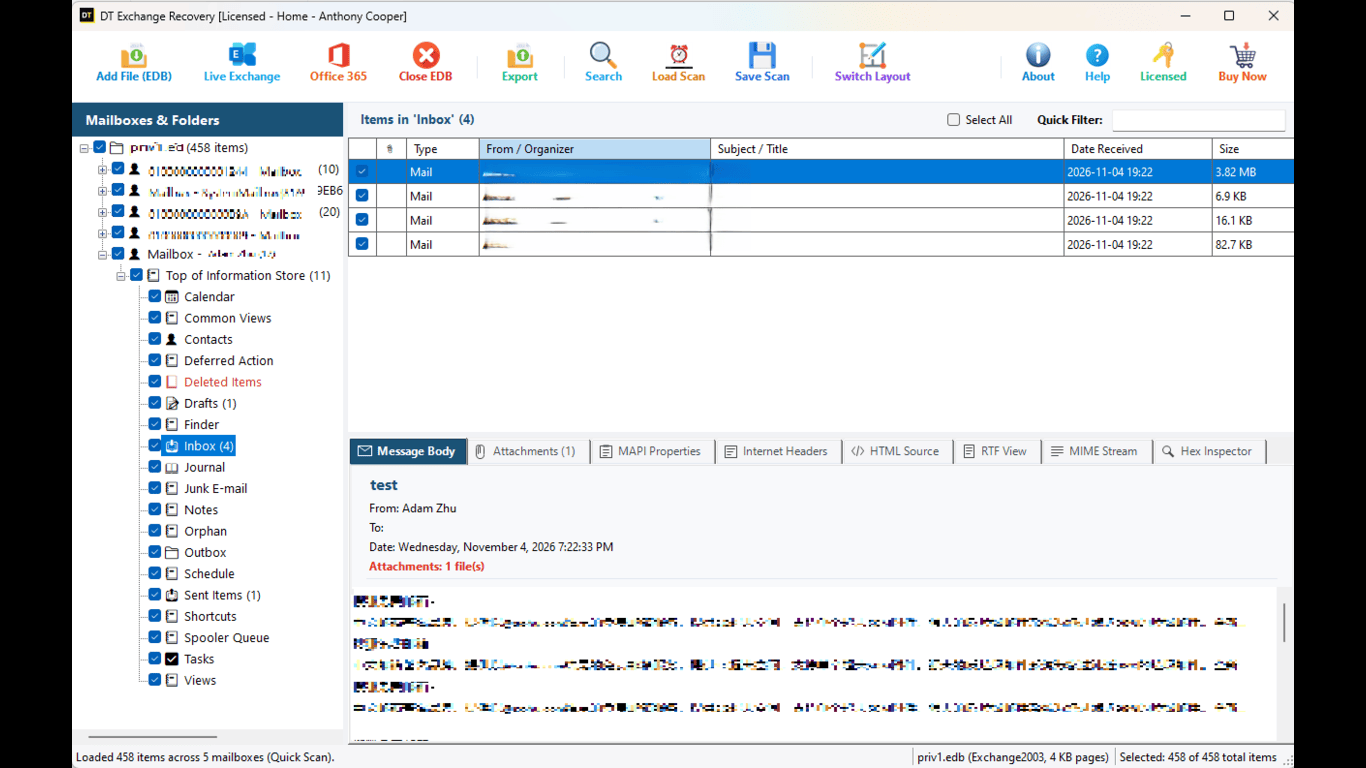
You do not have to switch anything on first.
Step 4: Preview before you export
Click on any item to read it. This is a big deal. It means you can confirm you opened the right database, the right person and the right year before you spend time on a long export.The tool also gives you six different views of the same item:
- Normal: the message as a reader would see it.
- Hex Editor: the raw data behind the message.
- MAPI Properties: stored details like message type, times and flags.
- RFC 822 Headers: the internet headers, useful to trace where a message came from.
- RTF View: the message body in rich text.
- MIME Stream: the raw source of the message.
Step 5: Pick only what you need
A big database can hold hundreds of thousands of items. You rarely need all of them. Use Quick Filter to narrow the list, then Select All to take everything that matches. You can also tick items by hand.Your export becomes smaller, cleaner and much faster.
Step 6: Export to PST
Open the export options, choose PST, pick a destination folder and start. Each mailbox can be saved into its own PST file, which makes it easy to hand a mailbox back to the right person.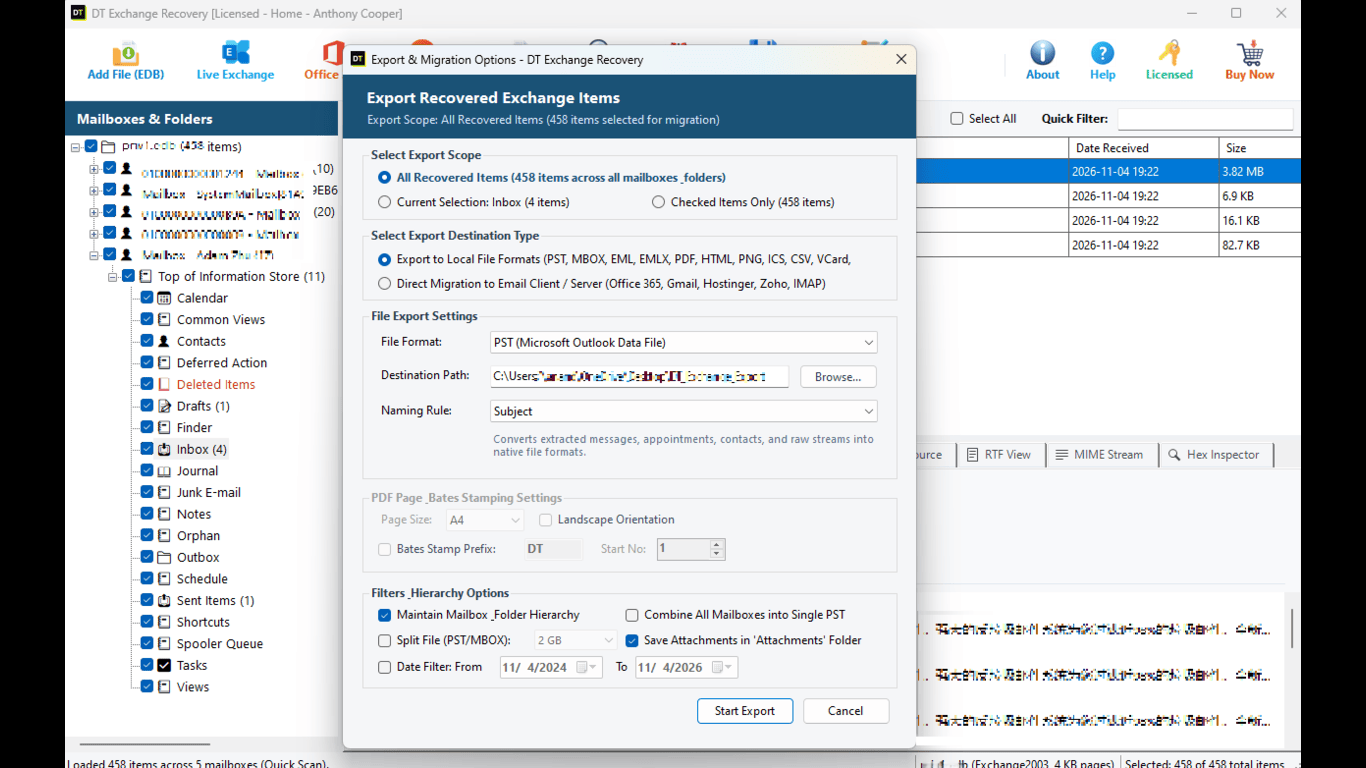
Step 7: Open one PST in Outlook and check it
Before you trust the whole batch, open one finished PST in Outlook. Compare a few folder names and item counts with what you saw in the preview. Then you can relax.Keep the original EDB file until the user confirms everything is there. Storage is cheap. Lost mail is not.
Manual Method vs Converter: Side by Side
| Feature | Manual Method (Recovery Database) | Dedicated Converter (DT EDB to PST) |
|---|---|---|
| Reads a loose EDB file | Only after mounting it in a recovery database | Yes, opens the file directly |
| Needs a running Exchange server | Yes | No |
| Works on dismounted or damaged files | Only if the file can be brought to a clean state | Yes, with Advance Scan |
| Preview before export | No | Yes, six views |
| Setup effort | Server, permissions, shared folders, repeated commands | Add file, scan, export |
| Output | PST | PST, PDF, EML, MSG, HTML, MBOX, CSV |
What Can You Convert Besides PST?
PST is what most people want, but it is not the only choice. From one scan, the same items can go to different places:
- PST: Handing a mailbox back to a user, or archiving
- PDF with Bates stamping: Legal requests and audits, where every page needs a number
- EML: One file per email, easy to save and search
- MSG: One Outlook message file per item
- HTML: One web page per email, opens in any browser
- MBOX: Thunderbird, Apple Mail and similar apps
- CSV: Lists and reports you can open in Excel
- Direct to Exchange (EWS): Writing items straight into a live Exchange mailbox
Which Exchange Versions Work?
The converter opens EDB files from Exchange 2000, 2003, 2007, 2010, 2013, 2016, 2019 and Exchange SE. You can open databases from different versions in the same session. That is handy, because real projects are messy. An old 2007 file found on a forgotten drive and a 2016 file from last month’s crash can be handled the same way.
Moving the Mail to Microsoft 365
Many people searching for this topic actually want their old mail inside Microsoft 365. Here is the straight version.
Microsoft is retiring Exchange Web Services (EWS) in Exchange Online. Turning it off began on October 1, 2026, and it will be removed permanently on April 1, 2027. EWS on a regular, on-premises Exchange server is not affected.
So the plan depends on where the mail is going:
- Going to an on-premises Exchange server? You can use the direct route and write items straight into the mailboxes.
- Going to Microsoft 365? Export to PST first, then import the PST files using Microsoft’s own import options. It is one extra step, but it does not depend on something that is being switched off.
Common Problems and Simple Fixes
- Some items look missing after Quick Scan: Run Advance Scan on the same file.
- The file will not open at all: Check you are using a copy, and try Advance Scan.
- The PST becomes huge and Outlook feels slow: Export big mailboxes in a few passes by choosing folders, not one giant file.
- You only need one person’s mail: Pick that mailbox only, and use Quick Filter by date or keyword.
- You are not sure which year’s mail is inside: Use the preview to check before exporting.
- The export stops for lack of space: Free up space on the destination drive and start again.
Mistakes to Avoid
- Working on the only copy. Always copy first.
- Running a hard repair as the first step. It can quietly delete items. Try reading the file safely first.
- Skipping the preview. A two-minute check can save hours.
- Exporting everything when you need one mailbox. Filter first.
- Deleting the EDB too early. Keep it until the user says everything is fine.
Frequently Asked Questions
Can I convert an EDB file to PST without Exchange Server?
Yes. A converter tool reads the EDB file directly on a Windows computer, so the original server does not need to be running, or even exist.Do I need Outlook installed?
No. Outlook is only needed later, when you want to open the finished PST file.Can I convert a corrupted or dismounted EDB file?
Yes. Use Advance Scan, which goes deeper and pulls out as much readable data as possible.What is the difference between Quick Scan and Advance Scan?
Quick Scan is for healthy files and is fast. Advance Scan is for damaged or dismounted files and takes a more thorough pass.Which items are converted?
Mails, contacts, calendars, tasks, notes and journals, shown under the mailbox they belong to.Is there a size limit on the EDB file?
The tool does not set a size limit. Scanning takes longer as the file gets bigger, and batch processing helps when you have many files.Can I convert only one mailbox?
Yes. Pick that mailbox, narrow the list with Quick Filter, and export only those items.Can I convert many EDB files at once?
Yes. Batch processing runs many databases in one go, which suits server shutdowns and migrations.Will it change my original EDB file?
No. The tool reads the file and saves the output in a separate place. Still, keep a copy of the EDB, as you would in any recovery job.Does it work on Mac?
No. DT EDB to PST Converter is a Windows 64-bit application.Can I try it before I buy?
Yes. The free demo lets you scan, browse and preview everything, so you can see your mailboxes before you spend anything. The demo limits how many items per folder it exports. The full version removes that limit and comes with a 30-day money-back guarantee.Ready to Get Your Mail Back?
A dead server does not mean dead mail. The mailboxes are still inside that EDB file, waiting. You only need a way to open the file without the old server.
Download DT EDB to PST Converter, add your file, run a scan and look at your mailboxes with your own eyes. Decide only after you have seen the real data.