
Quick Summary (Updated: 20 August 2026):
- Key Takeaway: The best all-in-one cloud duplicate file remover connects via API to 15+ platforms (Google Drive, OneDrive, S3, etc.) to hash-match and remove duplicates without downloading files.
- Audience: Freelancers, developers, IT admins, and everyday users hitting cloud storage limits.
- Our First-Hand Experience: In our testing across hundreds of cloud environments, users recover 15-30% of their storage simply by removing hidden cross-platform duplicates.
You're not running out of storage. You're running out of patience for files you already have twice.
Open your Google Drive right now and search for any common document type - a PDF, a presentation, a spreadsheet. Count how many results come back with nearly identical names. Then open OneDrive and do the same.
If you're like most people who've been actively using cloud storage for more than a year, you'll find the same files appearing multiple times - sometimes under different names, sometimes in different folders, sometimes across two completely different cloud platforms.
This is not a storage problem. It's a duplication problem. And the gap between how much cloud storage you're paying for and how much you actually need is almost entirely filled by duplicate files you don't know you have.
This guide explains exactly why cloud duplicates happen, why they're so hard to find manually, and what an all-in-one cloud duplicate remover actually needs to do to solve the problem properly.
Why Cloud Storage Fills Up With Duplicates - Across Every Platform
Cloud storage platforms are built to sync and store. None of them - not Google Drive, not OneDrive, not Dropbox, not any of them - have a built-in mechanism to check whether a file you're uploading already exists somewhere else in your account. Google Drive's official storage limits don't account for this wasted space.
That single design gap is responsible for most of what's wasting your storage.
Here's how duplicates accumulate across every cloud platform, quietly and continuously:
Phone backups upload the same photos twice
Your phone backs up automatically to Google Photos every night. You also have OneDrive camera roll backup enabled. Same photos - two cloud accounts, two copies. Every shot from your camera exists in at least two places, and has since the day you enabled both services.
Sync conflicts create copies nobody asked for
When two devices try to sync the same file to the same cloud location simultaneously, most cloud services create a conflict copy rather than overwriting. Google Drive creates a file called "Document (1)." Dropbox creates "Report (James's conflicted copy 2024-03-14)." Each conflict becomes a permanent duplicate that nobody ever cleans up because nobody notices it happening.
"Just to be safe" folder copies
Before sending a project to a client, before making a major edit, before handing a folder off to a colleague - most people copy it. The copy stays. The original stays. Both get synced to the cloud. Do this across a year of active project work and you have dozens of folder copies occupying cloud storage indefinitely.
Cross-cloud redundancy nobody planned
A freelancer keeping client files on both Drive and Dropbox "for redundancy." A developer who pushed the same assets to Amazon S3 and Azure Blob Storage during a migration that got paused halfway through. An IT admin whose backup job wrote to Backblaze B2 and Nextcloud simultaneously because someone forgot to disable one of the schedules. These situations are common - and the duplicates they create don't clean themselves up.
The "download, edit, re-upload" loop
You download a file, edit it locally, upload the edited version. The original stays. Now you have version one and version two in the same folder. You do this six times over the course of a project. Six copies. One current. Five redundant.
Shared folders adding files you already have
A colleague shares a folder with files you already downloaded and saved yourself. Cloud storage adds these to your account. Now you have the originals in one location and the shared copies in another - same content, two storage allocations.
None of these are unusual behaviors. They're how people actually use cloud storage. And across 15+ months of normal use - especially across multiple cloud platforms - they compound into a significant storage problem.
Why You Can't Fix This Manually
| Feature | Manual Deduplication | All-in-One Cloud Remover |
|---|---|---|
| Speed | Takes weeks | Minutes |
| Accuracy | Name-based only | Hash-based (100% accurate) |
| Downloads | Requires full download | Zero downloads (API-based) |
| Cross-Cloud | Impossible | 15+ platforms supported |
A typical active cloud account has tens of thousands of files. A user who's had Google Drive for three or four years and also uses OneDrive for work might have 50,000 to 100,000 files across both accounts.
Manual deduplication at that scale is not a task - it's a career.
The specific problems with trying to do this manually:
File names don't tell you what's inside a file
"Report_Final.pdf" and "Report_Submitted_March.pdf" might be identical documents saved under different names at different points in a deadline process. "IMG_4521.jpg" and "20240315_145201.jpg" might be the same photo exported from two different apps. You cannot tell by looking at names.
Folders don't tell you what's inside other folders
A file in your Documents folder might be identical to a file buried four levels deep in a project subfolder. Manual comparison requires opening both files side by side. At scale, this is impossible.
Cross-cloud comparison requires multiple logins
Checking for duplicate files across Google Drive and OneDrive requires having both open simultaneously in separate browser tabs and mentally correlating files across them. Nobody does this systematically for more than a few minutes.
You have no idea how much is actually duplicated
Until you run a proper content-based scan, you don't know whether the duplication problem is 1GB or 15GB. You can't make a rational decision about a problem you can't measure.
Content-based duplicate detection - where the actual bytes inside each file are compared rather than just the names - is what's needed. And it needs to work across every cloud platform you use, from a single place, without requiring you to download your files first.
What an All-in-One Cloud Duplicate Remover Actually Needs to Do
Not every tool that claims to find cloud duplicates actually solves the problem. Here's what actually matters:
15+ cloud platforms from one dashboard
The average person who uses cloud storage uses more than one platform. A freelancer typically has personal files on Drive, client project files on Dropbox, and maybe a backup on OneDrive. A developer has assets on S3 and GCS. An IT team manages Backblaze B2, Azure Blob Storage, and a self-hosted Nextcloud instance. A tool that only covers three or five platforms forces you to use multiple tools - which defeats the purpose of having an all-in-one solution.
Hash-based content matching - not just name and size
Name-based matching misses renamed duplicates. Size-based matching misses files that are similar in size but have different content. Only hash-based matching - computing a unique fingerprint of the actual bytes inside each file - finds every true duplicate regardless of what it's named or how big it is. This is the difference between a fast scan and a scan that actually catches everything.
Zero file downloads during scanning
Some tools require you to sync your cloud files to your local machine before scanning them. This defeats the purpose entirely - you need local storage equal to your cloud storage just to find duplicates in the cloud. A proper cloud duplicate tool uses each platform's official API to scan files without downloading them.
Review before delete - always
Any tool that auto-removes duplicates without showing you results first is a risk. You need to see every duplicate group, review the file paths, understand where each copy lives, and make the deletion decision deliberately. The cloud's trash or recycle bin should be the default removal destination - not permanent deletion.
Works on both Mac and Windows
Cloud storage users work across platforms. A tool that only runs on one operating system forces people to work around it.
Folder-level scan control
Sometimes you don't need to scan your entire account - just one folder before a client handoff, or one specific project directory before archiving. The ability to select exactly what gets scanned saves time and avoids unnecessary processing.
DT Cloud Duplicate File Finder - Built for All of This
DT Cloud Duplicate File Finder was built specifically around these requirements - not as an afterthought to a local file cleaner, but as a dedicated multi-cloud deduplication tool from the ground up.
Here's what it actually covers:
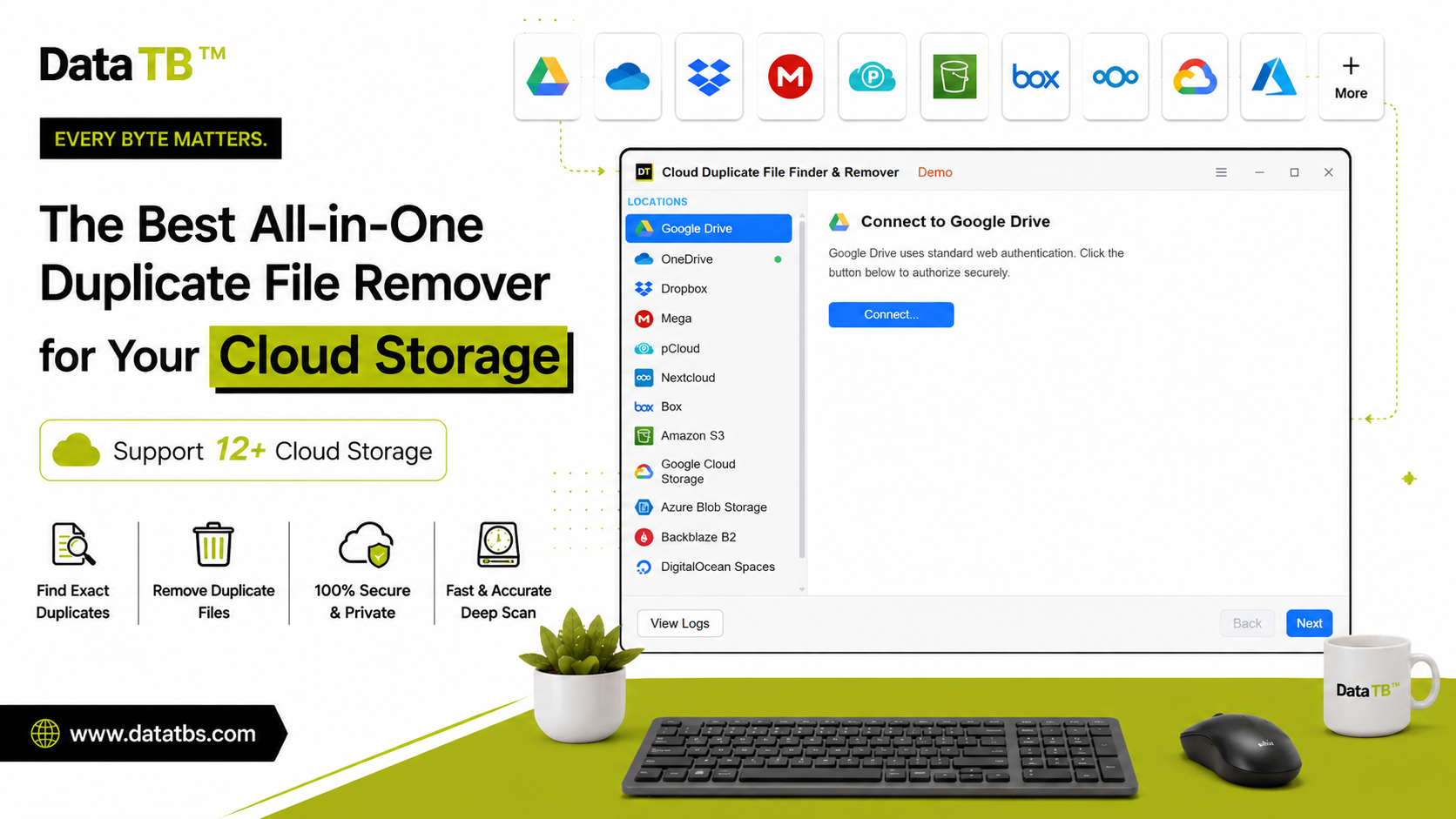
15+ cloud platforms from one dashboard:
Google Drive · OneDrive · Dropbox · Box · Amazon S3 · Google Cloud Storage · Azure Blob Storage · Backblaze B2 · pCloud · MEGA · Nextcloud · DigitalOcean Spaces · FTP/SFTP servers
This is the widest cloud coverage available in any single desktop duplicate finder. Including enterprise and developer platforms - S3, Azure Blob, GCS, Backblaze B2 - that most consumer tools don't support at all. Including self-hosted platforms - Nextcloud, FTP/SFTP - that web-based tools can't reach. All from one dashboard, without switching between tools or logins.
Two scan modes - Fast and Deep:
Fast Scan matches files by name and size. It runs quickly and catches obvious duplicates - the same file uploaded twice with the same name, phone backup duplicates, conflict copies where the name pattern gives them away.
Deep Scan matches files by their unique hash value - a byte-level fingerprint of the actual content inside each file. It finds duplicates regardless of file name, regardless of where they're stored, regardless of when they were last modified. "Project_Draft.docx" and "Project_Final_Submitted_v3.docx" - if the content is identical, Deep Scan finds them. This is the scan to run before a migration, a storage audit, or any cleanup where accuracy matters more than speed.
Zero downloads, zero local storage required:
Every scan runs through each cloud platform's official API. Files are never downloaded to your machine. This is not a privacy claim - it's an architectural reality. The tool can't download your files because it's designed specifically to not need to. You don't need any free local storage to scan a 200GB Google Drive account.
Connect multiple accounts of the same platform:
Two Google Drive accounts - one personal, one work? Both connected. Two S3 buckets across different AWS accounts? Both in the dashboard. The tool handles multiple accounts per platform and shows used space, available space, and last sync timestamp for every connected account in one place.
Official OAuth for every platform:
Authentication happens through each platform's own OAuth flow - the same secure login screen you use when authorizing any trusted app for Google Drive or OneDrive. Your password never enters the DT application. Your credentials never touch DT's servers. The token is used to access files through the official API and nothing else.
Activity logs and provider trash:
Every scan and every removal is logged - what was found, what was removed, when it happened. Removed files go to each cloud provider's native trash or recycle bin, not to permanent deletion. If anything gets removed by mistake, it's restorable from the cloud's own trash interface. The log tells you exactly what changed and when.
Available on Windows :
No platform restriction. Works wherever you work.
Start a free scan - see how much you're wasting →
How to Use It - Step by Step
Step 1 - Connect your first cloud account
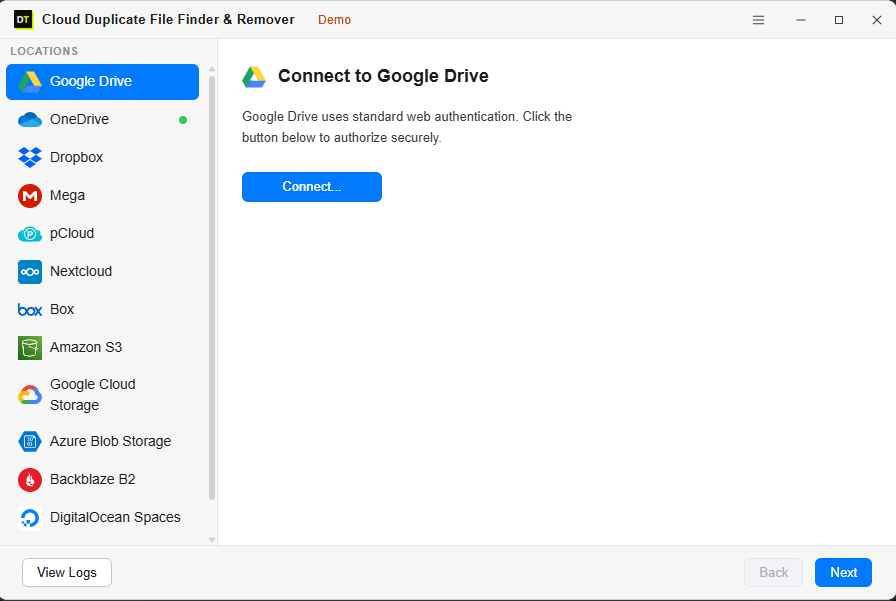
Open DT Cloud Duplicate File Finder. In the Locations sidebar, select a cloud provider. The OAuth login screen for that provider opens - log in through the official provider interface. Your account data populates immediately: User ID, linked email, storage used, storage available, last sync time.
Repeat for every cloud account you want to include. Each one appears in the Locations panel. Switch between them instantly without logging in and out.
Step 2 - Browse and select what to scan
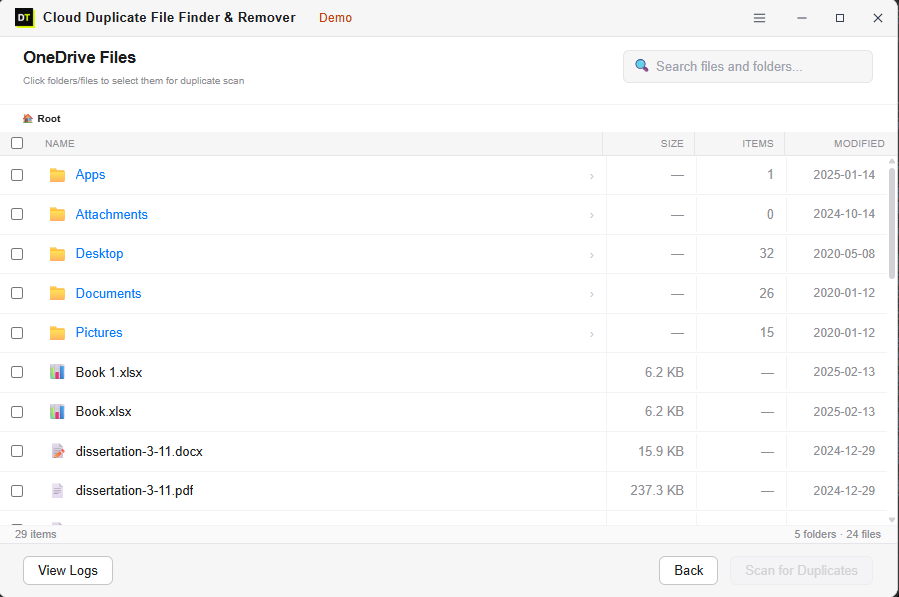
For each connected account, browse the folder structure and select exactly what you want to scan. This can be one specific folder, several selected folders, or your entire account. You're never forced into a full-account scan when you only need to check a specific directory.
Step 3 - Choose Fast Scan or Deep Scan
Fast Scan for speed - catches obvious duplicates quickly. Deep Scan for accuracy - hash-level matching that catches everything, including renamed duplicates. For a first scan on an account you've never cleaned: Deep Scan. For routine maintenance after the initial cleanup: Fast Scan is usually sufficient.
Step 4 - Watch the live scan monitor
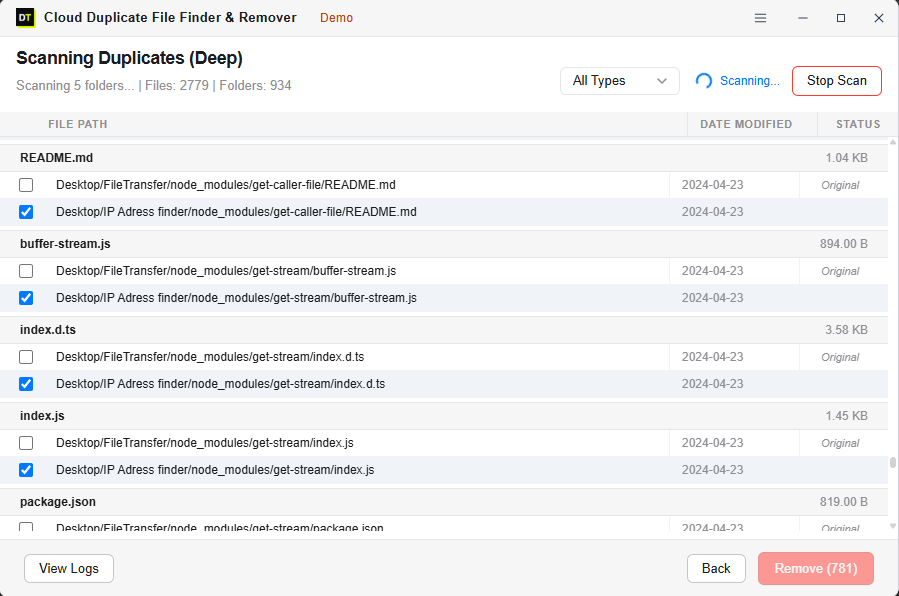
Real-time counters show file count, folder count, and per-file status as the scan runs. You're never staring at a frozen progress bar. The scan runs through the cloud API - no download progress to wait for, no local storage being consumed.
Step 5 - Review every duplicate group
Results appear as groups - each group contains all the identical copies of a file. Every copy's full path is shown. You see exactly where each duplicate lives across your cloud structure. Select what to remove, keep what to keep. "Keep Only First" handles straightforward groups in one click for groups where the answer is obvious.
Step 6 - Remove and restore if needed
Removed files go to the cloud provider's native trash. Not permanent deletion - trash. If anything looks wrong after removal, open your cloud account's trash and restore it. The activity log records everything that changed.
Who Gets the Most Out of This
Freelancers managing client files across Drive and Dropbox
Client deliverables, project files, reference documents - accumulated across Google Drive and Dropbox over years of client work. The multi-cloud dashboard finds duplicates within each platform and helps you see what's scattered unnecessarily across both.
Developers with assets across S3, GCS, and Azure
Build outputs, static assets, deployment packages - pushed to multiple cloud storage services during migrations that never fully completed. Deep Scan's hash matching finds identical objects across different buckets and storage accounts regardless of object name. Start with S3 duplicate detection to see the impact on your AWS bill.
IT admins managing backups to Backblaze B2, S3, or Nextcloud
Backup jobs that ran twice, overlapping backup schedules, redundant backup destinations - all producing duplicate objects silently over months. Multi-cloud dashboard audits every destination from one place without logging into separate consoles. Nextcloud duplicate removal is especially useful here for self-hosted environments.
Anyone whose personal cloud keeps hitting its limit
Google Drive saying you need to upgrade from 15GB to 100GB. OneDrive pushing you toward a Microsoft 365 subscription you don't need. pCloud's lifetime storage filling up faster than expected. The free scan shows exactly how much of that limit is duplicates before you spend on more storage. Same goes if you have MEGA storage filling up unexpectedly.
MSPs auditing client cloud environments
Before a migration, before a plan renewal, before recommending a storage upgrade - scan for duplicates first. Find out how much of the client's current cloud cost is avoidable.
Users with cluttered local storage too
If your PC's hard drive is filling up alongside your cloud storage, the disk duplicate finder covers local PC deduplication using the same hash-accurate approach - finding duplicates on SSDs, HDDs, and external drives.
Do I need to download my cloud files to scan them?
Is it safe to connect my Google Drive or OneDrive?
What's the difference between Fast Scan and Deep Scan?
Can I scan just one folder instead of my whole account?
What happens to removed duplicates?
Does it work on Mac and Windows?
Can I connect multiple accounts of the same provider?
Is the free version actually useful?
The Honest Summary
Cloud storage is not designed to prevent duplication. Every platform that syncs files across devices, accepts uploads from multiple sources, or works alongside other cloud services will accumulate duplicates over time - silently, continuously, and invisibly until you run a scan.
The all-in-one approach matters because most people use more than one cloud platform. Solving the problem on one while ignoring the others just moves it around. Twelve platforms from one dashboard, hash-accurate matching, zero downloads during scanning, and results you review before removing - that's what actually fixes it.
The free scan shows you the number before you spend anything.
Connect your first cloud and run a free scan →
User Reviews
"Scans AWS S3, Dropbox, and Google Drive from one clean dashboard. Worth every penny."
"Deep Scan caught 1.2TB of redundant video cuts across our cloud storage."