
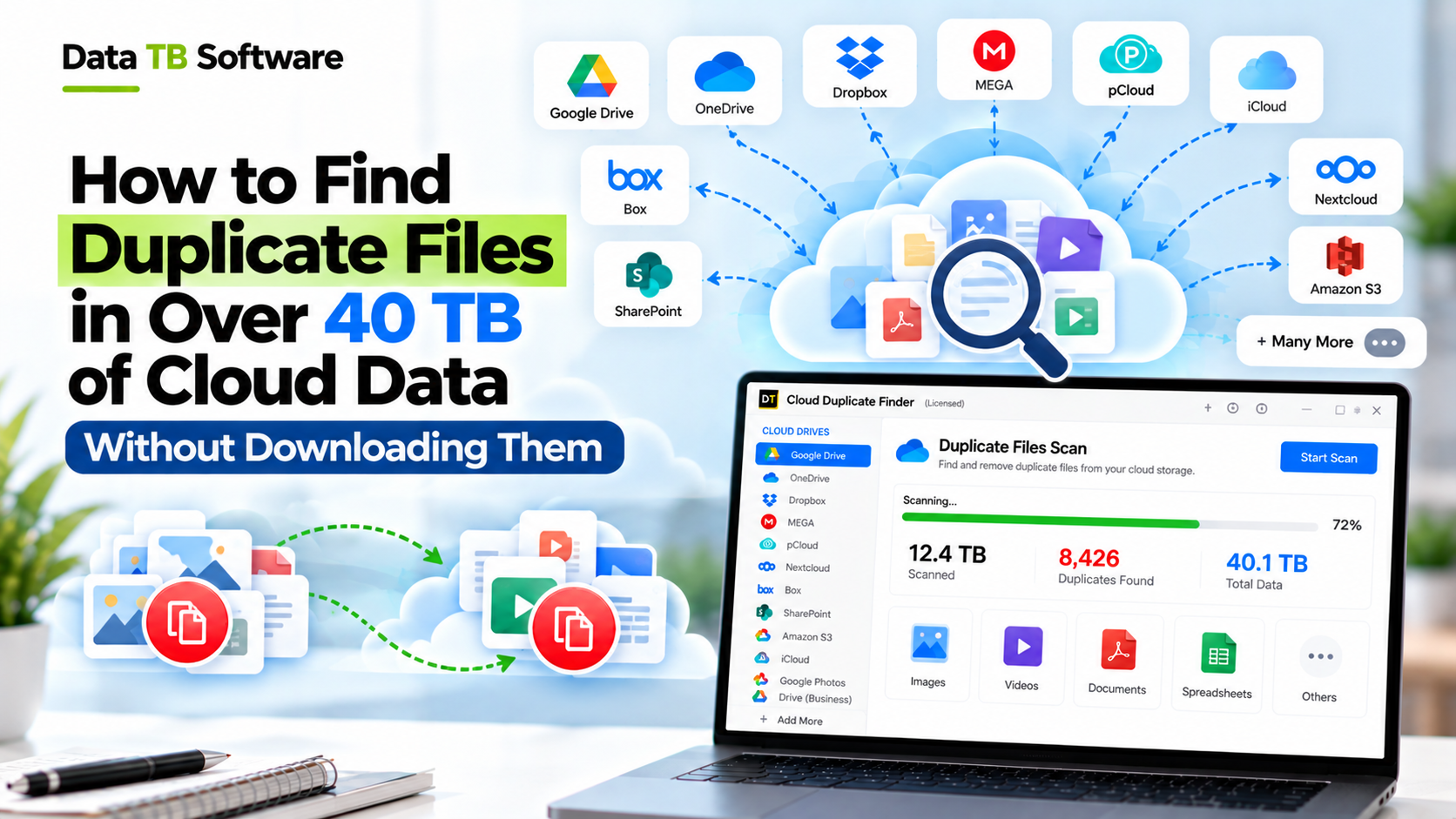
Let me start with a small guess. Somewhere in your cloud storage, there is a folder called “Final”, another called “Final_v2”, and a third called “Final_USE THIS ONE”. All three hold the same files.
Now picture that happening for years, across several accounts, with a whole team adding files every day. That is how a cloud account quietly grows to 40 TB and beyond. And a big chunk of it is not new work. It is the same files, saved again and again.
The good news is that you can find all of it without downloading a single file. Let’s walk through how.
Why Big Cloud Storage Fills Up With Copies
Nobody sets out to waste space. It just happens, in very ordinary ways.
- A phone backs up a photo that already synced from a laptop last week.
- A team member copies a project folder “just to be safe” before a client handoff.
- A file is saved again under a new name during a review.
- Someone moves to a new cloud, and the old one never gets cleaned up.
- Two accounts, say a personal and a business one, end up holding the same documents.
At 100 GB, this is a small annoyance. At 40 TB, it can mean paying every month for several terabytes of nothing.
Why Doing It by Hand Does Not Work at 40 TB
You might be thinking, “I’ll just search for the same file names and delete the extras.” That works for a small folder. At this size, it falls apart fast, for three reasons.
1. Names lie. Two files can have the same name and different content. Two files can have different names and be exactly the same. If you go by name alone, you will miss real copies and you may delete the wrong file.
2. Nobody can look through millions of files. Even a patient person cannot compare that many files by eye. You will get tired long before the folders end.
3. Downloading everything is not realistic. Some people think, “Fine, I’ll download it all and run a duplicate finder on my computer.” Let’s do the maths:
- On a 100 Mbps internet line, downloading 40 TB takes roughly 37 days, non-stop.
- On a fast 1 Gbps line, it still takes close to 4 days.
- And you would need 40 TB of free space on your own computer first.
The Smarter Way: Let the Scan Happen in the Cloud
Here is the idea in plain words.
Every cloud service already keeps basic details about each file. The name, the size, and a kind of digital fingerprint that is unique to the file’s content. If two files have the same fingerprint, they are exact copies. Full stop.
So a good duplicate finder does not need to open or download your files. It can simply ask the cloud service for those details and compare them. That is much faster, and it uses almost none of your own internet or disk space.
This is exactly how DT Cloud Duplicate File Finder works. It scans through each cloud’s official sign-in and connection. Your files stay where they are, in your own account. Nothing is downloaded to your PC.
Two Ways to Scan: Fast and Deep
When you start a scan, you pick one of two modes. It helps to know the difference.
- Fast Scan compares file names and sizes. It is quicker, and it works well when your copies are obvious, like the same file uploaded twice with the same name.
- Deep Scan compares the digital fingerprint of each file. It does not care about the name, the folder, or even which cloud account the file sits in. It catches renamed copies and copies hiding in completely different places.
How to Find Duplicates in Over 40 TB, Step by Step
Here is the full process. It is simpler than it sounds.
Step 1: Install the tool and connect your cloud
Download DT Cloud Duplicate File Finder on Windows or Mac. Pick your cloud from the list (such as Google Drive, OneDrive, or SharePoint) and sign in on the cloud’s own official login screen. Your password is never typed into the app.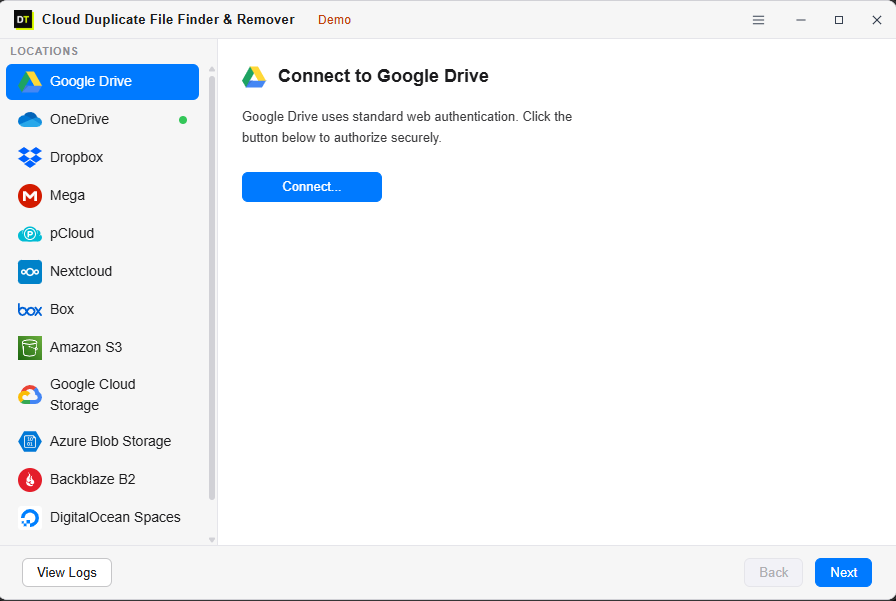
Step 2: Connect everything you want to check
Large storage usually lives in more than one place. You can connect more than one account from the same provider, like two Google Drive accounts, and mix different clouds in the same dashboard. You will also see used space, free space and total space for every account in one view, so you do not need to log into five different consoles.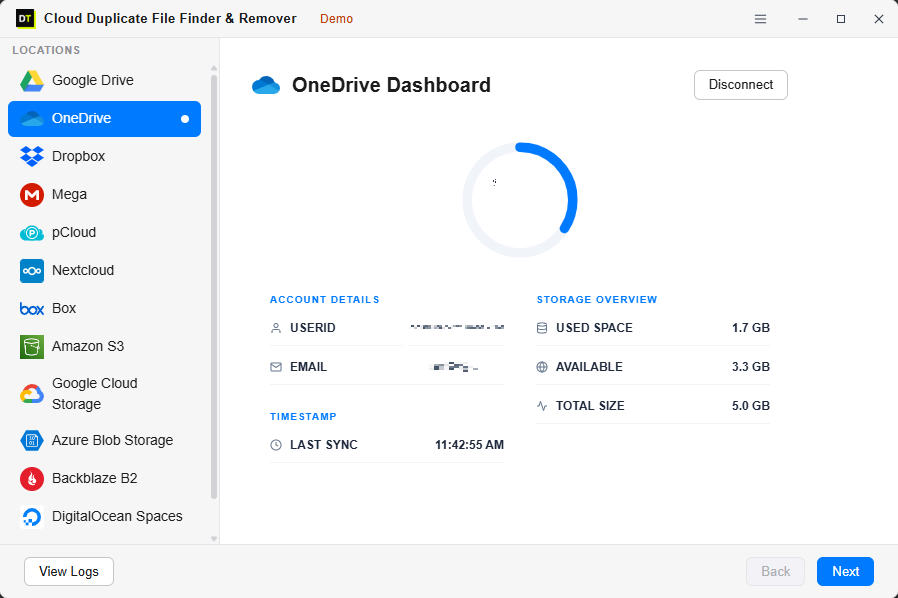
Step 3: Choose what to scan
You do not have to scan everything at once. You can pick a whole account, or just a few folders. With this much data, many people start with the biggest and messiest folders first.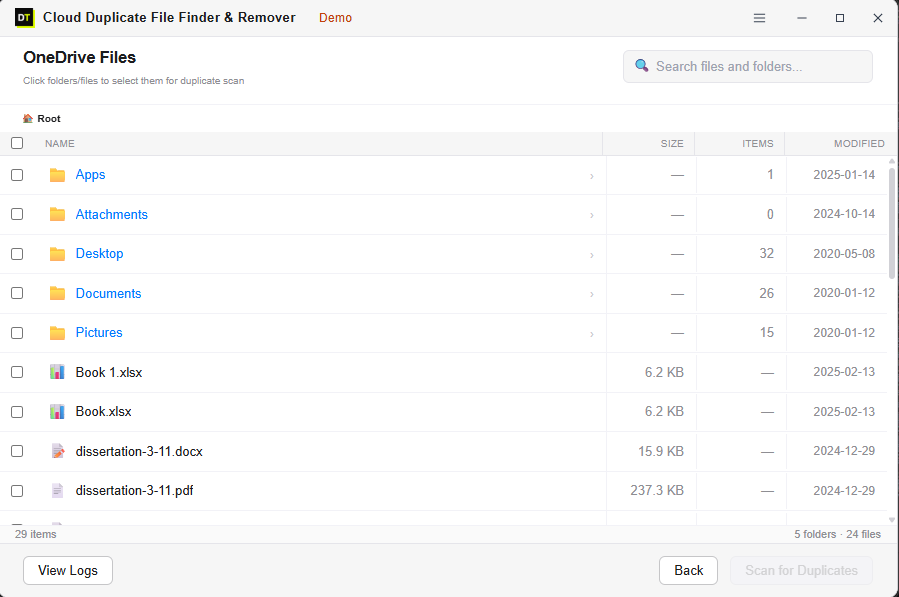
Step 4: Run a Deep Scan
Start the scan and watch it live. You can see the file count, the folder count and the status of each file as it goes. The scan is free, so you can see the full picture before spending anything.Step 5: Review every group of duplicates
Once the scan ends, the tool shows copies grouped together. You look through them and decide what stays. Nothing is deleted on its own.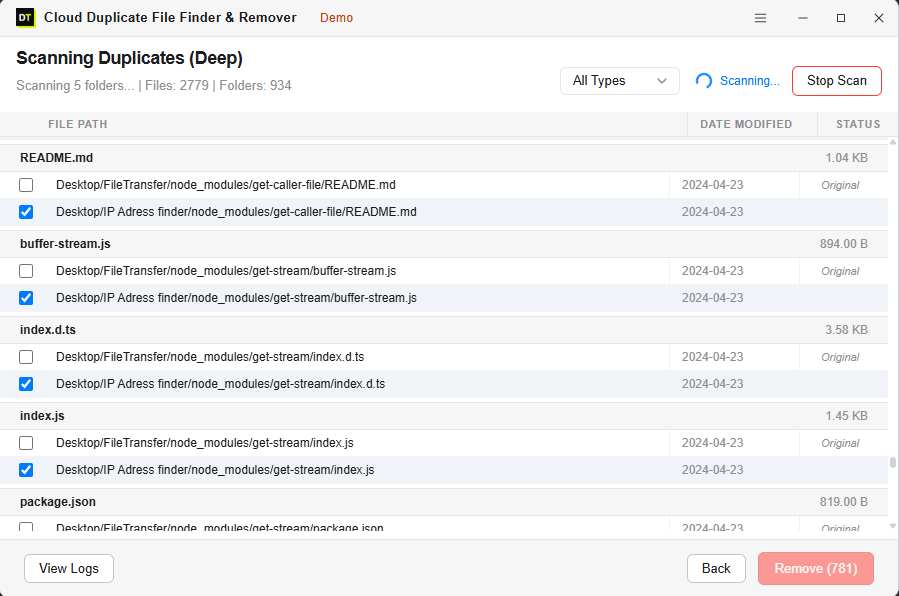
Step 6: Remove the extras
Select what you want gone and remove it in one go. Removing duplicates needs the full version. Removed files go to your cloud’s own trash, so you can still bring them back if you change your mind.One small tip: Space is usually returned only after the trash is emptied, so remember to empty it once you are happy with the cleanup.
Which Clouds Can It Scan?
Big storage is rarely in one place, so the tool covers a lot of ground. It works with:
- Mega Drive
- OneDrive
- SharePoint
- Amazon S3
- Dropbox, Box, Google Cloud Storage, Azure Blob Storage, Backblaze B2, pCloud, Mega, Synology NAS, Nextcloud, DigitalOcean Spaces, and FTP or SFTP servers.
Is It Safe to Run on Business Data?
This is the first question any IT person asks, so here are the plain answers:
- Your files are not downloaded. The scan reads only the file name, the size and the fingerprint. It never reads what is inside your files.
- Your password stays private. You sign in through the official login screen of each cloud, not inside the app.
- Nothing is deleted without your approval. Every duplicate is shown to you first.
- Deleted files can come back. They go to the provider’s trash, not into thin air.
- There is a full record. Every scan and every removal is saved with a time and date.
Who Needs This Most
- IT admins who back up to more than one place and want to know how much of it is repeated.
- Agencies and freelancers with client files spread across several drives.
- Development teams whose build files and assets keep piling up in storage buckets.
- Consultants and MSPs who need a clean picture of a client’s data before a migration.
- Anyone paying for a bigger plan who suspects that copies, not new work, are the reason.
What Does a Cleanup Like This Really Give You?
You do not have to guess. Run the free scan first, and the result will tell you exactly how much space is going to waste.
For many teams, the benefits show up quickly:
- A smaller monthly cloud bill, or no need for the next storage upgrade.
- Faster searching, since you stop seeing three versions of the same file.
- A cleaner, safer migration, because you are moving only what is needed.
- Less confusion about which file is the real one.
A Few Smart Habits for Huge Storage
Cleaning once is great. Staying clean is better.
- Scan before any migration. Moving duplicates only means paying to move waste. If you plan to migrate data, use a dedicated tool like DT Cloud Storage Migrator after cleaning up duplicates first.
- Start with the biggest folders. That is where the saving is the largest.
- Use Deep Scan for the final cleanup. Use Fast Scan for quick regular checks.
- Keep one master copy of every project. Agree on this as a team.
- Repeat the scan every few months. Copies come back quietly if you let them.
Frequently Asked Questions
Can I really scan over 40 TB of cloud data without downloading anything?
Yes. The tool reads only file details like name, size and fingerprint through each cloud’s official connection. Your files stay in your account.Is there a size limit?
No. The tool is built to handle very large amounts of data, including enterprise-level storage.Will it delete the wrong file by mistake?
No. Nothing is removed automatically. You review every group first, and removed files go to the cloud’s trash.What is the difference between Fast Scan and Deep Scan?
Fast Scan matches by name and size, so it is quicker. Deep Scan matches by the file’s unique fingerprint, so it finds renamed copies too.Can I scan just one folder?
Yes. You can scan a whole account or only the folders you choose.Can I connect two accounts from the same cloud?
Yes. For example, you can connect two Google Drive accounts and manage both from the same dashboard.Do I have to pay before I can scan?
No. The full scan is free. You only need the full version to remove the duplicates.Does it work on Mac and Windows?
Yes, it runs on Windows 10, Windows 11 and macOS 12 or later.Ready to See How Much Space You Are Wasting?
Forty terabytes is a lot to pay for. It is even harder to accept if a good part of it is the same files saved again and again.
Download DT Cloud Duplicate File Finder, connect your first account and run a free scan. Nothing is downloaded, and nothing is deleted until you say so. Most people find their first duplicate within seconds of the scan finishing.
Download the free scan and see what your storage is really holding.