
If you use OneDrive for work and Google Drive for everything else, there is a good chance the same files are sitting in both places right now. The same invoice PDF. The same holiday photos. The same project folder you once "just copied over for safety." Nobody plans it this way. It builds up quietly over the years, and one day both accounts tell you that storage is almost full.
The annoying part is that neither service can help you here. OneDrive only looks inside OneDrive. Google Drive only looks inside Google Drive. Neither one will tell you that the file in your OneDrive is the same file you uploaded to Google Drive last March.
In this guide I will show you how to find and remove duplicate files between OneDrive and Google Drive, step by step, using Cloud Duplicate File Finder & Remover from Data TB Software. I will also walk through the manual methods people usually try first, so you can judge for yourself which one is worth your time.
Why the Same Files End Up in Both OneDrive and Google Drive
Before fixing the problem, it helps to know where it comes from. In most accounts we see, duplicates between the two clouds appear for one of these reasons:
- A cloud migration that was never cleaned up: You moved from Google Workspace to Microsoft 365 (or the other way round), copied everything across, and never deleted the old copy. Now every file exists twice, and the old cloud keeps eating quota.
- Phone backups running in two apps: Google Photos or Google Drive backs up your camera roll. OneDrive does the same thing. Both are doing their job, and both are storing the same pictures.
- Sharing and re-uploading: A colleague sends a file through a Google Drive link. You download it and upload it to OneDrive so it sits with your other work. Multiply that by a few hundred files and a few years.
- "Just to be safe" backups: Many people keep a second copy of important folders in another cloud. That is a sensible habit, until you lose track of which copy is the real one.
- Team habits: One department lives in SharePoint and OneDrive, another in Google Drive. Shared project files get copied back and forth.
Why the Usual Ways of Finding Duplicates Fall Short
If you search for this problem online, you will find a handful of approaches:
1. Searching by file name: You open OneDrive, search for a name, then open Google Drive and search for the same name. It works for one or two files. It falls apart the moment you have thousands, and it misses every file that was renamed along the way ("Report final.docx" and "Report final (1).docx").
2. Syncing both clouds to your PC and using a local duplicate finder: This is the most common suggestion. Install the OneDrive app, install Google Drive for desktop, let both download everything, then point a normal duplicate finder at the folders. It does work, but you need enough free disk space for both clouds, hours of sync time, and the risk of sync errors.
3. Command line tools like rclone: rclone can compare two cloud remotes, but you are writing terminal commands, parsing text, and deleting files by hand.
4. Duplicate finders that only handle one cloud: Some tools scan a single account well, but they never cross-compare accounts.
5. Web-based cloud duplicate finders: A few online browser services scan for free but mandate monthly subscriptions before deleting, or have strict security access limitations.
The gap in all of these is the same: you want one tool that connects to both accounts, compares them against each other, and lets you decide which side to keep. That is exactly what Cloud Duplicate File Finder & Remover is built to do.
What You Need Before You Start
The list is short:
- A Windows PC with Cloud Duplicate File Finder & Remover installed.
- Login credentials for your OneDrive and Google Drive accounts.
- An active internet connection.
- About 10 minutes of time.
Step by Step: Find and Remove Duplicates Between OneDrive and Google Drive
Step 1: Open the Tool and Choose Multiple Accounts Mode
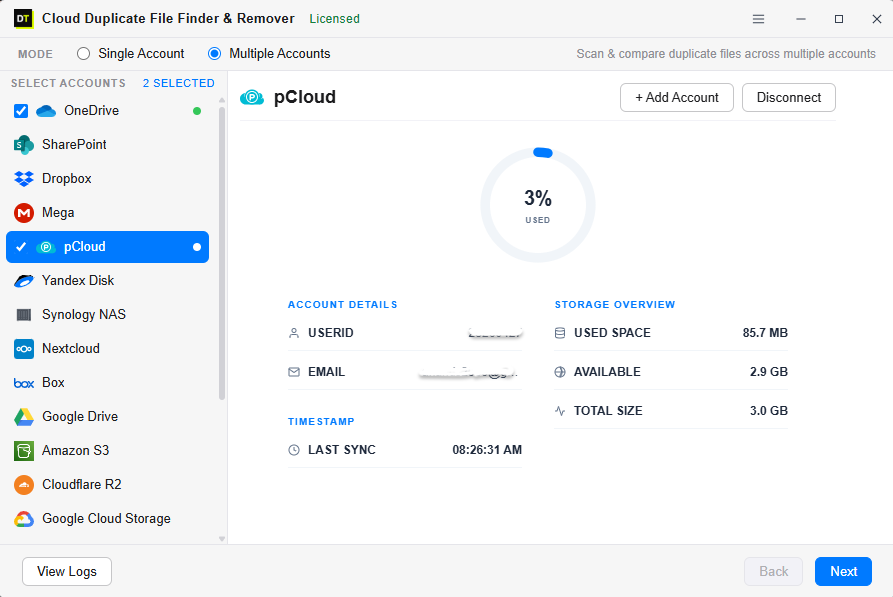
Launch Cloud Duplicate File Finder & Remover. At the top of the window, you will see a Mode setting with two choices: Single Account and Multiple Accounts.Select Multiple Accounts. The description on the right confirms it will scan and compare duplicate files across multiple accounts simultaneously.
Step 2: Connect Your OneDrive Account
The left panel lists every supported cloud provider. Click OneDrive, then click the Connect button on the right. The tool uses standard web authentication (OAuth)—your browser opens, you sign in securely to Microsoft, and approve read access.When the connection succeeds, a green indicator dot appears next to OneDrive.
Step 3: Connect Your Google Drive Account
Now click Google Drive in the list and click Connect. Sign in with your Google account and grant access. Another green dot will appear beside Google Drive.(Note: If you have multiple accounts from the same provider, you can connect them too using the "+ Add Account" button).
Step 4: Select Both Accounts and Click Next
Tick the checkbox beside OneDrive and Google Drive. The counter will display "2 Selected". The right panel displays storage metrics: used space, available space, total size, and last sync timestamp.Click Next to proceed.
Step 5: Choose the Folders You Want to Scan
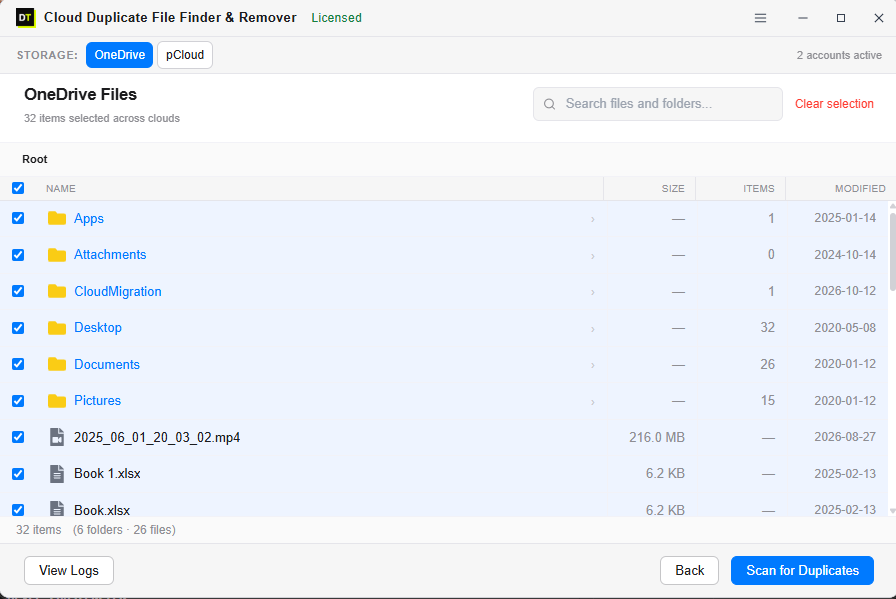
The next screen shows your directory structure. At the top, a Storage switcher lets you toggle between your OneDrive and Google Drive folders:- By default, every item in root is selected.
- You can uncheck folders you want excluded, or expand subfolders.
- Use the search bar to locate specific folders quickly.
Step 6: Choose Your Scan Options
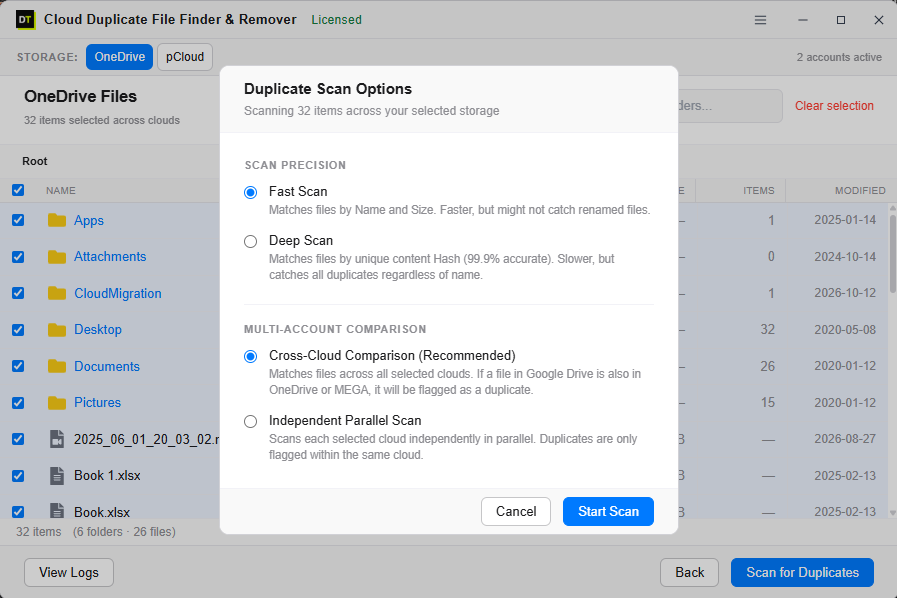
The Duplicate Scan Options dialog will appear.1. Scan Precision: * Fast Scan: Matches files by name and size. Extremely fast. * Deep Scan: Matches files by unique content hash (99.9% accurate). Catches duplicates even if filenames are different. 2. Multi-Account Comparison: * Cross-Cloud Comparison (Recommended): Matches files across all selected clouds. If a file in Google Drive also exists in OneDrive, it will be flagged as a duplicate. * Independent Parallel Scan: Scans each cloud independently in parallel. Duplicates are only flagged within the same cloud.
For finding duplicates between OneDrive and Google Drive, select Cross-Cloud Comparison, choose your precision mode, and click Start Scan.
Step 7: Review the Duplicates Before Deletion
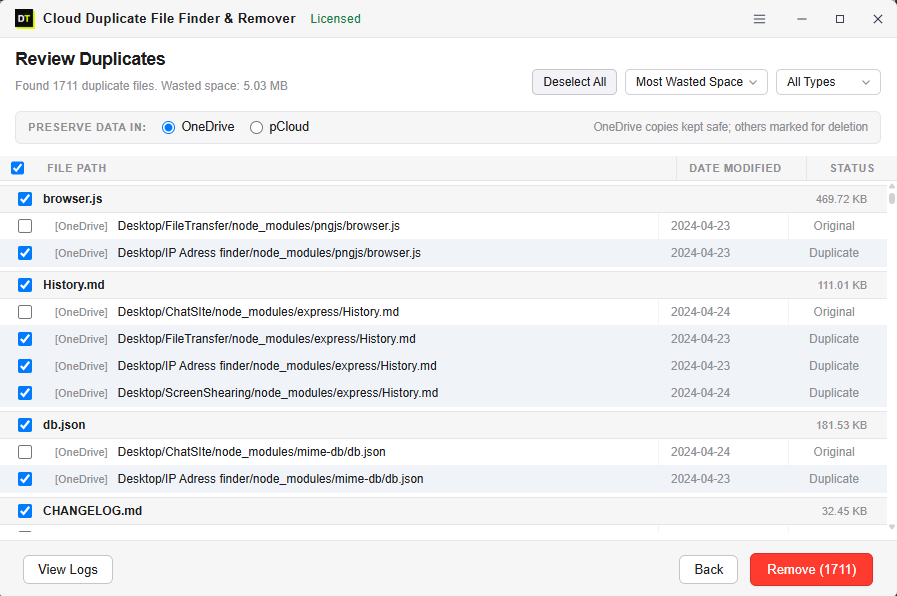
Once the scan finishes, the Review Duplicates screen displays the total count of duplicate files and wasted storage.- Files are grouped with original vs. duplicate status.
- Each item shows which cloud it belongs to, file path, and modified date.
- Preserve Data In (Crucial): At the top, select which cloud you want to designate as your Master. Selecting OneDrive keeps your OneDrive copies safe and automatically marks matching duplicates in Google Drive for removal (and vice versa).
Step 8: Click Remove
Press the red Remove button at the bottom right. Confirm the deletion, and the tool will purge the duplicate files.Tip: Removed files are sent to each provider's native trash bin (OneDrive Recycle Bin & Google Drive Trash), keeping them safely recoverable if ever needed.
Fast Scan vs. Deep Scan: Which One Should You Pick?
- Use Fast Scan: For quick initial cleanups where filenames haven't been changed. Ideal for large accounts to clear obvious bulk duplicates.
- Use Deep Scan: For maximum precision. It compares the bit-level content hash, catching renamed copies (e.g.,
Document(1).pdfvsDocument_final.pdf).
Cross-Cloud vs. Independent Scan: Quick Comparison
| Feature | Cross-Cloud Comparison | Independent Parallel Scan |
|---|---|---|
| What it finds | Files that exist across multiple clouds (OneDrive vs. Google Drive) | Duplicates living within each cloud separately |
| Best for | Post-migration cleanup, deduplicating dual clouds | Cleaning up internal clutter within a single cloud |
Tips to Prevent Duplicates from Returning
1. Designate a Master Cloud: Keep work documents in OneDrive and personal media in Google Drive. 2. Turn Off Duplicate Camera Uploads: If both Google Photos and OneDrive auto-backup your phone, disable one. 3. Avoid Ad-Hoc Backups: Don't manually copy folders between clouds without a scheduled backup system. 4. Periodic Audits: Run a quick scan every few months to keep storage clear.
Frequently Asked Questions
Can I find duplicate files between OneDrive and Google Drive without downloading everything?
Yes. Cloud Duplicate File Finder & Remover scans directly via official cloud APIs—files never download to your computer.Does Google Drive or OneDrive have a built-in cross-cloud duplicate finder?
No. Neither service scans outside its own ecosystem. Cross-cloud comparison requires a specialized tool.Will it delete my original file?
No. Exactly one copy is preserved as the Original, and the Preserve Data In setting ensures your master cloud copies stay intact.What if duplicate files have different names?
Choose Deep Scan. Deep Scan checks the unique binary content hash of files, accurately identifying duplicates even with different names.Final Thoughts
Duplicates between OneDrive and Google Drive are a natural byproduct of using multiple modern cloud services.
Instead of manual searching or heavy local syncing, connect your accounts, run a Cross-Cloud Comparison, and clean gigabytes of redundant files in minutes with Cloud Duplicate File Finder & Remover.