
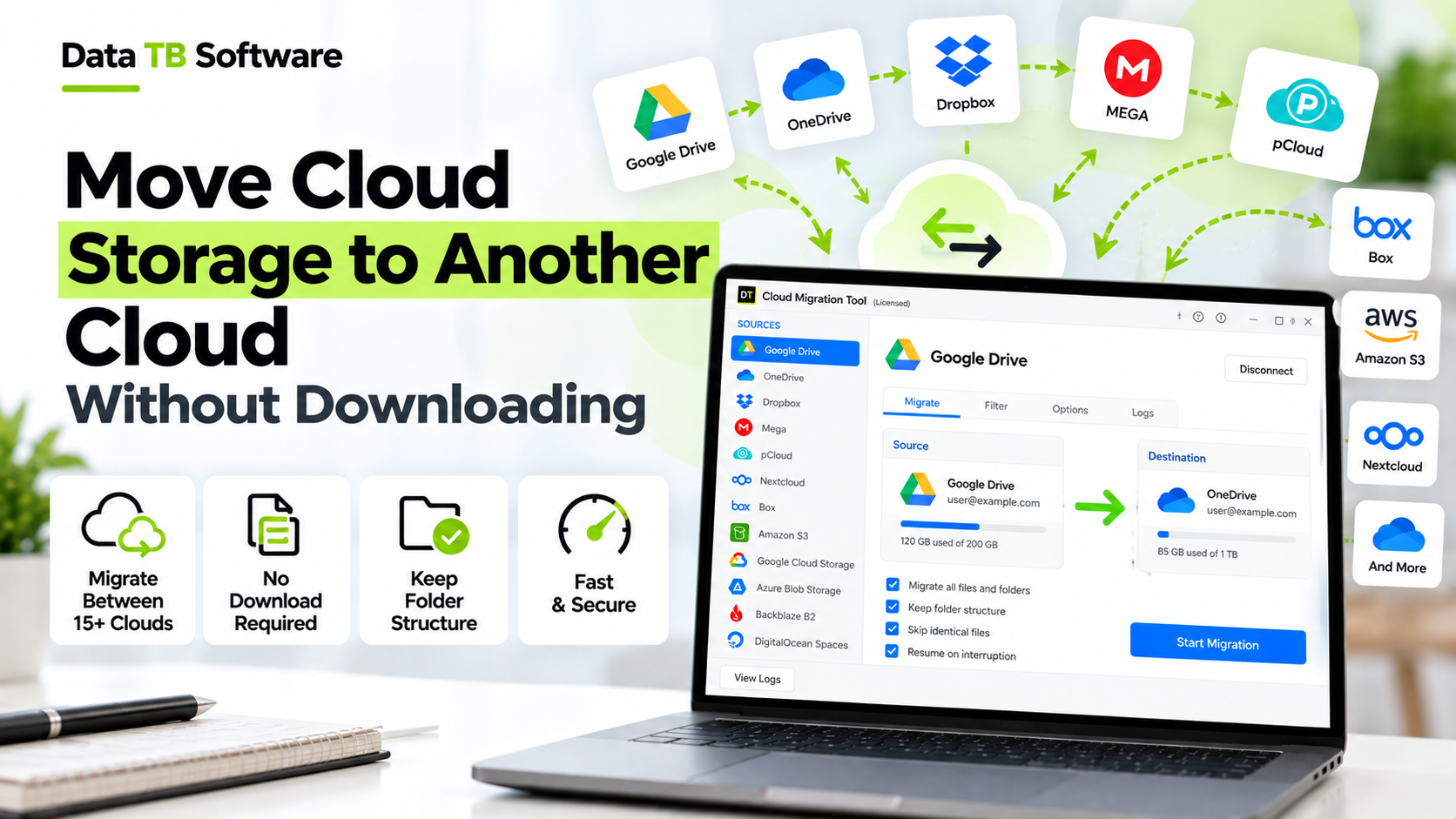
You have thousands of files in one cloud and a new home waiting in another. The obvious plan is to download everything to your computer and upload it again. It works, right up until your disk fills up, the upload stalls at 80 percent and the whole thing takes twice as long as it should.
There is a better way. With the right approach, data migration from one cloud to another happens directly between the two services, so your files never pile up on your PC. This guide explains how that actually works, which methods let you move cloud storage to another cloud without downloading, how to do it step by step and what to watch out for. It is a companion to our pillar guide on the eight ways to migrate data from one cloud storage to another, which compares every method in more depth.
What Does Without Downloading Actually Mean?
The phrase gets used loosely, so it helps to be precise. In a normal download and upload migration, every file makes two trips: from the old cloud to your computer, then from your computer to the new cloud. In a direct cloud-to-cloud migration, a migration tool is authorized to read from one cloud and write to the other, so each file goes from source to destination without ever being saved as a local copy.
| Method | Saved on your disk? | How files travel |
|---|---|---|
| Manual download and upload | Yes, a full copy | Cloud to PC, then PC to cloud |
| Desktop sync apps | Yes, in synced folders | Cloud to PC, then PC to cloud |
| Direct cloud-to-cloud tool | No local copy | Source cloud to destination cloud |
Why Download and Re-Upload Breaks Down
For a handful of documents, downloading and re-uploading is fine. For anything bigger, it fails in predictable ways.
- Double the time. Every gigabyte travels down and then back up, and home upload speeds are usually the slowest part.
- Disk space. A 500 GB migration needs 500 GB of free space on your computer before you even start.
- Fragile sessions. A browser crash, a sleeping laptop or a dropped connection can leave you unsure which files made it across.
- Lost details. Version history and sharing settings do not survive a manual download, and cloud-native files such as Google Docs get converted on the way out.
- No record. When you finish, you have no report of what moved, what failed and what was skipped.
How Direct Cloud-to-Cloud Migration Works
The mechanics are simpler than they sound.
1. You sign in to each cloud through its official page. This uses OAuth, the same standard behind the Sign in with Google or Microsoft buttons. Your password is never handed to the migration tool. 2. You grant limited permission. The tool gets access to read from the source and write to the destination, and you can revoke that access from your provider's security settings at any time. 3. The tool reads and writes through the clouds' own interfaces. It lists the files in the source, reads them through that cloud's API and writes them to the destination through the other cloud's API. 4. Provider limits still apply. Each cloud sets rate limits on how fast an app can read and write. That is why even a direct migration is not instant.
4 Ways to Move Cloud Storage Without Downloading
1. Built-In Provider Tools
Some platforms can pull your data in or push it out. Google Takeout can export Google data and send the archive to another cloud such as Dropbox, OneDrive or Box. Microsoft's Migration Manager in the SharePoint admin center brings content from sources like Google Drive, Dropbox and Box into Microsoft 365. These are free and well supported, but each one is built for a single destination or direction, so they rarely cover moves between two third-party clouds.
2. Web-Based Transfer Services
You connect both accounts on a website and the transfer runs on the service's servers, so your computer can be off. The trade-off is cost and capacity. Some services limit free transfer to a few gigabytes a month, and paid plans are priced by subscription or data volume, so large migrations can get expensive or slow when they hit a quota.
3. Desktop Cloud Migration Software
A desktop tool installs on your PC, signs in to both clouds and moves the data directly between them. Because the license covers the software and not a traffic meter, there is no monthly transfer quota to manage. You also get controls that quick web transfers often lack, such as previewing the folder tree, filtering files, mapping destinations and scheduling runs. DT Cloud Storage Migrator Tool is an example, and the walkthrough below shows how it works.
4. Command Line Tools Such as rclone
Open source tools like rclone connect to dozens of cloud providers and stream files between them without keeping a full local copy. Many people run them on a cloud server with a fast connection to speed things up. They are powerful and free, but you work in a terminal, and a wrong flag can delete data you meant to keep.
| Method | Where it runs | Cost model | Best for |
|---|---|---|---|
| Built-in tools | Provider's platform | Free | Moving into one specific platform |
| Web-based services | Vendor's servers | Subscription or per-GB | Small jobs, PC switched off |
| Desktop software | Your Windows PC | License | Any size, personal or business |
| Command line | Your PC or a server | Free | Technical users |
What Affects Migration Speed
No method is magic, and being realistic about speed saves a lot of frustration.
- Number of files. A million small files take far longer than a few large ones, because each file needs its own request.
- API rate limits. Both clouds throttle how fast any app can read and write.
- Your internet connection. If the tool runs on your PC, your bandwidth still sets a ceiling.
- Thread settings. Tools that let you adjust parallel transfers can use your connection better. Start moderate and raise it if the job runs smoothly.
- Time of day. Running big jobs off-peak, overnight or at weekends, tends to go more smoothly.
Step by Step: Cloud-to-Cloud Migration With DT Cloud Storage Migrator
Here is the same job in DT Cloud Storage Migrator Tool, a Windows application that moves files directly between 15+ clouds. Nothing is downloaded to your PC, and the licensed version has no data size limit. The workflow runs through eight screens, and nothing moves until the last one.
1. Dashboard. Start a new job and give it a clear name, such as Client Handover October. 2. Mode Selection. Choose personal or business. For business accounts, pick cross migration between different providers or same migration within one provider. 3. Source Authentication. Select the cloud you are moving from and sign in through the provider's secure OAuth page. 4. Preview. Browse the folder tree with file sizes and dates. Filter by extension, date range, folder type or file size so only the data you want is included. This is the step manual methods skip entirely. 5. Destination Authentication. Select the cloud you are moving to and sign in the same way. 6. Mapping. Match source folders and accounts to destinations by hand, or upload a CSV file to map many accounts at once. 7. Configure Migration. Decide what happens to duplicates (skip, rename or replace), switch on version migration if you want file history to come across, and pick a one-time, incremental or scheduled run. 8. Migration. Start the job and watch it run. If the connection drops, the transfer resumes where it stopped. When it finishes, export the job report to see failed, filtered and already migrated items.
The honest limits: it is a Windows application, and it needs to stay running while a job or schedule is active. If you want to start a transfer and switch your computer off, a web-based service is a better fit. To see whether it suits your project, try the free trial of the cloud storage migration software, which handles up to 500 MB with files under 20 MB.
If your move involves OneDrive in particular, the DT OneDrive Migration Tool page covers those routes in detail.
Personal and Business Accounts: What Changes
The direct approach works for any combination of account types, but business accounts add a few extra considerations.
- Personal to personal: the simplest case. Sign in to both accounts and run the job.
- Personal to business: you are moving your own files into a company drive. Check where the data should live and who will own it.
- Business to personal: make sure you are authorized to take the data. Many organizations require approval first.
- Business to business: common for company moves and tenant changes. Expect admin consent prompts and agree the folder mapping in advance.
Common Mistakes to Avoid
1. Skipping the test run. Always move one small folder first and check the result at the destination. 2. Moving duplicates. Clean them out first so you do not spend time moving the same file twice. A cloud duplicate file finder can do that directly in your cloud. 3. Assuming permissions move automatically. No method reproduces every sharing setting perfectly, so review access at the destination. 4. Deleting the source too soon. Keep it until you have verified the result and resolved any failed items. 5. Ignoring quotas. If you use a service with a monthly transfer cap, check it against your total data size before you start.
Frequently Asked Questions
Can I move cloud storage to another cloud without downloading?
Yes. Direct cloud-to-cloud tools read from one cloud and write to the other, so your files are not saved on your computer. Options include built-in provider tools, web-based services, desktop migration software and command line tools.
Is a direct cloud-to-cloud transfer faster?
Usually, because files travel once instead of twice and you do not wait on a full local download first. Real speed still depends on the number of files, each provider's rate limits and, for tools that run on your PC, your internet connection.
Does my computer have to stay on during the migration?
It depends on the tool. Web-based services run on their own servers, so you can switch your computer off. DT Cloud Storage Migrator runs on your Windows PC, so keep it running while a job or schedule is active.
Is it safe to connect my cloud accounts to a migration tool?
Reputable tools sign you in through each provider's OAuth page, so your password is never typed into the tool, and they support multi-factor authentication where the provider offers it. You can revoke access in your cloud provider's security settings whenever you like.
Will my folder structure be preserved?
With a dedicated migration tool, yes. DT Cloud Storage Migrator keeps the original folder hierarchy at the destination, and it offers version migration so file history can come across with the current version.
Can I migrate between a personal and a business account?
Yes. DT Cloud Storage Migrator supports personal to personal, personal to business, business to personal and business to business moves. Only migrate business data with your organization's approval.
What happens if the transfer is interrupted?
That depends on the tool. DT Cloud Storage Migrator resumes from where it stopped, so you do not start the whole job again, and the job report shows what was transferred and what failed.
Conclusion
Downloading and re-uploading is the slowest, riskiest way to move data between clouds. A direct approach keeps your files off your disk, saves time and gives you a record of what moved. For small jobs, a built-in tool or web service may be enough. For larger projects, business accounts and anything that needs preview, mapping and scheduling, desktop migration software gives you the most control.
If you want to compare every option before deciding, read our guide to the eight ways to migrate data from one cloud storage to another. And when you are ready to test a real migration, download the free trial of DT Cloud Storage Migrator Tool and run a 500 MB job on your own accounts first