
Quick Answer
The best cloud to cloud migration tool depends on how much data you have and who is doing the move. For one-time moves of any size between OneDrive, Google Drive, MEGA and other clouds, a desktop tool with no data cap such as DT Cloud to Cloud Migration Tool is the simplest and most predictable choice. For quick small transfers, a web service with a free tier works. For technical users, rclone is free and powerful. For large company-wide moves with many users, an enterprise migration platform is built for the job.
Below, each option is explained in plain words, with its strengths and limits, so you can pick the right one before you spend any money.
What Is a Cloud to Cloud Migration Tool?
A cloud to cloud migration tool moves files directly from one cloud storage account to another, for example from Google Drive to OneDrive, without you downloading everything to your computer and uploading it again.
This guide is about files and folders in cloud storage. It does not cover moving servers, virtual machines or databases between AWS, Azure and Google Cloud. That is a different job that needs an infrastructure migration platform.
How We Compared These Tools
We looked at the same seven points for every tool, because these are the points that decide whether a migration finishes smoothly:
- Cloud support: does it handle OneDrive, Google Drive and MEGA, and other clouds you may need later?
- Data limits: is there a monthly traffic cap, a per gigabyte charge or no limit?
- Control: can you preview, filter and map before anything moves?
- Reliability: can a stopped job resume, and can you run it again to catch changes?
- Reporting: do you get a clear list of what failed?
- Account types: personal, business, or both?
- Pricing model: subscription, per user, per gigabyte or one-time?
Quick Comparison Table
| Tool | Type | Best for | Data limit model | Skill level |
|---|---|---|---|---|
| DT Cloud to Cloud Migration Tool | Windows desktop app | One-time and repeat moves of any size, personal and business | No limit on the licensed version | Beginner |
| MultCloud | Web service | Quick small transfers, many clouds | Monthly traffic allowance, higher plans and unlimited plans available | Beginner |
| CloudFuze | Web platform | Business moves with users and permissions | Plan based, varies by tier | Business admin |
| cloudHQ | Web service | Ongoing sync and backup between cloud accounts | Free for some free accounts, paid per user | Beginner |
| rclone | Free command line tool | Technical users and scripts | No vendor limit, provider limits apply | Advanced |
| Manual download and upload | No tool | A few folders | Your disk space and internet | Beginner |
1. DT Cloud to Cloud Migration Tool
Best for: people and teams who want one tool for OneDrive, Google Drive, MEGA and many other clouds, without counting gigabytes.
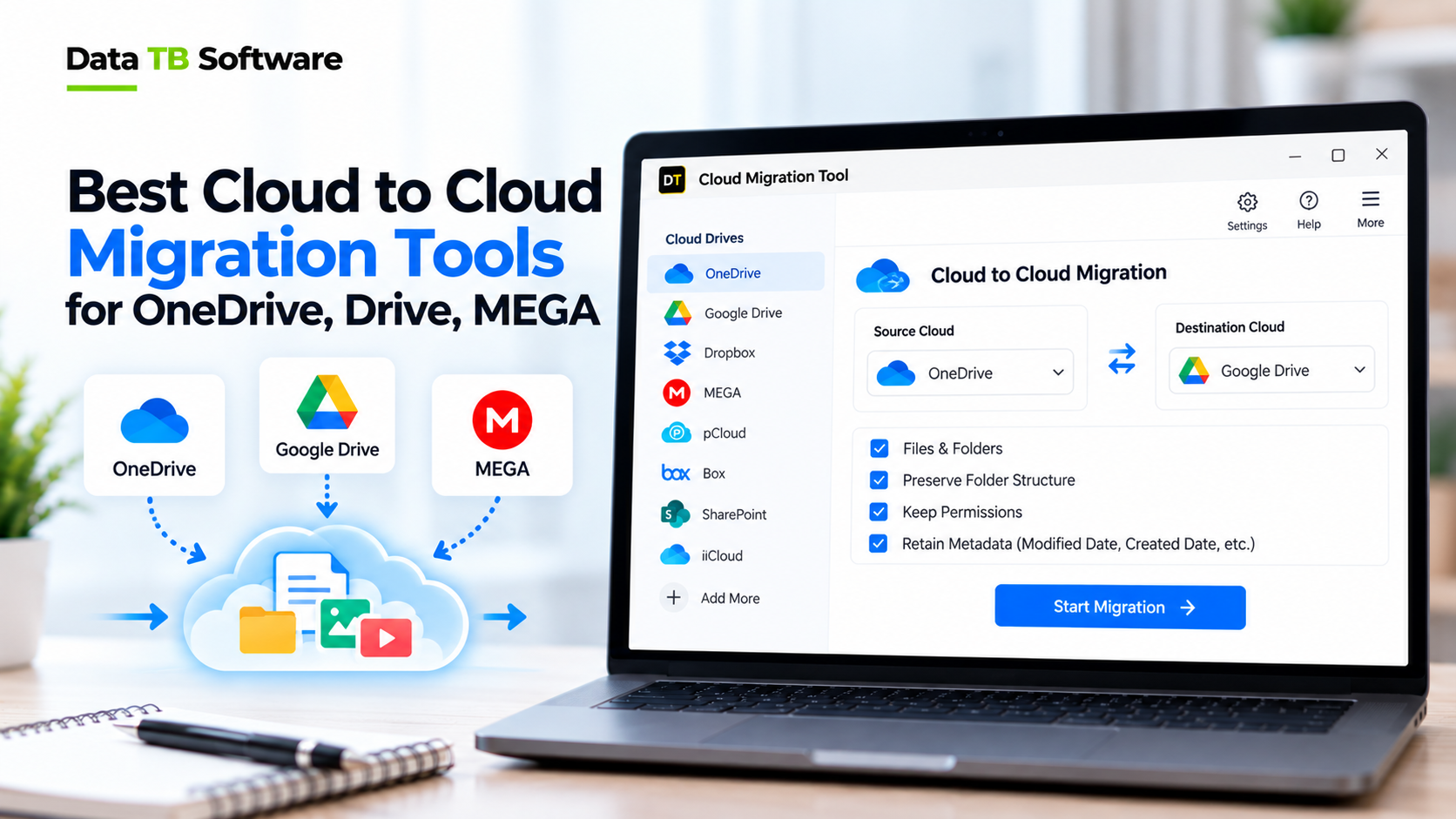
DT Cloud to Cloud Migration Tool is a Windows app that connects to two cloud accounts and moves files directly between them. It supports 15+ clouds as either source or destination, including Google Drive, OneDrive, SharePoint, Dropbox, Box, MEGA, pCloud, Amazon S3, Azure Blob and Backblaze B2.
What it does well
- No data cap on the licensed version. There is no monthly traffic meter and no charge per gigabyte, so a retry does not cost extra.
- Preview before you move. You see the folder tree and file details, then filter by extension, date, folder type or size.
- Mapping for big jobs. Map folders by hand, or upload a CSV file to map many accounts at once.
- Resumable, incremental and scheduled runs. A stopped job continues where it stopped, later runs move only new or changed files, and schedules can run hourly, daily, weekly or monthly.
- Clear rules for existing files. Skip, rename or replace, chosen before the run.
- Version migration and preserved folder structure.
- A report after every run listing failed, filtered and already migrated items.
- Personal and business paths in every direction, including one account to another on the same platform, such as one OneDrive to another OneDrive.
- Files move between the clouds. They are not downloaded to your computer and not stored by Data TB. Sign-in uses each provider's own page, and your passwords are not stored.
Limits to know
- It runs on Windows, and the PC must stay on while a job or schedule is running.
- Shared links and sharing permissions belong to each platform and are not carried over. Recreate the access you need at the destination.
- It moves files and folders. It does not migrate servers, virtual machines or applications.
- The free trial moves up to 500 MB, with files under 20 MB, so you can test the full workflow first.
2. MultCloud
Best for: quick, small transfers from a browser.
MultCloud is a web service that connects to a large number of clouds and transfers or syncs data between them from a browser, so nothing needs to be installed. Its public pages and independent reviews describe a free plan with a monthly data traffic allowance, paid plans with larger monthly allowances, and unlimited plans on yearly or lifetime terms.
What it does well
- Supports 30+ cloud services.
- Nothing to install, and it works from any device with a browser.
- A free plan lets you test it on small jobs.
Limits to know
- On free and limited plans, the monthly traffic allowance can run out in the middle of a large folder, and a failed retry may use allowance again.
- Some reviews mention slow transfer speeds, especially on lower tiers.
- Your transfer runs through a third-party web service, so check its privacy terms for business data.
3. CloudFuze
Best for: businesses that need users and permission levels handled during the move.
CloudFuze is a web based migration platform aimed at organizations. Independent comparisons describe support for 40+ cloud services and the ability to migrate users and permission levels.
What it does well
- Built for business and enterprise migrations.
- Handles users and permissions, which many file-only tools do not.
Limits to know
- Pricing is plan based with data limits, and reviewers note there is no free plan.
- It can be more than you need if you are only moving files for yourself or a small team.
4. cloudHQ
Best for: keeping two cloud accounts in sync over time.
cloudHQ focuses on continuous sync and backup between cloud accounts and email. Reviews describe free sync for some free cloud accounts and paid plans with unlimited traffic.
What it does well
- Ongoing sync, not only one-time moves.
- Unlimited traffic on paid plans.
Limits to know
- Paid plans are priced per user per month, which adds up for teams.
- Reviewers mention no file preview before a transfer.
- It is built around sync, so a one-time bulk migration with mapping and filters may feel less direct.
5. rclone
Best for: technical users who are comfortable with the command line.
rclone is a free, open source command line program that copies and syncs files between many storage providers. Its official provider list includes OneDrive, Google Drive and MEGA, among many others.
What it does well
- Free, with a very large list of supported providers.
- Copy mode moves only new or changed files, and check mode compares file hashes.
- Easy to automate with scripts.
Limits to know
- No point and click screens. Setup uses a config file and commands.
- No built-in preview screen, CSV mapping or guided report. You build these yourself.
- Support is community based.
6. Enterprise Migration Platforms
Best for: very large company projects, such as a merger or a full tenant move.
Platforms such as MigrationWiz, ShareGate and Cloudiway are built for large organizations that move many users between Microsoft 365 or Google Workspace environments, with admin level setup, user mapping and project support. They are strong for that job and are usually priced per user or by project.
For a small business, a freelancer or an individual, this is often more setup and cost than the job needs.
7. Manual Download and Upload
Best for: a few small folders.
You download from the old cloud and upload to the new one. It costs nothing, but every file crosses your internet twice, needs disk space, and a dropped connection means starting again. It is not practical for large data.
Which Tool Is Best for Your Situation?
| Your situation | Pick this |
|---|---|
| One person moving a few GB, once | MultCloud free tier or manual copy |
| Moving hundreds of GB or TB with no traffic meter | DT Cloud to Cloud Migration Tool |
| Moving OneDrive, Google Drive and MEGA data in any direction | DT Cloud to Cloud Migration Tool |
| Keeping two accounts in sync over time | cloudHQ, or incremental scheduled runs in DT |
| Developer who likes scripts | rclone |
| Whole company, many users, permissions are the priority | CloudFuze or an enterprise platform |
| Freelancer handing files over to a client | DT Cloud to Cloud Migration Tool |
Best Tool for Each Popular Route
Google Drive to OneDrive
Connect Google Drive as the source and OneDrive or SharePoint as the destination. Google's online documents (Docs, Sheets, Slides) are converted to standard office formats when they land on a platform that does not use them natively. Check a few converted files after a test run.OneDrive to Google Drive
The same steps in reverse. Use the preview to leave out old archives, and check for very long file paths in OneDrive before you start.MEGA to OneDrive or Google Drive
Not every migration tool supports MEGA, so confirm it before you buy. MEGA is known for its privacy focus, so decide which files you are comfortable moving to a platform with a different security model.OneDrive or Google Drive to MEGA
A common choice for a private personal archive. Move the folders you want to keep long term and leave working files behind.How to Choose the Right Tool
Ask yourself six questions: 1. How much data will I move? If it is more than a few gigabytes, avoid tools with small monthly traffic allowances.
2. Is it one time or ongoing? One time suits a desktop migration tool. Ongoing suits sync tools or scheduled incremental runs.
3. Do I need to see and filter files first? Pick a tool with a preview and filters.
4. How many accounts? Many accounts need CSV mapping, not manual selection.
5. Do I need user permissions moved? If yes, look at business platforms. Most file tools do not recreate sharing settings.
6. Can I test it free? Always run a small test on your own files before paying.
Before You Migrate: A Simple Checklist
- List the accounts, folders and file types that must move, and what can stay behind.
- Get approval first if the data belongs to a company.
- Clean up duplicates and old files at the source to save time.
- Check free space and plan limits at the destination.
- Decide in advance what happens when a file already exists: skip, rename or replace.
- Run a small pilot and open the files at the destination like a normal user.
- Run the full migration, then read the report and run again for failed items.
- Keep the old account active until everything is checked.
- Rebuild shared links and permissions at the destination.
Frequently Asked Questions
What is the best cloud to cloud migration tool?
There is no single best tool for every job. For one-time moves of any size across OneDrive, Google Drive, MEGA and other clouds with no data cap, DT Cloud to Cloud Migration Tool is a strong fit. For small tests, a web service with a free tier works. For scripting, rclone is free. For large company moves with permissions, use an enterprise platform.Can I transfer files between cloud accounts without downloading them?
Yes. A cloud to cloud tool moves data directly between the two accounts, so files are not saved to your computer first.Is there a free cloud to cloud migration tool?
Yes. rclone is free and open source, and some web services have free tiers with monthly traffic limits. DT Cloud to Cloud Migration Tool has a free trial for up to 500 MB, with files under 20 MB.Can I migrate from Google Drive to OneDrive?
Yes. Most tools on this list support it. Connect both accounts, preview and filter the data, and run the job. Check converted Google documents afterward.Can I migrate files from MEGA to OneDrive or Google Drive?
Yes, with a tool that supports MEGA. DT Cloud to Cloud Migration Tool and rclone both list MEGA support. Confirm support before buying any other tool.Is there a limit on how much data I can migrate?
It depends on the tool. Many web services use monthly traffic allowances or per gigabyte pricing. The licensed version of DT Cloud to Cloud Migration Tool has no limit on total data or file size. Your internet speed and the rules of each cloud provider still apply.Will sharing links and permissions move with my files?
Usually not. Files and folders move, but shared links and permissions belong to each platform. Check access on important folders after the move and share them again where needed.Do cloud migration tools keep my folder structure?
Yes. Good tools recreate the original folder structure at the destination.Can I schedule or repeat a migration?
Yes, with tools that support incremental and scheduled runs. After the first full pass, later runs move only new or changed files.Is it safe to use a cloud migration tool?
Check how the tool signs in and where it stores data. Look for sign-in on the provider's own page, no stored passwords, and the ability to revoke access from your cloud provider's security settings. Run a small test before the full job.Do these tools move servers or virtual machines between AWS, Azure and Google Cloud?
No. These tools move files and folders in cloud storage. Server and application migration needs an infrastructure migration platform.Final Verdict
Pick the tool by the size and type of your move, not by the loudest advertisement. A small one-time transfer can use almost anything. Once the data grows, the things that matter are no traffic cap, a preview before you move, resume support and a report you can trust.
For one tool that covers OneDrive, Google Drive, MEGA and more than 15 clouds with no data limit on the licensed version, try DT Cloud to Cloud Migration Tool. Run the free trial on a small test folder, check the result, and then run the full migration.
Related: DT OneDrive Migration Tool, DT MEGA Migrator Tool, DT Cloud Storage Migrator Tool, DT Cloud Duplicate File Finder