
Quick Answer
You can move OneDrive data to another Microsoft 365 account in four ways: copy files between two OneDrive folders in File Explorer, download and upload them again, use Microsoft's cross-tenant migration (admins only), or use a migration tool that moves files directly from one account to the other. The right way depends on how much data you have and whether the accounts are personal or business.
This guide explains each way in plain words, so you can pick the one that fits and finish the job without losing files.
Which Method Should You Use?
| Your situation | Best method |
|---|---|
| Small data, under a few GB, personal accounts | Method 1 or 2 |
| Medium or large data, personal or business accounts | Method 4 |
| Whole company moving to a new Microsoft 365 tenant, with admin rights and the Microsoft add-on license | Method 3 |
| Many accounts, scheduled or repeat transfers | Method 4 |
Before You Start
A few minutes of checking now saves hours later:
- Write down the source account (where files are now) and the destination account (where they should go).
- Check free space in the destination account. A personal OneDrive and a business OneDrive have different storage limits.
- Decide what to move. You rarely need every folder. Leave old and unused files behind.
- Close files that are open on your computer. Open files can fail to copy.
- Keep the old account active until you have checked the new one.
Method 1: Copy Files Between Two OneDrive Folders in File Explorer
This is the simplest way for small amounts of data.
1. Open the OneDrive app on your Windows PC and go to Settings, then Account.
2. Click Add an account and sign in with the second Microsoft account.
3. Open File Explorer. You will now see two OneDrive folders, one for each account.
4. Select the folders you want from the old account and copy them into the new one.
5. Wait for syncing to finish. Check the destination on the OneDrive website.
The catch: Files are pulled down to your PC and pushed up again, so it needs free disk space and a steady internet connection. It gets slow and unreliable with large data, very long file paths or files that are in use.
Method 2: Download and Upload Again
Sign in to the old account on the OneDrive website, select your folders, click Download, then sign in to the new account and upload them.
This works for a handful of folders. For big collections, downloads can come in parts or fail halfway, and uploads can stop if your connection drops. You also end up using your own internet twice.
Method 3: Microsoft Cross-Tenant OneDrive Migration (For Admins)
If your company is moving users from one Microsoft 365 organization (tenant) to another, Microsoft offers a built-in route called cross-tenant OneDrive migration.
What you should know before choosing it:
- It is done by administrators using SharePoint Online PowerShell. There is no point-and-click screen.
- Both tenants must be set up with a trust relationship, and users must be pre-created and mapped in the destination tenant.
- It needs a separate per-user add-on license from Microsoft, called Cross-Tenant User Data Migration. Microsoft's documentation lists it for Enterprise Agreement customers, so check the current licensing page before you plan.
- It is a one-time move. Content is moved, and a redirect is left at the old location.
- It is built for organizations. It is not meant for a single person moving personal files.
Method 4: Use DT OneDrive Migration Tool
DT OneDrive Migration Tool is a Windows app that moves files and folders directly from one OneDrive account to another. It works for personal and business accounts, and the same tool can also send OneDrive data to Google Drive, MEGA, Dropbox, Box, SharePoint and more if you change plans later.
Why people choose it for OneDrive to OneDrive moves:
- Files move between the two clouds. They are not downloaded to your computer and are not stored by Data TB.
- You sign in on Microsoft's own sign-in page. Your password is not stored, and multi-factor sign-in works.
- You pick exactly which folders to move, with a preview before anything starts.
- You can filter by file type, date, folder type and size.
- Transfers can be resumed if they stop, repeated as incremental runs and scheduled.
- No admin PowerShell, no extra Microsoft license, and no software limit on total data in the licensed version.
Step-by-Step: Move OneDrive Data to Another Account
1. Download and install the tool on your Windows PC. The installer is about 8.3 MB.
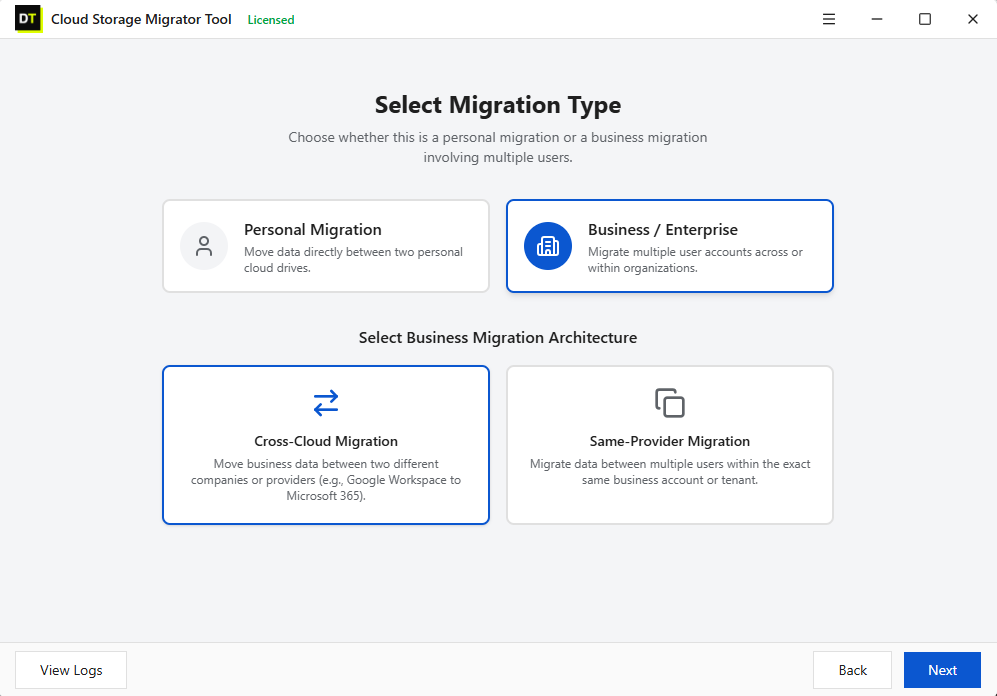
2. On the Dashboard, create a new job and give it a clear name, for example "Old account to new account, October".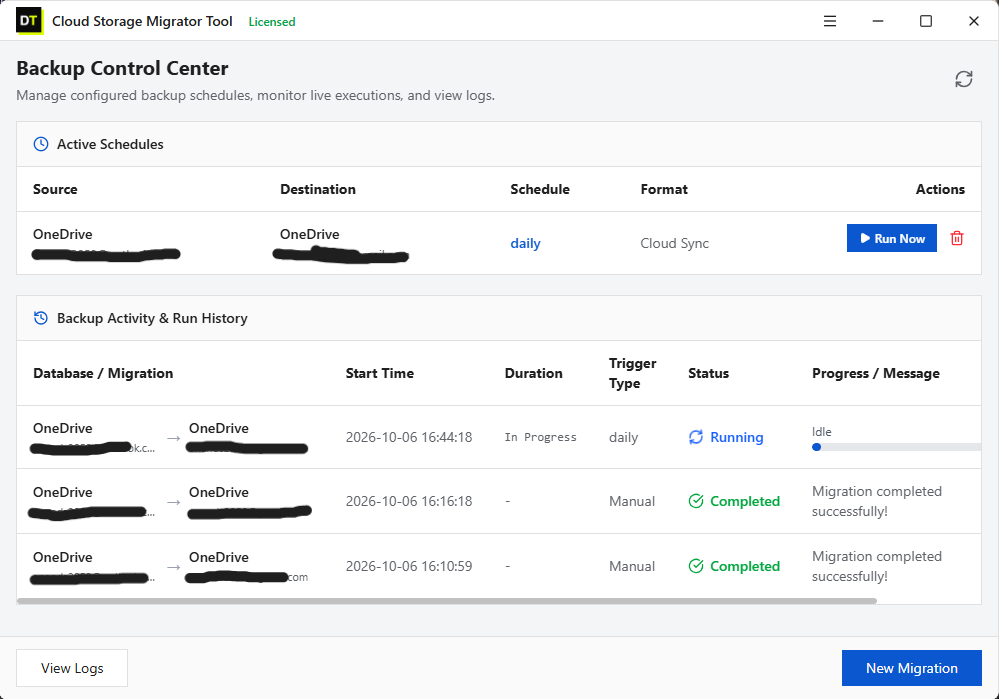 3. Choose the mode: personal move or business migration.
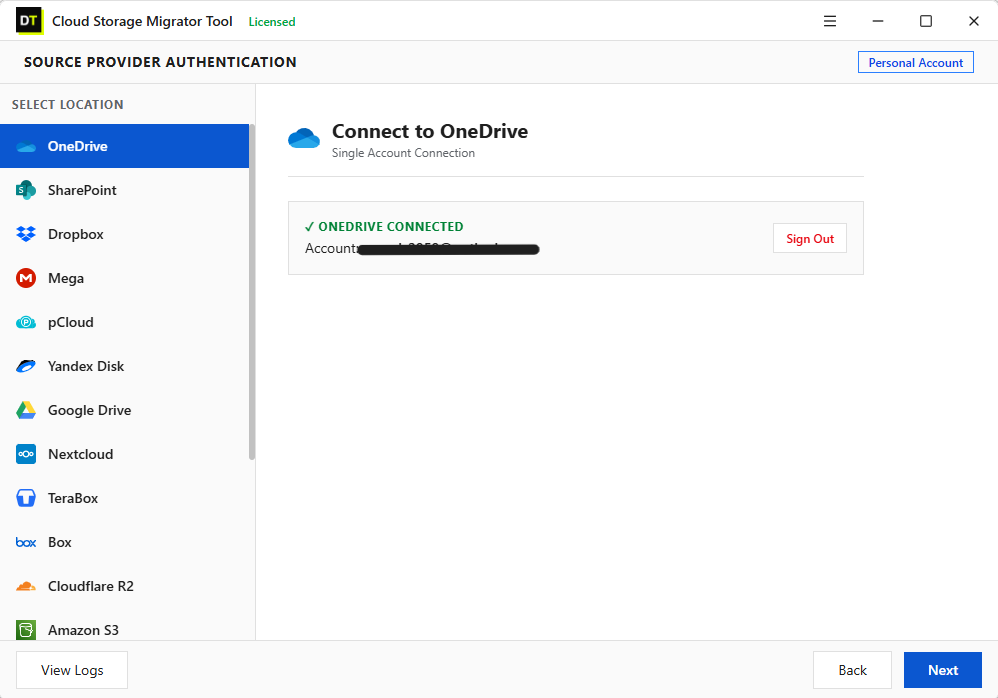
 4. Sign in to the source OneDrive account.
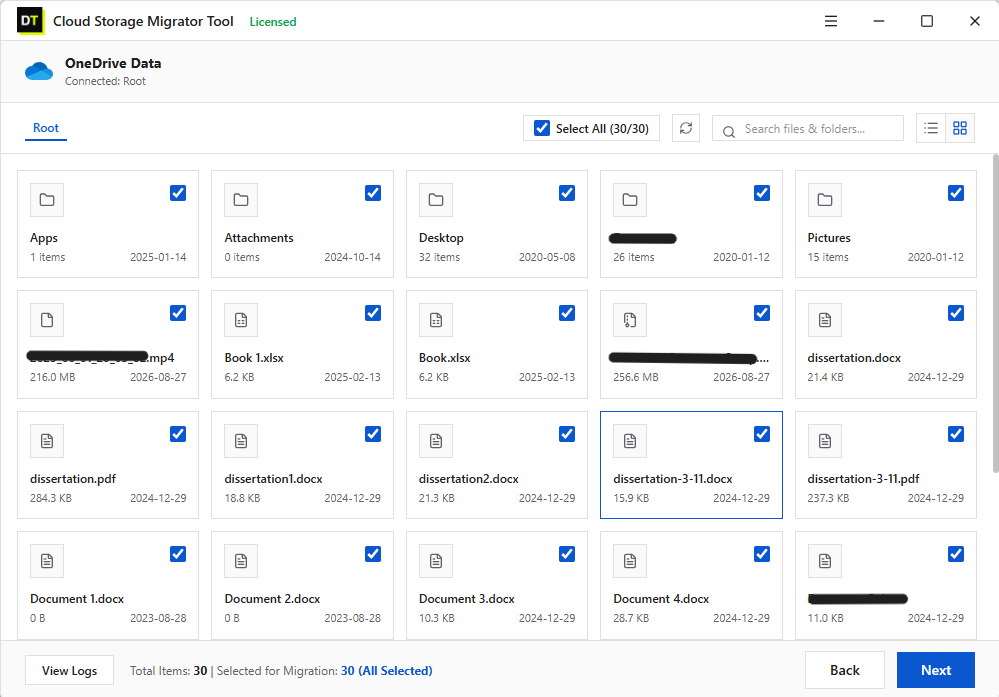
 5. Use Preview to browse the folder tree. Select only the folders you need and apply filters if required.
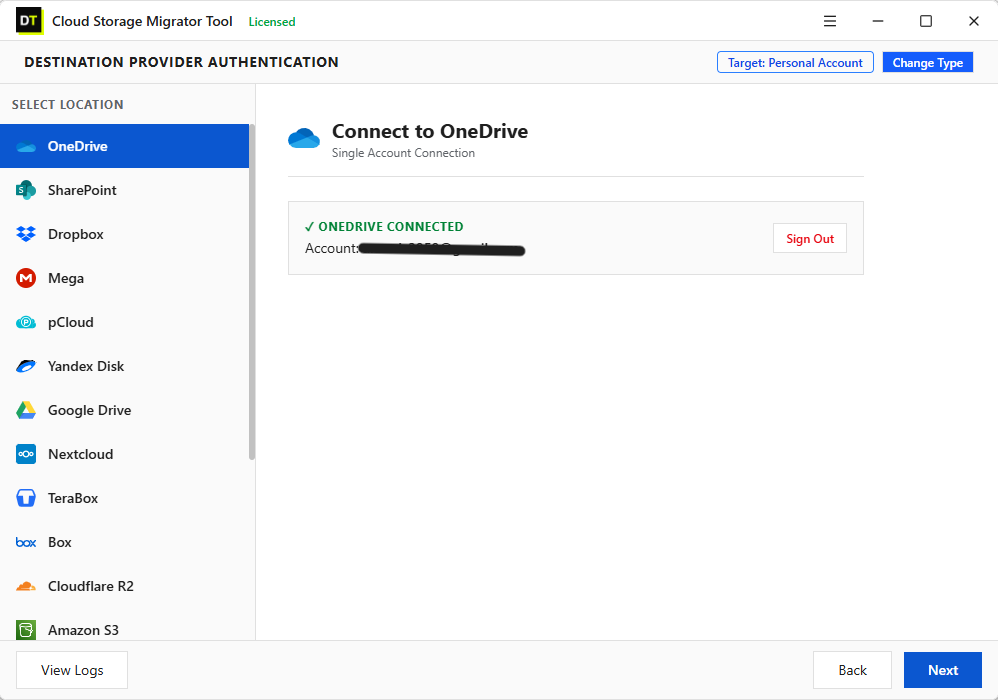
 6. Sign in to the destination OneDrive account, the Microsoft 365 account that should receive the files.
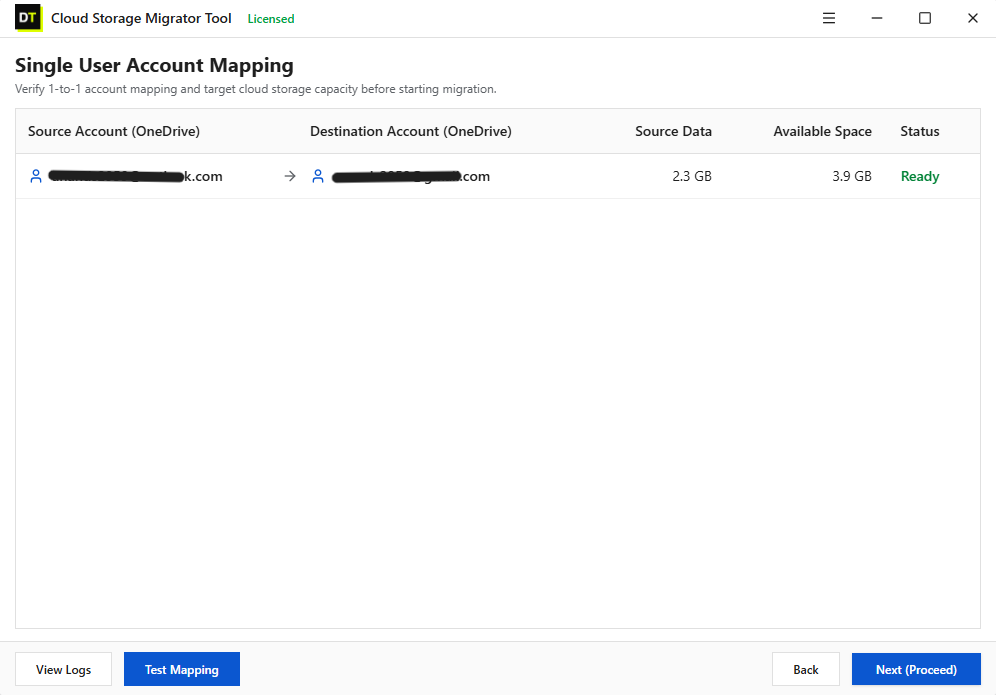
 7. Use Mapping to decide where each source folder will land. You can map by hand or with a CSV file.
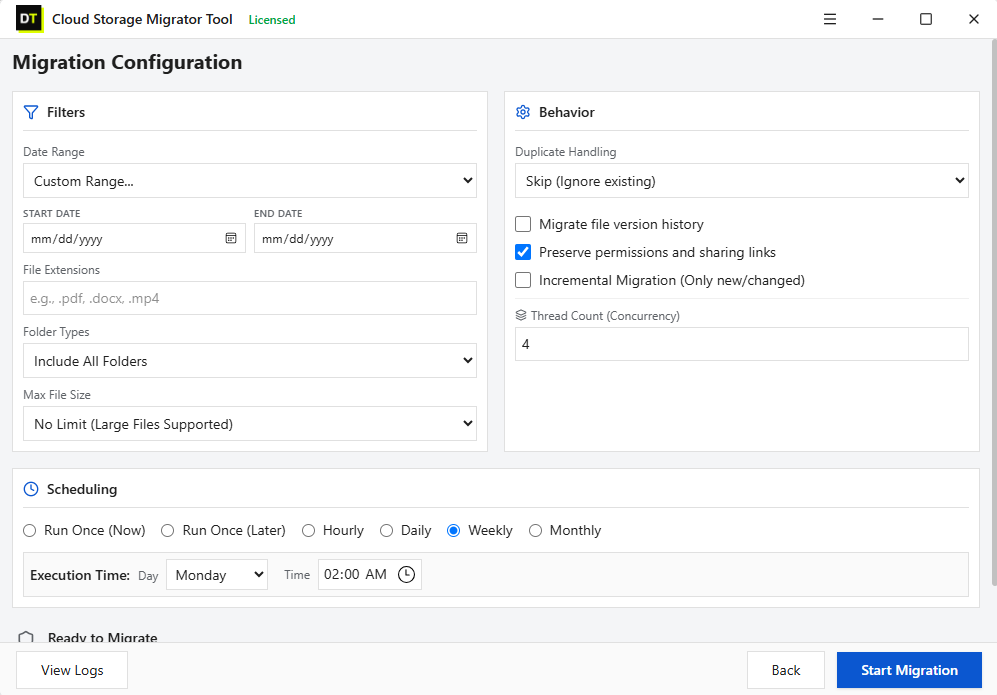
 8. In Configure Migration, choose what to do when a file already exists (skip, rename or replace), and set options such as incremental runs or a schedule.
 9. Start the migration and watch the progress. When it finishes, export the job report to see what moved, what was skipped and what failed.
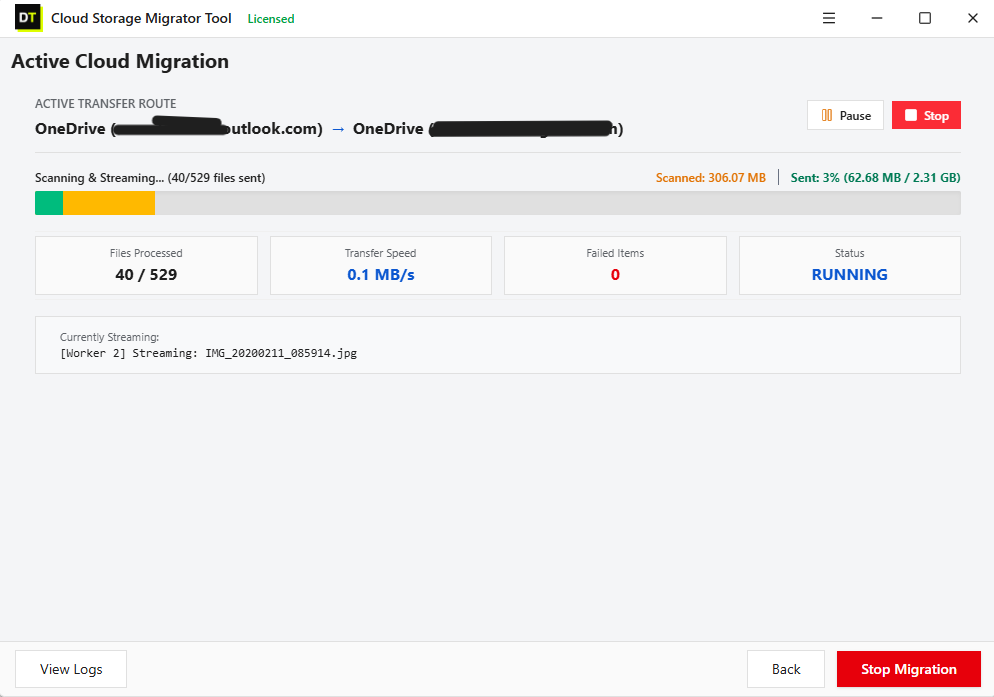 Keep the PC switched on and connected while the job or schedule is running.
Try It First
The free trial moves up to 500 MB in total, with each file under 20 MB. Run a small test with a few folders, check the result in the new account, and then buy the licensed version for the full move.
Download the free trial or see the OneDrive Migration Tool page.
All Methods Side by Side
| Feature / Criteria | File Explorer copy | Download and upload | Microsoft cross-tenant | DT OneDrive Migration Tool |
|---|---|---|---|---|
| Best for | Small personal data | A few folders | Company tenant moves | Personal and business, any size |
| Admin rights needed | No | No | Yes | No |
| Extra license | No | No | Yes | Tool license |
| Uses your PC and bandwidth | Yes | Yes | No | No, files move cloud to cloud |
| Choose folders before moving | Manual | Manual | By user account | Yes, with preview and filters |
| Resume and schedule | No | No | Limited | Yes |
| Job report | No | No | Status commands | Yes, exportable |
What Moves and What Does Not
Files and folders move across in any method. Some OneDrive extras behave differently, so check them after the move:
- Sharing links and permissions: A transfer of files does not always recreate who could open them. After the move, check access on important folders and share again where needed.
- Version history: Older versions may or may not come across depending on the method. If you need them, include a version test in your trial run.
- Shortcuts and special items: Test these separately before the full move.
- Files that are Microsoft 365 documents: Open a few Word, Excel and PowerPoint files in the new account to confirm they open and save normally.
Common Mistakes to Avoid
- Moving everything when you only need current work.
- Deleting the old account before checking the new one.
- Skipping a small test run.
- Forgetting to decide what happens when a file with the same name already exists.
- Not telling teammates their shared links may need updating.
Frequently Asked Questions
Can I move files from a personal OneDrive to a work or school OneDrive?
Yes. You can copy files by hand for small amounts, or use a migration tool that supports personal and business account paths. Agree with your organization first on which files are allowed in the work account.Can I transfer OneDrive data to another account without downloading it?
Yes. A cloud to cloud tool moves files directly between the two accounts, so they do not pass through your computer's storage.How long does a OneDrive to OneDrive transfer take?
It depends on the data size, the number of files and your provider's speed. Many small files take longer than a few large ones. A resumable tool helps because a stopped job continues instead of starting over.Will my old OneDrive files be deleted after the move?
No. Copying leaves the original files in place. Delete them only after you have checked the new account and have approval if the files belong to your organization.Can I merge two OneDrive accounts into one?
Yes. Move the folders you want from each source account into separate folders in one destination account, then check for duplicates. Use clear folder names so nothing gets mixed up.Do I need to be an admin to move OneDrive data?
Not for your own accounts. Admin rights are needed for Microsoft's cross-tenant migration, which moves users between organizations.Is there a free way to do this?
Copying in File Explorer and download and upload are free, but they are slow for large data. For bigger moves, a tool with a free trial lets you test the process first.Conclusion
For a few files, copying between two OneDrive folders is enough. For company-wide tenant moves, Microsoft's cross-tenant route is available to admins who have the license. For everything in between, a direct cloud to cloud tool saves the most time and effort.
To move your OneDrive data safely, start with a small test in DT OneDrive Migration Tool, check the result, and then run the full job.
Related: DT Cloud Storage Migrator Tool, DT SharePoint Migration Tool, DT OneDrive Duplicate Finder