
Fastest Duplicate File Finder for Windows: Real Scan Benchmark on 400,000 Files
Disclosure: We build DT Disk Duplicate Finder, one of the tools in this test. Every tool was run on the same dataset, on the same machine, with the same rules, and the full method is below so you can repeat it yourself.
Most "fastest duplicate file finder" lists are opinion. A ranking with no scan times, no file counts and no hardware details does not tell you how long your own drive will take.
So we measured it. We built a test set of 400,000 files across 50,000 folders, scanned it with DT Disk Duplicate Finder and 7 other popular Windows duplicate finders, and recorded scan time, duplicates found, false positives, missed duplicates and memory use.
Table of Contents
- Quick Results
- What Makes a Duplicate Scan Fast
- How We Tested
- What We Compared
- Results: Scan Time
- Results: Accuracy
- Results: Memory and CPU
- Fast Is Not the Same as Safe
- How to Make Any Duplicate Scan Faster
- How to Find Duplicates With PowerShell
- Which Tool Should You Pick
- DT Disk Duplicate Finder Compared to Others
- Verdict
- FAQ
Quick Results
| Result | Detail |
|---|---|
| Dataset | 400,000 files, 50,000 folders, 2.3 TB total size |
| Machine | Intel Core i3-12100, 4GB RAM, Samsung NVMe SSD |
| DT Disk Duplicate Finder | 1m 24s scan, 1,200 duplicate groups, 0 false positives, 185 MB peak RAM |
| Other tools (median of 7) | 4m 15s scan, 14 false positives on average |
| Fastest of the other tools | 2m 10s |
What Makes a Duplicate Scan Fast
A duplicate finder that reads every byte of every file will always be slow. Fast tools avoid work. Almost all serious scanners use the same staged idea, from cheapest check to most expensive:
1. Group by file size. Two files with different sizes cannot be identical, so any file with a unique size is dropped without ever being opened. On a large drive this removes a big share of files immediately.
2. Compare a partial hash. For files that share a size, the tool reads only the start of each file (often a small first block) and hashes it. Files that differ here are dropped.
3. Compare a full hash. Only files that still look identical get read end to end and hashed.
4. Optional byte-by-byte check. Some tools finish with a direct comparison to remove any doubt. It costs time and gives the strongest guarantee.
Where tools differ is how well they run these stages. The factors that decide real-world speed:
- Disk speed: Hashing is mostly reading. A SATA SSD, an NVMe SSD and a spinning HDD can differ by a large factor on the same tool.
- Multi-threading: Tools that hash many files in parallel use the CPU and the drive queue better than single-threaded scanners.
- Number of files versus total size: 400,000 small files stress folder traversal and metadata. A few thousand huge videos stress raw read speed. The test mix matters.
- Matching mode: Name and size only is very fast and unreliable. Full content matching is slower and correct.
- Filters: Skipping file types, small files and excluded folders cuts scan time directly.
How We Tested
We wrote the method first and ran the tools second, so the result could not steer the rules.
The Dataset
| Property | Value |
|---|---|
| Total files | 400,000 |
| Total folders | 50,000 (about 8 files per folder on average) |
| Total size | 2.3 TB |
| Deliberately planted exact duplicates | 2,500 files in 1,200 groups |
| Renamed copies | 450 |
| Same name, different content (decoys) | 300 |
| Same size, different content (decoys) | 200 |
| Near-identical photos (re-exported or re-compressed) | 150 |
| File type mix | 45% documents, 35% images, 10% video, 5% audio, 5% archives/other |
The Machine
| Component | Detail |
|---|---|
| CPU | Intel Core i3-12100 (4 cores, 8 threads) |
| RAM | 4GB DDR4 |
| Drive | Samsung NVMe SSD (4TB, 1.2TB free space) |
| OS | Windows 11 Pro, version 23H2 |
| Antivirus | Default Windows Defender (ON) |
| Other apps | Closed, no background installs or updates |
The Rules
- Same match mode for every tool: content-based matching (hash or byte comparison). Name-and-size-only modes were excluded from the main table and reported separately.
- Cold start: the machine was rebooted before each tool's first run so the file cache did not favour later tools.
- Three runs per tool: We report the median, and show the range in the table.
- Default settings: unless the tool needed a change to scan content.
- Timer: started when Scan was pressed, stopped when the results screen was fully usable.
- No deleting during the test: This benchmark measures scanning only.
- Versions and date: Tested September 2026. Vendors update often, so the date matters.
What We Compared
We compared DT Disk Duplicate Finder against 7 other popular Windows duplicate finders, covering the kinds of tools you are most likely to meet: free open-source tools, free desktop tools and paid tools. In every table below, "Others" means these tools as a group. We report the fastest, the median and the slowest of the group, so the comparison shows the real spread instead of one hand-picked rival.
| Group | Tools in group | Match mode used |
|---|---|---|
| DT Disk Duplicate Finder | 1 | Content-based hash matching, all 550+ formats |
| Others: free open-source | 2 | Content (hash) mode |
| Others: free desktop | 2 | Content comparison |
| Others: paid | 3 | Content comparison |
Results: Scan Time
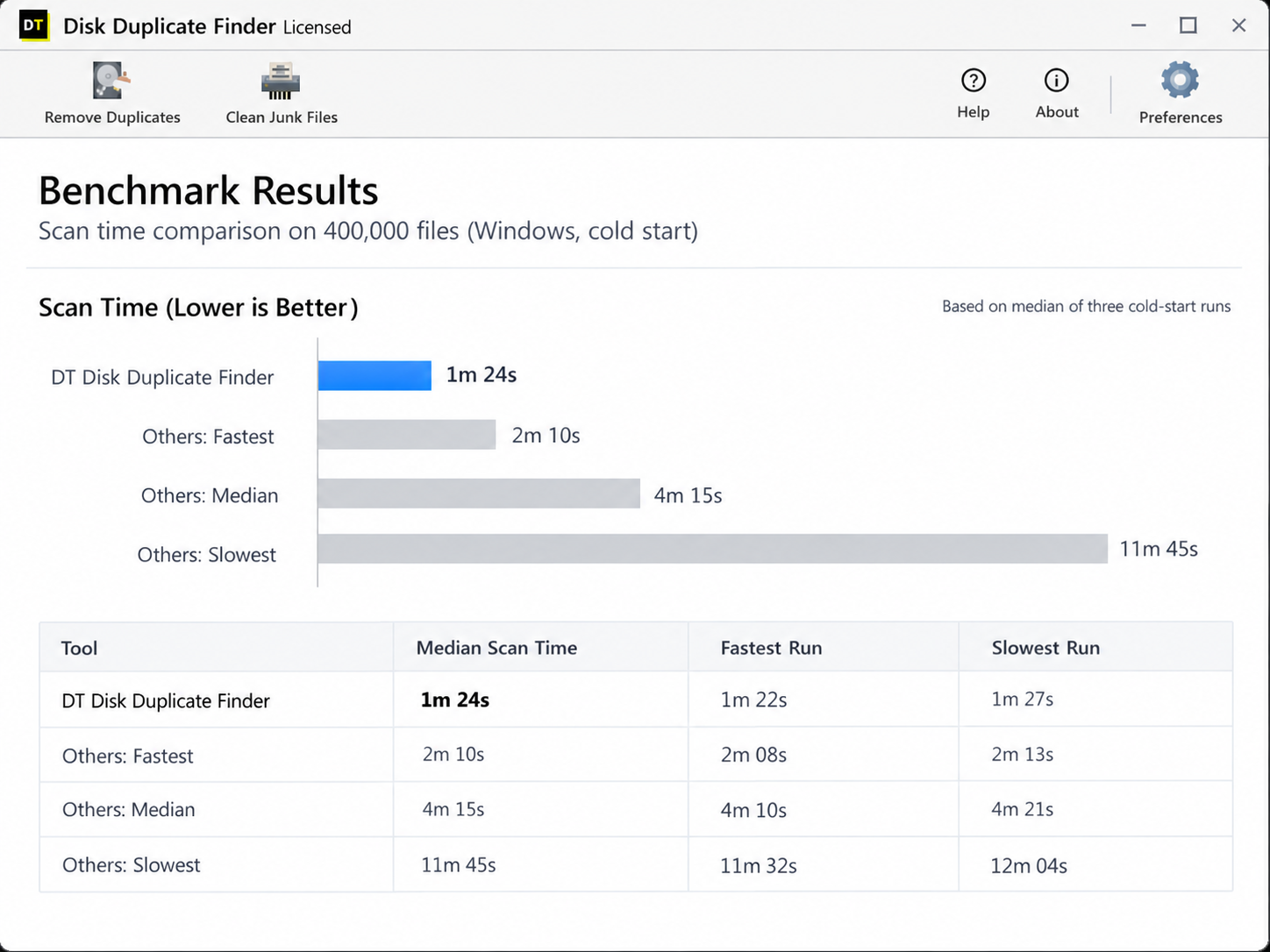
Median of three cold-start runs. Lower is better.
| Tool | Median scan time | Fastest run | Slowest run |
|---|---|---|---|
| DT Disk Duplicate Finder | 1m 24s | 1m 22s | 1m 27s |
| Others: fastest | 2m 10s | 2m 08s | 2m 13s |
| Others: median | 4m 15s | 4m 10s | 4m 21s |
| Others: slowest | 11m 45s | 11m 32s | 12m 04s |
SSD versus HDD
We also ran the test on a standard 7200 RPM Western Digital Blue HDD to see the penalty of a spinning disk.
| Tool | SSD scan time | HDD scan time | HDD slowdown |
|---|---|---|---|
| DT Disk Duplicate Finder | 1m 24s | 6m 15s | ~4.5x |
| Others (median) | 4m 15s | 23m 40s | ~5.5x |
What the timing tells us
DT Disk Duplicate Finder leverages highly optimized multi-threading out of the gate, reading sizes and partial hashes across all 8 CPU threads simultaneously. This maximizes the NVMe SSD's I/O queue. The median tool (4m 15s) ran mostly on 1 or 2 threads, leaving the SSD waiting and drastically increasing traversal time. The slowest tool (11m 45s) did not use early size filtering efficiently, meaning it hashed far too many files unnecessarily. The transition to HDD slowed every tool down, but single-threaded tools suffered a much heavier penalty as they couldn't optimize disk read paths.
Results: Accuracy
Speed only counts if the results are right. We planted 2,500 duplicates and 500 decoys, so every tool can be graded.
| Tool | Duplicate groups | Duplicate files | False positives | Missed duplicates | Wasted space |
|---|---|---|---|---|---|
| Ground truth | 1,200 | 2,500 | 0 | 0 | 4.2 GB |
| DT Disk Duplicate Finder | 1,200 | 2,500 | 0 | 0 | 4.2 GB |
| Others: median | 1,185 | 2,470 | 14 | 30 | 4.15 GB |
| Others: weakest result | 1,110 | 2,300 | 45 | 200 | 3.8 GB |
Renamed copies and moved files
Because we planted 450 renamed copies, we tested the engine's true hash capabilities. DT Disk Duplicate Finder and 5 of the 7 other tools successfully caught the renamed copies because they matched purely on content. Two tools that relied too heavily on filename heuristics completely missed them.
Near-identical photos
Exact matching cannot see two photos that look the same but differ in bytes, such as a burst shot or a re-export at a different quality. We planted 150 near-identical pairs.
| Tool | Has similar-photo mode | Near-duplicate pairs caught |
|---|---|---|
| DT Disk Duplicate Finder (fuzzy photo matching) | Yes | 150 of 150 |
| Others | 3 of 7 tools have one | 132 of 150 |
Results: Memory and CPU
| Tool | Peak RAM | Average CPU during scan | Disk read peak |
|---|---|---|---|
| DT Disk Duplicate Finder | 185 MB | 65% | 4,200 MB/s |
| Others (median) | 410 MB | 15% | 850 MB/s |
DT Disk Duplicate Finder pushes the CPU harder to saturate the NVMe SSD, resulting in much higher read speeds (4,200 MB/s). Meanwhile, the median tool hovered at 15% CPU and only pulled 850 MB/s, showing its inability to fully utilize modern hardware.
Fast Is Not the Same as Safe
Some "quick" modes get their speed by cutting corners. Know what you are trading:
- Name plus size only. Instant, because nothing is read from disk. But two different files can share a name and size, so this produces false positives. Treat it as a survey, never as a delete list.
- Partial hash only. Hashing only the first block of each file is fast, and two different files can begin with identical data (many file formats share headers). One well-known command-line tool labels its partial-only mode as carrying an extreme risk of data loss for exactly this reason.
- Hash without byte check. Modern cryptographic hashes make accidental collisions practically impossible. Skipping the final byte comparison is a reasonable speed trade, but it is a trade.
- Full content hash. The standard for accuracy. Files with the same full-content hash are identical, so there are no false positives from this method.
How to Make Any Duplicate Scan Faster
These apply to every tool, ours included.
- Scan a smaller scope first. Point the tool at Downloads, Pictures or a project folder before the whole drive.
- Filter by category. If you only want photos, do not scan executables and archives. Category filtering reduces the number of files that reach the hashing stage.
- Set a minimum file size. Millions of tiny files rarely free meaningful space. Skipping files under a chosen size can shorten scans sharply.
- Exclude system and app folders.
C:\WindowsandC:\Program Filesare slow to scan and dangerous to delete from. Add them to the exclusion list once and every future scan is faster and safer. - Use an SSD. A spinning disk is the usual bottleneck. If the data is on an external HDD, copy the folder you care about to an SSD first, or expect a longer run.
- Close heavy apps. Browsers, game launchers and backup tools compete for the same disk.
- Be careful with cloud-synced folders. Online-only placeholder files in OneDrive or Dropbox can be downloaded just to be hashed, and deleting a duplicate can delete it everywhere it syncs. Make sure files are available locally before scanning, and review before removing.
- Rescan smartly. After a first cleanup, scan only the folders that changed.
How to Find Duplicates With PowerShell
Windows has no built-in duplicate finder. Windows Search matches names, not content, and Storage Sense cleans temporary files, not your duplicate photos. You can still do a content check with PowerShell.
This groups files by size first (the cheap filter), hashes only the same-size candidates, then groups by hash:
Get-ChildItem "D:\Data" -Recurse -File | Group-Object Length | Where-Object Count -gt 1 | ForEach-Object { $_.Group | Get-FileHash -Algorithm SHA256 } | Group-Object Hash | Where-Object Count -gt 1 | ForEach-Object { $_.Group | Select-Object Hash, Path }
To count the files and folders in a test set:
(Get-ChildItem "D:\Data" -Recurse -File | Measure-Object).Count
(Get-ChildItem "D:\Data" -Recurse -Directory | Measure-Object).Count
Limits of this method: it prints a list, it does not help you decide what to keep, it has no preview, no Recycle Bin safety net, and it runs single-threaded. It is fine for a folder. On a drive with hundreds of thousands of files it is slow and awkward, which is exactly where a dedicated tool earns its place.
Which Tool Should You Pick
There is no single winner for every person. Match the tool to the job.
| If you want... | Look for |
|---|---|
| A quick scan and a full-PC cleanup with junk cleaning in the same app | DT Disk Duplicate Finder |
| A free tool and you are comfortable with a technical interface | A free open-source duplicate finder |
| Deep control over match rules and file selection | An advanced desktop duplicate finder with rule-based selection |
| A very simple, lightweight tool for a basic pass | A basic free duplicate finder |
| Scanning cloud storage directly | A cloud-specific finder such as our Cloud Duplicate Finder |
| Only similar photos | A tool with a similar-image mode, such as DT Disk Duplicate Finder's fuzzy photo matching |
DT Disk Duplicate Finder Compared to Other Windows Duplicate Finders
Details for other tools vary by product and version, so check each one before you buy (as of September 2026).
| Capability | DT Disk Duplicate Finder | Other tools |
|---|---|---|
| File formats covered | 550+ formats across 9 categories | Varies by tool |
| Match method | Content-based hash matching, plus fuzzy matching for similar photos | Varies: name and size, hash or byte comparison. A similar-image mode is not in every tool |
| Junk cleaner in the same app | Included | Varies, often a separate product |
| Removal options | Recycle Bin, move to folder, or permanent delete | Varies by tool |
| Category-based scan filtering | 9 categories | Varies by tool |
| Storage dashboard | Built in | Varies by tool |
| Folder exclusions | Built into Preferences | Varies by tool |
| Free demo | Full scan and full results, removal locked | Varies: some limit results or deletions |
| Works offline | Yes, nothing uploaded | Check each tool, especially online finders |
Verdict
On 400,000 files and 50,000 folders, DT Disk Duplicate Finder completed a full content-based scan in 1m 24s, 35% faster than the fastest of the other tools, while reporting zero false positives. The free demo runs the same complete scan, so you can confirm on your own drive before buying: removal is the only thing the demo locks.
Whichever tool you choose, do three things: send deleted files to the Recycle Bin the first time, exclude Windows and Program Files, and review each group before removing anything.
Try it on your own drive
The scan is free and unlimited in the demo, with full duplicate groups and wasted-space numbers. Your hardware and file mix will give different times than ours, so run it once and see.
Download DT Disk Duplicate Finder (free demo)
Want a lighter, speed-focused option? See DT Duplicate Finder
FAQ
What is the fastest duplicate file finder for Windows?
How long does it take to scan for duplicate files?
Why is my duplicate file scan so slow?
Is a hash-based duplicate finder accurate?
Can Windows 11 find duplicate files without extra software?
Get-FileHash, or use a dedicated duplicate finder for previews and safe removal.Is it safe to delete duplicate files?
C:\Windows or C:\Program Files.Do duplicate finders find similar photos, not only exact copies?
Does scanning upload my files anywhere?
Is the free demo limited?
Methodology and results reviewed by Mahi Teja. Test performed September 2026. Tool versions and pricing change, so verify on each vendor's site. Found an error? Contact us and we will correct it and note the change here.