
Yes, you can repair a PST file for free. The real free options are Microsoft’s Inbox Repair Tool (ScanPST.exe), importing the damaged file into a fresh PST, restoring a backup, and fixing the drive problem that caused the damage. They work well for light damage. For heavy damage, very large files or missing emails, free options often run out of road, and that is where a free demo of a repair tool becomes useful.
This guide shows each free method in plain steps, tells you honestly where it stops working, and helps you decide in a few minutes whether free is enough for your file. You do not need to be technical to follow it.
In this guide
- What a PST file is, in plain English
- A 60 second check: is your PST really corrupt?
- Before you repair anything: make a copy
- Seven free ways to repair a PST file
- What does not work, or is risky
- Free vs paid: how to decide
- When free is not enough: DT Advance Outlook PST & OST Repair
- How to check that the repair worked
- How to stop it from happening again
- Frequently Asked Questions
What Is a PST File? A Simple Way to Think About It
Imagine a big filing cabinet. Your emails, contacts, calendar entries and attachments are the papers inside. Next to the cabinet sits a small index book that says which paper is in which drawer. A PST file is that whole setup packed into one file on your computer.
When people say “my PST is corrupt”, in most cases the index book is damaged, not the papers. Outlook reads the index, gets confused, and shows an error or freezes. That is good news, because an index can often be rebuilt. The papers are usually still there.
The bad news is that the damage can also reach the papers, especially when the file is very large or the disk is failing. That is why some repairs work in a minute and others do not work at all.
A 60 Second Check: Is Your PST Really Corrupt?
Not every Outlook problem is a damaged PST. Check this table before you repair anything.
| What you see | What it usually means | Start with |
|---|---|---|
| Message: Errors have been detected in the file | Damaged index inside the PST | Method 1 (ScanPST) |
| Message: The file is not a Personal Folders file | The file header is damaged | Method 1, then Method 2 or a repair tool |
| Message: Outlook data file cannot be opened | Damage, or the file is locked or in a bad location | Method 5, then Method 1 |
| Outlook freezes or says Not Responding when you open it | Very large PST, slow disk or damage | Method 5, then Method 1 |
| Emails or folders are missing | Damage or accidental deletion | Method 3, then Method 1 |
| Outlook works, but only one folder is broken | Local damage in that folder | Method 2 |
| Outlook is slow with an Exchange, Microsoft 365 or IMAP account | The OST cache is out of sync | Method 4 |
Before You Repair Anything: Make a Copy
Every repair, free or paid, changes or reads your file. A copy protects you if something goes wrong. It takes two minutes.
- Step 1: Close Outlook completely. Make sure it is not still running in the background.
- Step 2: Find the file. In Outlook, go to File, Account Settings, Account Settings and open the Data Files tab. It lists every PST and OST with its location. The Open File Location button takes you straight to it.
- Step 3: Copy the file to another drive, a USB disk or another folder. Copy, do not move.
- Step 4: Do the repair on the copy, or at least keep the copy safe until you are sure everything is back.
Seven Free Ways to Repair a PST File
The methods below go from the most common to the more specialised. Start at the one that matches your symptom from the table above.
Method 1: Repair the PST with ScanPST.exe (the Inbox Repair Tool)
ScanPST is Microsoft’s own free repair tool. It checks the structure of your PST and fixes the index problems it finds. It comes with Outlook, so if Outlook is installed, you already have it.
- Step 1: Close Outlook.
- Step 2: Open the folder where Outlook is installed. For Microsoft 365, Outlook 2024, 2021, 2019 and 2016 it is usually
C:\Program Files\Microsoft Office\root\Office16, or the same path under Program Files (x86) on a 32-bit Office. Some installs use the Office16 folder without the root folder. Older versions use Office15 or Office14. - Step 3: Double-click SCANPST.EXE.
- Step 4: Click Browse and choose your PST (use the copy).
- Step 5: Click Start. The tool may show “Not Responding” during the scan on big files. That is normal, wait for it.
- Step 6: If it finds errors, tick the option to make a backup of the scanned file, then click Repair.
- Step 7: Open Outlook and add the repaired file through File, Open & Export, Open Outlook Data File.
- Step 8: Look for a folder named Lost and Found. Items that ScanPST could not place back in their old folders often end up there. Move them back by hand.
- Step 9: If it still shows errors, you can run the scan once or twice more. If it keeps failing, stop and move to the next method.
- Where it works well: small and medium files, simple index errors, the message “Errors have been detected in the file”.
- Where it stops: very large files (it can hang for hours or fail), badly damaged files, and files where it says it does not recognise the file. It also repairs the file in place, gives no preview and does not bring back deleted emails.
Method 2: Import the Damaged PST into a Fresh PST
This method needs no extra tool. You make a clean new PST and ask Outlook to copy everything it can read from the damaged one. Outlook reads item by item, so it often skips the broken part and saves the rest.
- Step 1: In Outlook, create a new empty PST: Home, New Items, More Items, Outlook Data File. Give it a new name.
- Step 2: Go to File, Open & Export, Import/Export.
- Step 3: Choose Import from another program or file, then Outlook Data File (.pst).
- Step 4: Browse to the damaged PST. When Outlook asks about duplicates, choose the option that does not import duplicates.
- Step 5: Select the top folder, tick Include subfolders, and choose to import into the new PST.
- Step 6: Let it finish. It may stop at the damaged item. If it does, import the remaining folders one by one and leave the broken folder for last.
- Where it works well: the file opens, but one folder or a few items are broken.
- Where it stops: if Outlook cannot open the file at all, this method cannot start.
Method 3: Restore from a Backup or an Older Version
If you have a backup, this is often the cleanest fix, because you skip the repair entirely.
- Step 1: Right-click the folder that holds the PST in Windows and look at Previous Versions or File History.
- Step 2: Check your backup software, external drive or cloud backup.
- Step 3: Look for older copies of the PST, for example from before the problem started.
- Step 4: Open the older copy through File, Open & Export, Open Outlook Data File, and drag the missing emails into your current mailbox. You will only get what existed when the backup was made, so recent emails may still be missing. Combine this with Method 1 or 2 for the recent items.
Method 4: Rebuild the OST File (Exchange, Microsoft 365 and IMAP Accounts)
If your account is an Exchange, Microsoft 365 or IMAP account, Outlook keeps a local copy called an OST file. Your real mail is on the server, so you can often throw away the local copy and let Outlook build a fresh one.
- Step 1: Close Outlook.
- Step 2: Find the OST file using the Data Files tab, as shown earlier.
- Step 3: Copy the OST to a safe place first.
- Step 4: Rename the OST file (for example, add OLD to its name) or delete it.
- Step 5: Start Outlook. It creates a new OST and downloads your mail again from the server.
Method 5: Fix the Problem That Damaged the File
Sometimes the PST is only the victim. If the real cause is still there, the damage comes back. Check these:
- Is the PST on a network drive or a USB stick? Microsoft does not support PST files over a network, and it is one of the most common causes of damage. Move the file to a local drive.
- Is your disk healthy? Bad sectors and file system errors are well known causes of corruption. In Windows you can run a disk check on the drive that holds the PST.
- Is the PST huge? Very large files, especially old ANSI files near their 2 GB limit, are fragile and slow. A repair tool can help you split them.
- Is there antivirus or sync software touching the file? Backup or sync tools that open the PST while Outlook is running can damage it. Exclude the PST folder if you can.
Method 6: Use a Free Online PST Repair Service
Some software companies offer web pages where you upload a damaged PST and get a repaired result. For example, Stellar has an online PST repair service that it positions for smaller files, up to about 5 GB, and other vendors have similar pages.
Things to know before you use one:
- Your mailbox leaves your computer. A PST holds private emails, attachments and contacts. Read the privacy and deletion policy first, and do not upload work or legal mail casually.
- Size limits apply. Large files usually do not fit, or the free tier shows only a preview.
- Free often means preview. Many services show what they could recover and ask you to pay to download it.
Method 7: Use the Free Demo of a PST Repair Tool
Most serious repair tools let you scan your file and preview the result for free, and ask you to buy only if you want to save it. Think of it as a free diagnosis. It tells you whether your emails are recoverable before you spend anything.
That is useful even if you never buy, because it answers the question that matters most: is my data still in there? If the preview shows your folders and emails, you know a repair is possible. If it shows nothing, you know not to waste more time.
Be clear about one thing. A demo is free to scan and preview, but saving the repaired data usually needs the full version. It is a test drive, not a free repair.
What Does Not Work, or Is Risky
A lot of free advice online sounds good and does very little. Here is what to skip:
- Repairing Microsoft Office. The Quick Repair and Online Repair options in Windows fix Outlook the program, not your data file. They will not repair a corrupt PST.
- Reinstalling Outlook. Same reason. Your PST sits on your disk and stays damaged.
- Deleting the PST and hoping. For a PST-only account, that deletes your only copy of the mail.
- Editing the file in a hex editor. Some old guides suggest it. One wrong byte can make the file unreadable, and it is not something to try on important mail.
- Unknown “free PST repair” downloads, cracks and keygens. You are handing your mailbox to software you cannot trust. Cracked tools can also carry malware, which is a common cause of damaged files in the first place.
- Running ScanPST again and again on the only copy. Each repair changes the file. Always work on a copy.
Free vs Paid: How to Decide
| Your situation | Free is probably enough | Free is probably not enough |
|---|---|---|
| File size | Small or medium file | Very large file, 10 GB or more, or one that makes ScanPST hang |
| Damage | A simple error message, Outlook still opens | Outlook will not open it, or ScanPST says it does not recognise the file |
| Missing data | Nothing important is missing | Folders or emails are gone, or you need deleted emails back |
| Importance | A personal archive you can live without | Business mail, legal or financial records, years of history |
| Outlook | Outlook is installed and working | Outlook is not available, or the old machine is dead |
| ScanPST result | It repaired the file and your mail looks complete | It failed, or it moved lots of items into Lost and Found |
When Free Is Not Enough: Repair a PST with DT Advance Outlook PST & OST Repair
DT Advance Outlook PST & OST Repair is a Windows desktop tool built for the cases above: large files, badly damaged files, orphaned OST files and files that Outlook will not open. It reads your file in read-only mode, rebuilds the mailbox and saves the result into a new, healthy PST. You do not need Outlook installed.
Here is the full process in plain steps:
- 1. Install the free demo. Install it on your own Windows PC. It does not need Outlook or an Exchange server.
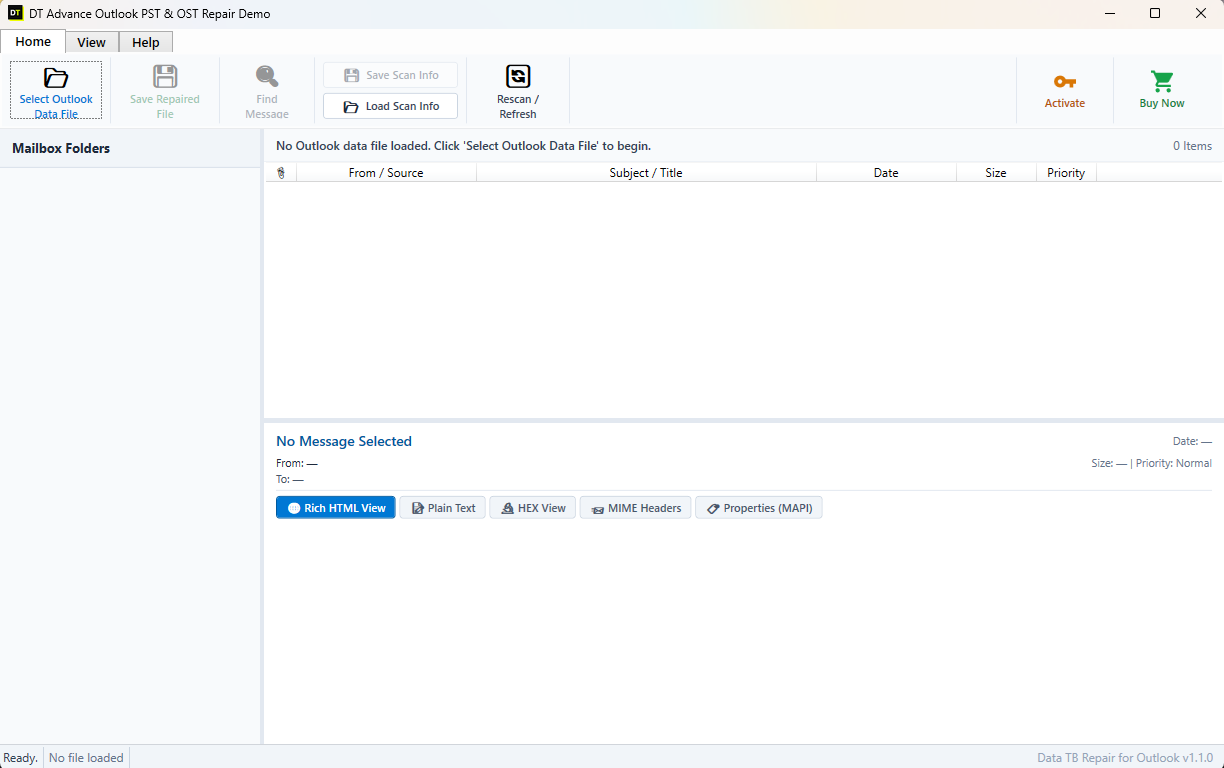
- 2. Pick your file. Click browse and choose the copy of your PST or OST. If you cannot remember where it is, the auto-detect option lists the default Outlook data files.
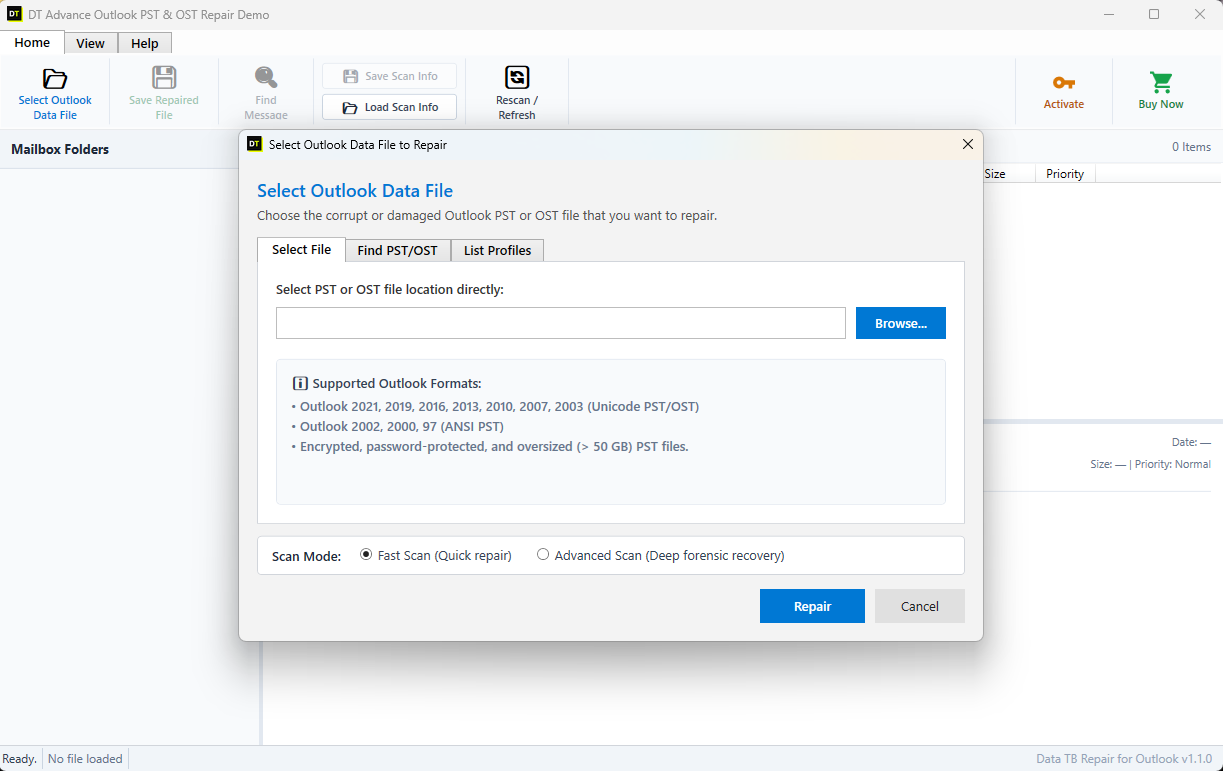
- 3. Choose a scan. Start with Fast Scan, which handles ordinary index damage quickly. If the preview looks incomplete, run Advance Scan on the same file. It goes deeper and rebuilds the mailbox from the raw records inside the file.
- 4. Preview your mailbox for free. The tool shows your folders, emails, attachments, contacts and calendar items in a layout like Outlook. Items that had been deleted are marked with a red badge, so you can see them separately. Click a few emails and open a few attachments to confirm they look right.
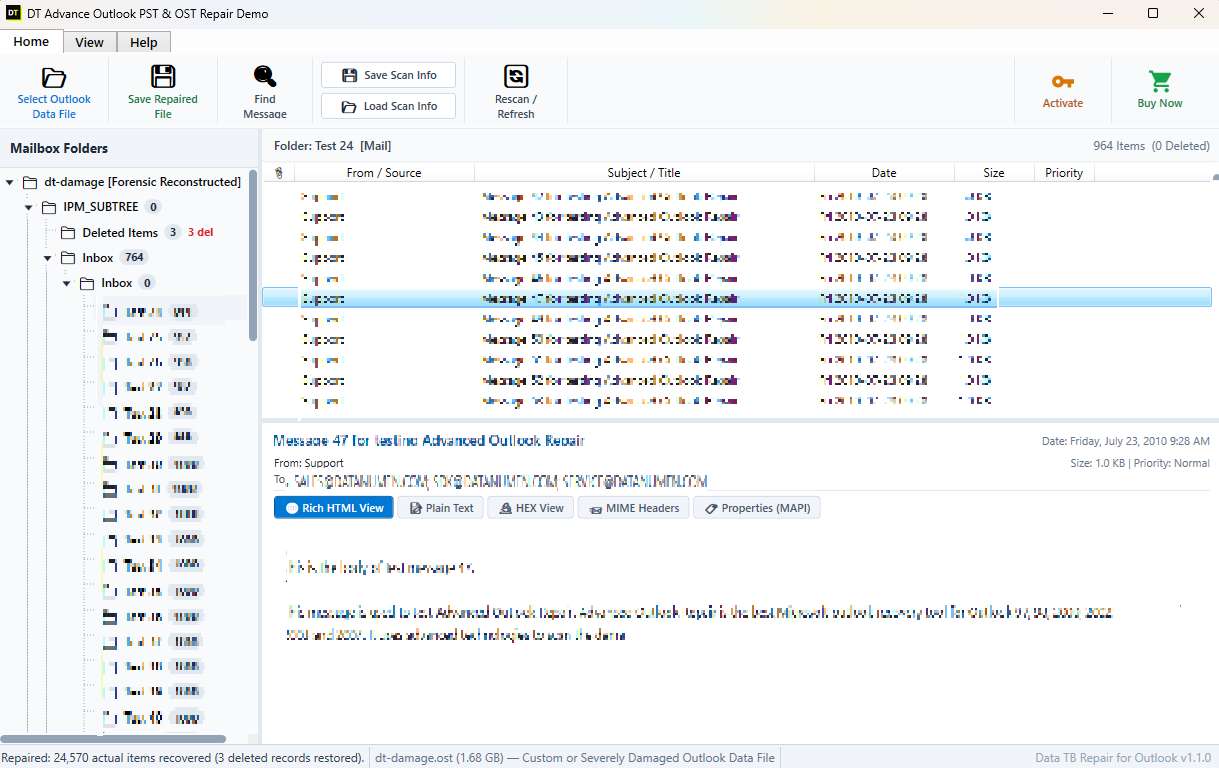
- 5. Find what you need. Use the Search Wizard and the filters for date, sender, recipient or subject, so you can bring back just one important thread if that is all you need.
- 6. Save. In the full version, click Save Repaired File and save to a new PST. You can also save emails as MSG, EML, PDF, HTML or RTF, and extract attachments. Save to a different drive from the damaged file.
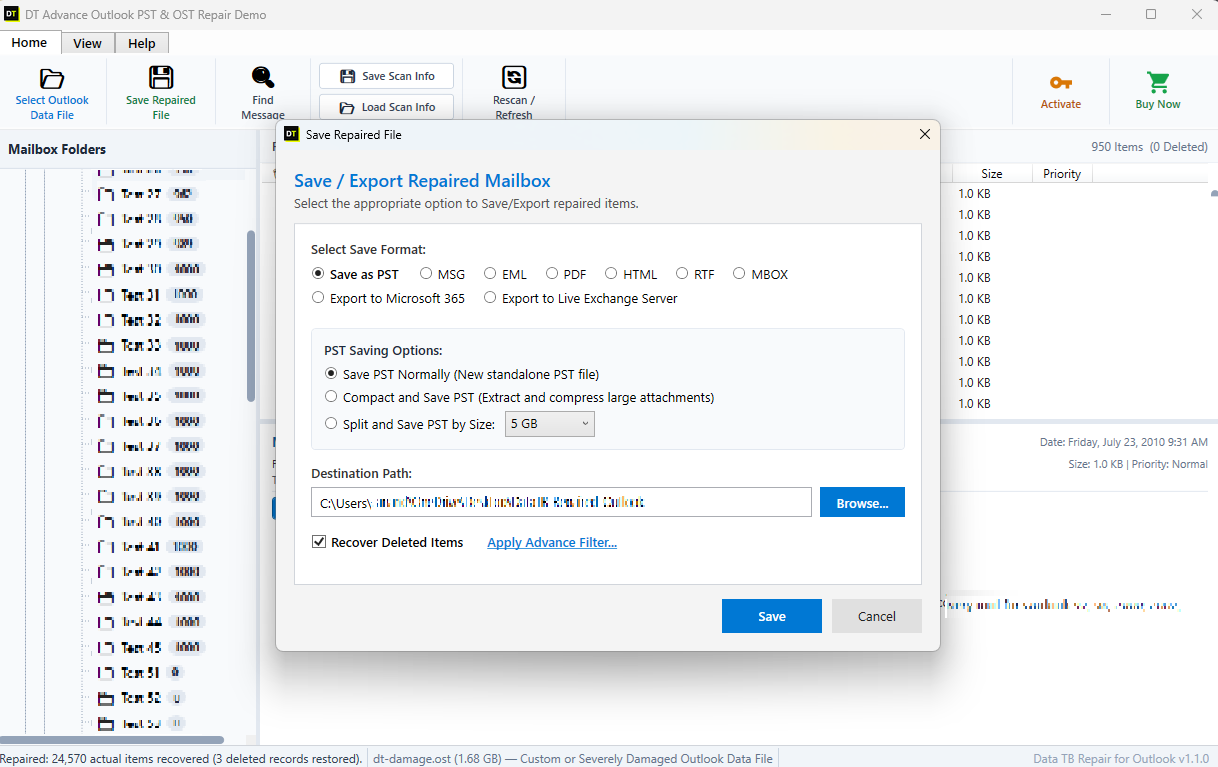
- 7. Open the new PST in Outlook. Go to File, Open & Export, Open Outlook Data File and pick the new file.
One honest note: no tool can bring back data that is physically gone. If the disk wrote over the damaged area, or only a tiny part of the file is readable, the preview will show that. The free preview is the point. You see the outcome first and decide after.
How to Check That the Repair Worked
Do not trust a repair just because the error went away. Spend five minutes on this checklist:
- Open Outlook with the repaired or new PST and check that every main folder is there.
- Compare the item count of a few big folders with your memory or an older backup.
- Search for an email you know you had from last year, and one from last week.
- Open a few emails with attachments and make sure the attachments open.
- Check the Lost and Found folder if ScanPST made one, and move items back.
- Check Contacts and Calendar, they are easy to forget.
- Make a fresh backup of the repaired file before you start using it again.
- Keep the original damaged file for a few weeks. Storage is cheap, lost email is not.
How to Stop It from Happening Again
- Keep your PST on your local drive, not on a network share or a USB stick.
- Close Outlook properly before you shut down or unplug a laptop. Power cuts during a write are a classic cause.
- Keep automatic backups of your PST on another drive or in cloud storage.
- Do not let one PST grow forever. Archive old mail into separate yearly PST files.
- Watch the file size. Old ANSI files have a 2 GB limit, and big Unicode files get slow and fragile.
- Keep your disk healthy and your antivirus up to date.
- If you can, move your mail to an Exchange or Microsoft 365 mailbox, where the server holds the real copy.
Frequently Asked Questions
Is there a free tool to repair a PST file?
Where is ScanPST.exe located?
C:\Program Files\Microsoft Office\root\Office16, or the same path under Program Files (x86). Older versions use Office15 or Office14. You can also search for SCANPST.EXE in that Office folder.Can I repair a PST file without Outlook for free?
Can I repair a large PST file for free?
Can I repair a PST file online for free?
ScanPST says it does not recognise the file. What now?
Will repairing a PST file delete my emails?
What is the Lost and Found folder after repair?
How long does ScanPST take?
Can I repair an OST file for free?
Is the free demo of a PST repair tool really free?
What if every free method fails?
Conclusion
You can repair a PST file for free, and for light damage it often works. Start with a copy. Try ScanPST, then the fresh PST import, then a backup, and fix the cause of the damage. Skip the shortcuts that do not work, like repairing Office or hex editing.
When the file is large, badly damaged or full of important mail, free methods stop being the best choice. Run a free scan first with DT Advance Outlook PST & OST Repair, look at your recovered mailbox in the preview, and decide only after you have seen the result. Scan first, decide later.
If you also lost emails on purpose or by accident, see our guide on how to recover permanently deleted emails from a PST file.