
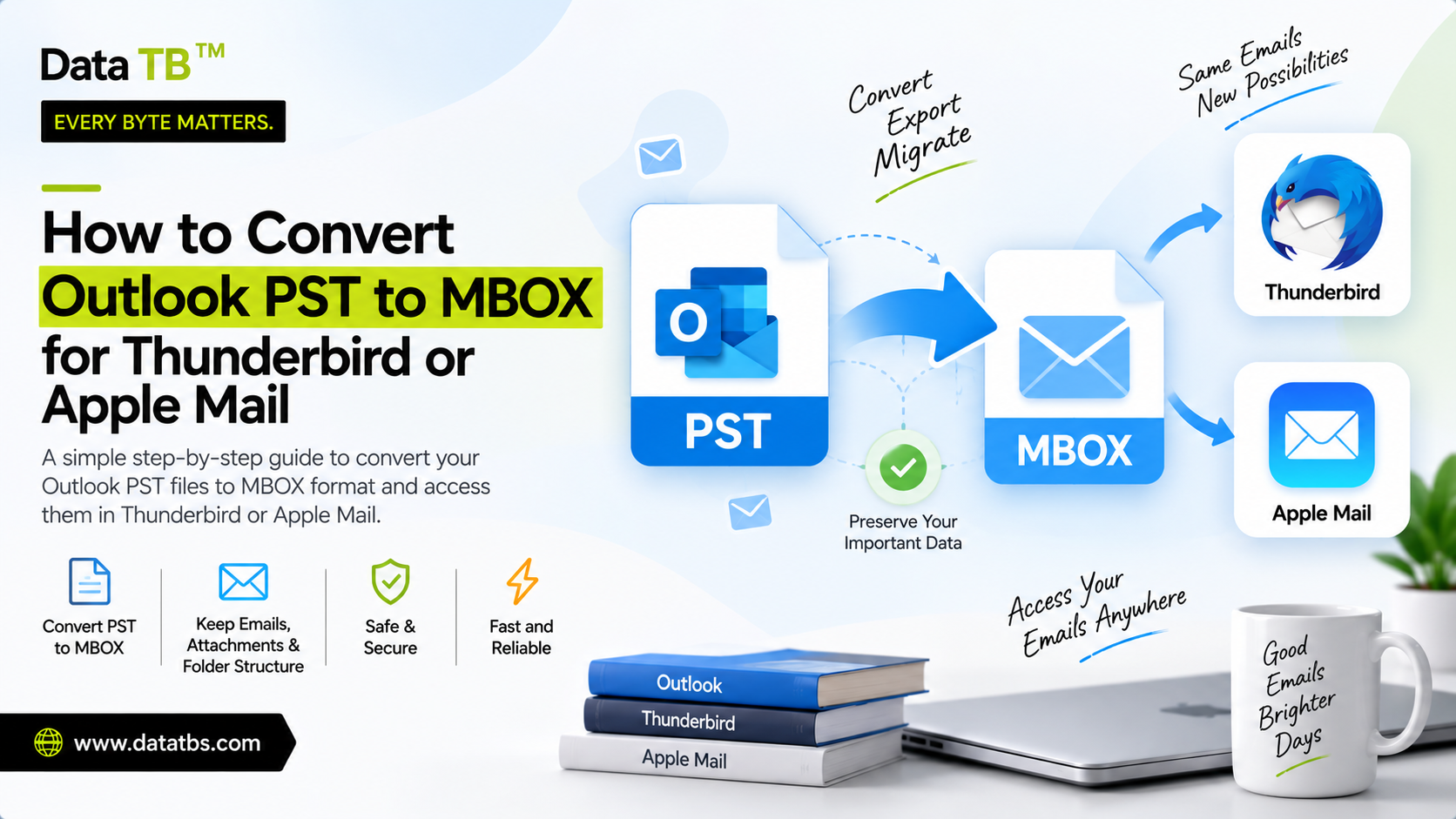
Somewhere between deciding to leave Outlook and actually reading your old emails in Thunderbird or Apple Mail, there is a file format problem that catches almost everyone off guard. Outlook keeps everything, every folder, every attachment, years of client threads, in a single PST file. Thunderbird and Apple Mail have never known what to do with a PST file, and they never will, because the two formats were built by different companies with completely different ideas about how a mailbox should be stored on disk.
This is not a settings problem. There is no checkbox in Thunderbird that suddenly makes it understand PST. The data has to be read out of one structure and rebuilt inside another, and how well that goes depends entirely on which method you use to do it.
What a PST File Actually Is
PST stands for Personal Storage Table. Microsoft designed it as a single container file where Outlook stores messages, folders, contacts, calendar entries, and attachments together, indexed internally so Outlook can jump straight to any item without scanning the whole file. That indexing is efficient for Outlook, but it is also proprietary. Nothing outside Microsoft's own ecosystem is built to read that internal structure natively, which is exactly why a PST file just sits there, unreadable, the moment you open it in anything other than Outlook.
There are two PST variants worth knowing about because they behave differently under stress. ANSI format was used by Outlook 97 through 2002 and caps out at 2GB, after which it starts throwing corruption errors even though nothing is technically wrong yet, it has simply hit its own ceiling. Unicode format, used from Outlook 2003 onward, removed that hard limit, though Outlook itself still recommends keeping PST files under roughly 50GB for performance reasons even when there is no hard cap stopping you from going bigger. If your PST file predates 2003 and is throwing size related errors, that alone often explains why Outlook has stopped cooperating with it.
What MBOX Actually Is, and Why It Is So Different
MBOX takes the opposite approach. It is not proprietary, and it is not particularly clever about internal indexing. It is a plain text file where every message is appended one after another, each one starting with a "From " line that acts as a separator between messages. This simplicity is exactly why it became the default for Thunderbird, Apple Mail, most Linux mail clients, and a long list of open source email tools going back decades. Any tool that understands the basic MBOX specification can read a file created by a completely different application, because there is no proprietary indexing layer standing in the way.
That structural gap, a binary indexed container on one side and a flat text file on the other, is why converting between them is not a rename or a simple wrapper. Every message, its headers, its attachments, and its position in the folder hierarchy has to be extracted from the PST's internal structure and rewritten in MBOX's much simpler format, folder by folder.
Method 1: The Manual Outlook Export Route
If Outlook is still installed and working, the free option is exporting through Outlook itself and finishing the conversion inside Thunderbird using an add-on.
Inside Outlook, go to File, then Open and Export, then Import or Export, choose Export to a file, and select Outlook Data File PST. This creates a fresh PST export of whichever folders you select. From there, Thunderbird does not read PST natively either, so you need ImportExportTools NG, a community maintained add-on that has become the de facto standard for pulling PST content into Thunderbird's MBOX based profile folders.
The catch is that this route depends on several things all going right at once. Outlook has to be installed and functioning normally, since the export runs through Outlook's own engine rather than reading the file independently. The PST has to be free of corruption, because Outlook's export function does not attempt any kind of repair, it simply fails or produces incomplete output if the file has structural problems. And large PST files, especially anything approaching or past that 50GB range Microsoft itself flags as a performance concern, tend to make this export slow and occasionally unreliable, with attachments or nested subfolders sometimes ending up misplaced once ImportExportTools NG finishes its pass.
None of this makes the manual route unusable. For a small, healthy PST file with a straightforward folder structure, it is genuinely free and it works. It just was not built for anything outside that narrow case.
Method 2: A Dedicated PST to MBOX Converter
A dedicated converter sidesteps the manual route entirely by reading the PST file's internal structure directly, using its own parsing engine instead of relying on Outlook to do the export first. This matters for three specific situations that the manual method handles poorly: Outlook is not installed on the machine at all, the PST file is showing signs of corruption, or the archive is large enough that a slow, fragile export process is not something you want to depend on.
DT PST Converter is built around exactly this approach. It has its own PST reading engine, so it works whether or not Outlook has ever been installed on the machine, and it supports both the older ANSI format and the newer Unicode format, covering everything from Outlook 2007 through Outlook 365.
The recovery handling is worth explaining in more detail, because this is where a dedicated converter earns its price over the free manual route. PST corruption usually starts at the header level, the section of the file that tells any reading application where each folder and message actually begins. When that header gets damaged, whether from an improper shutdown, a failing disk, or the file simply outgrowing what its own format was designed to handle gracefully, Outlook responds by refusing to open the file at all, often with a generic error that gives no indication of what is actually wrong or whether the data underneath is even recoverable. DT PST Converter's recovery mode scans for exactly this kind of header damage and attempts to reconstruct the folder and message boundaries before extraction begins, which means a file Outlook has completely given up on can often still be read and converted in full.
Size handling is the second practical difference. The engine is multi threaded and has been tested against PST files well past 100GB without the throttling or crashing that a single threaded export process tends to run into once a file gets that large.
Step by Step: Converting PST to MBOX
1. Install DT PST Converter on your Windows machine. No Outlook installation is required at any point, and once installed, the tool does not need an internet connection to run, since everything happens locally on your device.
2. Add your PST file. Drag and drop a single file directly into the interface, or point it at a folder if you have several PST files to process in one batch, which is common if you are consolidating archives from more than one old account.
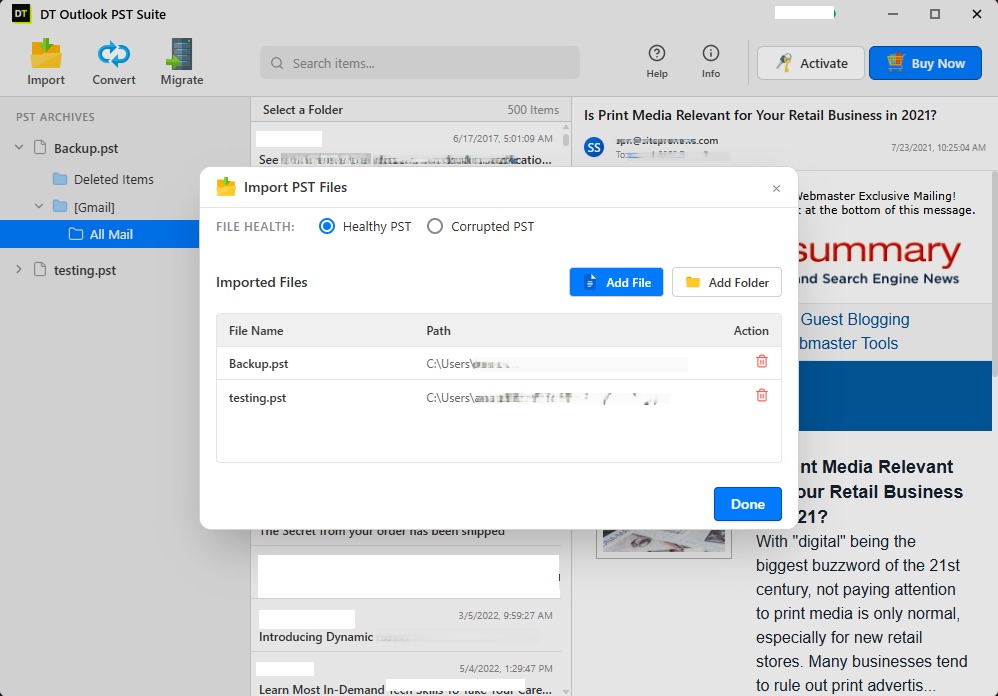
3. Preview the contents before converting anything. Every folder, email, and attachment inside the PST file is listed for review first. This step is genuinely useful rather than a formality, since it lets you filter by date range, specific folder, or item type, so you are not converting five years of an inbox when you only actually need the last eighteen months.
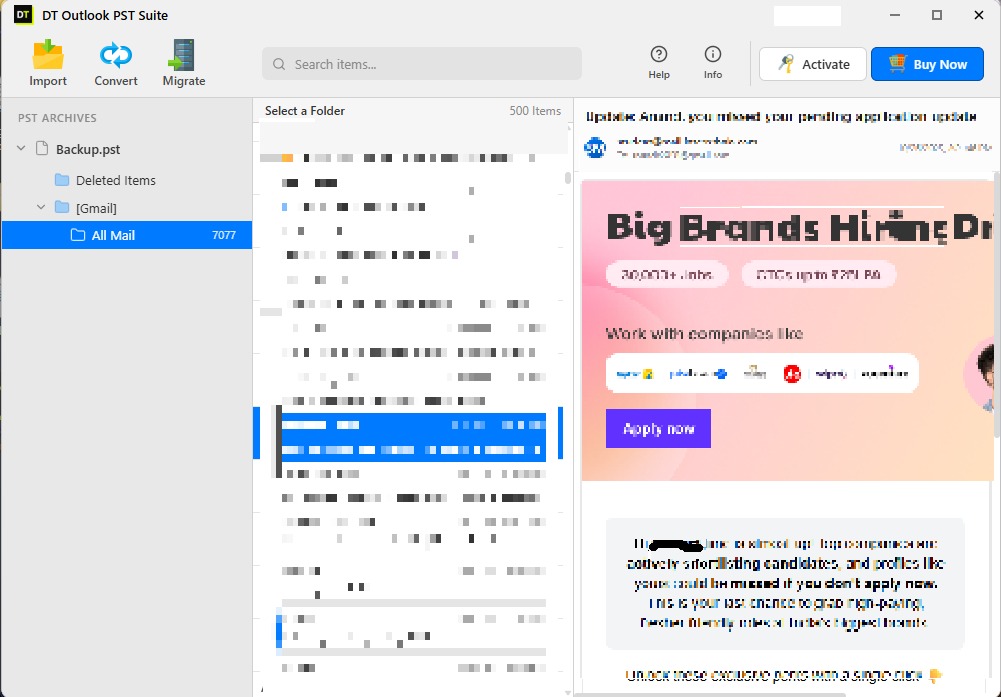
4. Select MBOX as the output format and start the conversion. Once it finishes, a conversion report is generated listing everything that was converted, skipped, or flagged, which is the first place to check if the source PST had any corruption going in.
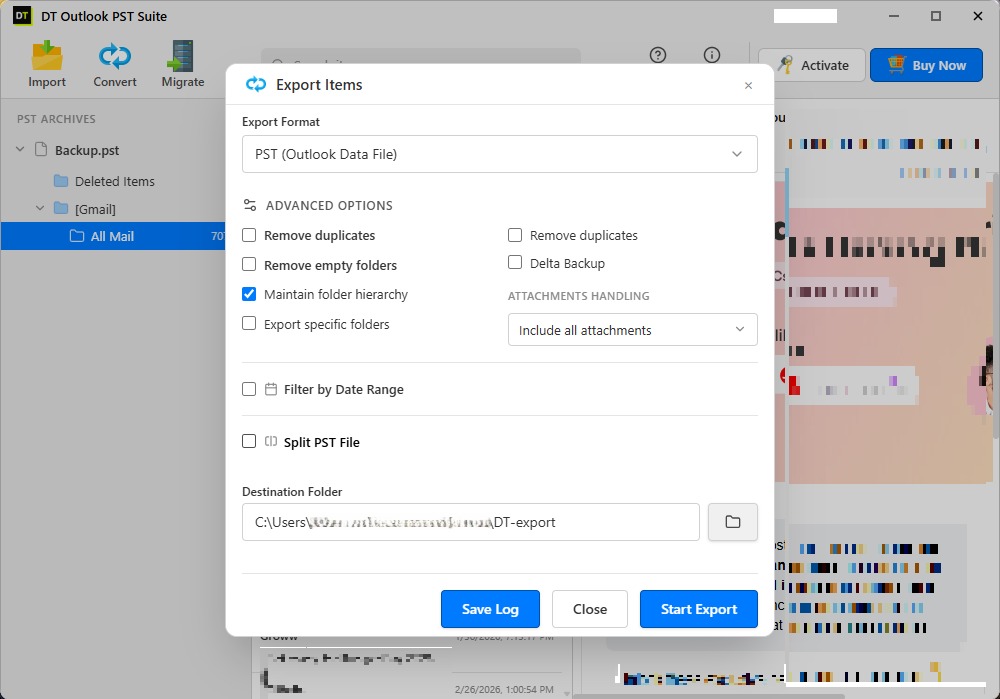
If something interrupts the process partway through, a power cut, a forced restart, anything that stops the conversion mid-run, it resumes from where it left off the next time you run it against the same file, rather than starting the entire conversion over from zero.
Once the MBOX file exists, getting it into Thunderbird or Apple Mail is the easy part. Thunderbird reads MBOX natively, it just needs to be pointed at the file through its account tools, typically via the Local Folders account and the ImportExportTools NG add-on's import option, or by placing the file directly into the profile's Mail folder structure. Apple Mail handles it even more directly, through File, then Import Mailboxes, then selecting the MBOX file, after which Apple Mail rebuilds it as a mailbox inside the app automatically.
When a PST File Will Not Open in Outlook at All
This situation deserves its own section because it is the one that tends to make people assume their data is gone. A PST file that Outlook refuses to open, often with a message about the file not being recognized as a valid personal folder file, or a scanpst.exe repair that either fails outright or reports errors it cannot fix, is not automatically unrecoverable. Outlook's own built in repair tool, scanpst.exe, is fairly limited. It handles minor structural inconsistencies reasonably well but tends to give up on anything involving deeper header corruption, and in some cases it can strip out items it cannot parse rather than recovering them.
A converter with a dedicated recovery engine approaches this differently, attempting reconstruction rather than a pass or fail repair. This is why it is worth trying on a PST file Outlook has already declared broken, since the two tools are not solving the problem the same way, and a file that scanpst.exe cannot fix is often still readable through a different parsing approach.
Choosing Between the Manual Route and a Dedicated Converter
The honest answer depends on three things: whether Outlook is currently installed and working, whether the PST file is healthy, and how large the archive actually is.
A small, healthy PST file, Outlook installed and functioning, and only one or two folders to move over is exactly the case the free manual export and ImportExportTools NG combination was built for. There is no reason to look further than that for a straightforward, low stakes migration.
Everything outside that narrow case, a PST file already throwing errors, a machine that no longer has Outlook installed, an archive large enough that a slow, unmonitored export makes you nervous, or simply wanting a single clean pass instead of chaining Outlook's export function into a Thunderbird add-on, is where a dedicated converter earns its place. It reads the file once, shows you exactly what is inside before touching anything, handles corruption that Outlook's own repair tool cannot, and hands you a proper MBOX file ready for Thunderbird or Apple Mail without any intermediate guesswork.
"Converted a 75GB PST archive straight to MBOX for Thunderbird with all nested folders intact. Flawless migration!"
"Saved a corrupted PST file that Outlook refused to open. Extracted every single email to MBOX cleanly."