
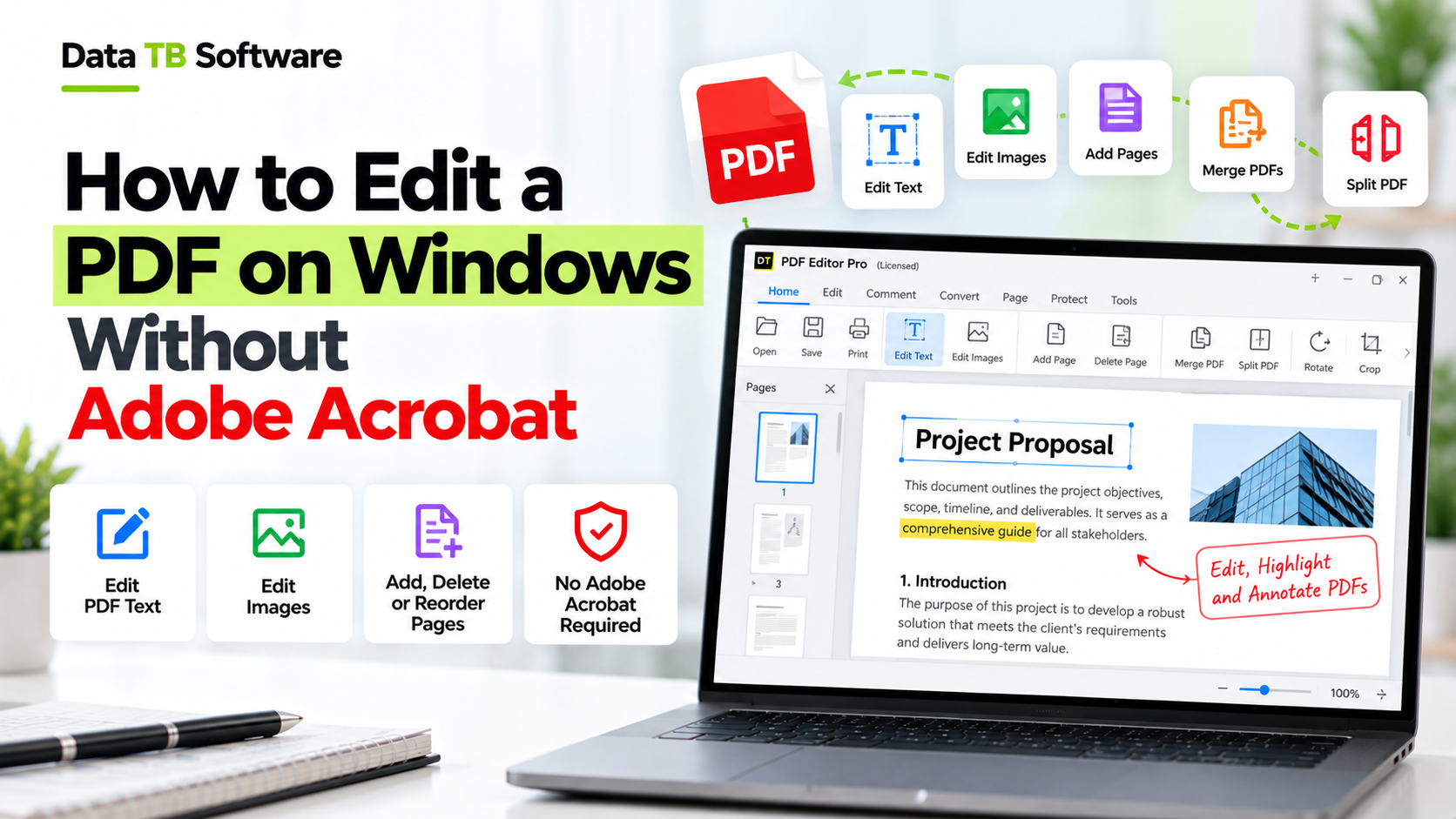
You have a PDF open and one small thing to fix. A wrong date in a contract. A name misspelled on an invoice. Two files that should be one. Then you remember that Windows has no real PDF editor, and the famous one costs a monthly subscription and a few hundred megabytes of your disk.
Good news: you do not need Adobe Acrobat to edit a PDF on Windows. There are at least six ways to do it, from free tricks that already sit on your PC to a small desktop editor that does the whole job offline. The catch is that each way fits a different kind of job, and picking the wrong one is how people end up with broken layouts, uploaded private files and wasted evenings.
This guide explains every option in plain words, shows what each one can and cannot do, and helps you pick the right one in a minute.
Try DT PDF Editor Today
The light, fast PDF editor for Windows. Edit, merge, split, redact, and OCR without the multi-gigabyte bloat.
The quick answer
| What you need to do | Easiest way without Acrobat |
|---|---|
| Highlight, draw or add a quick note | Microsoft Edge (already on Windows) |
| Change a few words in a simple text PDF | Microsoft Word |
| One quick edit, nothing private | A free online editor |
| Real editing, merging, splitting, redacting, OCR, compressing, offline | A desktop PDF editor such as DT PDF Editor |
| Many PDFs at once | A desktop editor with batch processing |
First, why PDFs are hard to edit
A PDF is not like a Word file. It was built to look the same on every screen and every printer, so it stores text and pictures as fixed pieces placed at exact spots on a page. There is no flowing paragraph that moves when you type. Because of this, a weak editor can break your layout, shift lines, swap fonts or leave the old text hidden underneath the new text.
So when you choose a tool, ask three simple questions: 1. Does it change the real text, or only paste a box over the old text? 2. Does it keep my layout and fonts? 3. Does it keep my file on my own computer?
Keep these in mind as you read.
Method 1: Microsoft Edge (free, already installed)
Every Windows 10 and 11 PC has Microsoft Edge, and Edge opens PDFs by itself.
1. Right click the PDF. 2. Choose Open with, then Microsoft Edge. 3. Use the toolbar to highlight text, draw, add notes, or fill form fields. 4. Save the file.
- Good for: marking up a document, filling a simple form, adding a note for a coworker.
- Where it stops: Edge is built for reading and marking, not for real editing. You cannot reliably change the existing text, merge files, split a document, compress it, redact it or run OCR. If your goal is to change what a page actually says, you will need another tool.
Method 2: Microsoft Word
If you own Word, it can open a PDF and turn it into an editable document.
1. Open Word and choose File, then Open. 2. Pick your PDF. Word warns that it will make a copy and convert it. Click OK. 3. Edit the text like any Word file. 4. Choose Save As and pick PDF.
- Good for: simple documents that are mostly plain text, like a letter or a basic report.
- Where it stops: Word rebuilds the page from scratch, so the result often looks different from the original. Tables shift, fonts change, images move, and columns can fall apart. A designed brochure or a scanned page can come out badly. It is a conversion, not a true PDF edit, so always check every page before you send it.
Method 3: Google Docs
Google Docs works the same way as Word, only in your browser.
1. Upload the PDF to Google Drive. 2. Right click it and choose Open with, then Google Docs. 3. Edit the text. 4. Choose File, then Download, then PDF.
- Good for: a quick text fix when you have no Word.
- Where it stops: the same layout problems as Word, usually a little worse. Your file also goes to Google's servers, which may not be fine for contracts, ID documents or client files.
Method 4: LibreOffice Draw
LibreOffice is a free office suite, and its Draw program can open PDF pages as editable drawings.
1. Install LibreOffice. 2. Open Draw and choose File, then Open, and pick your PDF. 3. Click a text area and edit it. 4. Export the result as PDF.
- Good for: people who want a free offline option and do not mind some trial and error.
- Where it stops: each line of text often becomes its own box, so editing a paragraph means fixing many boxes by hand. Fonts that are not installed on your PC get swapped. It is slow for long documents and hard for beginners.
Method 5: Free online PDF editors
Sites such as Smallpdf, PDFescape, Sejda and PDF Candy let you upload a file, edit it in the browser and download it again. There is nothing to install, which is why they show up first in search.
- Good for: a one time edit of a harmless file when you are on a computer that is not yours.
- Where it stops:
None of this makes online tools bad. It means they suit small, low risk jobs.
Method 6: A desktop PDF editor (the best fit for regular work)
If you edit PDFs every week, a desktop editor is the best answer. It works offline, keeps your files on your computer, edits the real text and handles the jobs that browser tools and Word cannot.
There are many of them, from big, feature heavy suites to small and fast ones. Here is a close look at one built to stay light: DT PDF Editor.
What DT PDF Editor is
DT PDF Editor is a Windows desktop editor with a small install (about 6 MB), a quick start and a low memory need (256 MB RAM minimum, 1 GB recommended). It works offline for core editing, so your files stay on your own PC. It runs on Windows 11, 10, 8.1 and 7, in both 32 bit and 64 bit.
All 14 tools sit in one sidebar, so you never switch programs:
| Tool | What it does for you |
|---|---|
| Edit | Change real text, fonts, sizes, colors and alignment. Add text, images and objects. |
| Merge | Join several PDFs into one, with automatic bookmarks and page size matching. |
| Split | Cut a PDF by page range, every N pages, one file per page, or by bookmarks. |
| Arrange | Reorder or delete pages by dragging. |
| Extract | Save chosen pages as a new PDF without touching the original. |
| Watermark | Add a text or image watermark with your own opacity, rotation and position. |
| Metadata | View and edit author, title and other hidden document details. |
| Encrypt | Lock a file with a password before you share it. |
| Redact | Remove sensitive content from the file itself, not just cover it. |
| OCR | Turn scanned pages into searchable, selectable text. |
| Compress | Shrink the file size for email or upload limits. |
| Search | Find a word or phrase and jump to every place it appears. |
| Render | Save pages as PNG or JPG images. |
| Batch processing | Run the same action on a whole folder of PDFs in one go. |
How to edit a PDF with it, step by step
1. Open your file. The app starts quickly and loads the PDF into the workspace. 2. Pick the tool you need from the sidebar. To change words, choose Edit and click into the text. 3. Make your change. Fix the text, adjust the font or color, add an image, or move on to another tool such as Merge or Redact. 4. Save. Export the finished file, ready to send, print or store.
That is the whole workflow: Open, change, save.
Three jobs where a desktop editor really helps
- Removing private details for good: Many tools "redact" by drawing a black box over the text while the words stay in the file underneath, where anyone can copy them. DT PDF Editor's Redact tool removes the selected content from the document itself. Before you send a contract or report outside your company, redact first, then test by trying to select and copy the area.
- Fixing a scanned document: A scan is just a picture of a page, so you cannot search or edit it. Run OCR first. The pages become real text you can search, copy and correct.
- Handling a pile of files: Renaming, compressing or watermarking 60 PDFs one by one is a lost afternoon. Batch processing applies the same action to a whole group of files in one job.
Price and honest limits
DT PDF Editor works on a pay for the period you need model, so you are not locked into a yearly subscription. There is a free download, so you can try it on your own files first.
It is made for Windows only. Its toolset is the 14 tools listed above, so if your main need is something outside that list, such as building complex fillable forms or e-signature workflows, check that it fits before you buy. Always review the final file before you send it, whichever tool you use.
👉 Download the free version or see pricing.
The methods side by side
| Feature / Criteria | Edge | Word | Google Docs | LibreOffice Draw | Online editors | Desktop editor (DT PDF Editor) |
|---|---|---|---|---|---|---|
| Cost | Free | Needs Word | Free | Free | Free tier, paid for more | Free download, paid license |
| Works offline | Yes | Yes | No | Yes | No | Yes, for core editing |
| Changes real text | No | Converts, then edits | Converts, then edits | Partly | Usually yes | Yes |
| Keeps layout | Yes | Often breaks | Often breaks | Often breaks | Usually good | Yes |
| File stays on your PC | Yes | Yes | No | Yes | No | Yes |
| Merge and split | No | No | No | Limited | Yes, often limited | Yes |
| Permanent redaction | No | No | No | No | Often paid | Yes |
| OCR for scans | No | No | Limited | No | Often paid | Yes |
| Batch many files | No | No | No | No | Often paid | Yes |
How to pick in 30 seconds
- Only marking up or filling a form? Use Edge.
- Fixing a few words in a plain text PDF? Try Word, then check every page.
- One quick edit of a file that is not private? An online editor is fine.
- Editing PDFs often, or the files are private, scanned or many? Use a desktop editor.
- Working on an older or low memory laptop? Choose a small editor. Heavy suites can feel slow there.
Mistakes that ruin PDF edits
- Trusting a black box: If you cover text with a shape instead of truly redacting it, the words are still in the file. Use a real redaction tool.
- Editing the only copy: Save your edit under a new name and keep the original until you have checked the result.
- Skipping the proofread: After any conversion based method, scroll through every page. Look at tables, page numbers and images.
- Uploading private files to random sites: If a file has personal, legal or financial details, keep it on your own computer.
- Forgetting the file size: A big PDF can be rejected by email or a portal. Compress it before you send it.
- Ignoring metadata: The hidden author name and title can reveal more than you mean to share. Check them before the file goes outside your company.
Frequently asked questions
Can I edit a PDF on Windows for free?
Yes, for light jobs. Edge handles notes and forms, Word and LibreOffice can edit simple files, and online tools have free tiers. For regular real editing, a desktop editor is usually the better long term choice. DT PDF Editor has a free download to test.Does Windows 11 have a built in PDF editor?
Not a full one. Windows opens PDFs in Edge, which lets you mark them up, but real editing needs another tool.How do I change the text in a PDF without breaking the layout?
Use an editor that edits the real text inside the PDF, not one that converts the file to another format. Then proofread every page.How do I edit a scanned PDF?
Run OCR first so the scan becomes real text. Then you can search and edit it. DT PDF Editor includes an OCR tool.How do I merge or split PDF files without Acrobat?
A desktop editor can do both. DT PDF Editor merges files in any order with automatic bookmarks, and splits by page range, by page count, one page per file, or by bookmarks.How do I permanently remove sensitive information from a PDF?
Use true redaction, which deletes the content from the file. Covering text with a black rectangle is not enough. After redacting, try to select and copy the area to confirm it is gone.How do I make a PDF smaller?
Use a compression tool. DT PDF Editor can reduce the size while keeping text and images clear for everyday reading and printing.Can I password protect a PDF?
Yes. Encryption lets you set a password so only the people you choose can open, print or edit the file.Can I edit many PDFs at once?
Yes, with batch processing. You choose a folder or a group of files and apply one action, such as compression, watermarking or OCR, to all of them.Is it safe to use online PDF editors?
It depends on the file. They are fine for harmless documents. For private or business files, a desktop editor keeps the file on your own computer.Will a lightweight editor work on an old laptop?
That is where it helps most. DT PDF Editor installs at about 6 MB and needs 256 MB of RAM at minimum.Final word
You do not need Acrobat to edit a PDF on Windows. For a quick note, use Edge. For a few words in a simple file, try Word. For a harmless one time job, an online tool is fine. But if PDFs are part of your regular work, or your files are private, scanned or many, a small desktop editor saves time, keeps your data on your own PC and does not lock you into a yearly plan.
Try it on a real file and see how it feels.