
The "storage full" notification from Google always seems to hit at the worst possible moment - right when you're trying to upload something important and there's simply no room left. Open up your Drive to investigate, and you'll usually find the real culprit: the same presentation saved in three different folders, a photo uploaded twice, a backup zip you forgot you ever created.
You're not alone in this. Google Drive doesn't detect or remove duplicates on its own - that feature simply doesn't exist on the platform natively. Until you learn how to find duplicate files in Google Drive and clean things up manually or use a dedicated tool, duplicates just keep piling up, quietly eating into your storage quota month after month.
This comprehensive guide covers everything you need to actually solve the problem and free up Google Drive storage for good:
- Why duplicates build up in Google Drive in the first place
- How to find and delete duplicate files manually, for free
- How duplicate photos are different from duplicate files, and how to properly handle them
- How dedicated duplicate finder tools work, and how Data TB Cloud Duplicate Finder compares to other options on the market
- A step-by-step walkthrough of cleaning up your Drive efficiently
- Answers to the most common questions people have before they start a massive cloud storage cleanup
Why Google Drive Fills Up With Duplicate Files
Duplicates don't appear by accident in the sense of a technical bug - they're almost always a side effect of how people actually use cloud storage day to day. If your Google Drive storage is full of duplicate files, the most common causes include:
- Multi-device sync - you upload a photo from your phone, then upload the same one again from your laptop, not realizing it's already there. Over time, this leads to a massive accumulation of identical files.
- Shared folders and team collaboration - someone shares a file with you, you click "Add to My Drive" out of habit, and the original copy already existed in your account. In team environments, the same document gets uploaded twice under slightly different names by different teammates (e.g., "Report_Final" and "Report_Final_v2" that are actually identical). These shared drive duplicates are notoriously hard to spot.
- Backup software quirks - auto-backup tools that create a fresh copy every run instead of overwriting or updating the previous one. This is especially true for older local backup tools that don't utilize file deduplication.
- Copy-paste habits - duplicating a file "just in case" before editing it, then completely forgetting to delete the backup afterward.
- Migration and re-uploads - moving files between accounts or restoring from an old backup that overlaps with what's already securely stored in Drive.
Signs Your Google Drive Needs a Duplicate Cleanup
Before diving into a massive cleanup, how do you know if duplicates are actually the problem? Look out for these telltale signs:
- You're getting frequent "storage almost full" warnings despite not intentionally adding much new, heavy content.
- A basic file search returns multiple identical-looking results for the same document or project file.
- Your storage usage doesn't match what you'd expect based on the actual unique content you've created or uploaded recently.
- Shared folders feel overwhelmingly cluttered with copies of the same files from different collaborators.
- You've never actually done a dedicated cleanup pass on your Drive since creating the account.
Method 1: Finding Duplicates Manually (Free, But Slow)
If your Drive has a manageable number of files (roughly under 500–1000), the manual route can work without requiring any extra tools. Here is how to find duplicate files in Google Drive for free:
1. Open Google Drive in your browser.
2. Sort your files by "Name" or "Size" - this naturally groups files with identical names or precisely matching file sizes close together in the list.
3. Use search filters by file type (e.g., type:pdf, type:image, or type:video) to narrow things down by category. This prevents you from scanning your whole Drive at once and getting overwhelmed.
4. Manually open and compare each suspected duplicate - check the file size, modification date, and briefly inspect the content.
5. Once confirmed as a true duplicate, move the file to trash rather than deleting it permanently immediately - this gives you a crucial 30-day safety buffer in case you flagged something incorrectly.
6. Repeat this process by category: documents first, then images, then videos, then archives - this keeps the workflow manageable.
Why the Manual Method Falls Short
The catch: this manual method only compares filenames and file size - not actual content. Two files with completely different names but byte-for-byte identical content will slip right past it. A photo renamed "IMG_2041.jpg" and "Beach_Trip.jpg" might be the exact same file, but sorting by name will never catch that.
And in a Drive with thousands of files - which is extremely common for anyone who's been using Google Drive for a few years - manually reviewing every suspected match becomes practically impossible. Most people give up halfway through and end up right back where they started a few months later, still searching for a reliable Google Drive duplicate file remover.
This is exactly why people turn to dedicated duplicate finder tools - they utilize byte-level duplicate detection and compare actual file content for 100% accuracy, catching true duplicates regardless of what they're named, when they were uploaded, or which folder they're currently sitting in.
A Special Case: Duplicate Photos
Photos deserve their own mention because they behave very differently from regular document files. When you want a duplicate photo finder, you need to understand that two photos can be:
- Byte-identical duplicates - the exact same file uploaded more than once. This is incredibly easy to detect with standard tools.
- Near-duplicates - the same photo but resized, slightly cropped, compressed for web, or re-saved through a different mobile app. These are much harder to detect - the file content is technically different (different byte hash) even though visually it's the exact same image to the human eye.
- Similar but distinct photos - multiple shots from the same burst or moment that aren't actually duplicates at all, just visually similar.
Method 2: Using a Duplicate Finder Tool (Fast, Accurate)
Duplicate finder tools for Google Drive generally fall into two categories, and the difference matters a lot more than most comparison articles let on:
1. Cloud-based tools - you connect your Drive through a browser, and scanning/processing happens on the provider's own remote servers. While usually protected with encryption in transit, your file metadata and sometimes the actual file content still passes through infrastructure you don't control. 2. Desktop-based tools - the application installs securely on your device, and processing happens locally. Your data moves directly between your device and the official Google Drive API, without a third-party server ever sitting in the middle.
Most Google Drive duplicate finder online tools in the cloud-based space support only a handful of cloud providers - usually capping out around 4-5 (typically Google Drive, OneDrive, Dropbox, Box, and maybe one more). If you only ever use Google Drive, that's not a huge limitation. But if you manage several cloud accounts across different providers - which is increasingly common for freelancers, agencies, and small businesses juggling client storage - this becomes a real practical constraint. You end up either running multiple tools or leaving some accounts unmanaged entirely.
Data TB Cloud Duplicate Finder vs Other Tools
| Feature | Data TB Cloud Duplicate Finder | Other Tools (Typical) |
|---|---|---|
| Processing | Local desktop app - data never leaves your device | Cloud-based - data routes through the provider's own servers |
| Clouds Supported | 12+ (Google Drive, OneDrive, MEGA, S3, pCloud, Nextcloud, and more) | Usually 1-5 providers |
| Duplicate Detection | Byte-level content match for 100% accuracy | Varies - content match, some also offer similar-photo detection |
| Scan Scope | Full account or specific folders, user's choice | Varies - some allow folder-level scans, others scan the whole account only |
| Pricing Model | Starts from flexible short-term plans, up to lifetime | Mostly ongoing subscription with no short-term option |
| Ideal For | Anyone managing multiple cloud accounts, or prioritizing data privacy | Anyone using a single cloud provider wanting a quick browser-based fix |
What This Comparison Actually Means for You
If you only use Google Drive and want a very quick, browser-based fix - a standard cloud-based tool will do the job nicely. Setup is fast, and there's nothing to install.
If you manage multiple cloud accounts (Google Drive + OneDrive + MEGA + S3, and so on) and don't want to subscribe to a separate tool for each one - most cloud-based tools cap out at a handful of providers. The Data TB Cloud Duplicate Finder covers 12+ cloud providers from a single unified app, meaning one subscription handles your entire digital setup instead of juggling logins and payments across several services. It's simply the best duplicate file finder for Google Drive if you also use other clouds.
If data privacy is a top priority - this is the most important differentiator, and the one most comparison articles gloss over. Cloud-based tools process your file metadata or content through their own servers. Desktop-based tools like Data TB run entirely locally - your data moves directly between your computer and the official Google API, never touching a third-party server. For businesses handling client data, legal or financial records, or anyone with strict compliance requirements, that distinction isn't a minor detail - it can be the deciding factor.
If you're a Google Workspace admin managing shared drives - this is where duplicate clutter gets expensive incredibly fast, since storage costs scale with your whole organization. A tool that can scan across multiple accounts and shared drives, without routing sensitive company files through an external web server, is generally the safer and more scalable approach for IT teams.
Step-by-Step: Finding and Deleting Duplicates
Ready to clean up? Here is how to find duplicate files without downloading them all locally, using Data TB Cloud Duplicate Finder as our benchmark.
Step 1: Connect Your Account
Install the desktop application and connect your Google Drive account through official Google sign-in. No password is ever stored or logged - the tool relies entirely on secure OAuth authorization, which is the exact same industry standard used by Google itself for granting third-party app access securely.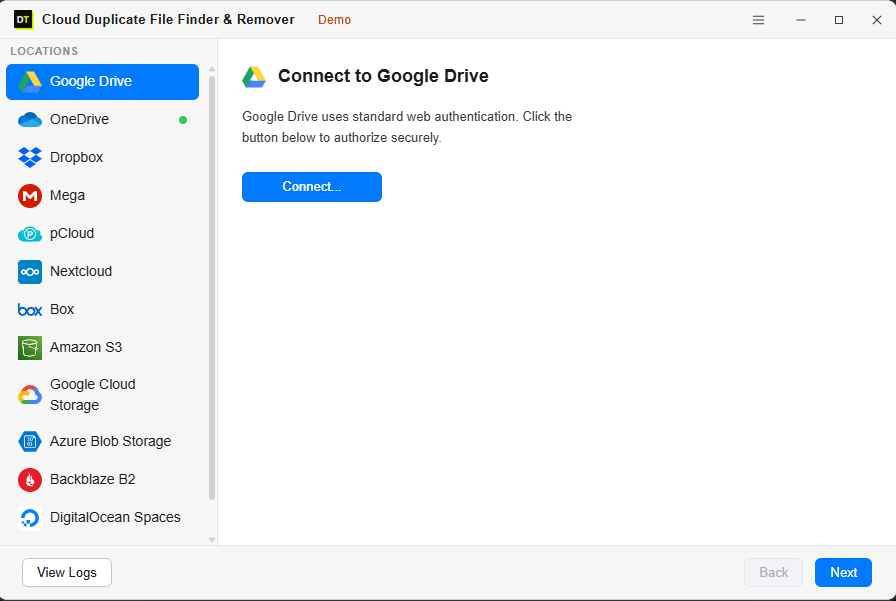
Step 2: Browse and Select
Once connected successfully, you can browse your virtual file tree to select your entire Drive or specify exact folders to scan. Scanning specific folders saves a massive amount of time on larger accounts, especially if you already know duplicates are heavily concentrated in a particular area - like a shared team folder or a messy photo backup directory.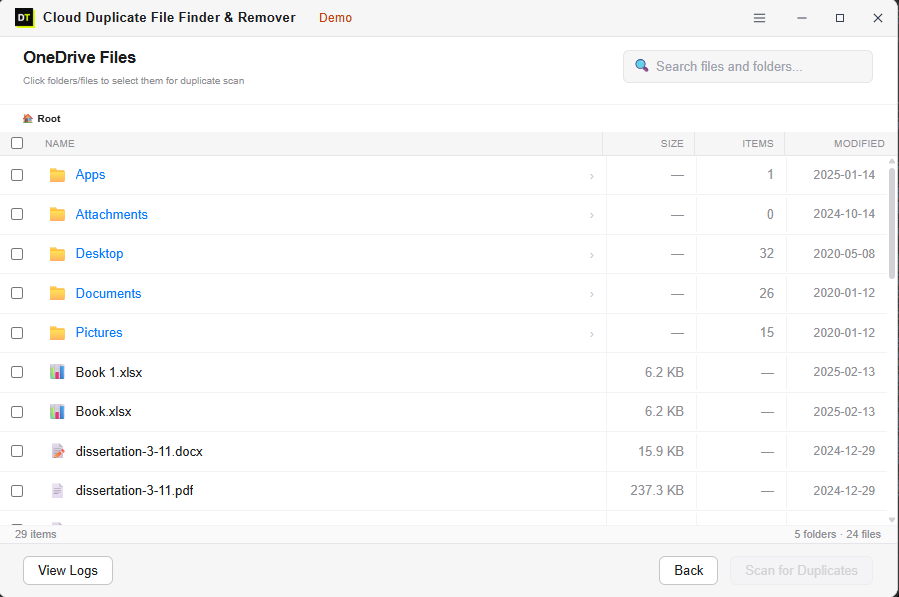
Step 3: Run the Scan
Click "Start Scan." The tool communicates directly via the API and compares content-level hashes for every file - not just superficial names or sizes, but the actual intrinsic content - which avoids frustrating false positives (files that look similar but aren't true duplicates at all).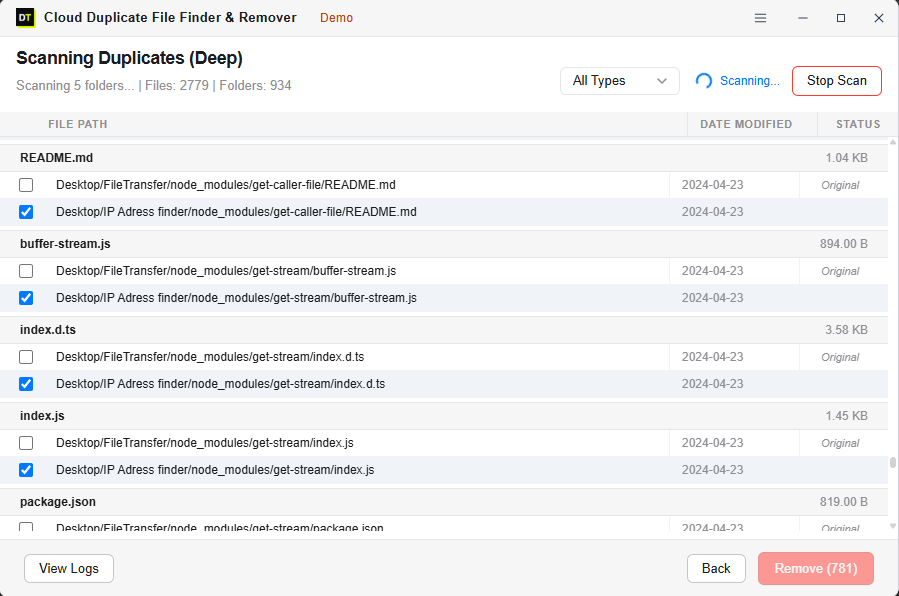
Step 4: Review Your Matches
Once the scanning process completes, all duplicate groups are listed together clearly - the original alongside every single redundant copy. You can review manually for peace of mind, or use a smart filter like "keep oldest" or "keep newest" to speed things up across large, sprawling batches.Step 5: Remove and Recover Storage
Delete or trash the selected duplicates in one single click. You'll also get a full analytical report immediately after - detailing exactly how many files were removed, which folders they came from, and precisely how much storage was freed in total.The whole process typically takes under 20 minutes, even with tens of thousands of files in your Drive - a fraction of the time a grueling manual cleanup would take, with far superior accuracy. You can successfully delete duplicate files in Google Drive effortlessly.
Common Mistakes to Avoid When Cleaning Up Duplicates
- Deleting permanently instead of trashing first. Always let deleted files sit in your Drive's Trash folder for a few days before emptying it entirely, just in case something was flagged incorrectly and you need to retrieve it.
- Relying on filename sorting alone. As covered extensively above, this completely misses true duplicates that were renamed at some point during their lifecycle.
- Ignoring shared folders. Duplicates in shared or team drives affect everyone's storage quota collectively, not just yours - they're often the most overlooked source of digital clutter in corporate settings.
- Not checking Google Photos separately. Photos synced through Google Photos are managed somewhat separately from Drive in some account setups, so a strict Drive-only scan might miss photo-specific duplicates entirely.
- Skipping the review step entirely. Bulk-deleting without briefly reviewing the list first is exactly how legitimate, important files occasionally get removed by mistake. Take the extra two minutes to review!
Frequently Asked Questions
Q1: Does Google Drive detect duplicate files on its own? No. Google Drive currently has no built-in duplicate detection feature. Some media reports incorrectly claimed Google would automatically remove duplicates, but this proactive feature doesn't exist on the platform. Manual cleanup or utilizing a third-party tool is the only viable option.
Q2: Is it safe to delete duplicate files? Yes, as long as you use a trusted, reputable tool that shows a clear review step before deleting anything. Good tools only flag byte-identical content as duplicates, which practically eliminates the risk of accidentally losing a unique file. Even after deletion, files stay securely in the Google Drive Trash for 30 days by default, so accidental deletes are fully recoverable.
Q3: What's the difference between cloud-based and desktop-based duplicate finders? Cloud-based tools connect directly to your Google Drive via the web and process files through their own remote servers (typically encrypted in transit). Desktop-based tools like Data TB run entirely locally on your device - data moves directly between your computer and the Google Drive API, never touching an intermediary third-party server.
Q4: Can one tool handle multiple cloud accounts, like Google Drive and OneDrive together? Most basic tools are strictly limited to Google Drive only, or cover a very small handful of major providers. Data TB Cloud Duplicate Finder extensively supports 12+ cloud providers from a single app - if you use multiple clouds for work and personal life, one unified tool is usually far more practical than subscribing to several separate ones.
Q5: What about duplicate photos that aren't identical but look similar? Some specialized tools offer "similar photo" detection - catching things like slightly cropped, resized, or heavily re-compressed versions of the exact same image. This is a vastly different feature from strict byte-identical matching, so carefully check whether this matters for your specific use case before choosing a tool.
Q6: Will deleting duplicates affect files shared with other people? If a file is actively shared with others and you delete your copy, the result depends heavily on whether you're the file's original owner. If someone else owns the original, deleting your shortcut or copy from your Drive typically only removes it from your view, not theirs. Always review file ownership before bulk-deleting shared files.
Q7: How much storage can I typically expect to recover? This varies wildly based on how long an account has been actively in use and how many devices or team members have been uploading to it. Accounts that sync automatically from multiple devices or have been heavily used by a team for years tend to have the most massive duplicate buildup - often freeing up gigabytes of meaningful storage without needing to pay for a costly plan upgrade.
Q8: Do I need to be technical to use a duplicate finder tool? No. Most modern tools, specifically including Data TB Cloud Duplicate Finder, are purpose-built for a general audience - simply connect your account securely, run a fast scan, review the presented results, and delete. No coding or complex technical setup is required whatsoever.
Bottom Line
If you only need to clean up Google Drive once and exclusively use just one single cloud service, a simple browser-based tool will get the job done reasonably well. But if you regularly manage multiple cloud accounts, deal heavily with shared team drives, or data privacy is an absolute top priority for the sensitive files you store, a local desktop tool that securely covers all your providers in one place is definitively the better long-term choice.
Try Data TB Cloud Duplicate Finder - 12+ cloud providers, one subscription, local processing.
User Reviews
"Cleaned up 85GB of redundant team files in Shared Drive safely without breaking permissions."
"Direct API hashing saved us from buying an expensive Google Workspace storage upgrade."