
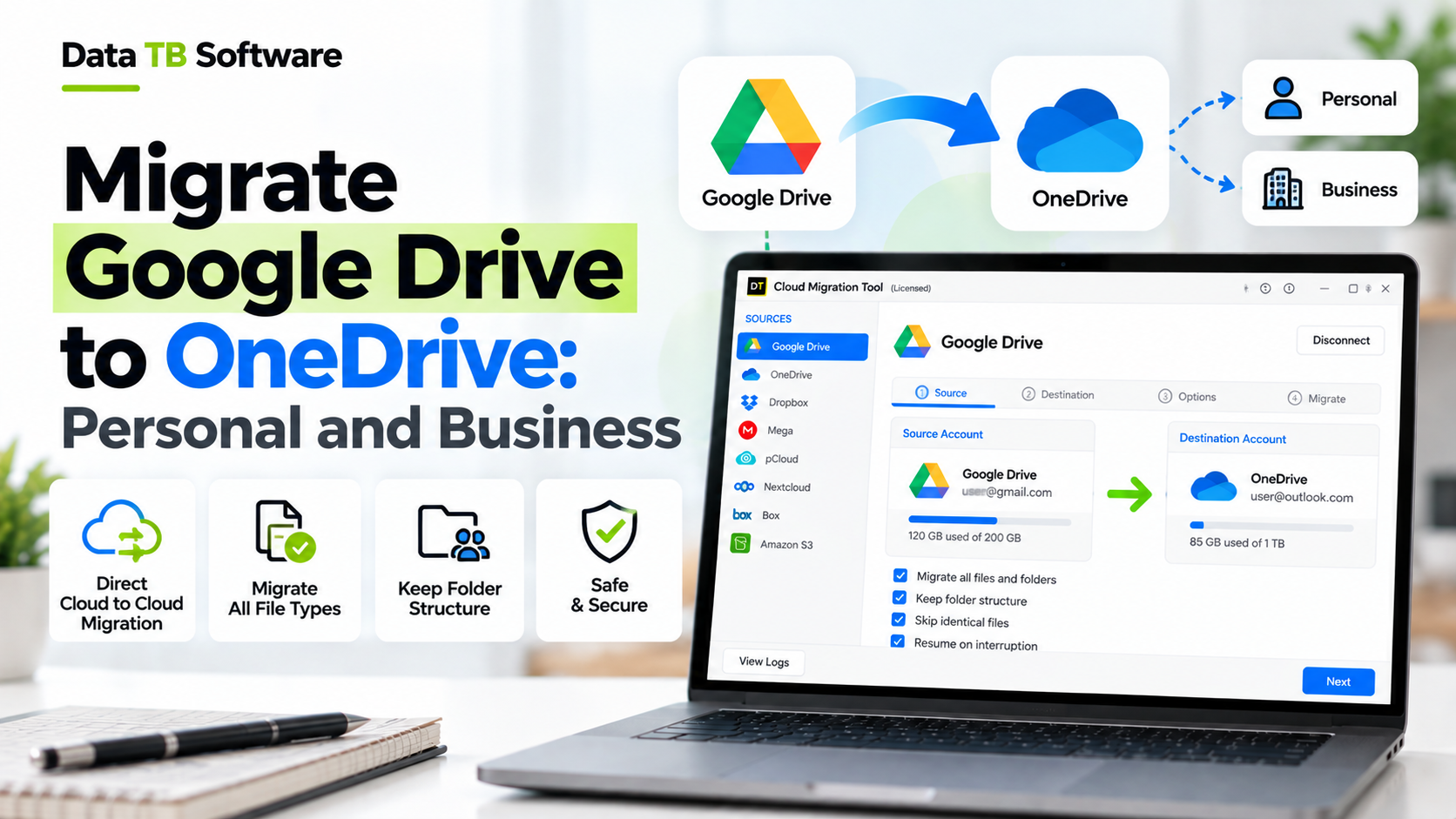
Try DT Cloud Storage Migrator Today
Move files directly between Google Drive, OneDrive, and 15+ clouds without downloading anything. The ultimate cloud migration tool for Windows.
So you have years of files sitting in Google Drive, and now you need them in OneDrive. Maybe your company moved to Microsoft 365. Maybe you are tired of paying for two storage plans. Maybe a new job simply uses OneDrive and you want everything in one place.
Here is the first thing to know: Google Drive has no "Move to OneDrive" button, and OneDrive has no "Import from Google" button that works for everyone. What you can do depends on one thing most guides skip, which is what kind of accounts you are moving between. A free personal Gmail account and a company Google Workspace account are handled very differently. The same is true for a personal OneDrive and OneDrive for Business.
This guide covers all of it in plain words. You will see every common method, who each one suits, where each one breaks, and how to finish the job without losing files or folder order.
The quick answer
| Your situation | Best method |
|---|---|
| A few files or one small folder | Download and upload by hand |
| A personal Google account, one-time archive | Google Takeout with the OneDrive option |
| You want to copy through your own PC | Google Drive for desktop plus the OneDrive folder |
| A whole company moving from Google Workspace to Microsoft 365 | Microsoft Migration Manager, or a migration tool |
| Any mix of personal and business, large data, filters, repeat runs | A dedicated migration tool such as DT Cloud Storage Migrator |
First, work out which of the four paths you are on
Every Google Drive to OneDrive move falls into one of four paths. Find yours.
| Path | Example |
|---|---|
| Personal to personal | Your own Gmail Drive to your own personal OneDrive |
| Personal to business | Your personal Google Drive files into your company OneDrive for Business |
| Business to personal | Your Google Workspace work drive to a personal OneDrive (only for data you are allowed to take) |
| Business to business | Google Workspace to Microsoft 365, for one user or the whole company |
One rule applies everywhere. Only move data you are authorized to move. If the files belong to your employer, get approval first.
Before you start: a short checklist
Ten minutes of preparation saves hours of cleanup. Do these first.
- Check space on the OneDrive side. Compare the size of your Google Drive with the free space in OneDrive. Personal OneDrive plans have much less room than most business plans, so check your own plan.
- Find your Google Docs, Sheets and Slides. These are not normal files. Google stores them in its own format, so they are converted to Word, Excel and PowerPoint style files when they leave Google. Most of the time this works fine, but complex sheets and slides can look slightly different afterwards.
- Remove duplicates before the move. Moving the same file three times wastes time and storage. A tool like the DT Cloud Duplicate File Finder can clean your cloud first.
- Look for risky file names. OneDrive and SharePoint do not allow some characters in names, and they also have limits on path length and single file size. Check Microsoft's current limits before moving very deep folder trees or huge files.
- Plan to share again. Copying files does not recreate who could view or edit them in Google. Make a short list of the folders that were shared so you can share them again in OneDrive.
- Keep Google Drive untouched until you are done. Copying leaves the original in place. Do not delete anything at the source until you have checked the result.
Method 1: Download and upload by hand
This is the oldest way, and for small jobs it is still fine.
1. Open Google Drive in your browser. 2. Select the files or folders. Right click and choose Download. Google packs big selections into zip files. 3. Unzip the downloaded files on your computer. 4. Open OneDrive in your browser, or the OneDrive folder on your PC. 5. Drag the folders in and wait for the upload to finish.
Good for: a handful of files, or a folder of a few gigabytes.
Where it hurts: every byte travels twice, first down to your computer, then back up. Your PC needs enough free disk space for the whole job. A dropped connection can leave you guessing which files made it. Zip files from Google can split into many parts, and folder structure sometimes needs fixing by hand. For anything large, this method turns into a weekend.
Method 2: Google Takeout with the OneDrive option
Google Takeout is Google's own export service. For personal Google accounts, it can send your export straight to a cloud service as the delivery option, including OneDrive.
1. Go to Google Takeout and sign in. 2. Deselect everything, then tick only Drive. 3. Choose Next step. 4. Under delivery method, pick the OneDrive option and link your Microsoft account. 5. Choose one time export, pick the file type and size, and start the export.
Good for: a personal account where you want one big archive and do not mind the result arriving as compressed files.
Where it hurts: the result is an archive, not a tidy copy of your live folders. It is a one time snapshot, so anything you add to Google afterwards is not included. You cannot filter by date or file type in any real way. Many Google Workspace administrators also turn Takeout off for work accounts, so it often will not be available on a business account at all.
Method 3: Google Drive for desktop plus the OneDrive folder
This method uses the two official desktop apps and your computer as the middle step.
1. Install Google Drive for desktop and sign in. 2. Install and sign in to the OneDrive app. 3. Open both folders in File Explorer. 4. Copy the folders you want from the Google Drive folder into the OneDrive folder. 5. Wait while OneDrive syncs everything to the cloud.
Good for: people who like working in File Explorer and have a fast connection and plenty of disk space.
Where it hurts: in the default setup, Google Drive for desktop only shows files and fetches them when you open or copy them, so a big copy still pulls the data down first. Syncing can run for a very long time. If either app pauses or the PC sleeps, you may not notice for hours. Reports for failed files are weak, so you must check yourself.
Method 4: Microsoft Migration Manager (business and company moves)
If your company is switching from Google Workspace to Microsoft 365, Microsoft has a built in tool called Migration Manager. You find it in the Microsoft 365 or SharePoint admin center.
The usual flow looks like this:
1. An administrator signs in to Microsoft 365 and installs the Microsoft migration app into Google Workspace. 2. The admin scans the Google Drives to be moved and reads the scan reports for problems. 3. The admin adds the drives to a migration list and checks the destination paths. 4. The admin maps Google users and groups to Microsoft 365 users and groups. 5. The admin starts the migration and watches progress in the admin center.
Good for: a planned, company wide move where you have admin rights on both sides and you want users and permissions mapped.
Where it hurts: it is built for administrators, not for individuals. It needs high level roles in both Microsoft 365 and Google Workspace, and users usually need their OneDrive set up before you begin. It is not meant for ordinary personal accounts. For a freelancer, a small team, or someone moving a single person's drive, it is more setup than the job deserves.
Method 5: Online migration services
Many web based services connect two clouds and copy between them. They are easy to start, which is why they rank high in search. Before you pick one, read the pricing page carefully. Many of them limit how much data you can move each month on the free plan, and charge more once you pass the limit. Some put features like scheduling or bulk mapping on higher plans. A small test job can look free, and a real migration can turn into a bill. They also run on the provider's servers, so you are trusting a third party service with your sign in access.
None of that makes them bad. It means you should compare the quota, the price per user or per gigabyte, and the features you actually need before you commit.
Method 6: DT Cloud Storage Migrator (all four paths, one tool)
This is the method built for the problem that the other methods leave open: moving between any mix of personal and business accounts, at any size, without paying by the gigabyte.
DT Cloud Storage Migrator is a Windows desktop tool. You sign in to both clouds, choose what to move, and the data goes directly from Google Drive to OneDrive. It is not downloaded to your PC, and Data TB does not store it. It supports personal to personal, personal to business, business to personal and business to business, and it works with more than 15 clouds, so the same tool also helps if you later move to Dropbox, SharePoint or something else.
The whole job runs through eight screens. Here is what each one does, in plain words.
Screen 1: Dashboard
This is your starting point. You begin a new job, see your connected accounts, and reopen earlier jobs and their reports. One job can carry several accounts at once.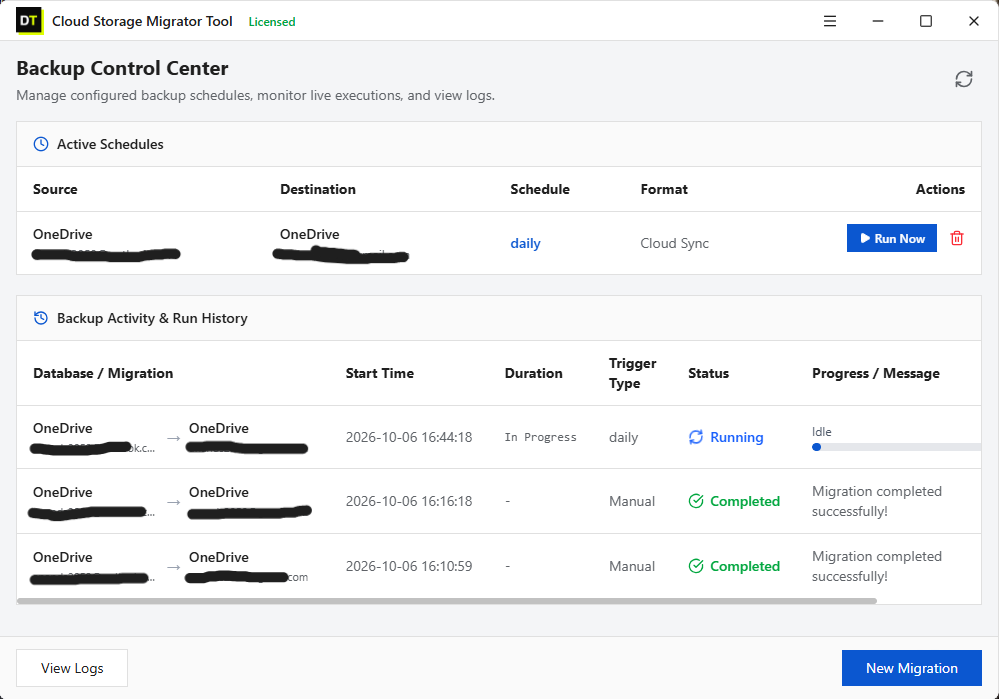
Screen 2: Mode Selection
Pick personal or business. If you pick business, you then choose one of two options: a cross migration (between different platforms, like Google Drive to OneDrive) or a same migration (inside one platform, like one Google Workspace to another).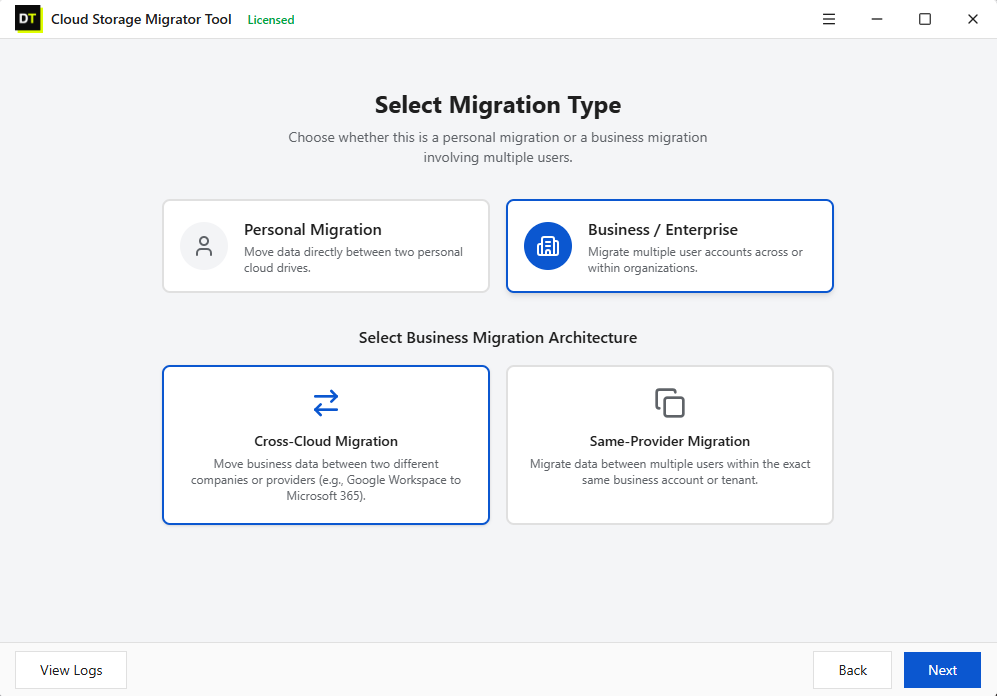
Screen 3: Source Authentication
Choose Google Drive as the source and sign in on Google's own login page. The tool never sees or stores your Google password, and multi factor sign in works wherever Google supports it. You can add more than one source account if the job needs it.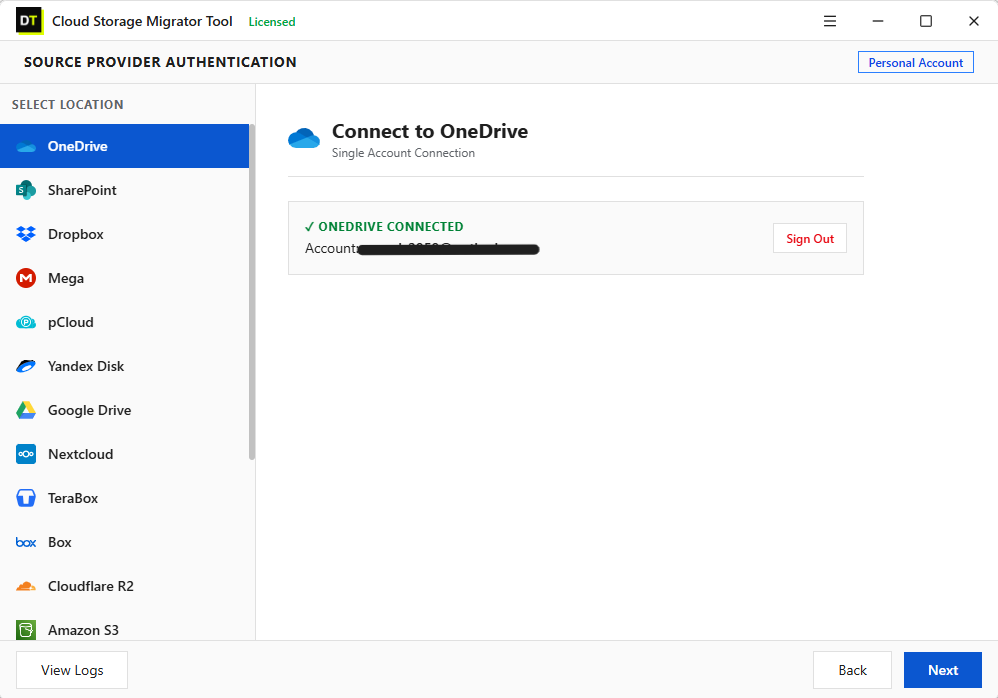
Screen 4: Preview
Before anything moves, you see what is in the source: the full folder tree, plus size, created date and modified date of each file. Then you narrow it down. You can filter by file extension, date range, folder type and file size. Moving only last year's work files, or leaving out huge video files, takes a minute here. Nothing is copied on this screen, so you can explore freely.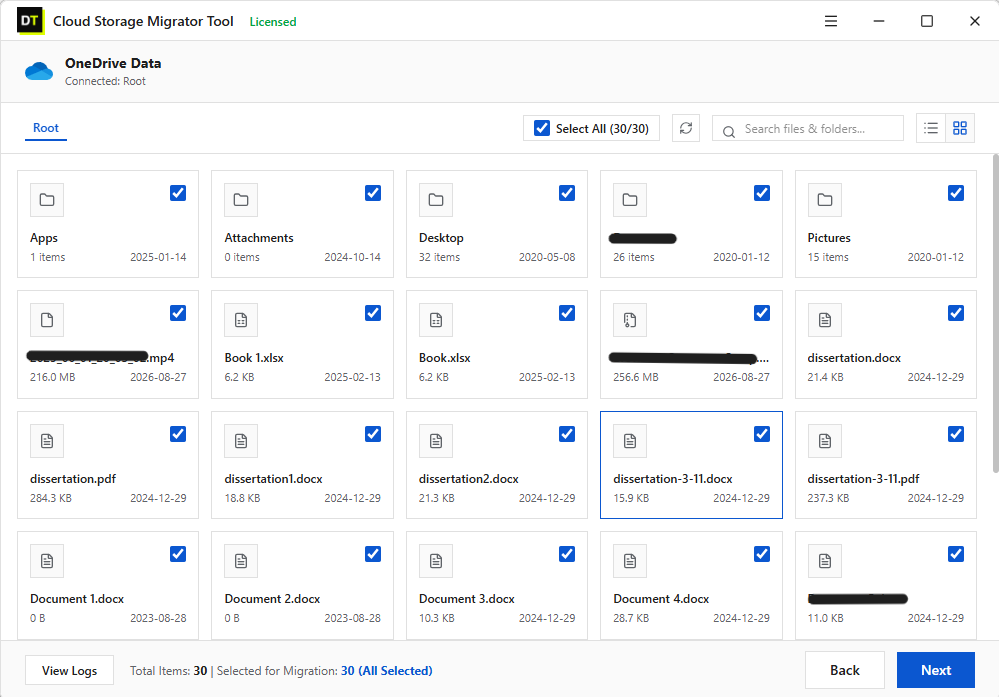
Screen 5: Destination Authentication
Choose OneDrive as the destination and sign in the same way. It can be a personal OneDrive or OneDrive for Business. You can browse the destination first, so you know where the files will land.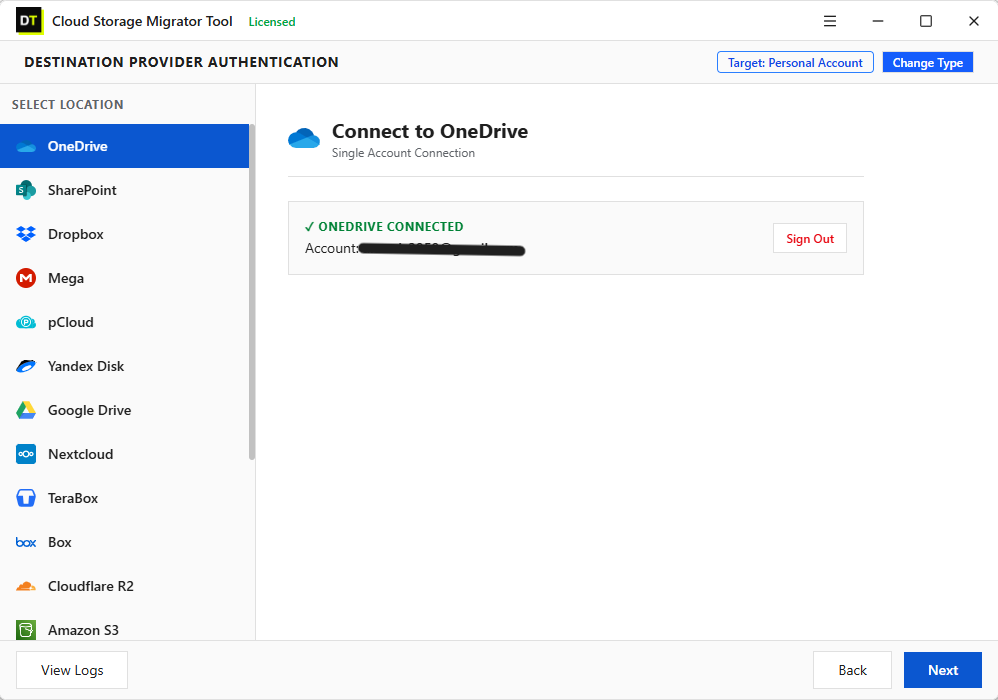
Screen 6: Mapping
Tell the tool which source goes to which destination. For a small job, map folders by hand in a few clicks. For a big company job, upload a CSV file and map many accounts at once. This is the screen that saves IT teams the most time.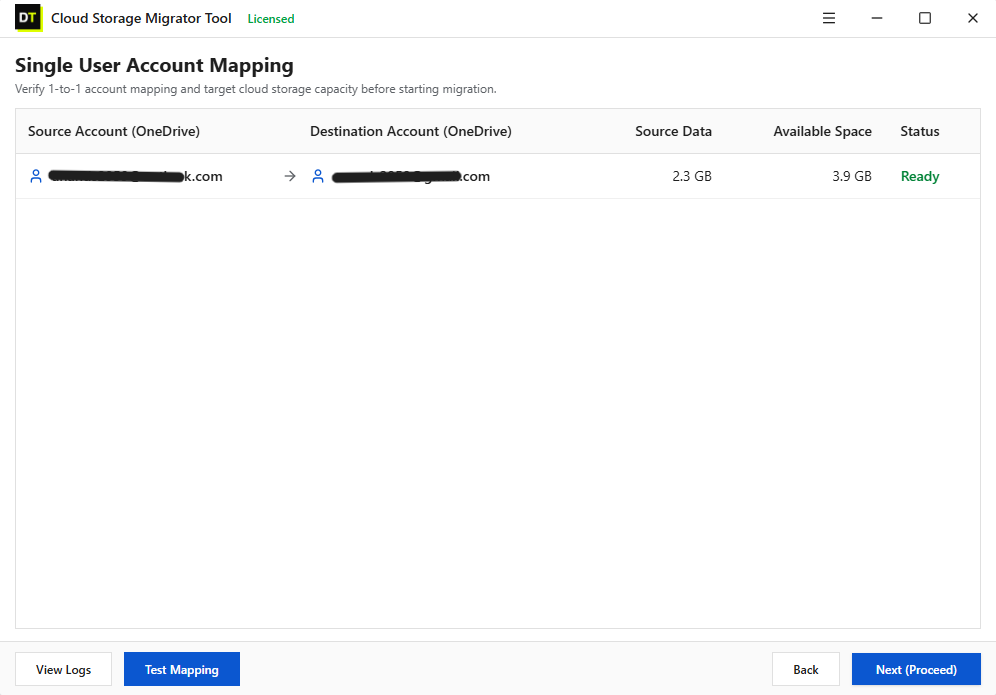
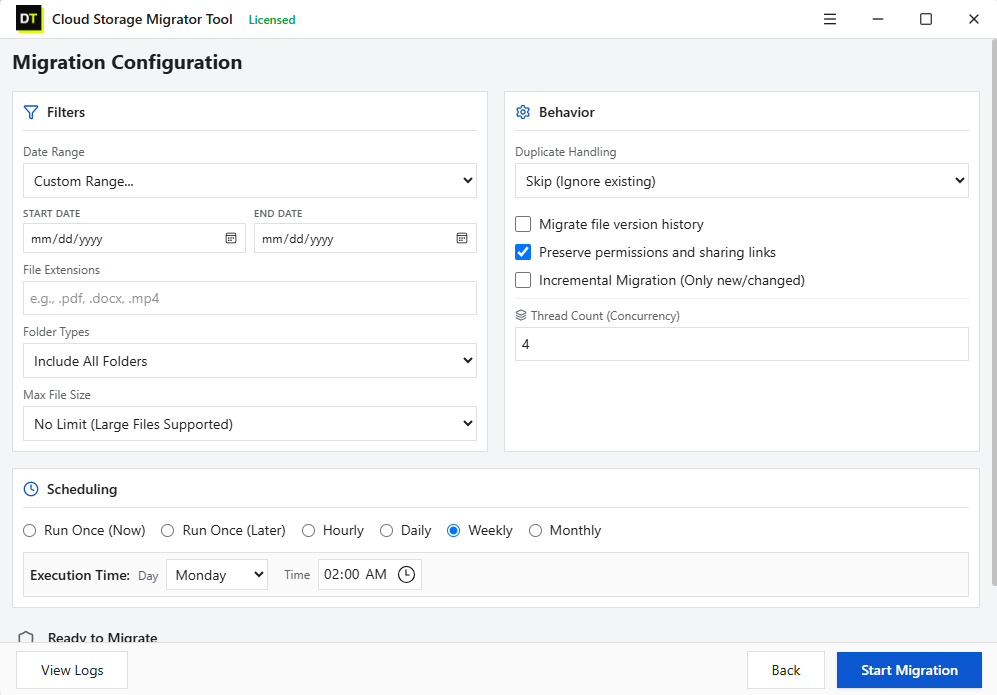
Screen 7: Configure Migration
Set the rules for the run:- If a file already exists at the destination, skip it, rename the new copy so both stay, or replace the old one.
- Version migration: carry a file's earlier versions across, not only the newest one.
- Run type: one time, incremental (only new or changed files), or scheduled hourly, daily, weekly or monthly.
- Speed: adjust thread count to match your internet and your PC.
Screen 8: Migration
Press start and watch the job run live. The original folder structure is kept. If your connection drops or you pause, the job continues from where it stopped, with no need to start again. At the end you get a job report that lists failed items, filtered items and already migrated items, and you can export it.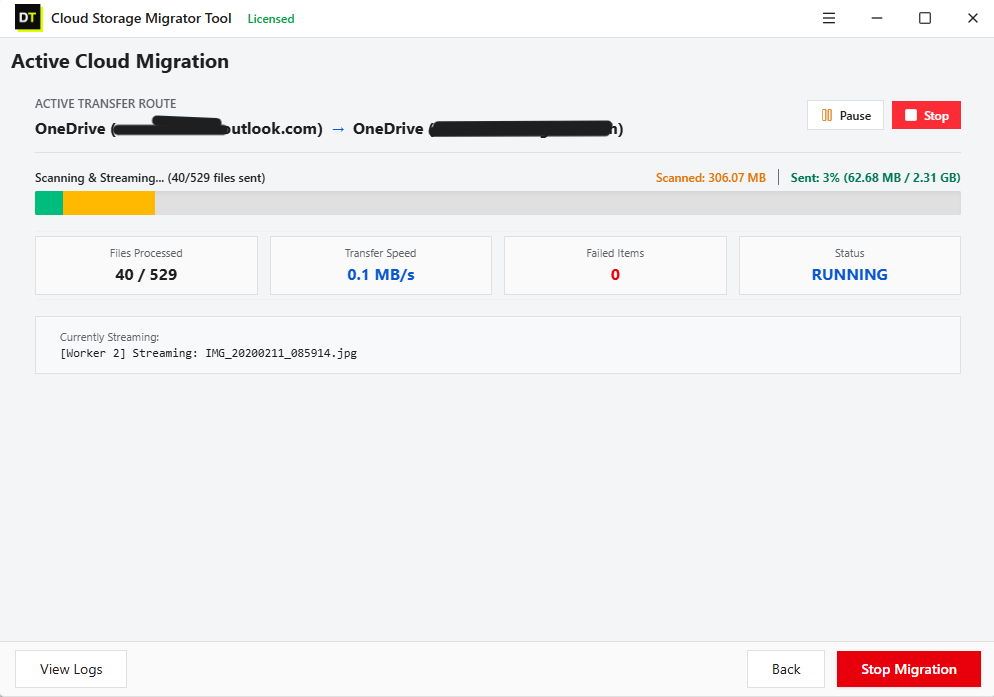
What it costs you to try
There is a free trial that moves up to 500 MB, with files under 20 MB, using every screen and every path, so you can test with your own accounts first. The licensed version has no limit on total data or file size and includes every feature in the same build. There is also a 30 day money back guarantee.Download the free trial or see pricing.
Be honest about the limits
The tool runs on your Windows PC, so keep it open and the PC awake while a job or schedule is running. It moves files and folders. It does not recreate Google sharing settings in OneDrive, so plan to share the important folders again afterwards. If your organization controls which apps can connect to company data, an administrator may need to approve the sign in once.The methods side by side
| Feature / Limit | Download and upload | Google Takeout | Desktop apps | Migration Manager | DT Cloud Storage Migrator |
|---|---|---|---|---|---|
| Personal accounts | Yes | Yes | Yes | Not intended | Yes |
| Business accounts | Yes | Often blocked by admin | Yes | Yes | Yes |
| Needs an admin | No | No | No | Yes | Only if your organization restricts apps |
| Uses your PC as the middle step | Yes | No | Yes | No | No |
| Filters by type, date, size | No | Very limited | No | Limited | Yes |
| Bulk mapping with a CSV | No | No | No | Yes, through its own mapping | Yes |
| Resumes after a break | No | No | Unclear | Yes | Yes |
| Repeat or scheduled runs | No | No | No | Yes | Yes |
| Report of failed files | No | No | No | Yes | Yes |
Mistakes that cause trouble
- Deleting the source too early. Copy first, check second, delete last.
- Forgetting that Google Docs get converted. Open a few of your most important documents in OneDrive after the move and make sure they look right.
- Ignoring storage space. If OneDrive fills up halfway, the job fails halfway. Check space first.
- Moving everything blindly. Old downloads, duplicate folders and junk files come along for the ride. Use the preview and filters to move only what you need.
- Not testing first. Run a small test with one folder before the full move.
- Moving data you do not own. For business data, always get written approval.
After the move: a final check
1. Compare folder and file counts between Google Drive and OneDrive. 2. Open a few Google Docs, Sheets and Slides copies and a few large files. 3. Read the job report and fix every failed item. 4. Share the needed folders again with the right people. 5. Tell your team where the files live now. 6. Keep Google Drive for a few weeks, then clean it up when you are fully sure.
Frequently asked questions
Can I transfer Google Drive to OneDrive for free?
Yes, for small jobs. Download and upload, Google Takeout and the desktop apps cost nothing. For bigger jobs, you pay either with your time or with a tool. The DT Cloud Storage Migrator free trial lets you test up to 500 MB.Can I move from a personal Google Drive to OneDrive for Business?
Yes. This is the personal to business path. Sign in to your personal Google account as the source and your company OneDrive as the destination. Make sure you are allowed to store those files in the company account.Can I move from Google Workspace to a personal OneDrive?
Technically yes, but only move data you are authorized to take. Many companies do not allow it, so check your policy first.How do I migrate a whole company from Google Workspace to Microsoft 365?
Use a planned, admin led process. Microsoft Migration Manager is one route. A migration tool with CSV mapping, scheduling and job reports is another, and DT Cloud Storage Migrator covers business to business moves in both cross platform and same platform forms.What happens to my Google Docs, Sheets and Slides?
They are converted to Office style formats (Word, Excel, PowerPoint) when they move. Check important ones after the transfer.Will my sharing permissions move across?
A simple file copy does not rebuild who could view or edit each file. Plan to share again. Full permission mapping is something admin focused platforms handle separately.Do I need to download my files first?
Not with a direct cloud to cloud tool. DT Cloud Storage Migrator sends the data between the two clouds, so nothing is saved on your PC.Is there a size limit?
The DT Cloud Storage Migrator trial moves up to 500 MB with files under 20 MB. The licensed version has no limit on total data or single file size. OneDrive itself has its own limits, so check Microsoft's current numbers for very large files.What if the transfer stops halfway?
With a resumable tool, you restart and it continues from where it stopped. With manual methods, you often have to work out what is missing yourself.Can I keep OneDrive updated after the first copy?
Yes. Use an incremental or scheduled run so only new or changed files move each time, which is useful while people still work in Google Drive during the switch.Is it safe to sign in?
DT Cloud Storage Migrator uses Google's and Microsoft's own sign in pages. Your cloud passwords are not stored, and you can remove the tool's access from your account security settings at any time.Final word
Moving Google Drive to OneDrive is not hard, but it gets harder as the data grows and as business accounts get involved. For a few files, do it by hand. For a company switch with admin support, Microsoft's own tool is a solid choice. For everything in between, and for any mix of personal and business accounts, a purpose built tool saves you days.
If that sounds like your job, start with the free trial. Move a small folder, check the result, and then decide.
Download DT Cloud Storage Migrator free | Learn more about the tool