
Key Takeaway: Microsoft's built-in PST import runs through the Purview compliance portal and a command-line tool called AzCopy, and it starts breaking down once individual files pass roughly 20GB. The fix most guides suggest is splitting the file into smaller pieces. A direct migration tool avoids the problem at the source by pushing PST data straight into the destination mailbox with no upload stage and no size ceiling at all.
There's a specific moment almost every IT admin who has handled a real PST migration remembers. The import job has been running for twenty minutes, the progress bar hasn't moved in ten of them, and the error that finally shows up doesn't mention file size anywhere. It just fails. Somewhere in a support forum, someone eventually explains that the PST was 46GB, and that Microsoft's own tooling was never going to handle it cleanly in the first place.
This isn't a rare edge case. Anyone migrating off an old on-premise mail server, closing down a legacy hosting account, or consolidating five years of an employee's Outlook archive is going to run into a file well past 20GB sooner or later. Understanding why the limit exists changes how you plan around it, and there's a meaningful difference between the two paths available once you know it.
What Microsoft's Native Import Actually Requires
Office 365's supported method for bulk PST import is called network upload, and it lives inside the Microsoft Purview compliance portal rather than the regular admin center, which is itself a reason a lot of admins never find it on the first try. The process has several distinct stages, each with its own prerequisites.
First, whoever runs the import needs the Mailbox Import Export role and the Mail Recipients role assigned in Exchange Online. Neither role is included in any default role group, so this usually means creating a new role group in the Exchange admin center and adding yourself to it before the import page in Purview will even load properly.
Second, PST files have to be uploaded to a temporary Azure Storage location using AzCopy, a separate command-line utility that isn't part of Outlook or the Microsoft 365 admin experience at all. This means opening a terminal, copying a SAS URL that functions like a password, and running upload commands manually for every batch of files.
Third, a CSV file has to be built that maps each uploaded PST to the mailbox it belongs to, formatted in a very particular way that Microsoft's documentation walks through in detail because getting it wrong causes the whole job to fail silently.
Only after all three of those pieces are in place does the actual import job start, and Microsoft's own guidance is explicit that individual files should stay under 20GB, because larger files start causing performance problems during the upload and processing stages.
None of this is a hard technical wall in the way a hard drive running out of space is a wall. It's closer to a recommendation born from what actually happens when AzCopy tries to push a much larger file through the pipeline: uploads that time out partway through, import jobs that report success while quietly skipping items, and mapping errors that only surface after the fact.
The Real Cost of Splitting Large PST Files
The standard workaround, and the one most articles on this topic land on, is splitting oversized PST files into smaller chunks before running them through network upload. Outlook's own Import/Export wizard can do this, and there are dedicated splitter tools built specifically for it.
It's worth being honest about what this actually involves once you're past a single test file and into a real migration.
Take a mid-sized business with 40 employees, each with an average mailbox around 35GB after years of use. None of those files fit under the 20GB recommendation as they stand. Splitting each one into two pieces means 80 individual PST files instead of 40, each needing its own row in the CSV mapping file, each uploaded separately through AzCopy, and each tracked individually to confirm it actually landed where it should.
If the office internet connection drops during file 53 of 80, there's no built-in way to know which items from that file made it across before the connection failed. Re-running the same file risks creating duplicate emails in the destination mailbox, because the native import process has no mechanism to check what's already there before adding more.
Scale this up to an MSP taking on a new client with 300 mailboxes migrating off an old Exchange server, and the math stops working entirely. Manually splitting, mapping, and uploading hundreds of files one AzCopy command at a time is not a task anyone budgets a reasonable number of hours for, and it's the kind of project that quietly eats a week of billable time that was never priced into the client contract.
None of this makes network upload a bad tool. For a handful of PST files under 15 or 20GB each, it does exactly what it's meant to do, and it's free. The friction shows up specifically at the point where file sizes or file counts grow past what a manual, one-at-a-time process can reasonably absorb.
A Migration Path With No Size Ceiling
The alternative is skipping the upload stage entirely. Instead of writing a PST's contents to Azure Storage and then importing from there, a direct migration tool opens the connection between the local PST file and the destination mailbox itself, and pushes the data straight across.
DT PST Migrator works this way. It connects to Office 365, Google Workspace, Exchange Server, Zoho Mail, or any standard IMAP server, and moves emails, folders, and attachments directly into the destination without producing an intermediate file and without touching AzCopy at any point. Because there's no upload pipeline in the middle to overload, there's no 20GB figure to plan around. The tool has been run against individual PST files well past 100GB in a single job without the process breaking down.
For the kind of migration that makes the manual approach painful in the first place, a few specific capabilities matter more than the headline "no size limit" claim:
CSV bulk user mapping handles the 40-employee or 300-mailbox scenario in one pass. A single CSV lists every PST file and the mailbox it belongs to, and the tool processes the entire batch without anyone matching accounts by hand.
Admin impersonation solves the password problem that makes bulk migrations awkward in the first place. Using global admin credentials, the tool migrates directly into individual user mailboxes without needing each employee's personal login, which matters enormously when half the people whose mail is being migrated left the company months ago.
Delta sync duplicate detection checks what already exists in the destination mailbox before pushing anything new. If a migration gets interrupted and has to be restarted, or if part of a batch already succeeded before a connection drop, re-running it only adds what genuinely isn't there yet.
Auto-resume means a dropped connection during a multi-hour migration doesn't send you back to the start. It picks up from exactly where it stopped.
Bandwidth throttling lets a migration run during business hours without saturating the office connection, which is the kind of detail that only matters once you've actually tried to migrate 300 mailboxes during a Tuesday afternoon and had someone from sales come ask why the internet is slow.
The table below lays out the practical difference once file sizes or mailbox counts start climbing.
| Network Upload (Native) | Direct Migration | |
|---|---|---|
| File size handling | Recommended under 20GB per file | Tested past 100GB + per file |
| Setup required | Exchange roles, AzCopy, SAS URL | Sign in through OAuth and Menual |
| Bulk mapping | Manual CSV per upload batch | One CSV for the entire batch |
| Interrupted transfer | Manual recheck, duplicate risk | Auto-resume, no duplicates |
| Cost | Free | Paid, licensed per project length |
Migrating PST Files to Office 365 Without a Size Limit, Step by Step
Step 1: Install the tool (DT PST Migrator) on a Windows machine. No Outlook installation is needed anywhere in the process. It runs on Windows 10, Windows 11, or Windows Server.
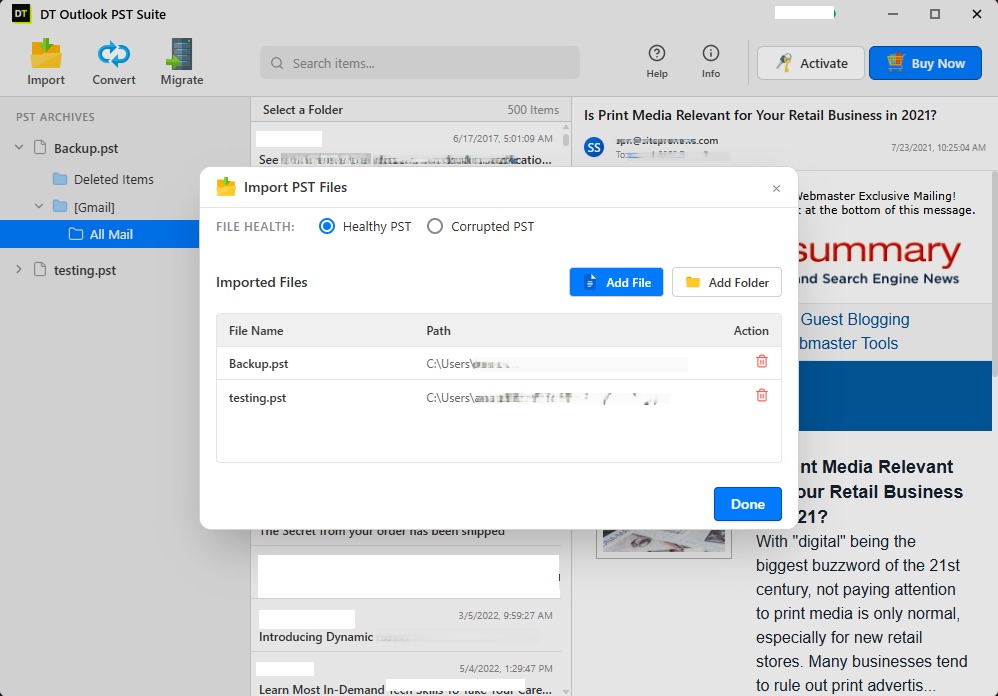
Step 2: Add the PST file or an entire folder of them. A single file works for a one-off migration. For a bulk job, pointing the tool at a folder queues every PST file inside it. File size isn't checked against any limit at this stage.
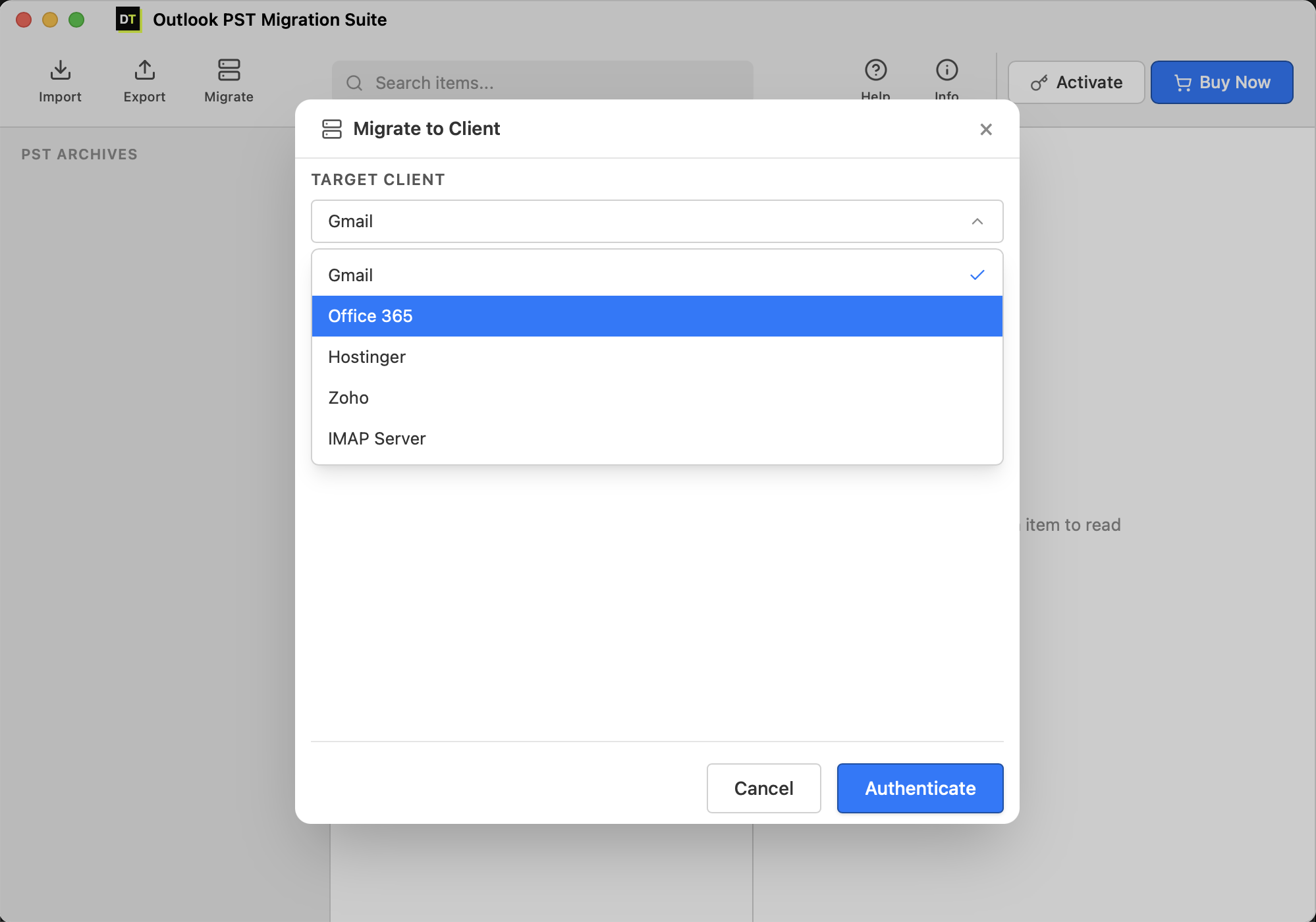
Step 3: Connect to the destination through OAuth 2.0. Signing in once authorizes the connection to Office 365, Google Workspace, Exchange, or an IMAP server. No password is stored by the tool itself.
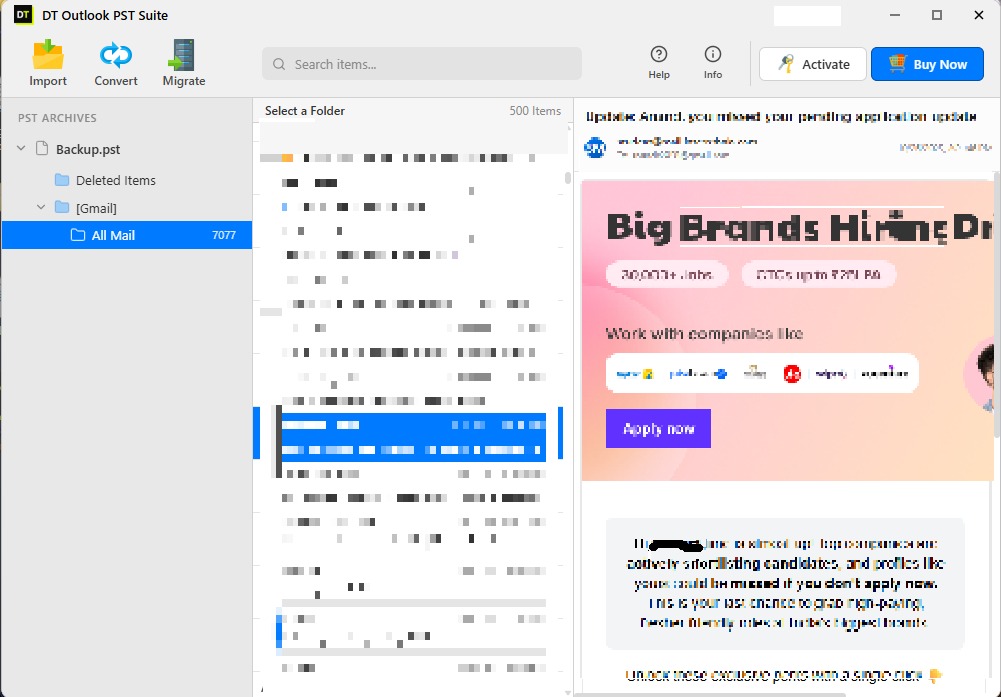
Step 4: Import a CSV mapping file for bulk migrations. Each row pairs one PST file with the mailbox it belongs to. For a single mailbox, this step can be skipped entirely.
Step 5: Start the migration and let it run. Progress is visible as it happens. A dropped connection resumes automatically rather than restarting the job. Once finished, a full audit report lists every item that migrated, was skipped, or was flagged, which is worth keeping on file for anyone who needs to confirm later exactly what moved and when.
When the Destination Isn't a Mailbox at All
Not every PST needs to end up as a live inbox somewhere. A departing employee's mail sometimes just needs to become a permanent record. A legal team might need a fixed set of emails from a specific date range that never gets touched again. A client switching away from Outlook entirely might want their old mail readable in Thunderbird rather than sitting in another cloud mailbox.
That's a conversion problem, not a migration one, and it's a genuinely different task even though the source file looks identical. DT PST Converter takes a PST file and turns it into MBOX, PDF, EML, MSG, CSV, or VCF, sitting as a standalone file rather than landing in any mailbox. Someone offboarding an employee might export their mail to PDF for the record and never touch a mailbox migration at all.
For teams that end up needing both, some PST files migrated into live mailboxes and others simply converted into archive files, the DT PST Suite bundles both tools under one license, which tends to work out cheaper than buying each separately once a project needs more than one of these jobs done.
Frequently Asked Questions
Is the 20GB limit something Microsoft enforces, or just a suggestion?
Do I need to be a Global Administrator to migrate a PST into Office 365?
What happens if a large migration loses its connection halfway through?
How do I migrate PST files for dozens of employees at once without doing each one manually?
Is there any file size that still causes problems with a direct migration tool?
Can old PST files from employees who already left the company still be migrated?
"This tool saved us weeks of manual AzCopy work. We had over 37 PST files past 40GB, and the native Microsoft tool failed on almost all of them. DT PST Migrator pushed them straight to O365 without a single hitch." *"
"I was dreading a 300-mailbox migration specifically because of the 20GB limit. Finding a tool that bypasses Azure Storage entirely was exactly what we needed. Worked flawlessly even on an 85GB archive." *"