
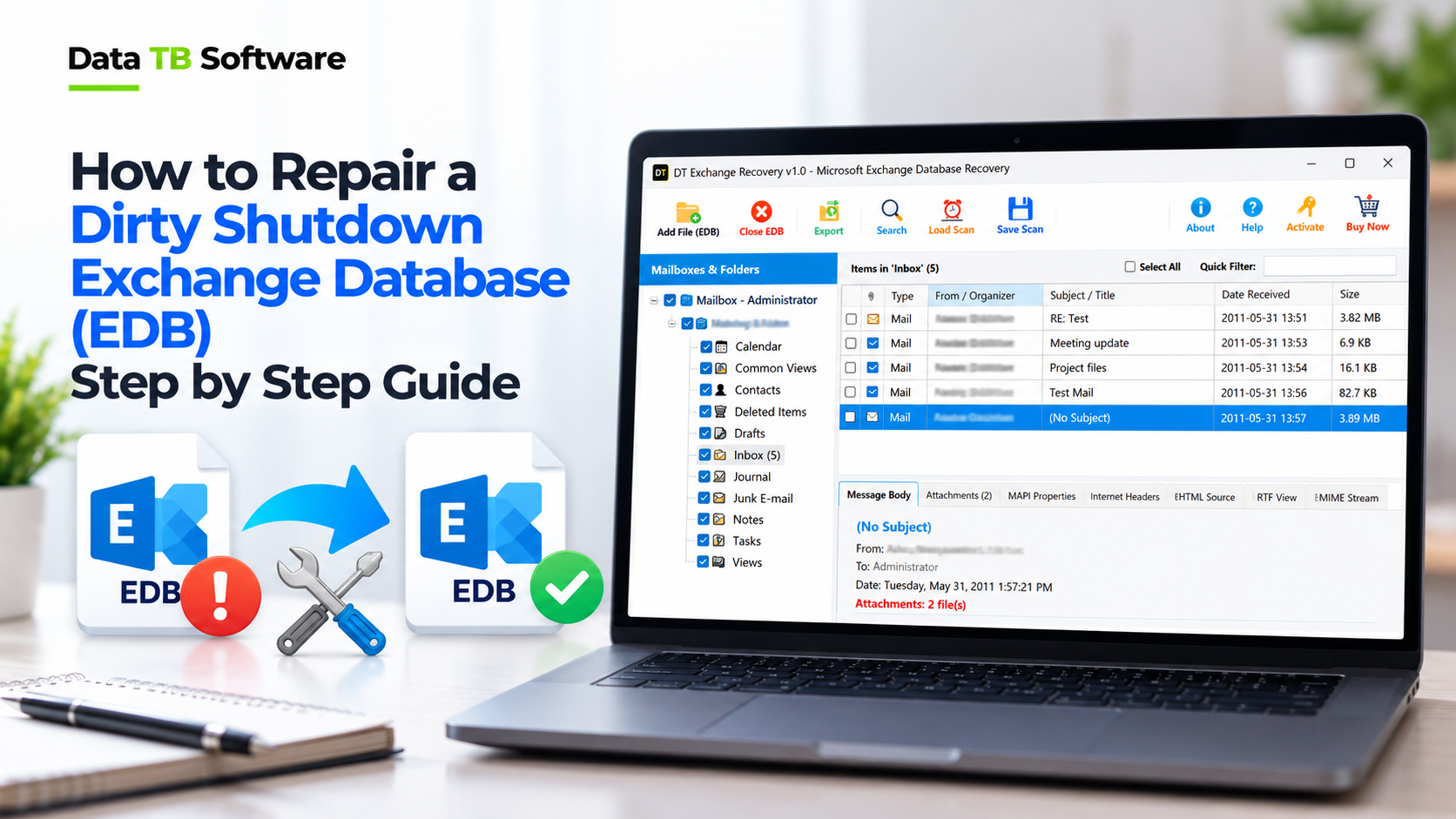
It usually starts the same way. There is a power cut, or the server freezes and someone presses the reset button. After the restart, Exchange comes back, but one database does not. Mailboxes become unavailable, phones start ringing, and the Exchange console says the database failed to mount.
You look deeper and find two small words: Dirty Shutdown.
Take a breath. In many cases, this is fixable, and your mail is still inside that file. This guide explains what a dirty shutdown is, how to check it, how to fix it safely, and what to do when the usual fix fails.
The Short Answer
To repair a dirty shutdown Exchange database, follow this order:
1. Stop and make a copy of the database and its log files.
2. Check the database state with eseutil /mh.
3. If the log files are all there, run a soft recovery with eseutil /r.
4. Check the state again, then mount the database.
5. Use hard repair (eseutil /p) only as the very last option, because it can delete mail.
6. If nothing works, or you do not want to risk losing mail, extract the mailboxes with a recovery tool and rebuild on a fresh database.
Now let’s go through each part properly.
What Does “Dirty Shutdown” Mean?
An Exchange database does not write every change straight into the main EDB file. It first writes changes into small files called transaction logs, and later moves them into the database. Think of a shop keeper who first writes every sale in a daily notebook, and updates the main account book later.
When Exchange shuts down properly, the notebook and the account book match. The database is marked Clean Shutdown.
When Exchange stops suddenly, some entries are still only in the notebook. The database is marked Dirty Shutdown. Exchange then refuses to mount it, because it does not want to give you a database that may be out of step.
So a dirty shutdown does not always mean your mail is gone. Very often it only means the notebook needs to be “replayed” into the account book. That replay is what a soft recovery does.
How to Know You Have This Problem
Look for these signs:
- The database shows Dismounted in the Exchange Admin Center.
- Users cannot open their mailboxes in Outlook or on the web.
- Mounting fails with a message saying Exchange is unable to mount the database.
- The event log shows errors like -550 (database inconsistent) or -1216 (database and logs do not match).
- You run
eseutil /mhand the State line reads Dirty Shutdown.
Why Does an EDB File Go Into Dirty Shutdown?
Knowing the cause helps you choose the right fix and stops it from happening again.
- Power cuts or forced restarts. The most common reason by far.
- Server crash or system freeze. Exchange had no time to close properly.
- Disk or storage problems. Bad sectors, a failing controller, or a virtual disk that suddenly disconnects.
- Full disk. If the drive holding the logs or database fills up, writes fail.
- Missing or damaged log files. An antivirus or backup program may lock, move or delete them.
- A failed repair attempt. An earlier repair that was cut short can leave things worse than before.
Before You Touch Anything: Four Safety Steps
Most data loss in these jobs comes from rushing. Do these first.
1. Copy the database and the logs. Copy the EDB file and every log file (and the checkpoint file) to a safe drive. Do all your work on the copy, or at least have the copy ready. 2. Make sure you have free space. Repair and defrag steps need room to work. Keep free space of at least the size of the database, and more is better. 3. Do not delete log files. Even if they look old. The missing log is often the exact one Exchange needs. 4. Check for a good backup. If you have a clean backup, restoring it is usually safer and faster than any repair. Look at that option before you start.
Step 1: Check the Database State
Open the Exchange Management Shell, or a command prompt in the Exchange bin folder, and run:
eseutil /mh "E:\DB\MBX01.edb"Look at the result. Two lines matter most:
- State: it will say either Clean Shutdown or Dirty Shutdown.
- Log Required: this shows which log files Exchange needs to bring the database up to date. For example, a range like 5 to 7 means log files number 5, 6 and 7 must be present.
Step 2: Check That Your Log Files Are Complete
Now see whether the logs listed in Log Required are really in your log folder. You can check the log files with:
eseutil /ml "E:\Logs\E00"You want the log sequence to be complete, with no gaps. If a needed log is missing or damaged, soft recovery will fail, and you should skip to Step 5.
Step 3: Run a Soft Recovery
If the logs are all there, soft recovery is the safest fix. It replays the missing entries into the database, and it does not delete mail.
eseutil /r E00 /l "E:\Logs" /d "E:\DB"Here is what each part means:
E00is the log prefix. Yours may be E01, E02 and so on. It is the first letter of your log file names./lis the folder with your log files./dis the folder with your database.
Step 4: Check Again and Mount
Run the state check once more:
eseutil /mh "E:\DB\MBX01.edb"If it now says Clean Shutdown, you are in good shape. Mount the database:
Mount-Database MBX01Ask a few users to open their mailboxes and check that recent mail is there. Many dirty shutdowns end right here.
If the state is still Dirty Shutdown, or soft recovery stopped with an error, move on.
Step 5: Hard Repair, and Why You Should Be Careful
Hard repair is the command that scares experienced admins, and with good reason.
eseutil /p "E:\DB\MBX01.edb"Exchange will show a warning before it runs, and you must accept it. Here is what it does in plain words: it goes through the database, and anything it cannot read is thrown away. The database may then become consistent and ready to mount, but some emails, folders or even whole mailboxes may be gone, and you will not always get a clear list of what was lost.
So use hard repair only when all of these are true:
- Soft recovery failed, or the logs are missing.
- You have no usable backup.
- You have already made a full copy of the database and logs.
- You accept that some data may be lost.
What to do after a hard repair
Many guides stop at the command. Please do not. After a hard repair:1. Defragment the database to rebuild it in a clean order:
eseutil /d "E:\DB\MBX01.edb"This needs free space about the size of the database.
2. Check the state again with eseutil /mh and mount the database.
3. Run mailbox repair requests to fix links between items inside the mailboxes. Exchange 2013 and later use New-MailboxRepairRequest for this (it replaced the older Isinteg tool).
4. Move mailboxes to a brand new database. This is what Microsoft recommends after any hard repair. Do not keep running production on a repaired file.
The Problem With the Built-In Repair Tools
The Microsoft route is free, but it has real limits:
- It works only on the original file, so one wrong move can damage your only copy.
- Soft recovery needs every log file, and logs go missing more often than people think.
- Hard repair deletes data you cannot see in advance.
- You cannot preview what is inside before you decide.
- It takes time, and you cannot get mailboxes back until the database mounts.
The Safer Option: Rescue the Mailboxes Instead
There is a different way to think about the problem. Instead of forcing the broken database to mount, leave it alone and take the mailboxes out of it. Users get their mail back while you rebuild the server at a calmer pace.
This is what the DT Exchange EDB Recovery Tool is built for. It reads the EDB file directly in read-only mode, so the original file is not touched. It does not need Exchange to be running. And it does not need the transaction log files either, which is a big help when logs are missing.
An important honest note: this tool does not fix the database so Exchange can mount it again. It rescues the mail from inside it. If you need the old server running again, use a backup, or rebuild and restore the mailboxes to a new database.
How to Recover Mailboxes From a Dirty Shutdown EDB
Step 1: Add the EDB file and scan
Install the tool on a Windows 64-bit computer and add your EDB file. Choose Advance Scan for a damaged or dismounted file. Quick Scan is meant for healthy files. If Quick Scan shows missing items, run Advance Scan.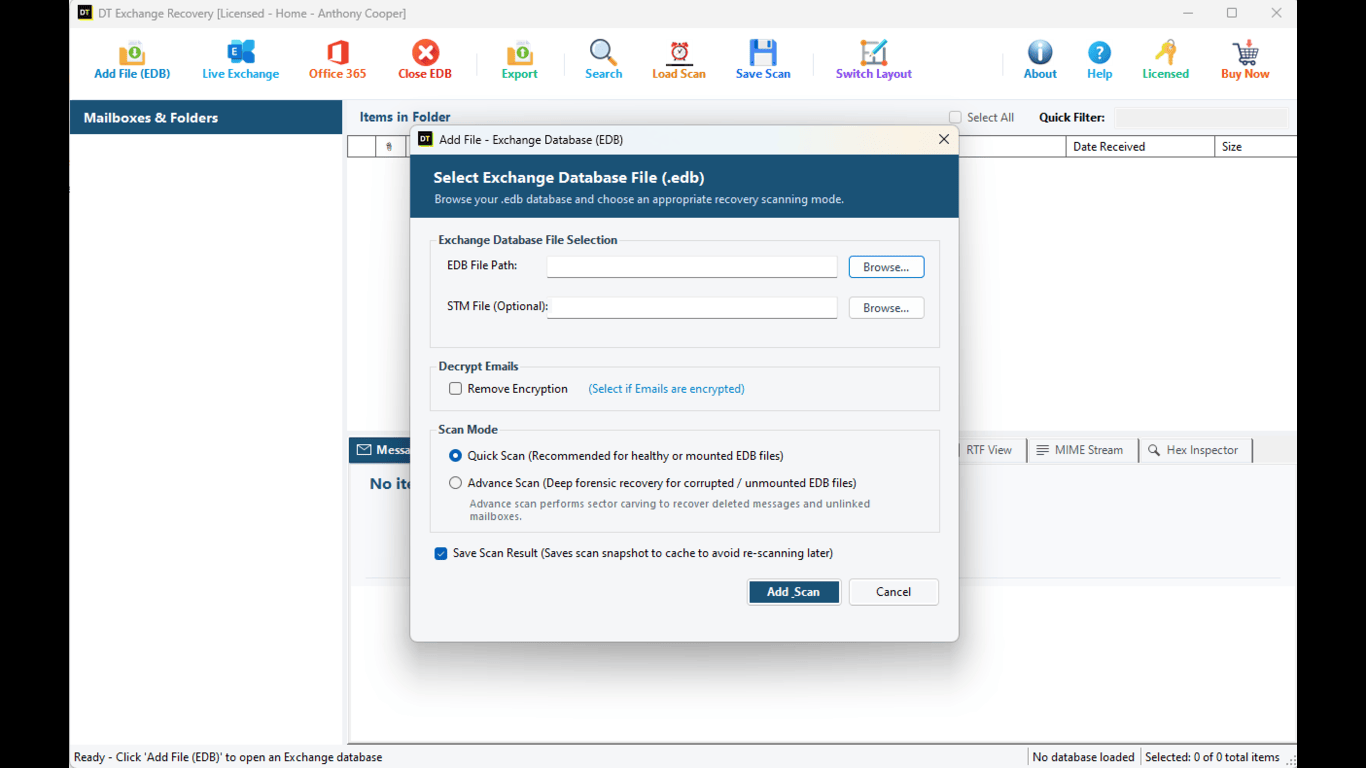
Step 2: Look through the mailbox tree
After the scan, you see the mailboxes like folders in Outlook. Mails, contacts, calendars, tasks, notes and journals all come back together under the person they belong to. Items that were deleted are marked clearly, so you can tell the difference between live and rescued ones.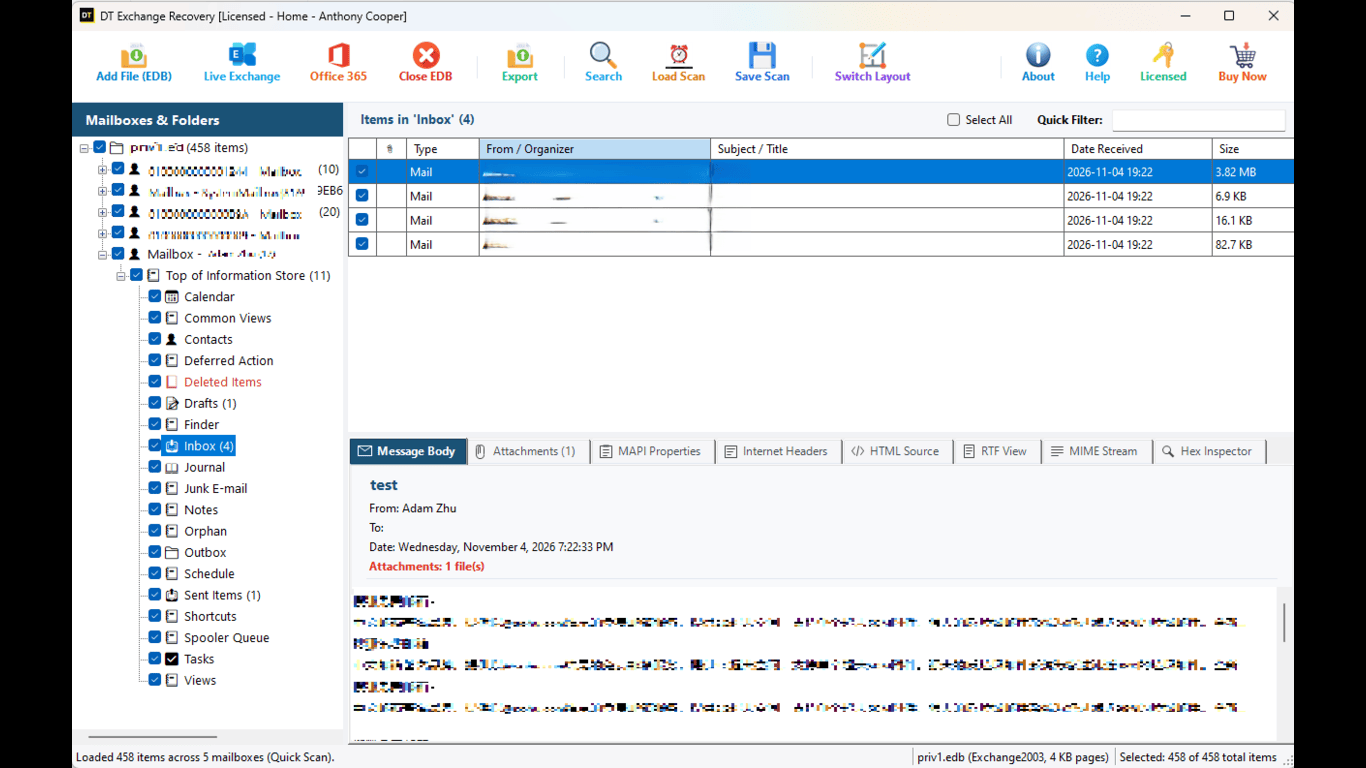
Step 3: Preview before you export
Click any item to read it. You also get six views of each item: Normal, Hex Editor, MAPI Properties, RFC 822 Headers, RTF View and MIME Stream. For most people, Normal is enough. The others help when an item looks damaged and you want to see how much survived.Step 4: Filter and select
Use Quick Filter to narrow the list, then Select All to take everything that matches. This is handy when only a few people or a certain date range matters.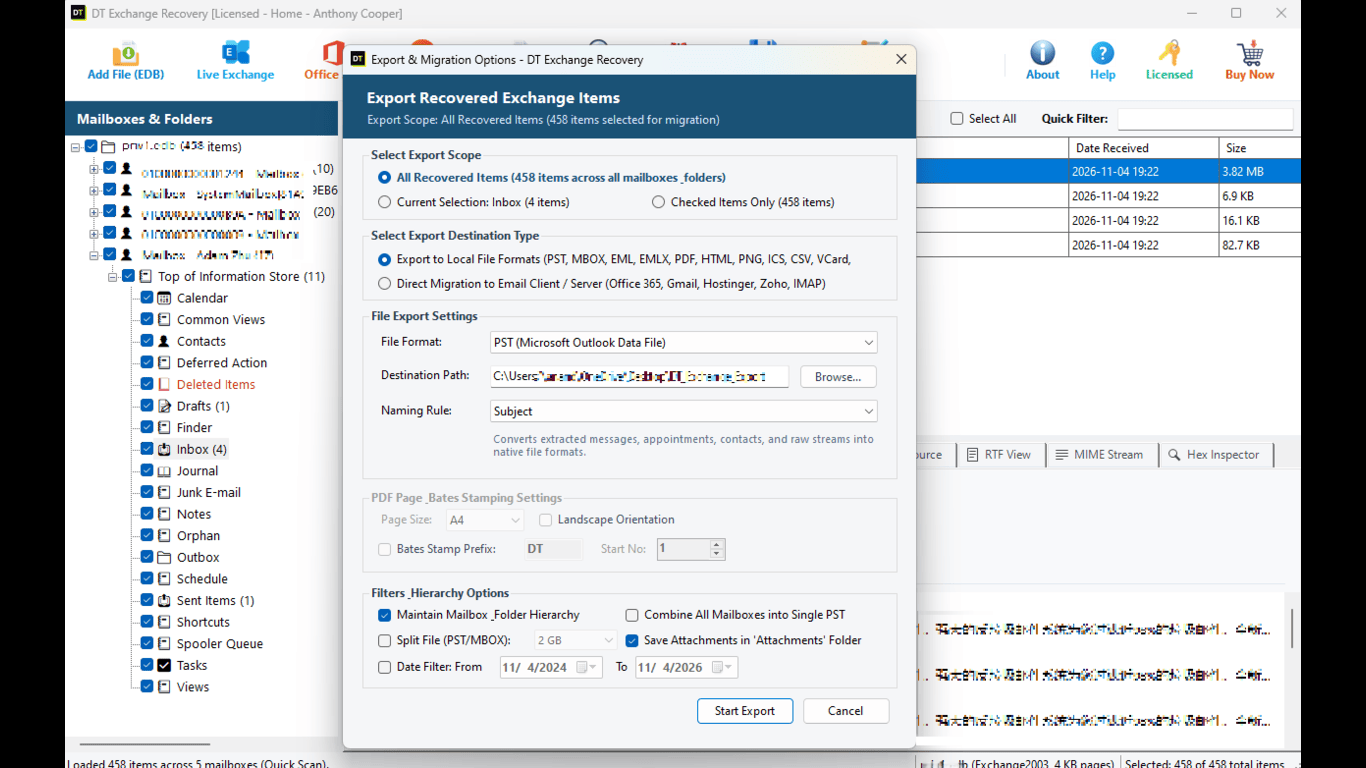
Step 5: Export
Choose where the mail should go:- PST: Giving a mailbox back to a user in Outlook (you can also use DT EDB to PST Converter for direct extraction)
- PDF with Bates stamping: Legal requests and audits, with a number on every page
- EML or MSG: One file per email
- HTML: One web page per email
- MBOX: Thunderbird, Apple Mail and similar apps
- CSV: Lists and reports in Excel
- Direct to Exchange (EWS): Writing items straight into a live Exchange mailbox
A note for Microsoft 365: Microsoft is retiring EWS in Exchange Online, so for a Microsoft 365 destination, export to PST and import the files with Microsoft’s own PST import options. The direct EWS route remains fine for on-premises Exchange servers.
Which Method Should You Choose?
| Your Situation | Recommended Action |
|---|---|
| You have a recent, clean backup | Restore from backup |
| Logs are all present and the damage is small | Soft recovery (eseutil /r) |
| Logs are missing or soft recovery failed | Rescue mailboxes with a recovery tool |
| No backup, and you are thinking of hard repair | Rescue mailboxes first, then decide |
| Legal or audit request on a damaged file | Recovery tool with PDF and Bates stamping |
| You only need a few mailboxes | Recovery tool with filters |
Common Errors You May See, in Plain Words
- -550 (database inconsistent): The database is in a dirty state and needs recovery
- -1018 (read verify failure): A page failed its check, often a storage problem
- -1022 (disk I/O): The disk could not finish a read or write
- -1206 (database corrupted): The structure of the database itself is damaged
- -1216 (attached database mismatch): The database does not match its log files
- -1108 on mount: Log files are missing or the database header is inconsistent
Mistakes to Avoid
- Running hard repair first. It should be your last choice, not your first.
- Working on the only copy. Always copy first.
- Deleting log files to “clean up”. You may delete exactly the one you need.
- Skipping the defrag after hard repair. The database stays in a poor state.
- Keeping a hard-repaired database in production. Move mailboxes to a fresh database.
- Ignoring the disk. If a failing drive caused the problem, it will cause it again.
- Mounting before checking the state. Always check
eseutil /mhfirst.
How to Stop It From Happening Again
- Put the server on a good UPS (battery backup) and set it to shut down safely.
- Keep log files and database on healthy, monitored disks with free space.
- Exclude Exchange database and log folders from antivirus scans.
- Keep regular backups, and test a restore now and then.
- Watch disk health and event log warnings, instead of waiting for a crash.
- Never force a restart on a running Exchange server unless there is no other way.
Frequently Asked Questions
What is a dirty shutdown in an Exchange database?
It means the database was not closed properly, so some changes are still only in the transaction logs and not yet in the EDB file. Exchange will not mount it until that is fixed.Will I lose emails with a dirty shutdown?
Not always. If the logs are complete, soft recovery usually brings everything back. Data loss happens mostly when hard repair is used.What is the difference between soft recovery and hard recovery?
Soft recovery (eseutil /r) replays the logs into the database and removes nothing. Hard recovery (eseutil /p) repairs the file by deleting what it cannot read, so it can lose data.
How do I check if my database is in dirty shutdown state?
Runeseutil /mh on the database file and read the State line. It will say Clean Shutdown or Dirty Shutdown.
Can I repair a dirty shutdown database when the log files are missing?
Soft recovery needs the logs. Without them, hard repair is the built-in option, but it can lose data. A recovery tool that works without log files is a safer way to rescue the mailboxes.Do I need to defragment after repair?
Yes, after a hard repair. Runeseutil /d to rebuild the database, and make sure you have enough free space first.
Should I keep using a database after hard repair?
Microsoft advises moving the mailboxes to a new database instead of running on the repaired one.Can the recovery tool repair the original database?
No. It reads the file safely, leaves the original untouched, and exports the mailboxes to PST and other formats. To get a working server again, use a backup or move the recovered mailboxes into a new database.Which Exchange versions does it support?
Exchange 2000, 2003, 2007, 2010, 2013, 2016, 2019 and SE.Does it run on Mac?
No. It is a Windows 64-bit application.Can I try it before I buy?
Yes. The free demo lets you scan and preview your mailboxes. Exporting in the demo is limited to a small number of items per folder, and the full license removes that limit.Get Your Mailboxes Back Without the Risk
A dirty shutdown feels like an emergency, and it is natural to want to run the quickest command. But the quickest command is sometimes the one that deletes mail.
Start with the safe steps. Copy, check, replay the logs. And if the logs are gone or the repair fails, do not gamble with hard repair. Rescue the mailboxes first, look at them with your own eyes, and then decide.
Download the DT Exchange EDB Recovery Tool, scan your file, and see what is still inside before you spend anything.
Try DT Exchange EDB Recovery Tool