
The request usually arrives on a Monday. Someone left the company months ago, their account was removed during a clean up, and now legal, finance or a new manager wants that mailbox back. You open the Exchange Admin Center and the disconnected mailbox list shows nothing for that name. The 30 days are long gone.
The good news is that a mailbox that has disappeared from Exchange has not always disappeared from the disk. The bad news is that how much you can get back depends on what you do in the next hour, and most of the advice online skips that part.
Quick answer: If the mailbox was deleted recently, reconnect it from the Disconnected Mailbox list or restore it with New-MailboxRestoreRequest. If the retention period is over and Exchange no longer lists it, you need an older backup or an EDB recovery tool that scans the database file offline and carves out mailboxes that Exchange can no longer see. Do not run offline defragmentation or any repair on the database until you have copied it.
Try DT Exchange EDB Recovery Tool: Open corrupt, dismounted, or orphaned EDB files and preview all mailboxes free before buying.
Free Scan & Preview | No Exchange Server or Outlook Required | 30-Day Money Back
This guide explains what "permanently deleted" really means inside an EDB file, which recovery route fits which situation, the exact commands and steps for each, and the mistakes that turn a recoverable mailbox into a lost one.
First, Know Which Kind of Deleted You Are Dealing With
People use "deleted" for four different things in Exchange, and each has a different fix. Identify yours before you do anything.
| What happened | Where the data is | Fix |
|---|---|---|
| A user deleted emails or emptied Deleted Items | Recoverable Items folder (default retention 14 days) | Recover Deleted Items in Outlook or Outlook on the web |
| A mailbox was removed or disabled, within 30 days | Database, marked as Disconnected | Reconnect it or restore it to a mailbox |
| Mailbox was removed, retention period is over | Purged from the database index, pages may still hold the data | Backup restore or EDB recovery tool |
| The database file is corrupt or will not mount | The EDB file itself | Soft recovery, backup or EDB recovery tool |
What Actually Happens When Exchange Deletes a Mailbox
Understanding this is the difference between a recovery that works and a recovery that does not.
When you run Remove-Mailbox or Disable-Mailbox, Exchange does not wipe anything. It does two things: It disconnects the mailbox from the Active Directory account. It marks the mailbox in the database as Disconnected, with a reason of Disabled (the account was removed or the mailbox disabled) or SoftDeleted (the mailbox was moved to another database).
The data stays where it is for the deleted mailbox retention period. The default is 30 days, and it is a database level setting. During this window the mailbox can be reconnected or restored from Exchange itself.
When the retention period ends, the store maintenance process removes the mailbox from the database. Here is the part many articles get wrong. Removing a mailbox from the database does not zero out its pages. The pages are returned to the database as free space (white space), and the old content stays physically in the file until something overwrites it.
That is why the data can often still be read, and it is also why time matters: Every new message delivered to the database can reuse that free space. Online maintenance keeps shuffling and reusing it. Offline defragmentation (eseutil /d) rebuilds the database into a new file and drops the free space entirely. That destroys exactly the pages you are trying to recover.
So "permanently deleted" in Exchange means "no longer reachable through Exchange", not "physically erased". An offline tool reading the file can still reach what Exchange cannot, as long as the pages have not been reused.
Before You Start: Protect the Evidence
Do these in order, before any recovery attempt. Stop the clock. If the mailbox was deleted a while ago, the database may still be mounted and receiving mail. If possible, dismount it, or at least take a copy right now. Copy the whole database folder. Copy the .edb, the .log files and the .chk file to another drive. Always work on the copy. Do not run eseutil /d. Offline defragmentation removes the free space where deleted mailboxes live. Do not run eseutil /p. Hard repair deletes pages it cannot read and can remove recoverable data. Find older copies. Check Windows Server Backup, your backup software, VM snapshots and old server images. An older copy of the EDB from before the deletion is the best possible source. Note the date of deletion. It tells you which backup to look for and how likely the pages are still intact.
A fast decision here saves a lot of regret later.
Method 1: Reconnect the Mailbox (Retention Period Still Active)
If the mailbox was removed less than 30 days ago, which is the default retention, this is the cleanest route. No data tools needed.
Step 1. Find the disconnected mailbox.
Get-MailboxStatistics -Database DB01 | Where {$_.DisconnectReason -ne $null} | Format-List DisplayName, MailboxGUID, DisconnectReason, DisconnectDateIf you just removed it and it is not listed, refresh the database status first:
Clean-MailboxDatabase DB01Step 2. Reconnect it to a user account. For a mailbox with the Disabled reason, in the Exchange Admin Center go to Recipients, then Mailboxes, open the More menu and choose Connect a mailbox (on Exchange 2010 it is under Recipient Configuration, then Disconnected Mailbox). Or use PowerShell:
Connect-Mailbox -Identity "Display Name" -Database DB01 -User "username"The account must not already own a mailbox.
Step 3. For a SoftDeleted mailbox, restore it instead. SoftDeleted mailboxes cannot be reconnected to a user. Restore their content into an existing mailbox:
New-MailboxRestoreRequest -SourceStoreMailbox MailboxGUID -SourceDatabase DB01 -TargetMailbox [email protected] -AllowLegacyDNMismatchStep 4. Check progress.
Get-MailboxRestoreRequest | Get-MailboxRestoreRequestStatisticsWhere this method stops. It only works while the mailbox is still listed. Once the retention period ends and maintenance has run, Get-MailboxStatistics no longer shows it, and none of the commands above can find it.
A useful side note: if the Active Directory account was deleted too, check the AD Recycle Bin first. Restoring the account does not bring back a purged mailbox, but it saves you recreating the user object by hand.
Method 2: Restore from a Backup Taken Before the Deletion
If any backup from before the deletion date exists, this is the most reliable route after Method 1. You restore the older database copy as a recovery database and pull the mailbox out of it. This works on Exchange 2010 and later, and the restored database must be in a Clean Shutdown state.
Step 1. Restore the backup to a working folder, for example D:\RDB.
Step 2. Check its state.
eseutil /mh D:\RDB\DB01.edbIf it shows Dirty Shutdown, run soft recovery with the logs that came with the backup, as explained in our guide on recovering mailboxes from a corrupt EDB file.
Step 3. Create and mount a recovery database.
New-MailboxDatabase -Recovery -Name RDB1 -Server EXCH01 -EdbFilePath D:\RDB\DB01.edb -LogFolderPath D:\RDB
Mount-Database RDB1
Step 4. Find the mailbox inside it.
Get-MailboxStatistics -Database RDB1 | Format-List DisplayName, MailboxGUID, LegacyDNStep 5. Restore it to a live mailbox. Create a new mailbox for the user first if none exists, then:
New-MailboxRestoreRequest -SourceDatabase RDB1 -SourceStoreMailbox "Display Name" -TargetMailbox [email protected] -AllowLegacyDNMismatchThe AllowLegacyDNMismatch switch matters here. A recreated user gets a different LegacyExchangeDN, and without this switch the restore refuses to run.
Where this method stops. It needs a backup that predates the deletion and an intact database inside it. Many organisations either have no such backup or find that it fails to restore cleanly. That is where the next method comes in.
Method 3: Recover Permanently Deleted Mailboxes with an EDB Recovery Tool
This is the route for the hardest cases: The retention period is over and Exchange no longer lists the mailbox. No backup covers the date. The database is dismounted, will not mount or is partly corrupt. All you have is an old EDB file from a server that no longer exists.
An EDB recovery tool does not ask Exchange for anything. It opens the .edb file directly on a Windows machine, reads the ESE structure offline and walks the database pages itself, including the free space that Exchange ignores. Because it works from the file and not through the server, it can find mailboxes whose index entries are long gone.
The workflow below uses DT Exchange EDB Recovery Tool. It runs on 64-bit Windows and does not need Exchange Server or Outlook on the machine.
Step 1: Copy the EDB file Copy the database to a local drive on the machine where you will run the tool. Never point it at the only copy. Make sure the drive has room for the export.
Step 2: Install and launch the tool Download and install DT Exchange EDB Recovery Tool. The installer is about 72 MB and runs on Windows 11, 10, 8.1 and 7 and on Windows Server 2022, 2019, 2016, 2012 R2 and 2008 R2. 4 GB of RAM works, and 8 GB is recommended for very large databases.
Step 3: Add the EDB file
Use single processing for one database, or batch processing to load several EDB files at once. Batch mode helps when deleted mailboxes could be sitting in any of several old databases, and you want to search them in one run.
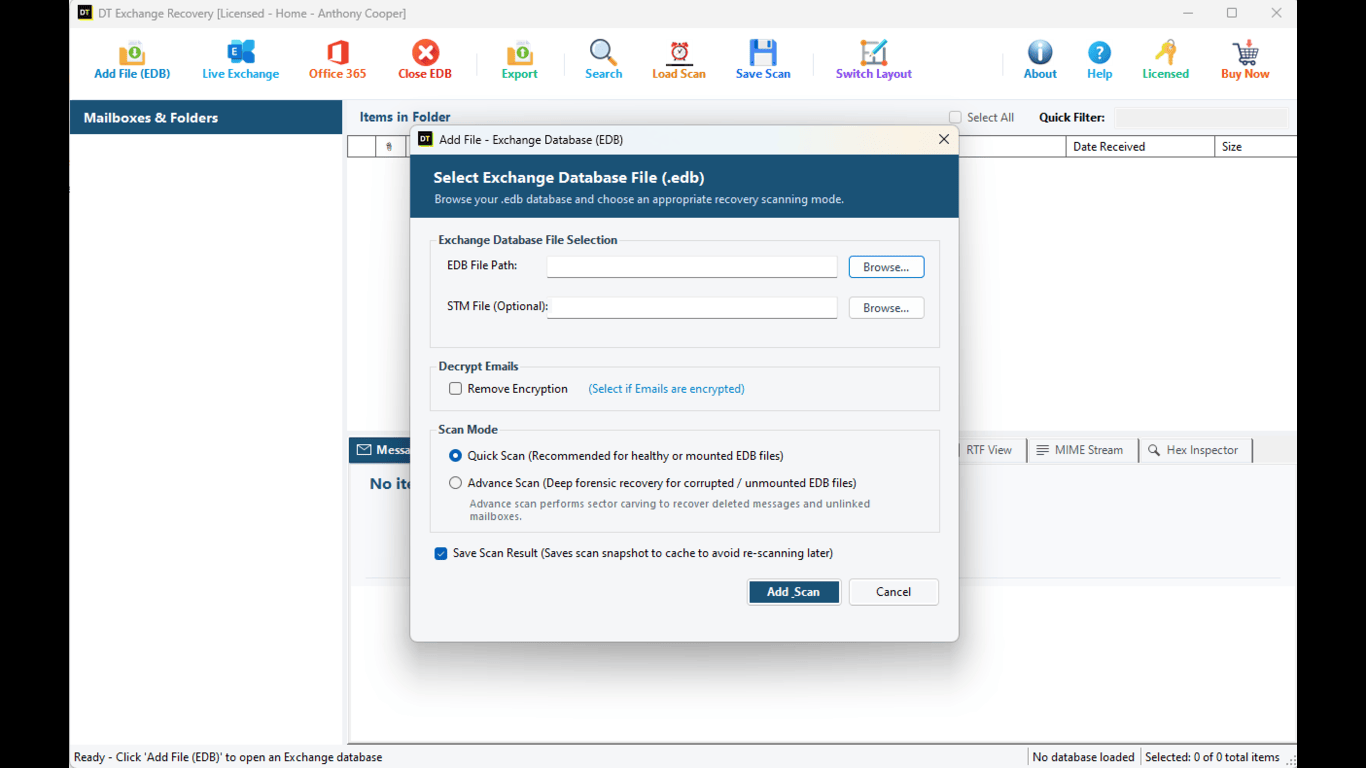
Step 4: Choose Advance Scan This is the step that decides the outcome. Quick Scan reads the live structure of the database and shows the mailboxes Exchange still knows about. It is fast and right for healthy files. Advance Scan goes further. It reads through the database pages, including unallocated space, and rebuilds mailboxes and items that were purged from the index. Use this for permanently deleted mailboxes.
A sensible approach is to run Quick Scan first. If the mailbox you need is missing from the tree, run Advance Scan on the same file. The tool does not depend on transaction logs, so missing .log or .chk files do not stop it.
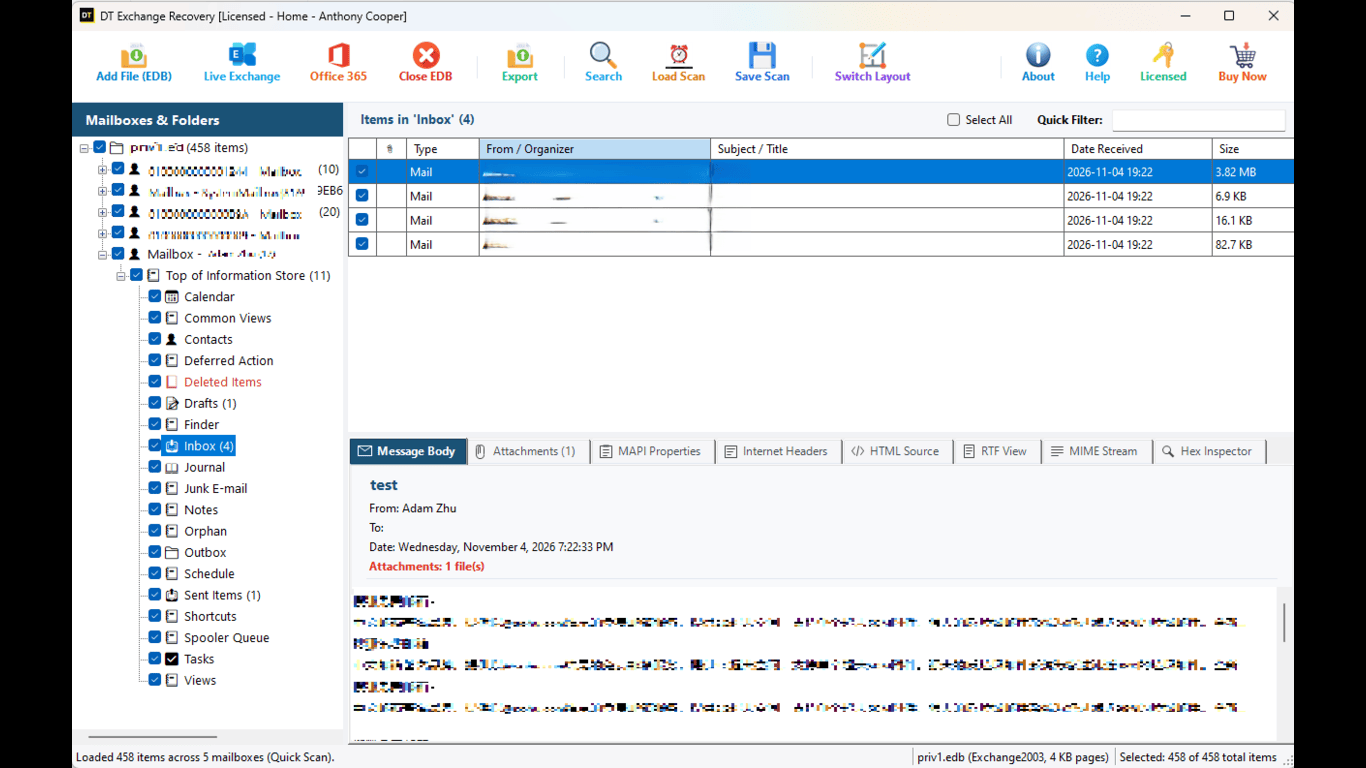
Step 5: Browse the recovered tree When the scan finishes, you see the mailboxes in a folder tree with mails, contacts, calendars, tasks, notes and journals under each. Public folders and in-place archives are supported too. Items recovered from deleted space are marked, so you can see which data came from live structure and which was carved out of free pages. If a mailbox name shows up as a GUID or a fragment instead of the display name, open it and check a few messages. The contents, not the label, tell you whose mailbox it is.
Step 6: Preview before you export Click any item and check it in the preview tabs: Normal, Hex Editor, MAPI Properties, RFC 822 Headers, RTF View and MIME Stream. The preview is your proof that the right data survived, and it lets you tell your stakeholder what is recoverable before a single file is exported.
Step 7: Select what you need Use Quick Filter to narrow by sender, subject, date or keyword. For a legal or HR request, a date and keyword filter often turns a huge mailbox into a precise set of messages.
Step 8: Choose the output
| Output | Best for |
|---|---|
| PST, with splitting from 5 GB to 50 GB | Returning the mailbox to a user or importing it back into Exchange or Microsoft 365 |
| PDF with Bates stamping | Legal discovery, audits and investigations |
| EML | One file per email, easy archiving |
| MSG | One Outlook message file per item |
| HTML | Reading mail in any browser |
| MBOX | Thunderbird, Apple Mail and other MBOX clients |
| CSV | Contact lists and reports |
| Direct migration over EWS | Writing items straight into a live on-premises Exchange mailbox |
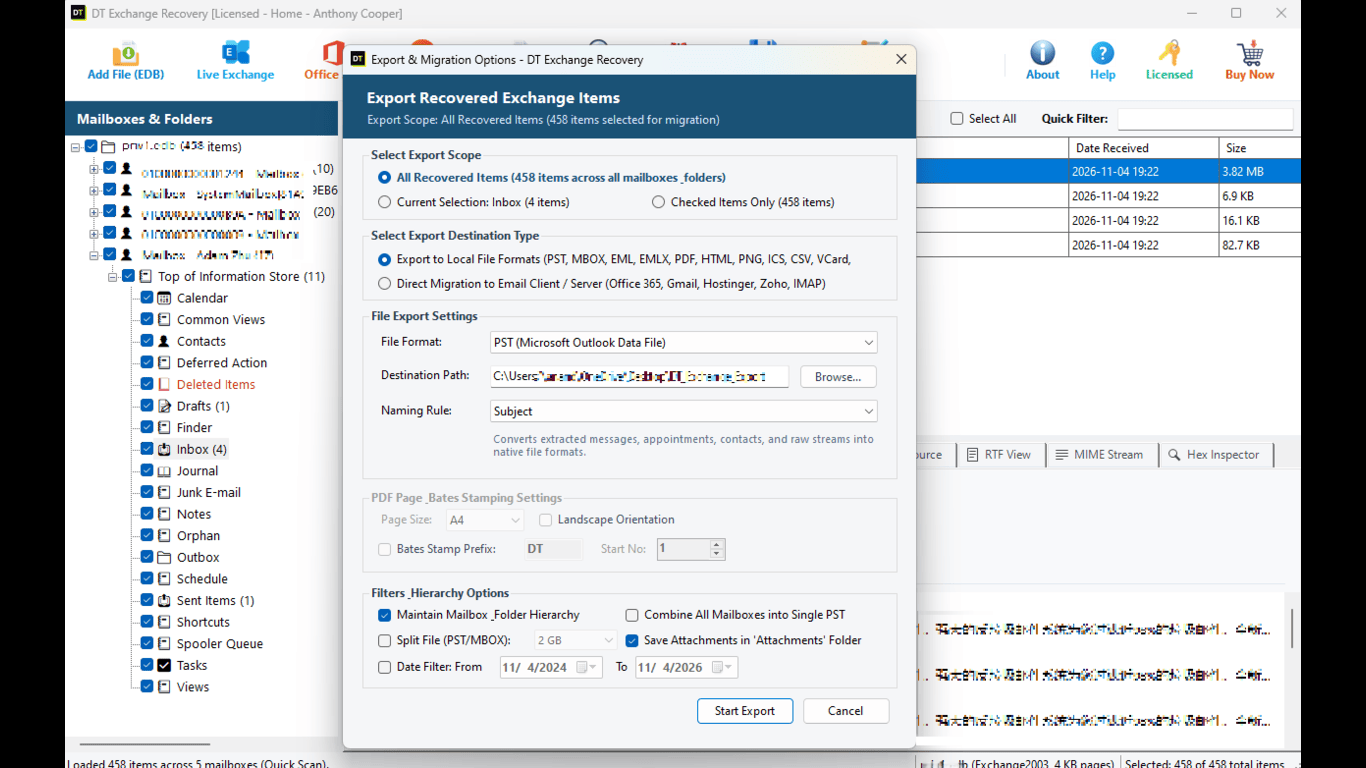
Step 9: Export and verify Choose the destination and run the export. When it ends, open a sample of the PST files in Outlook, check the oldest and the newest items, and compare folder and item counts. Do this before telling anyone the job is done.
The free demo lets you open the EDB file, run both scan modes and preview the recovered items, so you can confirm the mailbox is there before you buy. Exporting requires the full license.
Method 4: Rebuild the Mailbox with Ordinary Exchange Tools After Export
Recovering the data is half of it. You still need to hand it to a user or an application. These are the usual routes.
Back into on-premises Exchange. Create a mailbox for the user, then import the PST:
New-MailboxImportRequest -Mailbox [email protected] -FilePath \\SERVER\Share\user.pstOr use the direct EWS migration option to write the items into the target mailbox without creating a PST first.
Into Microsoft 365. Microsoft is phasing out Exchange Web Services in Exchange Online, so PST is the dependable path. Export to PST, upload the files to Azure with AzCopy using the SAS URL from the Microsoft Purview import job, map each file to its target mailbox with a CSV, and start the import.
To an archive or another client. Export to EML, MSG, HTML or MBOX, or to PDF with Bates numbers if the mailbox is needed as evidence.
Which Method Should You Use? Quick Comparison
| Your situation | Method | Chance of full recovery |
|---|---|---|
| Deleted under 30 days ago, still listed as Disconnected | Reconnect or restore from Exchange | Very high |
| Retention over, backup from before the deletion exists | Recovery database | Very high |
| Retention over, no backup, database still has free pages | EDB recovery tool, Advance Scan | Depends on page reuse |
| Database corrupt or dismounted | EDB recovery tool, then soft recovery if needed | High |
| Database already defragmented offline | Recovery tool on older copies only | Low |
Why a Recovery Tool Can Succeed Where Exchange Cannot
| Point | Exchange native tools | DT Exchange EDB Recovery Tool |
|---|---|---|
| Mailbox visible after retention ends | No | Yes, through Advance Scan on free pages |
| Needs the server and AD | Yes | No |
| Needs transaction logs | Yes, for soft recovery | No |
| Works with a dismounted or old EDB | Only via recovery database | Yes, directly |
| Preview before restoring | No | Yes, six tabs |
| Output choices | Restore to a mailbox | PST, PDF, EML, MSG, HTML, MBOX, CSV, EWS |
| Skill needed | PowerShell and ESE knowledge | Point and click |
No tool can promise to restore every deleted mailbox, and be wary of any page that does. What matters is how much of the original data is still physically in the file. Three things drive that: Time since deletion. The longer the database stayed mounted and busy, the more free pages have been reused. Database activity. A quiet database overwrites its free space slowly. A busy one overwrites it fast. Whether anyone defragmented it. Offline defragmentation removes the free space, and with it the evidence.
Expect results in these bands. A mailbox deleted a few weeks ago from a database that has not been defragmented is often largely recoverable. One deleted a year ago from a heavily used database may come back partly, with gaps. Anything from a defragmented database depends on finding an older copy of the file. This is exactly why the preview step exists: you can see what survived before you commit to an export.
Common Mistakes That Make a Deleted Mailbox Unrecoverable
Running eseutil /d to reclaim space. The most common and most damaging one. Running eseutil /p on the only copy. Hard repair discards pages it cannot read. Letting the database keep running for weeks while debating what to do. Mail keeps overwriting free pages. Deleting old backups and VM snapshots too soon. The older copy may be the only complete source. Recreating the user and mailbox first, without restoring. A new mailbox is fine, but do not move or compact the database during the process. Skipping verification. Always check item counts and sample messages before closing the case.
How to Never Lose a Mailbox for Good
Raise the deleted mailbox retention above the default where policy allows:
Set-MailboxDatabase DB01 -MailboxRetention 60.00:00:00Keep at least one monthly backup of every mailbox database for a year or longer, and test restores. Use litigation hold or a retention policy for mailboxes that may be needed later, such as executives and anyone under legal review. Add a mailbox removal step to your offboarding process that exports to PST before removal. Never defragment a database offline without a verified copy.
Frequently Asked Questions
Can I recover a permanently deleted mailbox in Exchange? Often, yes. Within the retention period you reconnect or restore it from Exchange. After it, you need a backup from before the deletion or an EDB recovery tool that reads the database file offline and recovers mailboxes from pages that have not been overwritten.
How long does Exchange keep a deleted mailbox? The default deleted mailbox retention period is 30 days. It is set per mailbox database and can be changed with Set-MailboxDatabase -MailboxRetention.
Can I recover a deleted mailbox after 30 days? Not through Exchange alone. After the retention period, the mailbox is purged from the database index. You can still recover it from a backup, or by scanning the EDB file with a recovery tool that reads the free pages where the data may remain.
What is a disconnected mailbox? A disconnected mailbox is one that still exists in the database but is no longer linked to an Active Directory account, for example after the account was deleted. It can be reconnected within the retention period.
What is the difference between Disabled and SoftDeleted? Disabled means the mailbox was removed or disabled, and can be reconnected to a user. SoftDeleted means the mailbox was moved to another database, and can be restored into a mailbox with a restore request, not reconnected.
Can I recover a deleted mailbox without a backup? Yes, in many cases. An EDB recovery tool does not need a backup or transaction logs. It reads the database file itself and recovers what is still physically there.
Does running eseutil /d affect deleted mailboxes? Yes. Offline defragmentation rebuilds the database into a new file and removes free space. That removes the pages where purged mailboxes may still sit, so avoid it until recovery is done.
Can I recover a deleted mailbox from an old EDB file of a decommissioned server? Yes. Load the file into the tool and run Advance Scan. You do not need the original server, Active Directory or Outlook.
Does this work with Exchange 2010, 2013, 2016 and 2019? Yes. DT Exchange EDB Recovery Tool supports Exchange 2000, 2003, 2007, 2010, 2013, 2016, 2019 and SE databases, and you can open files from different versions in the same session.
Can I see what is recoverable before paying? Yes. The free demo lets you scan the file and preview the recovered items. You only need the full license to export.
Can I recover deleted mailboxes in Microsoft 365 or Exchange Online this way? This guide is for on-premises Exchange EDB files. For Exchange Online, a deleted user and mailbox can be restored from the Microsoft 365 admin center within 30 days, and inactive mailboxes follow separate retention rules.
Is the recovered mailbox exact, with folders and dates? When the pages are intact, folder structure, dates, attachments and properties come back with each item. Where pages were partly overwritten, some items may be incomplete, and the preview shows you which.
Final Thoughts
A deleted mailbox in Exchange is rarely as gone as it looks. First check whether it is still listed and reconnect it. If a backup exists, restore it. If neither works, and you act before the database is defragmented or overwritten, an offline recovery of the EDB file is your best remaining option, and the preview tells you exactly what you will get before you spend anything.
Try it now: Download the free demo of DT Exchange EDB Recovery Tool, load your EDB file, run Advance Scan and preview the deleted mailbox.