
An Exchange database does not usually fail on a convenient day. A power cut, a storage controller that drops writes, a backup agent that locks the wrong file, and suddenly the mailbox database refuses to mount, users are locked out and someone is asking you for an ETA.
If that is where you are right now, here is the short version.
Try DT Exchange EDB Recovery Tool: Open corrupt, dismounted, or orphaned EDB files and preview all mailboxes free before buying.
Free Scan & Preview | No Exchange Server or Outlook Required | 30-Day Money Back
Quick answer: To recover mailboxes from a corrupt Exchange EDB file, first copy the database and its logs to a safe drive. Then check its state with eseutil /mh. If the logs are intact, run soft recovery with eseutil /r. If a good backup exists, restore it into a recovery database and pull out the mailboxes you need. If there is no backup, the logs are missing or the database is badly damaged, use an EDB recovery tool to read the file offline and export the mailboxes to PST or another format, without running eseutil /p.
The rest of this guide walks through every option in the order an experienced Exchange admin would try them, with the exact commands, what can go wrong at each step, and how to decide when to stop and switch methods.
Which Method Should You Use? (Quick Decision Table)
Do not start with the most aggressive repair. Match the method to your situation.
| Your situation | Best method | Risk of data loss |
|---|---|---|
| Database is healthy, a user or mailbox was deleted | Restore the disconnected mailbox from Exchange itself | None |
| Dirty shutdown, all log files are present | Soft recovery with eseutil /r | None |
| You have a good backup | Restore to a recovery database and extract the mailbox | None |
| Dirty shutdown, logs missing, no backup | EDB recovery tool (offline, read-only) | Lowest |
| Only the EDB file is left, the server is gone | EDB recovery tool | Lowest |
| Nothing else works and you accept losing pages | Hard repair with eseutil /p | High |
What Is an EDB File and Why Does It Get Corrupted?
An EDB file is the Extensible Storage Engine (ESE) database where Exchange keeps mailbox content: messages, attachments, contacts, calendars, tasks, notes and journals. Next to it sit the transaction log files (.log), a checkpoint file (.chk) and, on some versions, reserved logs. Exchange writes every change to the logs first and flushes it into the database later. That design is what makes the server fast, and it is also why a bad shutdown causes trouble.
The most common causes of EDB corruption are:
Unclean shutdowns. Power loss or a forced reboot leaves committed transactions sitting in the logs and never applied to the database. The database is marked as dirty.
Storage faults. Bad sectors, a failing RAID controller, a dropped virtual disk or a SAN that loses writes will damage database pages.
Missing or mismatched log files. An antivirus or backup agent that deletes or locks log files breaks the chain Exchange needs to bring the database to a clean state.
Interrupted maintenance. Offline defragmentation or a repair that stops halfway can leave the database in worse shape than before.
Failed manual repairs. A hard repair that throws away unreadable pages can leave a database that mounts but has silently lost items inside.
Signs that your EDB file is corrupt
The database will not mount and Exchange reports errors such as ec=-1108, hr=0x80004005 or "Unable to mount database".
The event log shows JET errors such as -550 (database inconsistent), -1018 (read verify failure), -1022 (disk I/O error), -1206 (database corrupted) or -1216 (attached database mismatch).
Users get sudden Outlook disconnects, missing folders or items that cannot be opened.
eseutil /mh reports the state as Dirty Shutdown and the log files it needs are not there.
The common error codes in plain words:
| Error | What it usually means |
|---|---|
| JET_errDatabaseInconsistent (-550) | The database is in a dirty state and needs recovery |
| JET_errReadVerifyFailure (-1018) | A page failed its checksum, often a storage problem |
| JET_errDiskIO (-1022) | The disk could not complete a read or write |
| JET_errDatabaseCorrupted (-1206) | The database structure itself is damaged |
| JET_errAttachedDatabaseMismatch (-1216) | The database does not match its log files |
Most permanent data loss in Exchange recovery does not come from the corruption. It comes from what happens in the first hour afterwards. Do these four things before any command that writes to the database.
Stop the database from being used. Dismount it if it is still mounted. Do not keep retrying the mount again and again.
Copy everything. Copy the .edb file, all .log files, the .chk file and any reserved logs to another drive with plenty of free space. Work on the copy.
Record the original state. Note the database path, the log path and the Exchange version. You will need them for the commands below.
Check free space. Repair and defragmentation work need a lot of room. Defragmentation can need more free space than the database itself, so a nearly full drive is a problem you want to know about now.
With that done, start with the safest method and move down the list only when it fails.
Method 1: Check the State of the Database with eseutil /mh
This is not a repair. It is the diagnosis that tells you which repair you need. Run it against your copy:
eseutil /mh D:\Recovery\DB01.edbLook at the State line in the output.
Clean Shutdown. The database is consistent. It should mount, or it can be attached to a recovery database. If it will not mount, the cause is more likely a path, permission or configuration problem than corruption.
Dirty Shutdown. Some transactions in the logs have not been applied. The Log Required line tells you which log generations Exchange needs.
To check whether those logs are actually healthy and present, run:
eseutil /ml D:\Recovery\E00If the required logs are all there and valid, go to Method 2. If they are missing, damaged or from a different generation sequence, soft recovery will not finish, and you should jump to Method 4 or Method 5.
If eseutil /mh cannot even open the file, the header or a core structure is damaged. Soft recovery is not going to help, and an offline recovery tool is usually the practical next step.
Method 2: Soft Recovery with eseutil /r
Soft recovery replays the transaction logs into the database and brings it to a clean shutdown state. It does not remove data, which is why it is the first repair worth trying.
eseutil /r E00 /l D:\Recovery /d D:\Recovery\DB01.edbHere E00 is the log prefix for your database (it can be E01, E02 and so on for other databases), /l is the folder holding the log files and /d is the folder holding the database.
After it finishes, run eseutil /mh again. If the state is now Clean Shutdown, you can mount the database, or attach the copy to a recovery database and extract the mailboxes you need.
When soft recovery fails
A required log file is missing, so replay stops partway.
The logs belong to a different database, which produces the attached database mismatch error (-1216).
A page in the database itself is damaged, so the replay cannot complete.
When any of these appear, repeating the same command will not help. Choose between a backup restore (Method 3), a hard repair (Method 4) or an offline recovery tool (Method 5).
Method 3: Restore from Backup into a Recovery Database
If a clean backup exists, restoring it almost always beats repairing a damaged file. A recovery database lets you restore a backup copy beside your live databases and pull out single mailboxes without touching production. This method works on Exchange 2010 and later, and the database must be in a Clean Shutdown state.
Step 1. Restore the backup files to a working folder, for example D:\RDB.
Step 2. Create the recovery database.
New-MailboxDatabase -Recovery -Name RDB1 -Server EXCH01 -EdbFilePath D:\RDB\DB01.edb -LogFolderPath D:\RDBStep 3. Mount it.
Mount-Database RDB1Step 4. List the mailboxes inside it and find the one you need.
Get-MailboxStatistics -Database RDB1 | Format-List DisplayName, MailboxGUID, LegacyDNStep 5. Restore the mailbox into the live one.
New-MailboxRestoreRequest -SourceDatabase RDB1 -SourceStoreMailbox "Mailbox Display Name" -TargetMailbox [email protected]Step 6. Watch progress and clean up.
Get-MailboxRestoreRequest | Get-MailboxRestoreRequestStatistics Remove-MailboxRestoreRequestThis is the cleanest route, but it depends on two things: you have a usable backup, and the database inside it is clean. If your only copy is the corrupt file itself, this method cannot help, and that is exactly the situation the next two methods cover.
On Exchange 2007 the equivalent is the Recovery Storage Group with the Restore-Mailbox cmdlet. On Exchange 2003 the old route is a Recovery Storage Group combined with ExMerge. Both work only from a clean database.
Method 4: Hard Repair with eseutil /p (Use with Care)
Hard repair scans every page of the database and removes the pages it cannot read. It is the command most articles reach for when soft recovery fails, and also the one that causes the most regret.
eseutil /p D:\Recovery\DB01.edbExchange shows a warning before it starts, and it deserves to be taken seriously. Every unreadable page is discarded. If that page held part of a mailbox, a folder table or an attachment, that data is gone for good, and the repaired database will not tell you what it lost.
After a hard repair, the usual follow-up steps are:
Defragment the database to rebuild it into a new file: eseutil /d D:\Recovery\DB01.edb
Run an integrity check. On Exchange 2003 and 2007 that is isinteg -s SERVERNAME -fix -test alltests. On Exchange 2010 and later, use New-MailboxRepairRequest.
Mount the database, then move the mailboxes to a brand new database with New-MoveRequest, rather than keeping the repaired file in production. This is Microsoft's own guidance after a repair.
The honest risks of eseutil /p
It can silently remove items, and nothing tells you which ones.
It works on the file you point it at. Without a copy, you have no way back.
It needs a lot of free disk space and, on a large database, a long time. Multi-hundred-gigabyte repairs can run for many hours.
A repaired database can mount and look healthy while still having lost data inside.
If you must use it, only ever run it on a copy and never as your first step. If you would rather not gamble with the data at all, Method 5 reads the file without changing it.
Method 5: Recover Mailboxes with an EDB Recovery Tool
This is the route for the situations that native tools handle badly: no backup, missing log files, a database that will not mount, a hard repair that already failed, or an old EDB file left behind by a server that no longer exists.
An EDB recovery tool does not ask Exchange to mount anything. It opens the database file directly, reads the ESE structure offline, rebuilds the mailbox tree and lets you export what it can read. The original file is read, not rewritten. That is the key difference from eseutil /p, which repairs the file in place and drops what it cannot read.
Below is the full workflow using DT Exchange EDB Recovery Tool, a Windows x64 application that works with EDB files from Exchange 2003, 2007, 2010, 2013, 2016 and 2019. You do not need Exchange Server or Outlook installed on the machine.
Step 1: Prepare the EDB file Copy the corrupt or dismounted EDB file to a local drive on the Windows machine where you will run the tool. Make sure there is enough free space for the export. Keep the original untouched.
Step 2: Install and launch the tool Download and install DT Exchange EDB Recovery Tool. The installer is about 72 MB and runs natively on 64-bit Windows 11, 10, 8.1 and 7, as well as Windows Server 2022, 2019, 2016, 2012 R2 and 2008 R2. A machine with 4 GB of RAM works, and 8 GB is recommended for databases of 500 GB and above.
Step 3: Add the EDB file
Choose single processing to work on one database, or batch processing to load several EDB files and handle them in one run. Batch mode is the better pick for server decommissioning and migration projects where a stack of databases is waiting.
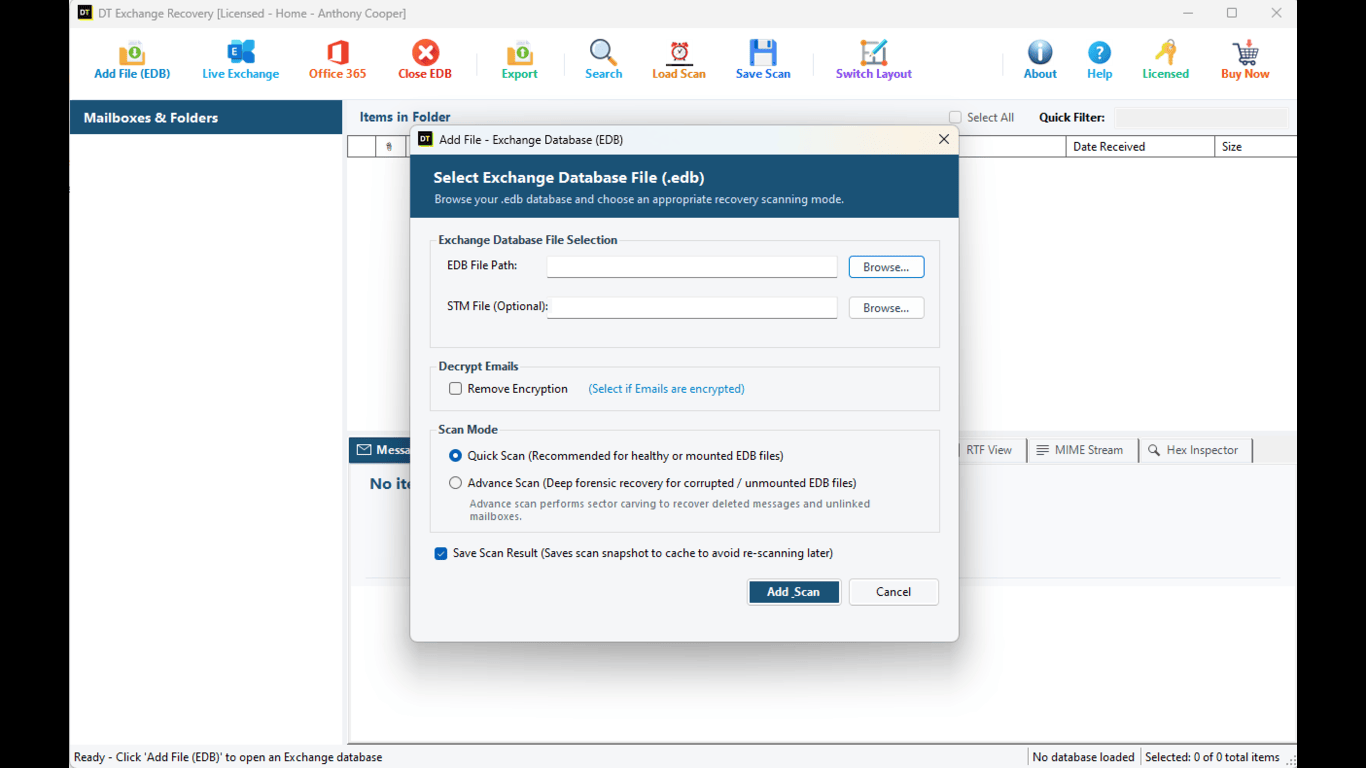
Step 4: Pick the right scan mode Quick Scan is for healthy databases, such as an old EDB from a retired server. It loads fast and builds the mailbox tree right away.
Advance Scan is for corrupted and dismounted databases. It goes through the file more thoroughly and recovers items a fast pass would skip, including permanently deleted mailboxes and purged items found in unallocated database pages.
When in doubt, start with Quick Scan. If items are missing from the tree, run Advance Scan. The tool does not depend on transaction log files, so a database with missing .log or .chk files can still be scanned.
Step 5: Review the recovered mailbox tree
When the scan completes, the mailboxes appear in a folder tree. All six item types come back grouped under the mailbox they belonged to: mails, contacts, calendars, tasks, notes and journals. Public folders (pub1.edb), modern public folders and in-place archives are supported as well. Items that were recovered from deleted space are marked in the tree, so you can tell live items from salvaged ones at a glance.
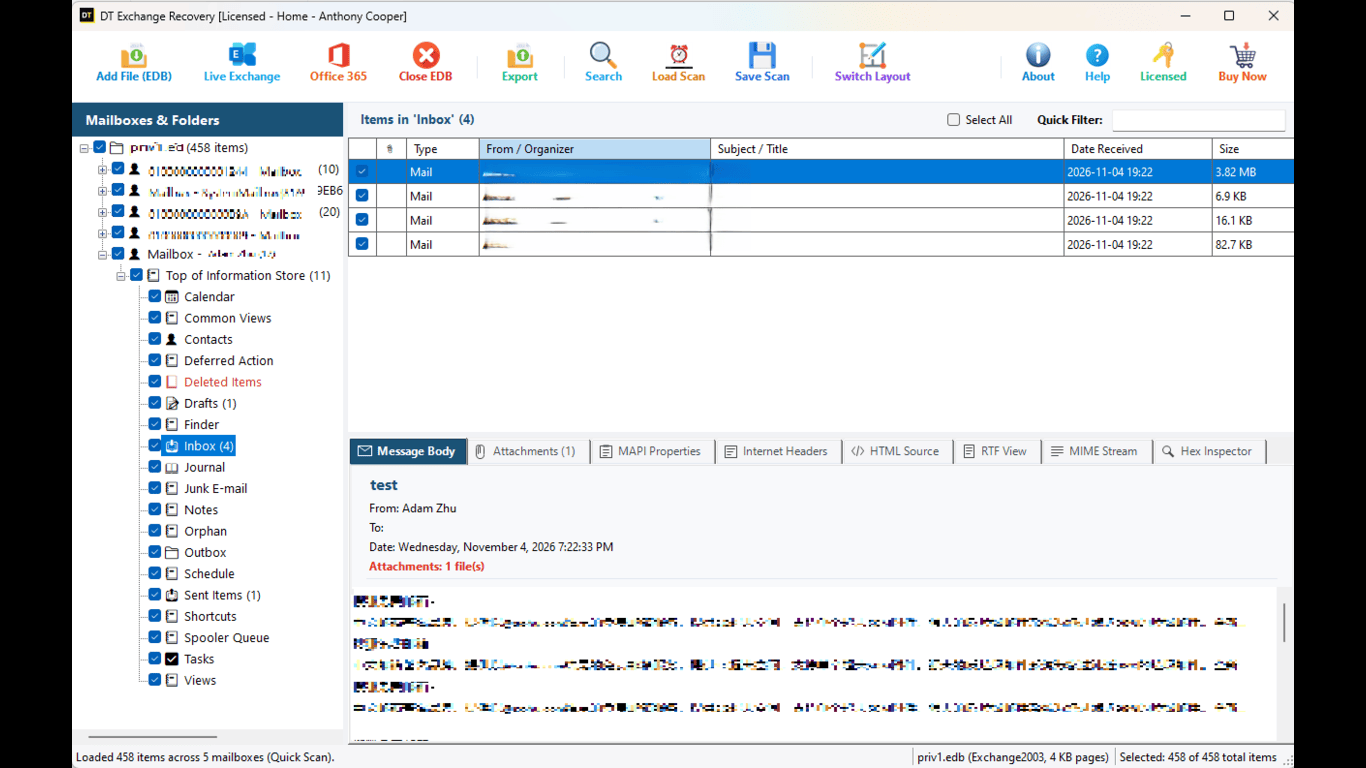
Step 6: Preview before you export anything This is where a recovery tool earns its place. Click any item and inspect it in the preview tabs: Normal shows the message as the user saw it. Hex Editor shows the raw bytes, useful for checking how much of a damaged item survived. MAPI Properties lists stored values such as message class, times and flags. RFC 822 Headers shows the internet headers, so you can trace routing and identifiers. RTF View shows the rich text body. MIME Stream shows the raw message source.
The preview also lets you confirm that the mailbox your CEO is waiting for is actually in there before you spend time on an export.
Step 7: Select exactly what you need
A large database can hold hundreds of thousands of items. Use Quick Filter to narrow the list, then Select All to take everything that matches, or tick individual mailboxes and folders. Date and keyword filters keep the export small and fast.
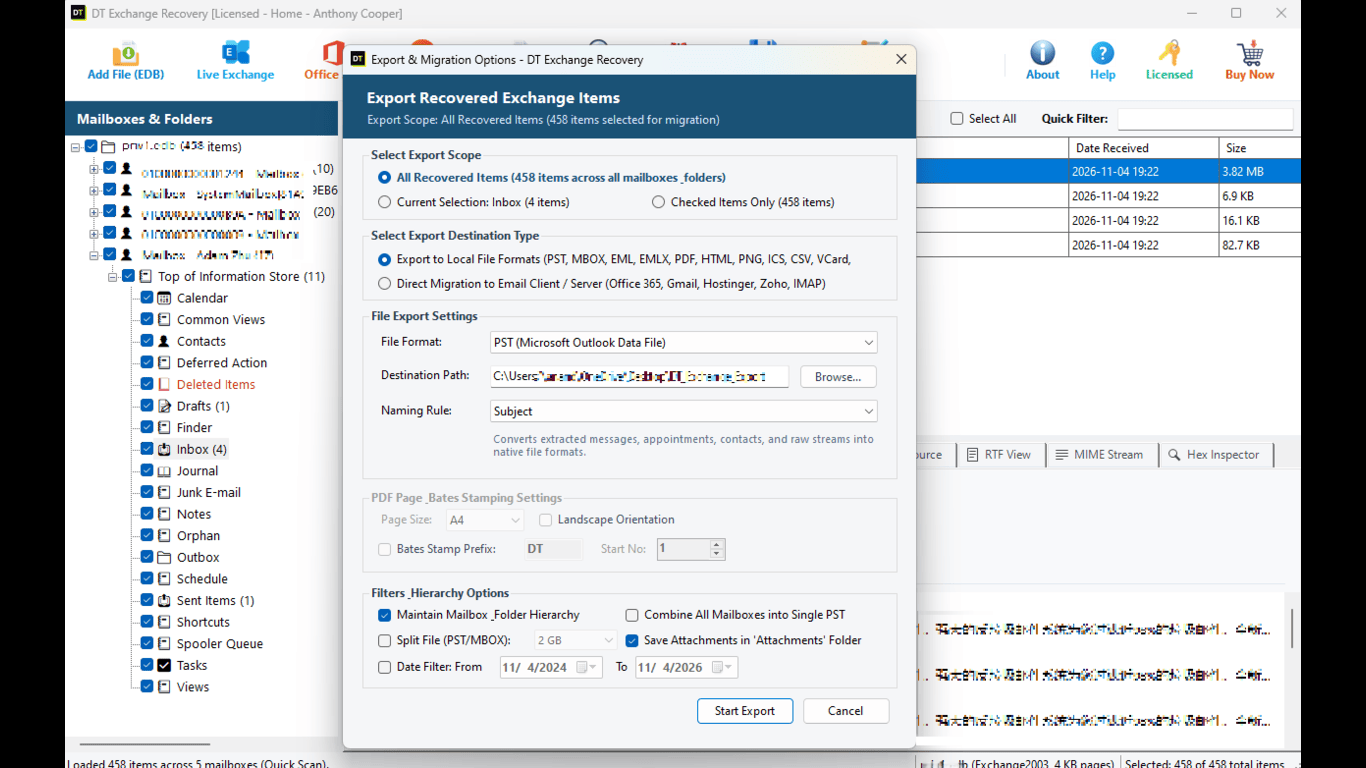 Step 8: Choose the output
One scan can feed any of the following exports.
| Output | Best for |
|---|---|
| PST (with automatic splitting from 5 GB to 50 GB) | Giving a mailbox back to a user, archiving, opening in Outlook |
| PDF with Bates stamping | Legal discovery, audits and compliance reviews |
| EML | One standard file per email, easy to archive and forward |
| MSG | One Outlook message file per item |
| HTML | Opening mail in any browser |
| MBOX | Thunderbird, Apple Mail and other MBOX clients |
| CSV | Contact lists, reports and checks in Excel |
| Direct migration over EWS | Writing items straight into a live on-premises Exchange mailbox |
The free demo lets you open the EDB file, run both scan modes and preview the recovered items before you buy, so you can confirm your data is recoverable first. Exporting needs the full license.
eseutil /p vs an EDB Recovery Tool: Side by Side
| Point | eseutil (manual) | DT Exchange EDB Recovery Tool |
|---|---|---|
| Needs Exchange tools installed | Yes | No |
| Works on the original file | Yes, it rewrites it | No, it reads it and exports items |
| Risk of losing items | Hard repair discards unreadable pages | Recovers what can be read |
| Preview before export | No | Yes, six preview tabs |
| Hex, MAPI and header inspection | No | Yes |
| Output | A repaired EDB only | PST, PDF, EML, MSG, HTML, MBOX, CSV |
| Page numbering for legal use | No | PDF with Bates stamping |
| Move data to live Exchange | No | Yes, over EWS |
| Skill needed | Command line and Exchange knowledge | Point and click |
After Recovery: Getting Mailboxes Back to Your Users
Recovering the data is half the job. Here is how to finish it.
Back into on-premises Exchange. Import the PST files with New-MailboxImportRequest, or use the EWS migration option to write items straight into the target mailboxes.
Into Microsoft 365. Microsoft is phasing out Exchange Web Services in Exchange Online, so the dependable route is PST based. Export the mailboxes to PST, upload them to Azure storage with AzCopy using the SAS URL from the Microsoft Purview import job, map each PST to its target mailbox with a CSV file, and start the import job.
Away from Exchange completely. Export to MBOX for Thunderbird and Apple Mail, or to EML and HTML for plain archives.
Rebuild the server properly. Whatever you recover, mount the data into a fresh database rather than reusing a file that has been through a hard repair.
Common Mistakes That Turn a Recovery into a Data Loss
Running eseutil /p first. It should be the last native step, not the first.
Working on the only copy. Always repair or scan a copy.
Deleting log files to "clean up". Logs are what soft recovery needs. Keep them until the job is finished.
Mounting a repaired database straight back into production. Move mailboxes to a new database instead.
Retrying the mount again and again. Every failed attempt is a chance to make things worse. Diagnose first.
Skipping verification. A PST that exists is not the same as a PST that contains everything. Check item counts.
How to Avoid This Next Time
Keep at least one tested backup of every mailbox database, and test the restore, not only the backup job.
Exclude Exchange database and log folders from real time antivirus scanning, as Microsoft recommends.
Put the database and the logs on separate healthy volumes and watch disk health and free space.
Use a UPS and proper shutdown procedures on any server that holds mailboxes.
Monitor the event log for -1018 and -1022 errors. They are early warnings of storage trouble.
Frequently Asked Questions
Can I recover mailboxes from a corrupt EDB file without Exchange Server? Yes. An offline EDB recovery tool reads the database file directly on a Windows machine, so the original Exchange server does not need to be running, and Outlook does not need to be installed.
Can I recover an EDB file without transaction logs? Native soft recovery cannot finish without the required logs. An offline tool such as DT Exchange EDB Recovery Tool reads the database without depending on .log or .chk files, so it can recover data even when the logs are missing or mismatched.
Does eseutil /p delete data? It can. Hard repair removes pages it cannot read, and any mailbox data on those pages is lost. Microsoft also recommends moving mailboxes to a new database after a repair instead of running on the repaired file.
How do I know if my EDB file is corrupt? Run eseutil /mh against a copy of the file. A Dirty Shutdown state with missing required logs, or a failure to open the file at all, points to corruption. JET errors such as -550, -1018, -1206 and -1216 in the event log are other signs.
What is the difference between a dismounted and a corrupt database? A dismounted database is simply not attached to the server. It can be perfectly healthy, for example an old file from a retired server. A corrupt database has damaged pages or a broken log chain. Quick Scan is meant for the first, Advance Scan for the second.
Can I recover permanently deleted mailboxes from an EDB file? Often yes. When items or mailboxes are purged, Exchange removes the pointers first and leaves the data blocks until they are overwritten. Advance Scan carves these from unallocated database pages, and the recovered items are marked in the folder tree.
Which Exchange versions can I recover from? DT Exchange EDB Recovery Tool supports databases from Exchange 2003, 2007, 2010, 2013, 2016 and 2019, and you can open files from different versions in the same session.
Can I recover very large EDB files? Yes. The tool has been tested on databases beyond 100 GB, 500 GB and 1 TB without memory limits. Allow enough free space for the export, and use PST auto split to keep output files manageable.
Is it safe to recover data from a corrupt EDB file with a third party tool? It is safe when the tool reads the file in read-only mode, as DT Exchange EDB Recovery Tool does, and exports to a separate location. Keep a copy of the original EDB anyway, as you would for any recovery job.
Can I export an EDB file to PST without Outlook? Yes. The export does not need Outlook. The resulting PST files open in any version of Outlook afterwards.
Does it run on Mac or Linux? No. DT Exchange EDB Recovery Tool is a Windows x64 application.
Final Thoughts
A corrupt EDB file is stressful, but it is rarely the end of the data. Diagnose with eseutil /mh, try soft recovery if the logs are intact, restore from backup if you have one, and keep eseutil /p as the last resort. When there is no backup, the logs are gone or the server no longer exists, reading the file offline and exporting what is readable is the approach that puts your mailboxes first.
You can see for yourself what is inside your database before spending anything.
Try it now: Download the free demo of DT Exchange EDB Recovery Tool, open your EDB file, run a scan and preview your mailboxes.
Related Resources from Data TB DT Exchange EDB Recovery Tool DT EDB to PST Converter