
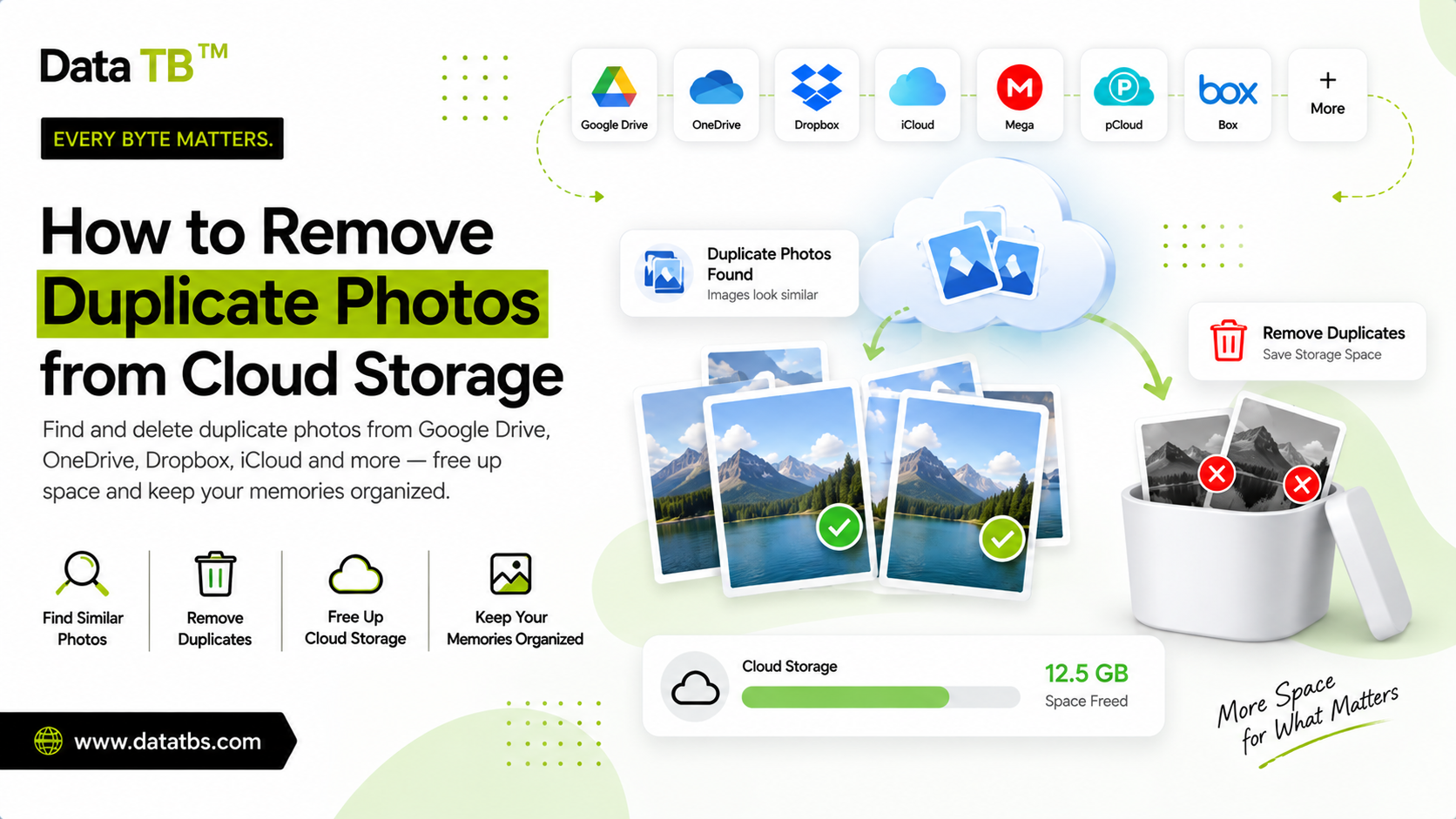
How to Remove Duplicate Photos from Cloud Storage: The Complete Guide
If you store your photos in the cloud, there is a very good chance you are paying for storage space you do not actually need. Not because you have too many real photos, but because a large portion of what sits inside your Google Drive, OneDrive, Dropbox, or any other cloud account is the exact same photo saved more than once, sometimes twice, sometimes five or six times, spread quietly across folders, devices, and even entirely different providers.
This is one of the most overlooked storage problems in personal and business cloud accounts today. Nobody sets out to create duplicate photos on purpose. They accumulate silently through normal, well intentioned behavior, phone backups, manual safety copies, shared albums, and syncing tools that are built to add files, never to check whether the same content already exists somewhere else.
This guide is a complete, deep walkthrough of the problem and the solution. It covers why cloud duplicate photos happen in the first place, why the built in search tools inside Google Drive, OneDrive, and Dropbox can never solve this properly, what separates a genuinely reliable duplicate finder from a basic one, and a full step by step process for cleaning up your cloud storage using DT Cloud Duplicate File Finder. By the end, you will understand not just how to clean up the mess that already exists, but how to stop it from quietly rebuilding itself again in six months.
Table of Contents
- 1. Understanding the Real Cost of Duplicate Photos in the Cloud
- 2. Why Duplicate Photos Build Up So Easily in Cloud Storage
- 3. The Different Types of Duplicate Photos You Will Encounter
- 4. Why Native Cloud Search Tools Cannot Solve This Problem
- 5. What a Genuinely Reliable Cloud Duplicate Finder Needs to Do
- 6. Introducing DT Cloud Duplicate File Finder
- 7. Full Step by Step Guide to Removing Duplicate Photos from the Cloud
- 8. Fast Scan vs Deep Scan: A Detailed Breakdown for Photos
- 9. What Happens to a Photo After It Is Removed
- 10. Solving the Hardest Case: Duplicates Spread Across Multiple Cloud Providers
- 11. Cloud Duplicate Cleanup for Different Types of Users
- 12. Common Real World Situations Where Cloud Duplicate Photos Pile Up
- 13. Comparing Manual Cleanup, Basic Tools, and DT Cloud Duplicate File Finder
- 14. Best Practices to Stop Duplicate Photos from Returning
- 15. A Simple Monthly Cloud Storage Cleanup Checklist
- 16. Frequently Asked Questions
- 17. Final Thoughts
1. Understanding the Real Cost of Duplicate Photos in the Cloud
Most people think of cloud storage costs in terms of the monthly subscription fee, but the real cost is often hidden inside the storage itself. When a meaningful percentage of your used space is duplicate content, you are not paying for more photos, more memories, or more useful data. You are paying to store the exact same file twice, three times, or more, without getting anything additional in return.
This has a compounding effect over time. A storage plan that felt generous a year ago suddenly feels tight, not because your actual photo library grew that much, but because duplication quietly ate into the difference. Upgrading to a bigger storage tier at that point solves the symptom, not the cause, since the same duplication pattern will simply continue inside the larger plan.
There is also a practical, day to day cost beyond money. Search results inside a cloud photo library become cluttered with repeated results for the same event or the same subject. Shared albums look messier than they need to. Automated backups take longer than necessary because they are quietly re processing content that already exists. None of these problems are dramatic on their own, but together they make a cloud photo library harder to actually use.
2. Why Duplicate Photos Build Up So Easily in Cloud Storage
Cloud storage services are designed around one core assumption, that every new file being uploaded is meant to be added, not checked against what already exists. This design choice makes uploading fast and simple, but it also means the platform itself has no built in mechanism to notice when the same photo is being uploaded for the second or third time.
A few patterns explain the vast majority of duplicate photo buildup in real accounts.
- Automatic phone backup combined with manual backup: A phone silently backs up new photos to a cloud photo service in the background, while at some point a family member or the user themselves also manually copies the SD card or DCIM folder into a cloud drive as an additional safety measure. Both actions feel responsible in isolation, but together they create a full second copy of the entire photo library.
- Multiple devices sharing one family account: A household with several phones connected to the same shared cloud storage plan often ends up with the same birthday party, vacation, or event photographed from more than one device and separately uploaded, creating pairs and sometimes triplets of visually similar or identical shots.
- Client delivery combined with internal archiving: A freelance photographer or a small creative agency frequently delivers a finished photo set to a client through one cloud provider, such as Dropbox, while keeping a full internal copy of the exact same delivery in a second provider, such as Google Drive, for archival purposes. Multiply this pattern across every project completed over a year, and the duplication becomes enormous.
- Editing and re exporting: A photo gets adjusted, cropped, or color corrected, then exported and re uploaded under a new file name to preserve the original. If the original is never deleted afterward, both versions sit in the cloud indefinitely, often with visually near identical or fully identical content depending on whether the edit was actually saved as a new file or exported without changes.
- Device switching and migration: Moving from an old phone or laptop to a new one often triggers a full re upload of an entire photo library into a cloud account that may already contain most of that same content from previous backups, since people are naturally cautious about deleting anything during a transition.
3. The Different Types of Duplicate Photos You Will Encounter
Not every duplicate photo looks the same, and understanding the different types helps you choose the right cleanup approach.
- Exact duplicates are files where the content is byte for byte identical, meaning every pixel and every bit of metadata matches. These are the easiest to identify with certainty and the safest to remove automatically, since there is genuinely zero difference between the copies.
- Renamed duplicates are files where the actual photo content is identical, but the file name has changed at some point, either through manual renaming, an export process, or a re upload that generated a new automatic file name. These look completely different to any tool that only checks file names, but are functionally the same as exact duplicates once content is properly compared.
- Re compressed or re exported duplicates are files where the underlying image has been saved again, sometimes at a slightly different resolution, file format, or compression level, while remaining visually the same photo. These require more careful handling since they may not always be a perfect content match depending on how strict the comparison method is.
- Near duplicates are separate photos taken moments apart, such as three shots of the same pose during a photoshoot or several nearly identical frames from a burst mode capture. These are visually similar but not technically identical, and cleaning these up is more of a manual curation decision than an automated duplicate removal task.
4. Why Native Cloud Search Tools Cannot Solve This Problem
Google Drive, OneDrive, and Dropbox all provide a search bar, filters, and sometimes a grid view for browsing photos, but none of them are built to compare file content against other files in your account.
Search inside these platforms matches primarily by file name, and sometimes by metadata such as date taken or location. Two identical photos saved as IMG20240512.jpg and IMG20240512 copy.jpg will show up as two separate, unrelated search results, since the platform has no reason to compare what is actually inside each file.
A photo that has been renamed at any point, whether through a manual rename, an export from editing software, or a re upload that generated a new automatic file name, will never be flagged as a duplicate at all, because there is nothing in the file name to connect it back to the original.
Even the grid view, which lets you visually scroll through thumbnails, only works up to a point. A personal library with a few hundred photos might be scannable by eye over an afternoon. A library with several thousand photos, spread across multiple folders and possibly multiple cloud accounts, is simply not something a person can review accurately by scrolling and comparing thumbnails one at a time.
This is not a flaw in these platforms specifically, it is a structural limitation of how general purpose cloud storage is built. Solving duplicate detection properly requires a tool designed specifically for that purpose.
5. What a Genuinely Reliable Cloud Duplicate Finder Needs to Do
Before looking at any specific tool, it helps to understand what separates a genuinely useful duplicate finder from a basic one that only solves part of the problem.
- It needs to support more than one cloud provider from the same place. Duplicate photos are rarely confined to a single account, so a tool that only checks Google Drive, for example, misses every duplicate sitting in a separate OneDrive or Dropbox account entirely.
- It needs to compare files by actual content, not just file name and size. As covered above, renamed duplicates are extremely common with photos specifically, so name based matching alone will always miss a meaningful portion of real duplicates.
- It needs to connect securely, ideally through each provider's own official login system, rather than asking for a password to be typed directly into the app. This matters both for security and for trust, since photos are often personal or professionally sensitive content.
- It needs to show results for review before removing anything. A tool that deletes automatically without a confirmation step is a serious risk, since even a well designed matching algorithm should never be the final decision maker on something as personal as your photo library.
- It needs to send removed files to a recoverable location rather than deleting permanently by default, so a mistake in judgment during review can still be corrected afterward.
6. Introducing DT Cloud Duplicate File Finder
DT Cloud Duplicate File Finder connects to more than twelve cloud platforms from a single dashboard, including Google Drive, OneDrive, Dropbox, Box, pCloud, Mega, Amazon S3, Google Cloud Storage, Azure Blob Storage, Backblaze B2, Nextcloud, and FTP or SFTP servers. This range matters specifically because it covers both consumer photo storage and business or developer level cloud storage, meaning the same tool works whether you are cleaning up a personal photo library or auditing storage across a small business or a development team.
Every connection is made through the official OAuth login screen for that specific provider, the exact same login screen you would use to sign into that provider directly through a browser. A password is never typed into the app itself and never touches any external server, which keeps the entire connection process aligned with how each cloud provider expects third party access to work.
The app supports two matching methods, a quicker name and size based Fast Scan and a fully accurate content hash based Deep Scan, giving you control over the tradeoff between scan speed and complete certainty depending on the situation.
Every duplicate photo identified during a scan is grouped and shown for manual review before anything is touched. Nothing is deleted automatically, and once a removal is confirmed, files are sent to that specific cloud provider's own trash or recycle bin rather than being permanently erased on the first pass, keeping every removal recoverable through that provider's normal interface.
The entire scan process runs through each provider's official API directly. Photos are never downloaded to your computer just to be compared, which keeps large photo libraries fast to scan regardless of their size.
7. Full Step by Step Guide to Removing Duplicate Photos from the Cloud
Step 1: Download and open DT Cloud Duplicate File Finder Install the app on Windows. There is no cloud account connected by default, and nothing needs to be configured before getting started, so the very first thing you see is a clean dashboard ready for a new connection.
Step 2: Connect your first cloud account Open the Locations panel and choose the provider you want to check first, for example Google Drive. You will be taken directly to that provider's own official login screen to authorize access, exactly as you would when signing into that account through a normal browser. Once connected, real account data populates immediately, including your account identifier, linked email address, used space, available space, and last sync time, giving you a useful overview before a single scan has even started.
Step 3: Connect every other cloud account you actually use This is the single most important step for anyone dealing with photos specifically, and it is the step most people skip when they only think about cleaning up one account at a time. If you use more than one cloud provider for photos, connect each of them now, for example OneDrive and Dropbox alongside Google Drive. You can also connect more than one account from the same provider, such as a personal Google Drive and a separate work Google Drive, or a family member's account if you manage storage on their behalf, and every connected account will sit inside the same dashboard.
Step 4: Review the multi cloud storage overview Before running any scan, take a moment to look at the live overview across every connected account, showing used space, available space, total capacity, and last sync time for each provider side by side. This alone often reveals which account is carrying the most weight and gives a useful starting point for where to focus first.
Step 5: Choose exactly what to scan Instead of scanning an entire account by default, browse into the specific folder where your photos actually live, such as a Camera Uploads, Backups, or Photos folder. Scanning a focused folder keeps the process faster and the results tightly relevant. If you are not fully sure where every photo has ended up over the years, a full account scan works just as well and simply takes a little longer to complete.
Step 6: Run a scan using the appropriate mode Choose Fast Scan for a quick pass based on file name and size, which is a reasonable starting point if you suspect the duplicates are obvious exact re uploads. Choose Deep Scan for full content hash accuracy, which is the stronger choice for photos specifically since renamed and re exported duplicates are extremely common with images. The scan runs live, showing file count, folder count, and per file progress in real time, so you always know exactly where the process stands rather than staring at a static progress bar.
Step 7: Review every duplicate group carefully Once the scan finishes, every set of duplicate photos found is grouped together for review. Each group shows how many copies exist, exactly where each copy is stored across your connected accounts, and how much space that specific group is wasting. Nothing has been selected for removal at this point, and the entire review is designed to give you full visibility before any decision is made.
Step 8: Select and remove duplicates in bulk Once you have reviewed the groups and are confident in what should be removed, confirm your selection and remove duplicates in a single bulk action rather than clicking through each photo individually. Removed photos are sent to that specific cloud provider's own trash or recycle bin, meaning they remain fully recoverable through that provider's normal interface for a period of time if you ever need one of them back.
Step 9: Move on to the next connected account Because every connected account lives inside the same dashboard, you can move from Google Drive to OneDrive to Dropbox to any other connected provider without logging in and out of separate websites each time, working through every cloud account systematically until each one has been checked and cleared.
Step 10: Check the full activity log Every scan and every removal performed is recorded with a timestamp inside the app's activity log, giving you a clear, permanent record of exactly what was removed, when it happened, and from which specific account, useful both for your own peace of mind and for accountability if you are managing cloud storage on behalf of a team or a client.
8. Fast Scan vs Deep Scan: A Detailed Breakdown for Photos
Fast Scan compares files using file name and file size only. This method is significantly quicker, which makes it a reasonable first pass when you are dealing with a very large account and want a rough sense of duplication before committing to a longer, more thorough scan. It works well for catching obvious duplicates, such as a folder that was clearly uploaded twice with the original file names left completely intact.
Deep Scan compares files using a unique content hash, essentially a digital fingerprint generated directly from the actual photo data itself, completely independent of file name, folder location, or which specific cloud account the file happens to be sitting in. This is the method that catches every duplicate that Fast Scan catches, plus any photo that has been renamed at any point, re exported at a different resolution through editing software, or uploaded a second time under a completely different automatically generated file name.
For photos specifically, Deep Scan is almost always the better choice despite taking somewhat longer to complete, since photos are renamed far more often than other file types, whether through phone auto naming conventions that change between devices, editing software export behavior, or simple manual reorganization over the years. A Fast Scan alone will typically miss a meaningful percentage of real duplicate photos sitting in any long standing cloud account, which is why Deep Scan is the recommended default whenever accuracy genuinely matters, such as before deciding to upgrade a storage plan or before archiving a photo library permanently.
9. What Happens to a Photo After It Is Removed
Every photo identified as part of a duplicate group goes through manual review before anything happens, and deletion is never triggered automatically as a default behavior. Once you confirm a specific group of duplicates for removal, the app sends those files to that specific cloud provider's own trash bin, using that provider's own standard recovery window, rather than permanently erasing anything on the very first action taken.
This means an accidental removal, such as confirming a group where one photo was actually a subtle, non identical variation rather than a true duplicate, can still be recovered directly from Google Drive, OneDrive, Dropbox, or whichever specific provider was affected, using that provider's own normal recovery process, exactly as if the file had been deleted manually through the provider's own web interface.
10. Solving the Hardest Case: Duplicates Spread Across Multiple Cloud Providers
This is the scenario that most basic, single provider duplicate tools simply cannot address at all, and it is also one of the most common real world situations once someone has been using cloud storage for more than a couple of years.
Picture a photo that was automatically backed up to Google Photos directly from a phone the moment it was taken, and then separately copied by hand into a OneDrive folder several months later during a device switch, as a manual precaution before wiping the old phone. A tool that only checks Google Drive will never see the OneDrive copy at all, and a tool that only checks OneDrive will never see the original Google Photos copy either, since each tool is working entirely blind to what exists outside the single account it has access to.
Because DT Cloud Duplicate File Finder keeps every connected account inside one unified dashboard and compares content hashes across all of them together as a single combined data set, this exact situation gets caught and grouped correctly, clearly showing that the same photo exists in two entirely different cloud providers. This kind of cross provider duplication would be nearly impossible to spot by manually browsing each account on its own, since there would be no visual or contextual reason to suspect a connection between two accounts that otherwise feel completely separate.
11. Cloud Duplicate Cleanup for Different Types of Users
- Families sharing one storage plan across multiple phones benefit most from connecting every family member's relevant cloud account into the same dashboard, since shared events photographed from more than one device are one of the single biggest sources of duplicate photos in a household setting.
- Freelance photographers and small creative agencies benefit from running a Deep Scan across both their client delivery provider and their internal archive provider before every major storage cleanup or plan renewal, since the client delivery and internal archive habit is one of the most consistent and predictable sources of duplication in this line of work.
- Small businesses managing product photography across more than one cloud provider for redundancy benefit from treating a periodic cloud duplicate scan as part of routine IT maintenance, since redundancy for safety and outright duplication are two very different things, and it is easy for the first to quietly turn into the second without anyone noticing.
- Anyone who has recently switched phones or laptops benefits from running a full Deep Scan shortly after the transition is complete, since migration is one of the single most reliable moments for a large batch of duplicate photos to enter a cloud account all at once.
12. Common Real World Situations Where Cloud Duplicate Photos Pile Up
- A family sharing one cloud storage plan across multiple phones, where the same birthday party or vacation gets photographed from more than one device and separately backed up without anyone realizing the overlap.
- A freelancer or agency delivering client photo galleries through one cloud provider while keeping an internal archive copy of the exact same delivery in a completely different provider for record keeping purposes.
- Someone switching phones or laptops, who copies an entire existing photo library into a new cloud account as a precaution during the transition, without going back afterward to remove the earlier, now redundant copy.
- A small business backing up product photography to more than one cloud provider for redundancy, without realizing over time just how much of that redundancy has quietly become complete, unnecessary duplication rather than a genuinely separate backup.
- Someone using both a dedicated photo backup app and a general purpose cloud drive on the same phone at the same time, with both apps independently and silently uploading the same camera roll in the background without any awareness of each other.
13. Comparing Manual Cleanup, Basic Tools, and DT Cloud Duplicate File Finder
Manual cleanup through a browser or app grid view works for a personal library with a few hundred photos in a single account, but becomes unreliable and extremely time consuming past that point, and it fails completely at catching renamed duplicates or anything spread across more than one cloud provider.
A basic single provider duplicate tool that only checks one cloud account and matches primarily by file name solves part of the problem inside that one account, but leaves every cross provider duplicate completely invisible, and still misses a meaningful share of renamed photos within the account it does check.
DT Cloud Duplicate File Finder solves the full problem end to end, connecting more than twelve providers into a single dashboard, comparing files by actual content through Deep Scan, sending removed files to a recoverable trash rather than deleting permanently, and giving a live multi cloud storage overview that shows exactly where space is being used across every connected account at once.
14. Best Practices to Stop Duplicate Photos from Returning
- Pick one specific cloud provider as your designated main photo backup destination instead of syncing the same folder to two or more providers at the same time out of habit.
- Turn off automatic backup inside a second app if you already have one dedicated backup tool running, since having two active backup tools operating on the same phone at the same time is one of the single most common causes of ongoing, repeated duplication.
- Run a full cloud duplicate scan on a regular, predictable schedule, for example once a month for an actively used phone, so duplicates get cleared before they have a chance to accumulate into a large, overwhelming cleanup project later on.
- Avoid manually copying an entire existing folder into a second cloud account purely as a precaution. If a genuine backup is actually needed, a proper backup solution with real version history is a much better fit than simply duplicating an entire folder.
- Before delivering a finished project to a client through one cloud provider, decide in advance whether an internal archive copy in a second provider is genuinely necessary, and if it is, set a reminder to periodically clear out completed and no longer needed client deliveries from the archive provider.
15. A Simple Monthly Cloud Storage Cleanup Checklist
- Connect any new cloud account that has been added since the last cleanup into the same dashboard alongside your existing connections.
- Run a Deep Scan across your primary photo backup account first, since this is typically where the largest volume of duplication accumulates.
- Review every duplicate group shown, paying particular attention to any group spanning more than one connected provider.
- Remove confirmed duplicates in bulk, and check the activity log afterward to confirm exactly what was removed.
- Repeat the same process across every other connected cloud provider before considering the monthly cleanup complete.
16. Frequently Asked Questions
Is it safe to connect my Google Drive, OneDrive, or Dropbox account to a duplicate finder tool?
Can duplicate photos exist across two completely different cloud providers?
What is the difference between Fast Scan and Deep Scan for photos specifically?
Will removing a duplicate photo delete it permanently right away?
Do I need to download my photos to my computer to scan for duplicates?
Can I scan more than one account from the same provider, such as two separate Google Drive accounts?
How often should I run a duplicate photo scan on my cloud accounts?
Does scanning slow down my internet connection or my cloud account's normal performance?
What happens if a group of files looks like duplicates but one of them is actually slightly different?
Is there a cost involved in scanning, or only in removing duplicates?
17. Final Thoughts
Duplicate photos in cloud storage are almost never the result of anything you did wrong. They build up quietly through completely normal, well intentioned backup behavior, spreading not just within a single account but frequently across more than one cloud provider entirely, in ways that are practically impossible to catch by browsing folders manually. The only reliable way to clean this up properly is a tool that compares actual photo content across every account you use, not just the file names inside one single provider at a time.
DT Cloud Duplicate File Finder connects every cloud account you use into one unified dashboard and lets you run a full scan completely free to see exactly how much space duplicate photos are costing you, across every provider at once, before you decide what to remove.
User Reviews
"Scanned Google Drive & OneDrive together over OAuth. Freed 210GB without downloading a single file!"
"Finally stopped paying for extra Google One storage. Caught thousands of duplicate phone syncs."