
Try DT Cloud Storage Migrator Tool Today
Migrate files across 15+ cloud storage platforms. Fast, resumable, and preserves folder structures directly on your PC.
You started with one cloud and now you need another. Maybe your company moved to Microsoft 365, a client wants every deliverable in Google Drive, or you simply outgrew a plan that kept getting more expensive. Whatever the reason, the question is the same: how do you migrate data from one cloud storage to another without losing files, breaking folder structures or burning a whole weekend?
There are eight practical ways to do it. They range from dragging files by hand to hiring a vendor to run the whole project, and the right one depends on how much data you have, which clouds are involved and whether the accounts are personal or business. This guide walks through all eight with honest pros and cons, so you can choose the method that fits your job instead of the one that happens to sit at the top of a search result.
The 8 Ways at a Glance
| # | Method | Best for | Biggest drawback |
|---|---|---|---|
| 1 | Manual download and upload | A few GB, one-time move | Slow, needs local disk space |
| 2 | Desktop sync apps | Small moves between two major providers | Every file passes through your PC |
| 3 | Built-in provider tools | Moving into one specific platform | One direction, limited sources |
| 4 | Web-based transfer services | Small to medium jobs | Monthly quotas or per-GB billing |
| 5 | Desktop cloud migration software | Any size, personal or business | Windows only |
| 6 | Command line tools | Technical users, repeatable jobs | Steep learning curve |
| 7 | Custom scripts and APIs | Special rules and automation | Needs a developer |
| 8 | Managed migration services | Very large enterprise projects | Highest cost |
Four Questions to Answer Before You Choose
Spend two minutes on these. They rule out most of the options for you.
1. How much data are you moving? Under 5 GB, almost anything works. Beyond a few hundred GB, speed, resumability and cost start to matter a lot. 2. Are the source and destination different providers? Google Drive to OneDrive is a different job from moving between two accounts on the same provider. 3. Are the accounts personal or business? Business accounts bring admin consent, tenant rules and sometimes approvals. Personal to business and business to personal moves also raise the question of who owns the data. 4. What has to survive the move? Folder structure, dates, version history and sharing settings do not travel with every method.
1. Manual Download and Upload
The oldest method is also the easiest to understand. You download everything from the old cloud to your computer, then upload it to the new one. There is no new software, no permissions to grant and nothing to learn.
It works for a few gigabytes of files you can sort through by eye. Beyond that it gets painful. Your data travels twice, down to your PC and back up again, so the job takes roughly double the time it should. You need enough free disk space for the entire collection and a connection that will not drop halfway. Files created inside a platform, such as Google Docs, Sheets and Slides, have to be converted to Office formats on the way out. Version history and sharing settings do not come along at all.
Best for: small, one-time moves. Watch out for: half-finished downloads, silently skipped files and no record of what actually moved.
2. Desktop Sync Apps
Install the desktop app for both clouds, let each one sync to a folder on your PC, then drag files from one folder to the other. The apps handle the uploading in the background, so it feels easier than the manual route.
The catch is that every file still has to exist on your computer. Many sync apps keep files as online-only placeholders to save space, so moving them forces a download first. Paused syncs, conflict copies and full-disk warnings are common once the job gets large.
Best for: modest personal moves between two providers that both have good desktop apps. Watch out for: placeholder files, sync conflicts and running out of disk space.
3. Built-In Provider Tools
Some platforms help you move data in or out. Google Takeout can export your Google data and deliver the archive to another cloud such as Dropbox, OneDrive or Box. Microsoft's Migration Manager in the SharePoint admin center brings content from sources like Google Drive, Dropbox and Box into Microsoft 365. For object storage, the large providers offer Google Storage Transfer Service, AWS DataSync and AzCopy.
These tools are free and properly supported, but they are funnels. Each one is built to bring data into its own platform, covers a limited list of sources and serves one direction only. If you ever need to move the other way, or between two third-party clouds, you are back to square one.
Best for: moving into one specific platform, especially for admins. Watch out for: limited source lists and one-way design.
4. Web-Based Transfer Services
You log in to a website, connect both cloud accounts, pick folders and the transfer runs on the service's own servers. Your PC can be switched off while it works, which is a real advantage.
The trade-offs are cost and control. Some popular services allow only about 5 GB of free transfer a month, and paid plans are priced by subscription, user or data volume, so the bill grows with the size of the job. You also give a third party access to both of your accounts, and server-side transfers still run into the same API rate limits as everything else.
Best for: small to medium jobs when you cannot leave a PC running. Watch out for: transfer quotas, per-GB overage and surprise bills on large migrations.
5. Desktop Cloud Migration Software
This is a purpose-built application you install on your PC. You sign in to the source and destination clouds, and the files move directly from one cloud to the other. Nothing is downloaded to your computer, so a 2 TB migration does not need 2 TB of free disk space. Because the license covers the software rather than a traffic meter, there is no monthly transfer quota to watch.
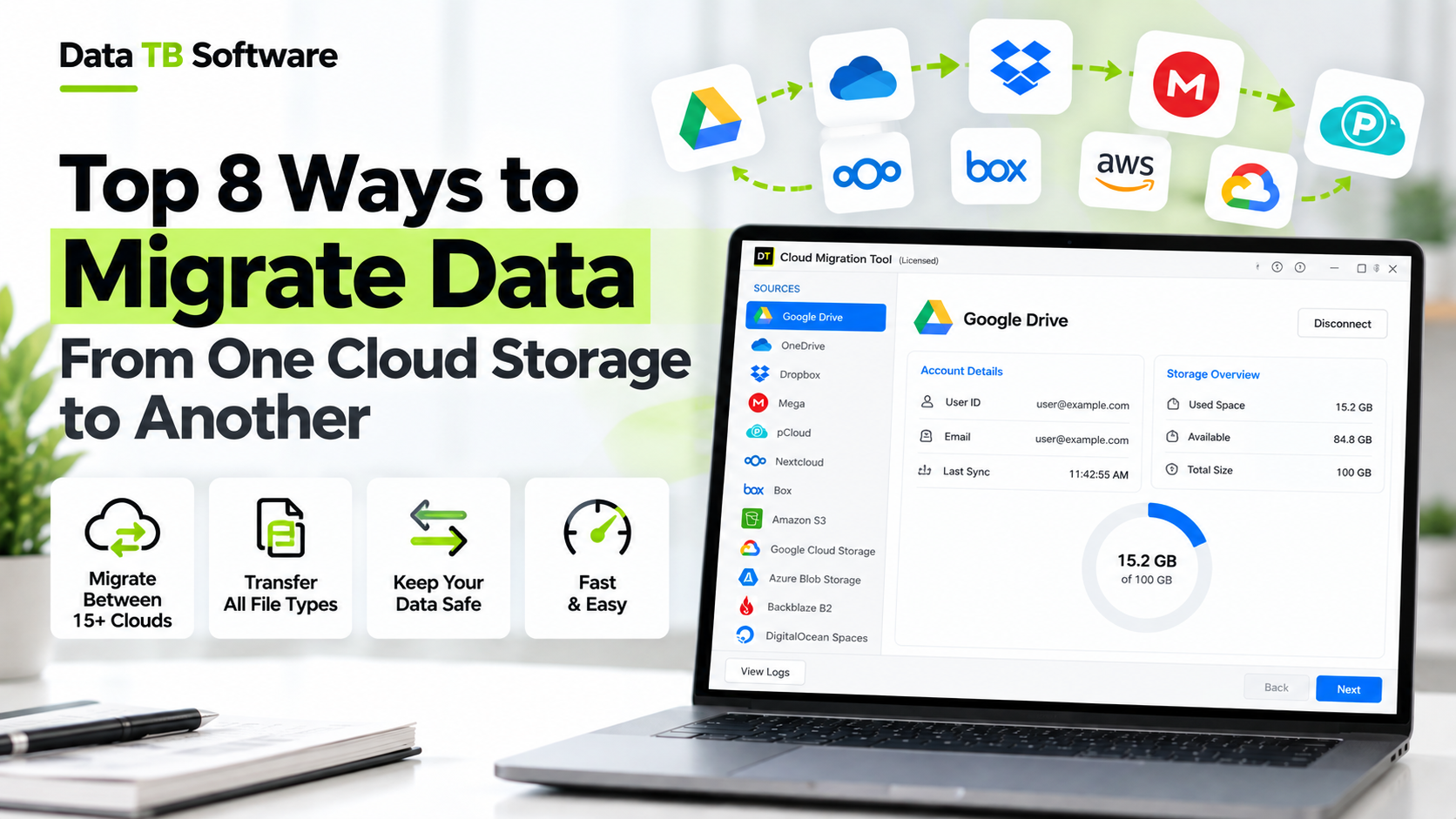
DT Cloud Storage Migrator Tool is built for exactly this job. It connects 15+ clouds, including Google Drive, OneDrive, Dropbox, Box, SharePoint, Amazon S3, Cloudflare R2, Azure Blob Storage, Backblaze B2, pCloud, MEGA, Nextcloud and FTP or SFTP servers, and it supports all four account paths: personal to personal, personal to business, business to personal and business to business. Cross-provider and same-provider moves both work.
What makes it practical for real projects:
- Preview before anything moves. Browse the folder tree with sizes and dates, then filter by extension, date range, folder type or file size.
- Mapping. Match accounts, drives and folders by hand, or upload a CSV file to map dozens of accounts in one go.
- Control over conflicts. Choose to skip, rename or replace when a file already exists at the destination.
- Version migration. Carry file history across, not just the latest copy.
- Incremental and scheduled runs. Move only new or changed files, or repeat hourly, daily, weekly or monthly.
- Resumable transfers and full reports. If the connection drops, the job resumes where it stopped, and a report lists failed, filtered and already migrated items.
Best for: any size of job, from one folder to a whole company drive, personal or business. Watch out for: Windows only, and the app has to stay open during a transfer.
6. Command Line Tools
Open source tools such as rclone can talk to dozens of cloud providers from a terminal. They are fast, scriptable and free, and they support dry runs, filters and bandwidth limits. Developers and sysadmins who run the same migration repeatedly tend to love them.
Everyone else tends to struggle. You write commands and flags by hand, set up authentication for each provider and read logs to find out what failed. A typo in a sync command can delete files you meant to keep, so the learning curve is not just about time.
Best for: technical users who want repeatable, scriptable jobs. Watch out for: destructive flags and no friendly preview.
7. Custom Scripts and APIs
Every major cloud has an API, including Microsoft Graph and the Google Drive API. A developer can use them to build exactly the migration logic your project needs: rename files on the way across, route folders by department, trigger a transfer from another system or write the results to your own database.
That power has a price. Someone has to handle authentication tokens, rate limits, retries, large file uploads and API changes, and keep all of it working. For a one-off migration the development time usually costs more than buying a ready-made tool.
Best for: unusual rules, automation and integration with internal systems. Watch out for: build time, maintenance and rate limits.
8. Managed Migration Services
With a managed service, a vendor plans and runs the migration for you. They assess the source, set up the tooling, handle the cutover and usually provide project management and support. Pricing is typically quote-based and scoped to your data and timeline.
It makes sense for very large, high-stakes projects: tens or hundreds of terabytes, strict compliance requirements, or a team with no capacity to run it. For everyone else it is more service, and more cost, than the job needs.
Best for: large enterprise projects with compliance and deadline pressure. Watch out for: cost and depending on a vendor's schedule.
Which Method Should You Choose?
There is no single winner, but the choice gets simple once you match it to your situation.
| Your situation | Best method |
|---|---|
| A few GB, one time | Manual download and upload |
| Moving into Microsoft 365 as an admin | Built-in provider tool |
| Small job, PC must be off | Web-based transfer service |
| Any size, personal or business, no scripting | Desktop cloud migration software |
| You are comfortable in a terminal | Command line tool |
| Custom rules or automation | Scripts and APIs |
| Huge enterprise move run by a vendor | Managed service |
How to Migrate With DT Cloud Storage Migrator
If you go with the desktop route, here is how a job runs in DT Cloud Storage Migrator Tool. The workflow follows eight screens, and nothing moves until the final one.
1. Dashboard. Start a new job and give it a clear name. 2. Mode Selection. Choose personal or business. For business, pick cross migration between providers or same migration within one provider. 3. Source Authentication. Sign in to the cloud you are moving from through the provider's secure OAuth page. 4. Preview. Browse the folder tree and filter out anything that should stay behind. 5. Destination Authentication. Sign in to the cloud you are moving to. 6. Mapping. Match source folders and accounts to destinations, manually or with a CSV file. 7. Configure Migration. Set duplicate handling, version migration, thread settings and whether the run is one-time, incremental or scheduled. 8. Migration. Start the transfer, watch it live and export the job report when it finishes.
If you are moving into or out of OneDrive specifically, the DT OneDrive Migration Tool page covers those routes in detail.
A Short Checklist for Any Cloud Migration
A few habits make every method safer, whichever one you pick.
Before you move
- Confirm you are authorized to move the data, especially from business accounts.
- Clean out duplicates first so you do not pay to move the same file twice. A cloud duplicate file finder can do this directly in your cloud.
- Check free space and plan limits on the destination.
- Run a small test with a representative folder before the full migration.
- Compare folder counts and open a sample of files at the destination.
- Review sharing and permissions separately. No migration method reproduces every sharing setting perfectly, so check access instead of assuming it carried over.
- Keep the source data until you have signed off on the result, then follow your retention rules before deleting anything.
Frequently Asked Questions
What is the easiest way to migrate data from one cloud storage to another?
For small amounts of data, manual download and upload is the simplest. For anything larger, or for business accounts, a desktop or web-based migration tool is easier because it handles the transfer, retries and reporting for you.
Can I transfer files between clouds without downloading them?
Yes. Web-based services transfer on their own servers, and desktop migration software such as DT Cloud Storage Migrator moves files directly between the source and destination clouds with nothing downloaded to your PC.
How long does a cloud storage migration take?
It depends on the total data size, your internet speed, the number of small files and the API rate limits set by each provider. Many small files take longer than a few large ones. A small test job gives you a realistic estimate before you commit.
Will I lose my folder structure or version history?
It depends on the method. Manual transfers lose version history and sharing settings. Dedicated tools can preserve the folder hierarchy, and DT Cloud Storage Migrator also offers version migration so file history comes across with the current version.
Is it safe to connect my cloud accounts to a migration tool?
Reputable tools sign in through each provider's own OAuth page, so your password is not typed into the tool, and they support multi-factor authentication where the provider offers it. You can revoke access at any time in your cloud provider's security settings.
Can I migrate between a personal and a business account?
Yes, with the right tool. DT Cloud Storage Migrator supports personal to personal, personal to business, business to personal and business to business moves. Only migrate business data with your organization's approval.
Should I delete the old data right after the migration?
No. Keep the source until you have checked the destination, resolved any failed items and, for business data, confirmed your retention requirements.
Conclusion
There are eight ways to migrate data from one cloud storage to another, and none of them is wrong for every job. Manual transfers are fine for a handful of files. Built-in tools suit admins moving into one platform. Scripts and managed services handle special and very large projects. For most people with real amounts of data and no wish to write code, a desktop cloud migration tool gives the best mix of control, cost and speed.
If that sounds like your situation, you can test it on your own accounts first. Download the free trial of DT Cloud Storage Migrator Tool, run a 500 MB test job and see the full workflow before you decide.