
You can delete duplicate files in OneDrive without downloading them by comparing what OneDrive already knows about each file (its name, size and content hash) and removing the extra copies straight from the cloud. There are three practical routes: check by hand in the OneDrive web app, work through the synced folder in File Explorer, or use a cloud-side scanner that reads the same information through Microsoft's API. This guide walks through all three, adds a command-line option for admins, and shows where each one runs out of steam.
If a storage warning is what brought you here, you probably don't want a lecture on file hygiene. You want to know what is safe to remove and how to do it without spending an evening watching gigabytes crawl down to your PC. That is what follows.
One disclosure before we start. We build a tool that does this job (it's Method 4). That's why Methods 1 to 3 are written to work properly on their own, with no software from us.
In this guide
- The short answer
- Which method fits you
- Why OneDrive collects duplicates
- What actually counts as a duplicate
- Before you delete anything
- Start with the biggest wins
- Method 1: The OneDrive web app
- Method 2: File Explorer with Files On-Demand
- Method 3: The command line
- Method 4: A cloud-side duplicate finder
- Manual vs tool: side by side
- Which copy should you keep?
- How to undo a mistake
- How to stop duplicates coming back
- FAQ
The short answer
Can you delete duplicate files in OneDrive without downloading them?
Which method fits you
- A few dozen suspect files in one or two folders: Method 1. No software needed.
- You use Windows, OneDrive already syncs, and you want better search: Method 2.
- You are comfortable in a terminal and want repeatable runs: Method 3.
- Thousands of files, renamed copies, or a Microsoft 365 organization: Method 4.
Why OneDrive collects duplicates without anyone noticing
OneDrive's job is to keep your files in step across devices. Asking whether two files sitting in different folders are actually the same file is not part of that job, so copies pile up quietly. The usual causes are ordinary:
- Two devices, one folder. You drag a project folder into OneDrive on your laptop, then do the same on the desktop before the first sync finishes. Now the folder exists twice.
- Sync conflicts. When two devices change the same file at nearly the same time, OneDrive keeps both versions instead of guessing. The extra copy often carries a device name or a number added to its name.
- Photo backups plus manual imports. Your phone uploads every picture automatically, then you import the same batch from a memory card or a chat app. Same photos, new file names.
- The "Save As" habit. Report_final, Report_final_2, Report_final_USE_THIS. Plenty of these are identical to the byte.
- Shared folders. A colleague shares a folder, you copy its contents into your own space to "keep them safe", and now the same files count twice.
- Interrupted moves and migrations. A copy that stops halfway and gets restarted is a classic source of doubled folders.
What actually counts as a duplicate
Not every "looks the same" pair is a real duplicate, and mixing them up is how people delete something they needed. Separate three cases.
- Same name, same size. The easiest to spot, and usually identical. Usually, not always: two different documents can share a name and size, especially templates.
- Same content, different name. A photo renamed during editing, a PDF saved under a new title, a spreadsheet copied into another folder. The name tells you nothing here, which is why filename-based checks miss so many.
- Similar but not identical. A cropped photo, a re-saved JPEG, a document with one extra sentence. To a person these are the same thing. To a hash comparison they are different files, and that is the correct result. Decide on these by eye.
Two honest caveats. The hash is a fast fingerprint, not a cryptographic proof, so "same hash and same size" is a very strong signal rather than a mathematical certainty. And Microsoft says not every service returns every hash for every file. Both are reasons to look at a preview before anything is deleted.
Before you delete anything
Five minutes of preparation saves the kind of mistake that is hard to undo.
- Note where you stand. Open your OneDrive storage page and write down used and total space. You will want a before and after.
- Work one folder at a time. A whole-account cleanup feels efficient and turns any mistake into a big one.
- Check sharing first. If you shared a link to one specific copy, that link points to that copy. Delete the wrong one and the link stops working for whoever you sent it to.
- Skip app-managed folders. OneNote notebooks and folders created by other apps hold lots of small files that can look identical and still matter. Leave them alone unless you know exactly what is inside.
- Know your safety net. This is the part most guides skip. Deleted items go to the OneDrive Recycle Bin, and how long they stay depends on the account:
| Account type | Where deleted items go | Default retention |
|---|---|---|
| Personal (Microsoft account) | OneDrive Recycle Bin | 30 days |
| Work or school | Recycle Bin, then a second-stage bin | 93 days in total, unless your admin changed it |
If a folder holds something irreplaceable, such as the only copy of a contract, copy it somewhere else first. It takes a minute.
Start with the biggest wins
Here is the habit that saves the most time: sort by size, largest first, before you look at anything else.
Ten duplicate videos or old ZIP backups can free more space than five thousand duplicate documents, and they take a fraction of the time to review. Photo libraries come second, especially the camera roll folder, because phones re-upload and people re-import. Small documents come last. Most of them barely move the storage bar, and they are also where the risky judgment calls live.
If your goal is simply to get under the storage limit, you may be done after the first ten minutes.
Method 1: The OneDrive web app
Best for: one folder, up to a few hundred files, no software.
1. Sign in to OneDrive in your browser (personal accounts use onedrive.live.com; work or school accounts open OneDrive from the Microsoft 365 app launcher) and open the folder you want to clean.
2. Switch to the list view so the Size and Modified columns show.
3. Sort by Name first. Copies often sit next to each other: Invoice.pdf and Invoice (1).pdf, or a name followed by a device name.
4. Then sort by Size. Files that share a size and look related are your candidates.
5. Confirm before deleting. Open both. For Office files, check Version history too, because a "duplicate" with a longer edit history may matter to someone.
6. Select the copies you don't need and choose Delete. They go to the Recycle Bin.
Where it falls short. The web app rounds sizes to KB or MB, so two files that look identical in the list can still differ. It can't show you a hash, and it shows one folder at a time. Duplicates split across two folders stay invisible unless you already know they exist. Beyond a few hundred files, your eyes are the bottleneck.
Method 2: File Explorer with Files On-Demand
Best for: Windows users who already sync OneDrive and want to search across folders.
Files On-Demand is the setting that lets files appear in File Explorer as online-only, marked with a cloud icon, without using space on your disk. Name, size and dates still display, and that is all you need to hunt for duplicates.
1. Open your OneDrive folder in File Explorer and switch to Details view.
2. Use the search box for the usual suspects: (1), - Copy, or the name of a device you've used.
3. Clear the search, sort by Size inside a suspect folder and compare neighbours.
4. Select the extra copies and delete them.
Two things catch people out here.
- Don't double-click online-only files to compare them. Opening a file triggers a download, which is exactly what you were trying to avoid. Compare names, sizes and dates, or use the web app's preview.
- Deleting in the synced folder deletes in the cloud. The removal syncs to OneDrive and to every device on the account. Microsoft has also changed how deletions made through the sync client are handled, so don't count on your PC's own Recycle Bin holding a copy. Plan on recovering from the OneDrive web Recycle Bin.
Method 3: The command line
Best for: technical users and admins who want repeatable, scriptable cleanup.
The open-source tool rclone can connect to OneDrive, and its dedupe command can look for duplicates, including by content hash. Options change between versions, so read the current rclone documentation for dedupe before running anything, and always add --dry-run first so it only reports what it would do. This is a power-user route. A wrong flag on a live run affects live files.
Method 4: A cloud-side duplicate finder
Best for: large accounts, copies scattered across folders, renamed duplicates, and Business tenants.
This is the route that gives "without downloading" its full meaning. Instead of copying your files to a PC and comparing them there, a cloud-side tool signs in through Microsoft's official login, asks the OneDrive API for each file's name, size and hash, and does the matching from that metadata alone.
We built DT OneDrive Duplicate Finder on exactly that idea. It's a Windows desktop app (Windows 10 and 11). The hash it uses is the one Microsoft already stores for the file. We read it from Microsoft's OneDrive metadata, and we never download a file to calculate one ourselves.
A scan takes three steps:
1. Connect your OneDrive Account. You sign in on Microsoft's own login page (OAuth). Your password is never typed into our app.
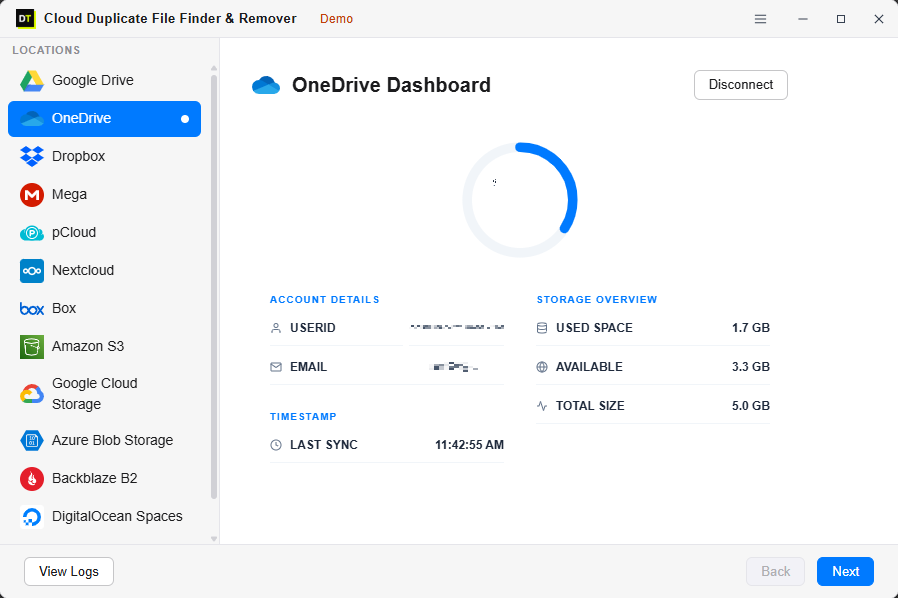
2. Choose Folders & Scan. Pick the whole account, several folders or a single one. Then pick the scan type. Fast Scan matches by name and size. It's quick, but a renamed duplicate slips past it. Deep Scan matches by content hash, so renamed and re-saved copies are still caught, and it's the one to use before a migration or a storage audit. Progress shows live, with file and folder counts as the scan runs.
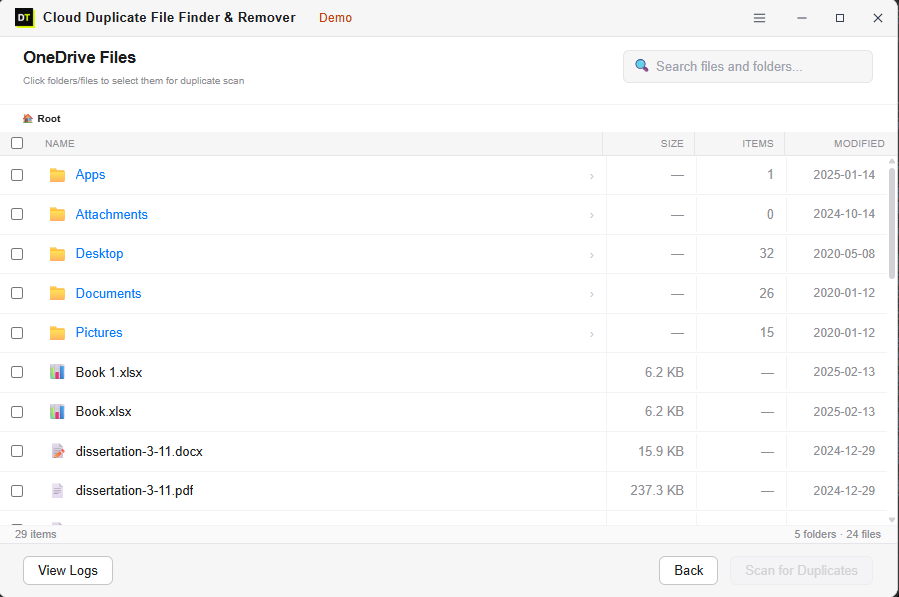
3. Review and Remove. Duplicates appear in groups, and nothing happens until you confirm. Select what to remove, remove it in one bulk action, and the files go to the OneDrive Recycle Bin, not into permanent deletion.
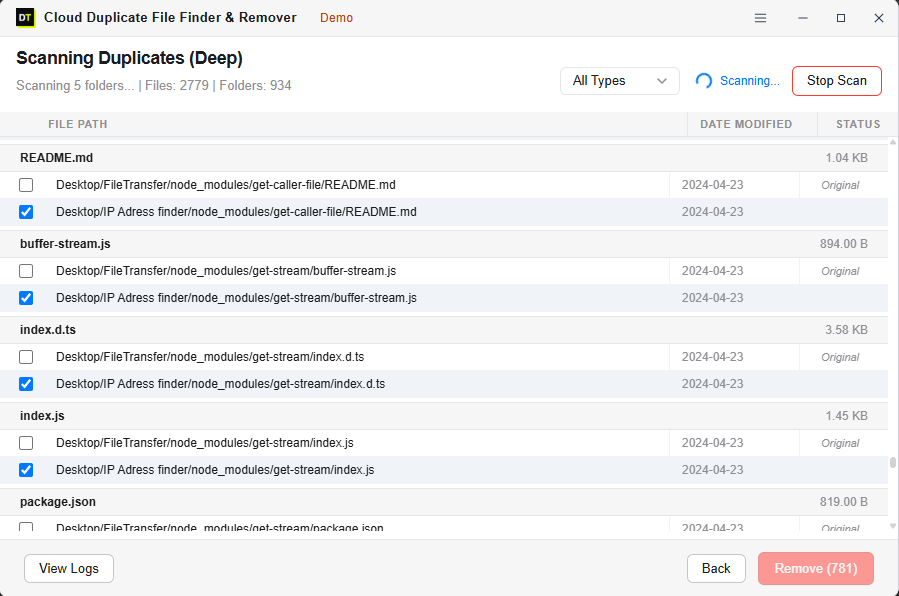
What the scan reads. File name, file size and, for Deep Scan, the hash Microsoft provides. It does not read document text or image data.
Free scan, paid removal. The scan itself is complete in the free version, so you see exactly how many duplicates you have and how much space you would recover before spending anything. Removing files, bulk removal and admin impersonation for Business accounts need the full version, and there is a 30-day money-back guarantee. Admin impersonation, which lets a Microsoft 365 Global Admin work through many users' accounts from one dashboard, is usually the feature IT teams care about most.
What it won't do. Hash matching finds identical content. It won't decide that a cropped photo counts as "the same" as the original, and it can't tell you which copy is the right one to keep. That call is still yours, and the section after the next one is about making it well.
Manual vs tool: side by side
| Feature | Web app by hand | File Explorer | Cloud-side scanner |
|---|---|---|---|
| Best for | One folder, small account | Windows users who already sync | Large or Business accounts |
| Finds renamed duplicates | Only if you notice | Only if you notice | Yes, with hash matching |
| Finds duplicates across folders | No | Partly, through search | Yes |
| Downloads files | No | No, if files stay online-only | No |
| Uses a content hash | No | No | Yes (Deep Scan) |
| Handles many users at once | No | No | Yes, with admin access |
| Chance of human error | High | Medium to high | Lower, with a review step |
| Cost | Free | Free | Varies; DT has a free scan and paid removal |
Which copy should you keep?
When two files have the same content, content is not what separates them. These are:
- Location. Keep the copy in the folder where you or your team would look for it.
- Sharing. If a link or permission points at one copy, keep that one.
- Version history. An Office file with a long edit history is usually worth more than a fresh copy.
- Ownership. In a shared folder, ask before removing something a colleague created.
How to undo a mistake
Anything you delete lands in the OneDrive Recycle Bin first, unless you picked a permanent-delete option.
1. Open OneDrive in your browser and go to Recycle bin in the left panel. 2. Select the items you want back and choose Restore. 3. On a work or school account, check the second-stage bin if the item isn't in the first, or ask your admin.
Do this soon. Personal accounts keep items for 30 days, and after that they're gone. Some plans also offer a feature that rolls the whole OneDrive back to an earlier point in time, so find out whether yours does before you need it.
One thing about space: items in the Recycle Bin can still count toward your quota until they are emptied or expire, so the storage bar may not drop right away. That's normal.
How to stop duplicates coming back
Cleaning once is satisfying. Not having to clean again is better. Five habits do most of the work:
- Let sync finish before you add the same folder from a second device. Most doubled folders start right there.
- Pick one photo path. Either your phone uploads automatically or you import by hand, not both.
- Use shortcuts for shared folders. Adding a shared folder to your own OneDrive as a shortcut avoids copying its contents into your space.
- Keep one owner per shared project folder. Two people organizing the same folder is a duplicate factory.
- Run a scan every few months. Put it in the calendar. A scan on a lightly used account takes minutes and stops the pile from growing into a project.
Frequently asked questions
Can I delete duplicate files in OneDrive without downloading them?
Does OneDrive have a built-in duplicate finder?
Why does OneDrive create copies with my computer name or a number in brackets?
Will deleting duplicates free up space straight away?
What's the difference between Fast Scan and Deep Scan?
Does the scanner download my files to work out the hash?
How do I find duplicate photos in OneDrive?
Can I clean several users' OneDrive accounts at once?
Is it safe to connect a third-party tool to my OneDrive?
Is the free scan really free, and what do I need to run it?
Scan first, decide later
Duplicates rarely feel urgent until the storage warning shows up, and by then the account has been collecting them for years. The good news: finding them is the easy part. If you'd like to see how much of your OneDrive is really duplicate content before you commit to anything, run the free scan with DT OneDrive Duplicate Finder. It doesn't download your files, and nothing is removed until you say so.