
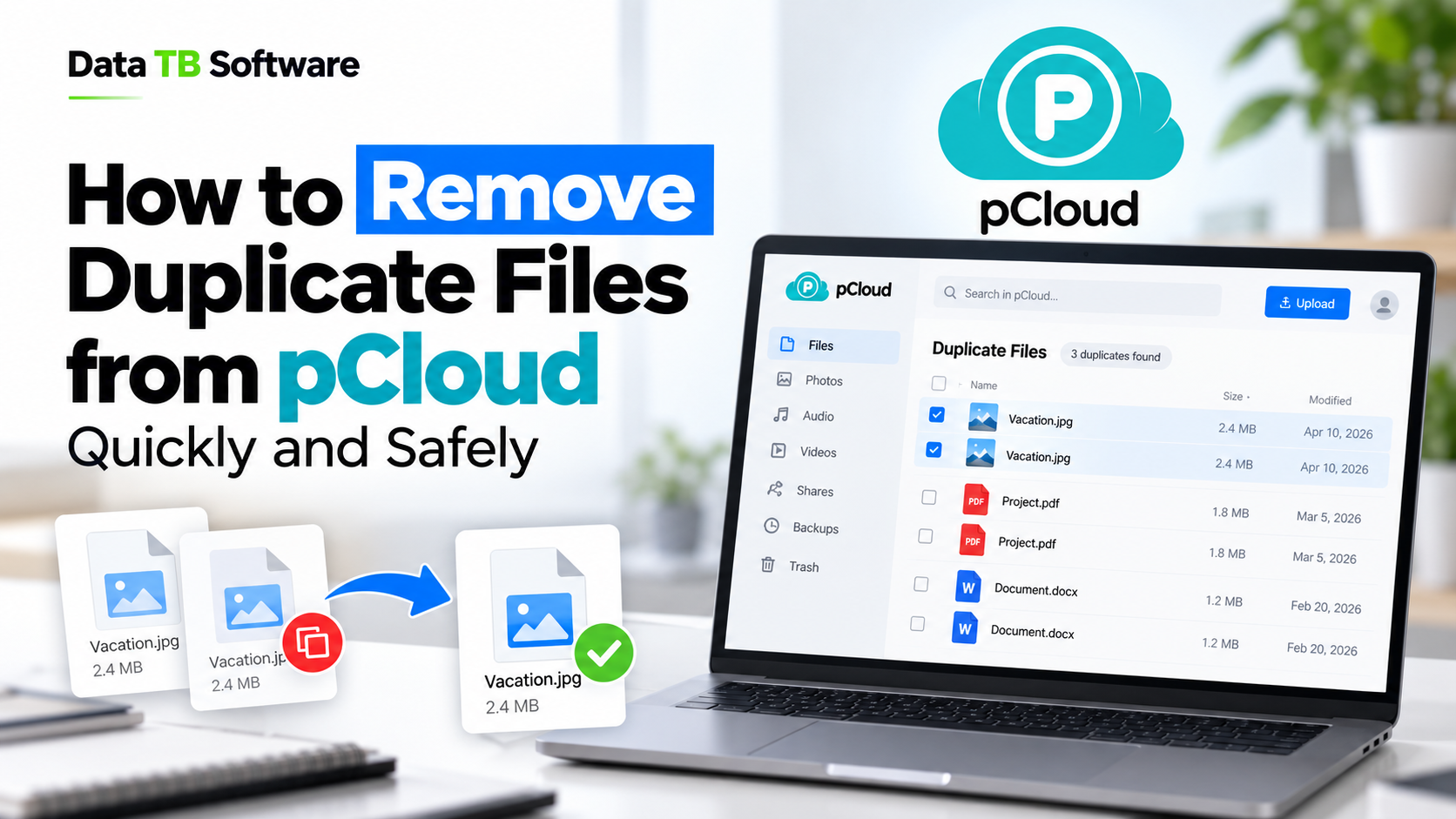
How to Remove Duplicate Files from pCloud Quickly and Safely
Try DT pCloud Duplicate Finder Today
The fast and secure way to clean up your pCloud account without downloading a single file.
Table of Contents
- Why pCloud Accounts End Up Full of Duplicates
- Does pCloud Detect Duplicates on Its Own
- Method 1: Finding Duplicates Manually
- Method 2: Using Desktop Duplicate Finder Software
- The Faster Way: Scanning pCloud Directly Through Its API
- How the Process Works Step by Step
- Is This Safe for a Business or Shared Account
- A Few Habits That Keep Duplicates From Coming Back
- Frequently Asked Questions
- Final Thoughts
This guide walks through why duplicates build up in pCloud in the first place, how to find and remove them by hand, what the common software methods look like, and a faster way to do the same job without syncing a single file to your computer.
Why pCloud Accounts End Up Full of Duplicates
pCloud tends to attract people who plan to keep their files there for years. Lifetime plan buyers, photographers backing up years of camera rolls, families who share one account, small teams keeping project files in one place. That long term use is exactly why duplicates pile up.
A few common habits cause most of it:
- Your phone and tablet both back up photos to the same pCloud folder before sync catches up, so the same picture lands twice under different names.
- A project folder gets uploaded again "just to be safe," without checking if it is already there from months ago.
- A file gets downloaded, edited locally, and re-uploaded, while the original copy stays untouched.
- A colleague or family member shares a file you already had saved somewhere else in your account.
Does pCloud Detect Duplicates on Its Own
Not really, at least not in a way you can rely on. pCloud does check file names when you upload something, and if a file with the exact same name already exists in that folder, it will warn you and let you rename or keep both. That is where its duplicate detection stops.
It does not look at what is actually inside the file. Two completely different photos named IMG_2041.jpg uploaded to different folders will never be flagged, and two identical photos with different file names will never be caught either. So while pCloud can stop one very specific kind of accidental duplicate at the moment of upload, it does nothing about the duplicates that are already sitting in your account, and it misses a large share of new ones too.
Method 1: Finding Duplicates Manually
If your account only has a few hundred files, doing this by hand is realistic. It just takes patience.
1. Sign in to pCloud through your browser.
2. Open the Files section and use the search bar to filter by file type, for example typing .jpg to pull up every image.
3. Sort the results by file size. Files of the exact same size sitting next to each other are worth a closer look.
4. Switch to grid view if you are checking photos, since it is much faster to spot visual duplicates than to compare file names one line at a time.
5. Select the copies you do not need and delete them. Repeat this for each file type you want to clean up.
This works, but it has real limits. It only catches duplicates within one file type at a time, it depends entirely on you noticing patterns correctly, and there is always a risk of deleting the wrong version of a file if you are moving quickly through a large folder. For anything beyond a small personal account, this method turns into an afternoon you will not get back.
Method 2: Using Desktop Duplicate Finder Software
The next step up is installing a duplicate finder tool on your computer and pointing it at pCloud. This usually works one of two ways.
- Option A: Sync pCloud Drive locally. You install the pCloud Drive app, sign in, and it mounts your entire pCloud account as a drive on your computer, similar to plugging in an external hard drive. Once everything has synced, you point a duplicate scanner at that drive and let it run.
- Option B: Download the files you want to check. You select folders in pCloud, download them as a zip, extract them, and scan that folder locally.
The Faster Way: Scanning pCloud Directly Through Its API
There is a third option that skips the sync and the download entirely. Instead of pulling your files down to a computer first, a tool connects to pCloud through its official API, the same kind of secure connection pCloud itself uses for trusted third party apps, and scans your account where it already lives.
This is how DT pCloud Duplicate Finder works. You sign in with pCloud's own OAuth authorization, so your password is never entered into the tool itself, and the scan runs against pCloud's infrastructure directly. Nothing gets downloaded to your machine, and nothing gets uploaded to any third party server either. The tool only ever reads file names, sizes, and hash values, never the actual contents of your documents or photos.
Because there is no sync step and no download step, account size stops being the bottleneck. A 500GB lifetime account and a 20GB personal account both start scanning in roughly the same amount of time.
Fast Scan vs Deep Scan
The tool offers two scan modes, and knowing the difference matters:
- Fast Scan compares files by name and size. It is quick and it catches the obvious cases, like a file that was accidentally re-uploaded with the same name, or a phone backup duplicate that kept its original filename. What it misses is anything renamed along the way.
- Deep Scan compares files by their hash value, a fingerprint generated from the actual content of the file. Two photos with completely different names but identical content will be caught by Deep Scan every time, including the same picture uploaded from two different phones under two different naming conventions. It takes longer to run than Fast Scan, but it does not miss anything, since matching content is matching content regardless of what the file happens to be called.
How the Process Works Step by Step
1. Connect your account. Sign in through pCloud's official OAuth screen. This works for both pCloud Personal, including free, premium, and lifetime plans, and pCloud Business accounts, where admin access lets you scan across team members from one dashboard instead of logging into each account separately.

2. Choose what to scan. Browse your folder structure and pick specific folders, shared folders, or your entire account.

3. Pick a scan mode. Run Fast Scan for a quick pass or Deep Scan when you want full accuracy, and watch progress in real time as it runs.
4. Review before anything is removed. Every duplicate found is grouped and shown to you first. Nothing is deleted automatically. You decide what stays and what goes, and you can bulk remove the ones you have confirmed in one action.

Removed files do not disappear permanently either. They go into pCloud's own Trash, so if you change your mind about something, you can restore it from within pCloud during its normal recovery window.
Is This Safe for a Business or Shared Account
Yes, and this is where the API based approach has a real advantage over local syncing. On pCloud Business, an admin can run scans across every team member's storage from a single dashboard, without asking each person to install anything or hand over their login separately. Shared folders get scanned alongside personal ones, so duplicates that exist because two people uploaded the same file to different locations get grouped together for review too.
A Few Habits That Keep Duplicates From Coming Back
Cleaning up once helps, but a few small habits keep the problem from returning:
- Before uploading a folder "for safekeeping," search pCloud first to check it is not already there.
- If you edit a downloaded file, delete or replace the original instead of keeping both versions indefinitely.
- If multiple family members or team members upload to a shared folder, agree on a simple naming pattern so accidental re-uploads are easier to spot early.
- Run a Deep Scan every few months on an active account rather than waiting years and facing a much bigger cleanup later.
Frequently Asked Questions
Does pCloud have a built in duplicate finder?
Will this work on a pCloud lifetime plan with years of files?
Do I need the pCloud Drive app installed to use an API based tool?
Can this accidentally delete files I need?
Does it work on Mac and Windows?
Final Thoughts
Duplicate files in pCloud are not a sign you did something wrong. They are a natural side effect of using a cloud drive across multiple devices over a long period of time. Manually searching through folders works for small accounts, and syncing a local duplicate finder works if you have the time and the disk space to spare. For anything larger, especially a lifetime plan account with years of history, scanning directly through the API is the only method that does not ask you to wait for a full download before you even see what you are dealing with.
You can run a full Deep Scan for free with DT pCloud Duplicate Finder to see exactly how many duplicates exist and how much space they are taking up, before deciding whether to remove anything.