
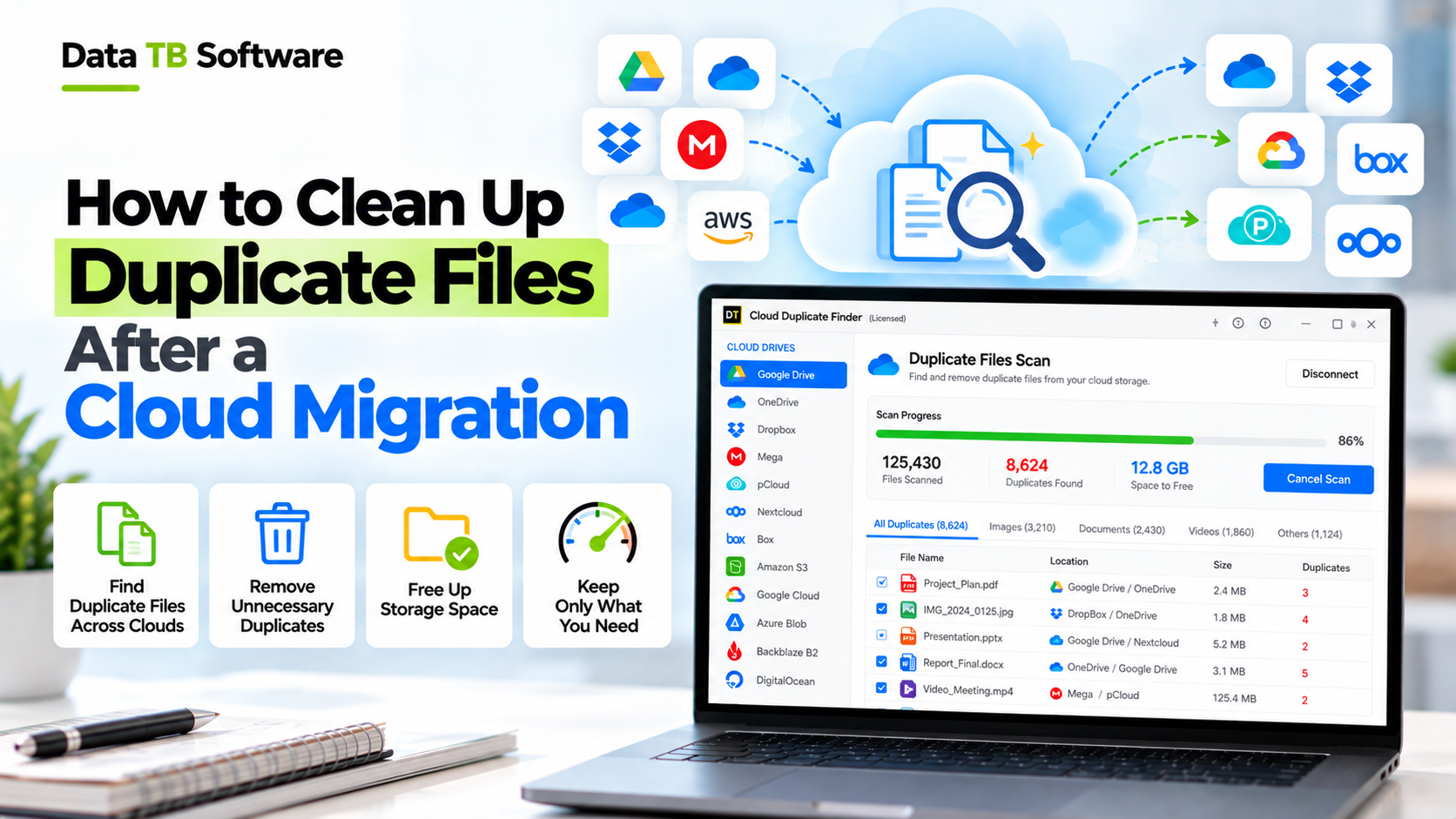
The migration finished. The progress bar hit 100 percent, the report said done, and for about a day everything felt fine. Then the storage bar on the new account looked fuller than the old one ever did. Search started returning the same report three times. A folder that held a neat set of files in the old cloud now seemed to hold a few hundred more.
This is normal, and it is not a sign the migration failed. A migration moves files. It does not judge them. Every duplicate that already lived in the source comes across, and the move itself creates some new ones. The cleanup is a separate job, and most guides skip it.
This guide covers that job from start to finish: why duplicates appear, what to check before you delete anything, how to find them, how to decide what stays, and how to retire the old cloud without regret.
The short version: confirm the migration is complete, freeze the source, work out which kind of duplicate you are dealing with, write down your keep rules, scan the destination, review in groups, delete to trash, and only retire the source after a waiting period.
Why Migrations Leave Duplicates Behind
Knowing the cause tells you where to look. These are the seven we would check first.
1. A run was repeated
A transfer failed halfway, someone restarted it, and the tool copied everything again instead of skipping what had already landed. Every file that finished before the failure now exists twice, often in the same folder with (1) or a similar suffix.2. Name conflicts were renamed
Google Drive identifies files by an internal ID, so it happily lets two files share one name in the same folder. OneDrive and SharePoint do not allow that. Many migration tools solve it by renaming one of the pair, adding a number or an identifier to the end. Both files are real, one has an odd name, and the folder looks cluttered.3. Google files were converted
Google Docs, Sheets and Slides are not ordinary files. On the way to OneDrive they are converted to Word, Excel and PowerPoint formats. If a colleague had already downloaded an Office copy and uploaded it by hand last year, the folder now holds both.4. People kept working during the move
Users uploaded files to the new account while the admin was still running the migration. A later pass then copied the same files again from the source.5. Several sources went into one destination
Merging two drives, two departments or two companies brings in each side's own copy of the shared logo, the contract template and last year's budget.6. Old sync folders woke up
A laptop still has the old desktop sync folder. Point it at the new account and it pushes its entire contents back up.7. The mess was already there
Duplicates that lived in the source are carried across faithfully. Dropbox itself lists intentional copies, sync conflict copies and delivery copies as the usual reasons teams end up with duplicates, and none of those disappear because you changed provider.Before You Delete Anything: Five Checks
Duplicate cleanup is deletion. Treat it like one. Spend an hour on these checks first, because a cleanup on top of an unfinished migration is how files really get lost.
| Check | What to compare | Why it matters |
|---|---|---|
| File count | Source vs destination, per top-level folder | A missing file looks like success until somebody needs it |
| Folder count | Same | Empty or skipped folders point to failed branches |
| Total size | Same | Converted Google files will change sizes, so expect small gaps and investigate big ones |
| Spot check | Open ten random files from different depths | Catches broken conversions and corrupted uploads |
| Source status | Make the source read-only or stop edits | Otherwise new changes keep arriving and your comparison is already out of date |
Know Which Kind of Duplicate You Have
Not all duplicates are equal, and the method that finds one type misses another.
| Type | What it looks like | How to catch it | Risk of deleting |
|---|---|---|---|
| Exact copy | Same name, same size, same content in different folders | Name and size, or a content hash | Low |
| Renamed copy | Different name, identical content | Content hash only | Low |
| Conflict copy | Report (1).docx, Report-LAPTOP.docx, conflicted copy | Name pattern, then compare dates | Medium, it may hold the newer edits |
| Converted copy | A Google Doc and the .docx made from it | Name and size by eye | Medium, there is nothing to hash against |
| Near duplicate | Edited versions, resized photos | Manual review | High, never delete automatically |
Write Your Keep Rules Before You Scan
The worst time to decide which copy to keep is while staring at a list of 4,000 groups. Decide first, write it down, and apply it the same way every time.
| Situation | Keep this one |
|---|---|
| Exact copies in a structured project folder and a loose misc folder | The one in the project folder |
| Conflict copies of an edited document | The most recently modified, after opening both |
| A file other people link to | The copy whose sharing links are in use, because deleting it breaks those links |
| Folders that are copies on purpose, such as an archive | Mark them as exceptions and exclude them from the scan |
| Photos and videos | Keep the original upload, not the copy in an exported album |
How to Find the Duplicates
There are four realistic ways, and they suit different sizes of job.
Method 1: By hand in the web app
Search for (1), copy, conflicted and the account name of old devices. Sort a folder by name and then by size and scan for neighbours. This is fine for one or two folders. Past a few thousand files it turns into a part-time job, and it only catches obvious names. For step-by-step manual instructions, see how to find and delete duplicate files in Google Drive.Method 2: Built-in tools
Dropbox has a Find duplicates option on paid plans, found under Organize in the web app. On team accounts, members can only check folders they can edit, and admins can export a duplicate files report. Google Drive and OneDrive do not offer a built-in duplicate finder at the time of writing, though there are methods to delete duplicate files in OneDrive without downloading.Method 3: rclone
rclone is free, powerful and command-line only. Its dedupe command works on one remote at a time, so duplicates that sit in different accounts or different clouds are outside its reach unless you combine them or compare hash lists yourself. One practical rule: always add the dry-run flag first.```bash rclone dedupe --dry-run --dedupe-mode newest remote:path