
You didn't fill your hard drive. Your habits did - and you had no idea.
Look at your Windows storage right now.
If it's closer to full than it should be - you probably have a good idea of the large files. The video projects, the software installations, the games. Those are easy to explain.
What's harder to explain is the slow, steady creep. The storage that keeps getting used even when you haven't downloaded anything significant. The drive that was fine six months ago and is now always throwing warnings.
That creep has a name. Duplicate files.
Studies show the average Windows user has between 15% and 30% of their storage occupied by files that already exist somewhere else on the same drive. On a 500GB hard drive, that's up to 150 gigabytes - not of files you chose to keep, but of accidental copies you don't even know about.
This guide explains exactly how that happens, why Windows can't catch it on its own, and what actually works to stop it.
How Duplicate Files Build Up - Without You Noticing
Nobody sits down and decides to save a file twice. Duplicates happen because the tools and habits that make Windows useful also create copies silently in the background.
Here's exactly how it happens on most PCs:
Phone photo backups run twice
Your phone connects to your PC. Windows automatically imports the camera roll to your Pictures folder. You also have OneDrive or Google Photos backing up the same photos to a sync folder on the same drive. Same photos. Two locations. Every time you import from your phone - whether weekly or monthly - the count grows.
After a year of this, you can have thousands of identical images spread across two folders on the same drive. A single year of casual phone photography can easily account for 5–10GB of duplicate storage this way.
The "copy before editing" habit
You're about to make significant changes to a project folder, a design file, or an important document. So you duplicate it first - just in case the edit goes wrong. The edit goes fine. The copy stays. You move on and forget it exists.
Multiply this across every project, every large document, every folder you've worked on for years - and the copies accumulate. Most people who run their first proper duplicate scan are surprised to find five or six versions of the same project folder sitting quietly on their drive.
Downloads saved twice
You downloaded a PDF, a software installer, or a ZIP file last month. Needed it again this week, couldn't find it in Downloads, and downloaded it again. Both copies are sitting there now - possibly with slightly different names because the browser automatically renamed the second one to avoid a conflict.
The Downloads folder is consistently the highest-density location for duplicate files on any active Windows PC. Most people never clean it systematically, and downloads accumulate across months and years without any automatic management.
Backup runs that overlapped
Your backup software - whether it's Windows Backup, a third-party tool, or a manual copy-paste - ran on Tuesday night. You remembered you wanted to make a backup before a big change on Wednesday morning, so you ran it again manually. Everything backed up Tuesday is now also backed up Wednesday. The same files, twice, eating double the space - and the backup tool has no way to know the first run was sufficient.
Cloud sync conflicts
When OneDrive, Google Drive, or Dropbox syncs from two devices simultaneously - your laptop uploading the same file your desktop is uploading, before either sync has finished - it creates a conflict copy. These get names like "Report (James's conflicted copy 2024-03-14)" and sit in your sync folder permanently, because the sync client considers them separate files.
Over months of active use across multiple devices, conflict copies pile up unnoticed. Each one is a complete duplicate of a file you already have.
Software installers left behind
You downloaded a setup file, ran it, installed the software, and the installer stayed in your Downloads folder. Six months later, you upgraded to the new version - new installer, same folder. A year later, another update. Three versions of the same installer now occupy your drive, none of them useful.
Why Windows Can't Find These on Its Own
The reason duplicates accumulate invisibly is that Windows has no mechanism to detect them.
Windows identifies files by name and location - not by their content. Two files called IMG_4521.jpg and IMG_4521 (1).jpg are two separate files as far as Windows is concerned, even if the images inside them are identical. Two files called Project_Draft.docx and Project_FINAL_Submitted.docx - same document, different names - are treated as completely unrelated files.
Storage Sense, which runs in the background in Windows 10 and 11, cleans up temporary files, old Recycle Bin contents, and system junk. It does not detect duplicate user files. It has never done so and is not designed to.
Disk Cleanup does the same - system-level junk only.
File Explorer sorting by name or size can help you spot obvious cases in a single folder - two files with nearly identical names sitting next to each other. But this only works when you're looking in the right folder, and only catches the obvious cases. It scales to roughly zero when you have hundreds of thousands of files across multiple folders.
Content-based duplicate detection - reading the actual bytes inside files and comparing them - is what's needed. Windows doesn't offer this. You need a dedicated tool.
What Actually Works
There are three practical approaches to finding and removing duplicate files on Windows. Each has a different level of effort, accuracy, and coverage.
1. Manual sorting - for a single folder, one time
Open File Explorer. Navigate to a specific folder - Downloads is usually the best place to start. Switch to Details view. Sort by Name.
Look for files with similar names sitting next to each other: Report.pdf and Report (1).pdf, Setup.exe and Setup (2).exe. Right-click both, compare file sizes in Properties. If they match - and the dates are close - there's a strong chance the content is identical.
This works for one folder when you have a specific problem to solve. It catches nothing across different folders, nothing with different names, and nothing at scale. If your drive has hundreds of thousands of files - which most active Windows PCs do - manual sorting is not a viable cleanup strategy.
2. PowerShell hash comparison - for technical users
Windows PowerShell can compute a hash value - a unique content fingerprint - for files in a folder and group matching hashes together. This is genuine content-based matching using built-in Windows tools, with no additional software required.
The command looks like this:
Get-ChildItem -Path "C:\Users\YourName\Downloads" -Recurse |
Get-FileHash |
Group-Object -Property Hash |
Where-Object { $_.Count -gt 1 } |
ForEach-Object { $_.Group }
Replace the path with whichever folder you want to scan. PowerShell outputs a text list of files that share identical hash values - meaning identical content.
The output is a flat list of file paths. No grouping, no visual review interface, no size summary, no removal option. You get the information; you do the rest manually. On large directories - or a full drive scan - this approach times out, throws errors, or runs for so long it becomes impractical.
It works. It's not practical for a full PC cleanup.
3. A dedicated duplicate finder - for complete, accurate cleanup
A dedicated tool handles the cases that manual sorting misses and the scale that PowerShell struggles with. It computes content hashes across your full drive, groups identical files visually, shows you exactly how much storage each group is wasting, and removes what you select - with a safety net so nothing is permanently gone until you're certain.
The right tool for Windows does a few specific things:
- It matches files by content - not just by name - so renamed copies and files saved in different folders with different names are still caught.
- It covers more than just photos and documents. Videos, archives, executables, database files, email files, development files - if you have it on your drive, it should be scannable.
- It shows you results before removing anything. Every duplicate group visible, full file paths shown, storage wasted per group displayed - before a single file is touched.
- It uses the Windows Recycle Bin as the default removal option. Nothing permanently deleted until you've confirmed you don't need it.
The Right-Click Feature That Changes Everything
When DT Disk Duplicate Finder is installed, it adds a single option to the Windows Explorer right-click context menu:
"Scan for Duplicate Files."
Right-click any folder - Downloads, Pictures, a project directory, anywhere - and the tool opens immediately and starts scanning that specific location. No navigating through an app interface. No pointing the tool at the right folder after it loads. One click, scan starts.
This matters more than it sounds. The biggest friction in any cleanup workflow is the gap between noticing a problem and doing something about it. Right-clicking a folder that looks suspicious and seeing a scan option means that gap disappears.
It works on any folder. It takes one step. And for targeted folder-level cleanup - which is how most people actually work - it's faster than any other approach to duplicate detection on Windows.
What a Proper Duplicate Scan Looks Like
Beyond the right-click feature, DT Disk Duplicate Finder handles the full-drive cleanup scenario that most people eventually need.
It covers 550+ file formats across nine categories - documents, images, videos, audio, archives, databases, executables, email files, and development files. Most duplicate finders focus on photos and documents and stop there. If you have duplicate video files, old software installers, or development project copies - most tools simply won't find them.
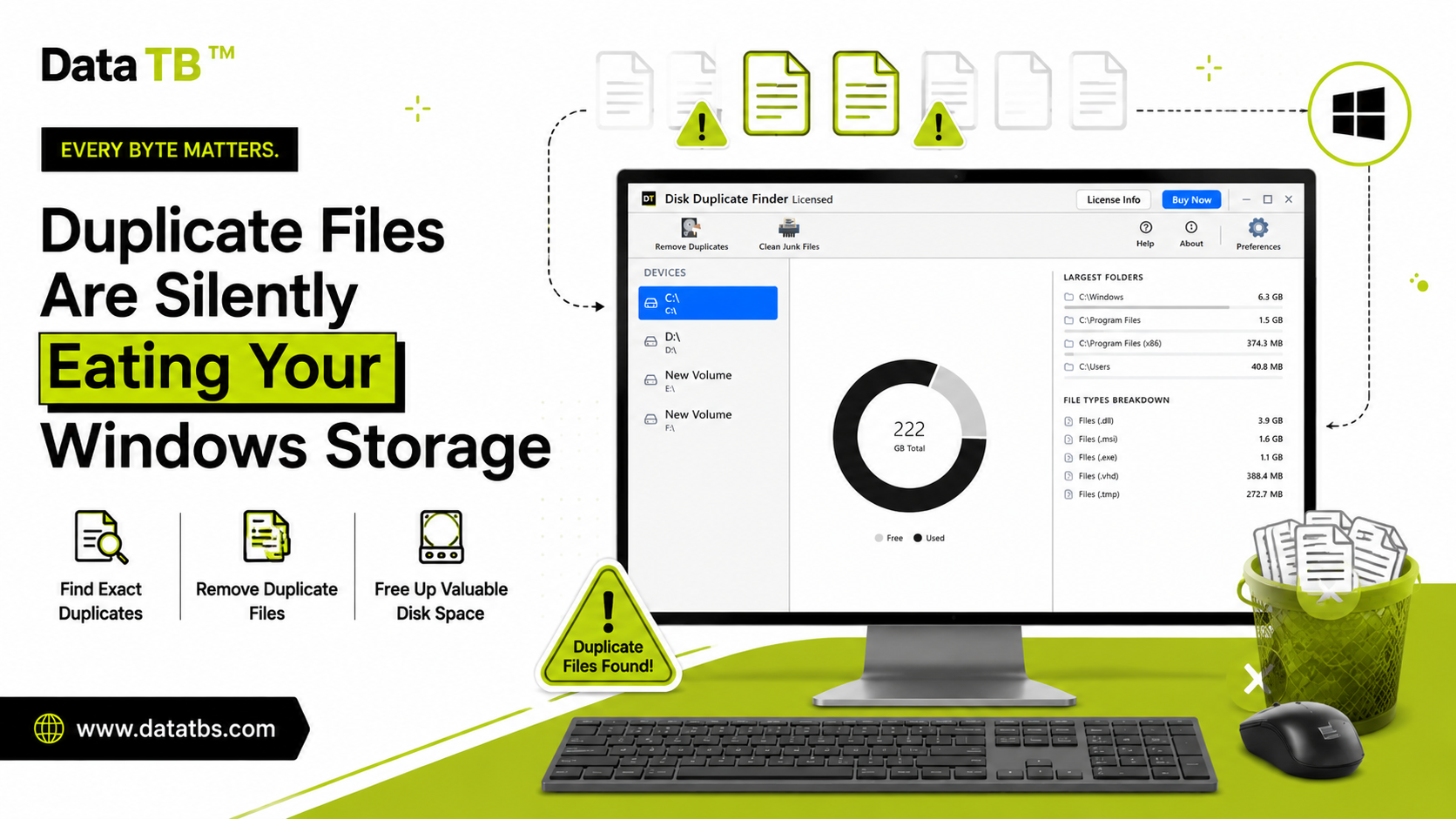
Before scanning, it shows a storage dashboard: total drive capacity, used versus free space, largest folders, and which file types are consuming the most room. This tells you where to look before you scan - so you're targeting the highest-impact areas first rather than hoping a full scan surfaces something useful.
Scan results are organized into groups - each group is a set of identical files, showing every copy's full path and exactly how much storage the group is wasting. A "Keep Only First" shortcut handles obvious groups in one click. Groups where you want to look more carefully can be reviewed file by file before anything is removed.
Removal has three explicit options every time: Move to Recycle Bin (recoverable, the default), Move to Folder (for manual review before committing), or Permanent Delete (for when you're certain). Nothing is auto-removed. Every deletion is a deliberate choice.
A built-in junk cleaner handles system caches, temporary files, and empty folders in the same app - so one session covers both duplicate removal and general junk cleanup without switching between tools.
The free version runs a complete scan and shows full results - every group, every wasted-byte number - before purchase. Removal requires the full version. The junk cleaner works completely in both.
→ Download free and see your scan results
How Much Storage Can You Actually Get Back?
It depends on how long you've had the PC and how you use it. But the patterns are consistent enough that some rough numbers are reliable:
- Most users reclaim 5–15% of their total storage by removing duplicates. On a 500GB drive, that's 25–75GB.
- Users who frequently download files, import photos from a phone, or copy project folders may reclaim 20% or more.
- Video files produce the most dramatic recoveries - a single duplicate 4K video file accounts for 5–10GB. If you've duplicated a video project or backed up footage twice, one cleanup session can recover 30–50GB from video duplicates alone.
Comparison: DT Disk Duplicate Finder vs. Other Tools
Not all duplicate finders work the same way. Here is how our approach compares to other common tools available for Windows:
| Feature | DT Disk Duplicate Finder | Other Duplicate Tools |
|---|---|---|
| Content-Based Matching (Hash) | Yes - Finds renamed copies | Often Name/Size only |
| Broad Format Support | 550+ types (Video, Code, EXE, Database) | Mostly Images & Documents |
| 1-Click Folder Scan | Yes - Right-click any folder | No - Manual app navigation required |
| Review Before Removal | Yes - See exact wasted space first | Sometimes Auto-deletes without review |
| Safe Removal Defaults | Recycle Bin by default | Often permanent deletion |
| Built-in Junk Cleaner | Yes | Rarely included |
| Data Privacy | 100% Local (Never uploaded) | Sometimes requires cloud connection |
Frequently Asked Questions
Does Windows have a built-in tool to find duplicate files? No. Windows 10 and 11 include Storage Sense and Disk Cleanup, which remove temporary and system junk files. Neither detects or removes duplicate user files - photos, documents, videos, or anything else you've saved yourself. Content-based duplicate detection requires a dedicated tool.
Is it safe to delete duplicate files? Yes, with the right approach. Review every duplicate group before removing anything, and use Recycle Bin removal (not permanent delete) as the default. Files in the Recycle Bin can be restored if you realize a mistake. Never use a tool that auto-deletes without showing you results first.
What's the fastest way to scan a specific folder for duplicates? Right-clicking the folder in Windows Explorer and selecting "Scan for Duplicate Files" - if DT Disk Duplicate Finder is installed. One step, scan starts immediately on that folder.
Will removing duplicates make my PC faster? Duplicates consume storage rather than processing power, so the direct speed impact is limited for most users. On SSDs, performance can degrade when the drive is very close to full - freeing up significant storage can help in that scenario. The bigger practical benefit is faster backup times and a more organized file structure.
How often should I run a duplicate scan? Once thoroughly, then quarterly for maintenance. The first scan on a drive that's never been cleaned typically shows the largest results. After the initial cleanup, running a scan every few months catches the duplicates that accumulate through normal use before they add up to a significant problem.
The Short Version
Duplicate files build up silently on every Windows PC - through phone backups, the copy-before-editing habit, repeated downloads, overlapping backup runs, and cloud sync conflicts.
Windows has no built-in mechanism to detect them, because it identifies files by name and location rather than content.
Manual sorting catches obvious cases in a single folder. PowerShell can do content-based matching but isn't practical at scale. A dedicated tool with hash-based matching, proper review before deletion, and safe removal options handles the cleanup that actually needs to happen.
The right-click scan feature is what makes it part of how you actually work - rather than something you open a separate application for when the storage warning gets bad enough to ignore.
The free scan shows you what's there. The number is usually surprising.
→ Run a free scan - see your results before spending anything
User Reviews
"The right-click folder scan in Explorer is amazing. Found 95GB of duplicate downloads instantly!"
"Recovered space on my 512GB SSD for Docker containers. Works like a charm."
Published by Data TB Software - Every Byte Matters. Last updated: August 2026