
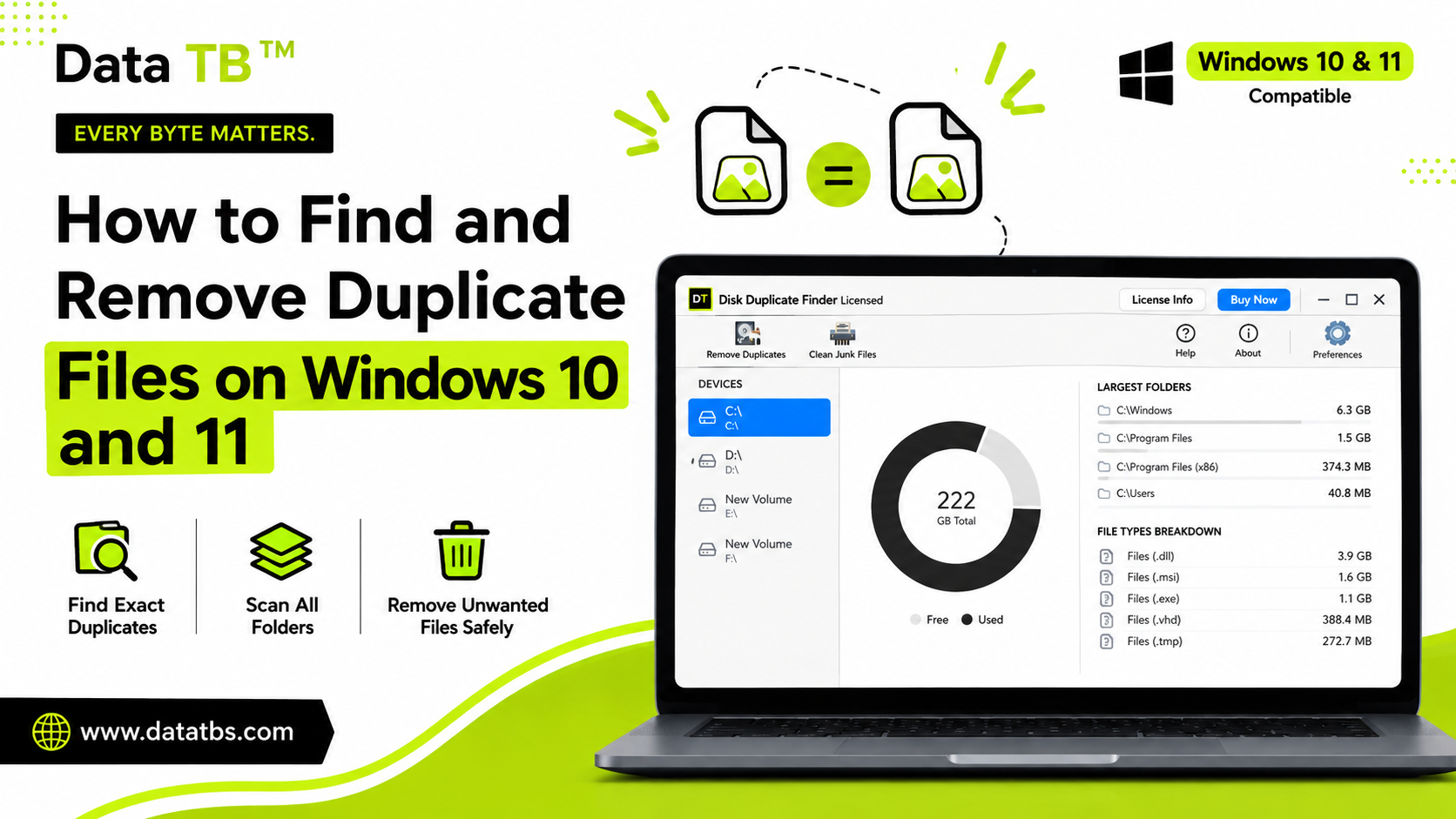
Your Windows PC has been running for a while now. Photos backed up from your phone. Downloads saved twice because you forgot where the first one went. Project folders copied "just in case" before a big edit. Software installers sitting in three different places.
None of it felt like a problem at the time.
But open Disk Management today and you'll probably find that a significant chunk of your "used" space is files that already exist somewhere else on the same drive - under a different name, in a folder you forgot about, from a backup that ran while an original was still sitting there.
This guide covers five methods to find and remove duplicate files on Windows 10 and 11 - from completely manual to fully automated - so you can pick the one that fits your situation.
Why Duplicate Files Are Hard to Find on Windows
Before getting into methods, it's worth understanding why Windows doesn't just handle this itself.
Windows identifies files by name and location - not by content. Two files called Project_Final.docx and Project_Final_v2.docx are treated as completely separate files, even if the content inside is identical. Two photos called IMG_2044.jpg and IMG_2044 (1).jpg - same image, different name - show up as two separate results in Windows Explorer and in Windows Search.
This is why manually browsing for duplicates doesn't work at scale. Once a PC has more than a few hundred files - and most Windows PCs hold hundreds of thousands - file-by-file comparison is practically impossible.
Content-based matching is what's needed: comparing the actual bytes inside each file, not just the name on the outside.
Method 1 - Sort by File Name in File Explorer
Best for: Finding obvious duplicates with similar names in a single folder. Time required: Minutes per folder. Works on: Windows 10 and 11 - no tools needed.
This is the simplest method and also the most limited.
Open File Explorer and navigate to the folder you want to check - Downloads is usually a good starting point.
Click the View tab and select Details. Then click the Name column header to sort alphabetically.
Scroll through the list and look for files with similar names - things like:
Report.pdfandReport (1).pdfIMG_4521.jpgandIMG_4521 - Copy.jpgInvoice_March.xlsxandInvoice_March_FINAL.xlsx
Limitation: This only catches duplicates with similar names in the same folder. It won't find a file called Budget_2024.xlsx in your Documents folder that has identical content to Q1_Numbers.xlsx sitting in your Downloads folder - because the names are completely different. For that, you need content-based matching.
Method 2 - Use Windows PowerShell to Find Duplicates by Hash
Best for: Technically comfortable users who want a free, built-in solution. Time required: 5–30 minutes depending on folder size. Works on: Windows 10 and 11 - PowerShell required.
Windows PowerShell can compute a hash value - a unique fingerprint - for every file in a folder and group identical hashes together. This is content-based matching using only built-in Windows tools.
Open PowerShell as Administrator (search "PowerShell" in the Start menu, right-click, Run as administrator).
Run this command - replace the folder path with the one you want to scan:
Get-ChildItem -Path "C:\Users\YourName\Documents" -Recurse |
Get-FileHash |
Group-Object -Property Hash |
Where-Object { $_.Count -gt 1 } |
ForEach-Object { $_.Group }
PowerShell will output a list of files that share the same hash - meaning they have identical content, regardless of file name.
What you get: A plain text list of file paths grouped by hash. No GUI, no automatic removal - you'll need to manually review the output and delete files yourself.
Limitation: PowerShell doesn't handle very large directories well - scanning an entire C: drive can take a long time and sometimes times out on folders with thousands of files. There's no visual grouping, no size summary, and no safety net (no Recycle Bin option - deletions via PowerShell are usually permanent unless you add extra steps).
It works, but it's not practical for a full PC cleanup.
Method 3 - Use Windows' Built-In Storage Sense
Best for: Basic junk cleanup - temp files and system cache, not true duplicates. Time required: 2–5 minutes. Works on: Windows 10 (1703 and later) and Windows 11.
Storage Sense is Windows' built-in storage management tool. It automatically cleans up temporary files, emptied Recycle Bin contents, and old Windows Update files.
To access it: Open Settings → System → Storage → Storage Sense.
Toggle it on and click Configure Storage Sense to set how often it runs and what it cleans.
For a manual run: scroll down to Free up space now and click Run Storage Sense now.
What it cleans: Temporary files, Recycle Bin contents older than X days, Downloads folder contents older than X days (if you enable this), old Windows Update cleanup files.
What it doesn't clean: True duplicate files - files you intentionally saved twice in different folders. Storage Sense has no awareness of content duplication. It's a junk cleaner, not a duplicate finder.
Use Storage Sense alongside a proper duplicate finder - not instead of one.
Method 4 - Use a Free Dedicated Duplicate Finder
Best for: Most Windows users who want a visual tool without paying for software. Time required: 5–20 minutes for setup and scan. Works on: Windows 10 and 11.
Several free tools are specifically built to find duplicate files using content-based matching. They provide a GUI, group duplicates visually, and let you review before deleting.
What to look for in a free duplicate finder:
- Hash-based matching - file name and size matching alone misses renamed duplicates. Look for MD5 or SHA hash comparison.
- Review before delete - any tool that auto-deletes without showing you results first is a risk. You want to see every group before anything is removed.
- Recycle Bin option - removal should go to the Recycle Bin by default, not permanent deletion, so you can recover files if something gets removed by mistake.
- Folder exclusion - the ability to skip system folders, Program Files, and Windows directories so the tool doesn't accidentally flag system files as duplicates.
Method 5 - Use DT Disk Duplicate Finder (Free Scan, Full Results)
Best for: Anyone who wants a complete Windows PC cleanup - all file types, junk included. Time required: 5–10 minutes for scan setup. Scan time depends on drive size. Works on: Windows 10 and 11.
DT Disk Duplicate Finder was built specifically for the cases that manual methods and basic free tools miss.
What makes it different:
- 550+ file formats - not just photos and documents. Videos, audio, archives, databases, executables, email files, development files, and more - all compared by actual content.
- Content-based hash matching - files are matched by what's inside them, not by name. A file called
Project.docxand a renamed copy calledProject_backup_FINAL_v3.docxget flagged as duplicates if the content is identical. - Storage dashboard - before you even start a scan, you see a breakdown of your drive: total capacity, used vs. free space, largest folders, and which file types are consuming the most room.
- Three removal modes - Move to Recycle Bin (recoverable), Move to Folder (for manual review later), or Permanent Delete (when you're sure). Every removal is a deliberate choice, not a default.
- Built-in Junk Cleaner - a second tool in the same app that clears system caches, temporary files, and empty folders. No need for a separate CCleaner-style app.
- Folder exclusions - add any folder to the exclusion list and it's skipped on every future scan. System folders, Program Files, anything you want protected stays protected.
How to run a scan:
1. Download and install DT Disk Duplicate Finder. No sign-up required. 2. Open the app. The storage dashboard loads automatically - you'll see your drive's current state before scanning. 3. Choose your target drive and select which file categories to include - or leave it on All Files for a complete scan. 4. Click Start Scan. The tool compares every file on the drive by content and groups duplicates together. 5. Review the results. Each duplicate group shows you exactly how much space it's wasting. Use Keep Only First for quick cleanup, or review each group manually. 6. Choose how to handle duplicates - Recycle Bin, Move to Folder, or Permanent Delete - and confirm.
→ Download DT Disk Duplicate Finder - Free Scan
Which Method Should You Use?
Here's a quick decision guide:
- Just checking one folder for obvious copies?
- Comfortable with PowerShell and want a free technical solution?
- Only want to clean temp files and system junk?
- Want a free GUI tool for photos and documents?
- Want to clean your entire PC - all file types, junk included, full results before you buy anything?
How Much Space Can You Actually Recover?
It depends on how long you've had the PC and how you use it - but the numbers are usually surprising.
A few common patterns:
- Phone photo backups - phones back up to OneDrive or Google Photos automatically, and many people also manually copy photos to their PC. Same images in two places. On an active phone user's PC, this alone can account for 5–15GB. Remember that cloud storage syncing also creates duplicates.
- Download folder accumulation - software installers, PDFs, ZIP files - downloaded once, downloaded again when they couldn't be found. The average Downloads folder on a PC that's been active for 3+ years has significant duplication.
- Project folder copies - "copying the folder before the big edit" is a habit that accumulates fast on anyone who works with files regularly.
- Multiple backup runs - backup software that ran twice, or manual backups that overlapped with an automated one. Can duplicate gigabytes of data in a single accidental run.
Frequently Asked Questions
Does Windows have a built-in duplicate file finder? Windows does not have a dedicated duplicate file finder. File Explorer can sort by name to help spot similar-named files, and Storage Sense cleans temporary files - but neither performs content-based duplicate detection across your full drive.
Is it safe to delete duplicate files on Windows? Yes - with the right tool and process. The key is reviewing duplicates before deletion and using Recycle Bin removal (not permanent delete) as the default option. This gives you a recovery path if something gets removed by mistake. Never auto-delete without reviewing results first.
Will removing duplicates make my PC faster? Directly - not significantly for most users. Duplicate files consume storage, not processing power. However, freeing up drive space - especially on SSDs - can improve read/write performance when the drive is very close to full. The bigger benefit is organization and easier file management.
What's the difference between a duplicate file and a similar file? A duplicate file has byte-for-byte identical content to another file - same bytes, just stored twice. A similar file might be a slightly edited version of another file - same general content, but with differences. Most duplicate finders (including DT Disk Duplicate Finder) target exact duplicates using content hashing. Some tools also offer "similar image" detection for photos, which uses visual similarity rather than exact content matching.
Can I undo a deletion if I remove the wrong file? If you use the "Move to Recycle Bin" option - yes, immediately. Open the Recycle Bin, find the file, and click Restore. If you used "Permanent Delete" - no, that's not recoverable through normal means. Always use Recycle Bin removal unless you're certain about what's being removed.
Wrap Up
Duplicate files accumulate silently over months and years of normal Windows use. They're not caused by bad habits - they're caused by how backups work, how syncing works, how we naturally save copies before editing, and how downloads pile up.
The methods in this guide range from zero-tool manual sorting to fully automated content-based scanning. For a single folder with obvious naming patterns - manual works fine. For a complete PC cleanup across all file types - a dedicated tool with hash-based matching is the only approach that actually catches everything.
DT Disk Duplicate Finder runs a complete scan - 550+ file formats, full results, every duplicate group visible - before you spend anything. If the numbers make sense, removing them takes a few clicks.
→ Download Free and See Your Results
User Reviews
"Much faster than running PowerShell Get-FileHash scripts manually. Highly recommended!"
"Cleaned 80GB of duplicate media and installers off my laptop hard drive."