
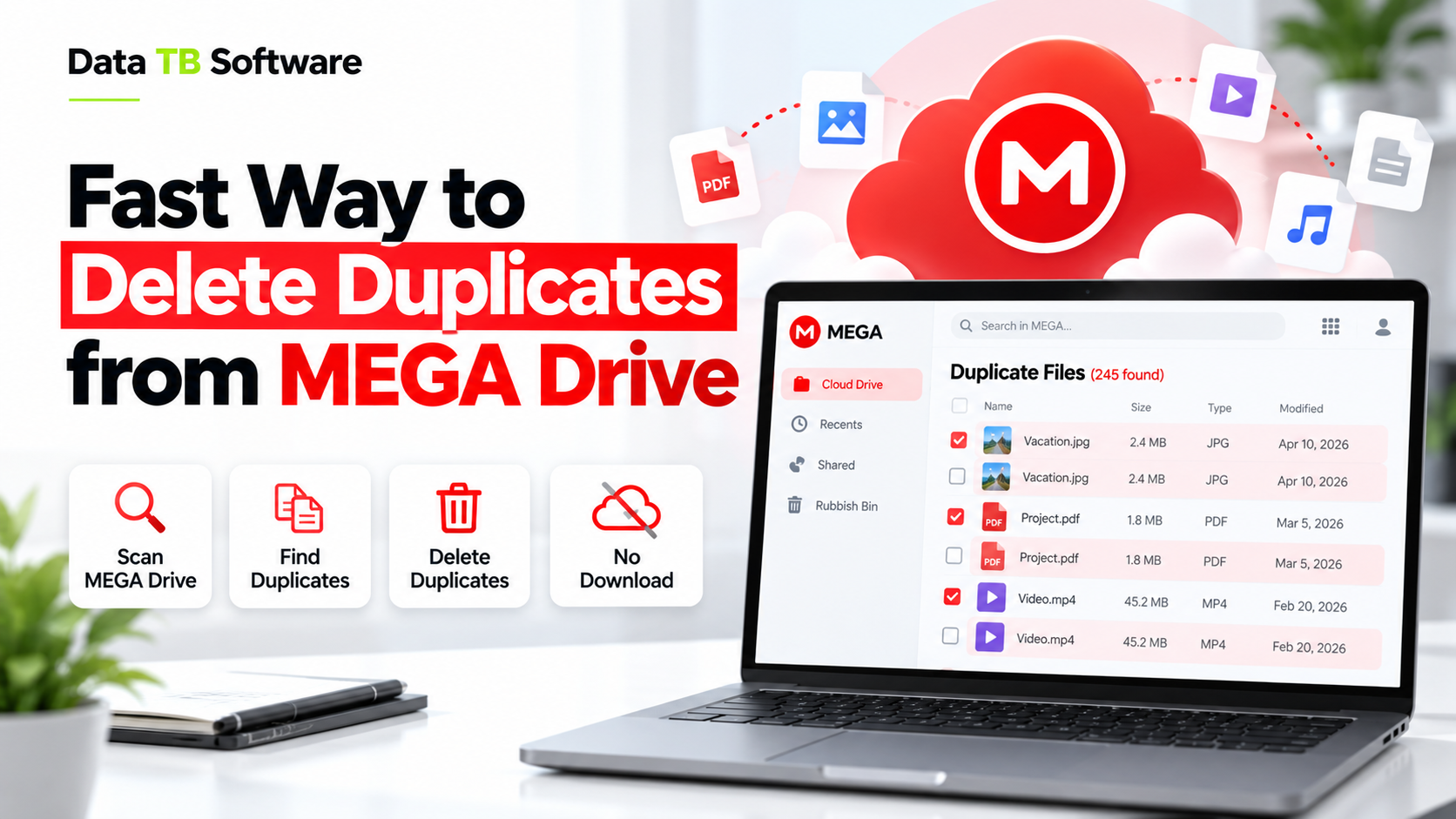
Try DT MEGA Duplicate Finder Today
Scan your MEGA drive directly in the cloud, find duplicates instantly, and safely remove them without downloading a single file.
Quick Answer
The fastest way to delete duplicates from MEGA is to scan the account directly in the cloud using a tool built on MEGA's own SDK, so nothing has to sync to your computer first. This works whether your MEGA account holds 10GB or 10TB, since the scan reads file metadata and content signatures from MEGA's servers rather than pulling every file down to your disk first. DT MEGA Duplicate Finder is built exactly this way: connect your account, run a scan, review grouped duplicates, delete in one action. No sync, no waiting on your own bandwidth, no local disk space used.
The rest of this guide walks through why MEGA accounts fill up with duplicates in the first place, then compares every realistic method so you can see exactly why the direct-scan approach wins on speed and accuracy, not just as a sales pitch.
Why MEGA Accounts Fill Up With Duplicates in the First Place
This is worth understanding before picking a tool, because it changes what "finding duplicates" actually needs to catch. Three patterns cause most of the mess, and each one produces a different kind of duplicate that a weak tool will miss.
Multi-device racing uploads If MEGA's mobile app, desktop app, and a browser tab are all set to auto-upload the same camera roll or watched folder, and two of them start uploading before the first one finishes writing its own record of what already exists, both copies land in your account under slightly different file names or timestamps. A photo taken on your phone might sync from the phone app and then again from a desktop backup tool pointed at the same photo library. This happens more often than people expect, since it needs no user mistake at all, just two apps racing each other on the same content.
Shared folder content copied into your own space When someone shares a folder with you and you copy a handful of files into your own MEGA folders for safekeeping, and some of those files were already something you had from another source, you end up with duplicate content sitting under two different folder paths, two different owners, and two different upload dates. Nothing about the file name or the folder structure tells you these are the same file.
Repeated manual uploads over time The most ordinary case: you upload a folder of project files, forget you already did it months ago, and upload the same folder again under a slightly different name like "Project Final" and "Project Final v2" and "Project Final (1)." Multiply this across years of use and a few hundred stray duplicates is completely normal for an active MEGA account.
Why this matters for choosing a tool: none of these three patterns produce duplicates with identical file names in a predictable way. A tool that only checks for identical file names will catch some of the manual-upload case and miss almost all of the other two.
Method 1: Scan MEGA Directly, No Sync Required (Fastest)
This is where DT MEGA Duplicate Finder fits. It connects to your account through MEGA's native SDK, the same underlying connection MEGA's own official apps use, and scans your files directly on MEGA's servers instead of pulling them onto your computer first.
Two scan modes, and the choice actually matters
- Fast Scan compares file name and size. It is quick and catches most obvious duplicates, including many of the multi-device racing uploads described above, but it can miss a file that was renamed at some point along the way, which is common with the "Project Final v2" pattern.
- Deep Scan computes a content hash for every file directly within MEGA's environment, so files with identical content are matched regardless of what they are named. This is the mode that catches a duplicate that survived a rename, a re-export, or being copied into a different folder structure. It is slightly slower than Fast Scan since it reads file content rather than just metadata, but it is the mode to use when you actually want confidence that nothing was missed.
Shared content gets flagged too Files copied from someone else's shared folder into your own MEGA space are checked against your account's own content, so a file that duplicates something you already had gets caught even if it arrived through sharing rather than through your own uploads. This is the exact case most duplicate finders are not built to catch, since they typically only look at what you personally uploaded.
Step by step
1. Connect your MEGA account. Sign in once, the same login you already use for MEGA.
2. Choose Fast Scan or Deep Scan. Fast Scan for a quick first pass, Deep Scan when you want every renamed or reorganized duplicate caught too. The scan runs directly in MEGA's cloud, showing real-time file count and folder count as duplicates are found.
3. Review results and bulk-delete. One file in each duplicate set is pre-selected for removal. You can adjust the selection by hand, then bulk-delete in one action. Removed files go to MEGA's Rubbish Bin for safe recovery if needed.
Try DT MEGA Duplicate Finder free →
Method 2: Sync to Desktop, Then Use a Regular Duplicate Finder
This is the method most existing guides walk through: install MEGA's official desktop app, let it fully sync your account down to a local folder, then run a regular desktop duplicate-finder tool against that synced folder, and let the deletions sync back up to MEGA afterward.
Why this is slower by design: the sync step has to move every file in your account to your local disk before scanning can even start. For a small account this is a minor wait. For an account with a few hundred gigabytes or more, this sync becomes the entire bottleneck, and you also need enough free local disk space to hold a full copy of everything currently in MEGA, even though you are about to delete most of the duplicates anyway once the scan finishes.
Good for: accounts small enough that a full sync takes minutes rather than hours, or situations where you already keep a local synced copy of MEGA for other reasons and the sync cost is already paid.
Method 3: Cloud-Native Apps That Use Metadata Instead of Full Sync
A smaller category of apps, cross-platform tools that connect directly to several cloud providers including MEGA through their APIs, check file metadata and hash values without downloading full files or requiring a desktop sync step. This is a genuinely faster approach than Method 2 for the same reason Method 1 is: nothing has to move to your disk before duplicates can be identified.
Where this differs from a MEGA-native approach: these tools are usually built to work identically across many cloud providers at once through one shared interface, which is convenient if you manage several clouds side by side. That generality is also the tradeoff, since the scan logic is built to work the same way for every provider rather than being tuned specifically to how MEGA structures shared folders, multi-device sync behavior, and rubbish bin retention.
Method 4: MEGAcmd (Command Line, Advanced Users)
MEGA's own official command-line tool can detect and remove duplicates, but only within the same folder location. If a duplicate exists in a different folder than its original, which is exactly what happens with the shared-folder pattern described earlier, MEGAcmd will not catch it as a cross-account duplicate. This limitation has been raised directly to MEGA's own developer community, in MEGAcmd's public issue tracker, confirming it is a known scope limit rather than a misunderstanding.
Good for: technical users comfortable with scripting who only need to deduplicate within single, known folder locations and are not worried about cross-folder or shared-origin duplicates.
Comparison at a Glance
| Method | Requires syncing to disk | Scan speed vs account size | Catches renamed duplicates | Catches cross-folder / shared duplicates |
|---|---|---|---|---|
| DT MEGA Duplicate Finder | No, native SDK scan | Same speed regardless of account size | Yes, with Deep Scan | Yes |
| Sync then desktop duplicate finder | Yes, full account sync first | Slower as account size grows | Depends on the desktop tool used | Depends on the desktop tool used |
| Metadata-based multi-cloud apps | No | Fast, scales with file count not size | Yes, typically hash-based | Not specifically documented per-provider |
| MEGAcmd | No | Fast for its scope | Not addressed | No, same-folder only by design |
Which Method Should You Actually Use
If your MEGA account has more than a few gigabytes, or you are not sure how big the duplicate problem actually is, skip the sync-first method entirely. Scanning directly against MEGA's servers with DT MEGA Duplicate Finder gets you an answer in the time it takes to read your file list, not the time it takes to download your whole account.
If you specifically suspect duplicates from multiple devices auto-uploading the same folder, run Deep Scan rather than Fast Scan, since a rename during any of those upload races is common and Fast Scan alone can miss it.
If you regularly receive shared folders and copy content into your own space, make sure whatever tool you use actually checks shared-origin content against your own files, since this is the pattern most duplicate finders were not originally built to catch.
If you only ever need to deduplicate within one known folder and are comfortable with a command line, MEGAcmd covers that narrow case for free.
What Cleaning Up Duplicates Actually Gets You Back
For most active MEGA accounts, duplicates are not a rare edge case, they accumulate quietly every time a device double-uploads, a shared file gets copied into personal folders, or an old project gets re-uploaded under a new name. Reclaiming that space matters most in two situations: when a free or lower-tier MEGA plan is close to its storage limit and upgrading feels premature until you know how much of that usage is genuinely duplicate content, and when a large media or project library has grown disorganized enough that finding the real, current version of a file is harder than it should be. A clean scan answers both questions at once: exactly how much space duplicates are taking, and exactly which copy to keep.
Frequently Asked Questions
Will deleting duplicates in MEGA delete the original file by mistake? No. A proper duplicate scan groups matching files together and shows you which copy is marked for removal before anything is deleted. Always review the grouped results before confirming a bulk delete, and adjust the selection by hand if a specific file needs to stay.
Does Fast Scan miss anything Deep Scan catches? Yes. Fast Scan matches on file name and size, so a file that was renamed, even with identical content, will not be grouped as a duplicate under Fast Scan. Deep Scan computes a content hash directly in MEGA and catches this case regardless of naming.
Do deleted duplicates go straight to permanent deletion? No. MEGA moves deleted files to its Rubbish Bin first, where they remain for MEGA's standard retention period before permanent deletion, giving you a window to recover a file if something was removed by mistake.
Does scanning MEGA directly use my computer's storage or bandwidth? No. A native-SDK scan reads directly from MEGA's servers and does not require syncing files to your computer's disk first, so there is no local storage used and no need to download your account just to check it.
What about duplicates in a Shared Drive or a folder someone shared with me? This depends on the tool. A scan built specifically for MEGA's account structure, including shared-content checks, will catch a duplicate that arrived through a shared folder and was copied into your own space. A generic same-folder tool, including MEGA's own command line utility, will not.
How large an account can this handle? Since the scan runs directly against MEGA's servers rather than downloading files, account size does not change how the scan starts. Whether the account holds 100GB or 1TB, the scan begins immediately.
Is there a free way to try this before committing? Yes, DT MEGA Duplicate Finder can be tried directly on your own account before you decide, so you can see the actual duplicate count before doing anything else.
Get Started
Stop guessing how much of your MEGA storage is duplicate content. Run a scan directly against your account, no sync, no waiting, no local disk space used.
Scan your MEGA drive now with DT MEGA Duplicate Finder →
What Users Are Saying
"I had nearly 150GB of duplicate raw photos scattered across different folders because of some messy manual backups I did last year. Deep Scan found everything, even the ones I had renamed. Since it didn't have to download the files to check them, the whole process took minutes instead of days. Completely worth the price."
"Honestly, the best part is not having to use the MEGA desktop app to sync a terabyte of data to my laptop just to find duplicates. It scans straight from the cloud. Cleaned up about 40GB of wasted space from old shared project files without eating up any local storage."