
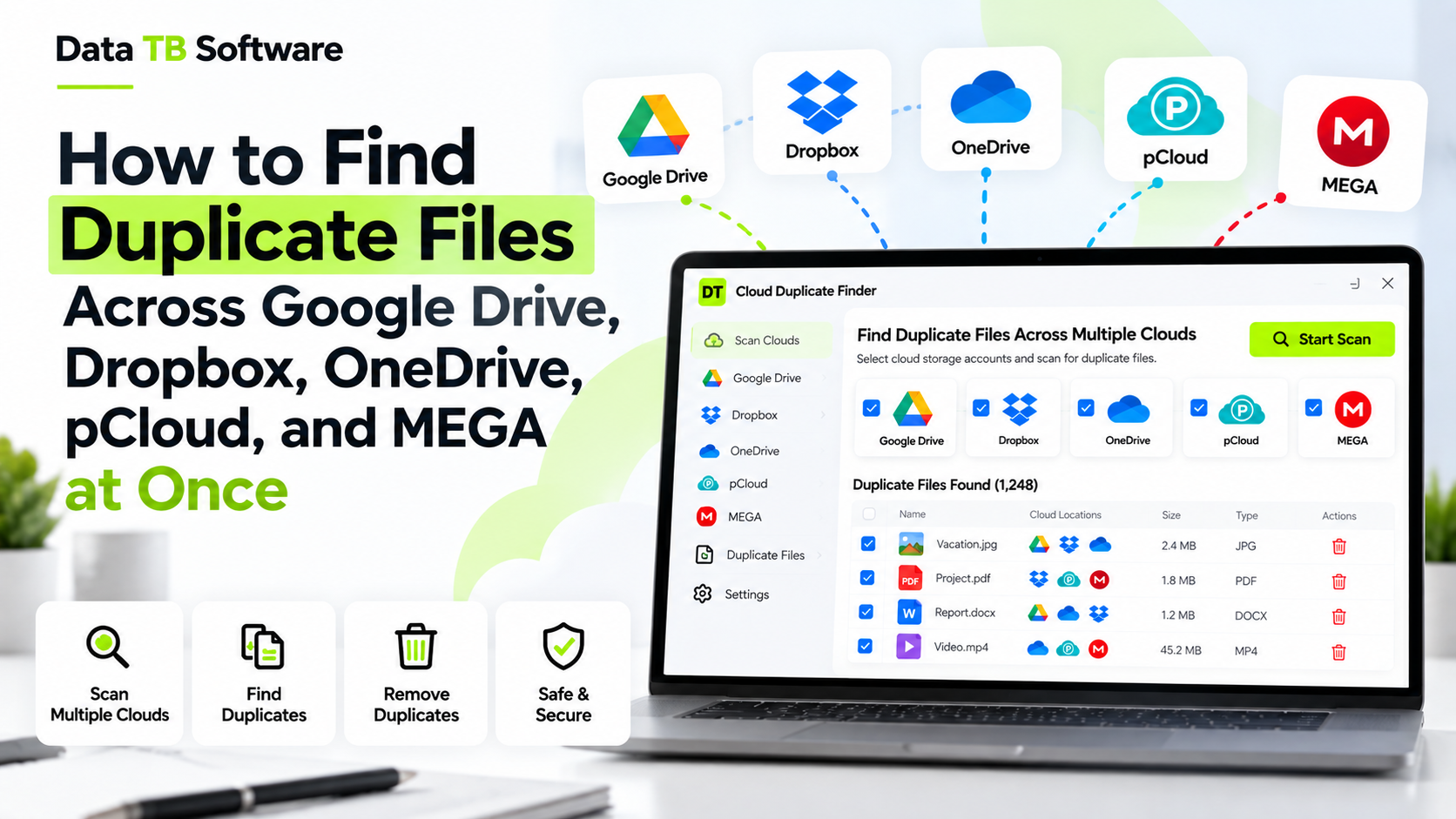
How to Find Duplicate Files Across Google Drive, Dropbox, and OneDrive at Once
Try DT Cloud Duplicate File Finder
Connect multiple cloud drives securely through official APIs. Find true content duplicates across Google Drive, Mega, Dropbox, OneDrive and more in one click.
If you have ever searched your own name in Google Drive and found the same PDF three times, or noticed your OneDrive storage climbing even though you cannot remember uploading anything new, you already know the problem. Files get copied, synced, backed up, and re-saved across accounts, and after a year or two of normal use, a meaningful chunk of what you are paying to store is not new content at all. It is the same file sitting in more than one place.
This becomes a real headache the moment more than one cloud provider is involved. Checking one drive for duplicates is tedious but doable. Checking whether a file in Google Drive is the same as one in Dropbox, which is also the same as a third copy sitting in OneDrive, is not something you can reasonably do by eye, folder by folder, across three separate web consoles.
This guide walks through why the problem happens, what the common manual and free approaches actually get wrong, and what an accurate, cross-cloud approach looks like in practice.
Why Duplicates Pile Up Across Multiple Clouds Specifically
A single cloud account collects duplicates slowly, through repeated uploads or a phone that backs up the same photo twice. Once a second or third provider enters the picture, the problem compounds in a way that is easy to miss.
A common pattern looks like this: a freelancer starts on Google Drive, a client insists on Dropbox for shared files, and a work laptop syncs everything through OneDrive by default. A project folder gets copied into Dropbox "just in case" before a handoff. A backup script mirrors a Google Drive folder into OneDrive for redundancy. A document gets re-saved with a slightly different filename during a review cycle and now exists as three unrelated-looking files across three services.
None of this happens because anyone did something wrong. It happens because none of these platforms have any way of knowing what exists in a different provider's storage. Google Drive cannot see your Dropbox account. Dropbox has no idea what is sitting in OneDrive. Every provider only manages what is inside its own walls, so the moment a workflow spans more than one, duplication becomes close to inevitable and invisible until the storage bill or the search results make it obvious.
What the Manual Method Actually Involves, and Where It Breaks Down
Searching for advice on this topic usually turns up the same manual approach: open each cloud drive, sort files by name or size, scan visually for anything that looks identical, and delete by hand. For a single, small folder this can work. For anything beyond that, it runs into three specific problems.
It only catches exact filename matches. A file called invoice_final.pdf and a copy saved a week later as invoice_final_v2.pdf look unrelated in a sorted list, even if the content inside is byte-for-byte identical. Independent testing on duplicate detection accuracy has found that filename or metadata-only comparisons miss the large majority of true duplicates once files have been renamed, moved, or re-saved even once, which is exactly what happens constantly across multi-cloud workflows.
It does not scale across three separate consoles. Comparing Google Drive against Dropbox against OneDrive by eye means three browser tabs, three different interfaces, and no shared view of what exists where. Beyond a few dozen files, this stops being realistic.
It offers no accuracy guarantee before deletion. Manually deleting a file that looks like a duplicate, based on a similar name and a similar size, carries real risk of removing something that only looks the same on the surface.
Free and DIY Options, and Their Trade-offs
A few more technical routes exist beyond pure manual sorting, and they are worth knowing about honestly.
Mounting drives with a tool like Rclone and running a local comparison utility works for people comfortable with a command line. It mounts cloud storage as local, read-only drives and then runs a byte-for-byte comparison across the combined file system. This avoids uploading anything to a third party and can be genuinely accurate when set up correctly, but it requires installing and configuring a separate mounting tool plus a separate comparison tool, understanding OAuth scopes, and being comfortable troubleshooting command-line output when something does not mount as expected. For a non-technical user, or anyone who wants this done in minutes rather than an afternoon, it is a lot of friction for what should be a routine cleanup task.
Browser extensions and web-based duplicate finders exist and are genuinely fast to set up, but most of them cover only a handful of consumer providers, typically Google Drive, OneDrive, Dropbox, and sometimes Box or Amazon S3. Business and developer storage like Azure Blob Storage, Google Cloud Storage, or a self-hosted Nextcloud instance is rarely supported. Match accuracy also varies significantly between tools; some rely on filename and size only, which brings back the renamed-file problem described above.
Dedicated desktop duplicate finders built for cloud storage tend to be the most complete option, since they connect through each provider's own API rather than requiring a manual mount step, and better ones offer a genuine content-hash comparison rather than a filename guess.
The Two Ways Duplicate Matching Actually Works
Whichever tool or method you choose, it comes down to one of two underlying approaches, and the difference matters more than most explanations give it credit for.
Matching by name and size. This is fast and catches the obvious cases: an exact re-upload, a synced copy that kept its original filename. It is a reasonable default when speed matters more than catching every last duplicate, but it will consistently miss a file that was renamed at any point, or the same content re-saved under a different name during editing.
Matching by content hash. A hash is a unique fingerprint generated from a file's actual content, independent of its name, its folder, or which cloud account it happens to sit in. Two files with a matching hash are identical byte for byte, no matter what they are called. This is the only method that reliably catches renamed duplicates, files re-saved during a review pass, and identical content sitting in completely different folders across completely different providers. It takes a little more processing time than a name-and-size check, but for anything beyond a quick first pass, it is the difference between a rough guess and an accurate result.
A Practical Workflow for Checking Google Drive, Dropbox, and OneDrive Together
Here is the version of this process that actually works across three separate cloud accounts without manually comparing folders by eye.
Step one: connect each account through official sign-in. Any tool worth using should authenticate through each provider's own OAuth login screen, the same one you would use to sign into Google Drive, Dropbox, or OneDrive directly, rather than asking for a password to be typed into a third-party app.
Step two: decide what to scan. Scanning an entire account works fine for a first pass, but being able to select a specific folder, such as a shared client folder or a photo backup folder, saves time on a targeted cleanup.
Step three: choose a fast pass or an accurate pass. Run a quick name-and-size scan if you just want an obvious first look, or a hash-based scan if you are preparing for a migration, closing out a project, or auditing storage before deciding whether to upgrade a plan.
Step four: review before anything is removed. Duplicates should be grouped and shown for confirmation, never deleted automatically. This matters even more once three separate accounts are involved, since the "original" and the "duplicate" are a judgment call the user should make, not the software.
Step five: remove to trash, not permanent deletion. Anything identified as a duplicate should go to that provider's own recycle bin or trash folder, so a mistaken match can still be recovered through the normal interface rather than being gone for good.
Comparing the Approaches
| Method | Setup effort | Accuracy | Works across 3+ different providers |
|---|---|---|---|
| Manual sorting by name/size | None, but very slow | Low, misses renamed files | Poor, no shared view |
| Rclone + local comparison tool | High, needs technical setup | Good if configured correctly | Yes, with manual work |
| Browser extension / web tool | Low | Varies, often name-based only | Usually limited to 2 to 4 providers |
| Dedicated desktop app with API connection and hash matching | Low, official sign-in per account | High, hash-based confirms exact matches | Yes, in one dashboard |
Why a Dashboard Approach Beats Checking Each Cloud Separately
The core problem with checking Google Drive, Dropbox, and OneDrive one at a time is not that any single check is hard. It is that duplicates across providers are, by definition, invisible from inside any one of them. Google Drive has no way to flag that a file already exists in Dropbox. The only way to actually catch a cross-provider duplicate is to compare all three accounts against each other in the same place, using the same matching method for all of them.
This is also where connecting more than one account per provider matters for anyone managing several Google Drive logins or a personal and a work OneDrive account side by side. A tool that only handles one account per provider at a time still leaves a real gap for freelancers, agencies, and small teams juggling multiple logins.
Frequently Asked Questions
Can I find duplicates across Google Drive, Dropbox, and OneDrive without downloading my files?
Will a name-based scan catch a file that was renamed?
Is it safe to connect a duplicate finder to my cloud accounts?
What happens if a tool deletes the wrong file?
Can I check just one folder instead of my entire account?
Do I need separate accounts for personal and business files to be checked separately?
The Bottom Line
Checking three separate cloud accounts by eye does not scale, and the free or DIY routes either demand real technical setup or only cover a couple of providers at name-and-size accuracy. The reliable approach is connecting Google Drive, Dropbox, and OneDrive through their own official sign-in, running a hash-based comparison across all three at once, and reviewing every match before anything moves to trash. Once that is set up, finding out how much of your storage is genuinely duplicate content usually takes minutes, not an afternoon of tab-switching.