
How to Migrate from Google Drive to OneDrive Without Downloading Anything (Guide)
Try DT Cloud Drive Suite Today
Mount Google Drive, OneDrive, Dropbox, and more as a real local drive on your PC. Native copy, move, delete, and stream speed.
Quick Answer
The fastest way to move files from Google Drive to OneDrive without saving anything to your computer's hard disk is to mount both drives as local drives and drag files directly from one to the other, the same way you would move files between two external hard disks plugged into the same PC. This skips the manual export, save, and reupload cycle entirely.
If you are moving a large amount of data and want the transfer to run unattended in the background even after you close your laptop, a server-to-server cloud transfer tool is the better fit for that specific job, and we cover that honestly further down. Both approaches solve "no download" in a different sense, and the right one depends on whether you want to sit with the migration or walk away from it.
Why the Old Method Is So Painful
Before getting into the actual methods, it helps to understand why this migration feels harder than it should. The traditional way to move data from one cloud to another is: open Google Drive, select files, download them, wait for a ZIP to build, save that ZIP to your hard disk, unzip it, open OneDrive, upload the extracted files, wait again, then delete the temporary copy sitting on your disk. For a few files this is annoying. For a few thousand files across nested folders, it is a multi-hour project that also temporarily eats however much disk space your entire Google Drive account holds.
Every method below exists to remove some part of that cycle. They do not all remove the same part, which is exactly why picking the right one matters.
Method 1: Mount Both Drives and Move Files Directly (Recommended for Most People)
This is where a tool like DT Cloud Drive Suite fits. Instead of a browser dashboard, it mounts Google Drive and OneDrive as two separate local drives on your system, the same way a USB drive appears the instant you plug it in. Once both are mounted:
1. Connect your Google Drive and OneDrive accounts in DT Cloud Drive Suite and click to mount them.
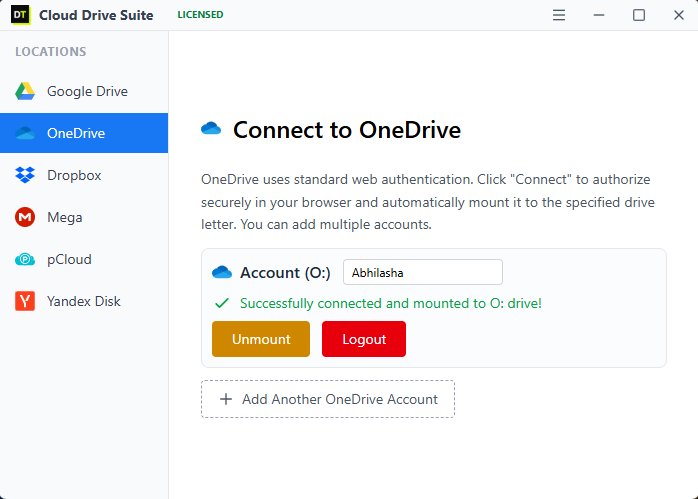 2. Open File Explorer. Google Drive and OneDrive both show up as regular drives.
 3. Select the files or folders you want to move in the Google Drive mount.
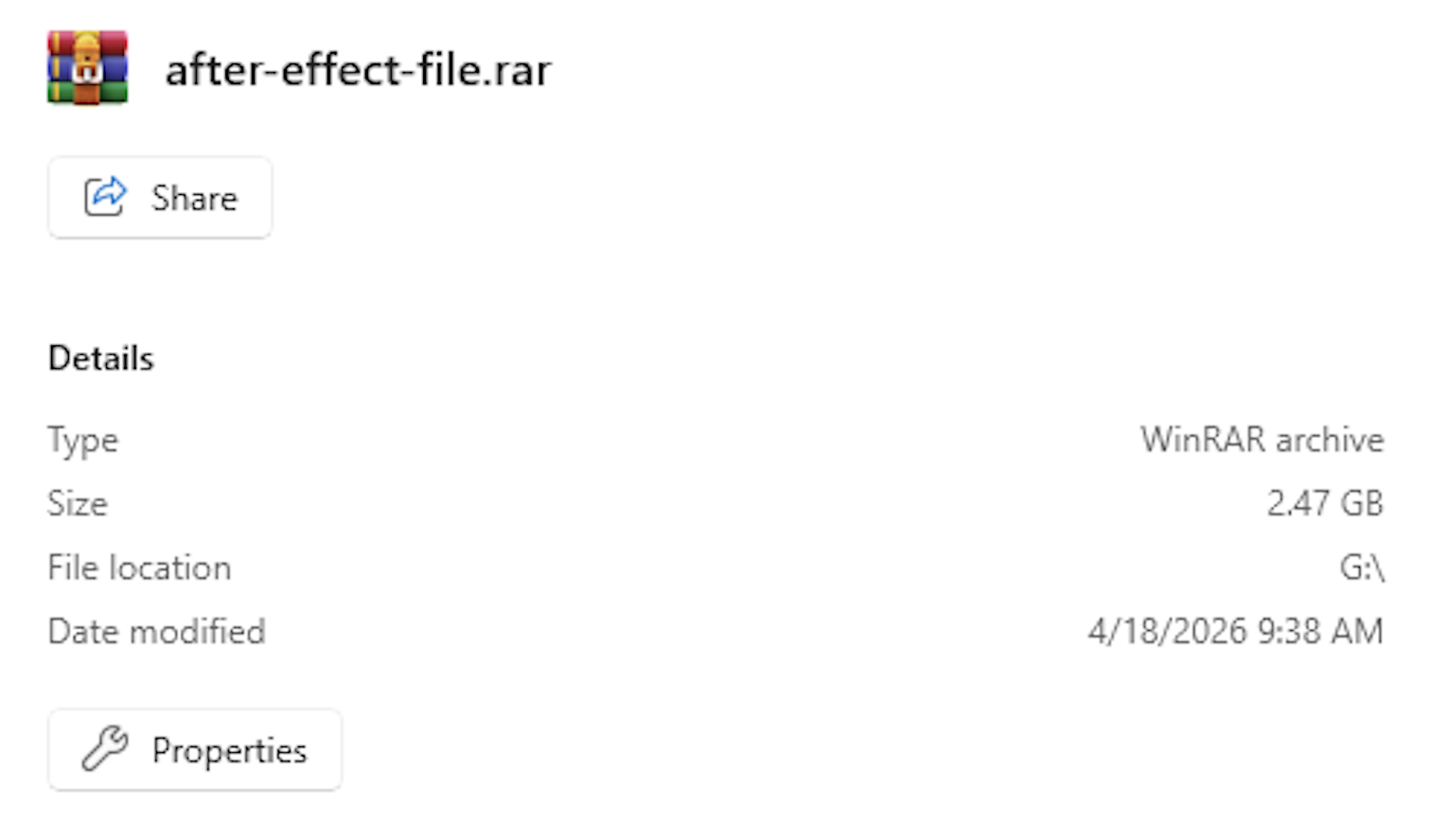 4. Copy and paste, or drag and drop, directly into the OneDrive mount.
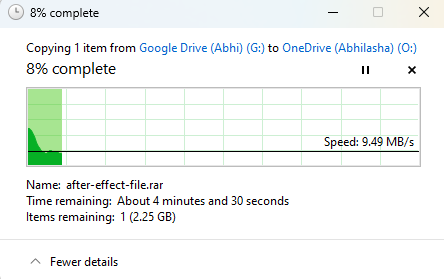
The transfer streams from one to the other. Nothing is saved permanently to your local hard disk in the process, and there is no ZIP file, no manual reupload step, and no ".zip has been extracted, now clean it up" chore afterward.
Being honest about how this actually works: because Cloud Drive Suite's job is only to mount the drives, the file data streams through your computer's network connection on its way from Google's servers to Microsoft's servers. This is different from a true server-to-server transfer tool that moves data entirely on the vendor's own infrastructure without touching your internet connection at all. What you gain instead: no monthly data traffic cap, no signing up for a third-party dashboard that holds OAuth access to both your cloud accounts at once, and full control over exactly which files move, in what order, with the same drag-and-drop precision you already know from using a regular file manager.
Why this is still the better default for most people: most Google Drive to OneDrive migrations are not multi-terabyte, unattended, walk-away-for-a-week jobs. They are a few gigabytes to a few hundred gigabytes of documents, photos, and project files that someone wants moved correctly, with the ability to check progress and fix a stray file along the way. For that job, sitting through a native-speed drag-and-drop with your own eyes on it beats waiting on a third-party server queue, especially once you factor in that most free-tier cloud transfer dashboards cap you at just a few gigabytes a month.
Method 2: Google Takeout
Google Takeout exports your Drive as a set of ZIP archives, which you can point at a OneDrive destination in some configurations, though in most cases it still lands as a ZIP that needs to be unpacked before OneDrive can use it properly.
Good for: a one-time full export of an account you are closing down, or as a backup step alongside another method.
Limitations: files shared with you (not owned by you) are not included by default and need to be handled separately. Large accounts get split into multiple archive parts. Google Docs, Sheets, and Slides get converted to Office or PDF formats during export, which can change formatting. It is not built for an ongoing or repeated migration, and it does not preserve folder sharing permissions.
Method 3: Manual Download and Upload
Select files in Google Drive, download them, then upload the same files into OneDrive through the browser. This is the method everyone already knows, and it is also the slowest and most error-prone one, since large batches frequently time out mid-download or mid-upload and leave you guessing which files actually made it across.
Good for: moving a handful of files when you do not want to install anything.
Limitations: does not scale past a small number of files, uses local disk space for the temporary download, and offers no real progress tracking across a large batch.
Method 4: Microsoft's Built-In OneDrive Import
OneDrive on the web has an option under settings to import cloud photos and files directly from a connected Google account for photo and media libraries specifically. It is genuinely a no-download method for the media types it supports.
Good for: Google Photos to OneDrive specifically.
Limitations: narrower in scope than a full Drive migration, and does not cover general documents, Sheets, or nested folder structures the way a full migration needs.
Method 5: Server-to-Server Cloud Transfer Tools (For Large, Unattended Migrations)
Tools built specifically as cloud-to-cloud transfer dashboards move data on their own servers, meaning the transfer can genuinely continue running after you close your browser or shut your laptop. This is the right tool when the job is large enough that you do not want to babysit it, for example migrating an entire shared team drive overnight.
The honest tradeoff: this convenience comes from routing your data through a third party's infrastructure, which means granting that third party OAuth access to both your Google and Microsoft accounts at the same time, and free tiers on these tools are typically capped at just a few gigabytes of monthly data traffic, with meaningful volume requiring a paid plan.
Comparison at a Glance
| Method | Touches your local disk | Runs unattended in background | Monthly data cap | Third-party access to both accounts | Best for |
|---|---|---|---|---|---|
| Mount and drag (DT Cloud Drive Suite) | No permanent copy, streams through your connection | No, needs your device connected | None | No | Hands-on migrations of any size, ongoing file management across both drives |
| Google Takeout | Yes, as a ZIP export | Runs as an export job, not continuous | None, but export size limits per archive | No | One-time full account export |
| Manual download/upload | Yes | No | None | No | A handful of files only |
| OneDrive built-in import | No | Partially | None | Limited to what you authorize | Google Photos specifically |
| Server-to-server transfer tools | No | Yes, genuinely continues after closing browser | Usually yes on free tier, removable on paid plans | Yes, holds access to both accounts | Large, unattended, one-off bulk jobs |
Which One Should You Actually Use
If you are an individual or freelancer moving personal files, project folders, or client documents from Google Drive to OneDrive, and you want to see and control exactly what moves, mounting both drives and dragging files across is the cleanest option. No signup dashboard, no data cap to track, no waiting in a queue.
If you are a small business consolidating a handful of team members' Drive accounts into OneDrive, the same mount-and-move approach still works well, since it is unlikely you are moving so much data that babysitting the transfer becomes a real burden, and you avoid handing a third-party dashboard simultaneous access to your company's Google and Microsoft accounts.
If you are an enterprise migrating hundreds of users or multiple terabytes of Shared Drive data as a one-time cutover, that is genuinely the scenario a dedicated server-to-server migration tool or Microsoft's own Migration Manager is built for, since you want the job to run unattended overnight without anyone watching a progress bar. Worth budgeting for the traffic cap this involves.
Frequently Asked Questions
Does mounting Google Drive and OneDrive use my internet bandwidth?
Yes. Since the file data streams from Google's servers to Microsoft's servers through your device's connection, this method does use your bandwidth for the duration of the transfer, unlike a pure server-to-server tool. What it avoids is the disk space and the manual export-import steps, not the network usage itself.Do I need to keep my computer on during the transfer?
Yes, for a mount-based transfer, since your device is the bridge between the two drives. For a large batch, run it while you are working on something else rather than expecting a true background job that survives a shutdown.Will file permissions and sharing settings carry over?
No method covered here fully preserves Google Drive sharing permissions on the OneDrive side, since the two platforms handle sharing differently. Re-share files after the migration completes.What happens to Google Docs, Sheets, and Slides?
They need to be converted to Office formats (or PDF) at some point in every method, since OneDrive does not natively store Google's document formats. Google Takeout does this automatically during export; with a mount-based copy, downloading a Google Doc through the mount typically converts it to the matching Office format at that point.Is there a file size limit with the mount method?
No, mounting a drive does not impose its own size limit beyond whatever the individual cloud provider already enforces on a single file.What Users Say About This Method
"I had about 350GB of client video files in Google Drive. Downloading them locally first was impossible. I mounted both drives and dragged the folders across. Easiest migration ever." , Freelance Video Editor"
"Google Takeout split our shared drive into multiple ZIP files and broke the structure. By mounting the drives directly, we copied the exact tree structure straight into OneDrive." , IT Coordinator"