
How to Schedule SQL Server Express Backups Without SQL Server Agent
SQL Server Express does not include SQL Server Agent, so it cannot run scheduled backup jobs or maintenance plans on its own. To schedule SQL Server Express backups without SQL Server Agent, you hand the scheduling to something outside SQL Server, such as Windows Task Scheduler, a script, or a backup tool, and let SQL Server do only the part it is good at: writing the backup.
That sounds simple until you realize that a backup schedule is more than a backup command on a timer. A schedule that runs but never deletes old files fills the disk. A schedule that fails quietly gives you a false sense of safety. A schedule that only writes to the same drive as the database disappears together with that drive.
This guide covers four working ways to do it, in the order most people try them. Every method is explained with the exact commands, the settings that cause silent failures, and a way to prove each backup actually worked.
The quick answer
| If you want | Use |
|---|---|
| Free and you are comfortable with scripts | Task Scheduler + sqlcmd + Microsoft's sp_BackupDatabases (Method 1) |
| Free, with built-in verification and cleanup | Ola Hallengren's DatabaseBackup (Method 2) |
| One schedule for SQL Server plus other databases, with cloud copies and no scripting | A GUI backup tool such as DT Database Backup Wizard (Method 3) |
-b switch, schedule that batch file in Task Scheduler, delete old files in the same batch file, and check msdb to confirm the backups really exist. The rest of this article shows how, and what goes wrong.
Why SQL Server Express cannot schedule its own backups
SQL Server Agent is the Windows service that runs scheduled jobs inside a SQL Server instance. Every paid edition ships with it. Express does not. Microsoft's own documentation states that without Agent you cannot schedule jobs or maintenance plans, and that the supported workaround is the combination of the sp_BackupDatabases stored procedure, the sqlcmd utility and Windows Task Scheduler.
Two consequences catch people out:
- Maintenance Plans are gone too. The Maintenance Plan Wizard in SSMS builds jobs that run under SQL Server Agent. No Agent, no wizard-based backup schedule.
- Nothing warns you. An Express instance will run for years without a single backup unless something outside SQL Server triggers one. There is no job history, no failure alert and no retry, because there is no job engine.
A note on Express limits that affect backups
Express has long been capped at 10 GB per database (data files, not the log), about 1 GB of memory for the database engine and one socket with up to four cores. Sources indicate SQL Server 2025 Express raises the database cap to 50 GB, so check Microsoft's current edition table for your version. For backups the practical effect is simple: full backups of small Express databases finish quickly and rarely stress the server, so a nightly full backup is realistic for most installations. The bigger risk is not performance. It is that nobody remembers to schedule anything.
What a real backup schedule has to do
Before choosing a method, decide what "done" looks like. A schedule that only runs BACKUP DATABASE at 2 a.m. is missing four things:
1. Run on time, even if nobody is logged in and even if the machine was off at 2 a.m. 2. Fail loudly. A failed backup must be visible without opening a log file by accident. 3. Rotate. Old backups must be deleted automatically, or the drive fills and the next backup fails. 4. Leave the machine. At least one copy must live somewhere that survives the loss of the server (the 3-2-1 rule: three copies, two media types, one offsite).
Microsoft's article is honest about this. It notes that the method does not delete old backup files, has no built-in job history, no retry logic and no failure alerts. The methods below add those missing pieces one at a time.
Method 1: Task Scheduler + sqlcmd + sp_BackupDatabases (Microsoft's method)
This is the officially documented route and it works on every Express version. You need sysadmin rights on the instance, a backup folder with enough free space, and permission to create scheduled tasks.
Step 1: Create the stored procedure once
Download Microsoft's SQL_Express_Backups.sql script (linked from the Microsoft article above), then run it against the master database. From a command prompt:
sqlcmd -S .\SQLEXPRESS -E -i "C:\Temp\SQL_Express_Backups.sql"Confirm it exists:
SELECT name, create_date FROM master.sys.procedures WHERE name = 'sp_BackupDatabases';The procedure takes three parameters: @backupLocation (the folder, which must already exist), @backupType (F full, D differential, L log) and an optional @databaseName. If you leave out the database name, it backs up every online database on the instance. It never backs up tempdb, and it skips master for differential and log backups.
One trap worth knowing: the script has hardcoded exclusions for the sample databases Northwind, pubs and AdventureWorks. If your production database happens to carry one of those names, it is skipped without any error.
Step 2: Write the batch file (with logging and cleanup)
Microsoft's examples are a single line. A batch file you can trust in production needs a bit more. Save this as D:\SQLBackups\Sqlbackup.bat:
@echo off
set BACKUPDIR=D:\SQLBackups
set LOG=%BACKUPDIR%\backup_log.txt

echo [%date% %time%] Backup started >> "%LOG%"

sqlcmd -S .\SQLEXPRESS -E -b -Q "EXEC sp_BackupDatabases @backupLocation='%BACKUPDIR%\', @backupType='F'" >> "%LOG%" 2>&1

if errorlevel 1 (
  echo [%date% %time%] BACKUP FAILED >> "%LOG%"
  exit /b 1
)

echo [%date% %time%] Backup finished >> "%LOG%"

REM Delete backups older than 14 days, only after a successful run
forfiles /p "%BACKUPDIR%" /m *.bak /d -14 /c "cmd /c del @path" >> "%LOG%" 2>&1

exit /b 0
Three details in that file matter more than they look:
1. The -b switch. Without it, sqlcmd returns exit code 0 even when the backup fails, and Task Scheduler happily reports success. With -b, any SQL error with severity above 10 returns code 1. Microsoft calls this out explicitly. It is the single most common reason people believe they have backups when they do not.
2. Cleanup runs only after success. If tonight's backup fails, the script exits before deleting anything, so your last good backup is never the one that gets rotated out.
3. Windows Authentication (-E) means the account that runs the scheduled task needs a login with backup rights in SQL Server. If you use SQL authentication instead, the password sits in the batch file in clear text, so lock down the folder permissions.
For transaction log backups, change @backupType to 'L'. Log backups need the database in the full or bulk-logged recovery model and at least one earlier full backup. Check which model each database uses:
SELECT name, recovery_model_desc FROM sys.databases ORDER BY name;If a database is in the simple recovery model, log backups are not possible and not needed. Your recovery point is the time of the last full or differential backup.
If a newer sqlcmd build refuses to connect with a certificate error on a local instance, adding the -C switch (trust server certificate) is the usual fix.
Run the batch file by hand once, from a command prompt opened as the same user that will own the scheduled task, and confirm .bak files appear. Fixing problems now is far easier than decoding Task Scheduler codes later.
Step 3: Schedule it in Task Scheduler (and set the options people skip)
Create the task with Create Basic Task, choose Daily, pick a quiet hour, select Start a program and browse to Sqlbackup.bat. Tick Open the Properties dialog before finishing, then change these settings:
| Setting | Where | Why it matters |
|---|---|---|
| Run whether user is logged on or not | General | Without it the backup only runs while that user is signed in |
| Run with highest privileges | General | Avoids permission surprises on protected folders |
| Run task as soon as possible after a scheduled start is missed | Settings | A server that was off at 2 a.m. still takes its backup when it comes back |
| If the task fails, restart every 10 minutes, up to 3 times | Settings | This is the retry logic Microsoft's method does not otherwise have |
| Stop the task if it runs longer than 2 hours | Settings | Stops a stuck backup from blocking tomorrow's run |
\\server\share\SQLBackups) rather than a mapped drive letter if you back up to a network share. Mapped drives belong to an interactive session, and a task that runs while nobody is logged in cannot see them.
The permission mistake that wastes an afternoon:
The backup file is written by the SQL Server service account, not by the user who runs the task. If you point the backup at a new folder and get "Operating system error 5 (Access is denied)", the fix is to grant the service account (for a default Express install, NT Service\MSSQL$SQLEXPRESS) modify rights on that folder. Giving your own user full control changes nothing.
Step 4: Prove it ran
After the first scheduled run, check three things:
1. New .bak files exist in the folder, with a date and time stamp in the name.
2. In Task Scheduler, the task's Last Run Result shows 0x0. With -b in place, 0x1 means the backup command failed.
3. The backup history in msdb has a fresh row:
SELECT
    bs.database_name,
    bs.type,
    bs.backup_start_date,
    bs.backup_finish_date,
    bmf.physical_device_name
FROM msdb.dbo.backupset AS bs
JOIN msdb.dbo.backupmediafamily AS bmf
    ON bs.media_set_id = bmf.media_set_id
ORDER BY bs.backup_start_date DESC;
Microsoft puts it bluntly: a task that Task Scheduler reports as successful is not proof that the backup succeeded. Always confirm the files and the history.
Where Method 1 falls short: no alerts, no built-in verification, cleanup by file age only, and no offsite copy unless you add another step. For one or two small databases, that is often acceptable. For anything a business depends on, move to Method 2 or 3.
Method 2: Ola Hallengren's Maintenance Solution
Ola Hallengren's free SQL Server Maintenance Solution is the standard DBA answer on every edition, including Express. The DatabaseBackup stored procedure covers what the Microsoft procedure leaves out: backup checksums, post-backup verification, per-database folders, and automatic cleanup by age.
Install it by running MaintenanceSolution.sql on the instance. The script's variable block has a @CreateJobs option that creates SQL Server Agent jobs. Express has no Agent, so set it to 'N' before running the script. You only need the stored procedures.
Then call it from a batch file, exactly like Method 1:
sqlcmd -E -S .\SQLEXPRESS -d master -b -Q "EXECUTE dbo.DatabaseBackup @Databases = 'USER_DATABASES', @Directory = N'D:\SQLBackups', @BackupType = 'FULL', @Verify = 'Y', @CheckSum = 'Y', @CleanupTime = 336, @LogToTable = 'Y'"What each option does:
@Databases = 'USER_DATABASES'backs up every user database and skips system databases. Use a comma-separated list to be specific.@Verify = 'Y'runs a verify-only check on the backup file after it is written.@CheckSum = 'Y'writes page checksums into the backup so corruption is detected.@CleanupTime = 336deletes backups older than 336 hours (14 days) after a successful backup.@LogToTable = 'Y'writes each run to a command log table, which gives you the run history that Express otherwise lacks.
@BackupType = 'LOG' on a shorter interval.
Where Method 2 falls short: it is excellent, but it is still a script. There is still no failure email, still no offsite copy, and someone has to understand it well enough to maintain it after you move on. In small companies that "someone" is often nobody.
Method 3: A GUI backup tool (no scripts, with cloud copies)
If you would rather not own a pile of batch files, a dedicated backup tool replaces the scripts, the scheduler and the cleanup with one screen. Several commercial tools exist for this. Here is how it looks with DT Database Backup Wizard, a Windows application that connects to SQL Server (any edition) and runs scheduled backups without T-SQL or SQL Server Agent.
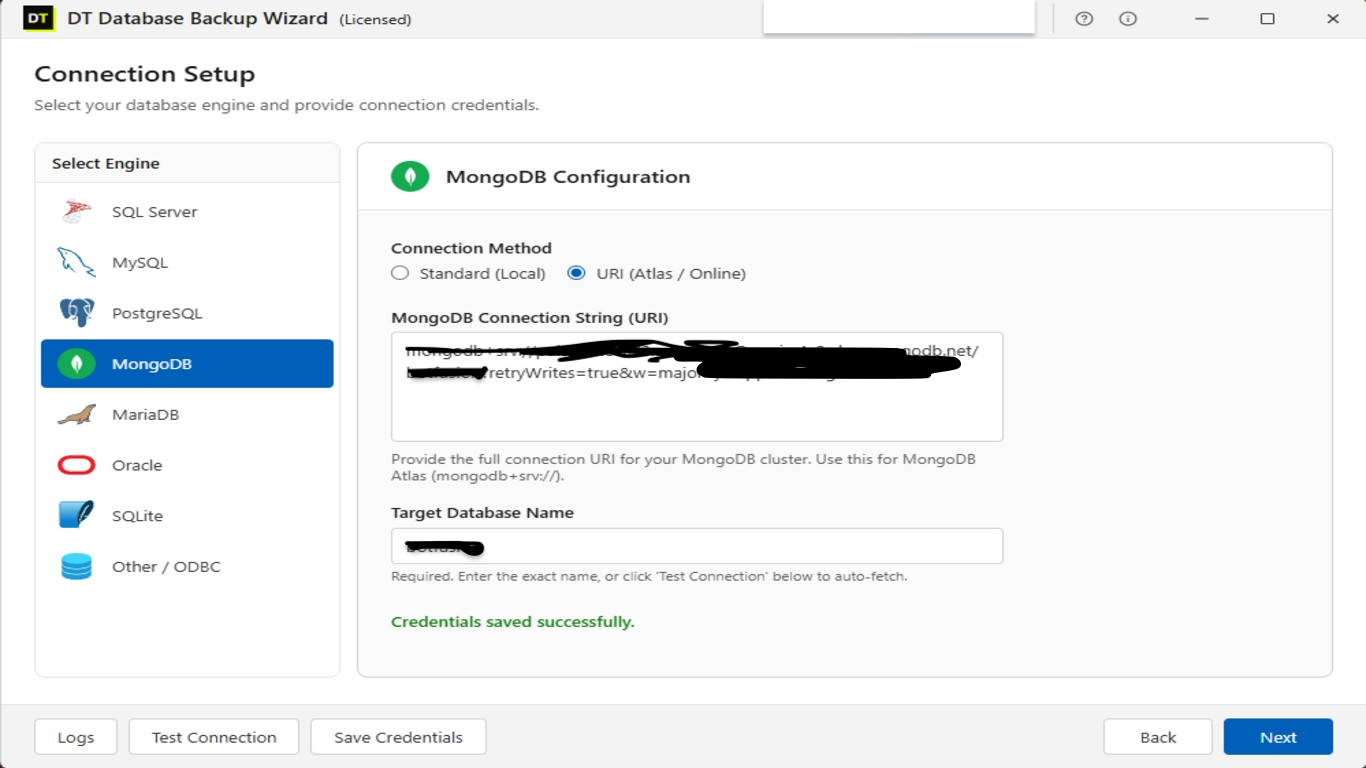
1. Connect the database. Choose SQL Server as the engine, enter the instance details and test the connection. Nothing is scheduled against a connection that has not been verified.
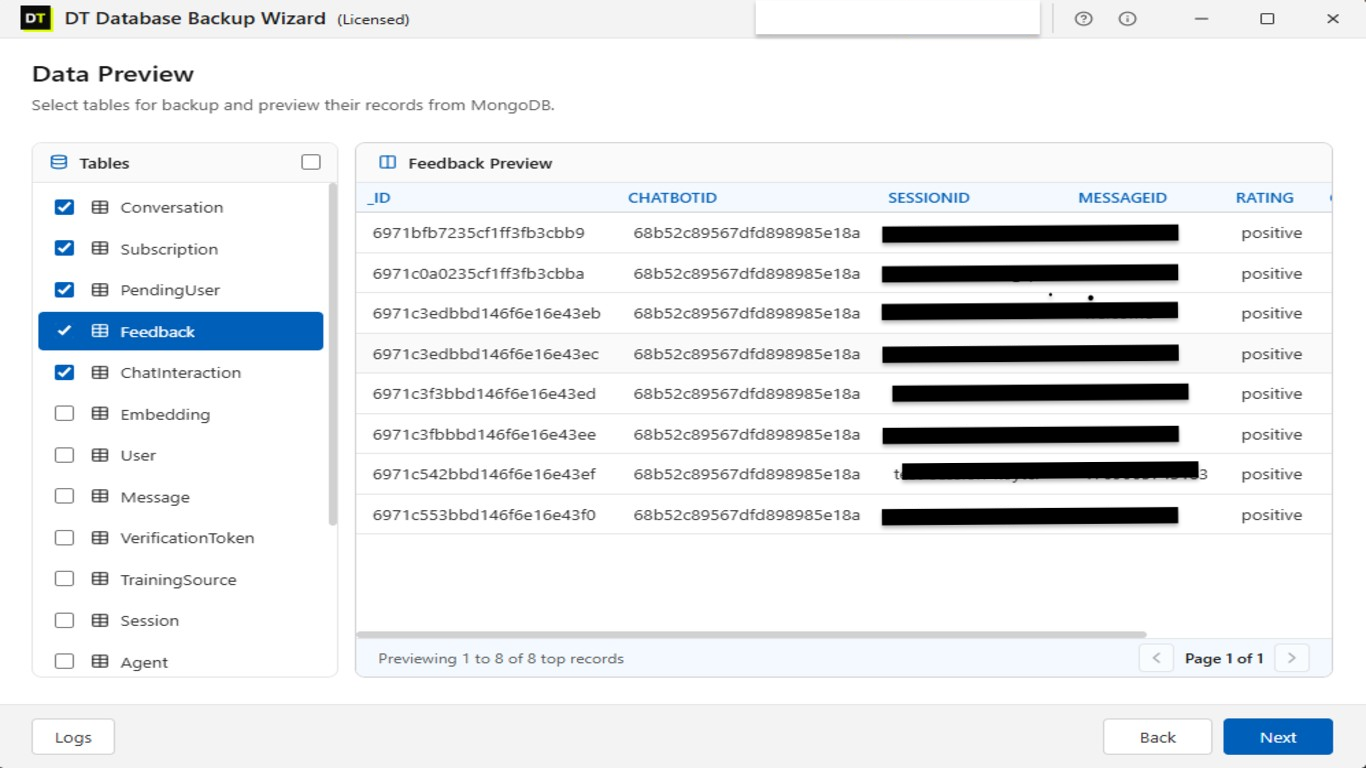
2. Preview the data (optional). A live preview lists the tables and records so you can see what is being backed up.
3. Configure the backup. Choose a native full backup in the database's own format (the right choice if you plan to restore with SQL Server), pick schema only, data only or both, and optionally turn on compression and encryption. Set a retention policy so old backups delete themselves, and choose whether file names carry a timestamp or overwrite the previous file.
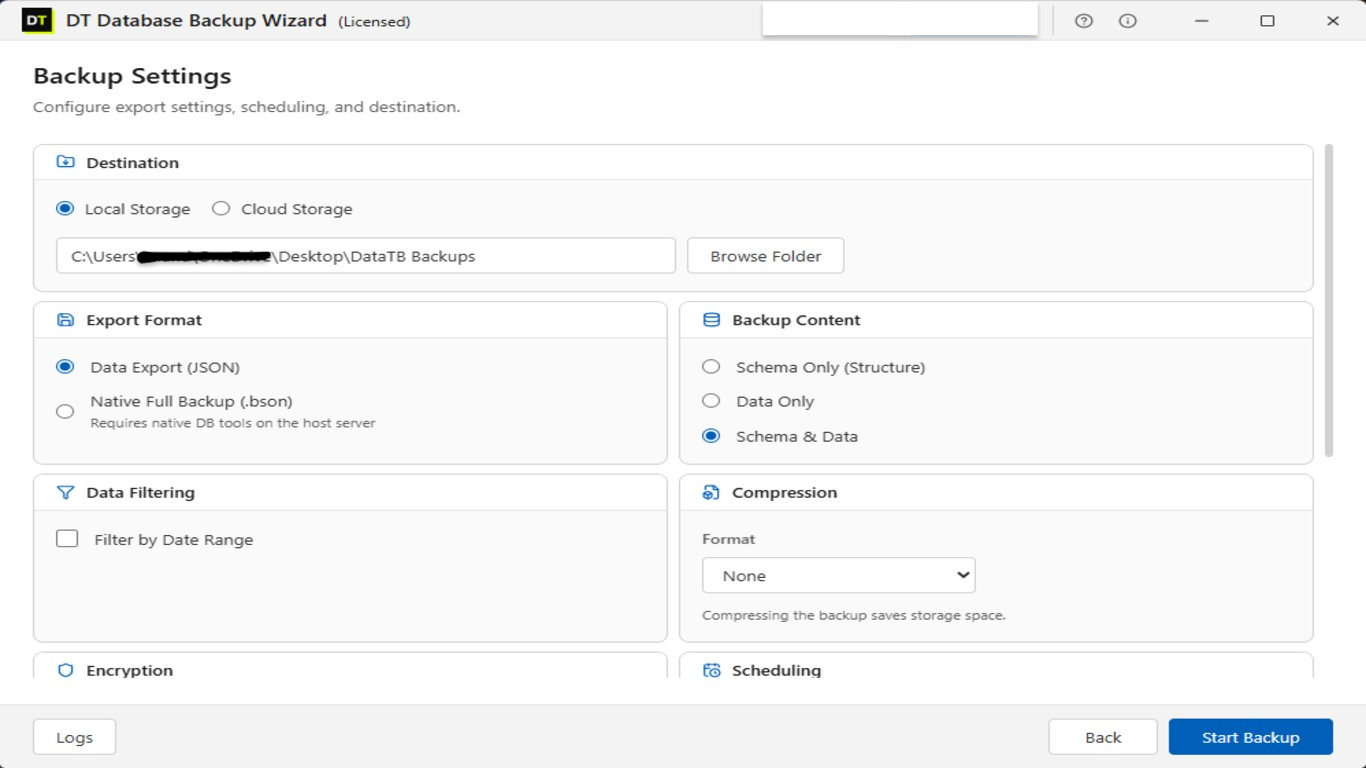
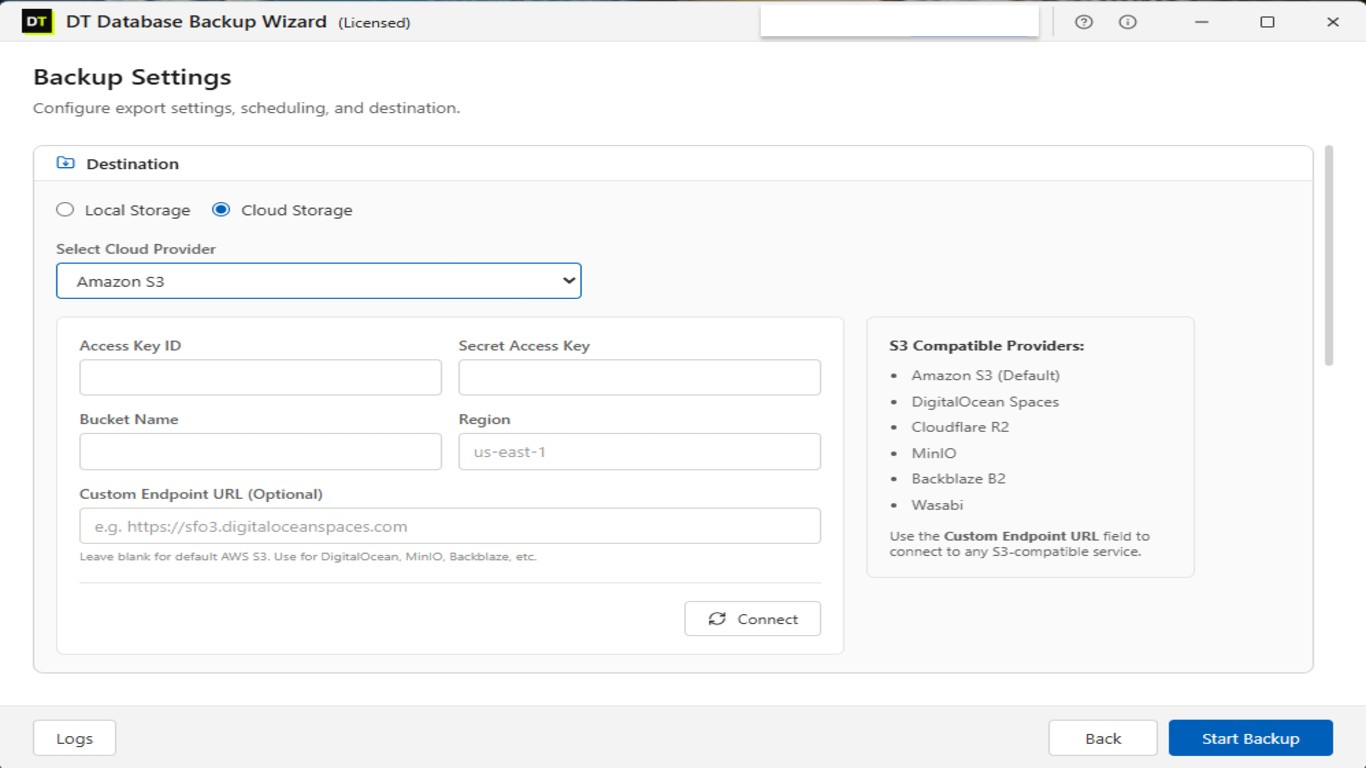
4. Choose a destination. Save locally, or send the backup to FTP, SFTP, Amazon S3, OneDrive, Google Drive or MEGA. FTP is unencrypted, so use SFTP for anything sensitive.
5. Schedule it. Pick hourly, daily, weekly or a custom interval. The Backup Control Center lists every schedule, and the run history records each run with its time, trigger, status and message, so a failed run shows up as failed with the actual error.
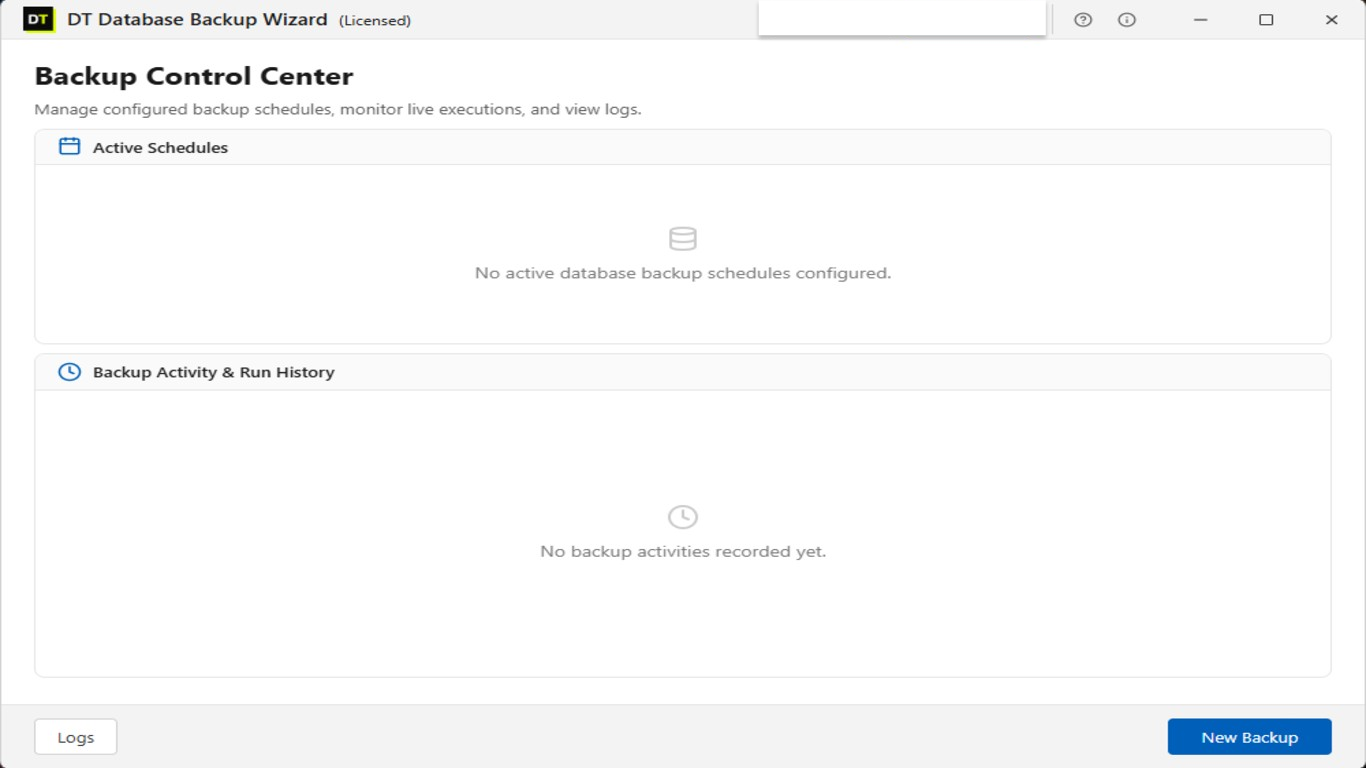 That covers the four gaps from earlier: it runs on a schedule, failures are visible in the run history, retention is automatic, and a cloud destination gives you the offsite copy.
Be honest about the trade-offs. It is a paid tool: the free demo lets you test the connection and run a limited number of manual backups, while scheduled automation, cloud destinations and retention are in the full version. It is also a Windows application, so it suits Windows-hosted Express instances. Its real advantage is not that scripts cannot do the job. They can. It is that one schedule, one dashboard and one set of retention rules also cover MySQL, PostgreSQL, MongoDB and other engines if your stack is mixed.
Which method should you use?
| Feature | Task Scheduler + sqlcmd | Ola Hallengren | GUI tool (DT Database Backup Wizard) |
|---|---|---|---|
| Cost | Free | Free | Paid for scheduling |
| Setup time | 30 to 40 minutes | 45 to 60 minutes | About 10 minutes |
| Skill needed | Basic T-SQL and batch files | Comfortable with stored procedures | None |
| Old backup cleanup | Manual (forfiles) | Built in (@CleanupTime) | Built in (retention policy) |
| Backup verification | Manual | Built in (@Verify, @CheckSum) | Test restores recommended |
| Run history | Task Scheduler + msdb | Command log table | Backup Control Center |
| Offsite or cloud copy | Extra step you build | Extra step you build | Built in (S3, SFTP, OneDrive and more) |
| Covers other engines | No | No | Yes |
| Best for | One or two small databases | DBAs who want control | Mixed environments, no-script teams |
How to check that your backups actually work
A backup you have never restored is a hope, not a backup. Three checks, in rising order of confidence:
1. Find databases that were never backed up.
This query lists every database with the time of its last full backup. NULL means it has never had one.
SELECT
    d.name,
    MAX(b.backup_finish_date) AS last_full_backup
FROM sys.databases AS d
LEFT JOIN msdb.dbo.backupset AS b
    ON b.database_name = d.name
    AND b.type = 'D'
WHERE d.name <> 'tempdb'
GROUP BY d.name
ORDER BY last_full_backup;
Run it monthly. It catches the database someone added after you set up the schedule.
2. Verify the file.
RESTORE VERIFYONLY FROM DISK = N'D:\SQLBackups\YourDB_FULL.bak';This confirms the file is readable and complete. It does not prove the data inside is restorable.
3. Do a real restore. Restore the latest backup to a different name on a test instance and run a few queries:
RESTORE DATABASE YourDB_Test
FROM DISK = N'D:\SQLBackups\YourDB_FULL.bak'
WITH MOVE 'YourDB' TO N'D:\Data\YourDB_Test.mdf',
     MOVE 'YourDB_log' TO N'D:\Data\YourDB_Test_log.ldf';
Do this at least once per quarter. Check the logical file names first with RESTORE FILELISTONLY.
Mistakes that break Express backup schedules
- Backing up to the same drive as the database. One disk failure takes both. Keep one copy on a different disk and one offsite.
- Forgetting the -b switch. Failed backups look like successes.
- Mapped network drives in a scheduled task. They are invisible to a task running without a logged-in session. Use UNC paths.
- Granting folder rights to the wrong account. SQL Server's service account writes the file, not you.
- Never deleting old files. Microsoft's procedure does not clean up. Add retention yourself or the disk fills.
- Running only full backups on a database that changes all day. If you cannot afford to lose a day of data, use the full recovery model with log backups every 15 to 60 minutes.
- Never testing a restore. The most expensive mistake on this list.
Frequently asked questions
Does SQL Server Express include SQL Server Agent?
Can I use Maintenance Plans in SQL Server Express?
Will Task Scheduler run my backup if nobody is logged in?
How do I know if a scheduled backup failed?
-b switch in your sqlcmd command so failures return exit code 1, then check Task Scheduler's Last Run Result (0x1 means failure) and the msdb.dbo.backupset history. Neither method sends an alert by itself, so add a monthly check query or use a tool that shows failures in a run history.How often should I back up SQL Server Express?
Does this work for SQL Server Express LocalDB?
Can I back up SQL Server Express to the cloud?
Does DT Database Backup Wizard work with SQL Server Express?
Conclusion
SQL Server Express saves real money, and the missing SQL Server Agent is a gap you can close in an afternoon. For one or two small databases, Microsoft's Task Scheduler method with the -b switch, a cleanup line and a monthly msdb check is enough. If you want verification and tidy retention for free, Ola Hallengren's procedures are the standard answer. And if you would rather have one dashboard with built-in retention, cloud destinations and a run history, with no scripts to maintain, a tool like DT Database Backup Wizard does that job, including for the other database engines in your stack.
Whichever you choose, finish with the same two steps: put a copy somewhere other than the server, and restore it at least once to prove it works.