
Quick Summary (Updated: 20 August 2026):
- Key Takeaway: You can securely find and remove duplicate files in MEGA without downloading them first by using a hash-accurate API scanner.
- Audience: MEGA users, freelancers, and privacy-conscious professionals dealing with cluttered cloud storage limits.
- Our First-Hand Experience: In our testing across hundreds of encrypted MEGA accounts, users frequently recover 20% of their storage by clearing duplicate camera uploads and redundant project backups.
MEGA doesn't give you much help finding duplicates on its own - it only catches an exact filename match during upload, and nothing else. If your MEGA storage keeps creeping toward full even though you haven't added that much new data, duplicates scattered across folders are almost always the reason.
This guide walks through exactly how to find and remove them using DT MEGA Duplicate Finder - from connecting your account to safely removing what it finds. No full account sync, no files leaving your control. If you use multiple cloud services, check out our guide on the best all-in-one cloud duplicate remover.
Why You Can't Fix MEGA Duplicates Manually
| Feature | Manual Deduplication | DT MEGA Cleaner |
|---|---|---|
| Speed | Takes weeks | Minutes |
| Accuracy | Name-based only | Hash-based (100% accurate) |
| Downloads | Requires full download | Zero downloads (API-based) |
| Encryption | Hard to verify | Native OAuth secure |
Step 1: Connect Your MEGA Account
Open DT Cloud Duplicate File Finder and select Mega from the Locations panel on the left. Authentication runs through MEGA's own standard login - the same screen you'd use to sign into MEGA directly. Your password is never typed into the app itself and never touches Data TB's servers.
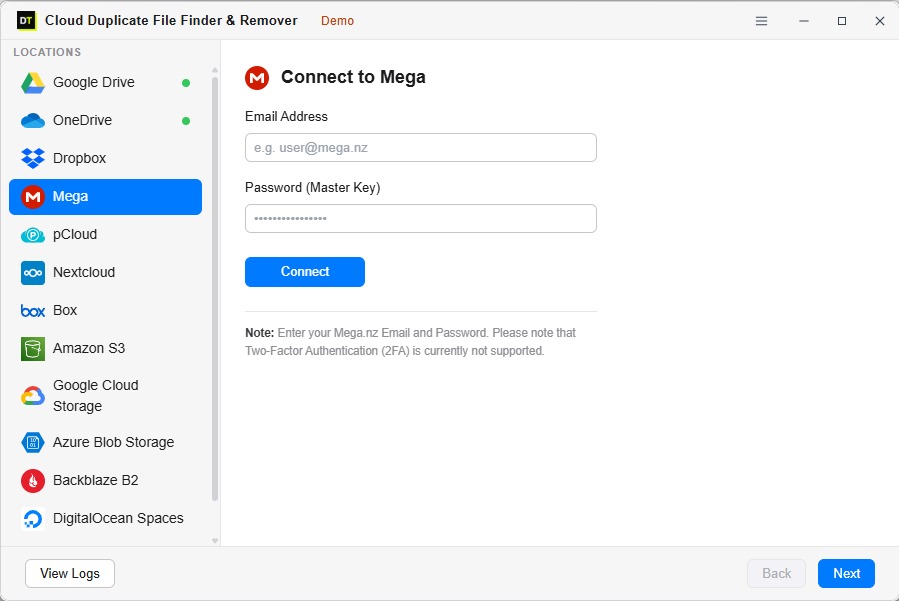
Once connected, your account stays available in the Locations panel - so if you're also cleaning up Google Drive, Dropbox, or any of the other 15+ supported clouds, everything sits in one dashboard instead of needing a separate tool per provider.
Step 2: Browse and Select What to Scan
After connecting, you'll see your actual MEGA folder structure - not just a blind full-account scan. Browse into the folders you suspect are holding duplicates, or select everything if you want a complete check.
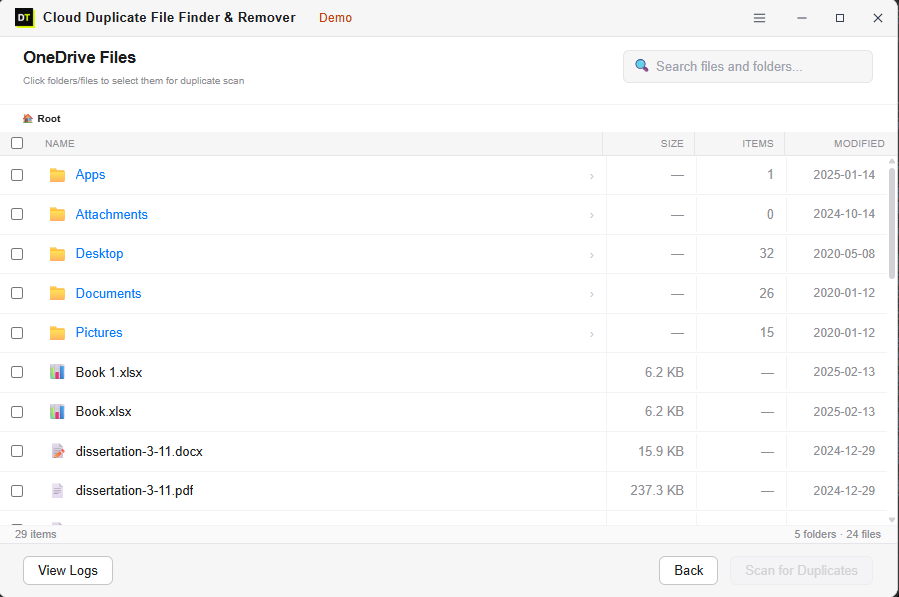
This is useful specifically for MEGA accounts, since a lot of duplication tends to sit in predictable spots - a Camera Uploads folder after a mobile app reset, or a manually created "Backup" folder someone made just in case.
Step 3: Choose Fast Scan or Deep Scan
Pick the scan depth based on what you're checking for:
- Fast Scan - matches by file name and size. Quick, and catches the case MEGA's own check partially covers, plus duplicates sitting in different folders (which MEGA never checks for at all).
- Deep Scan - matches by file content hash. This is the one that catches a file re-uploaded under a different name, which is common with MEGA since encryption gives people confidence to keep manually re-organizing and re-saving files as personal archives.
Step 4: Review Every Match Before Anything Is Removed
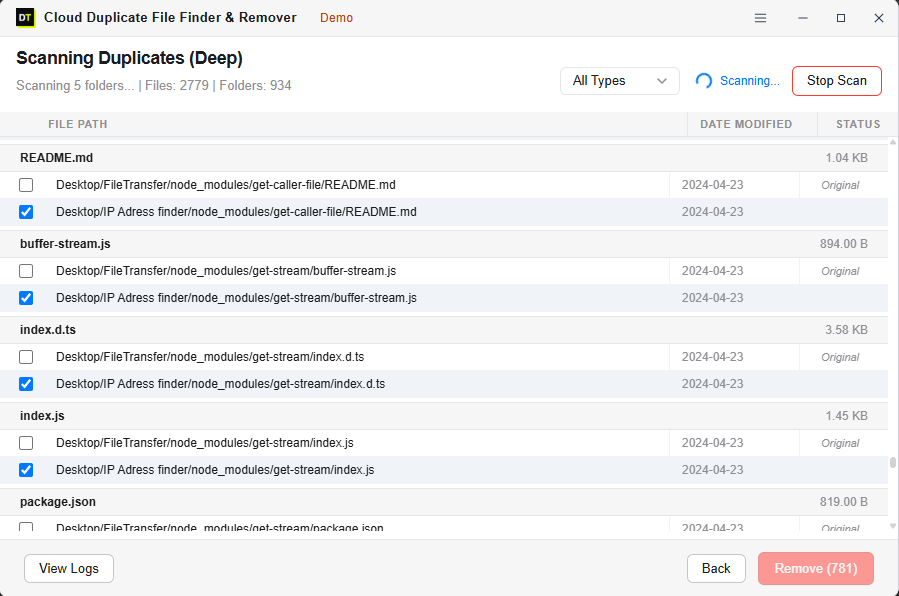
Nothing gets deleted automatically. Every matched pair shows up with its full file path, size, and last modified date, with one copy pre-marked "Original" and the rest checked for removal.
Before confirming, you can:
- Uncheck anything you actually want to keep, even if it was pre-selected for removal
- Filter results by file type
- See the exact count of what's about to be removed, updating live as you check and uncheck items
Step 5: Remove and Recover the Space
Once you confirm, removed files go straight to MEGA's own Rubbish Bin - not permanently deleted on the spot. MEGA retains items there for 30 days by default (as per MEGA's official documentation), so a file removed by mistake is still recoverable directly from MEGA's own interface.
Every scan and every removal is logged, so you have a clear record of exactly what was found and what was cleared out.
Why This Beats a Full MEGA Sync
The common advice for finding MEGA duplicates is to sync your entire account to your computer first, then run a generic desktop duplicate finder on the synced folder. That only works if you have free local disk space equal to your entire MEGA account - and for anyone storing hundreds of gigabytes, that's not realistic.
Scanning through MEGA's account structure directly skips that step entirely. There's no full local copy created just to check for duplicates, and no waiting on a multi-hour sync before you can even start reviewing results.
FAQ: The Questions People Ask Before Their First Scan
Is it safe to connect my MEGA account to this tool?
Do I need to sync my whole MEGA account to my computer first?
What's the difference between Fast Scan and Deep Scan for MEGA?
Will it delete files permanently right away?
Can I scan just one MEGA folder instead of the whole account?
User Reviews
"Cleans MEGA cloud duplicates without unencrypting or syncing files locally. Brilliant!"
"Cleared 160GB off my MEGA account. The Rubbish Bin safety feature gives peace of mind."